2018 VOLVO S60 trip
[x] Cancel search: tripPage 75 of 396
INSTRUMENTS AND CONTROLS
}}
* Option/accessory.73
Information displays – trip odometer and clock The trip odometers
T1 and T2 and clock are dis-
played in the instrument panel.
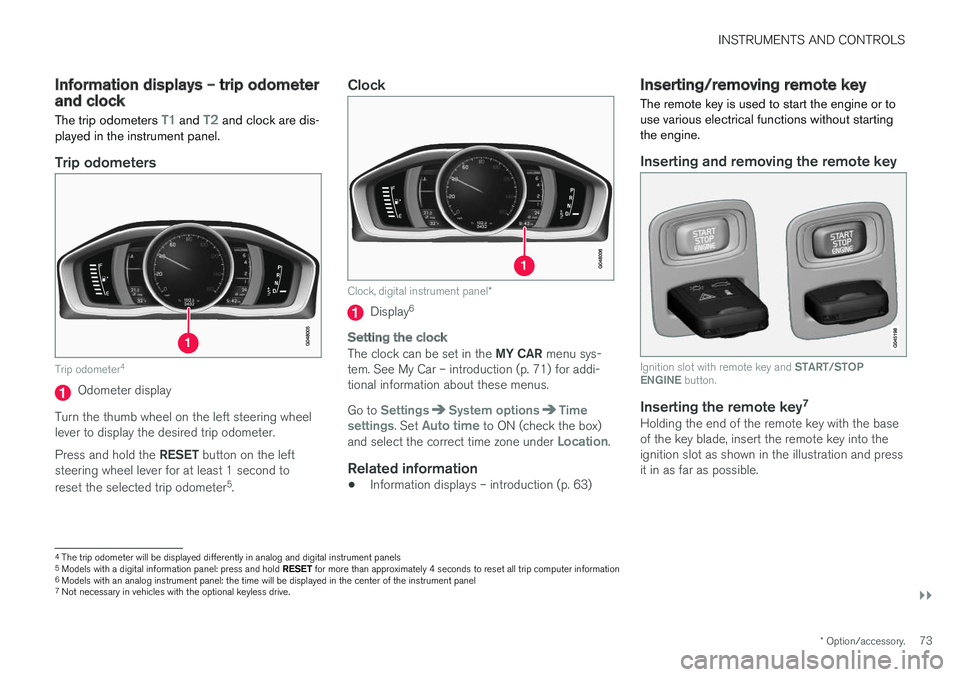
Trip odometers
Trip odometer 4
Odometer display
Turn the thumb wheel on the left steering wheel lever to display the desired trip odometer. Press and hold the RESET button on the left
steering wheel lever for at least 1 second to reset the selected trip odometer 5
.
Clock
Clock, digital instrument panel *
Display6
Setting the clock
The clock can be set in the
MY CAR menu sys-
tem. See My Car – introduction (p. 71) for addi- tional information about these menus. Go to
SettingsSystem optionsTime
settings. Set Auto time to ON (check the box)
and select the correct time zone under Location.
Related information
• Information displays – introduction (p. 63)
Inserting/removing remote key The remote key is used to start the engine or to use various electrical functions without startingthe engine.
Inserting and removing the remote key
Ignition slot with remote key and
START/STOP
ENGINE button.
Inserting the remote key 7Holding the end of the remote key with the base of the key blade, insert the remote key into theignition slot as shown in the illustration and pressit in as far as possible.
4
The trip odometer will be displayed differently in analog and digital instrument panels
5 Models with a digital information panel: press and hold RESET for more than approximately 4 seconds to reset all trip computer information
6 Models with an analog instrument panel: the time will be displayed in the center of the instrument panel
7
Not necessary in vehicles with the optional keyless drive.
Page 110 of 396
INSTRUMENTS AND CONTROLS
* Option/accessory.
108
Information display – menu controls
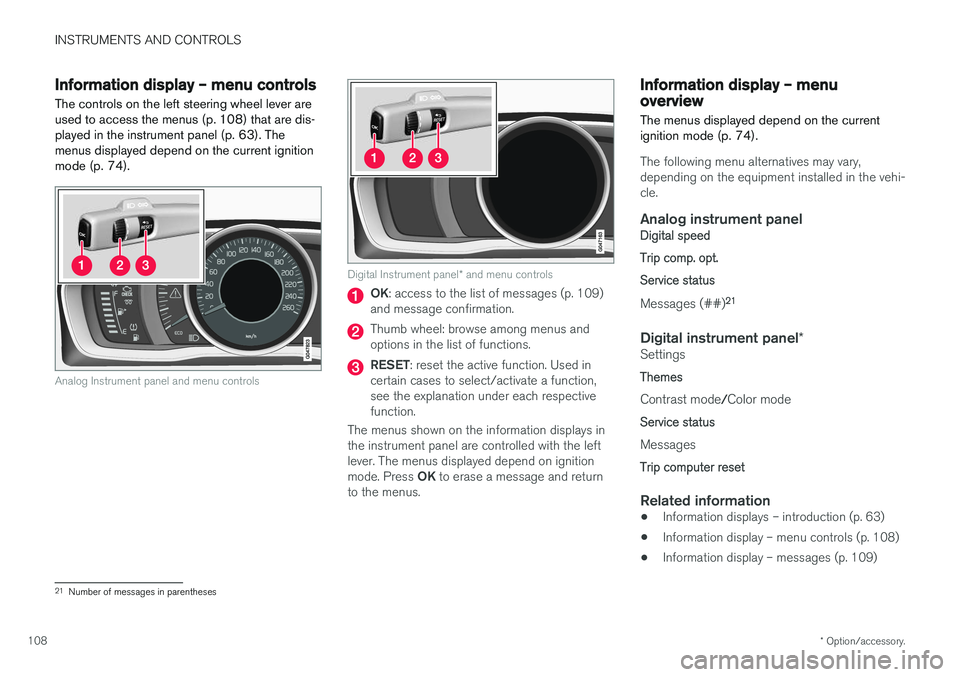
The controls on the left steering wheel lever are used to access the menus (p. 108) that are dis-
played in the instrument panel (p. 63). Themenus displayed depend on the current ignition
mode (p. 74).
Analog Instrument panel and menu controls
Digital Instrument panel * and menu controls
OK : access to the list of messages (p. 109)
and message confirmation.
Thumb wheel: browse among menus and options in the list of functions.
RESET : reset the active function. Used in
certain cases to select/activate a function, see the explanation under each respectivefunction.
The menus shown on the information displays inthe instrument panel are controlled with the leftlever. The menus displayed depend on ignition mode. Press OK to erase a message and return
to the menus.
Information display – menu overview
The menus displayed depend on the current ignition mode (p. 74).
The following menu alternatives may vary, depending on the equipment installed in the vehi-cle.
Analog instrument panelDigital speed Trip comp. opt.Service status
Messages (##) 21
Digital instrument panel
*Settings
Themes
Contrast mode /Color mode
Service status
Messages
Trip computer reset
Related information
• Information displays – introduction (p. 63)
• Information display – menu controls (p. 108)
• Information display – messages (p. 109)
21
Number of messages in parentheses
Page 111 of 396
INSTRUMENTS AND CONTROLS
109
Information display – messagesThe controls on the left steering wheel lever are used to scroll among messages displayed in theinstrument panel and to confirm selections. When information, indicator or warning symbols illuminate, an explanatory message will be dis-played in the instrument panel.
When a warning (p. 69), information (p. 67) or indicator symbol (p. 67) comes on, a correspond-ing message appears in the information panel. Anerror message is stored in a memory list until thefault is rectified. Press OK to acknowledge and scroll among the
messages.
NOTE
If a warning message appears while you are using the trip computer, the message must be read and confirmed by pressing OK before
the previous activity can be resumed.
Message Description
Stop engineA
Stop and switch off the engine as soon as possible.Serious risk of damage. Con-tact an authorized Volvoworkshop.
Stop safelyA Stop and switch off the engine. Serious risk of dam-age. Contact an authorizedVolvo workshop.
Service urgentA Have the vehicle checked by an authorized Volvo work-shop immediately.
Service requiredAHave the vehicle checked by an authorized Volvo work-shop as soon as possible.
See manualA
Read the owner's manual.
Book time for mainte-nanceTime to book service at an authorized Volvo retailer.
Time for reg- ular mainte-nanceTime for regular service at an authorized Volvo workshop.The timing is determined bythe number of miles driven,number of months since thelast service, engine runningtime.
Message Description
Maintenance overdueIf the service intervals are not followed, the warranty doesnot cover any damaged parts.Contact an authorized Volvoworkshop for service.
Temporarily OFFAA function has been tempo- rarily switched off and isreset automatically while driv-ing or after starting again.
Low battery Power savemodeThe audio system is switched off to save current. Chargethe battery.
A
There will also be a system-specific part of this message
Related information
• Information displays – introduction (p. 63)
• Information display – menu overview (p. 108)
• Information display – menu controls (p. 108)
Page 112 of 396
INSTRUMENTS AND CONTROLS
110
Trip computer – introduction
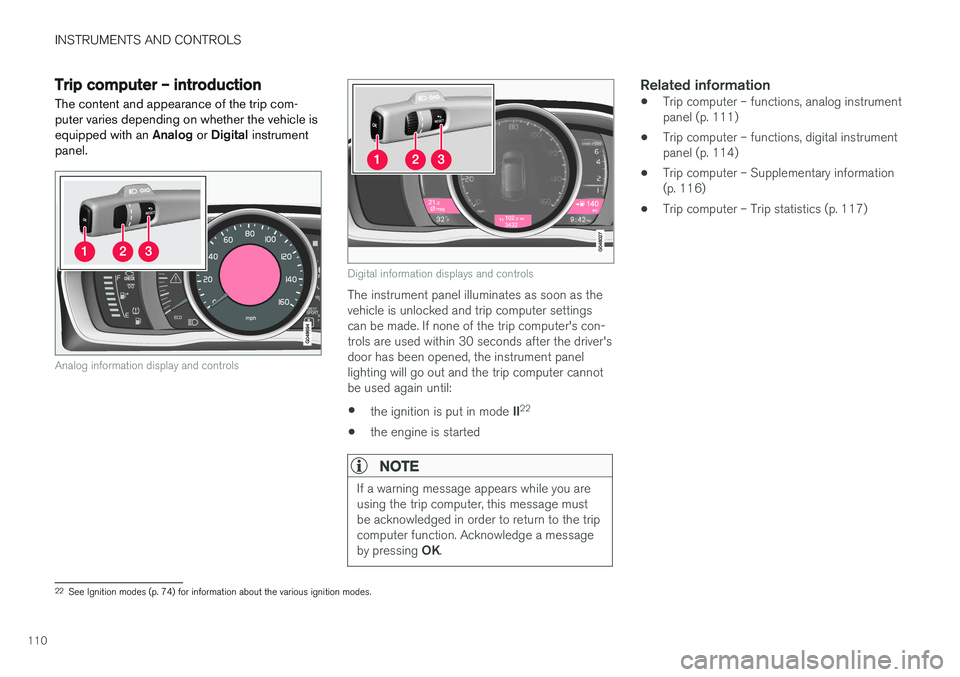
The content and appearance of the trip com- puter varies depending on whether the vehicle isequipped with an Analog or Digital instrument
panel.
Analog information display and controls
Digital information displays and controls
The instrument panel illuminates as soon as the vehicle is unlocked and trip computer settingscan be made. If none of the trip computer's con-trols are used within 30 seconds after the driver'sdoor has been opened, the instrument panellighting will go out and the trip computer cannotbe used again until: • the ignition is put in mode
II22
• the engine is started
NOTE
If a warning message appears while you are using the trip computer, this message mustbe acknowledged in order to return to the tripcomputer function. Acknowledge a message by pressing
OK.
Related information
• Trip computer – functions, analog instrument panel (p. 111)
• Trip computer – functions, digital instrumentpanel (p. 114)
• Trip computer – Supplementary information(p. 116)
• Trip computer – Trip statistics (p. 117)
22
See Ignition modes (p. 74) for information about the various ignition modes.
Page 113 of 396
INSTRUMENTS AND CONTROLS
}}
111
Trip computer – functions, analog instrument panel
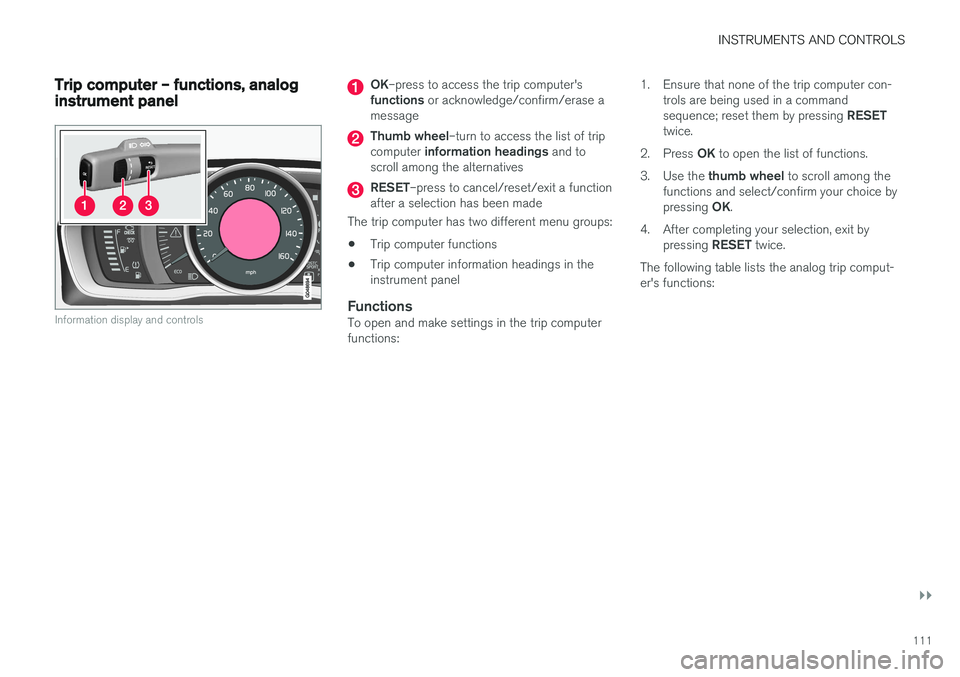
Information display and controls
OK–press to access the trip computer's
functions or acknowledge/confirm/erase a
message
Thumb wheel –turn to access the list of trip
computer information headings and to
scroll among the alternatives
RESET –press to cancel/reset/exit a function
after a selection has been made
The trip computer has two different menu groups: • Trip computer functions
• Trip computer information headings in the instrument panel
FunctionsTo open and make settings in the trip computerfunctions: 1. Ensure that none of the trip computer con-
trols are being used in a command sequence; reset them by pressing RESET
twice.
2. Press OK to open the list of functions.
3. Use the thumb wheel to scroll among the
functions and select/confirm your choice bypressing OK.
4. After completing your selection, exit by pressing RESET twice.
The following table lists the analog trip comput- er's functions:
Page 114 of 396
||
INSTRUMENTS AND CONTROLS
112
FunctionDescription
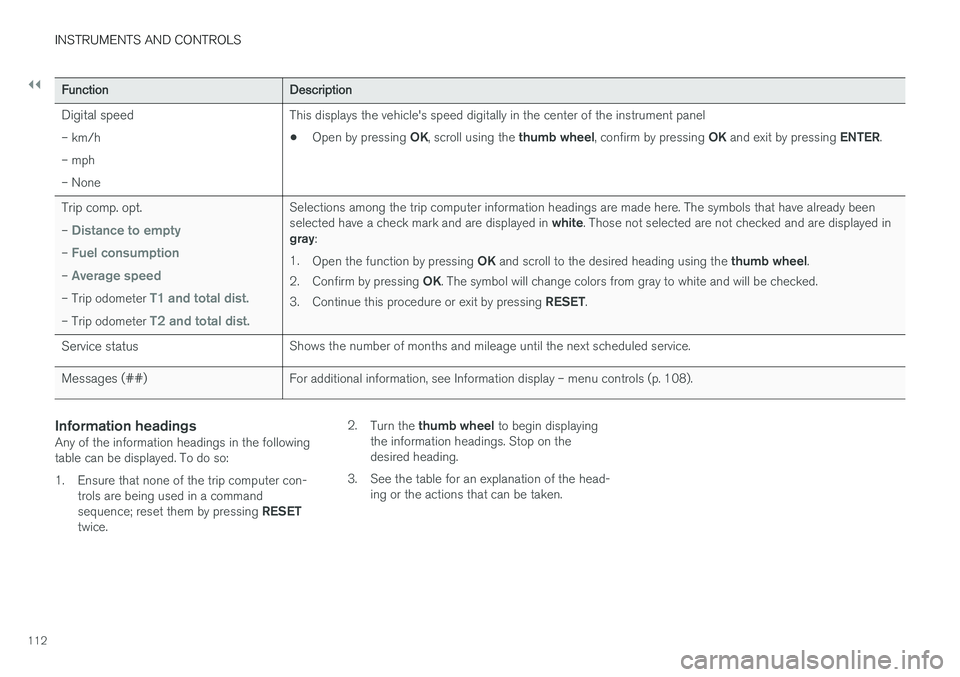
Digital speed – km/h – mph– None This displays the vehicle's speed digitally in the center of the instrument panel •
Open by pressing
OK, scroll using the thumb wheel, confirm by pressing OK and exit by pressing ENTER.
Trip comp. opt. –
Distance to empty
– Fuel consumption
– Average speed
– Trip odometer T1 and total dist.
– Trip odometer T2 and total dist.
Selections among the trip computer information headings are made here. The symbols that have already been selected have a check mark and are displayed in white. Those not selected are not checked and are displayed in
gray :
1. Open the function by pressing OK and scroll to the desired heading using the thumb wheel.
2. Confirm by pressing OK. The symbol will change colors from gray to white and will be checked.
3. Continue this procedure or exit by pressing RESET.
Service status Shows the number of months and mileage until the next scheduled service.
Messages (##) For additional information, see Information display – menu controls (p. 108).
Information headingsAny of the information headings in the following table can be displayed. To do so:
1. Ensure that none of the trip computer con-
trols are being used in a command sequence; reset them by pressing RESET
twice. 2.
Turn the thumb wheel to begin displaying
the information headings. Stop on the desired heading.
3. See the table for an explanation of the head- ing or the actions that can be taken.
Page 115 of 396

INSTRUMENTS AND CONTROLS
113
Information headings in the instrument panelDescription
Trip odometer
T1 and total dist.• Press and hold
RESET to reset trip odometer T1.
Trip odometer
T2 and total dist.• Press and hold
RESET to reset trip odometer T2.
Distance to emptySee Distance to empty in Trip computer – Supplementary information (p. 116).
Fuel consumptionCurrent fuel consumption.
Average speedPress and hold RESET to reset Average speed.
- No information will be displayed. This also indicates the beginning/end of the list of information headings.
Scroll among the trip computer information head- ings at any time by turning the thumb wheel
until the desired heading is displayed.
Related information
• Trip computer – introduction (p. 110)
• Trip computer – functions, digital instrument panel (p. 114)
• Trip computer – Supplementary information(p. 116)
• Trip computer – Trip statistics (p. 117)
Page 116 of 396
INSTRUMENTS AND CONTROLS
* Option/accessory.
114
Trip computer – functions, digital instrument panel
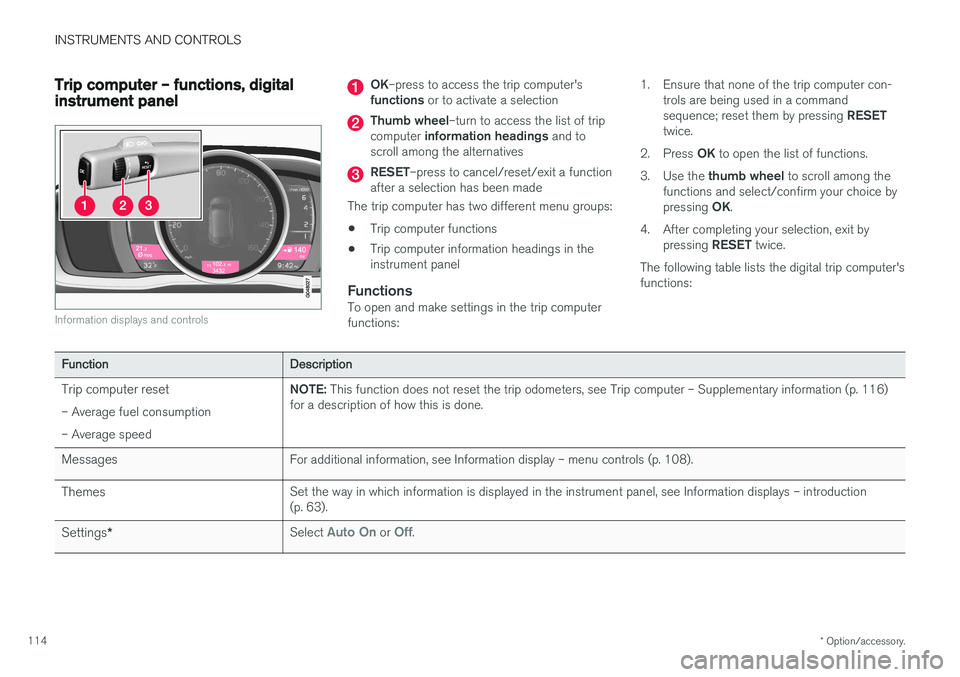
Information displays and controls
OK –press to access the trip computer's
functions or to activate a selection
Thumb wheel –turn to access the list of trip
computer information headings and to
scroll among the alternatives
RESET –press to cancel/reset/exit a function
after a selection has been made
The trip computer has two different menu groups: • Trip computer functions
• Trip computer information headings in the instrument panel
FunctionsTo open and make settings in the trip computerfunctions: 1. Ensure that none of the trip computer con-
trols are being used in a command sequence; reset them by pressing RESET
twice.
2. Press OK to open the list of functions.
3. Use the thumb wheel to scroll among the
functions and select/confirm your choice bypressing OK.
4. After completing your selection, exit by pressing RESET twice.
The following table lists the digital trip computer's functions:
Function Description
Trip computer reset – Average fuel consumption – Average speed NOTE:
This function does not reset the trip odometers, see Trip computer – Supplementary information (p. 116)
for a description of how this is done.
Messages For additional information, see Information display – menu controls (p. 108).
Themes Set the way in which information is displayed in the instrument panel, see Information displays – introduction (p. 63).
Settings * Select
Auto On or Off.