Page 118 of 660
1182. Instrument cluster
AVENSIS_OM_OM20C79E_(EE)
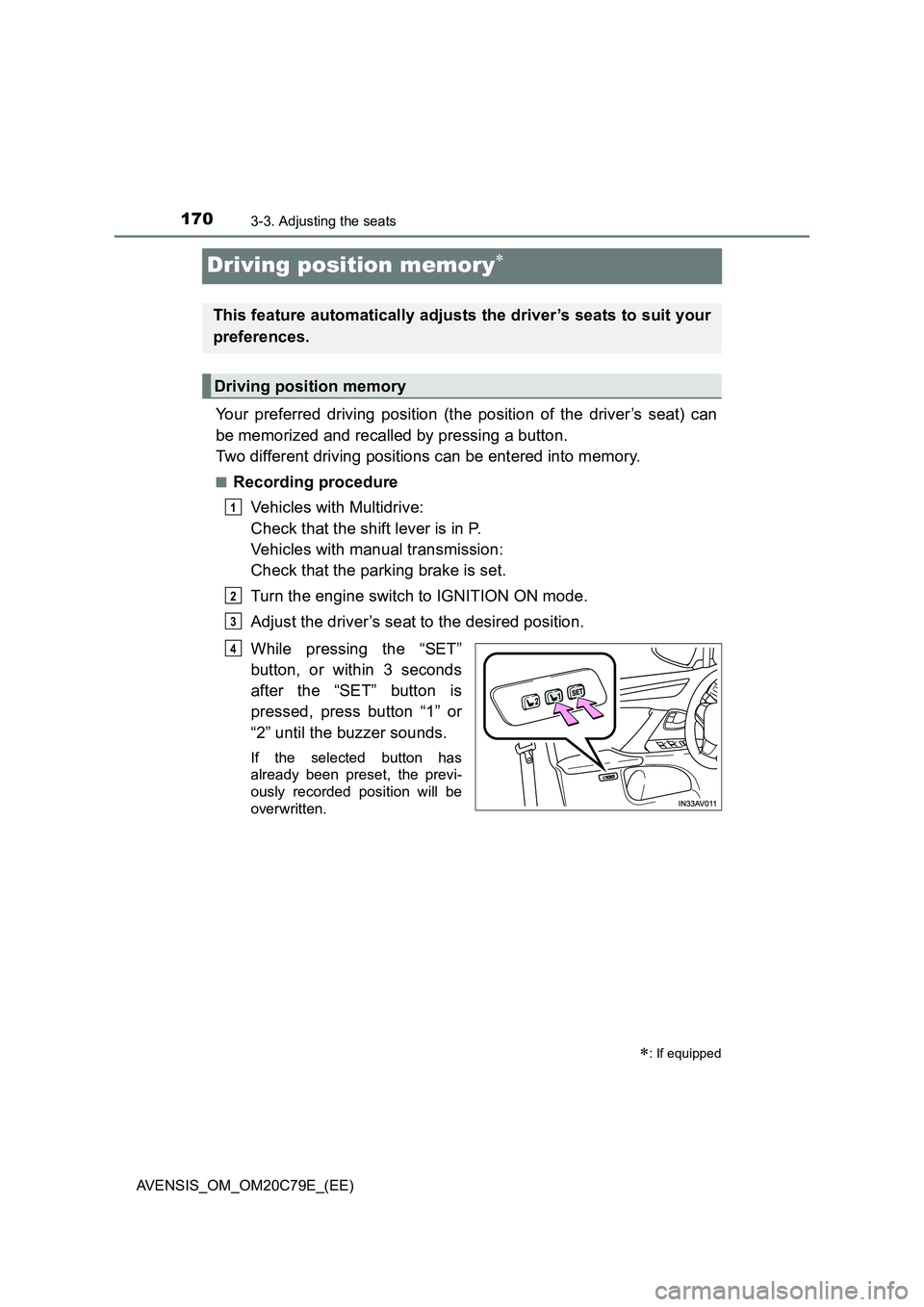
Best recorded fuel consumption
Previous fuel consumption
record
Current fuel consumption
Reset the past record data
Update the past record data
“Trip information” screen
appears
These images are examples only, and may vary slightly from actual
conditions.
■Resetting the data
Selecting “Clear” on the “Trip information” screen will reset the trip informa-
tion data.
Selecting “Clear” on the “Past record” screen will reset the past record data.
■Updating the past record data
Selecting “Update” on the “Past record” screen will update the past record
data.
Also, the average fuel consumption displayed in the multi-information display
will be reset at the same time.
■Cruising range
Displays the estimated maximum distance that can be driven with the quan-
tity of fuel remaining.
This distance is computed based on your average fuel consumption. As a
result, the actual distance that can be driven may differ from that displayed.
Past record
1
2
3
4
5
6
Page 170 of 660
1703-3. Adjusting the seats
AVENSIS_OM_OM20C79E_(EE)
Driving position memory
Your preferred driving position (the position of the driver’s seat) can
be memorized and recalled by pressing a button.
Two different driving positions can be entered into memory.
■Recording procedure
Vehicles with Multidrive:
Check that the shift lever is in P.
Vehicles with manual transmission:
Check that the parking brake is set.
Turn the engine switch to IGNITION ON mode.
Adjust the driver’s seat to the desired position.
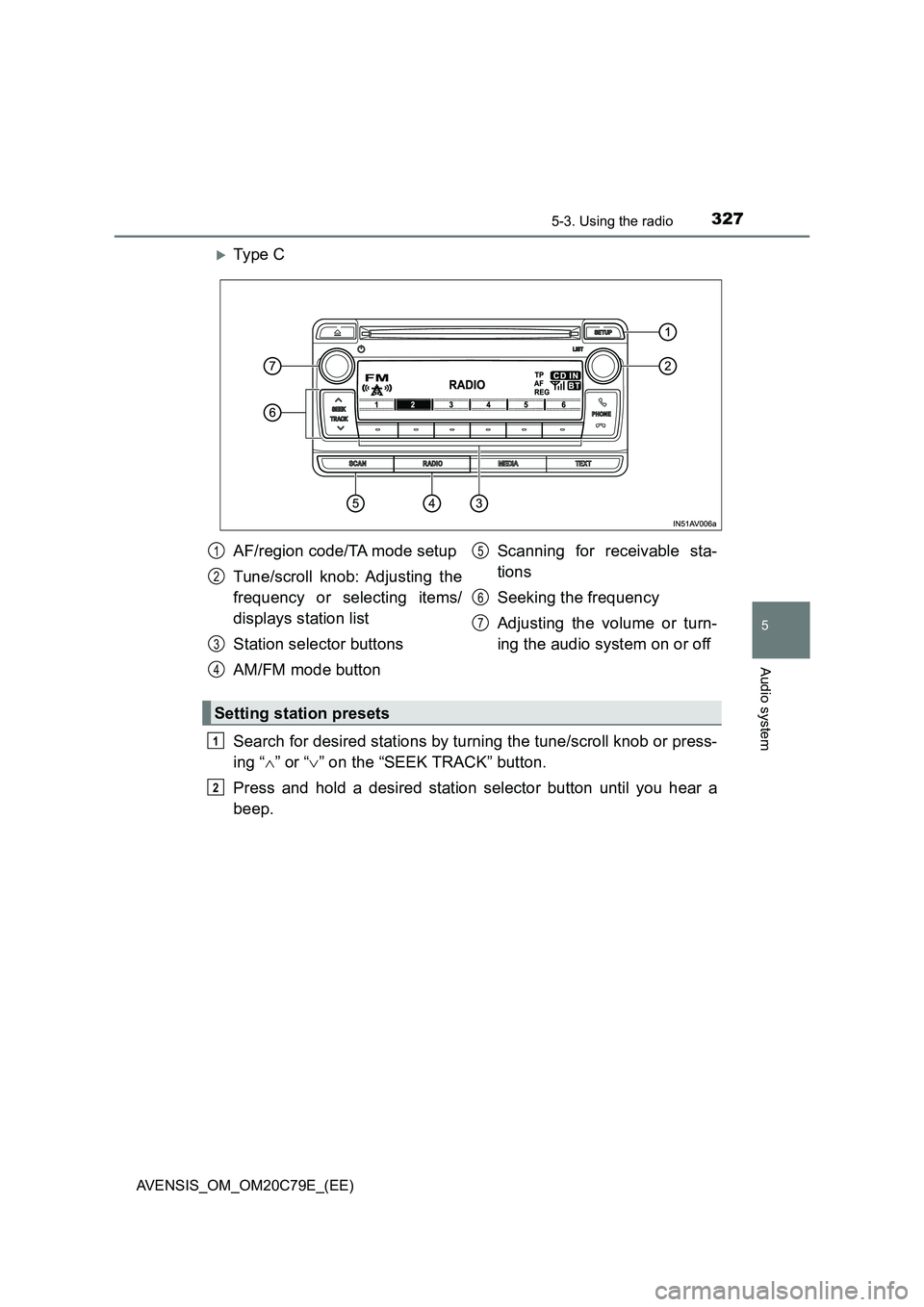
While pressing the “SET”
button, or within 3 seconds
after the “SET” button is
pressed, press button “1” or
“2” until the buzzer sounds.
If the selected button has
already been preset, the previ-
ously recorded position will be
overwritten.
: If equipped
This feature automatically adjusts the driver’s seats to suit your
preferences.
Driving position memory
1
2
3
4
Page 291 of 660
2914-6. Using the driving support systems
4
Driving
AVENSIS_OM_OM20C79E_(EE)
■ Accelerating after setting the vehicle speed
● The vehicle can be accelerated normally. After acceleration, the set speed
resumes.
● Even without canceling the cruise control, the set speed can be increased
by first accelerating the vehicle to the desired speed and then pushing the
lever down to set the new speed.
■ Automatic cruise control cancelation
Cruise control will stop maintaining the vehicle speed in any of the following
situations.
● Actual vehicle speed falls more than approximately 16 km/h (10 mph) below
the preset vehicle speed.
At this time, the memorized set speed is not retained.
● Actual vehicle speed is below approximately 40 km/h (25 mph).
● VSC+ is activated.
● Speed limiter is activated (if equipped).
■ If the warning message for the cruise control is shown on the multi-
information display
Press the “ON-OFF” button once to deactivate the system, and then press
the button again to reactivate the system.
If the cruise control speed cannot be set or if the cruise control cancels imme-
diately after being activated, there may be a malfunction in the cruise control
system. Have the vehicle inspected by any authorized Toyota retailer or
Toyota authorized repairer, or any reliable repairer.
WARNING
■ To avoid operating the cruise control by mistake
Switch the cruise control off using the “ON-OFF” button when not in use.
■ Situations unsuitable for cruise control
Do not use cruise control in any of the following situations.
Doing so may result in loss of control and could cause an accident resulting
in death or serious injury.
● In heavy traffic
● On roads with sharp bends
● On winding roads
● On slippery roads, such as those covered with rain, ice or snow
● On steep hills
Vehicle speed may exceed the set speed when driving down a steep hill.
● When your vehicle is towing a trailer or during emergency towing
Page 302 of 660
3024-6. Using the driving support systems
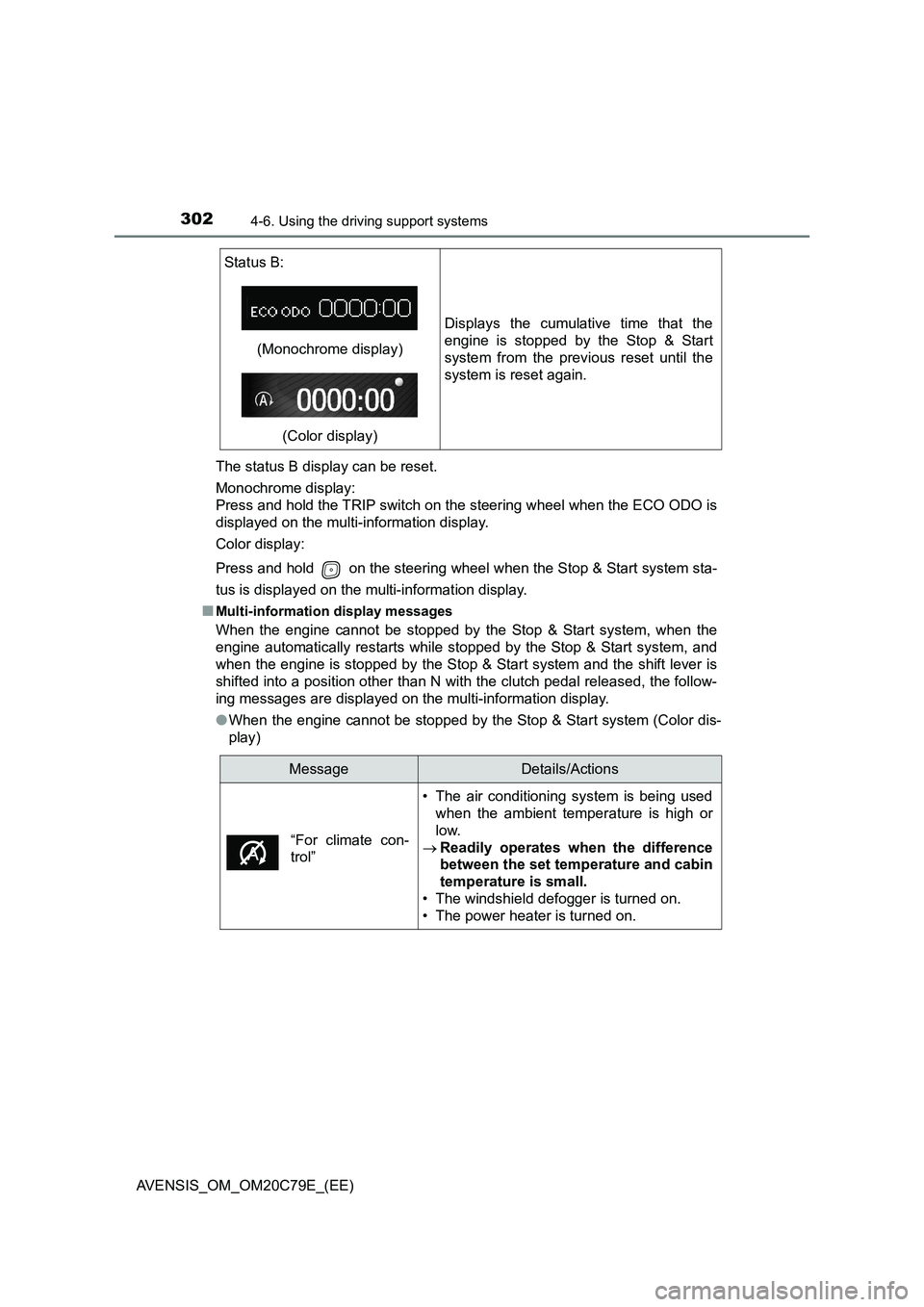
AVENSIS_OM_OM20C79E_(EE)The status B display can be reset.
Monochrome display:
Press and hold the TRIP switch on the steering wheel when the ECO ODO is
displayed on the multi-information display.
Color display:
Press and hold on the steering wheel when the Stop & Start system sta-
tus is displayed on the multi-information display.
■
Multi-information display messages
When the engine cannot be stopped by the Stop & Start system, when the
engine automatically restarts while stopped by the Stop & Start system, and
when the engine is stopped by the Stop & Start system and the shift lever is
shifted into a position other than N with the clutch pedal released, the follow-
ing messages are displayed on the multi-information display.
●When the engine cannot be stopped by the Stop & Start system (Color dis-
play) Status B:
(Monochrome display)
(Color display)Displays the cumulative time that the
engine is stopped by the Stop & Start
system from the previous reset until the
system is reset again.
MessageDetails/Actions
• The air conditioning system is being used
when the ambient temperature is high or
low.
Readily operates when the difference
between the set temperature and cabin
temperature is small.
• The windshield defogger is turned on.
• The power heater is turned on.
“For climate con-
trol”
Page 327 of 660
3275-3. Using the radio
5
Audio system
AVENSIS_OM_OM20C79E_(EE)
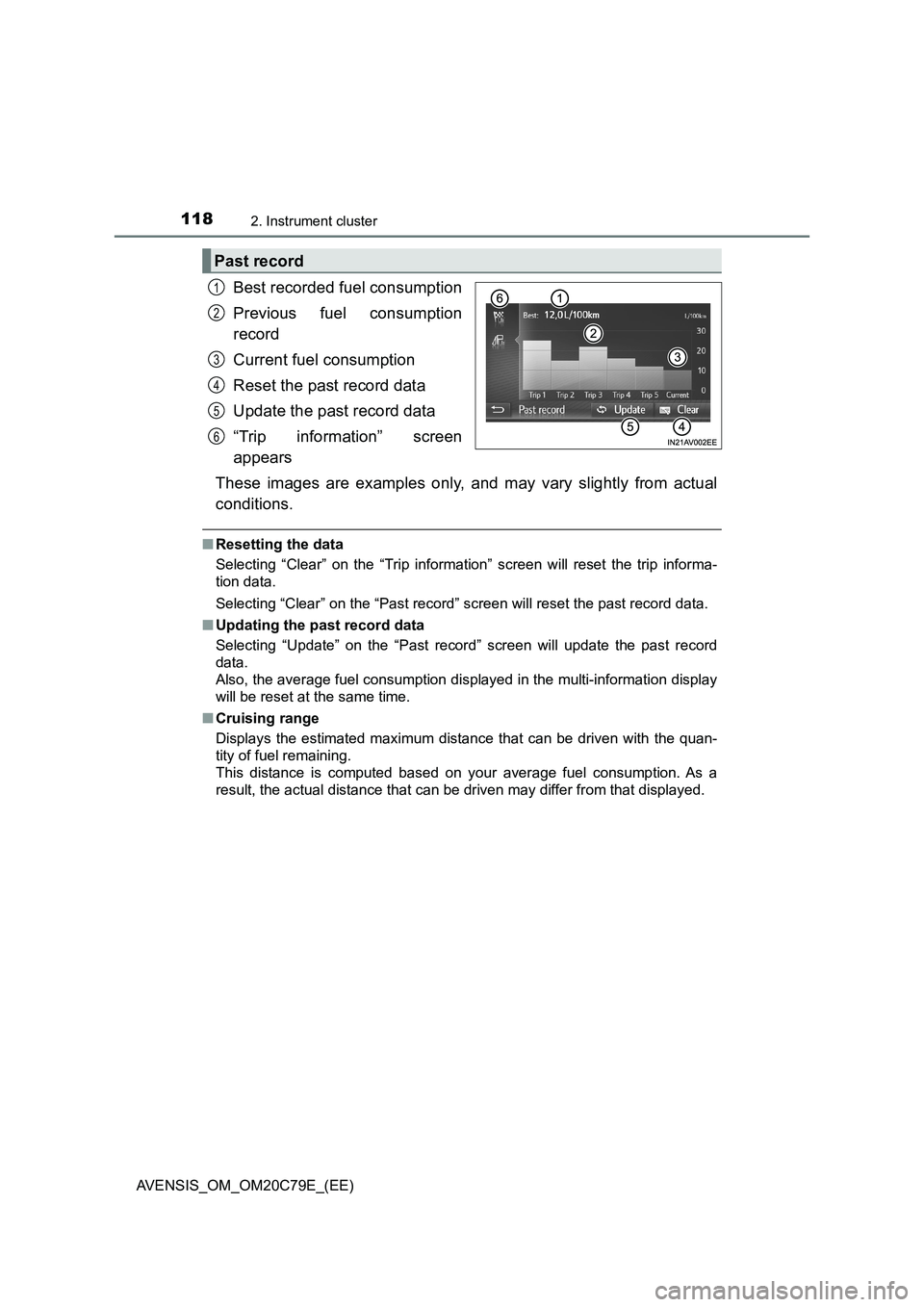
Ty pe C
Search for desired stations by turning the tune/scroll knob or press-
ing “” or “” on the “SEEK TRACK” button.
Press and hold a desired station selector button until you hear a
beep.
AF/region code/TA mode setup
Tune/scroll knob: Adjusting the
frequency or selecting items/
displays station list
Station selector buttons
AM/FM mode buttonScanning for receivable sta-
tions
Seeking the frequency
Adjusting the volume or turn-
ing the audio system on or off1
2
3
4
5
6
7
Setting station presets
1
2
Page 328 of 660

3285-3. Using the radio
AVENSIS_OM_OM20C79E_(EE)
■Scanning the preset radio stations
Press and hold the “SCAN” button until you hear a beep.
When the desired station is reached, press the button once
again.
■Scanning all radio stations within range
Press the “SCAN” button.
All stations with reception will be played for 5 seconds each.
When the desired station is reached, press the button once
again.
■Updating the station list
Press the “LIST” button (type A and B) or the tune/scroll knob
(type C).
The station list will be displayed.
Press [UPDATE] to update the list.
“Updating” is displayed while the searching is in process, and then avail-
able stations will be listed on the display.
To cancel the updating process, press the back button (type A and B) or
[BACK] (type C).
■Selecting a station from the station list
Press the “LIST” button (type A and B) or the tune/scroll knob
(type C).
The station list will be displayed.
Turn the tune/scroll knob to select a station.
Press the knob to tune in the station.
To return to the previous display, press the back button (type A and B)
or [BACK] (type C).
Scanning radio stations (type C only)
Using the station list
1
2
1
2
1
2
1
2
3
Page 330 of 660
3305-3. Using the radio
AVENSIS_OM_OM20C79E_(EE)
■EON (Enhanced Other Network) system (for traffic announcement func-
tion)
If the RDS station (with EON data) you are listening to is not broadcasting a
traffic information program and the audio system is in the TA (traffic
announcement) mode, the radio will be switched automatically to a station
broadcasting a traffic information program in the EON AF list when traffic
information begins.
■When the battery is disconnected
Stations presets are erased.
■Reception sensitivity
●Maintaining perfect radio reception at all times is difficult due to the continu-
ally changing position of the antenna, differences in signal strength and sur-
rounding objects, such as trains, transmitters, etc.
●Sedan: The radio antenna is mounted inside the rear window. To maintain
clear radio reception, do not attach metallic window tinting or other metallic
objects to the antenna wire mounted inside the rear window.
●Short pole type antenna: The radio antennas are mounted inside the rear
quarter window and on the rear roof. To maintain clear radio reception, do
not attach metallic window tinting or other metallic objects to the antenna
wire mounted inside the rear quarter window. The rear roof antenna can be
removed from the base by turning.
●Shark fin type antenna: The radio antenna is mounted on the rear roof.
■Digital Audio Broadcast (DAB) radio
The optional radio antenna and tuner are necessary for the use of Digital
Audio Broadcast (DAB) radio.
Page 347 of 660
3475-5. Using an external device
5
Audio system
AVENSIS_OM_OM20C79E_(EE)
Press the tune/scroll knob (type A and B) or the “TEXT” button (type
C).
Track title, Artist name and Album title are shown on the display.
To return to the previous display, press the knob or the back button (type A
and B), or the “TEXT” button or [BACK] (type C).
■ About iPod
● “Made for iPod” and “Made for iPhone” mean that an electronic accessory
has been designed to connect specifically to iPod, or iPhone, respectively,
and has been certified by the developer to meet Apple performance stan-
dards.
● Apple is not responsible for the operation of this device or its compliance
with safety and regulatory standards. Please note that the use of this acces-
sory with iPod or iPhone may affect wireless performance.
● iPhone, iPod, iPod classic, iPod nano, iPod shuffle, and iPod touch are
trademarks of Apple Inc., registered in the U.S. and other countries.
■ iPod functions
● When an iPod is connected and the audio source is changed to iPod mode,
the iPod will resume play from the same point in which it was last used.
● Depending on the iPod that is connected to the system, certain functions
may not be available. Disconnecting the device and reconnecting it once
again may resolve some malfunctions.
● While connected to the system, the iPod cannot be operated with its own
controls. It is necessary to use the controls of the vehicle’s audio system
instead.
■ iPod problems
To resolve most problems encountered when using your iPod, disconnect
your iPod from the vehicle iPod connection and reset it.
For instructions on how to reset your iPod, refer to your iPod Owner’s Man-
ual.
Switching the display