2018 Seat Ateca acc
[x] Cancel search: accPage 36 of 348

The essentialsMenuSubmenuPossible settingDescription
Lights
Light assistDynamic Light Assist, Light Assist, motorway function, turning-on time, headlamp
range adjustment, automatic lights when raining, one-touch signalling, travel mode.›››
page 144
Vehicle interior lightingBrightness of instrument panel and controls››› page 151
Coming Home/Leaving Home functionSwitch-on time of the “Coming home” and “Leaving home” functions››› page 148
››› page 149
Driver assistance
ACC (adaptive cruise control)Activation and deactivation: default distance level, driving profiles.››› page 221
Front Assist (emergency brake as-
sist system)Activation and deactivation: Front Assist, advance warning, distance warning display››› page 217
Lane Assist (system warning you
if you leave the lane)Activation and deactivation of lane departure warning, adaptive lane guidance››› page 230
Detection of traffic signsDisplay on the instrument panel, activation and deactivation of the speed warning››› page 245
TrailerTrailer recognition (display of traffic signs for vehicles with trailer), use to calculate the
route, maximum speed for trailer››› page 273
Fatigue detectionActivation and deactivation››› page 248
Parking and ma-
noeuvring
ParkPilotAutomatic activation, front volume, front sound treble, rear volume, rear sound treble,
adjust Infotainment volume››› page 257,
››› page 262
Auto HoldSwitching on and off when starting off››› page 211
Electric parking brakeSwitching on and off automatically››› page 186
Braking while manoeuvring func-
tionSwitching on and off››› page 262
Displaying the parking spaceSwitching on and off
Ambient lighting–Switching on and off, selecting brightness, colour, area or total››› page 152 34
Page 38 of 348

The essentials
Driver information System Intr oduction With the ignition switched on, it is possible
to r
e
ad the different functions of the display
by scrolling through the menus.
In vehicles with multifunction steering wheel,
the multifunction display can only be operat-
ed with the steering wheel buttons.
The number of menus displayed on the in-
strument panel will vary according to the ve-
hicle electronics and equipment.
A specialised workshop will be able to pro-
gramme or modify additional functions, ac-
cording to the vehicle equipment. SEAT rec-
ommends visiting a SEAT Official Service.
Some menu options can only be read when
the vehicle is at a standstill.
As long as a priority 1 warning is displayed, it
will not be possible to read the menus
››› page 40. Some warning messages can
be confirmed and made to disappear with the
windscreen wiper lever button or the multi-
function steering wheel button.
The information system also provides the fol-
lowing information and displays (depending
on the vehicle's equipment):
Driving data ›››
page 38
■ MFD from departure ■
MFD from r ef
uelling
■ MFD total calculation
Assist systems ››› page 39
Navigation ››› Booklet Navigation system
Audio ››› Booklet Radio or ››› Booklet Naviga-
tion system
Telephone ››› Booklet Radio or ››› Booklet
Navigation system
Vehicle status ››› page 33 WARNING
Any distraction may lead to an accident, with
the risk of
injury.
● Do not operate the instrument panel con-
trol
s when driving. Using the menus on the instrument
p
anel Fig. 43
Windscreen wiper lever: control but-
t on
s. Fig. 44
Right side of multifunction steering
wheel: c ontr
o
l buttons. The driver information system is controlled
w
ith the mu
ltif
unction steering wheel buttons
››› Fig. 44 or with the windscreen wiper lever
››› Fig. 43 (if the vehicle is not equipped with
multifunction steering wheel). 36
Page 39 of 348
The essentials
Enabling the main menu
● Switch the ignition on.
● If a message or vehicle pictogram appears,
pr e
s
s button ››› Fig. 43 1 on the windscreen
w iper l
ev
er or button on the multifunction
s t
eerin
g wheel ››› Fig. 44.
● If managed from the windscreen wiper lev-
er: to dis
play the main screen or to return to
the main menu from another menu, hold
down the rocker button ››› Fig. 43 2 .
● If managed from the multifunction steering
whe e
l:
the main menu list is not displayed.
To go from point to point in the main menu,
press button
or
several times
› ›
›
Fig. 44.
Select a submenu ● Press the rocker switch ›››
Fig. 43 2 on the
w ind
s
creen wiper lever up or down or turn
the thumbwheel of the multifunction steering
wheel ››› Fig. 44 until the desired option ap-
pears marked on the menu.
● The selected option is displayed between
two horizont
al lines. In addition, a triangle is
displayed on the right:
● To consult the submenu option, press but-
ton ››
› Fig. 43 1 on the windscreen wiper
l ev
er or b
utton on the multifunction steer-
in g wheel
›
›› Fig. 44. Making changes according to the menu
● With the rocker switch on the windscreen
wiper lev
er or the thumbwheel of the multi-
function steering wheel, make the desired
changes. To increase or decrease the values
more quickly, turn the thumbwheel faster.
● Mark or confirm the selection with button
›››
Fig. 43 1 on the windscreen wiper lever
or b utt
on on the multifunction steering
wheel
›
›
› Fig. 44.
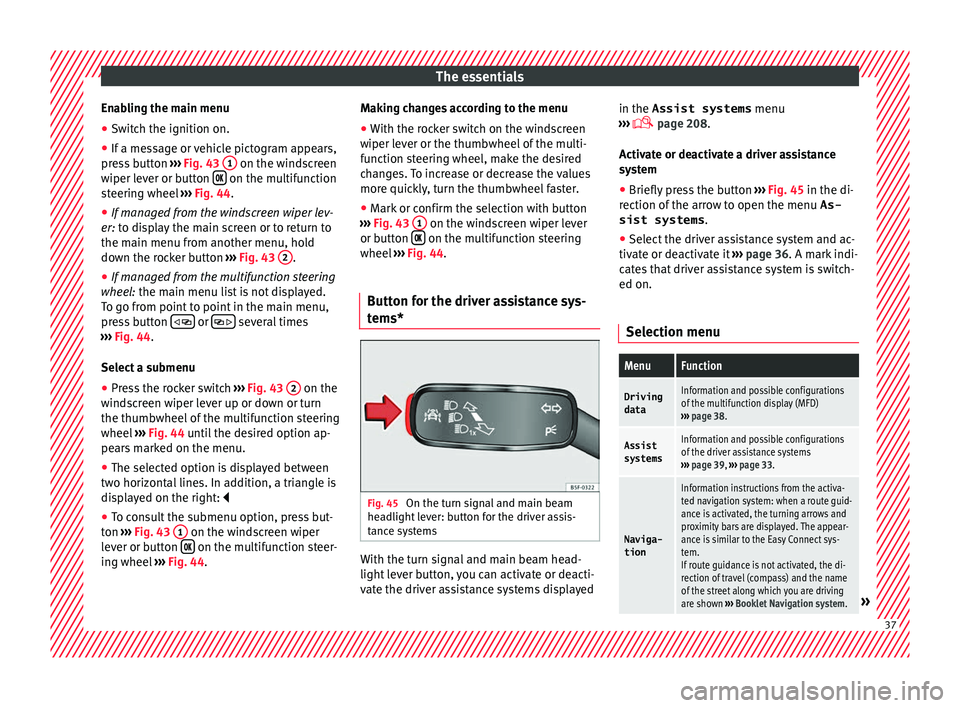
Button for the driver assistance sys-
tems* Fig. 45
On the turn signal and main beam
he a
dlight
lever: button for the driver assis-
tance systems With the turn signal and main beam head-
light
l
ev
er button, you can activate or deacti-
vate the driver assistance systems displayed in the Assist systems
menu
›››
page 208.
Activate or deactivate a driver assistance
system ● Briefly press the button ›››
Fig. 45 in the di-
rection of the arrow to open the menu As-
sist systems .
● Select the driver assistance system and ac-
tivate or de
activate it ››› page 36. A mark indi-
cates that driver assistance system is switch-
ed on.
Selection menu
MenuFunction
Driving
dataInformation and possible configurations
of the multifunction display (MFD)
››› page 38.
Assist
systemsInformation and possible configurations
of the driver assistance systems
››› page 39, ››› page 33.
Naviga-
tion
Information instructions from the activa-
ted navigation system: when a route guid-
ance is activated, the turning arrows and
proximity bars are displayed. The appear-
ance is similar to the Easy Connect sys-
tem.
If route guidance is not activated, the di-
rection of travel (compass) and the name
of the street along which you are driving
are shown ››› Booklet Navigation system.
» 37
Page 40 of 348

The essentialsMenuFunction
Audio
Station display on the radio.
Track name on the CD.
Track name in Media mode
››› Booklet Ra-
dio or ››› Booklet Navigation system.
Tele-
phoneInformation and possible configurations
of the mobile phone preinstallation
››› Booklet Radio or ››› Booklet Navigation
system.
Vehicle
statusDisplay of the current warning or informa-
tion texts and other system components,
depending on the equipment
››› page 120. Driving data
The MFD (multifunction display) shows differ-
ent
v
alues for the journey and the consump-
tion.
Changing between display modes on the
MFD
● In vehicles without multifunction steering
wheel:
Press the rocker switch on the
w ind
s
creen wiper lever ››› Fig. 43.
● Vehicles with a multifunction steering
wheel:
turn the thumbwheel ››› Fig. 44.
Multifunction display memory
The multifunction display is equipped with
three memories that work automatically: MFD from departure, MFD from refuelling and MFD
total
calculation. On the screen display, you
can read which memory is currently dis-
played.
● Toggle between memories with the ignition
on and the memory di
splayed: Press the
button on the windscreen wiper lever
or the button of the multifunction steering
wheel .
MenuFunction
MFD from
departure
Display and storage of the values for
the journey and the consumption from
when the ignition is switched on to
when it is switched off.
If the journey is continued in less than
2 hours after the ignition is switched
off, the new data is added to the data
already stored in the memory. The
memory will automatically be deleted if
the journey is interrupted for more than
2 hours.
MFD from refuellingDisplay and storage of the values for
the journey and the consumption. By
refuelling, the memory will be erased
automatically.
MenuFunction
MFD total
calcula-
tion
The memory records the values for a
specific number of partial trips, up to a
total of 19 hours and 59 minutes or 99
hours and 59 minutes, or 1999.9 km or
9999 km, depending on the model of
instrument panel. On reaching either of
these limits a)
, the memory is automati-
cally erased and starts to count from 0
again.
a) It varies according to the instrument panel version.
Erasing a memory manually
● Select the memory that you wish to erase.
● Hold the button of the multifunction
s t
eerin
g wheel or the button of the multi-
f u
nction wheel
pressed down for about 2 sec-
onds.
Personalising the displays
In the Easy Connect system you can adjust
which of the possible displays of the MFD can
be shown on the instrument panel display
with the button and the
S
ET
TINGS function
b utt
on ›
›› page 120.38
Page 41 of 348

The essentials
Data summaryMenuFunction
Current fuel
consumption
The current fuel consumption dis-
play operates throughout the jour-
ney, in litres/100 km; and with the
engine running and the vehicle
stopped, in litres/hour.
Average fuel consumption
After turning on the ignition, aver-
age fuel consumption in li-
tres/100 km will be displayed after
travelling about 100 metres. Other-
wise horizontal lines are displayed.
The value shown is updated approxi-
mately every 5 seconds.
ACT ®
*: Depending on the equip-
ment, number of active cylinders.
Operating range
Approximate distance in km that can
still be travelled with the fuel re-
maining in the tank, assuming the
same style of driving is maintained.
This is calculated using the current
fuel consumption.
Travelling timeThis indicates the hours (h) and mi-
nutes (min) since the ignition was
switched on.
JourneyDistance covered in km (m) after
switching on the ignition.
Average
speed
The average speed will be shown af-
ter a distance of about 100 metres
has been travelled. Otherwise hori-
zontal lines are displayed. The value
shown is updated approximately ev-
ery 5 seconds.
MenuFunction
Digital dis-
play of
speedCurrent speed displayed in digital
format.
Speed warn-
ing at ---
km/h or Speed
warning at
--- mphIf the stored speed is exceeded (be-
tween 30 - 250 km/h, or 19 -
155 mph), an audible warning is
given together with a visual warn-
ing.
Detection of
traffic
signsThe traffic signs detected are dis-
played.
Oil tempera- tureUpdated engine oil temperature dig-
ital display
Coolant tem-
perature
gaugeDigital display of the current temper-
ature of the liquid coolant.
Convenience consumersInformation about the vehicle’s
main convenience consumers. It is
displayed by means of a consump-
tion indicator bar.
Eco tipsTips on how to save fuel.
Reset data “when set-
ting off”Reset journey data when setting off.
Reset data
for “total
calculation”Reset travel journey to zero. Storing a speed with the speed warning
● Select the display Speed warning at
--- km/h (---
mph)
● Press the button
on the windscreen
w iper l
ev
er or the button on the multifunc-
tion s t
eerin
g wheel to store the current speed
and activate the warning.
● To switch system on: adjust to the desired
speed within 5 sec
onds using the rocker
switch on the windscreen wiper lever or
b y
t
urning the thumbwheel on the multifunc-
tion steering wheel. Next, press the button or
again or wait several seconds.
The s peed i
s
stored and the warning activa-
ted.
● To switch system off: press the but-
ton or
. The stored speed is de-
l et
ed.
Assist systems menu
MenuFunction
ACCAdaptive cruise control (ACC) dis-
play ››› page 221.
Front AssistSwitching the monitoring system on
and off ››› page 217.
Lane Assist *Switching the Lane Assist system on
or off ››› page 231.
Blind spot *Switching the Blind Spot Detection
system (BSD) on or off ››› page 237» 39
Page 42 of 348

The essentialsMenuFunction
Detection of
traffic
signsDisplay of traffic signs ››› page 245:
Fatigue de-
tection *Switching the fatigue detection on
or off (pause recommendation)
››› page 248. Status display
Bonnet, r e
ar lid and door
s open Fig. 46
A: bonnet open; B: rear lid open; C:
fr ont
l
eft door open; D: right rear door open. When the ignition is switched on or when
driv
in
g, the bonnet, r
ear lid or doors that are
open will be indicated on the instrument pan-
el display, and, as applicable, this will be in-
dicated audibly. The display may vary accord-
ing to the type of instrument panel fitted.
Illustra- tionKey to ››› Fig. 46
A Do not continue driving!
The bonnet is open or is not properly
closed ››› page 298.
B Do not continue driving!
The rear lid is open or is not properly
closed ››› page 137.
C, D Do not continue driving!
A vehicle door is open or is not properly
closed ››› page 125.
›››
page 115 Warning and information messages
The system runs a check on certain compo-
nents
and f
u
nctions when the ignition is
switched on and while the vehicle is moving.
Faults in the operation are displayed on the
screen using red and yellow symbols and
messages on the instrument panel display
( ›››
page 119) and, in some cases, with
audible warnings. The display may vary ac-
cording to the type of instrument panel fitted. 40
Page 45 of 348

The essentials
● Vehicle
s
with Easy Connect : Press the button and the function button SETTINGS >
Driver assistance > ACC > Dis-
tance .
The w arnin
g limit
can be set from 30 to
240 km/h (20 to 149 mph). The adjustment
is made at 10 km/h (5 mph) intervals. Note
● Ple a
se bear in mind that, even with the
speed warning function, it is still important
to keep an eye on the vehicle speed with the
speedometer and to observe the legal speed
limits.
● The speed limit warning function in the ver-
sion for some c
ountries warns you at a speed
of 120 km/h (75 mph). This is a factory-set
speed limit. Service intervals
Fig. 48
Instrument panel The service interval indication appears on the
in
s
trument
panel display ››› Fig. 48 1 .
S EA
T di
stinguishes between services with en-
gine oil change (e.g. Oil change service) and
services without engine oil change (e.g. In-
spection).
In vehicles with Services established by time
or mileage, the service intervals are already
pre-defined.
In vehicles with LongLife Service , the inter-
vals are determined individually. Thanks to
technological progress, maintenance work
has been greatly reduced. Because of the
technology used by SEAT, with this service
you only need to change the oil when the ve- hicle so requires. To calculate this change
(max. 2 y
ears), the vehicle's conditions of
use and individual driving styles are consid-
ered. The advance warning first appears 20
days before the date established for the cor-
responding service. The kilometres (miles)
remaining until the next service are always
rounded up to the nearest 100 km (miles)
and the time is given in complete days. The
current service message cannot be viewed
until 500 km after the last service. Prior to
this, only lines are visible on the display.
Inspection reminder
When the Service date is approaching, when
the ignition is switched on a Service remind-
er is displayed.
Vehicles without text messages : a span-
ner will be displayed on the instrument
panel plus an indication in km.
The kilometres indicated are the maximum
number of kilometres that can be travelled
until the next service. After a few seconds,
the display mode changes. A clock symbol
appears and the number of days until the
next service is due.
Vehicles with text messages : Service in
--- km or --- days will be shown on the
instrument panel display. » 43
Page 52 of 348

The essentials
Removing the cover from the selector lever
● Apply the handbrake › ›
› to ensure that
the c ar doe
s
not move.
● Carefully pull the corners of the selector
lever boot
and twist it upwards above the lev-
er handle.
Releasing the selector lever
● Using a screwdriver, press and hold the yel-
low un
locking tab sideways ››› Fig. 56. ●
Pres
s the interlock button on the selector
lever and move the selector lever to posi-
tion N.
● After carrying out the manual release, at-
tach the sel
ector lever boot on the gearbox
console again.
If the power supply should ever fail (e.g. dis-
charged battery) and the vehicle has to be
pushed or towed, the selector lever must first be moved to position N, after oper
ating the
manual release mechanism. WARNING
The selector lever may be moved out of posi-
tion P only when the h
andbrake is firmly ap-
plied. If this does not work, secure the vehi-
cle with the brake pedal. On a slope the vehi-
cle could otherwise start to move inadver-
tently after shifting the selector lever out of
position P - accident risk! 50