2018 Peugeot Boxer load
[x] Cancel search: loadPage 197 of 232

11
F Remove the USB device. You can now download the new map onto your USB
device.
I n s t a l l To mTo m H O M E
Proceed as follows to install "Tom Tom HOME"
and create a "MyTomTom" account.
F
D
ownload and install the To mTo m H O M E
application on your computer using this link:
tomtom.com/getstarted.
F
Sel
ect and download To mTo m H O M E and
then follow the instructions on the screen.
Use a
secure WiFi network rather than
a
3G/4G network to download the
application onto your computer.
F
C
onnect the USB device to your computer;
"TomTom HOME" starts automatically.
F
Sel
ect "Connect " in the top right corner of
" To mTo m H O M E ".
F
Sel
ect "Create an account " and then
enter your details to create a "MyTomTom"
account.
You must have a "MyTomTom" account to
receive map updates. Once the account has been created, you have
to indicate whether you wish to link your system
to your account. The prepared USB represents
your system.
F
Sel
ect "
Link device " and then "Close".
You are now ready to download a map onto
your USB device.
Download a map
Connect your USB device to your computer.
Select a
map to download
-
T
o check whether you can download a free
map using the Latest Map Guarantee, select
" Tools " and then " Latest Map Guarantee "
i n " To mTo m H O M E ".
-
Sel
ect "Purchase maps " in "TomTom
HOME" to purchase a
map update.
-
I
f you have already purchased an update,
select " Update my device" in TomTom
HOME.
Download a
map
If a
map update is available for your system,
this is shown as an available update. No update is proposed if your system
already has the most recent map.
F
S
elect the map to download, then
select " Update and install"; the map is
downloaded and installed on your USB
device.
F
Sel
ect "
Ended " once the process has
finished.
Install the map
The new map must be downloaded with
the engine running and the vehicle
stationary.
You can install the map on your system once
you have downloaded it onto your USB device.
F
I
nsert the USB device containing the new
map into the USB port in the central
storage space , provided for transferring
data to the system.
The system detects a
new map found on the
USB device. It may also contain an update for
the navigation software if this is required for the
new map.
F
Y
ou should indicate whether you wish to
update the system.
F
Sel
ect " Start ".
.
Touch screen Audio-Telematic system
Page 198 of 232

12
If the USB device contains new software,
the system starts by updating the navigation
software. The system must restart once the
software has been updated.
F
Sel
ect "OK".
Before the system starts updating the map, it
advises you that the map will take at least thirty
minutes to install.
Do not remove the USB device or switch
off the system before updating has ended.
The system cannot be used before
updating has been completed. Start
the system update again if updating is
interrupted.
The following message appears when the map
has been updated:
" Update ended "
You can now safely remove your USB
device.
Problem solving Y ou should perhaps prepare the USB
device again.
-
T
he version of the map on the USB device
is the same as on the system or even older.
If so, download the map again onto the USB
device using "TomTom HOME".
You should perhaps prepare the USB
device again.
Telephone
Press " PHONE " to display the
phone menus:
Recent calls
-
A
ll calls, In, Out, Lost.
D
isplay and call contacts from the recent
calls log. Settings
-
T
el. connected, Add device, Audio
connect.
L
ink up to ten telephones/audio devices
to simplify and speed up access and
connection.
Transf.
-
T
ransf..
Transfer calls from the system to the mobile
phone and vice versa.
-
M
ute.
S
witches off the system microphone for
private conversations.
Pairing a Bluetooth®
telephone
For reasons of safety and because
it requires sustained attention by the
driver, the pairing of a
Bluetooth
® mobile
telephone with the hands-free system of
your audio system must be done with the
vehicle stationary .
The following problems may occur during an
update:
-
T
he map on the USB device is invalid. If
so, download the map again onto the USB
device using "TomTom HOME". -
M
obile phone
.
Display and call contacts from the mobile
phonebook.
-
P
ress the 5
or 6
buttons to scroll through
names in the phonebook.
-
G
o directly to the desired letter in the list.
The system memory contains predefined
text messages, which can be sent to reply to
a
message received or as a
new message. When a
text message is received (depending
on the telephone model), the system can also
transmit the message in question.
Dial the telephone number using the virtual
keypad in the screen.
F
C
lick on "
Close".
The new map is now available on the
system.
Touch screen Audio-Telematic system
Page 200 of 232

14
Select "Connected " or "Disconnected ",
" Delete device " or "Add device", " Save
Favourites ", "Text messages on ",
" Download " in the list of options offered.
Receiving a call
An incoming call is announced by a ring and
a superimposed display in the screen.
Press this steering wheel mounted
button briefly to accept an incoming
call.
or
Press the " Answer" button displayed in the
screen.
If there are two calls in progress (one in
progress and one on hold), it is possible to
change from one to the other by pressing the
" Switch calls " button or to combine both calls
in a
conference call by pressing the " Co nf e r."
button.
Ending a call
To reject a call, press this button
a t the steering wheel mounted
controls.
or
Press the " Ignore" button displayed in the
screen.
Making a call
Calling a new number
Using the telephone while driving is not
advised. We recommend that you park
safely or make use of the steering wheel
mounted controls.
Press " PHONE ".
Press the keypad button.
Enter the phone number using the keypad then
press the " Call" button to start the call.
Calling a contact
Press "PHONE ".
Press the " Contacts" button or the
" Recent calls " button.
Select the desired contact from the list offered
to start the call.
Vehicle information
Press " MORE" to display vehicle
information menus:
Exterior temp.
Displays the exterior temperature.
Clock
Displays the clock.
Compass
Displays the direction taken.
Tr i p
-
I
nstant info., Trip A, Trip B .
Displays the trip computer.
Press and hold the "Trip A" or "Trip B"
buttons to reset the trip in question.
Settings
Press this button to display the
Settings menus:
Display
-
B
rightness .
S
et the brightness of the screen.
-
Di
splay mode .
Set the display mode.
-
L
anguage .
Choose the desired language.
Touch screen Audio-Telematic system
Page 204 of 232

18
"Telephone " voice commands
If a telephone is connected to the system, these voice commands can be issued from any main screen page after pressing the telephone button
o n the steering wheel, as long as there is no telephone call in progress.
If there is no telephone connected, a voice message announces "No telephone is connected. Please connect a
telephone and try again" and the
voice session will be closed.
Level 1 Level 2 Level 3 Comments
Call * Henri Dupont Dials the telephone number associated with contact Henri Dupont.
Call * Henri Dupont Mobile phoneDials the telephone number labelled Mobile phone associated with contact Henri Dupont.
Call number 0123 4 5 6789 Calls the number 0123456789.
Call again Calls the number or contact of the last call made.
Call back Calls the number or contact of the last call received.
Recent calls * Displays the complete list of recent calls: outgoing, missed and incoming.
Calls made * Displays the list of outgoing calls.
Missed calls * Displays the list of missed calls.
*
T
his function is only available if the telephone connected to the system supports downloading of the phonebook and recent calls and if the download
has been done.
Touch screen Audio-Telematic system
Page 205 of 232
19
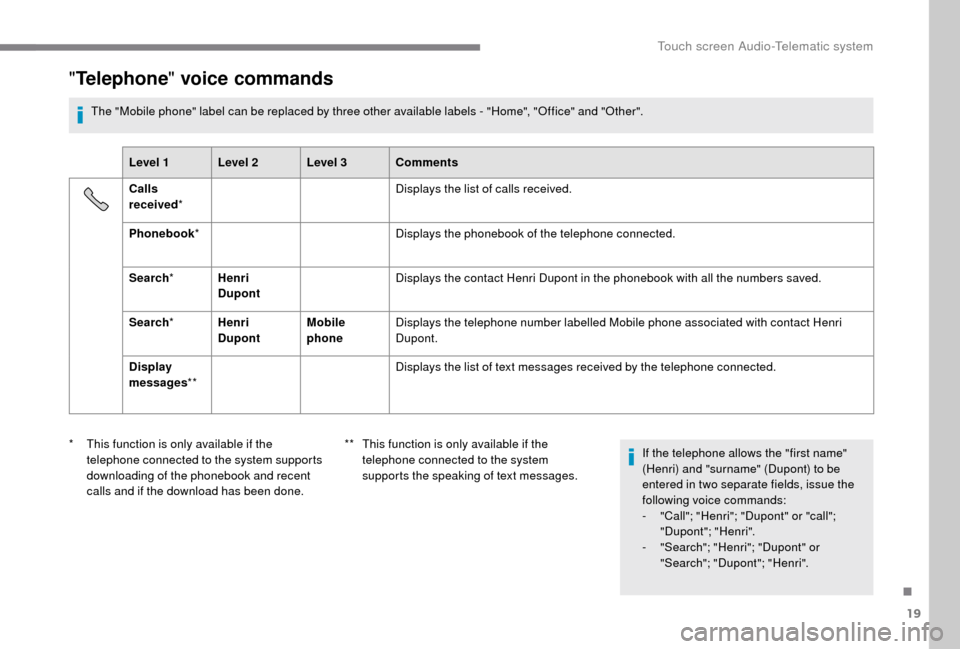
"Telephone " voice commands
The "Mobile phone" label can be replaced by three other available labels - "Home", "Office" and "Other".
Level 1 Level 2 Level 3 Comments
Calls
received * Displays the list of calls received.
Phonebook * Displays the phonebook of the telephone connected.
Search * Henri
Dupont Displays the contact Henri Dupont in the phonebook with all the numbers saved.
Search * Henri
Dupont Mobile
phoneDisplays the telephone number labelled Mobile phone associated with contact Henri
Dupont.
Display
messages ** Displays the list of text messages received by the telephone connected.
*
T
his function is only available if the
telephone connected to the system supports
downloading of the phonebook and recent
calls and if the download has been done. **
T
his function is only available if the
telephone connected to the system
supports the speaking of text messages. If the telephone allows the "first name"
(Henri) and "surname" (Dupont) to be
entered in two separate fields, issue the
following voice commands:
-
"
Call"; "Henri"; "Dupont" or "call";
"Dupont"; "Henri".
-
"
Search"; "Henri"; "Dupont" or
"Search"; "Dupont"; "Henri".
.
Touch screen Audio-Telematic system
Page 209 of 232

23
"Text message " voice commands
These voice commands can be issued from any main screen page after pressing the telephone button on the steering wheel, as long as there is
no telephone call in progress.
Level 1 Level 2 Level 3 Comments
Send a
text
to 0123 4 5 6789
Starts the voice procedure for sending a
pre-defined text message using the system.
Send a
text
to Henri Dupont
Mobile phone
Display text Henri DupontMobile phoneDisplays the message box downloaded from the telephone.
.
Touch screen Audio-Telematic system
Page 214 of 232

4
Media
USB port
Insert a USB memory stick or connect
a peripheral device to the USB port in
the central storage space , provided for
transferring data to the system, using a
suitable
cable (not supplied).
To protect the system, do not use a
USB
hub.
USB port
Auxiliary socket (AUX)
Connect a portable device (MP3 player, etc.) to
t he AUX Jack socket using an audio cable (not
supplied).
First adjust the volume on your portable device
(to a
high level). Then adjust the volume of your
audio system.
Display and management of the controls are
via the portable device. The functions of the device connected to
the AUX socket are managed directly by this
device: it is therefore not possible to change
the track /folder/playlist or manipulate the
playback start /end/pause by the controls on the
control panel or by the steering wheel controls.
Do not leave the cable of your portable device
connected to the AUX socket when not in use,
to avoid possible noises from the speakers.
Information and advice
The system supports USB mass storage
devices, BlackBerry® devices or Apple®
players via USB ports. The adapter cable is not
supplied.
Other devices not recognised by the system
during connection must be connected to
the auxiliary socket using a
Jack cable (not
supplied).
It is recommended that file names be no more
than twenty characters long and exclude
special characters (e.g. " " ? . ;) so as to avoid
any problem reading or displaying the files.
Use only USB memory sticks in FAT32
format
(File Allocation Table).
The system builds playlists (in temporary
memory), an operation which can take from
a
few seconds to several minutes at the first
connection.
Reduce the number of non-music files and the
number of folders to reduce the waiting time.
The playlists are updated every time the
ignition is switched off or a
USB memory stick
is connected. The lists are stored: if they are
not modified, the subsequent loading time will
b e s h o r t e r. Located on the centre console
, this port
is used only for powering and recharging the
portable device connected.
Audio system
Page 219 of 232
9
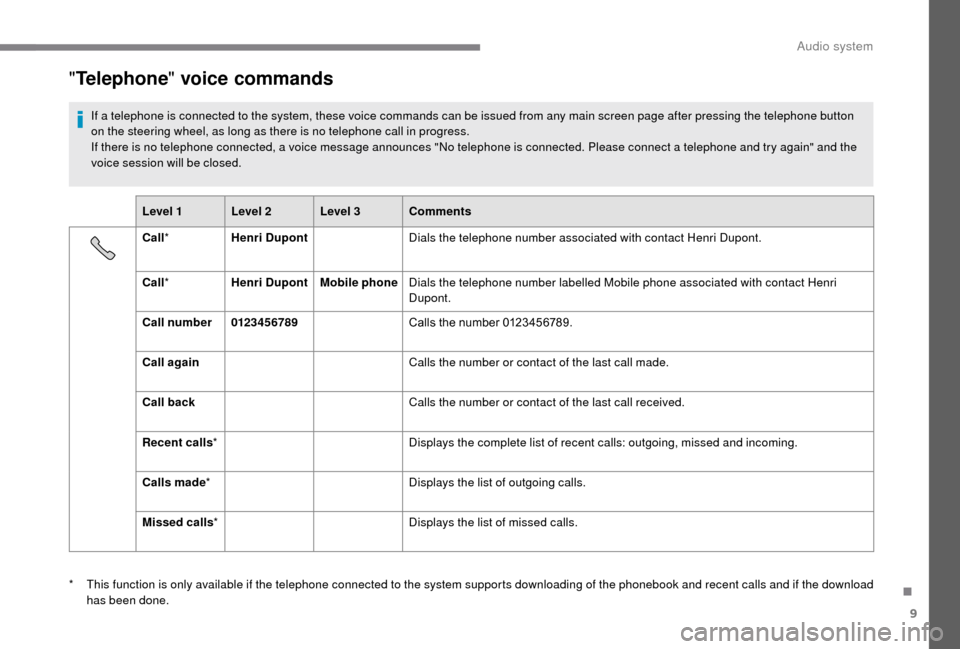
"Telephone " voice commands
If a telephone is connected to the system, these voice commands can be issued from any main screen page after pressing the telephone button
o n the steering wheel, as long as there is no telephone call in progress.
If there is no telephone connected, a voice message announces "No telephone is connected. Please connect a
telephone and try again" and the
voice session will be closed.
Level 1 Level 2 Level 3 Comments
Call * Henri Dupont Dials the telephone number associated with contact Henri Dupont.
Call * Henri Dupont Mobile phoneDials the telephone number labelled Mobile phone associated with contact Henri
Dupont.
Call number 0123 4 5 6789 Calls the number 0123456789.
Call again Calls the number or contact of the last call made.
Call back Calls the number or contact of the last call received.
Recent calls * Displays the complete list of recent calls: outgoing, missed and incoming.
Calls made * Displays the list of outgoing calls.
Missed calls * Displays the list of missed calls.
*
T
his function is only available if the telephone connected to the system supports downloading of the phonebook and recent calls and if the download
has been done.
.
Audio system