2018 Peugeot 308 start
[x] Cancel search: startPage 239 of 324

3
Radio:
Short press: display the list of radio
stations.
Long press: update the list.
Media:
Short press: display the list of
folders.
Long press: display the available
sorting options.
Other than telephone call:
Short press: changing audio source
(radio; USB; AUX (if equipment
connected); streaming), confirmation
if the "Telephone " menu is open.
Long press: open the " Telephone"
menu.
In the event of a telephone call:
Short press: accept the call.
Long press: reject the call.
During a telephone call:
Short press: open the contextual
telephone menu.
Long press: end the call.
Confirm a selection.
Increase volume. Decrease volume.
Mute/Restore sound by
simultaneously pressing the
increase and decrease volume
buttons.
Steering mounted controls
– Type 2
Access to the main menu.
Increase volume.
Mute/Restore the sound.
Decrease volume.
Other than telephone call:
Short press: changing audio source
(radio; USB; AUX (if equipment
connected); streaming), confirmation
if the "
Telephone " menu is open.
Long press: open the " Telephone"
menu.
In the event of a telephone call:
Short press: accept the call.
Long press: reject the call.
During a telephone call:
Short press: open the contextual
telephone menu.
Long press: end the call.
Start voice recognition on your
smartphone via the system.
Radio:
Short press: display the list of radio
stations.
Long press: update the list.
Media:
Short press: display the list of
folders.
Long press: display the available
sorting options.
.
Bluetooth® audio system
Page 242 of 324
6
When the radio station is displayed
in the screen, press OK to display
the contextual menu.
Select " RadioText (TXT) display "
and confirm OK to save.
DAB (Digital Audio
Broadcasting) radio
Depending on version
If the current DAB radio station is not
available on FM, "DAB FM" is struck out. When changing region, an update of the
list of preset radio stations is advisable.
Display of the list of all radio stations
and "multiplexes".
Terrestrial digital radio
Digital radio provides a superior audio
quality and also additional categories of
traffic announcements (TA INFO).
The different "multiplex/ensemble"
ser vices offer a choice of radio stations in
alphabetical order.Change of band (FM1, FM2, DAB,
e t c .)
Change of station within the same
"multiplex/ensemble".
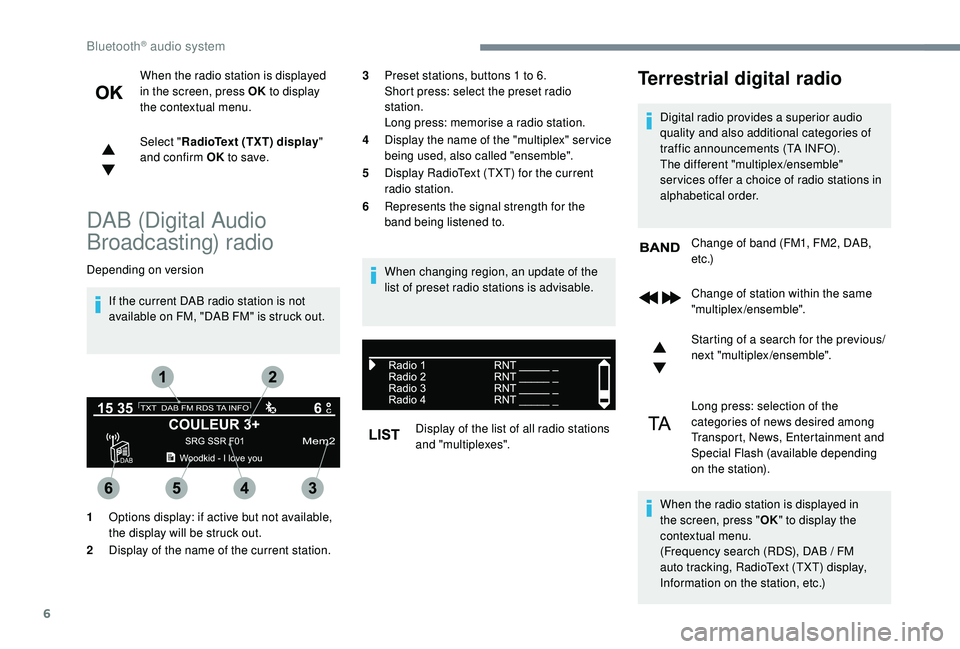
1 Options display: if active but not available,
the display will be struck out.
2 Display of the name of the current station. Starting of a search for the previous/
next "multiplex/ensemble".
Long press: selection of the
categories of news desired among
Transport, News, Entertainment and
Special Flash (available depending
on the station).
When the radio station is displayed in
the screen, press " OK" to display the
contextual menu.
(Frequency search (RDS), DAB
/ FM
auto tracking, RadioText (TXT) display,
Information on the station, etc.)
3
Preset stations, buttons 1 to 6.
Short press: select the preset radio
station.
Long press: memorise a radio station.
4 Display the name of the "multiplex" ser vice
being used, also called "ensemble".
5 Display RadioText (TXT) for the current
radio station.
6 Represents the signal strength for the
band being listened to.
Bluetooth® audio system
Page 245 of 324

9
Bluetooth® audio streaming
Streaming allows music files on the telephone
to be played via the vehicle's loudspeakers.
Connect the telephone.
(Refer to the "Pairing a Bluetooth
®
telephone " section).
Activate the streaming source by
pressing SOURCE.
In certain cases, play of the audio
files must be initiated from the
keypad.
Audio files can be selected using the buttons
on the audio system control panel and the
steering mounted controls. The contextual
information can be displayed in the screen,
if the telephone supports the function. The
audio quality depends on the quality of
transmission by the telephone.
Connecting Apple® players
Connect the Apple® player to the USB port
using a suitable cable (not supplied).
Play starts automatically.
Control is via the audio system.
The classifications available are those of the
portable device connected (artists/albums/
genres/playlists). The version of software in the audio system
may not be compatible with the generation of
your Apple
® p l aye r.
Information and advice
Via the USB port, the system can play audio
files with the extension ".mp3", ".wma", ".wav",
".cbr", ".vbr" with a bit rate of 32 to 320
Kbps.
No other file types (".mp4", etc.) can be read.
Files of the ".wma" type should be to the wma
9 standard.
The sampling rates supported are 11, 22, 44
and 48
kHz.
File names should have fewer than 20
characters, avoiding special characters (e.g.
«
? ; ù) so as to avoid any reading or display
problems.
To protect the system, do not use a USB hub.
Use only USB memory sticks formatted
FAT32 (File Allocation Table).
It is recommended that you use genuine
Apple
® USB cables for correct operation.
Telephone
Pairing a Bluetooth®
telephone
As a safety measure and because they
require prolonged attention on the part
of the driver, the operations for pairing
of the Bluetooth mobile telephone with
the Bluetooth hands-free system of your
audio system must be carried out with the
vehicle stationary and the ignition on.
Activate the telephone's Bluetooth
function and ensure that it is "visible to all"
(telephone configuration).
The services available depend on
the network, the SIM card and the
compatibility of the Bluetooth telephone
used.
Check the instructions for your telephone
and with your ser vice provider for the
ser vices to which you have access.
Procedure from the telephone
Select the name of the system in the
list of devices detected.
.
Bluetooth® audio system
Page 249 of 324
13
The system accesses the
telephone's contacts directory,
depending on its compatibility, and
while it is connected via Bluetooth.
With certain telephones connected
by Bluetooth you can send a contact
to the directory of the audio system.
Contacts imported in this way are
saved in a permanent directory
visible to all, whatever the telephone
connected.
The menu for the directory is not
accessible if it is empty.
Voice recognition
This function allows you to use your
smartphone's voice recognition via the system.
To start voice recognition, depending on the
type of steering mounted controls:
Make a long press on the end of the lighting
control stalk.
ORPress this button. Voice recognition requires the use of a
compatible smartphone first connected to
the vehicle by Bluetooth.
Frequently asked questions
The following information groups together the
answers to the most frequently asked questions
concerning your audio system.
.
Bluetooth® audio system
Page 250 of 324
14
QUESTIONRESPONSESOLUTION
With the engine off, the audio system switches
off after a few minutes of use. When the engine is switched off, the audio
system operating time depends on the state of
charge of the battery.
The switch-off is normal: the audio system
switches to economy mode and switches off to
prevent discharging the vehicle's battery.Start the vehicle’s engine to increase the
battery charge.
The message "the audio system is overheated"
appears on the display. In order to protect the installation if the
surrounding temperature is too high, the audio
system switches to an automatic thermal
protection mode leading to a reduction of the
volume.Switch the audio system off for a few minutes
to allow the system to cool.
Radio
QUESTION
RESPONSESOLUTION
There is a difference in sound quality between
the different audio sources (radio, USB, etc.). To allow for optimal listening quality, the audio
settings (Volume, Bass, Treble, Ambience,
Loudness) can be tailored to different
sound sources, which can generate audible
differences when changing source (radio, USB,
e t c .) .Check that the audio settings (Volume, Bass,
Treble, Ambience, Loudness) are adapted
to the sources listened to. It is advisable
to set the audio functions (Bass, Treble,
Front-Rear Fader, Left-Right Balance) to the
middle position, select the musical ambience
"None" and set the loudness correction to the
"Inactive" position in radio mode.
The preset stations do not function (no sound,
87.5
MHz is displayed, etc.). An incorrect waveband is selected.
Press the BAND button to return to the
waveband (FM, FM2, DAB, AM) on which the
stations are preset.
Bluetooth® audio system
Page 252 of 324
16
Telephone
QUESTIONRESPONSESOLUTION
I am unable to access my voicemail. Few telephones or ser vice providers allow the
use of this function.Call the voicemail, via the telephone menu,
using the number provided by your operator.
I am unable to access my directory of contacts. Check the compatibility of your telephone.
You did not give access to your contacts when
pairing the telephone.Accept or confirm access by the system to the
contacts on your telephone.
I am unable to continue a conversation when
getting into my vehicle. Telephone mode is activated.
Deselect telephone mode to transfer the call to
the vehicle.
I am unable to pair my telephone by Bluetooth. Telephones (models, versions of operating
systems) have their own specific aspects in the
pairing procedure and some telephones are not
compatible.Before starting the pairing procedure, delete
the pairing of the telephone from the system
and
of the system from the telephone, so as to
see the compatibility of the telephones.
Bluetooth® audio system
Page 256 of 324
4
21,518,5
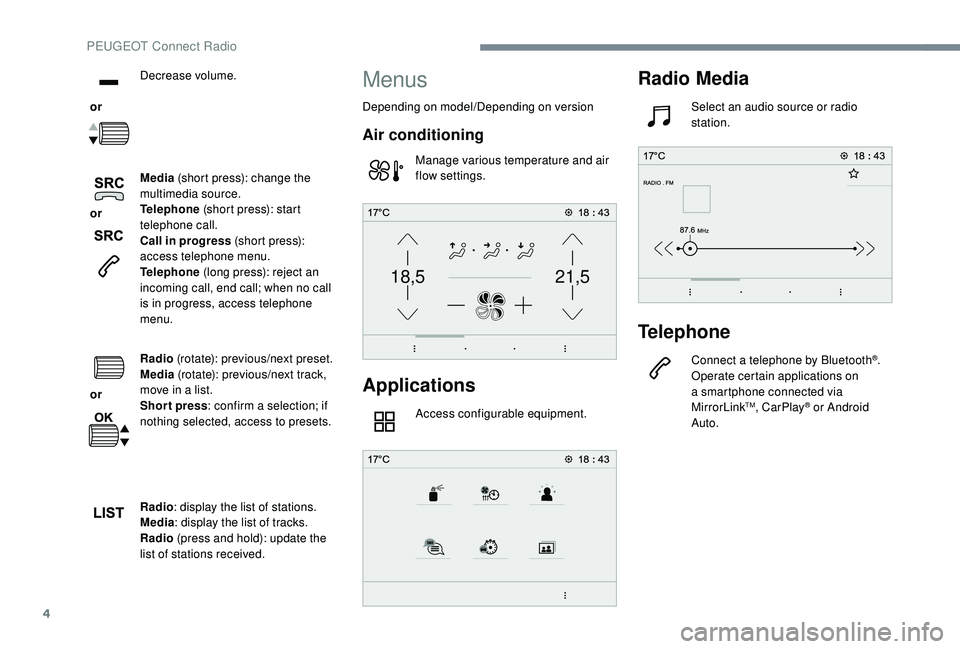
or Decrease volume.
or Media
(short press): change the
multimedia source.
Telephone (short press): start
telephone call.
Call in progress (short press):
access telephone menu.
Telephone (long press): reject an
incoming call, end call; when no call
is in progress, access telephone
menu.
or Radio
(rotate): previous/next preset.
Media (rotate): previous/next track,
move in a list.
Short press : confirm a selection; if
nothing selected, access to presets.
Radio : display the list of stations.
Media : display the list of tracks.
Radio (press and hold): update the
list of stations received.
Menus
Depending on model/Depending on version
Air conditioning
Manage various temperature and air
flow settings.
Applications
Access configurable equipment.
Radio Media
Select an audio source or radio
station.
Telephone
Connect a telephone by Bluetooth®.
Operate certain applications on
a smartphone connected via
MirrorLink
TM, CarPlay® or Android
Auto.
PEUGEOT Connect Radio
Page 261 of 324

9
If the "DAB" station being listened to is
not available on FM, or if the "FM-DAB
Tracking" is not activated, the sound will
cut out while the digital signal is too weak.
Media
USB port
Insert the USB memory stick in the USB port or
connect the USB device to the USB port using
a suitable cable (not supplied).To protect the system, do not use a USB
hub.
The system builds playlists (in temporary
memory), an operation which can take from
a few seconds to several minutes at the first
connection.
Reduce the number of non-music files and the
number of folders to reduce the waiting time. The playlists are updated every time the
ignition is switched off or a USB stick is
connected. The lists are memorised: if they are
not modified, the subsequent loading time will
b e s h o r t e r.
Auxiliary socket (AUX)
(depending on model/depending on equipment)
This source is only available if "Auxiliary input"
has been checked in the audio settings.
Connect a portable device (MP3 player, etc.)
to the Jack socket using an audio cable (not
supplied).
First adjust the volume on your portable device
(to a high level). Then adjust the volume of your
audio system.
Display and management of the controls are
via the portable device.
Selecting the source
Press Radio Media
to display the
primary page.
Press the " SOURCES " button.
Choose the source.
Bluetooth® audio streaming
Streaming allows you to listen to music from
your smartphone.
The Bluetooth profile must be activated; first
adjust the volume on your portable device (to a
high level).
Then adjust the volume of your system.
If play does not start automatically, it may be
necessary to start the audio playback from the
smartphone.
Control is from the portable device or by using
the system's touch buttons.
Once connected in Streaming mode, the
smartphone is considered to be a media
source.
.
PEUGEOT Connect Radio