2018 NISSAN NV PASSENGER VAN climate settings
[x] Cancel search: climate settingsPage 211 of 426
Audio main operation
(power) button / VOL (volume)control knob
Place the ignition switch in the ACC or ON
position and press the
(power) but-
ton while the system is off to call up the
mode (radio, CD, AUX, Bluetooth® audio,
USB or iPod®) that was playing immediately
before the system was turned off. To turn the system off, press the
(power) button.
Turn the VOL (volume) control knob to ad-
just the volume.
This vehicle may be equipped with Speed
Sensitive Volume. When this feature is ac-
tive, the audio volume changes as the driv-
ing speed changes.
ENTER/SETTING button
Press the ENTER/SETTING button to show
the Settings screen on the display. Turn the
TUNE/SCROLL knob to navigate the op-
tions and then press the ENTER/SETTING
button to make a selection.
4-48Monitor, climate, audio, phone and voice recognition systems
Page 218 of 426
![NISSAN NV PASSENGER VAN 2018 Owners Manual SXM settings
To view the SXM settings:1. Press the [
] button.
2. Touch the “Settings” key.
3. Touch the “SXM” key.
The signal strength, activation status and
other information are displayed o](/manual-img/5/58178/w960_58178-217.png "NISSAN NV PASSENGER VAN 2018 Owners Manual SXM settings
To view the SXM settings:1. Press the [
] button.
2. Touch the “Settings” key.
3. Touch the “SXM” key.
The signal strength, activation status and
other information are displayed o")
SXM settings
To view the SXM settings:1. Press the [
] button.
2. Touch the “Settings” key.
3. Touch the “SXM” key.
The signal strength, activation status and
other information are displayed on the
screen.
AUX button
The AUX IN audio input jack accepts any
standard analog audio input such as from
a portable cassette tape/CD player, MP3
player or a laptop computer. Press the AUX
button to play a compatible device
plugged into the AUX IN jack.
FM/AM/SAT radio operation
FM·AM button
Press the FM·AM button to change the
band as follows:
AM →FM1 →FM2 →AM
If another audio source is playing when the
FM·AM button is pressed, the audio source
playing will automatically be turned off and
the last radio station played will begin playing.
The FM stereo indicator (ST) is shown on
the screen during FM stereo reception.
When the stereo broadcast signal is weak,
the radio automatically changes from ste-
reo to monaural reception.
SXM band select
Pressing the SXM button will change the
band as follows:
SXM1* →SXM2* →SXM3* →SXM1* (satellite,
if so equipped)
When the SXM button is pressed while the
ignition switch is in the ACC or ON position,
the radio will come on at the last station
played.
The last station played will also come on
when the ON-OFF button is pressed to turn
the radio on.
*When the SXM button is pressed, the sat-
ellite radio mode will be skipped unless an
optional satellite receiver and antenna are
installed and a SiriusXM® Satellite Radio
service subscription is active. Satellite radio
is not available in Alaska, Hawaii and Guam.
If a compact disc is playing when the SXM
button is pressed, the compact disc will
automatically be turned off and the last
radio station played will come on. While the radio is in SXM mode, the opera-
tion can be controlled through the touch-
screen. Touch the “Categories” key to dis-
play a list of categories. Touch a category
displayed on the list to display options
within that category.
Tuning with the touch-screen
When in AM or FM mode, the radio can be
tuned using the touch-screen. To bring up
the visual tuner, touch the “Tune” key on the
lower right corner of the screen. A screen
appears with a bar running from low fre-
quencies on the lef t to high frequencies on
the right. Touch the screen at the location
of the frequency you wish to tune and the
station will change to that frequency. To
return to the regular radio display screen,
touch the “OK” key.
Tuning with the TUNE knob
The radio can also be manually tuned us-
ing the TUNE knob. When in FM or AM mode,
turn the TUNE knob to the lef t for lower
frequencies or to the right for higher fre-
quencies. When in SXM mode, turn the
TUNE knob to change the channel.
Monitor, climate, audio, phone and voice recognition systems4-55
Page 234 of 426
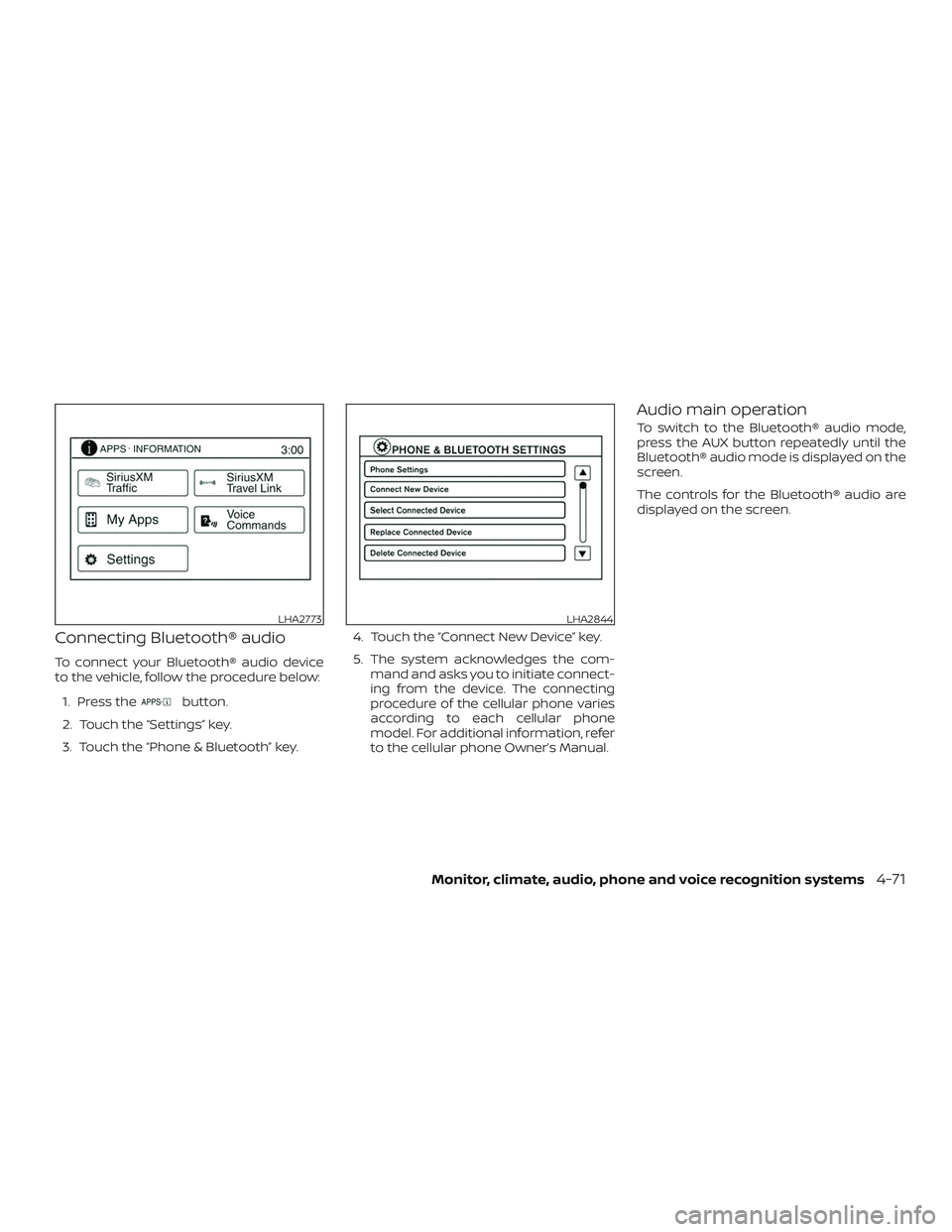
Connecting Bluetooth® audio
To connect your Bluetooth® audio device
to the vehicle, follow the procedure below:1. Press the
button.
2. Touch the “Settings” key.
3. Touch the “Phone & Bluetooth” key. 4. Touch the “Connect New Device” key.
5. The system acknowledges the com-
mand and asks you to initiate connect-
ing from the device. The connecting
procedure of the cellular phone varies
according to each cellular phone
model. For additional information, refer
to the cellular phone Owner’s Manual.
Audio main operation
To switch to the Bluetooth® audio mode,
press the AUX button repeatedly until the
Bluetooth® audio mode is displayed on the
screen.
The controls for the Bluetooth® audio are
displayed on the screen.
LHA2773LHA2844
Monitor, climate, audio, phone and voice recognition systems4-71
Page 247 of 426
5. Once a recipient is chosen, the systemprompts for which message to send.
Five predefined messages are avail-
able as well as three custom mes-
sages. To choose one of the predefined
messages, speak one of the following:
∙ “Driving, can’t text”
∙ “Call me”
∙ “On my way ”
∙ “Running late”
∙ “Okay ”
To send one of the custom messages, say
“Custom Message”. If more than one cus-
tom message is stored, the system will
prompt for the number of the desired cus-
tom message. For additional information
on setting and managing custom text
messages, refer to “Bluetooth® settings” in
this section. Reading a received text message:
1. Press the
button.
2. Say “Messaging”.
3. Say “Read Text”.
The text message, sender and delivery
time are shown on the screen. Use the tun-
ing switch on the steering wheel to scroll
through all text messages if more than one
are available. Press the
button to exit
the text message screen. Press
the
button to access the following
options for replying to the text message:
∙ Call Back Speak this command to call the sender
of the text message using the
Bluetooth® Hands-Free Phone System.
∙ Send Text Speak this command to send a text
message response to the sender of the
text message. ∙ Read Text
Speak this command to read the text
message again.
∙ Previous Text Speak this command to move to the
previous text message (if available).
∙ Next Text Speak this command to move to the
next text message (if available).
NOTE:
Text messages are only displayed if the
vehicle speed is less than 5 mph
(8 km/h).
4-84Monitor, climate, audio, phone and voice recognition systems
Page 248 of 426
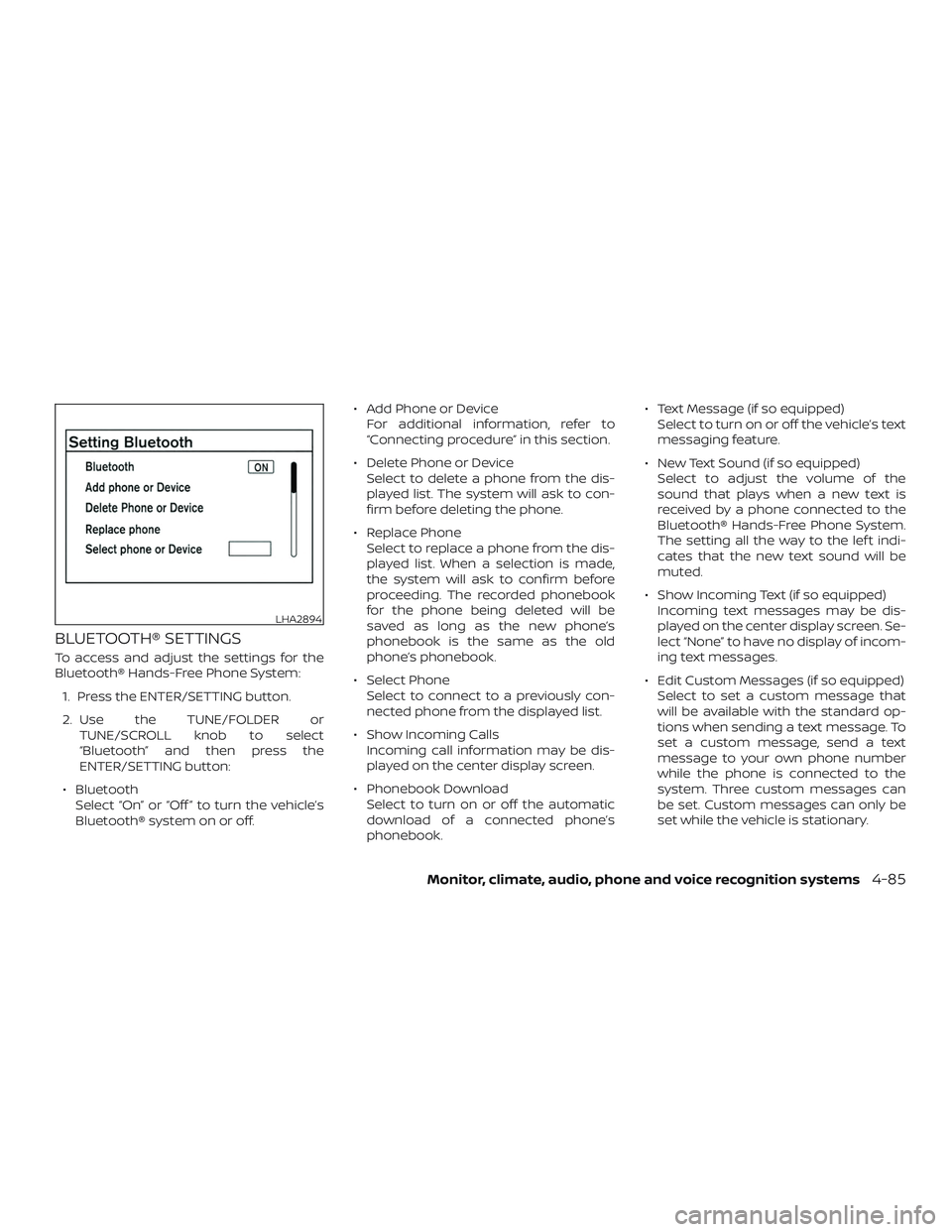
BLUETOOTH® SETTINGS
To access and adjust the settings for the
Bluetooth® Hands-Free Phone System:1. Press the ENTER/SETTING button.
2. Use the TUNE/FOLDER or TUNE/SCROLL knob to select
“Bluetooth” and then press the
ENTER/SETTING button:
∙ Bluetooth Select “On” or “Off ” to turn the vehicle’s
Bluetooth® system on or off. ∙ Add Phone or Device
For additional information, refer to
“Connecting procedure” in this section.
∙ Delete Phone or Device Select to delete a phone from the dis-
played list. The system will ask to con-
firm before deleting the phone.
∙ Replace Phone Select to replace a phone from the dis-
played list. When a selection is made,
the system will ask to confirm before
proceeding. The recorded phonebook
for the phone being deleted will be
saved as long as the new phone’s
phonebook is the same as the old
phone’s phonebook.
∙ Select Phone Select to connect to a previously con-
nected phone from the displayed list.
∙ Show Incoming Calls Incoming call information may be dis-
played on the center display screen.
∙ Phonebook Download Select to turn on or off the automatic
download of a connected phone’s
phonebook. ∙ Text Message (if so equipped)
Select to turn on or off the vehicle’s text
messaging feature.
∙ New Text Sound (if so equipped) Select to adjust the volume of the
sound that plays when a new text is
received by a phone connected to the
Bluetooth® Hands-Free Phone System.
The setting all the way to the lef t indi-
cates that the new text sound will be
muted.
∙ Show Incoming Text (if so equipped) Incoming text messages may be dis-
played on the center display screen. Se-
lect “None” to have no display of incom-
ing text messages.
∙ Edit Custom Messages (if so equipped) Select to set a custom message that
will be available with the standard op-
tions when sending a text message. To
set a custom message, send a text
message to your own phone number
while the phone is connected to the
system. Three custom messages can
be set. Custom messages can only be
set while the vehicle is stationary.
LHA2894
Monitor, climate, audio, phone and voice recognition systems4-85
Page 252 of 426
– This Class B digital apparatus meets allrequirements of the Canadian Interference-Causing Equipment Regulations.
BLUETOOTH® is a
trademark owned
by Bluetooth SIG,
Inc. and licensed
to Bosch.
VOICE COMMANDS
You can use voice commands to operate
various Bluetooth® Hands-Free Phone Sys-
tem features using the NISSAN Voice Rec-
ognition system. For additional informa-
tion, refer to “NISSAN Voice Recognition
System” in this section.
Voice Prompt Interrupt
While using the voice recognition system,
the system voice can be interrupted to al-
low the user to speak commands. While
the system is speaking, press the
button on the steering wheel. The system
voice will stop and a tone will be heard.
Af ter the tone, speak desired command
(displayed on the touch-screen).
CONNECTING PROCEDURE
NOTE:
The connecting procedure must be per-
formed when the vehicle is stationary. If
the vehicle starts moving during the pro-
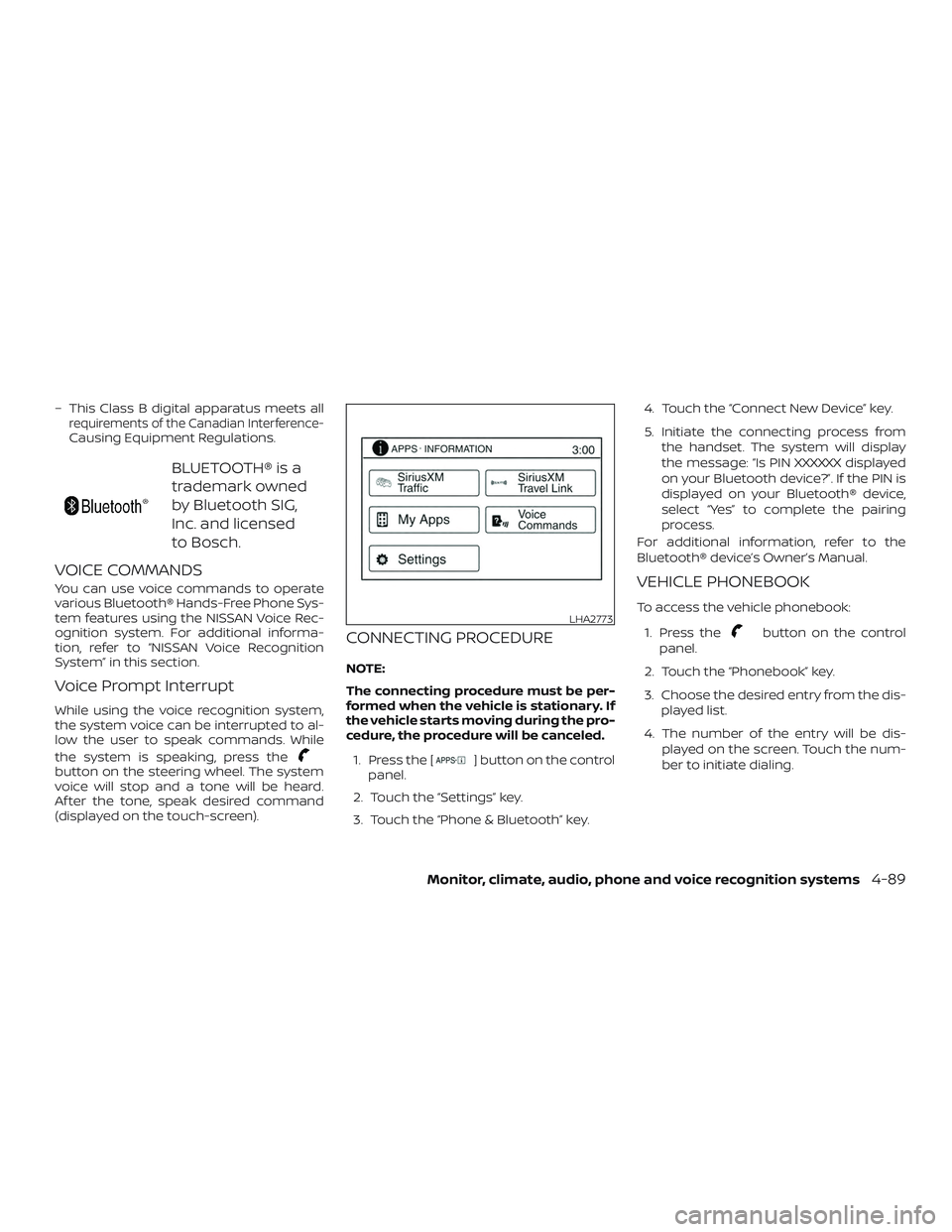
cedure, the procedure will be canceled.1. Press the [
] button on the control
panel.
2. Touch the “Settings” key.
3. Touch the “Phone & Bluetooth” key. 4. Touch the “Connect New Device” key.
5. Initiate the connecting process from
the handset. The system will display
the message: “Is PIN XXXXXX displayed
on your Bluetooth device?”. If the PIN is
displayed on your Bluetooth® device,
select “Yes” to complete the pairing
process.
For additional information, refer to the
Bluetooth® device’s Owner’s Manual.
VEHICLE PHONEBOOK
To access the vehicle phonebook:
1. Press the
button on the control
panel.
2. Touch the “Phonebook” key.
3. Choose the desired entry from the dis- played list.
4. The number of the entry will be dis- played on the screen. Touch the num-
ber to initiate dialing.LHA2773
Monitor, climate, audio, phone and voice recognition systems4-89
Page 254 of 426
NOTE:
Many phones may require special per-
mission to enable text messaging. Check
the phone’s screen during Bluetooth®
pairing. For some phones, you may need
to enable ‘Notifications’ in the phone’s
Bluetooth® menu for text messages to
appear on the head unit. For additional
information, refer to the phone’s Own-
er’s Manual.
Text message integration requires that
the phone support MAP (Message Ac-
cess Profile) for both receiving and send-
ing text messages. Some phones may
not support all text messaging features.
For additional information, please refer
to www.nissanusa.com/bluetooth or
www.nissan.ca/bluetooth for compat-
ibility information. For additional infor-
mation, refer to the phone’s Owner’s
Manual.
The system allows for the sending and re-
ceiving of text messages through the ve-
hicle interface.Sending a text message:
1.
Press thebutton on the steering
wheel.
2. Say “Phone” af ter the tone.
3. Say “Send Text” af ter the tone.
4. The system will provide a list of avail- able commands in order to determine
the recipient of the text message.
Choose from the following:
∙ To (a name)
∙ Enter Number
∙ Missed Calls
∙ Incoming Calls
∙ Outgoing Calls
For additional information, refer to
“Voice commands” in this section. 5. Once a recipient is chosen, the system
prompts for which message to send.
Nine predefined messages are avail-
able as well as three custom mes-
sages. To choose one of the predefined
messages, speak one of the following
af ter the tone:
∙ “Driving, can’t text”
∙ “Call me”
∙ “On my way ”
∙ “Running late”
∙ “Okay ”
∙ “Yes”
∙ “No”
∙ “Where are you?”
∙ “When?”
To send one of the custom messages,
say “Custom Messages”. If more than
one custom message is stored, the
system will prompt for the number of
the desired custom message. For ad-
ditional information, refer to
“Bluetooth® settings” in this section.
Monitor, climate, audio, phone and voice recognition systems4-91
Page 255 of 426
Reading a received text message:1. Press the
button on the steering
wheel.
2. Say “Phone” af ter the tone.
3. Say “Read Text” af ter the tone.
The text message, sender and delivery
time are shown on the screen. Use the tun-
ing switch
to scroll through all text
messages if more than one are available.
Press the
button to exit the text mes-
sage screen. Press the
button to ac-
cess the following options for replying to
the text message:
∙ Call Back Speak this command to call the sender
of the text message using the
Bluetooth® Hands-Free Phone System.
∙ Send Text Speak this command to send a text
message response to the sender of the
text message.
∙ Read Text Speak this command to read the text
message again.
∙ Previous Text Speak this command to move to the
previous text message (if available). ∙ Next Text
Speak this command to move to the
next text message (if available).
NOTE:
Text messages are only displayed if the
vehicle speed is less than 5 mph
(8 km/h).
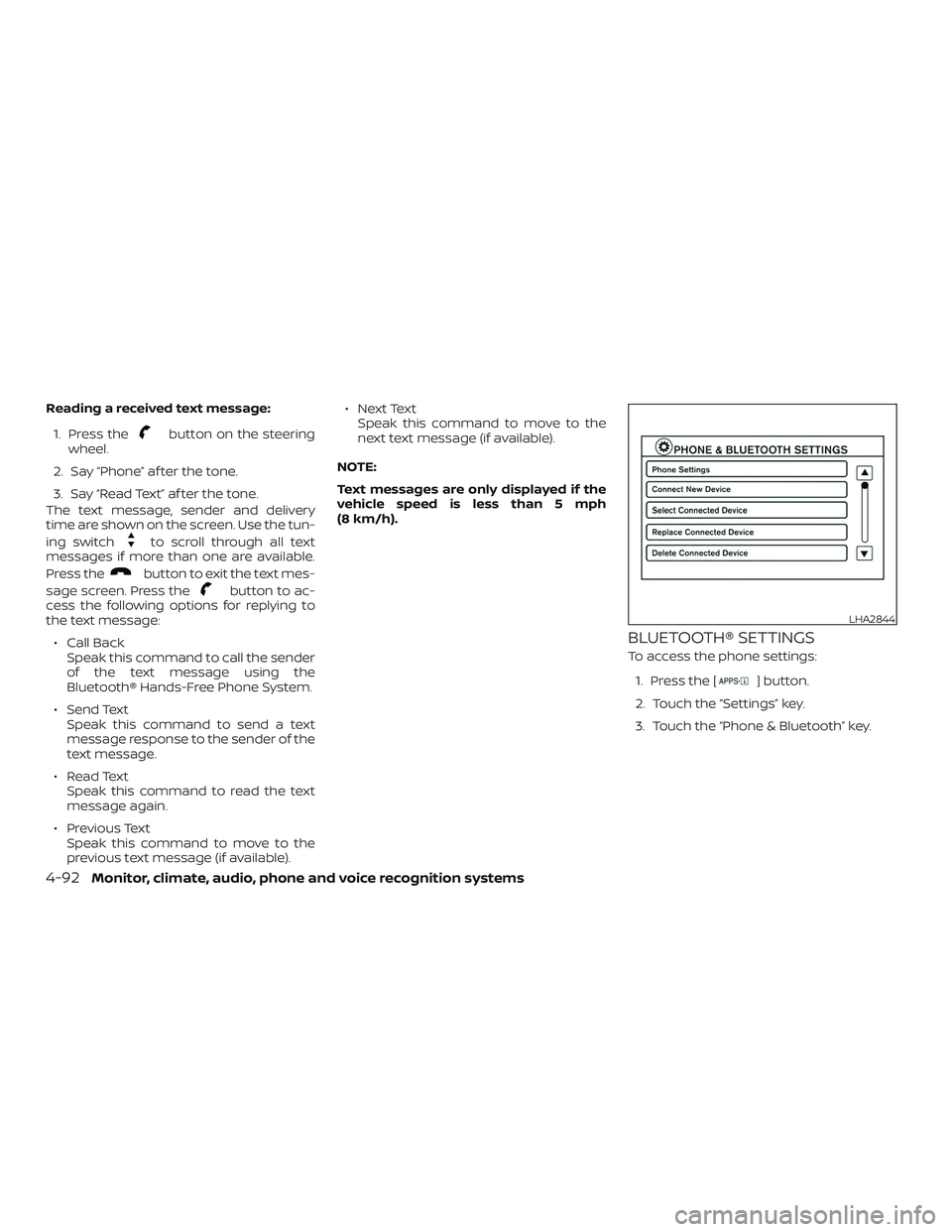
BLUETOOTH® SETTINGS
To access the phone settings: 1. Press the [
] button.
2. Touch the “Settings” key.
3. Touch the “Phone & Bluetooth” key.
LHA2844
4-92Monitor, climate, audio, phone and voice recognition systems