2018 NISSAN 370Z ECO mode
[x] Cancel search: ECO modePage 155 of 453
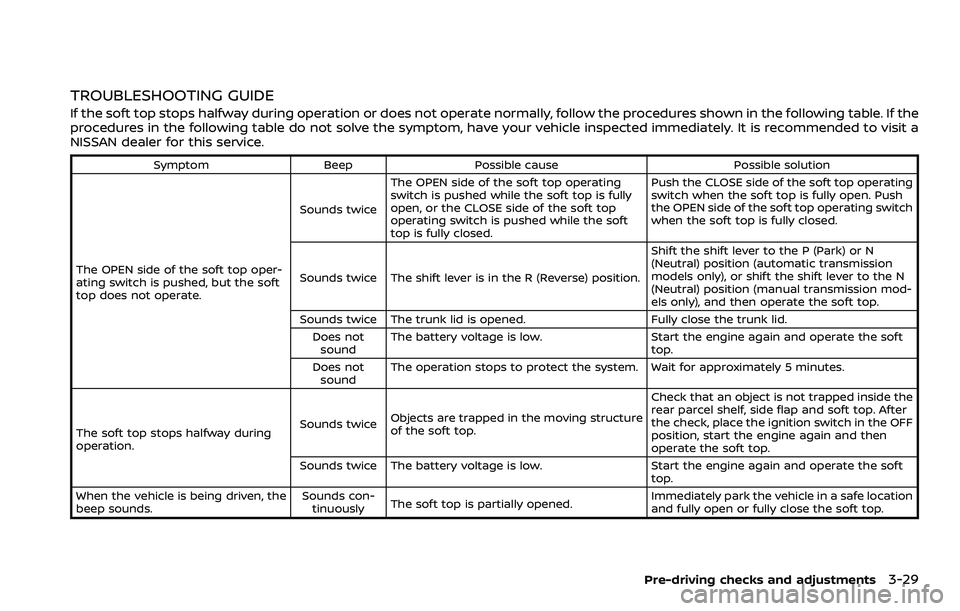
TROUBLESHOOTING GUIDE
If the soft top stops halfway during operation or does not operate normally, follow the procedures shown in the following table. If the
procedures in the following table do not solve the symptom, have your vehicle inspected immediately. It is recommended to visit a
NISSAN dealer for this service.
SymptomBeepPossible cause Possible solution
The OPEN side of the soft top oper-
ating switch is pushed, but the soft
top does not operate. Sounds twice
The OPEN side of the soft top operating
switch is pushed while the soft top is fully
open, or the CLOSE side of the soft top
operating switch is pushed while the soft
top is fully closed. Push the CLOSE side of the soft top operating
switch when the soft top is fully open. Push
the OPEN side of the soft top operating switch
when the soft top is fully closed.
Sounds twice The shift lever is in the R (Reverse) position. Shift the shift lever to the P (Park) or N
(Neutral) position (automatic transmission
models only), or shift the shift lever to the N
(Neutral) position (manual transmission mod-
els only), and then operate the soft top.
Sounds twice The trunk lid is opened. Fully close the trunk lid.
Does not sound The battery voltage is low.
Start the engine again and operate the soft
top.
Does not sound The operation stops to protect the system. Wait for approximately 5 minutes.
The soft top stops halfway during
operation. Sounds twice
Objects are trapped in the moving structure
of the soft top. Check that an object is not trapped inside the
rear parcel shelf, side flap and soft top. After
the check, place the ignition switch in the OFF
position, start the engine again and then
operate the soft top.
Sounds twice The battery voltage is low. Start the engine again and operate the soft
top.
When the vehicle is being driven, the
beep sounds. Sounds con-
tinuously The soft top is partially opened. Immediately park the vehicle in a safe location
and fully open or fully close the soft top.
Pre-driving checks and adjustments3-29
Page 169 of 453

4 Center display, heater, air conditioner,audio, phone and voice recognition sys-
tems
Safety note ........................................................................\
................. 4-3
Center multi-function control panel (models with
navigation system) ....................................................................... 4-4
How to use multi-function controller ..................... 4-4
How to use touch screen ................................................. 4-5
Menu options ........................................................................\
..... 4-7
How to select menus on the screen ....................... 4-7
Vehicle information and settings (models with
navigation system) ....................................................................... 4-8 How to use STATUS button ........................................... 4-8
How to use brightness control and display
ON/OFF button ........................................................................\
. 4-8
How to use INFO button ................................................... 4-8
How to use SETTING button ......................................... 4-11
RearView Monitor (models with
navigation system) ..................................................................... 4-17 RearView Monitor system operation .................... 4-18
How to read displayed lines ......................................... 4-18
How to park with predictive course lines ......... 4-19
Adjusting the screen ......................................................... 4-22
Predictive course line settings .................................. 4-22
RearView Monitor system limitations .................. 4-22
System maintenance ........................................................ 4-23 Ventilators ........................................................................\
............... 4-24
Center ventilators ............................................................. 4-24
Side ventilators ................................................................... 4-24
Heater and air conditioner ................................................. 4-25
Automatic air conditioner (Type A) (if
so equipped) ........................................................................\
.. 4-26
Automatic air conditioner (Type B) (if
so equipped) ........................................................................\
.. 4-28
Operating tips ...................................................................... 4-30
In-cabin microfilter ........................................................... 4-30
Servicing air conditioner .............................................. 4-30
Audio system ........................................................................\
........ 4-30 Audio operation precautions ................................... 4-30
FM-AM radio with Compact Disc
(CD) player ........................................................................\
....... 4-43
FM-AM-SAT radio with Compact Disc
(CD) player ........................................................................\
....... 4-52
DVD (Digital Versatile Disc) player operation
(models with navigation system) ......................... 4-55
USB (Universal Serial Bus) connection port
(models with navigation system) ......................... 4-59
Bluetooth® streaming audio (models with
navigation system) ........................................................... 4-63
Page 170 of 453
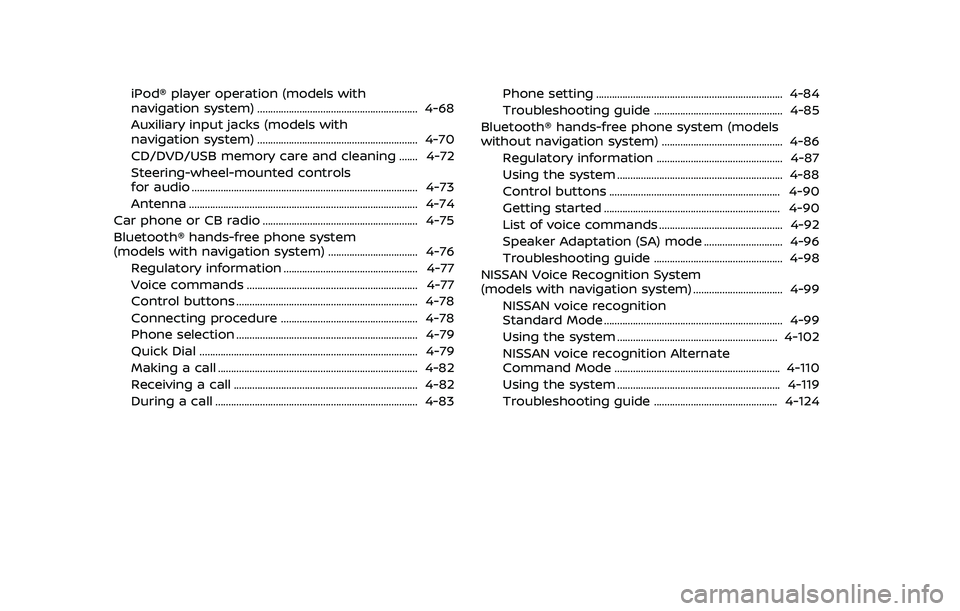
iPod® player operation (models with
navigation system) ............................................................. 4-68
Auxiliary input jacks (models with
navigation system) ............................................................. 4-70
CD/DVD/USB memory care and cleaning ....... 4-72
Steering-wheel-mounted controls
for audio ........................................................................\
.............. 4-73
Antenna ........................................................................\
............... 4-74
Car phone or CB radio ........................................................... 4-75
Bluetooth® hands-free phone system
(models with navigation system) .................................. 4-76 Regulatory information ................................................... 4-77
Voice commands ................................................................. 4-77
Control buttons ..................................................................... 4-78
Connecting procedure .................................................... 4-78
Phone selection ..................................................................... 4-79
Quick Dial ........................................................................\
........... 4-79
Making a call ........................................................................\
.... 4-82
Receiving a call ...................................................................... 4-82
During a call ........................................................................\
..... 4-83 Phone setting ....................................................................... 4-84
Troubleshooting guide ................................................. 4-85
Bluetooth® hands-free phone system (models
without navigation system) .............................................. 4-86
Regulatory information ................................................ 4-87
Using the system ............................................................... 4-88
Control buttons ................................................................. 4-90
Getting started ................................................................... 4-90
List of voice commands ............................................... 4-92
Speaker Adaptation (SA) mode .............................. 4-96
Troubleshooting guide ................................................. 4-98
NISSAN Voice Recognition System
(models with navigation system) .................................. 4-99 NISSAN voice recognition
Standard Mode .................................................................... 4-99
Using the system ............................................................. 4-102
NISSAN voice recognition Alternate
Command Mode ............................................................... 4-110
Using the system .............................................................. 4-119
Troubleshooting guide ............................................... 4-124
Page 172 of 453
4-4Center display, heater, air conditioner, audio, phone and voice recognition systems
SAA2273
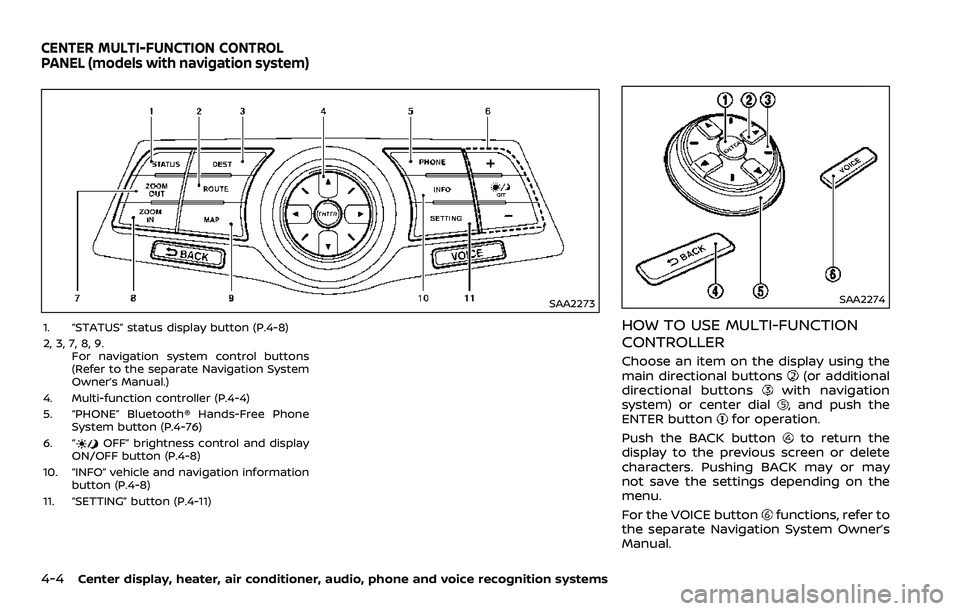
1. “STATUS” status display button (P.4-8)
2, 3, 7, 8, 9.For navigation system control buttons
(Refer to the separate Navigation System
Owner’s Manual.)
4. Multi-function controller (P.4-4)
5. “PHONE” Bluetooth® Hands-Free Phone System button (P.4-76)
6. “
OFF” brightness control and display
ON/OFF button (P.4-8)
10. “INFO” vehicle and navigation information button (P.4-8)
11. “SETTING” button (P.4-11)
SAA2274
HOW TO USE MULTI-FUNCTION
CONTROLLER
Choose an item on the display using the
main directional buttons(or additional
directional buttonswith navigation
system) or center dial, and push the
ENTER buttonfor operation.
Push the BACK button
to return the
display to the previous screen or delete
characters. Pushing BACK may or may
not save the settings depending on the
menu.
For the VOICE button
functions, refer to
the separate Navigation System Owner’s
Manual.
CENTER MULTI-FUNCTION CONTROL
PANEL (models with navigation system)
Page 176 of 453
4-8Center display, heater, air conditioner, audio, phone and voice recognition systems
2. Menu Selections:Shows the options to choose within
that menu screen.
3. UP/DOWN Movement indicator:
Shows that the multi-function con-
troller may be used to move UP/
DOWN on the screen and select more
options.
4. Menu Items Counter: Shows the total number of items
listed across all pages for the current
menu (i.e. 3/7).
5. Footer/Information Line: Provides more information (if avail-
able) about the menu selection cur-
rently highlighted. (i.e. Adjust head
lamp on time after shut-off.)HOW TO USE STATUS BUTTON
You can check information related to the
audio, climate control system, fuel con-
sumption and navigation system by
pressing the STATUS button repeatedly.
HOW TO USE BRIGHTNESS CON-
TROL AND DISPLAY ON/OFF BUT-
TON
Push the “OFF” button to switch the
display brightness to the daytime mode
or the nighttime mode, and to adjust the
display brightness using the multi-func-
tion controller while the indicator is dis-
played at the bottom of the screen.
The display brightness can also be ad-
justed using the brightness UP button (+)
or brightness DOWN button (−).
Push and hold the “
OFF” button for
more than 2 seconds to turn the display
off. Push the button again to turn the
display on.
HOW TO USE INFO BUTTON
The display screen shows vehicle and
navigation information for your conveni-
ence.
The information shown on the screen
should be a guide to determine the
condition of the vehicle. See the following
for details.
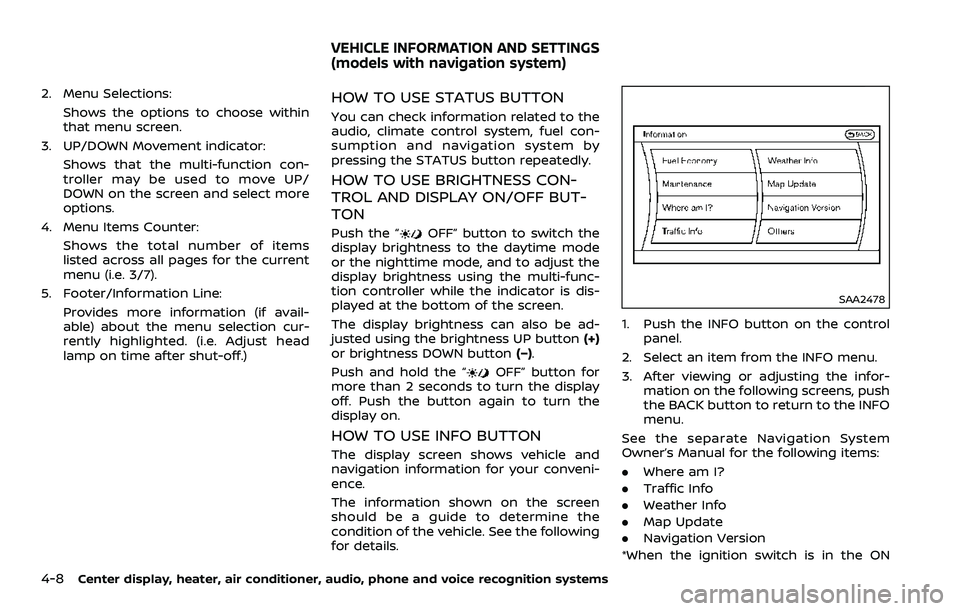
SAA2478
1. Push the INFO button on the control
panel.
2. Select an item from the INFO menu.
3. After viewing or adjusting the infor- mation on the following screens, push
the BACK button to return to the INFO
menu.
See the separate Navigation System
Owner’s Manual for the following items:
. Where am I?
. Traffic Info
. Weather Info
. Map Update
. Navigation Version
*When the ignition switch is in the ON
VEHICLE INFORMATION AND SETTINGS
(models with navigation system)
Page 179 of 453
SAA2483
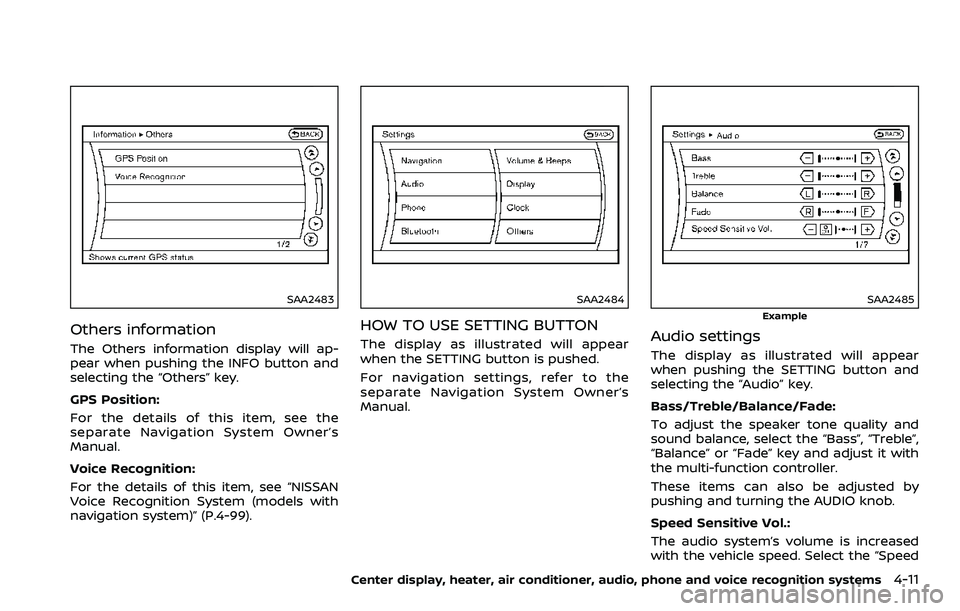
Others information
The Others information display will ap-
pear when pushing the INFO button and
selecting the “Others” key.
GPS Position:
For the details of this item, see the
separate Navigation System Owner’s
Manual.
Voice Recognition:
For the details of this item, see “NISSAN
Voice Recognition System (models with
navigation system)” (P.4-99).
SAA2484
HOW TO USE SETTING BUTTON
The display as illustrated will appear
when the SETTING button is pushed.
For navigation settings, refer to the
separate Navigation System Owner’s
Manual.
SAA2485
Example
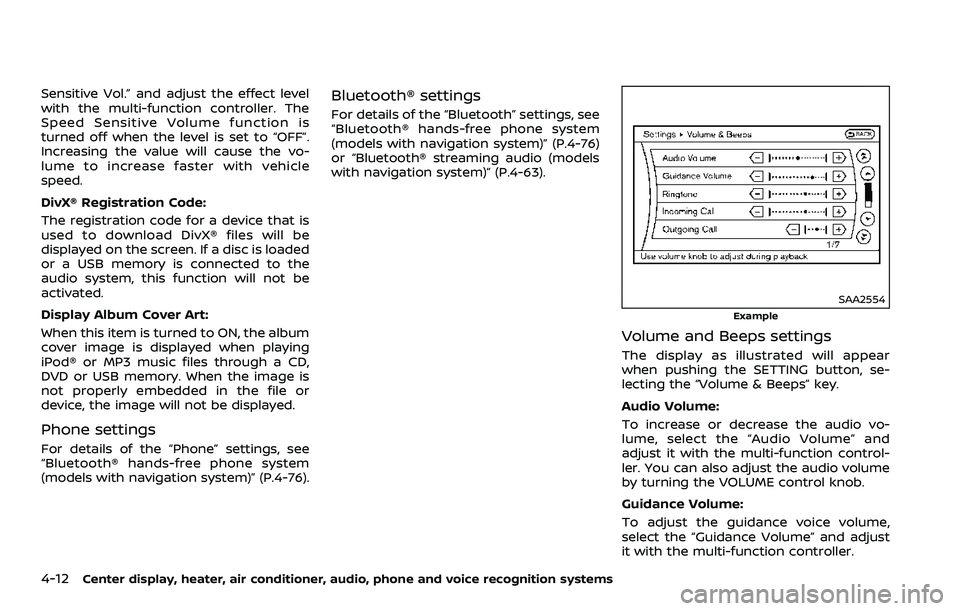
Audio settings
The display as illustrated will appear
when pushing the SETTING button and
selecting the “Audio” key.
Bass/Treble/Balance/Fade:
To adjust the speaker tone quality and
sound balance, select the “Bass”, “Treble”,
“Balance” or “Fade” key and adjust it with
the multi-function controller.
These items can also be adjusted by
pushing and turning the AUDIO knob.
Speed Sensitive Vol.:
The audio system’s volume is increased
with the vehicle speed. Select the “Speed
Center display, heater, air conditioner, audio, phone and voice recognition systems4-11
Page 180 of 453
4-12Center display, heater, air conditioner, audio, phone and voice recognition systems
Sensitive Vol.” and adjust the effect level
with the multi-function controller. The
Speed Sensitive Volume function is
turned off when the level is set to “OFF”.
Increasing the value will cause the vo-
lume to increase faster with vehicle
speed.
DivX® Registration Code:
The registration code for a device that is
used to download DivX® files will be
displayed on the screen. If a disc is loaded
or a USB memory is connected to the
audio system, this function will not be
activated.
Display Album Cover Art:
When this item is turned to ON, the album
cover image is displayed when playing
iPod® or MP3 music files through a CD,
DVD or USB memory. When the image is
not properly embedded in the file or
device, the image will not be displayed.
Phone settings
For details of the “Phone” settings, see
“Bluetooth® hands-free phone system
(models with navigation system)” (P.4-76).
Bluetooth® settings
For details of the “Bluetooth” settings, see
“Bluetooth® hands-free phone system
(models with navigation system)” (P.4-76)
or “Bluetooth® streaming audio (models
with navigation system)” (P.4-63).
SAA2554
Example
Volume and Beeps settings
The display as illustrated will appear
when pushing the SETTING button, se-
lecting the “Volume & Beeps” key.
Audio Volume:
To increase or decrease the audio vo-
lume, select the “Audio Volume” and
adjust it with the multi-function control-
ler. You can also adjust the audio volume
by turning the VOLUME control knob.
Guidance Volume:
To adjust the guidance voice volume,
select the “Guidance Volume” and adjust
it with the multi-function controller.
Page 181 of 453
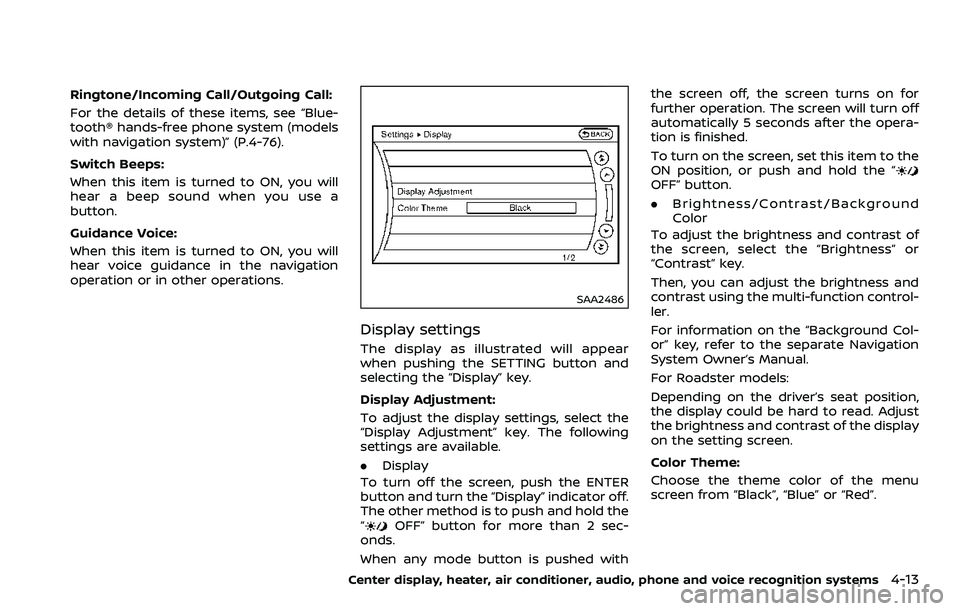
Ringtone/Incoming Call/Outgoing Call:
For the details of these items, see “Blue-
tooth® hands-free phone system (models
with navigation system)” (P.4-76).
Switch Beeps:
When this item is turned to ON, you will
hear a beep sound when you use a
button.
Guidance Voice:
When this item is turned to ON, you will
hear voice guidance in the navigation
operation or in other operations.
SAA2486
Display settings
The display as illustrated will appear
when pushing the SETTING button and
selecting the “Display” key.
Display Adjustment:
To adjust the display settings, select the
“Display Adjustment” key. The following
settings are available.
.Display
To turn off the screen, push the ENTER
button and turn the “Display” indicator off.
The other method is to push and hold the
“
OFF” button for more than 2 sec-
onds.
When any mode button is pushed with the screen off, the screen turns on for
further operation. The screen will turn off
automatically 5 seconds after the opera-
tion is finished.
To turn on the screen, set this item to the
ON position, or push and hold the “
OFF” button.
.
Brightness/Contrast/Background
Color
To adjust the brightness and contrast of
the screen, select the “Brightness” or
“Contrast” key.
Then, you can adjust the brightness and
contrast using the multi-function control-
ler.
For information on the “Background Col-
or” key, refer to the separate Navigation
System Owner’s Manual.
For Roadster models:
Depending on the driver’s seat position,
the display could be hard to read. Adjust
the brightness and contrast of the display
on the setting screen.
Color Theme:
Choose the theme color of the menu
screen from “Black”, “Blue” or “Red”.
Center display, heater, air conditioner, audio, phone and voice recognition systems4-13