Page 366 of 538

NOTElWhen connecting a USB device, use a con-
nection cable. Failure to use a connection ca-
ble when connecting may place undue load
on, or damage the USB connector.
l Set up the device in order that no unsafe ac-
tions, such as plugging in the connection ca-ble are taken while driving.
l When inserting and removing the USB de-
vice, for safety’s sake first stop the vehicle.
l Do not insert other than audio devices into
the USB port. Damage to the device or
equipment may result.
l Depending on the status of the USB device,
it may take some time until the device is rec-
ognized, or playback starts.
l Depending on the USB device, the button
functions on the product may not operate while the USB device is connected.
l USB device specifications and settings may
mean that connection is not possible, or re- sult in differences in operation or display.
l Depending on audio data in the USB device,
track information may not be displayed cor- rectly.
l Depending on the status of the vehicle and
device, the iPod/iPhone may not play back
after starting the Plug-in Hybrid EV system.
l Data containing copyright information may
not play back.
l This product can play back MP3, WMA, and
AAC format audio files.
l Depending on the type of USB device, usage
may not be possible, or functions that can beused may be restricted.NOTEl The recommended file system for USB
memory is FAT32.
l The maximum supported capacity for USB
memory is 32GB.
l Operate the USB device containing recorded
audio files while connected to this product.
Play Back of Audio Files on a
USB Device
Press the MEDIA key to set
USB as the source. The selected source is in- dicated on the display.
Select the Track (File)
Press the key or key to select the
track.
This enables selection of the next or previous
track.
Fast Forward or Rewind
Hold down the 3 key or the 4 key.
Fast forward/rewind is possible.
Switch Playback Mode
Repeat playback, random playback, and scan
playback are possible.
Repeat Playback (RPT)
Press the 1RPT key.
Repeat playback of the track currently being played.
NOTEl Pressing again will cancel.
l Selecting a file will cancel this.
Folder Repeat Playback
Hold down the 1RPT key.
Repeat playback of the tracks within the fold- er currently being played.
NOTEl Pressing again will cancel.
l Even if the file is selected, folder repeat
playback will not be cancelled.
Folder Random Playback
(RDM)
Press the 2RDM key.
Listen to Audio Files on a USB Device
8-34OGGE18E1For pleasant driving8
Page 367 of 538

Play tracks in the folder currently being
played in a random order.NOTEl Pressing again will cancel.
l Even if the file is selected, folder random
playback will not be cancelled.
All Folder Random Playback
Hold down the 2RDM key.
Play the tracks in all folders in a random or-
der.
NOTEl Pressing again will cancel.
l Even if the file is selected, all folder random
playback will not be cancelled.
Scan Playback (SCAN)
Press the PTY/SCAN key.
Play the first 10 seconds of each of the tracks on the whole USB device in order.
NOTEl Press this button again during playback if
you wish to hear that track, and that trackwill play normally.
Folder Scan Playback
Hold down the PTY/SCAN key.
Play the first 10 seconds of the first track in each folder on the USB device in order.
NOTEl Press this button again during playback if
you wish to hear that track, and that trackwill play normally.
Search Tracks
Search folders and files, and select a track.
1. Turn the
/SEL key to select the folder.
2. Press the
/SEL key.
Files within the selected folder are dis- played.
3. Turn the
/SEL key to select the file.
4. Press the
/SEL key.
This plays the selected file (track).
NOTEl While the folder is selected, press the 6 key to cancel track search mode.
l If there is no operation for 10 seconds after
selecting the folder, then track search mode will be cancelled.
l Select the folder, and hold down the
/SEL
key to start playback from the first track in
that folder.
l While the file is selected, press the 6
key
to return to the previous operation.
l While the file is selected, hold down the 6
key to cancel track search mode.
l If there is no operation for five seconds after
selecting the file, that file is played back.
l Operations such as selecting a track will
cancel track search mode.
To play iPod/USB memory
device tracks via voice
operation (vehicles with
Bluetooth ®
2.0 interface)
E00748700029
Desired tracks on the iPod/USB memory de-
vice which is connected to the USB input ter-
minal can be selected and played via voice operation.
For information concerning the voice recog- nition function or speaker registration func-
tion, refer to “Bluetooth®
2.0 interface” on
page 8-49.
To play iPod/USB memory device tracks via voice operation (vehicles with Bluetooth ®
2.0 interface)
8-35OGGE18E1For pleasant driving8
Page 368 of 538
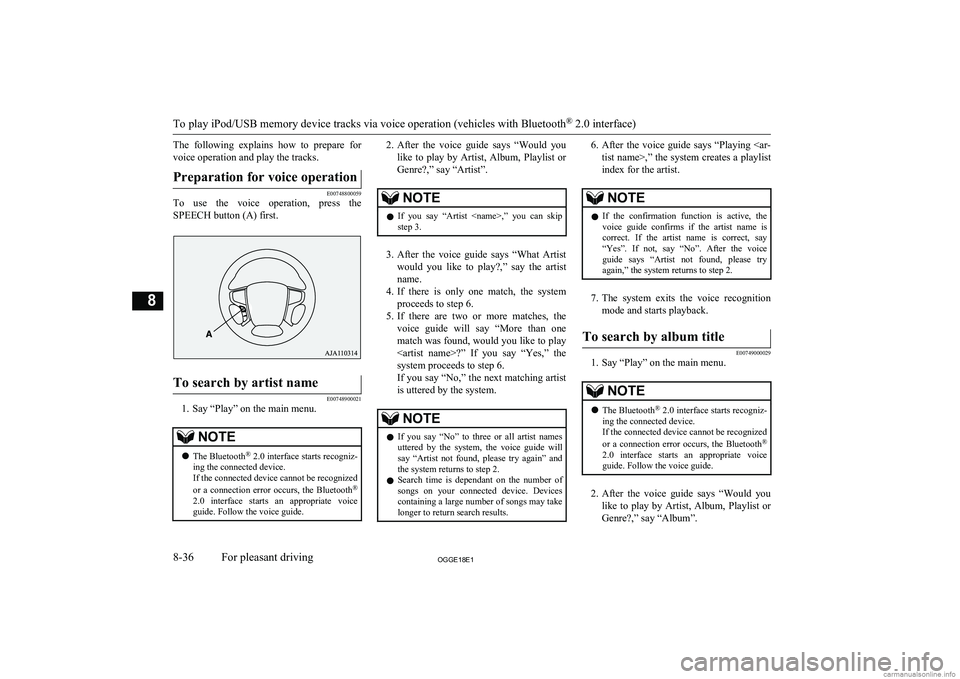
The following explains how to prepare forvoice operation and play the tracks.Preparation for voice operation
E00748800059
To use the voice operation, press the
SPEECH button (A) first.
To search by artist name
E00748900021
1. Say “Play” on the main menu.
NOTEl The Bluetooth ®
2.0 interface starts recogniz-
ing the connected device.
If the connected device cannot be recognized
or a connection error occurs, the Bluetooth ®
2.0 interface starts an appropriate voice
guide. Follow the voice guide.2. After the voice guide says “Would you
like to play by Artist, Album, Playlist or Genre?,” say “Artist”.NOTEl If you say “Artist ,” you can skip
step 3.
3. After the voice guide says “What Artist
would you like to play?,” say the artist name.
4. If there is only one match, the system
proceeds to step 6.
5. If there are two or more matches, the
voice guide will say “More than one
match was found, would you like to play ?” If you say “Yes,” the
system proceeds to step 6.
If you say “No,” the next matching artist
is uttered by the system.
NOTEl If you say “No” to three or all artist names
uttered by the system, the voice guide will say “Artist not found, please try again” and
the system returns to step 2.
l Search time is dependant on the number of
songs on your connected device. Devices containing a large number of songs may take
longer to return search results.6. After the voice guide says “Playing
tist name>,” the system creates a playlist
index for the artist.NOTEl If the confirmation function is active, the
voice guide confirms if the artist name is
correct. If the artist name is correct, say “Yes”. If not, say “No”. After the voice
guide says “Artist not found, please try again,” the system returns to step 2.
7. The system exits the voice recognition
mode and starts playback.
To search by album title
E00749000029
1. Say “Play” on the main menu.
NOTEl The Bluetooth ®
2.0 interface starts recogniz-
ing the connected device.
If the connected device cannot be recognized
or a connection error occurs, the Bluetooth ®
2.0 interface starts an appropriate voice
guide. Follow the voice guide.
2. After the voice guide says “Would you
like to play by Artist, Album, Playlist or Genre?,” say “Album”.
To play iPod/USB memory device tracks via voice operation (vehicles with Bluetooth ®
2.0 interface)
8-36OGGE18E1For pleasant driving8
Page 369 of 538
NOTElIf you say “Album
,” you can skip<br />
step 3.<br />
3. After the voice guide says “What Album<br />
would you like to play?” say the album title.<br />
4. If there is only one match, the system<br />
proceeds to step 6.<br />
5. If there are two or more matches, the<br />
voice guide will say “More than one<br />
match was found, would you like to play <album title>?” If you say “Yes,” thesystem proceeds to step 6.<br />
If you say “No,” the next matching al-<br />
bum is uttered by the system.<br />
NOTEl If you say “No” to three or all album titles<br />
uttered by the system, the voice guide will say “Album not found, please try again” and<br />
the system returns to step 2.<br />
6. After the voice guide says “Playing <al-<br />
bum title>,” the system creates a playlist index for the album title.<br />
NOTEl If the confirmation function is active, the<br />
voice guide confirms if the album title is<br />
correct. If the album title is correct, say<br />
“Yes”. If not, say “No”. After the voice guide says “Album not found, please try<br />
again,” the system returns to step 2.<br />
7. The system exits the voice recognition<br />
mode and starts playback.<br />
To search by playlist<br />
E00749100020<br />
1. Say “Play” on the main menu.<br />
NOTEl The Bluetooth ®<br />
2.0 interface starts recogniz-<br />
ing the connected device.<br />
If the connected device cannot be recognized<br />
or a connection error occurs, the Bluetooth ®<br />
2.0 interface starts an appropriate voice<br />
guide. Follow the voice guide.<br />
2. After the voice guide says “Would you<br />
like to play by Artist, Album, Playlist or Genre?,” say “Playlist”.<br />
NOTEl If you say “Playlist <playlist>,” you can skip<br />
step 3.<br />
If the device has no playlist, the voice guide<br />
will say “There are no playlists stored on de- vice” and the system returns to step 2.<br />
3. After the voice guide says “What Play-<br />
list would you like to play?,” say the<br />
playlist name.<br />
4. If there is only one match, the system<br />
proceeds to step 6.<br />
5. If there are two or more matches, the<br />
voice guide will say “More than one match was found, would you like to play<br />
<playlist>?” If you say “Yes,” the sys- tem proceeds to step 6.<br />
If you say “No,” the next matching play-<br />
list name is uttered by the system.<br />
NOTEl If you say “No” to three or all playlist names<br />
uttered by the system, the voice guide will say “Playlist not found, please try again” and<br />
the system returns to step 2.<br />
6. After the voice guide says “Playing<br />
<playlist>,” the system creates an index for the playlist.<br />
To play iPod/USB memory device tracks via voice operation (vehicles with Bluetooth ®<br />
2.0 interface)<br />
8-37OGGE18E1For pleasant driving8 <p></div><script>$(document).on('click', '#a369', function(){
$(this).hide();
$('#b369').height($('#a369').height()-22);
$('#b369').show();
});
$(document).on('click', '#b369', function(){
$(this).hide();
$('#a369').show();
});
$(document).ready(function(){
$('#b369').height($('#a369').height()-22);
});
</script>
<div style="height: 250px">
<script async src="//pagead2.googlesyndication.com/pagead/js/adsbygoogle.js"></script>
<ins class="adsbygoogle"
style="display:block; min-height: 280px"
data-ad-client="ca-pub-1094764738794676"
data-ad-slot="8211391741"
data-ad-format="auto"></ins>
<script>
(adsbygoogle = window.adsbygoogle || []).push({});
</script></div>
<a name='374'></a><h3>Page 374 of 538</h3><div id='a374'><img loading='lazy' width='960' height='679' style='border: 1px solid #444444; max-width: 100%; display:block; height: auto;' alt='MITSUBISHI OUTLANDER PHEV 2018 Owners Manual (in English) During CD-DA playback
This switches in the order “Disc title”,“Track title”, and “Operating status”.
NOTEl If there is no text information to display,
then “NO TITLE” is d' title='MITSUBISHI OUTLANDER PHEV 2018 Owners Manual (in English) During CD-DA playback
This switches in the order “Disc title”,“Track title”, and “Operating status”.
NOTEl If there is no text information to display,
then “NO TITLE” is d' src='/manual-img/19/34890/w960_34890-373.png' /></div><div id='b374' style='overflow: auto; width: 962px; border: 1px solid rgb(68, 68, 68); padding: 10px; background-color: rgb(238, 238, 238); max-width: 100%; height: 677.143px; display: none;'><p>During CD-DA playback<br />
This switches in the order “Disc title”,“Track title”, and “Operating status”.<br />
NOTEl If there is no text information to display,<br />
then “NO TITLE” is displayed.<br />
During MP3/WMA/AAC Play-<br />
back<br />
This switches in the order “Folder title”,<br />
“File title”, and “Operating status”.<br />
NOTEl If there is no text information to display,<br />
then “NO TITLE” is displayed.<br />
Display the ID3tag<br />
Hold down the DISP key.<br />
<br />
This switches the ID3tag display.<br />
[DISP] Each time the key is pressed, this<br />
switches in the order “Album name”, “Track name”, “Artist name”, “Genre name”*, and “Operating status”.<br />
*:Displayed when playing back audio<br />
files on a USB device (vehicles with a<br />
Bluetooth ®<br />
2.0 interface).NOTEl During display of the ID3tag, hold down the<br />
DISP key to switch to the folder title dis- play.<br />
l The genre name display may not be possible.During iPod Playback<br />
E00738901096<br />
This switches in the order “Albums”, “Track<br />
name”, “Artist name”, “Genre name”*, and<br />
“Operating status”.<br />
NOTEl If there is no text information to display,<br />
then “NO TITLE” is displayed.<br />
l Displayed genre name in equipment by type<br />
(vehicles with a Bluetooth ®<br />
2.0 interface).<br />
l The genre name display may not be possible.During Bluetooth ®<br />
2.0 Audio<br />
Playback*<br />
E00739001036<br />
Operating details are the same as in “During<br />
iPod Playback” on page 8-42.<br />
Audio Quality and Volume<br />
Balance Adjustment E00738201161<br />
Change audio quality settings.<br />
Adjust Audio Quality and Vol-<br />
ume Balance<br />
1. Press the /SEL key to select settings<br />
items.<br />
Each time the <br />
/SEL key is pressed,<br />
this switches in the order BASS, TRE-<br />
BLE, FADER, BALANCE, SCV (speed<br />
compensated volume), and Cancel.<br />
2. Turn the <br />
/SEL key to adjust.<br />
Adjust- ment<br />
itemsTurn counter- clockwiseTurn clock- wiseBASS-6 to 0<br />
(low low-pass volume)0 to +6<br />
(high low-pass volume)TREBLE-6 to 0<br />
(Low high-pass volume)0 to +6<br />
(High high-pass<br />
volume)FADERCENTER to<br />
REAR 11<br />
(emphasise<br />
REAR)FRONT 11 to CENTER<br />
(emphasise<br />
FRONT)BAL-<br />
ANCELEFT 11 to<br />
CENTER<br />
(emphasise<br />
LEFT)CENTER to<br />
RIGHT 11<br />
(emphasise<br />
RIGHT)<br />
Audio Quality and Volume Balance Adjustment<br />
8-42OGGE18E1For pleasant driving8 <p></div><script>$(document).on('click', '#a374', function(){
$(this).hide();
$('#b374').height($('#a374').height()-22);
$('#b374').show();
});
$(document).on('click', '#b374', function(){
$(this).hide();
$('#a374').show();
});
$(document).ready(function(){
$('#b374').height($('#a374').height()-22);
});
</script>
<div style="height: 250px">
<script async src="//pagead2.googlesyndication.com/pagead/js/adsbygoogle.js"></script>
<ins class="adsbygoogle"
style="display:block; min-height: 280px"
data-ad-client="ca-pub-1094764738794676"
data-ad-slot="8211391741"
data-ad-format="auto"></ins>
<script>
(adsbygoogle = window.adsbygoogle || []).push({});
</script></div>
<a name='379'></a><h3>Page 379 of 538</h3><div id='a379'><img loading='lazy' width='960' height='679' style='border: 1px solid #444444; max-width: 100%; display:block; height: auto;' alt='MITSUBISHI OUTLANDER PHEV 2018 Owners Manual (in English) TroubleshootingE00738401075
Please check these items if a message appears on the display, or if you think something is not working properly.If This Message Appears...
A message is displayed on this pr' title='MITSUBISHI OUTLANDER PHEV 2018 Owners Manual (in English) TroubleshootingE00738401075
Please check these items if a message appears on the display, or if you think something is not working properly.If This Message Appears...
A message is displayed on this pr' src='/manual-img/19/34890/w960_34890-378.png' /></div><div id='b379' style='overflow: auto; width: 962px; border: 1px solid rgb(68, 68, 68); padding: 10px; background-color: rgb(238, 238, 238); max-width: 100%; height: 677.143px; display: none;'><p>TroubleshootingE00738401075<br />
Please check these items if a message appears on the display, or if you think something is not working properly.If This Message Appears...<br />
A message is displayed on this product according to the situation.<br />
ModeMessageCauseResponseCDCHECK DISCThe disc is inserted upside down.Insert with the label side up.The disc has condensation on it.Wait a while before inserting again.DISC ERRORThe disc is damaged.Clean the read surface of the disc.The disc is dirty.INTERNAL EThe drive has malfunctioned for some reason.Check that there is no problem with the disc, and insert<br />
the disc again. If the problem persists, consult a<br />
MITSUBISHI MOTORS Authorized Service Point.HEAT ERRORThe temperature inside the product is high.Remove the disc, and wait for the internal temperature<br />
to return to normal.USBFILE ERRORFiles that cannot be played are selected.Select files that can be played.<br />
→ “Audio Files (MP3/WMA/AAC)” on page 8-19USB BUS PWRThere is high or low electrical current or voltage.Turn the power OFF and wait a short while. If the prob-<br />
lem persists, consult a MITSUBISHI MOTORS Author- ized Service Point.LSI ERRORThere is an internal malfunction for some reason.UNSUPPORTED FORMATUnsupported audio files have been played.Confirm audio files that can be played.<br />
→ “Audio Files (MP3/WMA/AAC)” on page 8-19UNSUPPORTED DEVICEAn unsupported USB device has been connected.Please connect a USB memory device.iPodNO SONGAn iPod/iPhone not containing any tracks has been<br />
connected.Connect an iPod/iPhone containing tracks.<br />
Troubleshooting<br />
8-47OGGE18E1For pleasant driving8 <p></div><script>$(document).on('click', '#a379', function(){
$(this).hide();
$('#b379').height($('#a379').height()-22);
$('#b379').show();
});
$(document).on('click', '#b379', function(){
$(this).hide();
$('#a379').show();
});
$(document).ready(function(){
$('#b379').height($('#a379').height()-22);
});
</script>
<div style="height: 250px">
<script async src="//pagead2.googlesyndication.com/pagead/js/adsbygoogle.js"></script>
<ins class="adsbygoogle"
style="display:block; min-height: 280px"
data-ad-client="ca-pub-1094764738794676"
data-ad-slot="8211391741"
data-ad-format="auto"></ins>
<script>
(adsbygoogle = window.adsbygoogle || []).push({});
</script></div>
<a name='381'></a><h3>Page 381 of 538</h3><div id='a381'><img loading='lazy' width='960' height='679' style='border: 1px solid #444444; max-width: 100%; display:block; height: auto;' alt='MITSUBISHI OUTLANDER PHEV 2018 Owners Manual (in English) Link System*E00764501569
The Link System takes overall control of the devices connected via the USB input terminal
or the Bluetooth ®
2.0 interface allowing the
connected devices to be ' title='MITSUBISHI OUTLANDER PHEV 2018 Owners Manual (in English) Link System*E00764501569
The Link System takes overall control of the devices connected via the USB input terminal
or the Bluetooth ®
2.0 interface allowing the
connected devices to be ' src='/manual-img/19/34890/w960_34890-380.png' /></div><div id='b381' style='overflow: auto; width: 962px; border: 1px solid rgb(68, 68, 68); padding: 10px; background-color: rgb(238, 238, 238); max-width: 100%; height: 677.143px; display: none;'><p>Link System*E00764501569<br />
The Link System takes overall control of the devices connected via the USB input terminal<br />
or the Bluetooth ®<br />
2.0 interface allowing the<br />
connected devices to be operated by using the<br />
switches in the vehicle or voice commands.<br />
See the following section for details on how<br />
to operate.<br />
<br />
Refer to “Bluetooth ®<br />
2.0 interface” on page<br />
8-49.<br />
Refer to “USB input terminal” on page<br />
8-69.<br />
Refer to “Listen to an iPod” on page 8-31.<br />
Refer to “Listen to Audio Files on a USB De-<br />
vice” on page 8-33.<br />
Refer to “To play iPod/USB memory device<br />
tracks via voice operation” on page 8-35.<br />
Refer to “Listen to Bluetooth Audio” on page 8-38.<br />
Bluetooth ®<br />
is a registered trademark of<br />
BLUETOOTH SIG, INC.Link System End User Licence<br />
Agreement<br />
E00764601111<br />
You have acquired a device that includes<br />
software licensed by MITSUBISHI<br />
MOTORS CORPORATION from Visteon<br />
Corporation, and their subsequent 3 rd<br />
party<br />
suppliers. For a complete list of these 3 rd<br />
par-<br />
ty products and their end user licence agree-<br />
ments, please go to the following website. http://www.jciblueconnect.com/faq/fulldi-<br />
sclosure.pdf<br />
Bluetooth ®<br />
2.0 interface*<br />
E00726002547<br />
The Bluetooth®<br />
2.0 interface allows for mak-<br />
ing/receiving hands-free calls in the vehicle<br />
using a Bluetooth ®<br />
compatible cellular phone<br />
based on the wireless communication tech-<br />
nology commonly known as Bluetooth ®<br />
. It<br />
also allows the user to play music, saved in a<br />
Bluetooth ®<br />
music player, from the vehicle’s<br />
speakers.<br />
The system is equipped with a voice recogni-<br />
tion function, which allows you to make hands-free calls by simple switch operations<br />
and voice command operations using a de-<br />
fined voice tree.<br />
<br />
The Bluetooth ®<br />
2.0 interface can be used<br />
when the operation mode is in ON or ACC.<br />
<br />
Before you can use the Bluetooth ®<br />
2.0 inter-<br />
face, you must pair the Bluetooth ®<br />
device<br />
and Bluetooth ®<br />
2.0 interface. Refer to “Con-<br />
necting the Bluetooth® 2.0 interface and Bluetooth® device” on page 8-55.<br />
<br />
Bluetooth ®<br />
is a registered trademark of<br />
BLUETOOTH SIG, INC.WARNINGl Although the Bluetooth ®<br />
2.0 interface al-<br />
lows you to make hands-free calls, if you choose to use the cellular phone while<br />
driving, you must not allow yourself to be<br />
distracted from the safe operation of your vehicle. Anything, including cellularphone usage, that distracts you from the safe operation of your vehicle increasesyour risk of an accident.<br />
l Refer to and comply with all state and lo-<br />
cal laws in your area regarding cellular phone usage while driving.<br />
Link System*<br />
8-49OGGE18E1For pleasant driving8 <p></div><script>$(document).on('click', '#a381', function(){
$(this).hide();
$('#b381').height($('#a381').height()-22);
$('#b381').show();
});
$(document).on('click', '#b381', function(){
$(this).hide();
$('#a381').show();
});
$(document).ready(function(){
$('#b381').height($('#a381').height()-22);
});
</script>
<div style="height: 250px">
<script async src="//pagead2.googlesyndication.com/pagead/js/adsbygoogle.js"></script>
<ins class="adsbygoogle"
style="display:block; min-height: 280px"
data-ad-client="ca-pub-1094764738794676"
data-ad-slot="8211391741"
data-ad-format="auto"></ins>
<script>
(adsbygoogle = window.adsbygoogle || []).push({});
</script></div>
<a name='401'></a><h3>Page 401 of 538</h3><div id='a401'><img loading='lazy' width='960' height='679' style='border: 1px solid #444444; max-width: 100%; display:block; height: auto;' alt='MITSUBISHI OUTLANDER PHEV 2018 Owners Manual (in English) Enrollment commands
E00732401480
USB input terminal*E00761901373
You can connect your USB memory device or iPod* to play music files stored in the USB memory device or iPod.
This sect' title='MITSUBISHI OUTLANDER PHEV 2018 Owners Manual (in English) Enrollment commands
E00732401480
USB input terminal*E00761901373
You can connect your USB memory device or iPod* to play music files stored in the USB memory device or iPod.
This sect' src='/manual-img/19/34890/w960_34890-400.png' /></div><div id='b401' style='overflow: auto; width: 962px; border: 1px solid rgb(68, 68, 68); padding: 10px; background-color: rgb(238, 238, 238); max-width: 100%; height: 677.143px; display: none;'><p>Enrollment commands<br />
E00732401480<br />
<br />
USB input terminal*E00761901373<br />
You can connect your USB memory device or iPod* to play music files stored in the USB memory device or iPod.<br />
This section explains how to connect and re-<br />
move a USB memory device or iPod.<br />
See the following section for details on how<br />
to play music files.<br />
<br />
Refer to “Listen to an iPod” on page 8-31.<br />
Refer to “Listen to Audio Files on a USB De-<br />
vice” on page 8-33.Refer to “To play iPod/USB memory device<br />
tracks via voice operation” on page 8-35.<br />
*: “iPod” is a registered trademark of Apple<br />
Inc. in the United States and other countries.How to connect a USB memory<br />
device<br />
E00762001645<br />
1. Park your vehicle in a safe place and put<br />
the operation mode in OFF.<br />
2. Open the USB input terminal cover (A)<br />
in the floor console box.<br />
USB input terminal*<br />
8-69OGGE18E1For pleasant driving8 Type 1<br />
Type 2 <p></div><script>$(document).on('click', '#a401', function(){
$(this).hide();
$('#b401').height($('#a401').height()-22);
$('#b401').show();
});
$(document).on('click', '#b401', function(){
$(this).hide();
$('#a401').show();
});
$(document).ready(function(){
$('#b401').height($('#a401').height()-22);
});
</script>
<div style="height: 250px">
<script async src="//pagead2.googlesyndication.com/pagead/js/adsbygoogle.js"></script>
<ins class="adsbygoogle"
style="display:block; min-height: 280px"
data-ad-client="ca-pub-1094764738794676"
data-ad-slot="8211391741"
data-ad-format="auto"></ins>
<script>
(adsbygoogle = window.adsbygoogle || []).push({});
</script></div>
<div class="text-center mt-3 mb-4">
<a class="btn btn-primary btn-lg" href="/2018-mitsubishi-outlander-phev-owner-s-manual-in-english/3/?srch=USB" role="button">
Load next 8 pages
</a>
</div>
<div style="text-align: center" class="text-center my-2">
<span class="article-section">
Page:
</span><a class='text-dark' href="/2018-mitsubishi-outlander-phev-owner-s-manual-in-english//?srch=USB">< prev</a> <a class='text-dark' href="/2018-mitsubishi-outlander-phev-owner-s-manual-in-english//?srch=USB">1-8</a> <strong>9-16</strong> <a class='text-dark' href="/2018-mitsubishi-outlander-phev-owner-s-manual-in-english/3/?srch=USB">17-24</a> <a class='text-dark' href="/2018-mitsubishi-outlander-phev-owner-s-manual-in-english/3/?srch=USB">next ></a></div><div class="clear"></div>
</div></div>
<div class="row mt-4 mb-5">
<div class="col-md-10">
<div class="mb-3">
<form class="form-inline mb-2 form-search" action="/2018-mitsubishi-outlander-phev-owner-s-manual-in-english/" method="get">
<label class="my-1 mr-3" for="srch">Search:</label>
<div class="input-group">
<input type="search" name="srch" id="srch2" pattern=".{3,}" required title="3 characters minimum" name="srch" placeholder="USB" class="form-control">
<div class="input-group-append">
<button type="submit" value="search" class="btn btn-secondary border-left-0" alt="Search">
<svg xmlns="http://www.w3.org/2000/svg" width="20" height="20" fill="currentColor" class="bi bi-search" viewBox="0 0 16 16">
<path d="M11.742 10.344a6.5 6.5 0 1 0-1.397 1.398h-.001c.03.04.062.078.098.115l3.85 3.85a1 1 0 0 0 1.415-1.414l-3.85-3.85a1.007 1.007 0 0 0-.115-.1zM12 6.5a5.5 5.5 0 1 1-11 0 5.5 5.5 0 0 1 11 0z"/>
</svg>
</button>
</div>
</div>
</form>
<div class="d-inline-block">
<a class='badge badge-pill badge-primary mr-1 mb-1' href='/2018-mitsubishi-outlander-phev-owner-s-manual-in-english/?srch=clock'>clock</a><a class='badge badge-pill badge-primary mr-1 mb-1' href='/2018-mitsubishi-outlander-phev-owner-s-manual-in-english/?srch=fuel+pressure'>fuel pressure</a><a class='badge badge-pill badge-primary mr-1 mb-1' href='/2018-mitsubishi-outlander-phev-owner-s-manual-in-english/?srch=light'>light</a><a class='badge badge-pill badge-primary mr-1 mb-1' href='/2018-mitsubishi-outlander-phev-owner-s-manual-in-english/?srch=open+hood'>open hood</a><a class='badge badge-pill badge-primary mr-1 mb-1' href='/2018-mitsubishi-outlander-phev-owner-s-manual-in-english/?srch=oil'>oil</a><a class='badge badge-pill badge-primary mr-1 mb-1' href='/2018-mitsubishi-outlander-phev-owner-s-manual-in-english/?srch=air+conditioning'>air conditioning</a></div>
</div >
<div class="mb-3"><div class="d-inline-block mb-1 mr-2">Popular search:</div> <div class="d-inline-block"><a class='badge badge-pill badge-primary mr-1 mb-1' href='/2018-mitsubishi-outlander-phev-owner-s-manual-in-english/?srch=engine+oil+capacity'>engine oil capacity</a><a class='badge badge-pill badge-primary mr-1 mb-1' href='/2018-mitsubishi-outlander-phev-owner-s-manual-in-english/?srch=rear+view+mirror'>rear view mirror</a><a class='badge badge-pill badge-primary mr-1 mb-1' href='/2018-mitsubishi-outlander-phev-owner-s-manual-in-english/?srch=manual+transmission'>manual transmission</a><a class='badge badge-pill badge-primary mr-1 mb-1' href='/2018-mitsubishi-outlander-phev-owner-s-manual-in-english/?srch=warning+lights'>warning lights</a><a class='badge badge-pill badge-primary mr-1 mb-1' href='/2018-mitsubishi-outlander-phev-owner-s-manual-in-english/?srch=alternator'>alternator</a><a class='badge badge-pill badge-primary mr-1 mb-1' href='/2018-mitsubishi-outlander-phev-owner-s-manual-in-english/?srch=sunroof'>sunroof</a><a class='badge badge-pill badge-primary mr-1 mb-1' href='/2018-mitsubishi-outlander-phev-owner-s-manual-in-english/?srch=wiper+size'>wiper size</a></div></div>
</div></div>
<script>
ga('send', 'event', 'view', 'MITSUBISHI', '2018-mitsubishi-outlander-phev-owner-s-manual-in-english', {
nonInteraction: true
});</script>
</div>
<hr class="divider">
<!-- FOOTER -->
<footer class="container">
<p class="float-right">
<a class="btn btn-primary shadow text-white" href="#" role="button">
<svg xmlns="http://www.w3.org/2000/svg" width="32" height="32" fill="currentColor" class="bi bi-arrow-up-short" viewBox="0 0 16 16">
<path fill-rule="evenodd" d="M8 12a.5.5 0 0 0 .5-.5V5.707l2.146 2.147a.5.5 0 0 0 .708-.708l-3-3a.5.5 0 0 0-.708 0l-3 3a.5.5 0 1 0 .708.708L7.5 5.707V11.5a.5.5 0 0 0 .5.5z"/>
</svg>
</a>
</p>
<p class="text-center mt-5">All product names, logos, and brands are property of their respective owners. <a href="/privacy-policy">Privacy Policy & Contact Us</a></p>
</footer>
</main>
<script src="/assets/js/vendor/bootstrap.min.js"></script>
<!-- <script src="/assets/js/app.min.js"></script> -->
</body>
</html>
<script src="/cdn-cgi/scripts/7d0fa10a/cloudflare-static/rocket-loader.min.js" data-cf-settings="6893c68ba139f50ebbbe53da-|49" defer></script>