2018 MERCEDES-BENZ SPRINTER lock
[x] Cancel search: lockPage 164 of 294

If the supply of DEF falls below the reserve range
of 0.8 US gal (3.0l)the StArtS RExxmessage
appears in the display. Also, the yellow å
DEF indicator lamp lights up in the instrument
cluster and three warning tones sound.
In the display, xx
corresponds to the number of
possible remaining engine starts ( 16to0).
When the display shows that the number of
remaining starts is 0
, theStArtSIdLEmessage
appears in the display and three warning tones
sound.
In addition, the yellow åDEF indicator lamp
and the ;Check Engine indicator lamp light
up in the instrument cluster and three warning
tones sound.
The engine management only allows speeds of
up to 5 mph (8 km/h).
Add at least 1.5 US gal (5.5 l) of DEF
(
Ypage 128).
The display message only disappears when the
vehicle is stationary, at the latest after
20 second s, as soon as yo uswit ch on the igni-
tion or start the engine after refueling.
Vehicles with steering wheel buttons
If the supply of DEF is less than 1.5 US gal
(5.5 l),the Check Diesel Exhaust Fluid
See Operator's Manualmessage appears in
the display.
If the supply of DEF falls below the reserve range
of 0.8 US ga l(3.0 l),the XX
startsremainingmessage is displayed.
Three short warning tones also sound.
In the display, xx
corresponds to the number of
possible remaining engine starts ( 16to0).
When the display shows that the number of
remaining starts is 0
, theStArtSIdLEmessage
appears in the display.
The yellow ;Check Engine indicator lamp
also lights up and three short warning tones
sound.
The engine management only allows speeds of
up to 5 mph (8 km/h).
Add at least 1.5 US gal (5.5 l) of DEF
(
Ypage 128).
The display message only disappears when the
vehicle is stationary, at the latest after
20 seconds, as soon as you switch on the igni-
tion or start the engine after refueling.
On-board computer (vehicles without
steering wheel buttons)
Operating the on-board computer
General notes
The on-board computer is activated as soon as
you turn the key to position 1in the ignition lock.
The on-board computer shows vehicle informa-
tion and settings in the display.
You can control the display and the settings in
the on-board computer using the adjustment
buttons on the instrument cluster.
Standard display
:Odometer
;Trip odometer
=Clock
?Outside temperature or digital speedometer
AFuel gauge (Ypage 161)
BSelector lever position or current shift range
with automatic transmission (Ypage 123)
XTo call up the standard display: turn the key
to position 2in the ignition lock.
XPress the 4menu button for longer than
1 second.
The information shown in the display changes
from the outside temperature to the digital
speedometer.
Menus in the on-board computer
Overview
If you wish to exit a menu and go to the standard display:
XPress the 4menu button for longer than one
second.
or
XDo not press any buttons for ten seconds.
The display accepts the changed settings.
162On-board computer (vehicles without steering wheel buttons)
On-board computer and displays
Page 165 of 294
Using thef,g,4or9 buttons you can
select the following functions:
RCalling up the service due date
(Ypage 227)
RChecking the oil level (Ypage 221)
RChecking the DEF level (Ypage 161)
RPreselecting/setting the auxiliary heating
switch-on time (Ypage 109)
RTire pressure monitor(Ypage 254)
RSetting the time (Ypage 163)
RActivating/deactivating Highbeam Assist
(Ypage 170)
RSetting the daytime running lamps
(Ypage 82)
Setting the time
XTurn the key to position 2in the ignition lock.
XPress the 4menu button repeatedly until the
hours figure flashes.
XPress the forg button to set the hour.
XPress the 9reset button.
The minute display flashes.
XPress the forg button to set the minute.
iIf you keep the forg button pressed, the
value will change continuously.
Activating/deactivating Highbeam
Assist
XTurn the key to position 2in the ignition lock.
XPress the 4menu button repeatedly until the
_ indicator lamp flashes and the onorOFFmessage appears in the display.
XUse the forg button to switch Highbeam
Assist on/off.
Switching the daytime running lamps
on/off
If you switch the daytime running lamps on, the
daytime running lamps will automatically light
up when the engine is running.
For safety reasons, it is only possible to change
this setting when the vehicle is stationary. The
factory setting is on
in countries in which day-
time running lamp mode or daytime running
lamps are mandatory.
XTurn the key to position 2in the ignition lock.
XPress the 4menu button repeatedly until the
L indicator lamp flashes and the onorOFFmessage appears in the display.
XPress the forg button to activate or deac-
tivate the daytime running lamps.
iUSA only:
If you turn the light switch to TorL,
the corresponding light switches on. If you
turn the light switch to Ã, the daytime
running lamps remain switched on.
Canada only:
If you turn the light switch to L, the low-
beam headlamps switch on. If you turn the
light switch to TorÃ, the daytime run-
ning lamps remain switched on.
On-board computer (vehicles with
steering wheel buttons)
Operating the on-board computer
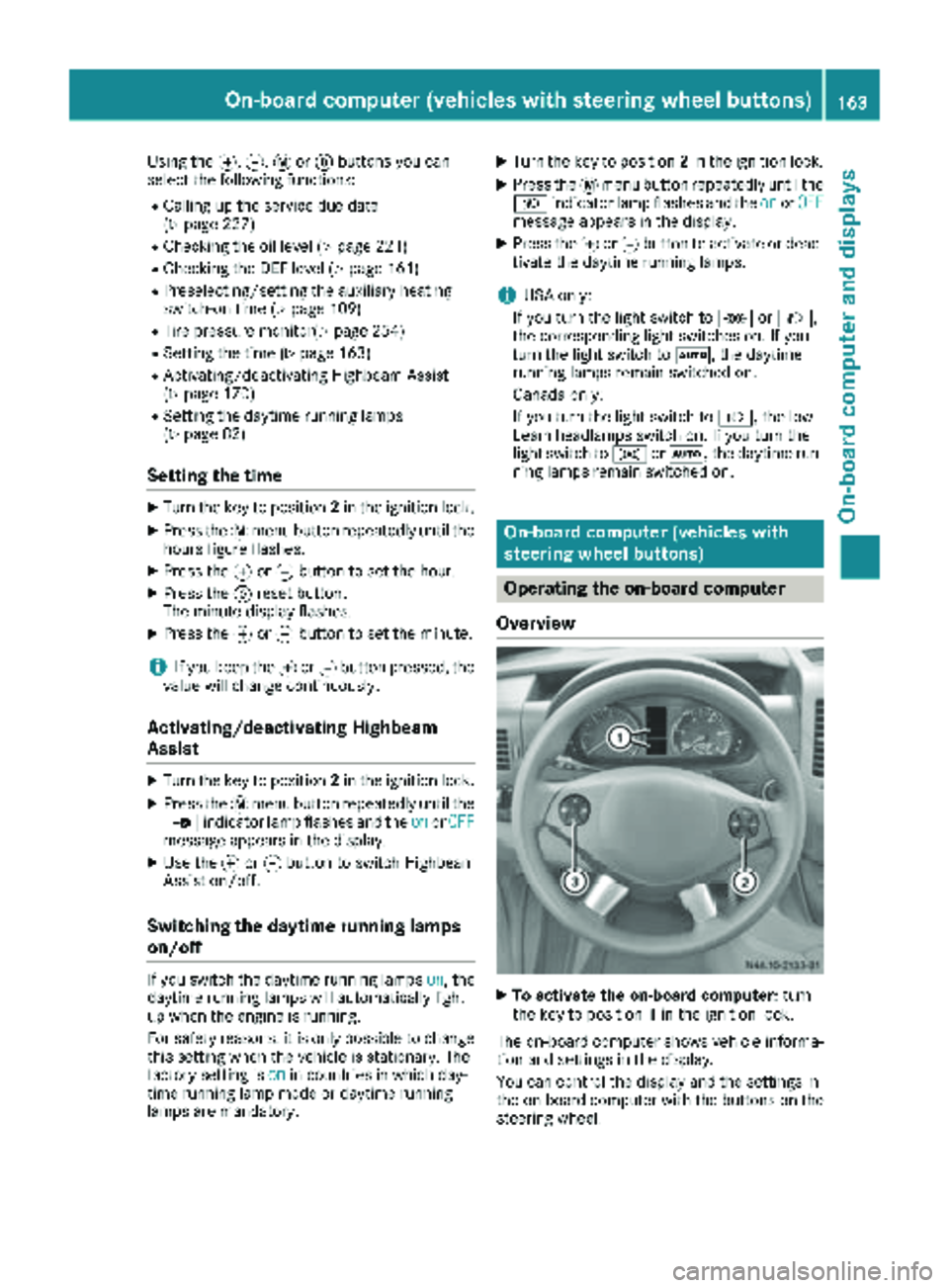
Overview
XTo activate the on-board computer: turn
the key to position 1in the ignition lock.
The on-board computer shows vehicle informa-
tion and settings in the display.
You can control the display and the settings in
the on-board computer with the buttons on the
steering wheel.
On-board computer (vehicles with steering wheel buttons)163
On-board computer and displays
Z
Page 168 of 294

Standard display
:Odometer
;Trip odometer
=Outside temperature or digital speedometer
?Clock
ASelector lever position or current shift range
(Ypage 123)
In the basic setting, the odometer and the trip
odometer are shown in the upper part of the
display. This is referred to as the standard dis-
play.
Using the steering wheel buttons
XPress the VorU button repeatedly
until the standard display is shown.
Displaying the coolant temperature
Using the steering wheel buttons
XPress the VorU button repeatedly
until the standard display is shown.
XPress the 9or: button to select the
coolant temperature.
The temperature displayed may climb to 250 ‡
(120 †) when the vehicle is being driven in nor-
mal conditions and if the coolant contains the
correct concentration of corrosion inhibitor and
antifreeze. At high outside temperatures and
when driving in mountainous terrain, the coolant
temperature may rise to the end of the scale.
Audio menu
General notes
Use the functions in the Audiomenu to operate
the audio equipment when switched on.
iControlling the audio equipment using the
steering wheel buttons and making settings
via the AUDIO menu only functions with
Sprinter audio equipment. If you are using
audio equipment from another manufacturer,
the described functions may be restricted or
not available at all.
If no audio equipment is switched on, you will
see the message AUDIO off
.
Selecting a radio station
:Reception frequency
;Waveband or waveband with memory preset
number
Using the steering wheel buttons
XSwitch on the audio equipment (see the sep-
arate operating instructions).
XPress the VorU button repeatedly
until the station selected appears in the dis-
play.
XPress the 9or: button to select the
desired station.
iYou can only store new stations on the audio
system itself. See the separate operating
instructions.
You can also operate the audio equipment in
the same way as usual.
166On-board computer (vehicles with steering wheel buttons)
On-board computer and displays
Page 171 of 294

XPress the9button to select the Tripfunction.
The selection marker is on the current setting.
XPress theWorX button to select the
unit for all messages in the display: km(kilo-
meters) or miles.
Selecting the language
The selected range of languages shown is just
an example. The range of languages available is
specific to each country.
Using the steering wheel buttons
XPress theVorU button repeatedly
until the Settingsmenu appears in the dis-
play.
XPress the 9button to switch to the sub-
menu selection.
XPress the WorX button to select the
Inst. clustersubmenu.
XPress the 9button to select the Languagefunction.
The selection marker is on the current setting.
XPress theWorX button to set the lan-
guage for all messages.
Selecting the display for the status bar
Using the steering wheel buttons
XPress the VorU button repeatedly
until the Settingsmenu appears in the dis-
play.
XPress the 9button to switch to the sub-
menu selection.
XPress the WorX button to select the
Inst. clustersubmenu.
XPress the 9button to select the Selectdisp.function.
The selection marker is on the current setting.
XPress the WorX button to select
whether to display the outside temperature or
the speed (digital speedometer).
The selected display is then shown perma-
nently in the lower part of the display.
Selecting the unit for the tire pressure
Using the steering wheel buttons
XPress the VorU button repeatedly
until the Settingsmenu appears in the dis-
play.
XPress the 9button to switch to the sub-
menu selection.
XPress the WorX button to select the
Inst. clustersubmenu.
XPress the 9button to select the Tirepres.function.
The selection marker is on the current setting.
XPress the WorX button to select the
unit for the tire pressure in the display: bar
orpsi.
Clock/Date submenu
Setting the time
Using the steering wheel buttons
XPress the VorU button repeatedly
until the Settingsmenu appears in the dis-
play.
XPress the 9button to switch to the sub-
menu selection.
On-board computer (vehicles with steering wheel buttons)169
On-board computer and displays
Z
Page 172 of 294

XPress theWorX button to select the
Clock/Datesubmenu.
XPress the 9button to select Set clockHoursorMinutes.
XPress the WorX button to set the val-
ues.
Selecting the time format
Using the steering wheel buttons
XPress the VorU button repeatedly
until the Settingsmenu appears in the dis-
play.
XPress the 9button to switch to the sub-
menu selection.
XPress the WorX button to select the
Clock/Datesubmenu.
XPress the 9button to select the 12/24 hfunction.
The selection marker is on the current setting.
XPress theWorX button to select the
12 hor 24 hclock format.
Lighting submenu
Activating/deactivating Highbeam Assist
Using the steering wheel buttons
XPress the VorU button repeatedly
until the Settingsmenu appears in the dis-
play.
XPress the 9button to switch to the sub-
menu selection.
XPress the WorX button to select the
Lightingsubmenu.
XPress the 9button to select the High‐beam Assistfunction.
The selection marker is on the current setting.
XPress the WorX button to switch
Highbeam Assist OnorOff.
iFor safety reasons, it is not possible to reset
the HighbeamAssistfunction to the factory
settings during a journey. You will see the fol-
lowing message in the display: Setting
only possible at standstill.
For further information about Highbeam Assist,
see (
Ypage 86).
Switching the daytime running lamps on/
off
If you switch the daytime running lamps to On,
the daytime running lamps will automatically
light up when the engine is running.
For safety reasons, it is only possible to change
this setting when the vehicle is stationary. The
factory setting is On
in countries in which day-
time running lamp mode or daytime running
lamps are mandatory.
Using the steering wheel buttons
XPress the VorU button repeatedly
until the Settingsmenu appears in the dis-
play.
XPress the 9button to switch to the sub-
menu selection.
XPress the WorX button to select the
Lightingsubmenu.
XPress the 9button to select the Daytimedriv. lightsfunction.
The selection marker is on the current setting.
XPress the WorX button to switch the
daytime running lamps OnorOff.
iIf you turn the light switch to TorL,
the corresponding lamp switches on. If you
turn the light switch to Ã, the daytime
running lamps remain switched on.
iFor safety reasons, it is not possible to reset
the Daytime driv. lightsfunction to the
factory setting while the vehicle is in motion.
170On-board computer (vehicles with steering wheel buttons)
On-board computer and displays
Page 173 of 294

You will see the following message in the dis-
play:Setting only possible at stand‐
still.
Switching surround lighting on or off
Using the steering wheel buttons
XPress the VorU button repeatedly
until the Settingsmenu appears in the dis-
play.
XPress the 9button to switch to the sub-
menu selection.
XPress the WorX button to select the
Lightingsubmenu.
XPress the 9button to select the Loc.lightingfunction.
The selection marker is on the current setting.
XPress the WorX button to switch the
surround lighting OnorOff.
If you switch the surround lighting to On
, the fol-
lowing lamps light up in the dark after you have
unlocked the vehicle using the key:
Rthe parking lamps
Rthe tail lamps
Rthe license plate lamps
Rthe fog lamps
The surround lighting automatically switches off
after 40 seconds or if you:
Ropen the driver's door
Rinsert the key into the ignition lock
Rlock the vehicle using the key
Setting the delayed switch-off time for the
exterior lighting
In the Headlampssubmenu, you can set
whether and for how long you wish the exterior
lighting to remain on after closing the doors.
Using the steering wheel buttons
XPress the VorU button repeatedly
until the Settingsmenu appears in the dis-
play.
XPress the 9button to switch to the sub-
menu selection.
XPress the WorX button to select the
Lightingsubmenu.
XPress the 9button to select the Head‐lampsfunction.
The selection marker is on the current setting.
XPress the WorX button to select
whether and for how long you wish the exte-
rior lighting to remain on.
If you have set the delayed switch-off and switch
off the engine, the following remain lit:
Rthe parking lamps
Rthe tail lamps
Rthe license plate lamps
Rthe fog lamps
iYou can reactivate this function by opening
a door within 10 minutes.
If, after switching off the engine, you do not
open a door or close an open door, the exte-
rior lighting switches off after 60 seconds.
Vehicle submenu
Setting the windshield wiper sensitivity
You can use the Wipe sensorfunction to set
the sensitivity of the rain/ light sensor.
Using the steering wheel buttons
XPress the VorU button repeatedly
until the Settingsmenu appears in the dis-
play.
XPress the 9button to switch to the sub-
menu selection.
On-board computer (vehicles with steering wheel buttons)171
On-board computer and displays
Z
Page 175 of 294

Trip computer menu
General notes
You can call up or reset statistical data for the
vehicle in the Trip computer menu.
iWhen you call up the trip computer again, it
displays the last function called up.
The units of the statistical information dis-
played are set permanently for each specific
country, and are therefore independent of the
units selected in the Settings
menu.
Trip computer "From Start" or "From
Reset"
Example: "After start" trip computer
:
Distance
;Time
=Average speed
?Average fuel consumption
Using the steering wheel buttons
XPress the VorU button to select
After start.
or
XPress the 9or: button to select
After reset.
The values in the After
startsubmenu refer to
the start of the journey. The values in the After
resetsubmenu refer to the last reset of the trip
computer.
The After start
trip computer function is
automatically reset if:
Rthe ignition has been switched off for more
than 4 hours.
R999 hours have been exceeded.
R9,999 miles have been exceeded.
The After
resettrip computer is automatically
reset if the value exceeds 9,999 hours or
99,999 miles.
iIf you turn the key to position 0in the igni-
tion lock or remove it, all the values are reset
after approximately four hours.
The values will not be reset if you turn the key
back to position 1or 2during this time.
Calling up the range
Using the steering wheel buttons
XPress the VorU button to select
After start.
XPress the 9or: button to select
Range.
The approximate distance which can be cov-
ered with the tank's current contents and
your current style of driving is shown.
iIf there is only a small amount of fuel left in
the fuel tank, the 7Please refuelmes-
sage is shown instead of the range.
Resetting the trip computer
Using the steering wheel buttons
XPress the VorU button to select
After start.
XPress the 9or: button to select the
function you would like to reset.
XPress and hold the 9reset button until the
values are reset to "0".
Telephone menu
Introduction
GWARNING
If you operate information systems and com-
munication equipment integrated in the vehi-
cle while driving, you will be distracted from
traffic conditions. You could also lose control
of the vehicle. There is a risk of an accident.
Only operate the equipment when the traffic
situation permits. If you are not sure that this
is possible, park the vehicle paying attention
to traffic conditions and operate the equip-
ment when the vehicle is stationary.
You must observe the legal requirements of the
country in which you are currently driving when
operating a mobile phone in the vehicle. If it is
On-board computer (vehicles withsteering whee lbu ttons)173
On-board computer and displays
Z
Page 187 of 294
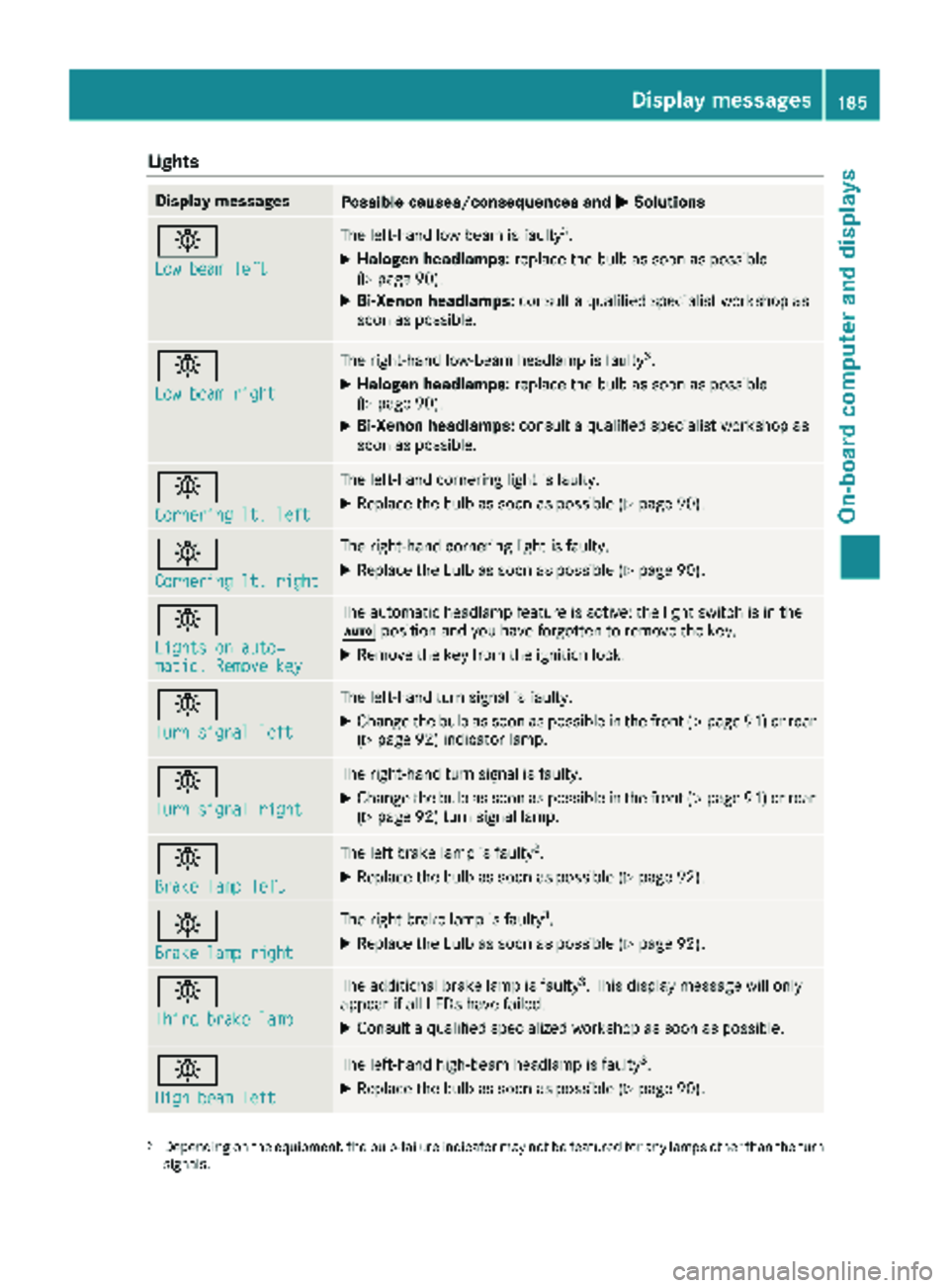
Lights
Display messagesPossible causes/consequences andMSolutions
b
Low beam left
The left-hand low beam is faulty3.
XHalogen headlamps:replace the bulb as soon as possible
(Ypage 90).
XBi-Xenon headlamps: consult a qualified specialist workshop as
soon as possible.
b
Low beam right
The right-hand low-beam headlamp is faulty3.
XHalogen headlamps: replace the bulb as soon as possible
(Ypage 90).
XBi-Xenon headlamps: consult a qualified specialist workshop as
soon as possible.
b
Cornering lt. left
The left-hand cornering light is faulty.
XReplace the bulb as soon as possible (Ypage 90).
b
Cornering lt. right
The right-hand cornering light is faulty.
XReplace the bulb as soon as possible (Ypage 90).
b
Lights on auto‐matic. Remove key
The automatic headlamp feature is active: the light switch is in the
à position and you have forgotten to remove the key.
XRemove the key from the ignition lock.
b
Turn signal left
The left-hand turn signal is faulty.
XChange the bulb as soon as possible in the front (Ypage 91) or rear
(Ypage 92) indicator lamp.
b
Turn signal right
The right-hand turn signal is faulty.
XChange the bulb as soon as possible in the front (Ypage 91) or rear
(Ypage 92) turn signal lamp.
b
Brake lamp left
The left brake lamp is faulty3.
XReplace the bulb as soon as possible (Ypage 92).
b
Brake lamp right
The right brake lamp is faulty3.
XReplace the bulb as soon as possible (Ypage 92).
b
Third brake lamp
The additional brake lamp is faulty3. This display message will only
appear if all LEDs have failed.
XConsult a qualified specialized workshop as soon as possible.
b
High beam left
The left-hand high-beam headlamp is faulty3.
XReplace the bulb as soon as possible (Ypage 90).
3Depending on the equipment, the bulb-failure indicator may not befeatured for any lamps other than the turn
signals.
Display messages185
On-board computer and displays
Z