2018 MERCEDES-BENZ E-CLASS COUPE tow
[x] Cancel search: towPage 248 of 593

#
Select a sugges tedre st area: you are gui‐
ded tothe selected rest area. Tr
af fic Sign Assist Fu
nction of Traf fic Sign Assist Tr
af fic Sign Assi stdetects traf fic signs wi thmul‐
tifunction camera 1. It assistsyo uby display‐ ing de
tected speed limits and overtaking restric‐
tions in the instrument clus ter.
Since Traf fic Sign Assi stalso uses the data
st ored in the navigation sy stem, it can update
th e display in thefo llowing situations without
de tecting traf fic signs:
R When theve hicle changes roads, e.g. slip
ro ad or mo torw ay ex it.
R When a village or town boundary which is
st ored in the digital map is passed.
If th e sy stem de tects that you are driving on to a
section of road in the wrong direction of tr avel, it
triggers a warning.
The camera also de tects traf fic signs wi th a
re striction indicated byan additional sign (e.g. in
we t conditions).
Tr af fic Sign Assi stis only an aid. The driver is
re sponsible forke eping a safe dis tance tothe
ve hicle in front, forve hicle speed and for braking
in good time. Wa
rning when the maximum permissible
speed is exceeded
The sy stem can warnyou if you unin tentionally
exc eed the maximum permissible speed. Todo
th is, you can specify in the multimedia sy stem
by how much the maximum permissible speed
can be exceeded before a warning is issued. Yo u
can specify whe ther thewa rning is tobe just a
visual warning or an acoustic one as well.
Display in the instrument display In
stru ment display in theWi descreen Cockpit
1 Perm issible speed
2 Perm issible speed when there is a restriction
3 Additional sign with restriction Driving and pa
rking 245
Page 256 of 593
#
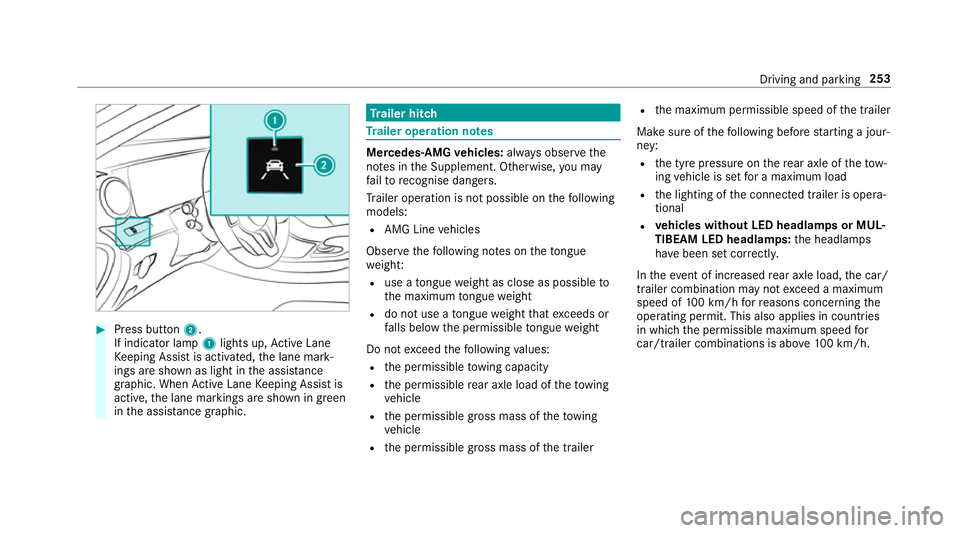
Press button 2.
If indicator lamp 1lights up, Active Lane
Ke eping Assist is activated, the lane mark‐
ings are shown as light in the assis tance
graphic. When Active Lane Keeping Assist is
active, the lane markings are shown in green
in the assis tance graphic. Tr
ailer hitch Tr
ailer operation no tes Mercedes‑AMG
vehicles: always obser vethe
no tes in the Supplement. Otherwise, you may
fa ilto recognise dangers.
Tr ailer operation is not possible on thefo llowing
models:
R AMG Line vehicles
Obser vethefo llowing no tes on theto ngue
we ight:
R use a tongue weight as close as possible to
th e maximum tongue weight
R do not use a tongue weight that exceeds or
fa lls below the permissible tongue weight
Do not exceed thefo llowing values:
R the permissible towing capacity
R the permissible rear axle load of theto wing
ve hicle
R the permissible gross mass of theto wing
ve hicle
R the permissible gross mass of the trailer R
the maximum permissible speed of the trailer
Make sure of thefo llowing before starting a jour‐
ney:
R the tyre pressure on there ar axle of theto w‐
ing vehicle is set for a maximum load
R the lighting of the connected trailer is opera‐
tional
R vehicles without LED headlamps or MUL‐
TIBEAM LED headlamps: the headlamps
ha ve been set cor rectly.
In theev ent of increased rear axle load, the car/
trailer combination may not exceed a maximum
speed of 100 km/h forre asons concerning the
operating permit. This also applies in countri es
in which the permissible maximum speed for
car/trailer combinations is ab ove100 km/h. Driving and parking
253
Page 262 of 593

Distribution of
the load on the bicycle rack
1 Vertical dis tance between centre of gr avity
and ball head
2 Horizon tal dis tance between centre of gr av‐
ity and ball head
3 The centre of gr avity is on theve hicle's
centre axis Obser
vethefo llowing information when
loading the bicycle rack: Nu
mber
of bicy‐
cles To
tal
we ight
of bicy‐
cle rack
and load Max. dis‐
tance
1 1Max. dis‐
tance
2 2
3U pto
75 kg 420 mm 300 mm Ve
hicle towing instructions
The vehicle is not suitable forth e use of tow bar
sy stems that are used forflat towing or ding hy
to wing, forex ample. Attach ing and using tow bar
sy stems can lead todamage on theve hicle.
When you are towing a vehicle with tow bar sys‐
te ms, safe driving characteristics cannot be
guaranteed forth eto wing vehicle or theto wed
ve hicle. The vehicle-trailer combination may
swer vefrom side toside. Comply with the per‐
mitted towing me thods (→ page 432) and the
instructions forto wing with bo thaxles on the
ground (→ page 433). Driving and parking
259
Page 271 of 593
Re
setting values on the trip menu of the on-
board compu terOn-board computer:
Trip
% The spelling on the main menu displa yed
may dif fer. Therefore, obser vethe menu
ove rview forth e instrument display
(→ page 262).
Yo u can reset theva lues of thefo llowing func‐
tions:
R Trip dis tance
R Trip computer From startandFrom reset
R ECO displa y(→ page 167) #
Toselect the function tobe rese t:swipe
upwards or down wards on the left-hand
To uch Control. #
Press the left-hand Touch Control. #
Select Yes. #
Press the left-hand Touch Control. If
yo u press and hold the left-hand Touch Con‐
trol, theva lues of the function will be reset
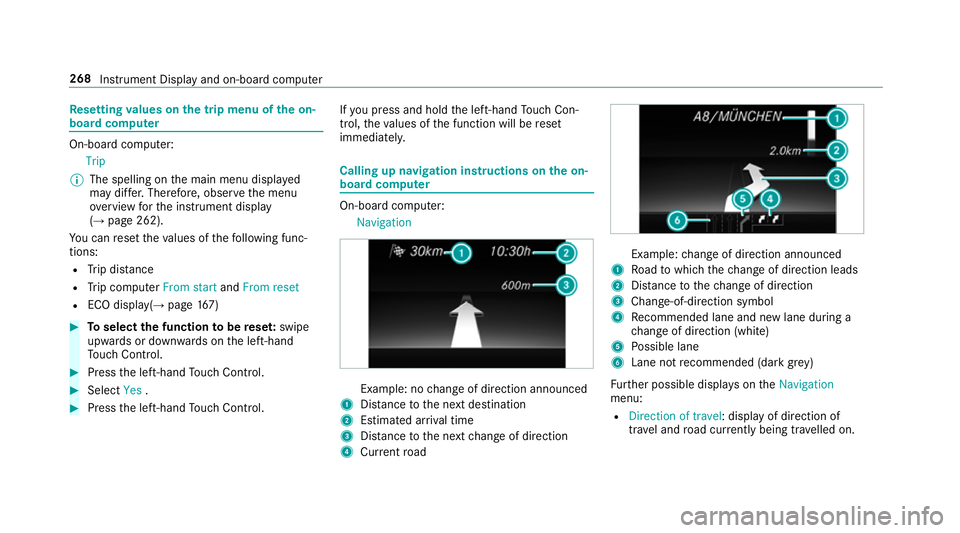
immediatel y. Calling up navigation instructions on
the on-
board compu ter On-board computer:
Navigation Example: no
change of direction announced
1 Distance tothe next destination
2 Estimated ar riva l time
3 Distance tothe next change of direction
4 Current road Example:
change of direction announced
1 Road towhich thech ange of direction leads
2 Distance tothech ange of direction
3 Chan ge-of-direction symbol
4 Recommended lane and new lane du ring a
ch ange of direction (white)
5 Possible lane
6 Lane not recommended (da rkgrey)
Fu rther possible displa yson theNavigation
menu:
R Direction of travel: display of direction of
tra vel and road cur rently being tr avelled on. 268
Instrument Display and on-board computer
Page 348 of 593
%
If a new mobile phone is connected and
defined as Phone 1,forex ample, this ov er‐
writes the pr eviously connec ted mobile
phone in thefo re ground of the sy stem.
Disconnecting a mobile phone
Multimedia sy stem:
Telephone ªDevices #
Select thei symbol in the line of the
mobile phone.
The disconnection of the mobile phone takes
place without a con firm ation prom pt. The
mobile phone remains auth orised inthe sys‐
te m.
De-authorising a mobile phone
Multimedia sy stem:
Telephone ªDevices #
Select the% symbol in the line of the
mobile phone. #
Answer the confi rmation prom ptwith Yes.
The mobile phone is deauthorised and
dele ted from the sy stem. Information on
NearField Communication
(NFC)
NFC enables short- range wi reless data transfer
or (re)connection of a mobile phone with the
multimedia sy stem.
The following functions are available without
having authorised a mobile phone:
R Trans ferring a URL tobe vie wed in the multi‐
media sy stem (see the manufacturer's oper‐
ating instructions).
R Setting up theve hicle's Wi-Fi access da tavia
th e sy stem settings (→ page 302).
Fu rther information can be found at: http://
www.mercedes-benz.com/connect
Using the mobile phone with NearField Com‐
munication (NFC)
Re quirements:
R NFC is activated on the mobile phone (see
th e manufacturer's operating instructions)
R The mobile phone's screen is switched on
and unloc ked (see the manufacturer's oper‐
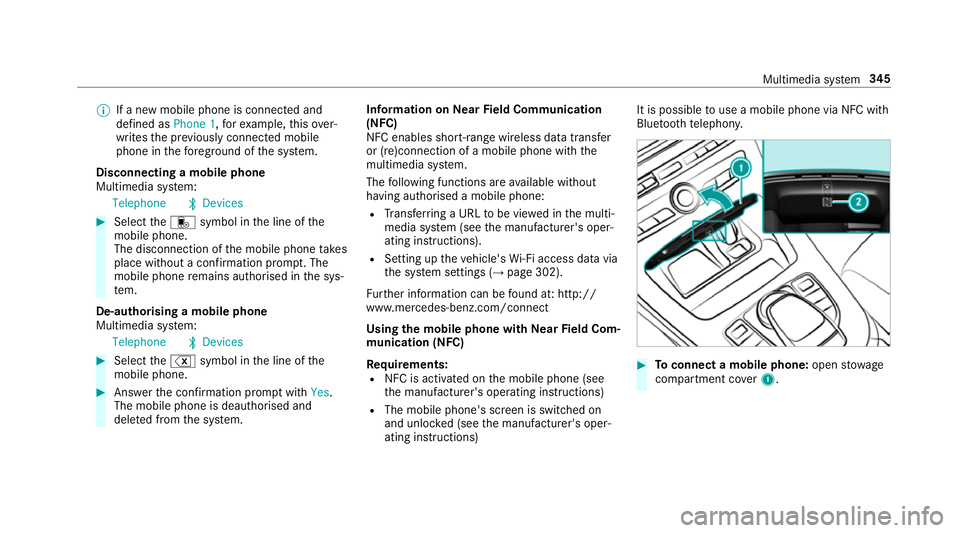
ating instructions) It is possible
touse a mobile phone via NFC with
Blue toothte lephon y. #
Toconnect a mobile phone: openstowage
compartment co ver1. Multimedia sy
stem 345
Page 360 of 593

R
An Internet connection is requiredforth e full
ra nge of functions for Android Auto.
Multimedia sy stem:
Connec tAndroid Auto #
Select the mobile phone from the device list.
Ac cepting/rejecting the data pr otection reg‐
ulations
A message with the data pr otection regulations
appears. #
Select Accept & Start .
or #
Select Decline & End.
Ac tivating automatic start #
Select Start automatically O.
St arting manually #
Select the mobile phone from the device list.
Exiting Android Auto #
Press theò button on the multifunction
st eering wheel, forex ample. %
If Android Autowa s not displa yed in thefo re‐
ground before disconnecting, the application
st arts in the bac kground when reconnected.
Yo u can call up Android Autointhe main
menu.
Calling up the Android Autosound settings
Multimedia sy stem:
Connec tAndroid Auto Sound #
Select theto ne menu (→ page 397).
Ending Android Auto
Multimedia sy stem:
Connec tAndroid Auto #
Select Disconnect .
The connection is ended.
The mobile phone continues tobe supplied
with elect ricity.
or #
Disconnect the connecting cable between
th e mobile phone and multimedia sy stem.
Mercedes-Benz recommends disconnecting
th e connecting cable only when theve hicle is
st ationar y. Tr
ansfer redve hicle data with Android Auto
and Apple CarPlay™ Overview of transfer
redve hicle data
When using Android Autoor Apple CarPlay™,
cer tain vehicle data is transfer redto the mobile
phone. This enables youto getth e best out of
selected mobile phone services. Vehicle data is
not directly accessible.
The following sy stem information is transmit ted:
R Software release of the multimedia sy stem
R System ID (anonymised)
The transfer of this data is used tooptimise
communication between theve hicle and the
mobile phone.
To do this, and toassign se veralve hicles tothe
mobile phone, a vehicle identifier is randomly
ge nerated.
This has no connection totheve hicle identifica‐
tion number (VIN) and is dele ted when the multi‐
media sy stem is reset (→ page 309).
The following driving status data is transmitted:
R Transmission position engaged Multimedia sy
stem 357
Page 362 of 593
Then,
you can select a service and be con‐
nected toa specialist at the Mercedes-Benz
Cus tomer Centre.
Fu rther information on Mercedes me connect,
th e pr ovided service scope and operation is
av ailable at: http://manuals.daimler.com/baix/
cars/connectme/de_DE/ind ex.html
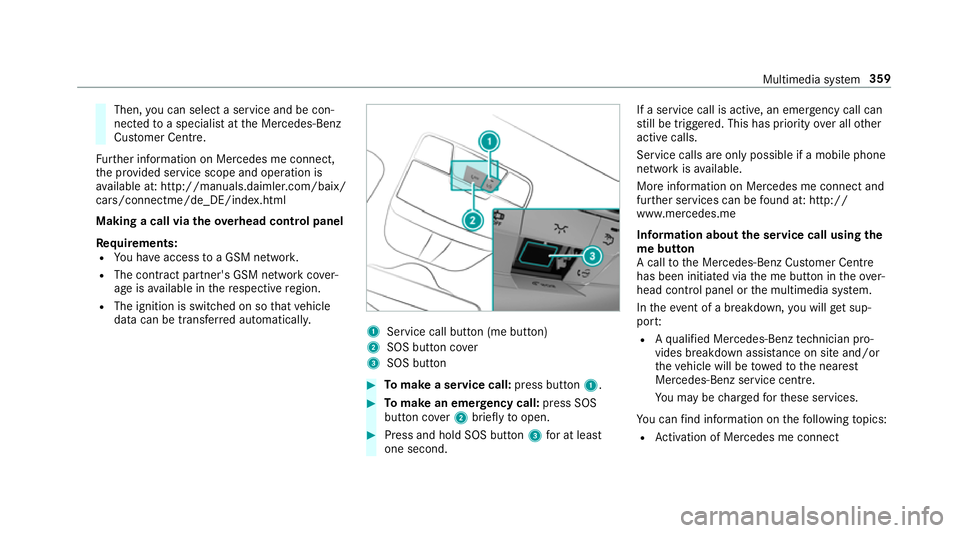
Making a call via the overhead control panel
Re quirements:
R You ha veaccess toa GSM networ k.
R The contra ct partner's GSM network co ver‐
age is available in there spective region.
R The ignition is switched on so that vehicle
data can be transfer red automatically. 1
Service call button (me button)
2 SOS button co ver
3 SOS button #
Tomake a se rvice call: press button 1. #
Tomake an eme rgency call: press SOS
button co ver2 briefly toopen. #
Press and hold SOS button 3for at least
one second. If a service call is active, an emer
gency call can
st ill be triggered. This has priority over all other
active calls.
Service calls are only possible if a mobile phone
network is available.
More information on Mercedes me connect and
fur ther services can be found at: http://
www.mercedes.me
Information about the service call using the
me button
A call tothe Mercedes-Benz Cus tomer Centre
has been initia ted via the me button in theove r‐
head control panel or the multimedia sy stem.
In theeve nt of a breakdown, you will get sup‐
po rt:
R Aqu alified Mercedes-Benz tech nician pro‐
vides breakdown assi stance on site and/or
th eve hicle will be towe dto the nearest
Mercedes-Benz service cent re.
Yo u may be charge dfo rth ese services.
Yo u can find information on thefo llowing topics:
R Activation of Me rcedes me connect Multimedia sy
stem 359
Page 363 of 593
R
Operating theve hicle
R Nearest Mercedes-Benz service centre
R Other products and services from Mercedes-
Benz
Data is transfer red during the connection tothe
Mercedes-Benz Cus tomer Centre (→ page 361).
Information on Mercedes me connect acci‐
dent management
The Mercedes me connect accident manage‐
ment is an extension of the Mercedes-Benz
emer gency call sy stem (→ page 361).
An emer gency call is made tothe Mercedes-
Benz emer gency call centre af ter an accident:
R Avo ice connection is made toa con tact per‐
son at the Mercedes-Benz emer gency call
centre.
R If necessa ry,th e conta ct person at the
Mercedes-Benz emer gency call centre for‐
wa rdsth e call toMercedes me connect acci‐
dent management.
Fo rw arding the call is not possible in all
count ries. R
If necessar y,theve hicle will be towe dto a
Mercedes-Benz service centre.
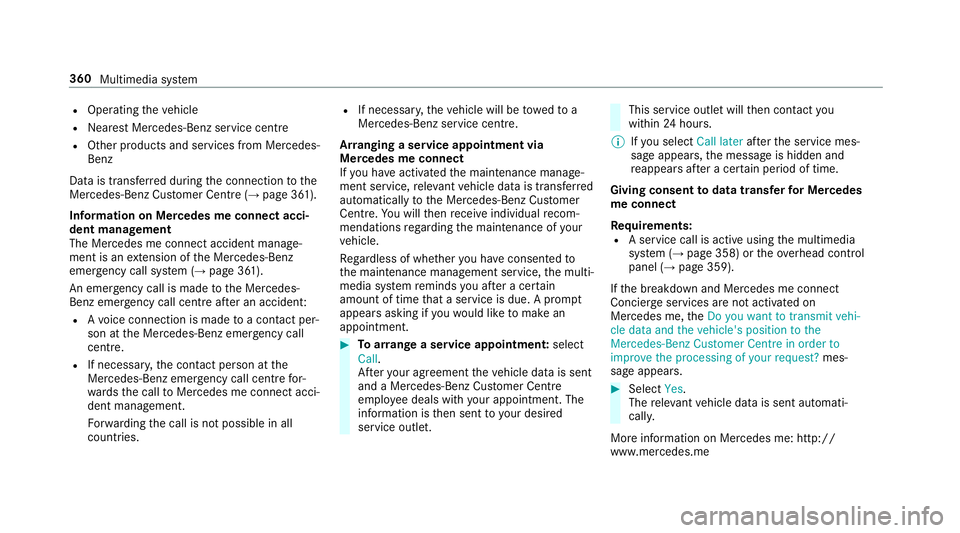
Ar ranging a service appointment via
Mercedes me connect
If yo u ha veactivated the maintenance manage‐
ment service, releva nt vehicle data is transfer red
automatically tothe Mercedes-Benz Cus tomer
Centre. You will then recei veindividual recom‐
mendations rega rding the maintenance of your
ve hicle.
Re gardless of whe ther you ha veconsented to
th e maintenance management service, the multi‐
media sy stem reminds you af ter a cer tain
amount of time that a service is due. A prom pt
appears asking if youwo uld like tomake an
appointment. #
Toarra nge a service appointment: select
Call .
Af teryo ur agreement theve hicle data is sent
and a Mercedes-Benz Cus tomer Centre
emplo yee deals with your appointment. The
information is then sent toyour desi red
service outlet. This service outlet will
then conta ctyou
within 24hours.
% Ifyo u select Call later afte rth e service mes‐
sage appears, the message is hidden and
re appears af ter a cer tain period of time.
Giving consent todata transfer for Me rcedes
me connect
Re quirements:
R A service call is active using the multimedia
sy stem (→ page 358) or theove rhead control
panel (→ page 359).
If th e breakdown and Mercedes me connect
Concier geservices are not activated on
Mercedes me, theDo you want to transmit vehi-
cle data and the vehicle's position to the
Mercedes-Benz Customer Centre in order to
improve the processing of your request? mes‐
sage appears. #
Select Yes.
The releva nt vehicle data is sent automati‐
call y.
More information on Mercedes me: http://
www.mercedes.me 360
Multimedia sy stem