2018 MERCEDES-BENZ E-CLASS COUPE ECU
[x] Cancel search: ECUPage 258 of 593

#
Pull the ball neck in the direction of the
ar row until it en gage s audibly in a vertical
position.
Indicator lamp 1onthe ball neck release
switch will go out.
If th e ball neck is not securely loc ked in
place, theCheck trailer hitch lockdisplay
message will appear on the multifunction dis‐
pla y. #
Remo vethe co ver from the ball head and
st ore it in a safe place.
Make sure that the ball on the ball neck is clean.
Check that it is either greased or dr y (grease-
free), depending on the instructions forthe
traile r.
Fo lding the ball neck in #
Pull release switch 2until the ball neck
unloc ks.
The ball neck will fold up under there ar
bumper.
Indicator lamp 1will flash. #
Push the ball neck in the direction of the
ar row until it en gage s audibly behind the
bumper.
Indicator lamp 1will go out and the mes‐
sage on the multifunction display will disap‐
pear.
Obser vethe information on the displa yson the
instrument clus ter:
R Warning and indicator lamps (→ page 531)
R Display messages (→ page478) Coupling up/uncoupling a trailer
&
WARNING Risk of inju ryfrom theve hicle
le ve l being changed
Ve hicles with le vel control sy stem: the
ve hicle le vel may be changed unin tentionally,
e.g. by ot her persons. You may become trap‐
ped if you couple up or uncouple a trailer
while theve hicle le vel is changing. In addi‐
tion, other people could become trapped if
th eir limbs are between theve hicle body and
th e tyres or underneath theve hicle. When coupling up or uncoupling a trailer,
make sure
that: #
The doors or tailgate are not opened or
closed. #
You do not initiate the le vel control sys‐
te m and do not operate theDY NA MIC
SELECT switch. #
Do not lock or unlock theve hicle. Re
quirements:
R the ball neck must be extended fully electri‐
cal lyand engaged in the securely loc ked
position.
Tr ailers with a 7-pin plug can be connec tedto
th eve hicle with thefo llowing adap ters:
R adap ter plug
R adapte r cable
The trailer will be cor rectly de tected bytheve hi‐
cle only if thefo llowing conditions are me t:
R the trailer is connected cor rectly
R the trailer lighting sy stem is in working order Driving and parking
255
Page 259 of 593

The operation of
thefo llowing sy stems depends
on the trailer being connected cor rectly:
R Active Lane Keeping Assist
R ESP ®
R Parking Assist PARKTRONIC
R Active Parking Assist
R Blind Spot Assist or Active Blind Spot Assi st
Coupling up a trailer
* NO
TEDama getotheve hicle battery due
to full dischar ge Charging
the trailer battery using the po wer
supply of the trailer can damage theve hicle
batter y. #
Do not use theve hicle's po wer supply
to charge the trailer batter y.#
Remo vethe co ver from the ball head and
st ore it in a safe place (→ page113). #
Position the trailer on a le vel sur face behind
th eve hicle and couple it up totheve hicle. #
Open the soc ket cap. #
Inse rtthe plug with lug 1in groo ve3 on
th e soc ket. #
Turn the ba yonet coupling 2clockwise as
fa r as it will go. #
Let the cap engage. #
Secure the cable tothe trailer with cable ties
(only if you are using an adap ter cable). #
Make sure that the cable is alw ays slack for
ease of mo vement during cornering. #
Push the combination switch upwards/down‐
wa rds and check whe ther the cor responding
turn signal light on the trailer is flashing. A display message may appear on
the multifunc‐
tion display even if the trailer has been connec‐
te d cor rectly:
R LEDs ha vebeen ins talled in the trailer light‐
ing sy stem
R the cur rent has fallen below the trailer light‐
ing sy stem's minimum cur rent (50 mA)
% Accessories can be connected tothe perma‐
nent po wer supp lyup to180W, and tothe
po we r supp lythat is swit ched on via the igni‐
tion loc k.
Un coupling a trailer &
WARNING Risk of being crushed and
becoming trapped when uncoupling a
trailer
When uncoupling a trailer wi than engaged
ine rtia-activated brake, your hand may
become trapped between theve hicle and the
trailer dr awbar. #
Do not uncouple trailers with an
engaged overrun brake. 256
Driving and pa rking
Page 260 of 593

&
WARNING Risk of becoming trapped
when disconnecting the trailer cable
Ve hicles with le vel control sy stem: the
ve hicle lo werswhen the trailer cable is dis‐
connected.
This could result in you or other people
becoming trapped if your or their limbs are
between theve hicle body and the tyres or
underneath theve hicle. #
Make sure nobody is underneath the
ve hicle or in the immediate vicinity of
th e wheel ar ches when you disconnect
th e trailer cable. *
NO
TEDama getothere ar bumper from
ins talling adap ter cables or adapte r plugs The
following parts could be damaged when
re tracting the ball neck:
R bumper
R adap ter cable
R adapte r plug #
Alw aysre mo vethe adap ter cable or
adapte r plug before retracting the ball
nec k. #
Secu rethe trailer against rolling away. #
Disconnect the electrical connection
between theve hicle and the trailer. #
Uncouple the trailer. #
Place the co ver on the ball head. Bicycle
rackfunction &
WARNING Risk of an accident when
using the bicycle rack incor rectly
The bicycle rack may become de tach ed from
th eve hicle in thefo llowing cases:
R the permissible load capacity of the
trailer hitch is exceeded.
R the bicycle rack is used incor rectl y.
R the bicycle rack is secured tothe ball
neck beneath the ball head. Obser
vethefo llowing foryo ur ow n sa fety
and that of other road users: #
always adhere tothe permissible load
capacity of the trailer hitch. #
only use the bicycle rack totranspo rt
bicycles. #
always proper lysecure the bicycle rack
by attaching it tothe ball head. #
only use bicycle rack s appr ovedby
Mercedes-Benz. #
always obser vethe bicycle rack operat‐
ing instructions. *
NO
TEDama geto, or cra cks on, the
trailer hitch due tounsuitable bic ycle
ra ck s or bicycle rack s being used incor‐
re ctly #
use only bicycle rack s appr ovedby
Mercedes-Benz. Driving and parking
257
Page 261 of 593

Depending on
the bicycle rack 's design, up to
th re e bicycles can be transpor ted on the bicycle
ra ck.
When mounted byattaching toball head 1,the
maximum load capacity is 75kg.
The load capacity is calculated from thewe ight
of the bicycle rack and the bicycle rack load. The
vehicle's driving characteristics will change
when a bicycle rack isfitted:
R The vehicle will be heavier.
R Acceleration and slope-climbing ability will
be restricted.
R Braking di stances will be lon ger.
This may impair theve hicle's driving characteris‐
tics. Adapt your driving style accordingly. Drive
carefully and maintain a safe dis tance.
When using a bicycle rack , set the tyre pressure
fo r maximum load on there ar axle of theve hicle.
Fu rther information on the tyre pressure can be
fo und in the tyre pressure table (→ page443).
Note s on loading
The lar gerth e dis tance between the load's
cent reof gr avity and the ball head, the greater
th e load on the trailer hitch.
Therefore, obser vethefo llowing no tes:
R mount heavy bicycles as close totheve hicle
as possible R
always distribute the load on the bicycle rack
as evenly as possible across theve hicle's
longitudinal axis
Mercedes-Benz recommends removing all
de tach able parts from bicycles, e.g. bask ets,
ch ild seats or rech arge able bat teries, before
loading them onto the bicycle rack . This will
impr ovethe aerodynamic resis tance and centre
of gr avity of the bicycle rack.
Alw ays secure the bicycles topreve ntthem from
moving around and check that they are secure at
re gular inter vals.
Do not use tarp aulins or other co vers. The driv‐
ing characteristics and rear view may be
impaired. In addition, the aerodynamic resist‐
ance and the load on the trailer hitch will
increase. 258
Driving and parking
Page 269 of 593
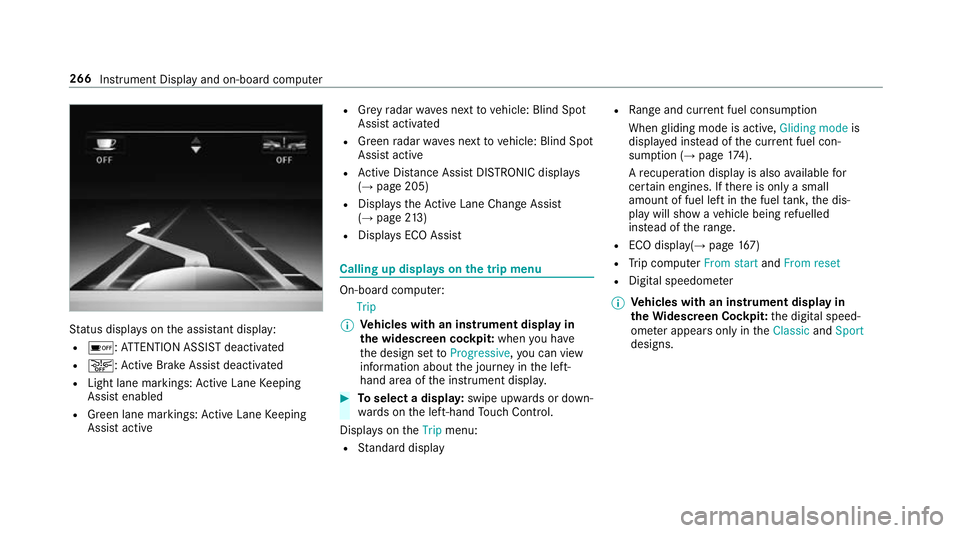
St
atus displa yson the assis tant displ ay:
R é :AT TENTION ASSIST deactivated
R æ: Active Brake Assi stdeactivated
R Light lane markings: Active Lane Keeping
Assist enabled
R Green lane markings: Active Lane Keeping
Assist active R
Grey radar waves next tovehicle: Blind Spot
Assist activated
R Green radar waves next tovehicle: Blind Spot
Assist active
R Active Dis tance Assi stDISTRONIC displa ys
( → page 205)
R Displa ys theAc tive Lane Change Assi st
( → page 213)
R Displ ays ECO Assist Calling up displa
yson the trip menu On-board computer:
Trip
% Ve
hicles with an instrument display in
th e widescreen cockpit: whenyou ha ve
th e design set toProgressive ,yo u can view
information about the journey in the left-
hand area of the instrument displa y. #
Toselect a displa y:swipe upwards or down‐
wa rds on the left-hand Touch Control.
Displa yson theTrip menu:
R Standard display R
Range and cur rent fuel consu mption
When gliding mode is active, Gliding modeis
displa yed ins tead of the cur rent fuel con‐
su mp tion (→ page 174).
A recuperation displ ayis also available for
cer tain engines. If there is only a small
amount of fuel left in the fuel tank, the dis‐
play will show a vehicle being refuelled
ins tead of thera nge.
R ECO displ ay(→page 167)
R Trip computer From startandFrom reset
R Digital speedom eter
% Ve
hicles with an instrument display in
th eWi descreen Co ckpit: the digital speed‐
ome ter appears only in theClassic andSport
designs. 266
Instrument Display and on-board computer
Page 304 of 593
The
following connection options are available:
R Wi-Fi connection
The Wi-Fi connection toaWi -Fi-capable
device, e.g. the cus tomer's mobile phone or
a ta blet PC is es tablished.
R Multimedia sy stem as a Wi-Fi hotspot
Using this function, a tablet PC or no tebook
can be connec ted, forex ample.
To establish a connection, you can use thefo l‐
lowing me thods:
R WPS PIN
The connection toa secure Wi-Fi network is
made via a PIN.
R WPS PBC
The connection toa secure Wi-Fi network is
made bypressing a button (push button).
R Security key
The connection toa secure Wi-Fi network is
made via a secu rity key. Setting up
Wi-Fi
Requ irements:
R The device tobe connec ted supports one of
th eth re e means of connection described
(→ page 300).
Multimedia sy stem:
System öConnectivity
Ac tivating/deactivating Wi-Fi #
Switch Wi-FionO or off ª.
If Wi-Fi is deactivated ª, communication via
Wi -Fi toall devices is inter rupte d. This also
means that a connection tothe HERMES
communication module cann otbe es tab‐
lished. Then functions such as dynamic route
guidance with Live Traf fic Information are not
av ailable.
Connecting the multimedia sy stem with a
device via Wi-Fi
This function is available if a HERMES communi‐
cation module is not ins talled. The type of connection es
tablished must be
selected on the multimedia sy stem and on the
device tobe connec ted.
% The connection procedure may dif fer
depending on the device. Follow the instruc‐
tions that are shown in the displa y.Fu rther
information (see the manufacturer's operat‐
ing instructions). #
Select Internet settings . #
Select Search for Wi-Fi networks.
Using a security key #
Select a Wi-Fi network in the list. #
Have the security key displa yed on the device
to be connec ted (see the manufacturer's
operating instructions). #
Ente rth is security key on the multimedia sys‐
te m. #
Confirm the entry with¡.
% All devices support a security key as a
means of connection. Multimedia sy
stem 301
Page 306 of 593
Connecting using a security
key#
Select Connect device to vehicle hotspot .
A secu rity key is displa yed. #
Select theve hicle from the device tobe con‐
nec ted. The vehicle is displa yed with the
SSID MB Hotspot XXXXX .#
Enter the security key which is shown in the
media display on the device tobe connec ted. #
Confirm the entry.
Connecting using NFC #
Select Establish a connection via NFC. #
Activate NFC on the mobile device (see the
manufacturer's operating instructions). #
Bring the mobile device into the NFC area of
th eve hicle (→ page 345). #
Select Done.
The mobile device is now connected tothe
multimedia sy stem hotspot via NFC.
Generating a new security key: #
Select Set up hotspot . #
Select Generate security key .
A connection will be es tablished with the
newly crea ted security key. #
Tosave a security key:select Save.
When a new security key is sa ved, all existing
Wi -Fi connections are then disconnected. If
th eWi -Fi connections are being re-es tab‐
lished, the new security key must be en tere d. Managing COMAND
Touch devices Re
quirements:
R The COMAND Touch app is ins talled on the
ex tern al device (e.g. tablet or smartphone).
R Wi-Fi is acti vated (→ page 301) and the mul‐
timedia sy stem is confi gured as a Wi-Fi hot‐
spot (→ page 302).
Multimedia sy stem:
System COMAND Touch
Connecting and authorising a new device #
Select Authorise a new device. #
Select Connect new device. #
Ente rth e security key in theex tern al device.
The Please start COMAND Touch on your
device and follow the instructions. message
appears. #
Select Continue. #
Accept the connection requ est from the new
device. #
Ente rth e PIN shown on theex tern al device.
The device is authorised.
Au thorising a connected device #
Select Authorise a new device.
The devices already connec ted are displa yed. #
Select Continue using connected devices.
The Please start COMAND Touch on your
device and follow the instructions. message
appears. #
Select Continue. #
The connection requ est from the device
Accept. #
Ente rth e PIN shown on theex tern al device.
The device is authorised. Multimedia sy
stem 303
Page 311 of 593
th
e mobile phone connection in your vehicle
and, as an option, ins talled automaticall y.Yo u
can moni torth est atus of your updates on the
Mercedes me por tal and find information about
po tential inno vations.
Yo ur advantages at a glance:
R con veniently recei vesoftware update s via
th e mobile phone network
R impr ovesth equ ality and availability of
Mercedes me connect services
R keeps your multimedia sy stem and communi‐
cation module up-to-date
Fu rther information about software updates can
be found at http://me.mercedes-benz.com
Pe rforming a software upda te
Requ irements:
R There is an Internet connection
(→ page 364).
R For automatic updates: your vehicle has a
permanently installed communication mod‐
ule. Multimedia sy
stem:
System Software update
Au tomatic update #
Activate OAutomatic online updates.
Up dates are per form ed.
The cur rent status of the updates is dis‐
pla yed.
Manual update #
Deactivate ªAutomatic online updates. #
Select an update from the list and start the
update.
Ac tivating the so ftwa reupdate #
Restart the sy stem.
Fu nction of important sy stem upda tes
Impor tant sy stem updates may be necessary for
th e security of your multimedia sy stem's data.
Please ins tallth ese updates, or else the security
of your multimedia sy stem cann otbe ensured.
% If automatic software updates are activated,
th e sy stem updates will be downloaded auto‐
matically (→ page 308). As soon as an update is
available for download,
a cor responding message appears onthe media
displa y.
Yo u ha vethefo llowing selection options:
R Download
The update will be downloaded in the back‐
ground.
R Details
Information about the pending sy stem
update is displa yed.
R Later
The update can be downloaded manually at a
later time (→ page 308).
If th e download is comple ted and the update is
re ady for ins tallation, you will be informed of this
af te rth e next ignition cycle, forex ample.
% Park theve hicle safely in a suitable location
before starting the ins tallation.
Re quirements forth e ins tallation:
R The ignition is switched on.
R The engine is not running. 308
Multimedia sy stem