2018 MERCEDES-BENZ E-CLASS COUPE change time
[x] Cancel search: change timePage 254 of 593
speed,
for braking in good time and forst ay ing
in lane.
Ac tive Lane Keeping Assist can bring theve hicle
back into the lane with a lane-cor recting brake
application. In the case of a broken lane marking
being de tected, a brake application will only be
made if a vehicle has been de tected in the adja‐
cent lane. Oncoming tra ffic can be de tected.
Ve hicles with Driving Assistance pac kageor
Driving Assistance Plus pa ckage: overtaking
ve hicles and vehicles in adjacent lanes can also
be de tected.
Ac tive Lane Keeping Assist is available in the
speed range between 60 km/h and 200 km/h. If a lane-co
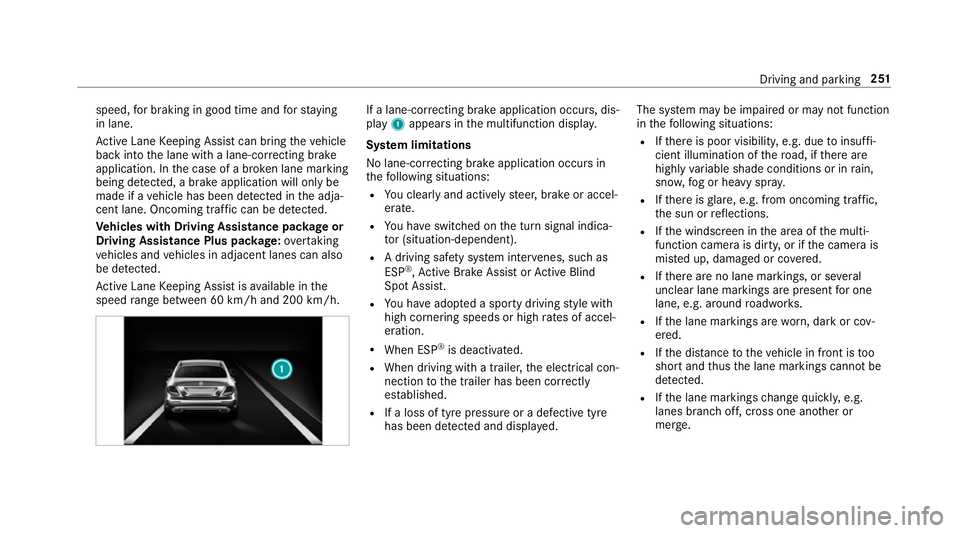
rrecting brake application occurs, dis‐
play 1appears in the multifunction displa y.
Sy stem limitations
No lane-cor recting brake application occu rsin
th efo llowing situations:
R You clear lyand actively steer, brake or accel‐
erate.
R You ha veswitched on the turn signal indica‐
to r (situation-dependent).
R A driving saf ety sy stem inter venes, su chas
ESP ®
,Ac tive Brake Assi stor Active Blind
Spot Assi st.
R You ha veadop ted a sporty driving style with
high cornering speeds or high rates of accel‐
eration.
R When ESP ®
is deactivated.
R When driving with a trailer, the electrical con‐
nection tothe trailer has been cor rectly
es tablished.
R If a loss of tyre pressure or a defective tyre
has been de tected and displ ayed. The sy
stem may be impaired or may not function
in thefo llowing situations:
R Ifth ere is poor visibility, e.g. due toinsuf fi‐
cient illumination of thero ad, if there are
highly variable shade conditions or in rain,
sno w,fog or heavy spr ay.
R Ifth ere is glare, e.g. from oncoming traf fic,
th e sun or reflections.
R Ifth e windscreen in the area of the multi‐
function camera is dirty, or if the camera is
mis ted up, damaged or co vered.
R Ifth ere are no lane markings, or se veral
unclear lane markings are present for one
lane, e.g. around roadwor ks.
R Ifth e lane markings are worn, dark or cov‐
ered.
R Ifth e dis tance totheve hicle in front is too
short and thus the lane markings cann otbe
de tected.
R Ifth e lane markings change quickl y,e.g.
lanes branch off, cross one ano ther or
mer ge. Driving and pa
rking 251
Page 267 of 593
The
following display con tent can be selected in
th eClassic andSport designs:
R Rev counter
R Navigation
R ECO display
R Consu mption
R G-m eter
The following con tent can be selected in thePro-
gressive design:
R Date
R Navigation
R ECO display
R Consu mption
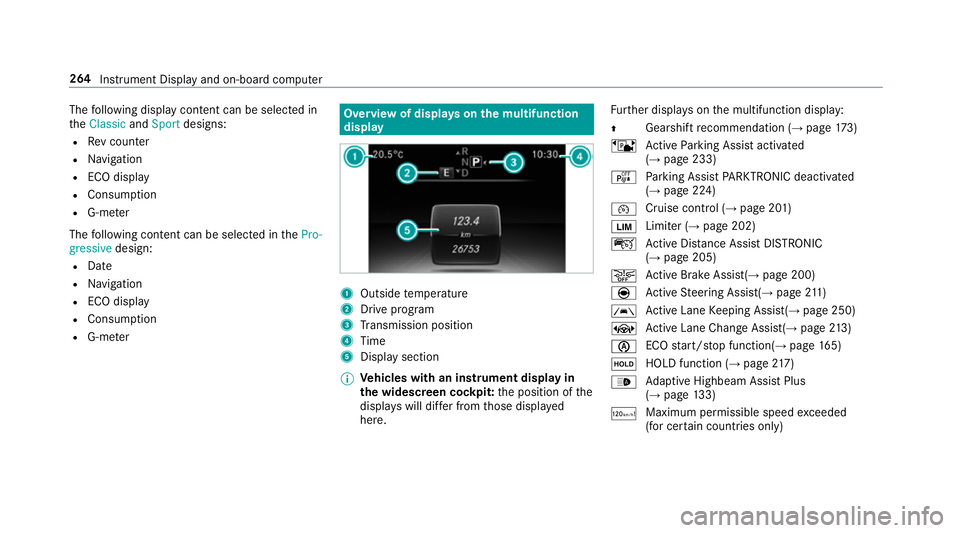
R G-m eter Overview of displa
yson the multifunction
display 1
Outside temp erature
2 Drive prog ram
3 Transmission position
4 Time
5 Display section
% Ve
hicles with an instrument display in
th e widescreen cockpit: the position of the
displa yswill dif fer from those displa yed
here. Fu
rther displa yson the multifunction display:
Z Gearshift
recommendation (→ page 173)
ë Active Parking Assist activated
(→ page 233)
é Parking Assist PARKTRONIC deacti vated
( → page 224)
¯ Cruise control (→
page 201)
È Limiter (→
page 202)
ç Active Dis tance Assi stDISTRONIC
(→ page 205)
æ Ac
tive Brake Assi st(→ page 200)
è Active Steering Assis t(→ page 211)
à Ac
tive Lane Keeping Assist(→ page 250)
± Active Lane Change Assi st(→ page 213)
è ECO
start/ stop function(→ page165)
ë HOLD fu
nction (→ page 217)
_ Ad
aptive Highbeam Assist Plus
(→ page 133)
ð Maximum permissible speed
exceeded
(for cer tain countries only) 264
Instrument Display and on-board computer
Page 271 of 593
Re
setting values on the trip menu of the on-
board compu terOn-board computer:
Trip
% The spelling on the main menu displa yed
may dif fer. Therefore, obser vethe menu
ove rview forth e instrument display
(→ page 262).
Yo u can reset theva lues of thefo llowing func‐
tions:
R Trip dis tance
R Trip computer From startandFrom reset
R ECO displa y(→ page 167) #
Toselect the function tobe rese t:swipe
upwards or down wards on the left-hand
To uch Control. #
Press the left-hand Touch Control. #
Select Yes. #
Press the left-hand Touch Control. If
yo u press and hold the left-hand Touch Con‐
trol, theva lues of the function will be reset
immediatel y. Calling up navigation instructions on
the on-
board compu ter On-board computer:
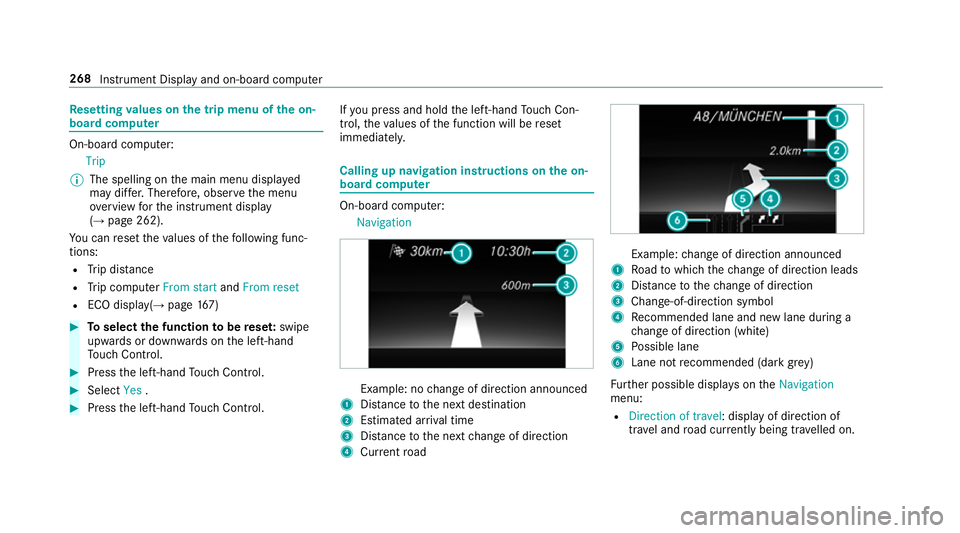
Navigation Example: no
change of direction announced
1 Distance tothe next destination
2 Estimated ar riva l time
3 Distance tothe next change of direction
4 Current road Example:
change of direction announced
1 Road towhich thech ange of direction leads
2 Distance tothech ange of direction
3 Chan ge-of-direction symbol
4 Recommended lane and new lane du ring a
ch ange of direction (white)
5 Possible lane
6 Lane not recommended (da rkgrey)
Fu rther possible displa yson theNavigation
menu:
R Direction of travel: display of direction of
tra vel and road cur rently being tr avelled on. 268
Instrument Display and on-board computer
Page 298 of 593
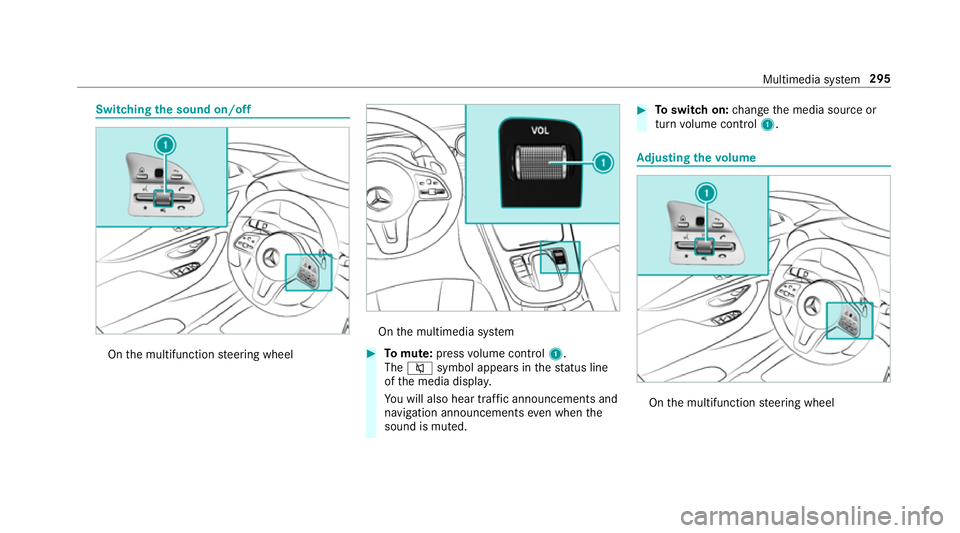
Switching
the sound on/off On
the multifunction steering wheel On
the multimedia sy stem #
Tomute: pressvolume control 1.
The 8 symbol appears in thest atus line
of the media displa y.
Yo u will also hear traf fic announcements and
navigation announcements even when the
sound is muted. #
Toswitch on: change the media source or
turn volume control 1. Ad
justing the volume On
the multifunction steering wheel Multimedia sy
stem 295
Page 299 of 593
On
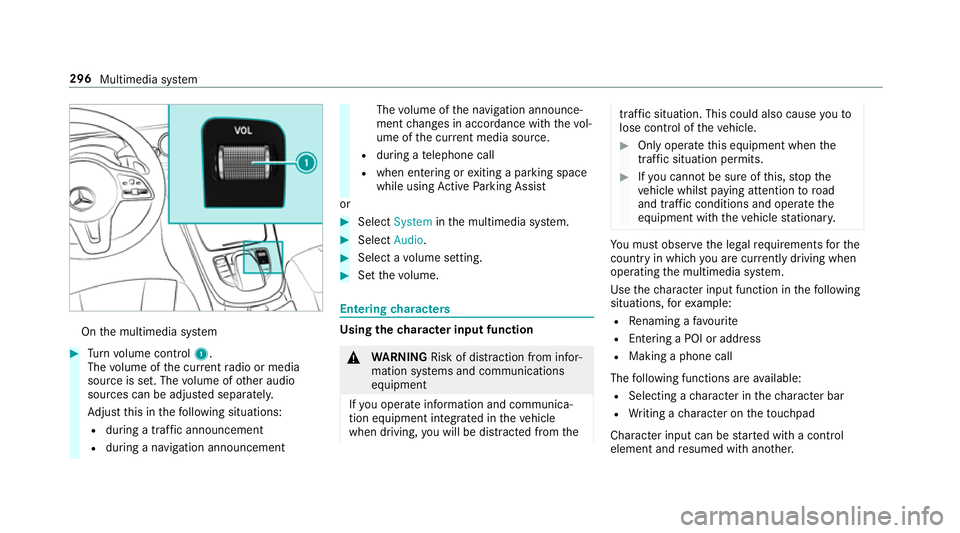
the multimedia sy stem #
Turn volume control 1.
The volume of the cur rent radio or media
source is set. The volume of other audio
sources can be adjus ted separatel y.
Ad just this in thefo llowing situations:
R during a traf fic announcement
R during a navigation announcement The
volume of the navigation announce‐
ment changes in accordance with thevo l‐
ume of the cur rent media sou rce.
R during a telephone call
R when entering or exiting a parking space
while using Active Parking Assist
or #
Select System inthe multimedia sy stem. #
Select Audio. #
Select a volume setting. #
Set thevo lume. Entering
characters Using
thech aracter input function &
WARNING Risk of di stra ction from infor‐
mation sy stems and communications
equipment
If yo u operate information and communica‐
tion equipment integ rated in theve hicle
when driving, you will be distracted from the traf
fic situation. This could also cause youto
lose control of theve hicle. #
Only operate this equipment when the
traf fic situation permits. #
Ifyo u cannot be sure of this, stop the
ve hicle whilst paying attention toroad
and traf fic conditions and ope rate the
equipment with theve hicle stationar y. Yo
u must obse rveth e legal requirements forthe
country in whi chyou are cur rently driving when
operating the multimedia sy stem.
Use thech aracter input function in thefo llowing
situations, forex ample:
R Renaming a favo urite
R Entering a POI or address
R Making a phone call
The following functions are available:
R Selecting a character in thech aracter bar
R Writing a character on theto uchpad
Character input can be star ted with a control
element and resumed with ano ther. 296
Multimedia sy stem
Page 302 of 593
R
Navigation map
R Consumption
R Time and date Ti
me and date Setting the time and date automatically
Multimedia sy stem:
System &Time and date #
Deactivate ªManual time adjustment.
The time and date are set automatically for
th e selected time zone and summer time
option.
% The cor rect time is requ ired forth efo llowing
functions:
R Route guidance with time-dependent
traf fic guidance.
R Calculation of expected time of ar riva l. Setting
the time zone
Multimedia sy stem:
System &Time and date Time
zone:
The list of count ries is displa yed. #
Select a count ry#.
Depending on the count ry, time zones are
displa yed. #
Select a time zone.
The time zone set is displa yed af terTime
zone:.
Setting summer time
The Automatic Summer Time andSummer Time
options cannot be selected in all countries.
Multimedia sy stem:
System &Time and date
Au tomatically #
Switch Automatic Summer Time onO or off
ª.
Manual ly #
Switch Automatic Summer Time offª. #
Select Summer Time. #
Select OnorOff.
Setting the time and date form at
Multimedia sy stem:
System &Time and date Set for-
mat #
Set the date and time form at#.
Setting the time manually
Re quirements:
R The Manual time adjustment function is
switched on.
Multimedia sy stem:
System &Time and date Set time #
Set the hours. #
Navigate totheright toset the minutes. #
Set the minutes. #
Confirm changes when exiting the menu.
The date is set automatically via GPS. Multimedia sy
stem 299
Page 308 of 593

Importing/exporting data
* NO
TELoss of da tadue topremature
re mo val #
Do not remo vethe data storage
medium when data is being expor ted.
Mercedes-Benz is not liable for any loss of
data. Re
quirements:
R The vehicle is stationar y.
R The ignition is switched on or theve hicle has
been star ted.
R The SD card is inser ted (→ page 374) or the
USB device is connecte d (→page 376).
Multimedia sy stem:
System System backup #
Select Import data orExport data.
Importing #
Select a data storage medium.
A prom ptappears asking whe ther youre ally
wish to overwrite the cur rent da ta. If da ta originates from ano
ther vehicle, this is recog‐
nised du ring da tareading.
The multimedia sy stem is restar ted once the
data has been impor ted.
% Current vehicle settings can be edited af ter
th e import.
Exporting
If PIN pr otection is activated, your PIN is reques‐
te d. #
Ente rth efo ur-digit PIN. #
Select a data storage medium.
The data is expor ted. The data export may
ta ke several minutes. Ac
tivating/deactivating PIN pr otection Multimedia sy
stem:
System PIN protection
Setting the PIN #
Select Set PIN. #
Enter a four-digit PIN. #
Enterth efo ur-digit PIN again.
If bo thPINs match, PIN pr otection is active.
Changing the PIN
Re quirements:
R A cur rent PIN mu stbe set. #
Select Change settings. #
Ente rth e cur rent PIN. #
Select Change PIN . #
Set a new PIN.
Ac tivating PIN pr otection for data export #
Select Change settings .
Confirm wi th the PIN. #
Select Protect data export.
Ac tivate Oor deacti vate ª the function.
Un blocking the PIN
Re quirements:
R There is an Internet connection.
R A Mercedes me account exists at http://
www.me rcedes.me. Multimedia sy
stem 305
Page 313 of 593
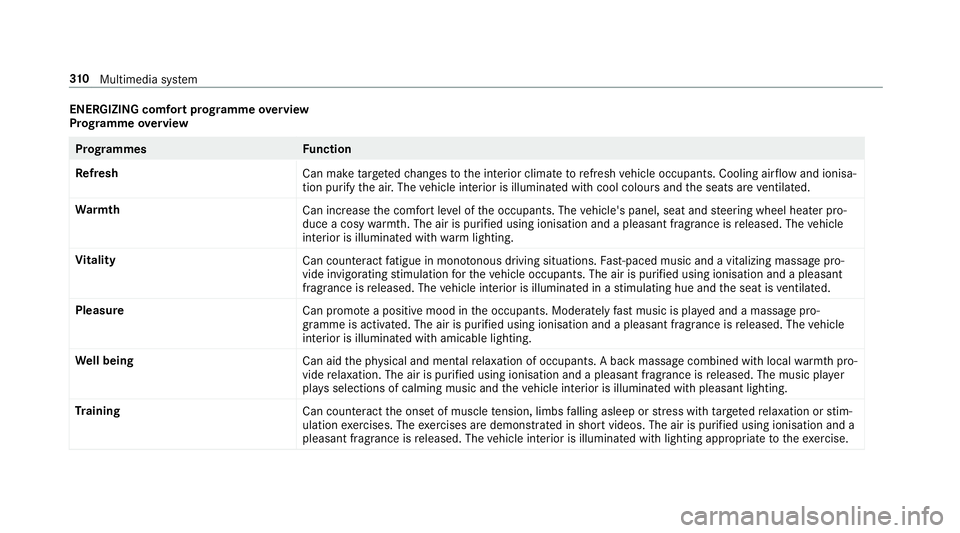
ENERGIZING comfort prog
ramme overview
Prog ramme overview Prog
rammes Function
Re fresh
Can maketargeted changes tothe interior climate torefresh vehicle occupants. Cooling air flow and ionisa‐
tion purify the air. The vehicle interior is illuminated with cool colours and the seats are ventilated.
Wa rmth
Can increase the comfort le vel of the occupants. The vehicle's panel, seat and steering wheel heater pro‐
duce a cosy warmth. The air is pu rified using ionisation and a pleasant fragrance is released. The vehicle
interior is illuminated with warm lighting.
Vi tality
Can countera ct fatigue in mono tonous driving situations. Fast-paced music and a vitalizing massa gepro‐
vide invigorating stimulation forth eve hicle occupants. The air is purified using ionisation and a pleasant
fragrance is released. The vehicle interior is illuminated in a stimulating hue and the seat is ventilated.
Pleasure Can promotea positive mood in the occupants. Moderately fastmusic is pla yed and a massage pro‐
gramme is activated. The air is purified using ionisation and a pleasant fragrance is released. The vehicle
interior is illuminated with amicable lighting.
We ll being
Can aidthe ph ysical and men talre laxation of occupants. A back massage combined with local warmthpro‐
vide relaxation. The air is purified using ionisation and a pleasant fragrance is released. The music pla yer
pla ysselections of calming music and theve hicle interior is illuminated with pleasant lighting.
Tr aining
Can counteractthe onset of muscle tension, limbs falling asleep or stre ss with targeted relaxation or stim‐
ulation exercises. The exercises are demon stra ted in short videos. The air is purified using ionisation and a
pleasant fragrance is released. The vehicle interior is illuminated with lighting appropriate totheex ercise. 310
Multimedia sy stem