2018 MERCEDES-BENZ E-CLASS COUPE ECO mode
[x] Cancel search: ECO modePage 197 of 593
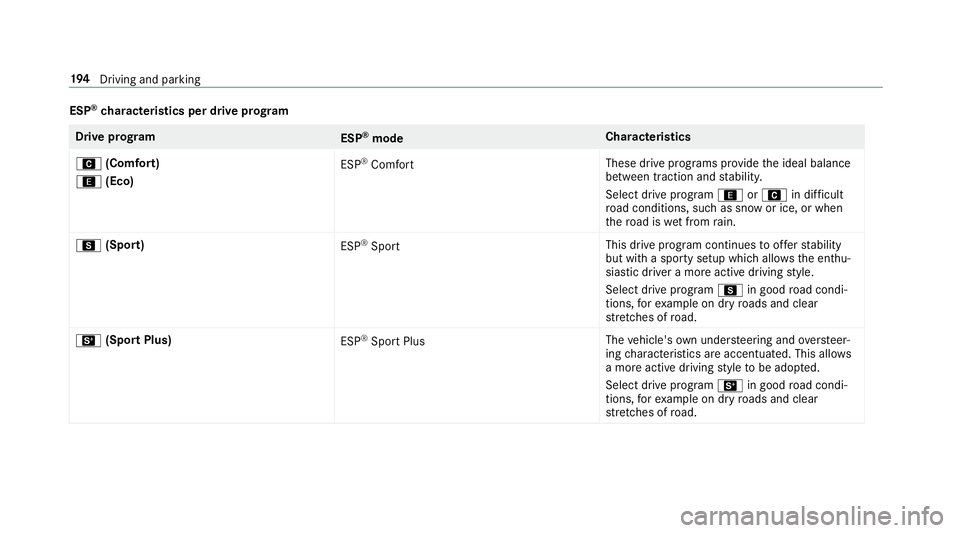
ESP
®
ch aracteristics per drive prog ramDrive prog
ram
ESP®
mode Cha
racteristics
A (Comfort)
; (Eco) ESP
®
Comfort These drive prog
rams pr ovide the ideal balance
between traction and stabilit y.
Select drive program ;orA in difficult
ro ad conditions, such as sn owor ice, or when
th ero ad is wet from rain.
C (Sport)
ESP®
Sport This drive program continues
toofferst ability
but with a sporty setup which allo wsthe enthu‐
siastic driver a more active driving style.
Select drive program Cin good road condi‐
tions, forex ample on dry roads and clear
st re tches of road.
B (Sport Plus)
ESP®
Spo rtPlus The
vehicle's own under steering and overste er‐
ing characteristics are accentuated. This allo ws
a more active driving style to be adop ted.
Select drive program Bin good road condi‐
tions, forex ample on dry roads and clear
st re tches of road. 194
Driving and pa rking
Page 244 of 593

#
Press button 1.
The Parking Assist view appears on the multi‐
media sy stem displa y.Area 2is acti vated. #
Toactivate Remo teParking Assist, select
transmission position j.#
Select your ow nve hicle 3and confirm. #
Exit theve hicle. #
Ensure that all vehicle doors, windo wsand
th e boot lid are closed. #
Start theRe mo teParking Assist app. #
Obser vethe instructions of theRe mo tePark‐
ing Assist app accordingly and drive theve hi‐
cle forw ards or backwards into the desired
position. #
After completion of the parking procedure,
safeguard theve hicle against rolling away.
When requ ired bylegal requirements or local
conditions: turn the wheels towa rdsth eke rb.
Alternatively, you can proceed as follo ws: #
Bring theve hicle toast andstill. #
Engage transmission position jand switch
off theve hicle. #
Exit theve hicle. #
Start theRe mo teParking Assist app. #
Obser vethe instructions of theRe mo tePark‐
ing Assist app accordingly and drive theve hi‐
cle forw ards or backwards into the desired
position. #
After completion of the parking procedure,
safeguard theve hicle against rolling away.
When requ ired bylegal requirements or local
conditions: turn the wheels towa rdsth eke rb.
The parking procedu re requires a minimum park‐
ing space size. If clearances become smaller
during the parking procedure, e.g. if theve hicle
is being driven into a garage , a message appears
on the mobile phone. You will need toconfirm
th ere duced clearances.
Exiting a parking space with explo ration
mode #
Unlock theve hicle. #
Start theRe mo teParking Assist app within
one minute. #
Obser vethe instructions of theRe mo tePark‐
ing Assist app accordingly and drive theve hi‐ cle
forw ards or backwards into the desired
position.
% The outside mir rors are not automatically fol‐
ded out af terex iting a parking space.
Au thorising/de-authorising a mobile phone
fo rRe mo teParking Assist
Multimedia sy stem:
Vehicle kAssistance Camera &
Park. Assist Remote Parking Assist
Au thorising a new mobile phone
In order tobe able touse theRe mo teParking
Assist function, you must authorise your mobile
phone. You can authorise up tosix mobile
phones. #
Select Connect new device .
Re mo teParking Assist is ready toconnect. #
Start theRe mo teParking Assist app and
additionally start the authorisation process.
A connection prom ptis displa yed. #
Ente rth e PIN.
De-authorising a mobile phone #
Select the mobile phone. Driving and parking
241
Page 256 of 593
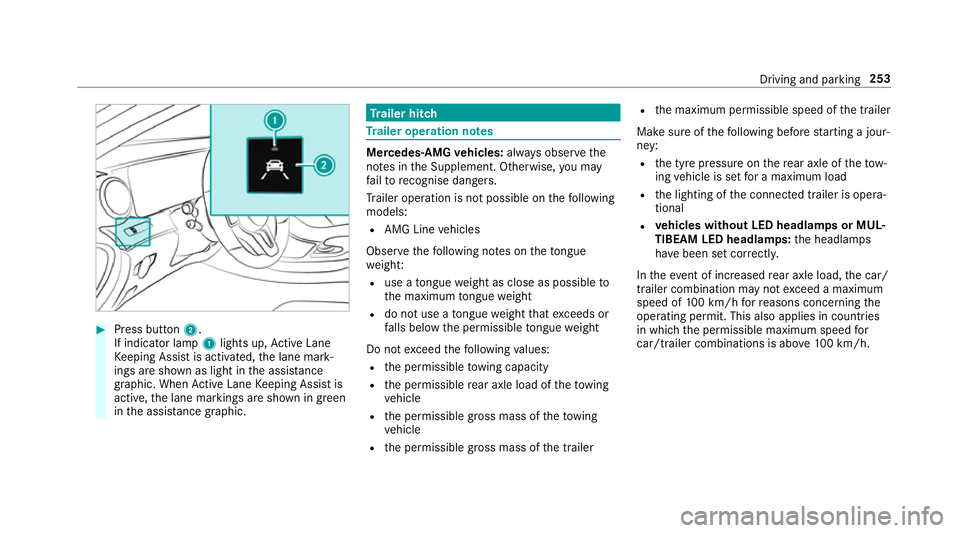
#
Press button 2.
If indicator lamp 1lights up, Active Lane
Ke eping Assist is activated, the lane mark‐
ings are shown as light in the assis tance
graphic. When Active Lane Keeping Assist is
active, the lane markings are shown in green
in the assis tance graphic. Tr
ailer hitch Tr
ailer operation no tes Mercedes‑AMG
vehicles: always obser vethe
no tes in the Supplement. Otherwise, you may
fa ilto recognise dangers.
Tr ailer operation is not possible on thefo llowing
models:
R AMG Line vehicles
Obser vethefo llowing no tes on theto ngue
we ight:
R use a tongue weight as close as possible to
th e maximum tongue weight
R do not use a tongue weight that exceeds or
fa lls below the permissible tongue weight
Do not exceed thefo llowing values:
R the permissible towing capacity
R the permissible rear axle load of theto wing
ve hicle
R the permissible gross mass of theto wing
ve hicle
R the permissible gross mass of the trailer R
the maximum permissible speed of the trailer
Make sure of thefo llowing before starting a jour‐
ney:
R the tyre pressure on there ar axle of theto w‐
ing vehicle is set for a maximum load
R the lighting of the connected trailer is opera‐
tional
R vehicles without LED headlamps or MUL‐
TIBEAM LED headlamps: the headlamps
ha ve been set cor rectly.
In theev ent of increased rear axle load, the car/
trailer combination may not exceed a maximum
speed of 100 km/h forre asons concerning the
operating permit. This also applies in countri es
in which the permissible maximum speed for
car/trailer combinations is ab ove100 km/h. Driving and parking
253
Page 269 of 593
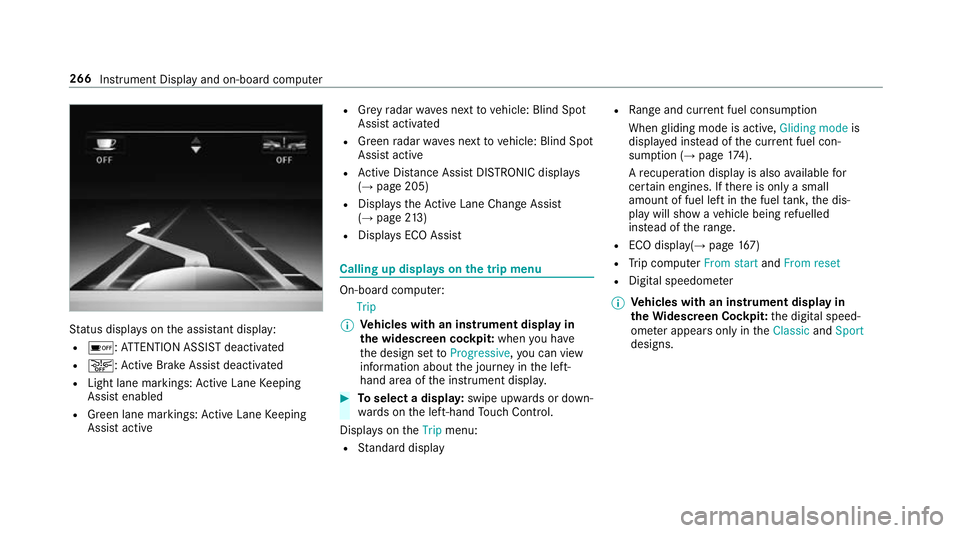
St
atus displa yson the assis tant displ ay:
R é :AT TENTION ASSIST deactivated
R æ: Active Brake Assi stdeactivated
R Light lane markings: Active Lane Keeping
Assist enabled
R Green lane markings: Active Lane Keeping
Assist active R
Grey radar waves next tovehicle: Blind Spot
Assist activated
R Green radar waves next tovehicle: Blind Spot
Assist active
R Active Dis tance Assi stDISTRONIC displa ys
( → page 205)
R Displa ys theAc tive Lane Change Assi st
( → page 213)
R Displ ays ECO Assist Calling up displa
yson the trip menu On-board computer:
Trip
% Ve
hicles with an instrument display in
th e widescreen cockpit: whenyou ha ve
th e design set toProgressive ,yo u can view
information about the journey in the left-
hand area of the instrument displa y. #
Toselect a displa y:swipe upwards or down‐
wa rds on the left-hand Touch Control.
Displa yson theTrip menu:
R Standard display R
Range and cur rent fuel consu mption
When gliding mode is active, Gliding modeis
displa yed ins tead of the cur rent fuel con‐
su mp tion (→ page 174).
A recuperation displ ayis also available for
cer tain engines. If there is only a small
amount of fuel left in the fuel tank, the dis‐
play will show a vehicle being refuelled
ins tead of thera nge.
R ECO displ ay(→page 167)
R Trip computer From startandFrom reset
R Digital speedom eter
% Ve
hicles with an instrument display in
th eWi descreen Co ckpit: the digital speed‐
ome ter appears only in theClassic andSport
designs. 266
Instrument Display and on-board computer
Page 275 of 593
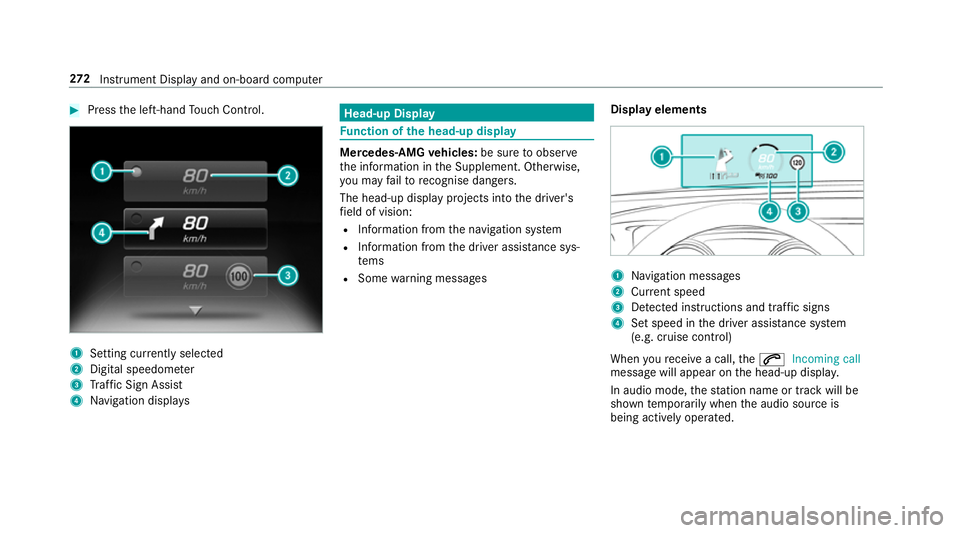
#
Press the left-hand Touch Control. 1
Setting cur rently selected
2 Digital speedome ter
3 Traf fic Sign Assi st
4 Navigation displa ys Head-up Display
Fu
nction of the head-up display Mercedes-AMG
vehicles: be sure toobser ve
th e information in the Supplement. Otherwise,
yo u may failto recognise dangers.
The head-up displ ayprojects into the driver's
fi eld of vision:
R Information from the navigation sy stem
R Information from the driver assis tance sys‐
te ms
R Some warning messages Display elements 1
Navigation messa ges
2 Current speed
3 Detected instructions and traf fic signs
4 Set speed in the driver assis tance sy stem
(e.g. cruise control)
When youre cei vea call, the6 Incoming call
message will appear on the head-up displa y.
In audio mode, thest ation name or track will be
shown temp orarily when the audio source is
being actively operated. 272
Instrument Display and on-board computer
Page 327 of 593
R
Incomple tedigital map data
Note s on GPS reception
The cor rect function of the navigation sy stem
depends amongst other things on GPS recep‐
tion. In cer tain situations GPS reception can be
impaired, defective or even not possible, e.g. in
tunnels or in multi-s torey car par ks.
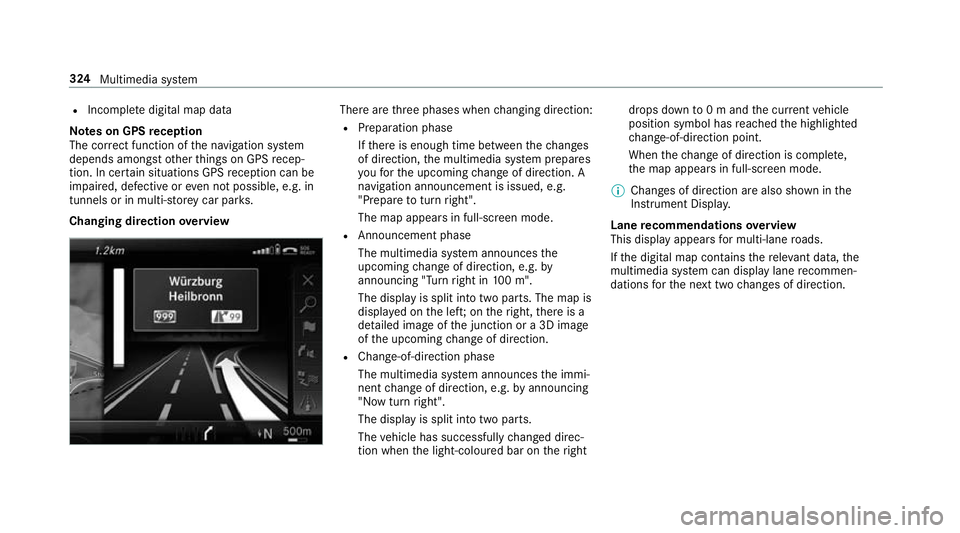
Changing direction overview There are
thre e phases when changing direction:
R Preparation phase
Ifth ere is enough time between thech anges
of direction, the multimedia sy stem prepares
yo ufo rth e upcoming change of direction. A
navigation announcement is issued, e.g.
"Prepare toturn right".
The map appears in full-screen mode.
R Announcement phase
The multimedia sy stem announces the
upcoming change of direction, e.g. by
announcing "Turn right in 100 m".
The display is split into two parts. The map is
displa yed on the lef t;on theright, there is a
de tailed image of the junction or a 3D image
of the upcoming change of direction.
R Chan ge-of-direction phase
The multimedia sy stem announces the immi‐
nent change of direction, e.g. byannouncing
"N ow turn right".
The display is split into two parts.
The vehicle has successfully changed direc‐
tion when the light-coloured bar on theright drops down
to0 m and the cur rent vehicle
position symbol has reached the highlighted
ch ange-of-direction point.
When thech ange of direction is comple te,
th e map appears in full-screen mode.
% Changes of direction are also shown in the
Instrument Displa y.
Lane recommendations overview
This display appears for multi-lane roads.
If th e digital map conta insthere leva nt da ta,the
multimedia sy stem can display lane recommen‐
dations forth e next two changes of direction. 324
Multimedia sy stem
Page 340 of 593
Displaying
the compass
Multimedia sy stem:
Navigation ÀRoute and position #
Select Compass.
The compass display sho wsthefo llowing
information:
R the cur rent di rection of tr avel with bear‐
ing (360° form at) and compass direction
R longitude and latitude coo rdinates in
degrees, minutes and seconds
R height (rounded)
R number of GPS satellites from which a
signal can be recei ved
Displaying Qibla
Requ irements:
R The Qibla display is available in your count ry.Multimedia sy
stem:
Navigation ÀRoute and position #
Select Qibla.
The ar rowonthe compass sho wsthe direc‐
tion of pr ayer toMecca in relation tothe cur‐
re nt di rection of tr avel.
The number of satellites recei ved is shown.
Setting the map scale automatically
Multimedia sy stem:
Navigation ZOptions
The map scale is set automatically depending on
yo ur driving speed.
Fo r journe ysin cities with de tailed city models, a
map view from the driver's perspective is used. #
Switch Auto zoom onO or off ª.
% The automatically selected map scale can be
changed manually for a short time. The set‐
ting is reset automatically af ter a few sec‐
onds. Displaying
the satellite map
Multimedia sy stem:
Navigation ZOption sM ap content #
Swit chSatellite map onO or off ª.
or #
If sa tellite map display 6isavailable in the
map menu, switch it on Oor off ª
(→ page 332).
Switched on O: satellite maps are displa yed
in map scales of 2 km or less.
Swit ched off ª: satellite maps are not dis‐
pla yed in map scales from 2 km to10 km.
% Satelli temaps forth ese map scales are not
av ailable in all countries.
Displ aying weather information
Re quirements:
R Mercedes me connect is available.
R You ha vea user account forth e Mercedes
me por tal.
R The service is available.
R The service has been activated at a
Mercedes-Benz service centre. Multimedia sy
stem 337
Page 343 of 593
Symbols
1to4 are not shown until af ter a
mobile phone has been connected tothe multi‐
media sy stem. The symbols depend on your
mobile phone and your mobile phone network
pr ov ider.
Blu etoo th®
pr ofile overview Blue
tooth ®
profile
of the mobile phone Fu
nction
PBAP (Phone Book
Access Profile) Contacts are auto‐
matically displa
yed in
th e multimedia sys‐
tem
MAP (Message
Access Profile) Message functions
can be used Te
lephony operating modes overview
Depending on your equipment, thefo llowing tel‐
ephony operating modes are available:
R A mobile phone is connec tedto the multime‐
dia sy stem via Blue tooth®
(→ page 340). R
Two mobile phones are connected with the
multimedia sy stem via Blue tooth®
(two
phone mode) (→ page 341).
R A mobile phone is connec tedto the multime‐
dia sy stem as an SAP (Sim Access Profile)
te lephone (→ page 342).
R Only a SIM card is connec tedto the multime‐
dia sy stem (→ page 342).
A mobile phone is being used parallel to a
SIM card (→ page 342).
Information on telephony
The following situations can lead tothe call
being disconnected while theve hicle is in
motion:
R there is insuf ficient network co verage inthe
area
R you mo vefrom one GSM or UMTS transmit‐
te r/receiver area (cell) into ano ther and no
communication channels are free
R the SIM card used is not compatible with the
network available R
a mobile phone with "Twincard" is logged into
th e network with the second SIM card at the
same time
The multimedia sy stem supports calls in HD
Vo ice ®
for impr oved speech qualit y.Arequ ire‐
ment forth is is that the mobile phone and the
mobile phone network pr ovider of the person
yo u are calling suppo rtHD Voice ®
.
Depending on thequ ality of the connection, the
vo ice quality may fluctuate.
Connecting a mobile phone (Blu etoo th®
te l‐
ephony)
Re quirements:
R Blue tooth ®
is activated on the mobile phone
(see the manufacturer's operating instruc‐
tions).
R Blue tooth ®
is activated on the multimedia
sy stem (→ page 300). 340
Multimedia sy stem