2018 MERCEDES-BENZ E-CLASS COUPE light
[x] Cancel search: lightPage 310 of 593

Multimedia sy
stem:
System gPersonalisation Manual
export/import
This function is not available in all countries.
On ly individu al profiles can be impor ted or
ex por ted.
The individual profiles are alw ays collectively
impor ted or expor ted. #
Impor t:select Import profiles from the
server.
The The profile import overwrites the exist-
ing profiles. Do you want to continue? mes‐
sage appears. #
Select Yes.
User profiles are impor ted. #
Expor t:select Export profiles to the server.
User profiles are expor ted.
% Certain settings, such as address book
ent ries or pr evious destinations from the
navigation sy stem, are not expor ted. Setting user profile options
Multimedia sy
stem:
System gPersonalisation #
Highlight a profile. #
Select ¥options.
The following options are available:
R Rename
R Delete
R Reset
% The guest profile cannot be dele ted or
re named. So
ftwa reupdate Information on software updates
The multimedia sy
stem pr ovides a message
when an update is available.
Depending on the source, you can per form vari‐
ous updates: Software update Source of
the
update Up
date type
Up dates via mobile
phone Na
vigation map, sys‐
te m updates, Digital
Owner's Manual
Up dates via an exter‐
nal storage medium,
e.g. a USB flash drive Na
vigation maps %
Updates via mobile phone requ ire an active
Internet connection forth eve hicle. This is
not available in all countries. For fur ther
information on connecting tothe Internet,
see (→ page 364).
Ad vantages of updating software
Thanks tothe software update, your vehicle sta‐
tus is up-to-date.
In order tocons tantly impr ovethequ ality of our
services you will recei vefuture updates foryo ur
multimedia sy stem, the Mercedes me connect
services and your vehicle's communication mod‐
ule. These will con veniently be sent to you via Multimedia sy
stem 307
Page 313 of 593
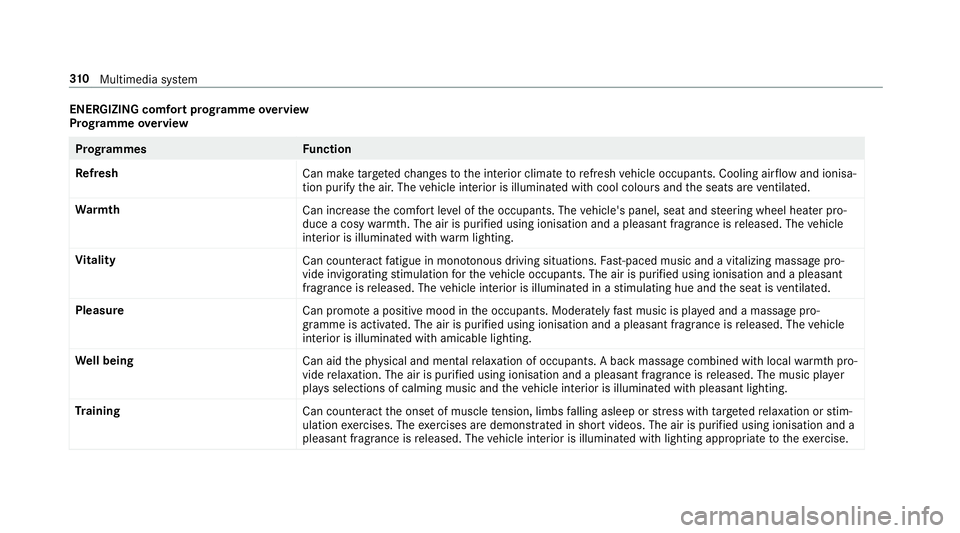
ENERGIZING comfort prog
ramme overview
Prog ramme overview Prog
rammes Function
Re fresh
Can maketargeted changes tothe interior climate torefresh vehicle occupants. Cooling air flow and ionisa‐
tion purify the air. The vehicle interior is illuminated with cool colours and the seats are ventilated.
Wa rmth
Can increase the comfort le vel of the occupants. The vehicle's panel, seat and steering wheel heater pro‐
duce a cosy warmth. The air is pu rified using ionisation and a pleasant fragrance is released. The vehicle
interior is illuminated with warm lighting.
Vi tality
Can countera ct fatigue in mono tonous driving situations. Fast-paced music and a vitalizing massa gepro‐
vide invigorating stimulation forth eve hicle occupants. The air is purified using ionisation and a pleasant
fragrance is released. The vehicle interior is illuminated in a stimulating hue and the seat is ventilated.
Pleasure Can promotea positive mood in the occupants. Moderately fastmusic is pla yed and a massage pro‐
gramme is activated. The air is purified using ionisation and a pleasant fragrance is released. The vehicle
interior is illuminated with amicable lighting.
We ll being
Can aidthe ph ysical and men talre laxation of occupants. A back massage combined with local warmthpro‐
vide relaxation. The air is purified using ionisation and a pleasant fragrance is released. The music pla yer
pla ysselections of calming music and theve hicle interior is illuminated with pleasant lighting.
Tr aining
Can counteractthe onset of muscle tension, limbs falling asleep or stre ss with targeted relaxation or stim‐
ulation exercises. The exercises are demon stra ted in short videos. The air is purified using ionisation and a
pleasant fragrance is released. The vehicle interior is illuminated with lighting appropriate totheex ercise. 310
Multimedia sy stem
Page 317 of 593

or
#
Press theto uchpad. #
Todel ete an entr y:select %4(ifavail‐
able).
Use thefo llowing options:
R Press brief ly: del etes the last character
entered or the last suggestion adop ted.
R Press and hold: dele testh e entire entry. #
Toset the language: selectB8. #
Select the language.
% This function is useful for countries in which
se veralch aracter sets are suppo rted. An
ex ample is Russia, which uses Cyrillic and
Latin characters. #
Tocall up the online sear chfunction:
select Online search 6.
Once an Internet connection is es tablished, a
list appears. It sho wsonline destinations
re lated tothe pr evious ent ry.
Online destinations are pr ovided bythe Inter‐
net service pr ovider. #
Select the online destination. or #
Ente rth e online destination or a 3 word
address in the input line.
% Ente r a 3 wordaddress (→ page318).
Online sea rch is not available in all coun‐
tries. #
Tocall up the lis t:press the% button.
or #
Ifth eto p line of thech aracter bar is highligh‐
te d, navigate upwards. #
Select the destination in the list. #
Toadopt a destination: select7Select
destination .
If th ere are se veral listings for a destination,
a list appears. #
Select the destination.
The destination address is shown.
Me thod 2: sear chstep- by-step #
Press %button.
or #
Ifth eto p line of thech aracter bar is highligh‐
te d, navigate upwards.
The character bar is hidden. City or postcode
is highlighted. Additional ent ryfields, e.g. for
POI, are available. #
Select City or postcode.
The character bar appears. #
Enterth e city or the postcode.
During destination entry , suggestions are
made bythe multimedia sy stem. A selection
of destinations appears in a list.
The address entri es can be made in any
order, forex ample:
R City or postcode, Street,House no.
En ter an intersecting stre et, if available.
R Street, City or postcode
R POI , e.g. Petrol station, City or postcode
% During destination ent ry, use thefo llowing
functions:
R Swit ching tohandwriting recognition
R Switching tocharacter selection
R Deleting an ent ry314
Multimedia sy stem
Page 319 of 593
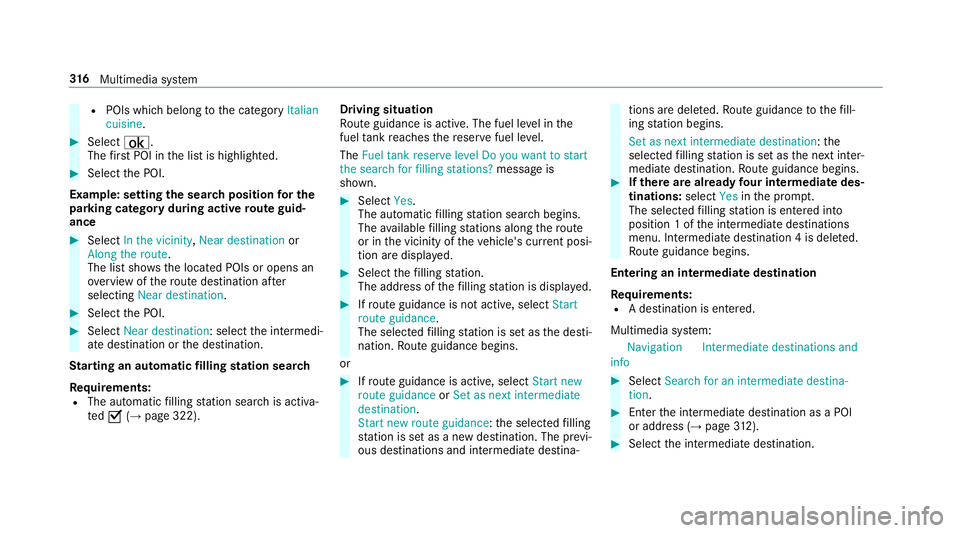
R
POIs which belong tothe category Italian
cuisine . #
Select ¡.
The firs t POI in the list is highlighted. #
Select the POI.
Example: setting the sear chposition for the
parking ca tegory during active route guid‐
ance #
Select In the vicinity ,Near destination or
Along the route.
The list sho ws the located POIs or opens an
ove rview of thero ute destination af ter
selecting Near destination. #
Select the POI. #
Select Near destination: select the intermedi‐
ate destination or the destination.
St arting an automatic filling station sear ch
Re quirements:
R The automatic filling station sear chis activa‐
te dO (→page 322). Driving situation
Ro
ute guidance is active. The fuel le vel in the
fuel tank reaches there ser vefuel le vel.
The Fuel tank reserve level Do you want to start
the search for filling stations? message is
shown. #
Select Yes.
The automatic filling station sear chbegins.
The available filling stations along thero ute
or in the vicinity of theve hicle's cur rent posi‐
tion are displ ayed. #
Select thefilling station.
The address of thefilling station is displa yed. #
Ifro ute guidance is not active, select Start
route guidance .
The selected filling station is set as the desti‐
nation. Route guidance begins.
or #
Ifro ute guidance is active, select Start new
route guidance orSet as next intermediate
destination .
Start new route guidance: the selected filling
st ation is set as a new destination. The pr evi‐
ous destinations and intermediate destina‐ tions are dele
ted. Ro ute guidance tothefill‐
ing station begins.
Set as next intermediate destination: the
selected filling station is set as the next inter‐
mediate destination. Route guidance begins. #
Ifth ere are already four intermediate des‐
tinations: selectYesinthe prom pt.
The selected filling station is entered into
position 1 of the intermediate destinations
menu. Intermediate destination 4 is dele ted.
Ro ute guidance begins.
Entering an intermediate destination
Re quirements:
R A destination is entered.
Multimedia sy stem:
Navigation Intermediate destinations and
info #
Select Search for an intermediate destina-
tion . #
Ente rth e intermediate destination as a POI
or address (→ page312). #
Select the intermediate destination. 316
Multimedia sy stem
Page 320 of 593
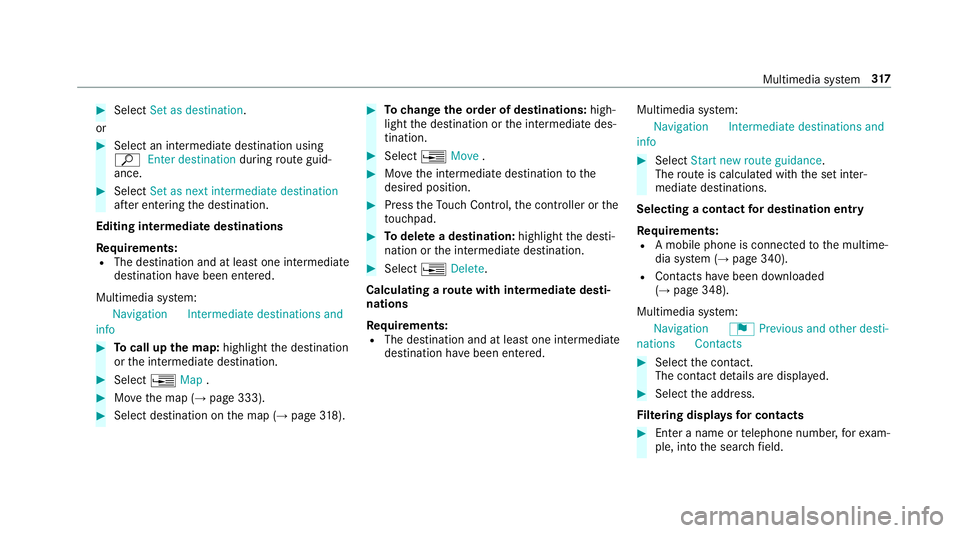
#
Select Set as destination .
or #
Select an intermedia tedestination using
ª Enter destination duringroute guid‐
ance. #
Select Set as next intermediate destination
af te r entering the destination.
Editing intermedia tedestinations
Re quirements:
R The destination and at least one intermediate
destination ha vebeen entered.
Multimedia sy stem:
Navigation Intermediate destinations and
info #
Tocall up the map: highlight the destination
or the intermediate destination. #
Select ¥Map. #
Movethe map (→ page 333). #
Select destination on the map (→ page318). #
Tochange the order of destinations: high‐
light the destination or the intermediate des‐
tination. #
Select ¥Move . #
Movethe intermediate destination tothe
desired position. #
Press theTo uch Control, the controller or the
to uchpad. #
Todel ete a destination: highlightthe desti‐
nation or the intermediate destination. #
Select ¥Delete.
Calculating a route with intermediate desti‐
nations
Re quirements:
R The destination and at least one intermediate
destination ha vebeen entered. Multimedia sy
stem:
Navigation Intermediate destinations and
info #
Select Start new route guidance.
The route is calculated with the set inter‐
mediate destinations.
Selecting a contact for destination entry
Re quirements:
R A mobile phone is connec tedto the multime‐
dia sy stem (→ page 340).
R Contacts ha vebeen downloaded
(→ page 348).
Multimedia sy stem:
Navigation ¬Previous and other desti-
nation sC ontacts #
Select the conta ct.
The contact de tails are displa yed. #
Select the address.
Fi ltering displa ysfor contacts #
Enter a name or telephone number, forex am‐
ple, into the sear chfield. Multimedia sy
stem 317
Page 321 of 593

#
Select ¡.
The firs t contact in the list is highlighted. #
Select the conta ct. #
Select the address.
Entering geo-coordina tes
Multimedia sy stem:
Navigation ¬Previous and other desti-
nation sG eo-coordinates #
Ente rge o-coordinates as latitude and longi‐
tude coordinates in degrees, minutes and
seconds.
The map sho ws the position. #
Confirm the entry. #
Tocalculate a route: select Start route
guidance. #
If a route has already been created, select
Start new route guidance orSet as inter-
mediate destination . Entering
the destination as a 3 wordaddress
Re quirements:
R Sear ching for a destination using 3 word
addresses is possible in the online sear ch
( → page 312).
R There is an Internet connection.
% Sear ching for a destination using 3 word
addresses is not possible in all countries.
Multimedia sy stem:
Navigation ªEnter destination #
Select Online search. #
Ente rth e destination address as a 3 word
address. Separate each of thewo rds with a
full stop.
The sear chresults are displa yed. #
Select the destination in the list.
The destination address is shown. The route
can be calculated.
% 3wo rdaddresses from what3words are an
alternative addressing sy stem for multilin‐
gual georeferencing of global locations with
a re solution of thre e metres. Using this grid, locations on
the Ear th's sur face are included
whi chdo not ha vea building address such
as stre et and house number, forex ample.
The Brandenburg Gate in Berlin has thefo l‐
lowing language dependent 3 wordaddress,
fo rex ample:
R German: tapfer.ge bäude.verliehen
R Engl ish:that.lands.winning
R French: posteaux.bobineur.ombrant
3 wo rdaddresses are unique, easy to
re member and suf fice for most routine appli‐
cations.
The bidirectional co nversion of 3 word
addresses can be car ried out here:
R atthewe bsite http://what3words.com
R inthe what3words apps
Selecting a destination on the map
Multimedia sy stem:
Navigation ZOptions #
Select Map menu.
or 318
Multimedia sy stem
Page 322 of 593
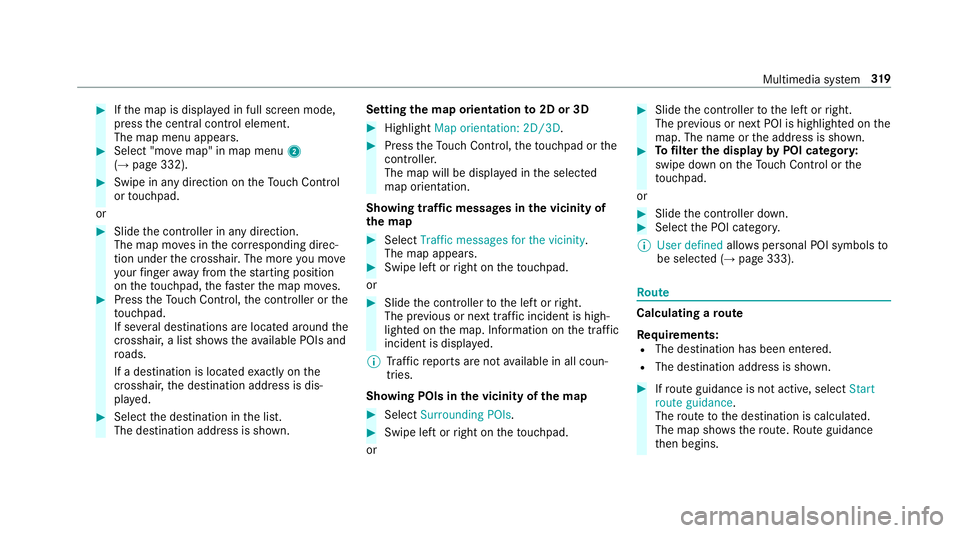
#
Ifth e map is displa yed in full screen mode,
press the cent ral control element.
The map menu appears. #
Select "mo vemap" in map menu 2
(→ page 332). #
Swipe in any direction on theTo uch Control
or touchpad.
or #
Slide the controller in any direction.
The map mo ves in the cor responding direc‐
tion under the crosshair. The more you mo ve
yo ur finger away from thest arting position
on theto uchpad, thefast erthe map mo ves. #
Press theTo uch Control, the controller or the
to uchpad.
If se veral destinations are located around the
crosshair, a li stsho wstheav ailable POIs and
ro ads.
If a destination is located exact ly on the
crosshair, the destination address is dis‐
pla yed. #
Select the destination in the list.
The destination address is shown. Setting
the map orientation to2D or 3D #
Highlight Map orientation: 2D/3D. #
Press theTo uch Control, theto uchpad or the
controller.
The map will be displ ayed in the selected
map orientation.
Showing traf fic messages in the vicinity of
th e map #
Select Traffic messages for the vicinity.
The map appears. #
Swipe left or right on theto uchpad.
or #
Slide the controller tothe left or right.
The pr evious or next traf fic incident is high‐
lighted on the map. Information on the tra ffic
incident is displa yed.
% Traf fic re ports are not available in all coun‐
tries.
Showing POIs in the vicinity of the map #
Select Surrounding POIs . #
Swipe left or right on theto uchpad.
or #
Slide the controller tothe left or right.
The pr evious or next POI is highligh ted on the
map. The name or the address is shown. #
Tofilter the display byPOI categor y:
swipe down on theTo uch Control or the
to uchpad.
or #
Slide the controller down. #
Select the POI categor y.
% User defined allowspersonal POI symbols to
be selected (→ page 333). Ro
ute Calculating a
route
Re quirements:
R The destination has been entered.
R The destination address is shown. #
Ifro ute guidance is not active, select Start
route guidance .
The route tothe destination is calculated.
The map sho ws thero ute. Route guidance
th en begins. Multimedia sy
stem 319
Page 327 of 593
R
Incomple tedigital map data
Note s on GPS reception
The cor rect function of the navigation sy stem
depends amongst other things on GPS recep‐
tion. In cer tain situations GPS reception can be
impaired, defective or even not possible, e.g. in
tunnels or in multi-s torey car par ks.
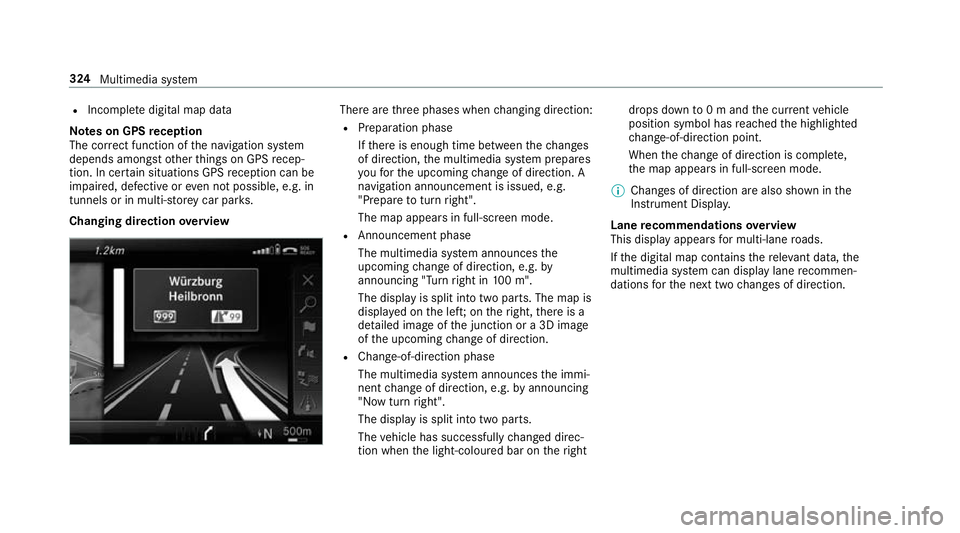
Changing direction overview There are
thre e phases when changing direction:
R Preparation phase
Ifth ere is enough time between thech anges
of direction, the multimedia sy stem prepares
yo ufo rth e upcoming change of direction. A
navigation announcement is issued, e.g.
"Prepare toturn right".
The map appears in full-screen mode.
R Announcement phase
The multimedia sy stem announces the
upcoming change of direction, e.g. by
announcing "Turn right in 100 m".
The display is split into two parts. The map is
displa yed on the lef t;on theright, there is a
de tailed image of the junction or a 3D image
of the upcoming change of direction.
R Chan ge-of-direction phase
The multimedia sy stem announces the immi‐
nent change of direction, e.g. byannouncing
"N ow turn right".
The display is split into two parts.
The vehicle has successfully changed direc‐
tion when the light-coloured bar on theright drops down
to0 m and the cur rent vehicle
position symbol has reached the highlighted
ch ange-of-direction point.
When thech ange of direction is comple te,
th e map appears in full-screen mode.
% Changes of direction are also shown in the
Instrument Displa y.
Lane recommendations overview
This display appears for multi-lane roads.
If th e digital map conta insthere leva nt da ta,the
multimedia sy stem can display lane recommen‐
dations forth e next two changes of direction. 324
Multimedia sy stem