2018 MERCEDES-BENZ C-CLASS SALOON change time
[x] Cancel search: change timePage 252 of 609

0007
After completion of the parking procedure,
safeguard theve hicle against rolling away.
When requ ired bylegal requirements or local
conditions: turn the wheels towa rdsth eke rb.
0009 You can stop theve hicle and change the
transmission position du ring the parking pro‐
cedure. The sy stem then calculates a new
ve hicle path. The parking procedure can
th en be continued. If no new vehicle path is
av ailable, the transmission position will be
ch anged again. If theve hicle has not yet
re ached the parking space, the parking pro‐
cedure will be cancelled, should a gear be
ch anged.
Exiting a pa rking space with Active Parking
Assist
Re quirements:
R The vehicle has been par ked with Active
Pa rking Assist.
Please no tethat you are responsible forth eve hi‐
cle and sur roundings during the entire parking
procedure. 0007
Start theve hicle. 0007
Press button 1.
The Active Parking Assist view appears on
th e multimedia sy stem displa y. 0007
Ifth eve hicle has been par ked at right angles
to the direction of tra vel: in area 2, select
direction of tra vel3.
0009 The vehicle path shown on the multimedia
sy stem display may dif fer from the actual
ve hicle path. 0007
Confirm direction of exit3 todrive out of
th e parking space.
0009 The turn signal indicator is switched on auto‐
matically when theex itth e parking space
procedure begins. Driving and parking
249
Page 253 of 609

Yo
u are responsible for selecting the turn signal
in accordance with the traf fic conditions. If nec‐
essar y,select the turn signal accordingly. 000A
WARNING Risk of accident due tovehi‐
cle swinging out while parking or pulling
out of a parking space
While parking or exiting a parking space, the
ve hicle swings out and can drive onto areas
of the oncoming lane.
This could cause youto collide wi thobjects
or other road users. 0007
Pay attention toobjects and other road
users. 0007
Where necessar y,stop theve hicle or
cancel the parking procedure with
Ac tive Parking Assist. 0007
If,forex ample, thePlease engage forward
gear message appears in the multimedia sys‐ te
m display: select the cor responding trans‐
mission position.
The vehicle mo ves out of the parking space.
The turn signal indicator is switched off auto‐
maticall y. Example:
vehicles with 360° Camera
Af terth eex iting procedure has been comple ted,
th eActive Parking Assist finished, take control
of the vehicle. message appears in the display of
th e multimedia sy stem. A warning tone and dis‐
pl ay 4 inthe display of the multimedia sy stem
prom ptyouto take ove r control of theve hicle.
Yo u ha vetoaccelerate, brake, steer and change
ge ar yourself again. Fu
nction of Drive Away Assist
0009 Drive AwayAssi stis only available forve hi‐
cles with automatic transmission.
Drive AwayAssi stcan reduce the se verity of an
impact when pulling away. If an obs tacle is
de tected in the direction of tr avel, theve hicle's
speed is brief lyreduced toappr ox. 2 km/h. If a
critical situation is de tected, the00CB symbol
appears on the camera image of the multimedia
sy stem. 000A
WARNING Risk of accident caused by
limited de tection per form ance of Drive
Aw ayAssi st
Drive AwayAssi stcannot al ways clearly iden‐
tify objects and traf fic situations.
In su chcases, Drive AwayAssi stmight:
R Warnyou without reason and limit the
ve hicle speed.
R Not warnyou or not limit theve hicle
speed. 250
Driving and parking
Page 254 of 609

0007
Alw ays pay careful attention tothe traf‐
fi c situation; do not rely on Drive Away
Assi stalone. 0007
Be prepared tobrake or swer veas nec‐
essar y,prov ided the tra ffic situation
permits and that it is safe totake eva‐
sive action. Drive
AwayAssi stis only an aid. It is not a sub‐
st itute foryo ur attention tothe sur roundings.
The responsibility for safe manoeuvring and
parking remains with you. Make sure that no
persons, animals or objects etc. are in the
manoeuvring range.
A risk of a collision may arise in thefo llowing sit‐
uations, forex ample:
R Ifth e driver mixes up the accelera tor and
brake pedals.
R Ifth e wrong gear is selec ted.
The Drive AwayAssi stfunction is active under
th efo llowing conditions:
R IfPa rking Assist PARKTRONIC is activated. R
Every time thege ar is changed to005E or005B
when theve hicle is at a standstill.
R Ifth e de tected obs tacle is less than appr ox.
1. 0 m away.
R Ifth e manoeuvring assis tance function is
acti vated in the multimedia sy stem.
Sy stem limitations
Drive AwayAssi stis not available on inclines and
when driving with a trailer.
Fu nction of Cross Traf fic Alert
0009 Also read the instructions on Blind Spot
Assist (0013 page 256). Ve
hicles with Blind Spot Assis t:drivers can
also be warned of any crossing traf fic when
re ve rsing out of a parking space. If a critical sit‐
uation is de tected, symbol 1appea rsinthe
multimedia sy stem displa y.Ifth e driver does not
re spond tothewa rning, theve hicle's brakes can
be applied automaticall y.To do this, the function
uses thera dar sensors in the bumper. The area
adjacent totheve hicle is continually monitored. Driving and parking
251
Page 257 of 609

Tr
af fic Sign Assist Fu
nction of Traf fic Sign Assist Tr
af fic Sign Assi stdetects traf fic signs wi thmul‐
tifunction camera 1. It assistsyo uby display‐
ing de tected speed limits and overtaking restric‐
tions in the instrument clus ter and optionally in
th e head-up displa y.
Since Traf fic Sign Assi stalso uses the data
st ored in the navigation sy stem, it can update
th e display in thefo llowing situations without
de tecting traf fic signs:
R When theve hicle changes roads, e.g. slip
ro ad or mo torw ay ex it. R
When a village or town boundary which is
st ored in the digital map is passed.
If th e sy stem de tects that you are driving on to a
section of road in the wrong direction of tr avel, it
triggers a warning.
The camera also de tects traf fic signs wi th a
re striction indicated byan additional sign (e.g. in
we t conditions).
Tr af fic Sign Assi stis only an aid. The driver is
re sponsible forke eping a safe dis tance tothe
ve hicle in front, forve hicle speed and for braking
in good time. The maximum permissible speed
also depends on factors su chasthero ad sur‐
fa ce and traf fic conditions.
Wa rning when the maximum permissible
speed is exceeded
The sy stem can warnyou if you unin tentionally
exc eed the maximum permissible speed. Todo
th is, you can specify in the multimedia sy stem
by how much the maximum permissible speed
can be exceeded before a warning is issued. Yo u
can specify whe ther thewa rning is tobe just a
visual warning or an acoustic one as well. Display in
the instrument display In
stru ment display in the widescreen cockpit
1 Perm issible speed
2 Perm issible speed when there is a restriction
3 Additional sign with restriction 254
Driving and pa rking
Page 276 of 609

The
following display con tent can be selected in
th eClassic andSport designs:
R Rev counter
R Navigation
R ECO display
R Consu mption
R G-m eter
The following con tent can be selected in thePro-
gressive design:
R Date
R Navigation
R ECO display
R Consu mption
R G-m eter Overview of displa
yson the multifunction
display 1
Outside temp erature
2 Time
3 Display section
4 Transmission position
5 Drive prog ram Fu
rther displa yson the multifunction display:
0097 Gearshift
recommenda‐
tion(0013 page 184)
ë Active Parking Assist activated
(0013 page247)
é Parking Assist PARKTRONIC deacti vated
( 0013 page 238)
00B2 Cruise control(0013
page214)
00CB Speed limi
ter (0013 page215)
ç Active Dis tance Assi st
DISTRONIC( 0013page 218)
00D4 Ac
tive Brake Assi st(0013 page214)
è Active Steering Assis t(0013 page 224)
00B0 Ac
tive Lane Keeping Assist
(0013 page 259)
± Active Lane Change
Assi st(0013 page 227)
00D6 ECO
start/ stop function (0013 page173)
00D9 HOLD fu
nction (0013 page 230)
00CE Ad
aptive Highbeam Assist
(0013 page140) Instrument Displ
ayand on-board computer 273
Page 279 of 609

Example: trip computer
1 Total dis tance
2 Driving time
3 Average speed
4 Average fuel consum ption Re
setting values on the trip menu of the on-
board compu terOn-board computer:
0018 Trip
0009 The spelling on the main menu displa yed
may dif fer. Therefore, obser vethe menu ove
rview forth e instrument display
(0013 page271).
Yo u can reset theva lues of thefo llowing func‐
tions:
R Trip dis tance
R Trip computer From startandFrom reset
R ECO displa y(0013 page175) 0007
Toselect the function tobe rese t:swipe
upwards or down wards on the left-hand
To uch Control. 0007
Press the left-hand Touch Control. 0007
Select Yes. 0007
Press the left-hand Touch Control.
If yo u press and hold the left-hand Touch Con‐
trol, theva lues of the function will be reset
immediatel y. Calling up navigation instructions on
the on-
board compu ter On-board computer:
0018 Navigation Example: no
change of direction announced
1 Distance tothe next change of direction
2 Distance tothe next destination
3 Estimated ar riva l time at next destination
4 Current road 276
Instrument Display and on-board computer
Page 280 of 609

Example:
change of direction announced
1 Distance tothech ange of direction
2 Road towhich thech ange of direction leads
3 Chan ge-of-direction symbol
4 Recommended lane (white)
5 Possible lane
6 Lane not recommended (da rkgrey)
Fu rther possible displa yson theNavigation
menu:
R Direction of travel: display of direction of
tra vel and road cur rently being tr avelled on.
R New route... orCalculating route… : a new
ro ute is being calculated. R
Road not mapped :th ero ad is unknown, e.g.
fo r newly built roads.
R No route: no route could be calculated tothe
selected destination.
R Off map: the map forth e cur rent location is
not available.
R Area of destination reached: you ha ve
re ached the area of the destination.
R 004B: you ha vereached the destination or an
intermediate destination. 0007
Toexitth e menu: pressthe back button on
th e left.
Ve hicles with the COMAND Online multime‐
dia sy stem: you can also start navigation toone
of there cent destinations on theNavigation
menu: 0007
Press the left-hand Touch Control. 0007
Toselect a destination: swipe upwards or
down wards on the left-hand Touch Control. 0007
Press the left-hand Touch Control.
Ro ute guidance is star ted. If
ro ute guidance has already been activated,
a re qu est will appear asking whe ther you
wish toend the cur rent route guidance. 0007
Select Yes. 0007
Press the left-hand Touch Control.
Ro ute guidance is star ted. Instrument Display and on-board computer
277
Page 307 of 609
0007
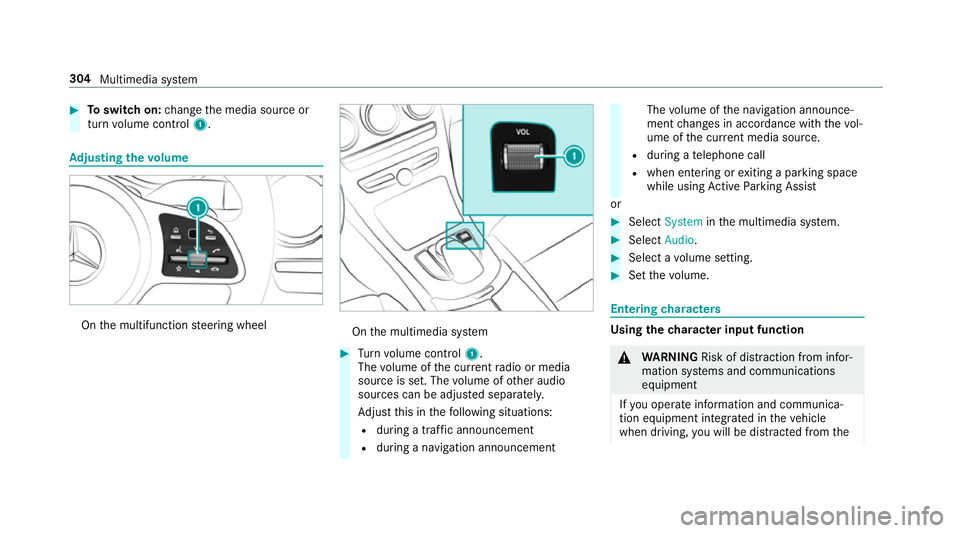
Toswitch on: change the media source or
turn volume control 1. Ad
justing the volume On
the multifunction steering wheel On
the multimedia sy stem 0007
Turn volume control 1.
The volume of the cur rent radio or media
source is set. The volume of other audio
sources can be adjus ted separatel y.
Ad just this in thefo llowing situations:
R during a traf fic announcement
R during a navigation announcement The
volume of the navigation announce‐
ment changes in accordance with thevo l‐
ume of the cur rent media sou rce.
R during a telephone call
R when entering or exiting a parking space
while using Active Parking Assist
or 0007
Select System inthe multimedia sy stem. 0007
Select Audio. 0007
Select a volume setting. 0007
Set thevo lume. Entering
characters Using
thech aracter input function 000A
WARNING Risk of di stra ction from infor‐
mation sy stems and communications
equipment
If yo u operate information and communica‐
tion equipment integ rated in theve hicle
when driving, you will be distracted from the304
Multimedia sy stem