Page 449 of 615
SiriusXM Satellite Radio Reception Factors and Troubleshooting
Potential reception issues
For optimal reception performance, keep the antenna clear of snow and ice build-up and keepluggage and other materials as far away from the antenna as possible.Antenna obstructions
Hills, mountains, tall buildings, bridges, tunnels, freeway overpasses, parking garages, dense treefoliage and thunderstorms can interfere with your reception.Terrain
When you pass a ground-based broadcast-repeating tower, a stronger signal may overtake aweaker one and the audio system may mute.Station overload
Your display may show ACQUIRING... to indicate the interference and the audio system may mute.Satellite radio signal interference
Troubleshooting tips
ActionCauseMessage
No action required. This message should disap-pear shortly.Radio requires more than two seconds to produceaudio for the selected channel.Acquiring Signal
If this message does not clear shortly, or with anignition key cycle, your receiver may have a fault.See an authorized dealer for service.
There is an internal module or system failurepresent.Satellite antenna fault
SIRIUS system failure
Tune to another channel or choose another preset.The channel is no longer available.Invalid Channel
446
Continental (CPL) Canada/United States of America, enUSA, Edition date: 201706, Second-Printing
SYNC™ 3
Page 454 of 615

HD Radio Technology manufactured underlicense from iBiquity Digital Corp. U.S. andforeign patents. HD Radio and the HD andHD Radio logos are proprietary trademarksof iBiquity Digital Corp. Ford Motor Companyand iBiquity Digital Corp. are not responsiblefor the content sent using HD Radiotechnology. Content may be changed, addedor deleted at any time at the station owner'sdiscretion.
* You can find the form here:
Website
http://www.ibiquity.com/automotive/report_radio_station_experiences
CD (If equipped)
Once you select this option, the systemreturns you to the main audio screen.
The current audio information appears onthe screen.
The following buttons are also available:
FunctionButton
You can use the browse button to select a track.Browse
Select this button and a small number one displays to indicate the track is set to repeat.RepeatFor MP3 CDs, this button allows you to toggle through repeat off, repeat one track (a small numberone displays), and repeat current folder (a small folder displays).
Select the shuffle symbol to have the audio on the disk play in random order.Shuffle
You can use the forward, reverse, pause orplay buttons to control the audio playback.
451
Continental (CPL) Canada/United States of America, enUSA, Edition date: 201706, Second-Printing
SYNC™ 3
Page 455 of 615
Bluetooth Stereo or USB
Bluetooth Stereo and USB allow you to
access media that you store on yourBluetooth device or USB device such asmusic, audio books or podcasts.
The following buttons are available for Bluetooth and USB:
FunctionButton
Pressing the repeat button toggles the repeat setting through three modes: repeat off (button nothighlighted), repeat all (button highlighted) and repeat track (button highlighted with a small numberone).
Repeat
Play the tracks in random order.Shuffle
You can use the forward, reverse, pause orplay buttons to control the audio playback.
To get more information about the currentlyplaying track, press the cover art or Infobutton.
For some devices, SYNC 3 is able to provide30-second skip buttons when you listen toaudio books or podcasts. These buttonsallow you to skip forward or backward withina track.
While playing audio from a USB device youcan look for certain music by selecting thefollowing:
FunctionButton
If available, displays the list of tracks in the Now Playing playlist.Browse
This option, which is available under browse, allows you to play alltracks or to filter the available media into one of the below categories.New Search
Play All
452
Continental (CPL) Canada/United States of America, enUSA, Edition date: 201706, Second-Printing
SYNC™ 3
Page 460 of 615
Note: You cannot adjust the fanspeed when the system is set toAUTO or MAX A/C.
Rear: A pop-up appears on thescreen to display the rear controloptions.
F
Touch the power icon to switch therear climate control functions offand on.
Touch Rear Control to allow therear seat passengers to adjust therear climate settings. Touch itagain to prevent the rear seatpassengers from adjusting thesettings. Rear Controlautomatically turns off when youuse the touchscreen to adjust therear climate settings.
If your vehicle has automaticclimate controls, select Auto toconnect the rear climate settingsto the Auto settings of the driver.
Touch the up and down arrows toadjust the temperature.
To adjust fan speed, touch the upand down arrows above and belowthe fan icon.
Touch Close to close the rearcontrols. Closing the rear climatecontrol functions does not affecttheir current settings.
A/C: Touch this and a pop-upappears on the screen to displaythe air conditioning options.
G
MAX A/C: Touch the button toactivate and maximize cooling. Thedriver and passenger temperaturesare set to LO, recirculated air flowsthrough the instrument panelvents, air conditioningautomatically turns on and the fanautomatically adjusts to the highestspeed.
A/C: Touch to switch the airconditioning on or off. Use A/Cwith recirculated air to improvecooling performance andefficiency.
Note: In certain conditions (forexample, Max Defrost), the airconditioning compressor maycontinue to operate even after youtouch the A/C icon to switch it off.
Recirculated air: Touch to switchthe recirculated air on or off. Whenrecirculated air is on, it may reducethe amount of time needed to cooldown the interior (when used withA/C) and help reduce odors fromreaching the interior.
Note: Recirculated air may turn offautomatically (or the system mayprevent it from turning on) in allairflow modes except MAX A/C toreduce the risk of fogging. It mayalso turn on and off automaticallyin Panel or Panel/Floor airflowmodes during hot weather in orderto improve cooling efficiency.
Manual airflow distributioncontrols:H
457
Continental (CPL) Canada/United States of America, enUSA, Edition date: 201706, Second-Printing
SYNC™ 3
Page 461 of 615
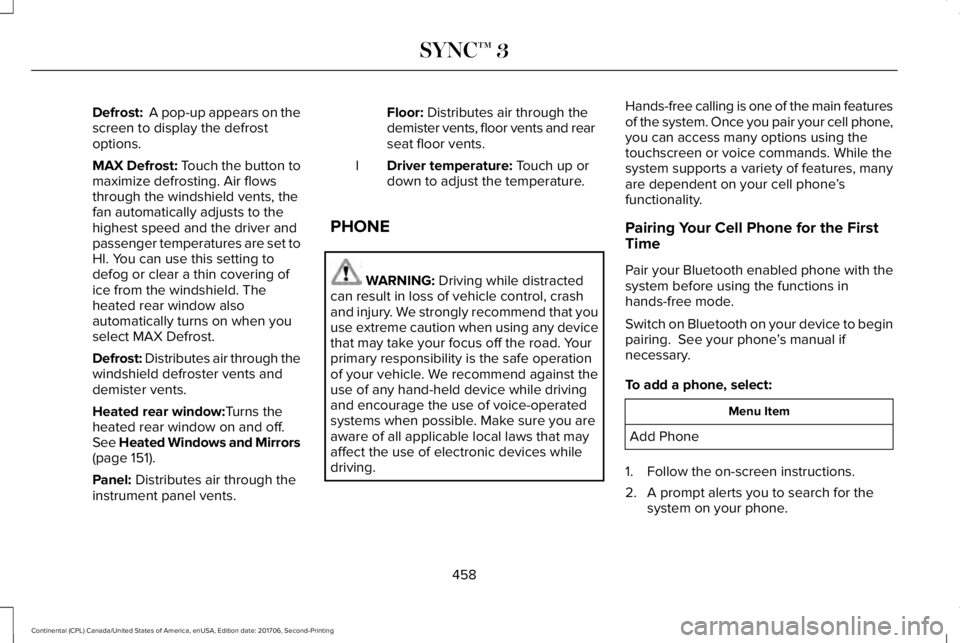
Defrost: A pop-up appears on thescreen to display the defrostoptions.
MAX Defrost: Touch the button tomaximize defrosting. Air flowsthrough the windshield vents, thefan automatically adjusts to thehighest speed and the driver andpassenger temperatures are set toHI. You can use this setting todefog or clear a thin covering ofice from the windshield. Theheated rear window alsoautomatically turns on when youselect MAX Defrost.
Defrost: Distributes air through thewindshield defroster vents anddemister vents.
Heated rear window:Turns theheated rear window on and off.See Heated Windows and Mirrors(page 151).
Panel: Distributes air through theinstrument panel vents.
Floor: Distributes air through thedemister vents, floor vents and rearseat floor vents.
Driver temperature: Touch up ordown to adjust the temperature.I
PHONE
WARNING: Driving while distractedcan result in loss of vehicle control, crashand injury. We strongly recommend that youuse extreme caution when using any devicethat may take your focus off the road. Yourprimary responsibility is the safe operationof your vehicle. We recommend against theuse of any hand-held device while drivingand encourage the use of voice-operatedsystems when possible. Make sure you areaware of all applicable local laws that mayaffect the use of electronic devices whiledriving.
Hands-free calling is one of the main featuresof the system. Once you pair your cell phone,you can access many options using thetouchscreen or voice commands. While thesystem supports a variety of features, manyare dependent on your cell phone’sfunctionality.
Pairing Your Cell Phone for the FirstTime
Pair your Bluetooth enabled phone with thesystem before using the functions inhands-free mode.
Switch on Bluetooth on your device to beginpairing. See your phone’s manual ifnecessary.
To add a phone, select:
Menu Item
Add Phone
1. Follow the on-screen instructions.
2. A prompt alerts you to search for thesystem on your phone.
458
Continental (CPL) Canada/United States of America, enUSA, Edition date: 201706, Second-Printing
SYNC™ 3
Page 462 of 615
3.Select your vehicle's make and model asit displays on your phone.
4. Confirm that the six-digit numberappearing on your phone matches thesix-digit number on the touchscreen.
5. The touchscreen indicates when thepairing is successful.
6. Your phone may prompt you to give thesystem permission to access information.To check your phone’s compatibility, seeyour phone’s manual or visit the website.
Alternatively, to add a phone, select:
Menu Item
Add Phone
Then select:
Discover Other Bluetooth Devices
1. Follow the on-screen instructions.
2. Select your phone's name when itappears on the touchscreen.
3. Confirm that the six-digit numberappearing on your phone matches thesix-digit number on the touchscreen.
4. The touchscreen indicates when thepairing is successful.
5. Your phone may prompt you to give thesystem permission to access information.To check your phone’s compatibility, seeyour phone’s manual or visit the website.
At a minimum, most cell phones withBluetooth wireless technology support thefollowing functions:
•Answering an incoming call.
•Ending a call.
•Dialing a number.
•Call waiting notification.
•Caller identification.
Other features, such as text messaging usingBluetooth and automatic phonebookdownload, are phone-dependent features.
To check your phone’s compatibility, seeyour phone’s manual or visit the website:
Websites
owner.lincoln.comwww.syncmyride.cawww.syncmaroute.ca
Phone Menu
This menu becomes available after pairinga phone.
459
Continental (CPL) Canada/United States of America, enUSA, Edition date: 201706, Second-Printing
SYNC™ 3
Page 463 of 615
Action and DescriptionMenu ItemItem
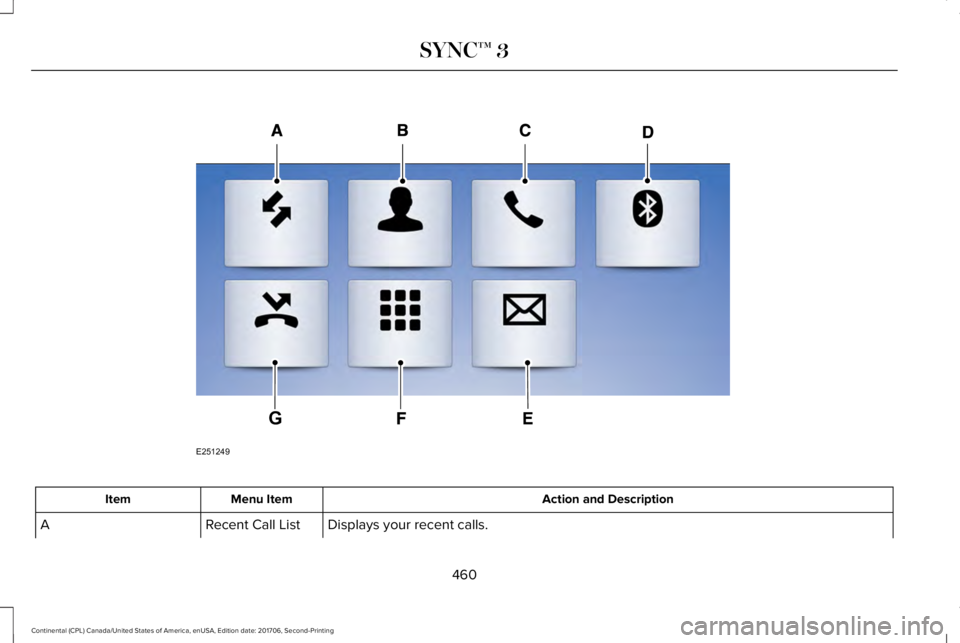
Displays your recent calls.Recent Call ListA
460
Continental (CPL) Canada/United States of America, enUSA, Edition date: 201706, Second-Printing
SYNC™ 3E251249
G
Page 464 of 615
Action and DescriptionMenu ItemItem
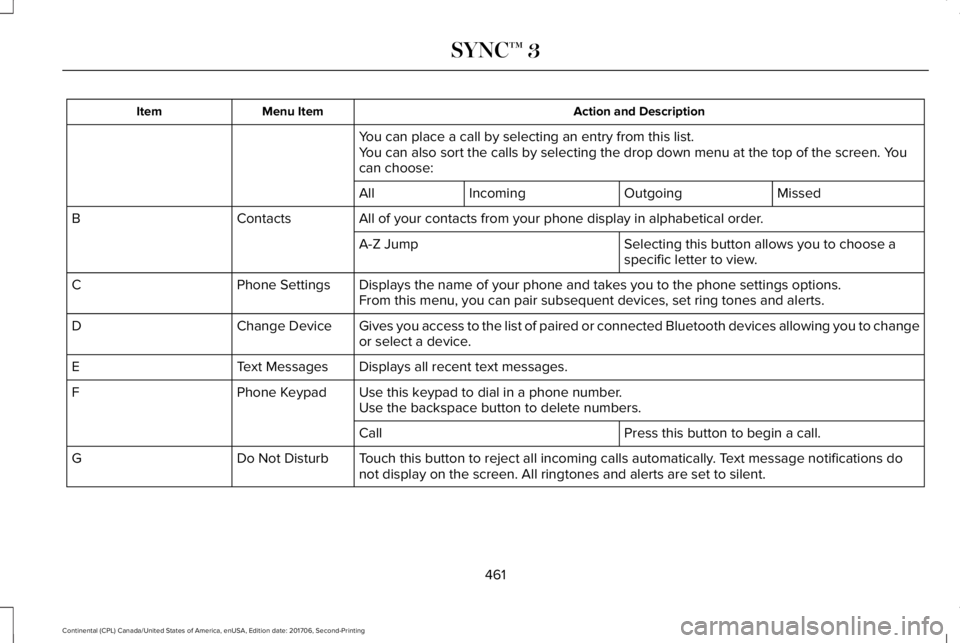
You can place a call by selecting an entry from this list.You can also sort the calls by selecting the drop down menu at the top of the screen. Youcan choose:
MissedOutgoingIncomingAll
All of your contacts from your phone display in alphabetical order.ContactsB
Selecting this button allows you to choose aspecific letter to view.A-Z Jump
Displays the name of your phone and takes you to the phone settings options.Phone SettingsCFrom this menu, you can pair subsequent devices, set ring tones and alerts.
Gives you access to the list of paired or connected Bluetooth devices allowing you to changeor select a device.Change DeviceD
Displays all recent text messages.Text MessagesE
Use this keypad to dial in a phone number.Phone KeypadFUse the backspace button to delete numbers.
Press this button to begin a call.Call
Touch this button to reject all incoming calls automatically. Text message notifications donot display on the screen. All ringtones and alerts are set to silent.Do Not DisturbG
461
Continental (CPL) Canada/United States of America, enUSA, Edition date: 201706, Second-Printing
SYNC™ 3