Page 285 of 496
154
4
Features of your vehicle
✽
✽
NOTICE - Using the USB
Devices
• Starting the vehicle while a USB
device is connected can damage
the device. Please disconnect USB
devices before starting the vehicle.
• Starting the vehicle or stopping the engine while an external USB
device is connected can result in
failure of the external USB device
to operate.
• Be cautious of static electricity when connecting/disconnecting
external USB devices.
• An encrypted MP3 player is not recognized when connected as an
external device.
• External USB devices may not be recognized, depending on the state
of the external USB device.
• Only products with byte/sectors formatted at 4 KB or lower are
recognized.
• Only USB devices in FAT12/16/32 format are recognized; NTFS and
ExFAT file systems are not recog-
nized.
• Some USB devices are not recog- nized due to compatibility issues. (Continued)(Continued)
• Do not touch the USB connections.
• Connecting and disconnecting
USB devices rapidly over a short
period of time can cause equip-
ment failure.
• Abnormal sounds may be audible when the USB device is discon-
nected.
• Turn the audio off before connect- ing or disconnecting external USB
devices.
• Recognition may take longer depending on the type, capacity or
file format of the external USB
device. This is not a product mal-
function.
• Use of USB devices for purposes other than playing music files is
prohibited.
• Image display and video playback are not supported.
• Use of USB accessories, including charge and heat though the USB
I/F, can lead to reduced product
performance or malfunctions. Do
not use USB devices or accessories
for these purposes. (Continued)(Continued)
• Use of aftermarket USB hubs and
extension cables can result in the
vehicle’s audio system failing to
recognize your USB device.
Connect the USB device directly to
the multimedia port of your vehi-
cle.
• When using high-capacity USB devices with logical drive divi-
sions, only files saved on the high-
est level logical drive can be
played.
If applications are loaded on a
USB drive, file playback may fail.
• Some MP3 players, cell phones, digital cameras, etc. (USB devices
that are not recognized as mobile
storage) may not operate normally
when connected.
• USB charging may not be sup- ported by some mobile devices.
• Operation is guaranteed only for standard (Metal Cover Type) USB
Memory drives.
• Operation of HDD, CF, SD and memory stick devices is not guar-
anteed. (Continued)
Page 290 of 496
4159
Features of your vehicle
iPod®
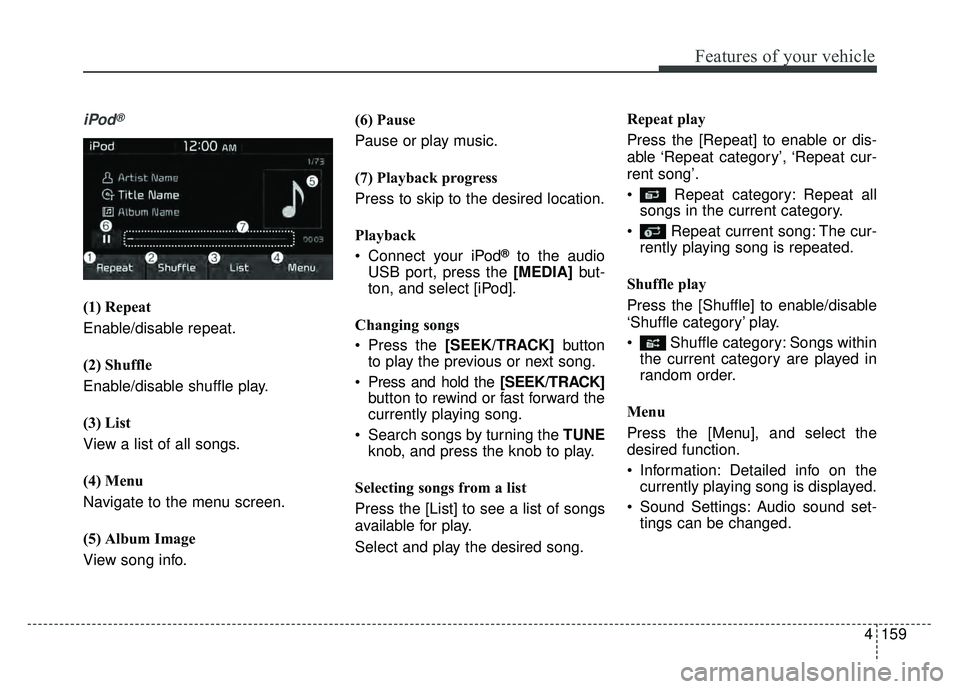
(1) Repeat
Enable/disable repeat.
(2) Shuffle
Enable/disable shuffle play.
(3) List
View a list of all songs.
(4) Menu
Navigate to the menu screen.
(5) Album Image
View song info.(6) Pause
Pause or play music.
(7) Playback progress
Press to skip to the desired location.
Playback
Connect your iPod
®to the audio
USB port, press the [MEDIA] but-
ton, and select [iPod].
Changing songs
Press the [SEEK/TRACK] button
to play the previous or next song.
Press and hold the [SEEK/TRACK] button to rewind or fast forward the
currently playing song.
Search songs by turning the TUNE knob, and press the knob to play.
Selecting songs from a list
Press the [List] to see a list of songs
available for play.
Select and play the desired song. Repeat play
Press the [Repeat] to enable or dis-
able ‘Repeat category’, ‘Repeat cur-
rent song’.
Repeat category: Repeat all
songs in the current category.
Repeat current song: The cur- rently playing song is repeated.
Shuffle play
Press the [Shuffle] to enable/disable
‘Shuffle category’ play.
Shuffle category: Songs within the current category are played in
random order.
Menu
Press the [Menu], and select the
desired function.
Information: Detailed info on the currently playing song is displayed.
Sound Settings: Audio sound set- tings can be changed.
Page 296 of 496
4165
Features of your vehicle
- Select the file to delete, thenpress the [Delete] to delete it.
- If Siri is activated, phone calls are received or made during
delete, delete will be canceled.
Add to Playlist: Frequently played songs can be paired in a [Playlist].
- Songs can be played from the[Playlist].
Information: Detailed info on the currently playing song is displayed.
Sound Settings: Audio sound set- tings can be changed.
Delete from Playlist
When a song in the playlist is play-
ing, press the [Menu] and select
[Delete from Playlist].
Select the song to delete, then press
[Delete].
Page 297 of 496
166
4
Features of your vehicle
Pandora
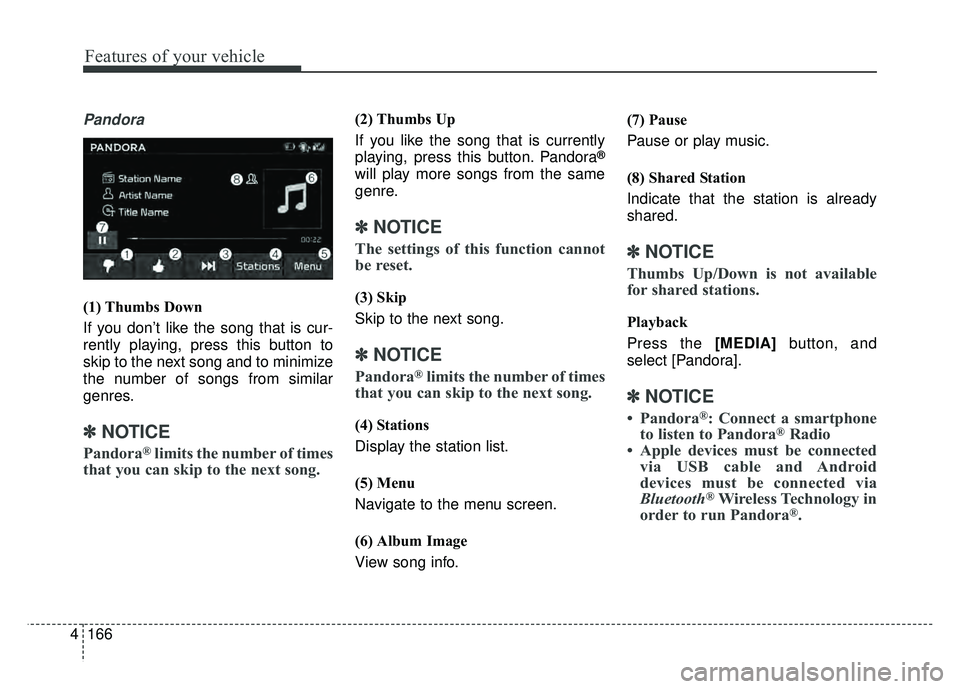
(1) Thumbs Down
If you don’t like the song that is cur-
rently playing, press this button to
skip to the next song and to minimize
the number of songs from similar
genres.
✽ ✽
NOTICE
Pandora®limits the number of times
that you can skip to the next song.
(2) Thumbs Up
If you like the song that is currently
playing, press this button. Pandora
®
will play more songs from the same
genre.
✽ ✽ NOTICE
The settings of this function cannot
be reset.
(3) Skip
Skip to the next song.
✽ ✽NOTICE
Pandora®limits the number of times
that you can skip to the next song.
(4) Stations
Display the station list.
(5) Menu
Navigate to the menu screen.
(6) Album Image
View song info. (7) Pause
Pause or play music.
(8) Shared Station
Indicate that the station is already
shared.
✽ ✽
NOTICE
Thumbs Up/Down is not available
for shared stations.
Playback
Press the [MEDIA] button, and
select [Pandora].
✽ ✽ NOTICE
• Pandora®: Connect a smartphone
to listen to Pandora®Radio
• Apple devices must be connected via USB cable and Android
devices must be connected via
Bluetooth
®Wireless Technology in
order to run Pandora®.
Page 298 of 496
4167
Features of your vehicle
Menu
Press the [Menu] and select the
desired function.
Bookmark: Add the song that iscurrently playing to your book-
marks list.
✽ ✽ NOTICE
• You can view your bookmarked
songs on your online Pandora®
profile. Go to pandora.com, then
go to [Your profile] above the
player. That will bring up a page
with your stations and book-
marked songs.
• The settings of this function can- not be reset.
Quit: Exit Pandora®mode and
return to previous audio mode.
Information: Detailed info on the currently playing song is displayed.
Sound Settings: Audio sound set- tings can be changed.
Page 303 of 496
![KIA SOUL EV 2018 Owners Manual 172
4
Features of your vehicle
If there are connected devices
Select the [PHONE] button on the
audio system ➟ Select [Settings] ➟
Select [Connections] ➟ Select
Bluetooth®Wireless Technology dev](/manual-img/2/55107/w960_55107-302.png "KIA SOUL EV 2018 Owners Manual 172
4
Features of your vehicle
If there are connected devices
Select the [PHONE] button on the
audio system ➟ Select [Settings] ➟
Select [Connections] ➟ Select
Bluetooth®Wireless Technology dev")
172
4
Features of your vehicle
If there are connected devices
Select the [PHONE] button on the
audio system ➟ Select [Settings] ➟
Select [Connections] ➟ Select
Bluetooth®Wireless Technology device
to connect ➟ Select [Connect] ➟
Connect
Bluetooth®Wireless Technology.
✽ ✽ NOTICE
• Only one Bluetooth®Wireless
Technology device can be connect-
ed at a time.
• When a Bluetooth
®Wireless
Technology device is connected,
other devices cannot be paired.
Accepting/rejecting phone calls
Receiving phone calls with
Bluetooth®Wireless Technology con-
nected.
(1) Caller name: If the caller number is in your contacts, the correspon-
ding name is displayed.
(2) Incoming phone number: Incoming phone number is displayed.
(3) Accept: Accept call.
(4) Reject: Reject call.
✽ ✽ NOTICE
• When the incoming call screen is
displayed, audio mode and the set-
tings screen cannot be shown.
Only call volume control is sup-
ported.
• Some Bluetooth
®Wireless Technology
devices may not support the call
reject function.
• Some Bluetooth
®Wireless Technology
devices may not support the phone
number display function.
Page 304 of 496
![KIA SOUL EV 2018 Owners Manual 4173
Features of your vehicle
Operation during calls
Incoming call with Bluetooth®
Wireless Technology connected ➟
Select [Accept].
(1) Call duration: Call duration display.
(2) Caller name: If th](/manual-img/2/55107/w960_55107-303.png "KIA SOUL EV 2018 Owners Manual 4173
Features of your vehicle
Operation during calls
Incoming call with Bluetooth®
Wireless Technology connected ➟
Select [Accept].
(1) Call duration: Call duration display.
(2) Caller name: If th")
4173
Features of your vehicle
Operation during calls
Incoming call with Bluetooth®
Wireless Technology connected ➟
Select [Accept].
(1) Call duration: Call duration display.
(2) Caller name: If the caller number is in your contacts, the corresponding
name is displayed.
(3) Incoming phone number: Incoming phone number is displayed.
(4) Keypad: Number keypad for Automatic Response Service input
is displayed.
(5) Private: Call is transferred to a cell phone.
(6) Outgoing Volume: Adjust outgo- ing voice volume.
(7) End: End call.
✽ ✽ NOTICE
• Some Bluetooth®Wireless Technology
devices may not support the
Private function.
• The outgoing voice volume may vary depending on the type of
Bluetooth
®Wireless Technology
device. If the outgoing voice vol-
ume is too high or low, adjust the
Out Vol.
Favorites
Select the [PHONE] button on the
audio system ➟ Select [Favorites] ➟
Favorites list displayed.
(1) Favorites list: A list of paired favorites is displayed.
Connect a call when selected. (2) Add to Favorites: Add a down-
loaded phone number to favorites.
(3) Delete: Delete a saved favorites.
✽ ✽ NOTICE
• Up to 20 favorites can be paired
for each paired Bluetooth®
Wireless Technology device.
• Favorites can be accessed when the Bluetooth
®Wireless Technology
device they were paired from is
connected.
• The audio system does not down- load favorites from Bluetooth
®
Wireless Technology devices.
Favorites must be newly saved
before use.
• To add to favorites, contacts must be downloaded first.
• Saved favorites are not updated even if the contacts of the connected
Bluetooth
®Wireless Technology
device are changed. In this case,
favorites need to be deleted and
added again.
Page 305 of 496
![KIA SOUL EV 2018 Owners Manual 174
4
Features of your vehicle
Call history
Select the [PHONE] button on the
audio system ➟ Select [Call history]
➟ Call history is displayed.
(1) Call history: Display the down- loaded call histo](/manual-img/2/55107/w960_55107-304.png "KIA SOUL EV 2018 Owners Manual 174
4
Features of your vehicle
Call history
Select the [PHONE] button on the
audio system ➟ Select [Call history]
➟ Call history is displayed.
(1) Call history: Display the down- loaded call histo")
174
4
Features of your vehicle
Call history
Select the [PHONE] button on the
audio system ➟ Select [Call history]
➟ Call history is displayed.
(1) Call history: Display the down- loaded call history list.
Connect a call when selected.
(2) Sort by: Sort by all calls, dialed calls, received calls or missed calls.
(3) Download: Download call history from connected
Bluetooth®Wireless
Technology devices.
✽ ✽ NOTICE
• Up to 50 dialed, received and
missed calls are saved.
• When the latest call history is received, the existing call history is
deleted.
Contacts
Select the [PHONE] button on the
audio system ➟ Select [Contacts] ➟
Select letter (ABC) ➟ Contacts dis-
played.
(1) Contacts: Display downloaded contacts.
Connect a call when selected.
(2) Download: Download contacts from connected
Bluetooth®
Wireless Technology devices.
✽ ✽NOTICE
• Only supported contacts format
can be downloaded and displayed
from the Bluetooth
®Wireless
Technology device, contacts from
some applications will not be
included.
• Up to 2,000 contacts can be saved.
• In some cases, additional confir- mation from your Bluetooth
®
Wireless Technology device is nec-
essary when downloading con-
tacts. If downloading of contacts
unsuccessful, consult your
Bluetooth
®Wireless Technology
device’s settings or the audio
screen to approve the download.
• Contacts without phone numbers are not displayed.
![KIA SOUL EV 2018 Owners Manual 4165
Features of your vehicle
- Select the file to delete, thenpress the [Delete] to delete it.
- If Siri is activated, phone calls are received or made during
delete, delete will be canceled.
Add to](/manual-img/2/55107/w960_55107-295.png "KIA SOUL EV 2018 Owners Manual 4165
Features of your vehicle
- Select the file to delete, thenpress the [Delete] to delete it.
- If Siri is activated, phone calls are received or made during
delete, delete will be canceled.
Add to")
![KIA SOUL EV 2018 Owners Manual 4167
Features of your vehicle
Menu
Press the [Menu] and select the
desired function.
Bookmark: Add the song that iscurrently playing to your book-
marks list.
✽ ✽ NOTICE
• You can view your boo](/manual-img/2/55107/w960_55107-297.png "KIA SOUL EV 2018 Owners Manual 4167
Features of your vehicle
Menu
Press the [Menu] and select the
desired function.
Bookmark: Add the song that iscurrently playing to your book-
marks list.
✽ ✽ NOTICE
• You can view your boo")