2018 KIA SOUL EV ECO mode
[x] Cancel search: ECO modePage 237 of 496
Features of your vehicle
106
4
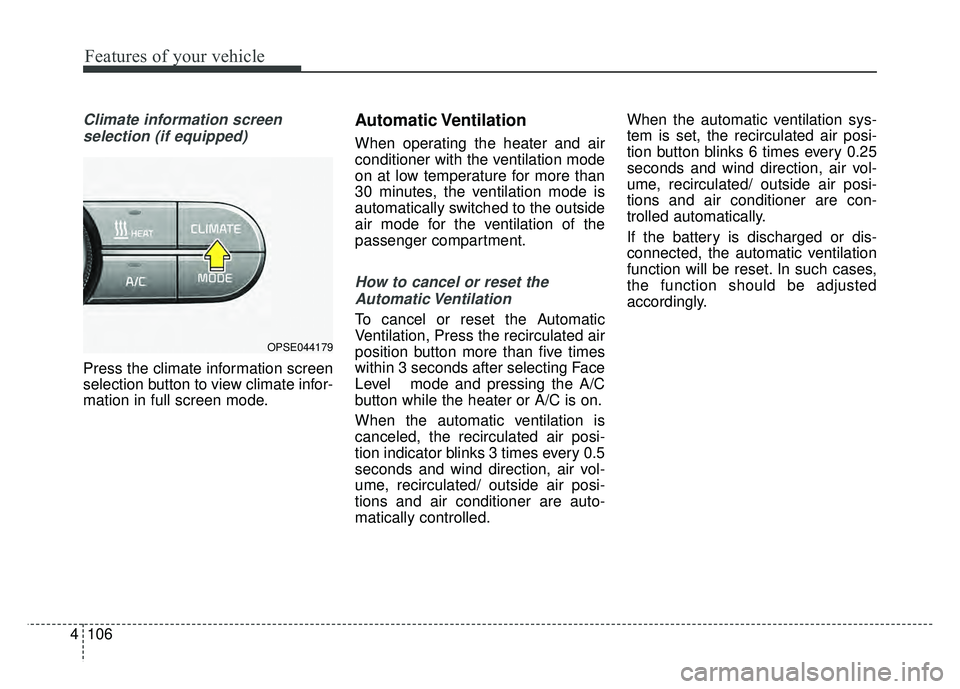
Climate information screen
selection (if equipped)
Press the climate information screen
selection button to view climate infor-
mation in full screen mode.
Automatic Ventilation
When operating the heater and air
conditioner with the ventilation mode
on at low temperature for more than
30 minutes, the ventilation mode is
automatically switched to the outside
air mode for the ventilation of the
passenger compartment.
How to cancel or reset theAutomatic Ventilation
To cancel or reset the Automatic
Ventilation, Press the recirculated air
position button more than five times
within 3 seconds after selecting Face
Level mode and pressing the A/C
button while the heater or A/C is on.
When the automatic ventilation is
canceled, the recirculated air posi-
tion indicator blinks 3 times every 0.5
seconds and wind direction, air vol-
ume, recirculated/ outside air posi-
tions and air conditioner are auto-
matically controlled. When the automatic ventilation sys-
tem is set, the recirculated air posi-
tion button blinks 6 times every 0.25
seconds and wind direction, air vol-
ume, recirculated/ outside air posi-
tions and air conditioner are con-
trolled automatically.
If the battery is discharged or dis-
connected, the automatic ventilation
function will be reset. In such cases,
the function should be adjusted
accordingly.
OPSE044179
Page 239 of 496
Features of your vehicle
108
4
Air conditioning system operation tips
If the vehicle has been parked in
direct sunlight during hot weather,
open the windows for a short time
to let the hot air inside the vehicle
escape.
To help reduce moisture inside of the windows on rainy or humid
days, decrease the humidity inside
the vehicle by operating the air
conditioning system.
During air conditioning system operation, you may occasionally
notice a slight change in vehicle
speed as the air conditioning com-
pressor cycles. This is a normal
system operation characteristic.
Use the air conditioning system every month only for a few minutes
to ensure maximum system per-
formance. When using the air conditioning
system, you may notice clear water
dripping (or even puddling) on the
ground under the passenger side
of the vehicle. This is a normal sys-
tem operation characteristic.
Operating the air conditioning sys- tem in the recirculated air position
provides maximum cooling, how-
ever, continual operation in this
mode may cause the air inside the
vehicle to become stale.
During cooling operation, you may occasionally notice a misty air flow
because of rapid cooling and
humid air intake. This is a normal
system operation characteristic.CAUTION- Excessive A/C
When using the air condition- ing system, monitor thecoolant closely while drivingup hills or in heavy trafficwhen outside temperaturesare high. Air conditioning sys-tem operation may causeoverheating. Continue to usethe blower fan but turn the airconditioning system off if theengine coolant temperaturegauge indicates overheating.
When opening the windows in humid weather air condition-ing may create water dropletsinside the vehicle. Sinceexcessive water droplets maycause damage to electricalequipment, air conditioningshould only be used with thewindows closed.
Page 246 of 496
4115
Features of your vehicle
AUTO DEFOGGING SYSTEM
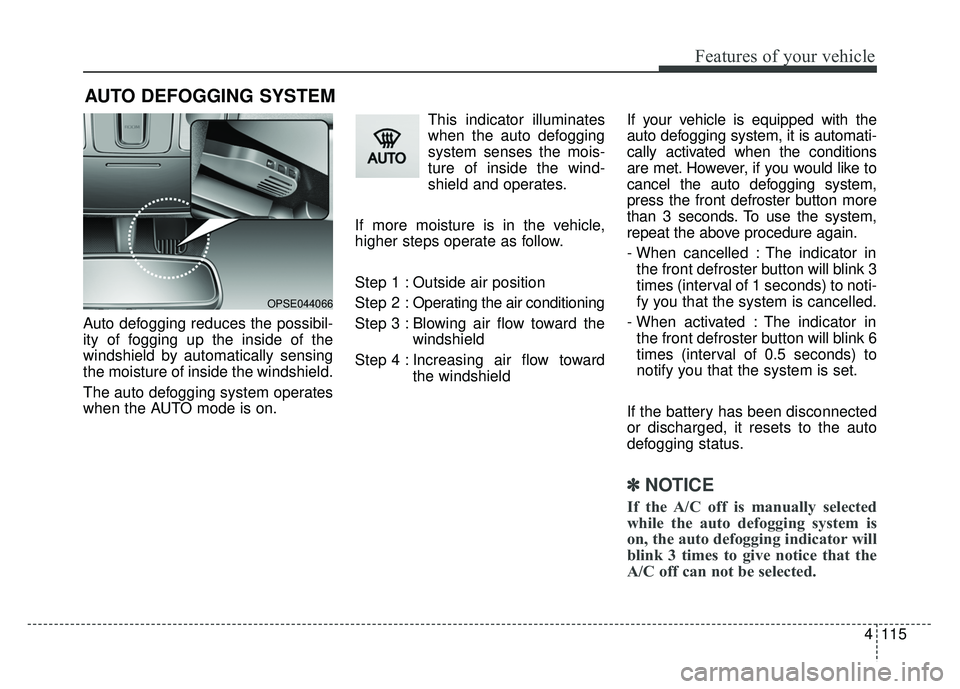
Auto defogging reduces the possibil-
ity of fogging up the inside of the
windshield by automatically sensing
the moisture of inside the windshield.
The auto defogging system operates
when the AUTO mode is on.This indicator illuminates
when the auto defogging
system senses the mois-
ture of inside the wind-
shield and operates.
If more moisture is in the vehicle,
higher steps operate as follow.
Step 1 : Outside air position
Step 2 : Operating the air conditioning
Step 3 : Blowing air flow toward the windshield
Step 4 : Increasing air flow toward the windshield If your vehicle is equipped with the
auto defogging system, it is automati-
cally activated when the conditions
are met. However, if you would like to
cancel the auto defogging system,
press the front defroster button more
than 3 seconds. To use the system,
repeat the above procedure again.
- When cancelled : The indicator in
the front defroster button will blink 3
times (interval of 1 seconds) to noti-
fy you that the system is cancelled.
- When activated : The indicator in the front defroster button will blink 6
times (interval of 0.5 seconds) to
notify you that the system is set.
If the battery has been disconnected
or discharged, it resets to the auto
defogging status.
✽ ✽ NOTICE
If the A/C off is manually selected
while the auto defogging system is
on, the auto defogging indicator will
blink 3 times to give notice that the
A/C off can not be selected.
OPSE044066
Page 266 of 496
4135
Features of your vehicle
USING THE USB DEVICE
To use an external USB device,make sure the device is not con-
nected when starting up the
vehicle. Connect the device after
starting up.
If you start the engine when the USB device is connected, it may
damage the USB device. (USB
flashdrives are very sensitive to
electric shock.)
If the engine is started up or turned off while the external USB
device is connected, the external
USB device may not work.
The System may not play unau- thenticated MP3 or WMA files.
1) It can only play MP3 files with the compression rate
between 8Kbps ~ 320Kbps.
2) It can only play WMA music files with the compression
rate between 8Kbps ~
320Kbps.
Take precautions for static elec- tricity when connecting or discon-
necting the external USB device.
(Continued)(Continued)
An encrypted MP3 PLAYER is
not recognizable.
Depending on the condition of the external USB device, the
connected external USB device
can be unrecognizable.
When the formatted byte/sector setting of external USB device is
not either 512BYTE or
2048BYTE, then the device will
not be recognized.
Use only a USB device format- ted to FAT 12/16/32.
USB devices without USB I/F authentication may not be recog-
nizable.
Make sure the USB connection terminal does not come in con-
tact with the human body or
other objects.
If you repeatedly connect or dis- connect the USB device in a
short period of time, it may break
the device.
(Continued)(Continued)
You may hear a strange noise
when connecting or disconnect-
ing a USB device.
If you disconnect the external USB device during playback in
USB mode, the external USB
device can be damaged or may
malfunction. Therefore, discon-
nect the external USB device
when the audio is turned off or in
another mode. (e.g, Radio)
Depending on the type and capacity of the external USB
device or the type of the files
stored in the device, there is a
difference in the time for recogni-
tion the device.
Do not use the USB device for purposes other than playing
music files.
Playing videos through the USB is not supported.
Use of USB accessories such as rechargers or heaters using USB
I/F may lower performance or
cause trouble.
(Continued)
Page 267 of 496
Features of your vehicle
136
4
USING iPod®DEVICE
iPhone®is a registered grademark of
Apple inc.
Some iPod
®models may not sup-
port communication protocol and
files may not properly play.
Supported iPod
®models:
- iPhone
®3GS/4
- iPod
®touch 1st~4th generation
- iPod
®nano 1st~6th generation
- iPod
®classic
The order of search or playback of songs in the iPod
®can be different
from the order searched in the
audio system.
If the iPod
®is disabled due to its
own malfunction, reset the iPod®.
(Reset: Refer to iPod®manual)
An iPod
®may not operate normally
on low battery.
(Continued)
(Continued)
Some USB flash memory read-
ers (such as CF, SD, micro SD,
etc.) or external-HDD type
devices can be unrecognizable.
Music files protected by DRM (DIGITAL RIGHTS MANAGE-
MENT) are not recognizable.
The data in the USB memory may be lost while using this
audio. Always back up important
data on a personal storage
device.
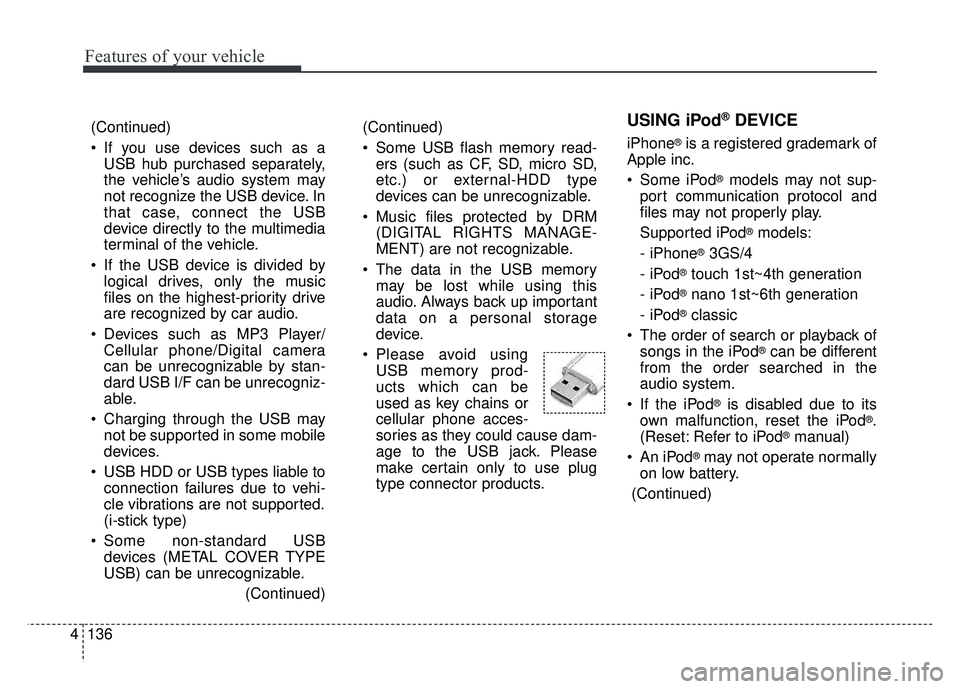
Please avoid using USB memory prod-
ucts which can be
used as key chains or
cellular phone acces-
sories as they could cause dam-
age to the USB jack. Please
make certain only to use plug
type connector products.
(Continued)
If you use devices such as aUSB hub purchased separately,
the vehicle’s audio system may
not recognize the USB device. In
that case, connect the USB
device directly to the multimedia
terminal of the vehicle.
If the USB device is divided by logical drives, only the music
files on the highest-priority drive
are recognized by car audio.
Devices such as MP3 Player/ Cellular phone/Digital camera
can be unrecognizable by stan-
dard USB I/F can be unrecogniz-
able.
Charging through the USB may not be supported in some mobile
devices.
USB HDD or USB types liable to connection failures due to vehi-
cle vibrations are not supported.
(i-stick type)
Some non-standard USB devices (METAL COVER TYPE
USB) can be unrecognizable.
(Continued)
Page 268 of 496
4137
Features of your vehicle
(Continued)
Some iPod
®devices, such as the
iPhone®, can be connected
through the
Bluetooth®Wireless
Technology interface. The device
must have audio
Bluetooth®
Wireless Technology capability
(such as for stereo headphone
Bluetooth®Wireless Technology ).
The device can play, but it will not
be controlled by the audio system.
To use iPod
®features within the
audio, use the cable provided upon
purchasing an iPod
®device.
Skipping or improper operation may occur depending on the char-
acteristics of your iPod
®/iPhone®
device.
If your iPhone
®is connected to
both the
Bluetooth®Wireless
Technology and USB, only support
iPod
®mode because the sound
may not be properly played in
Bluetooth®Audio Streaming. To
use
Bluetooth®Audio Streaming,
disconnect iPod®cable with
iPhone®.
(Continued)(Continued)
When connecting iPod
®with the
iPod®Power Cable, insert the con-
nector to the multimedia socket
completely. If not inserted com-
pletely, communications between
iPod
®and audio may be interrupt-
ed.
When adjusting the sound effects of the iPod
®and the audio system,
the sound effects of both devices
will overlap and might reduce or
distort the quality of the sound.
Deactivate (turn off) the equalizer function of an iPod
®when adjust-
ing the audio system’s volume, and
turn off the equalizer of the audio
system when using the equalizer of
an iPod
®.
When not using iPod
®with car
audio, detach the iPod®cable from
iPod®. Otherwise, iPod®may
remain in accessory mode, and
may not work properly.
Beside support 1M cable when purchasing iPod
®/iPhone®prod-
ucts, Long Cable cannot be recog-
nized.
Bluetooth®Wireless
Technology (if equipped)
Bluetooth®Wireless Technology
The Bluetooth®word mark and logos
are registered trademarks owned by
Bluetooth SIG, lnc. and any use of
such marks by Kia is under license.
A
Bluetooth®enabled call phone is
required to use
Bluetooth®wireless
technology.
WARNING
Driving while distracted can
result in a loss of vehicle control
that may lead to an accident,
severe personal injury, and
death. The driver’s primary
responsibility is in the safe and
legal operation of a vehicle, and
use of any handheld devices,
other equipment, or vehicle sys-
tems which take the driver’s
eyes, attention and focus away
from the safe operation of a vehi-
cle or which are not permissible
by law should never be used dur-
ing operation of the vehicle.
Page 270 of 496
4139
Features of your vehicle
Park the vehicle when connectingthe head unit with the mobile
phone.
Bluetooth
®connection may
become intermittently disconnect-
ed in some mobile phones. Follow
these steps to try again.
1. Within the mobile phone, turn the Bluetooth
®function off/on
and try again.
2. Turn the mobile phone power Off/On and try again.
3. Reboot the audio system and try again.
4. Delete all paired devices, pair and try again.
Handsfree call quality and volume may differ depending on the model
of your mobile phone.
Page 275 of 496
144
4
Features of your vehicle
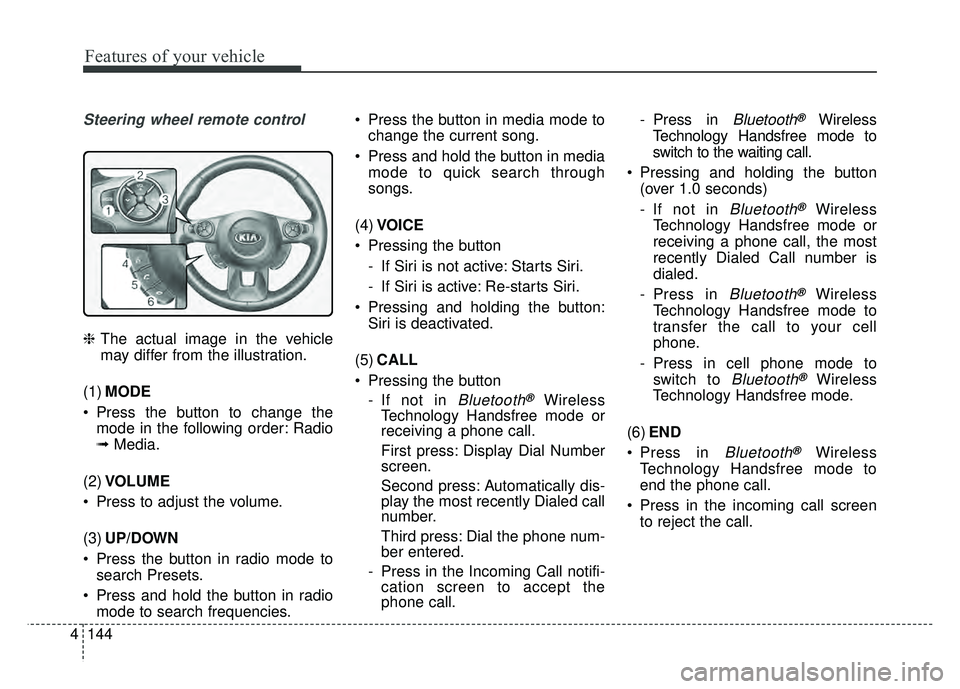
Steering wheel remote control
❈ The actual image in the vehicle
may differ from the illustration.
(1) MODE
Press the button to change the mode in the following order: Radio
➟ Media.
(2) VOLUME
Press to adjust the volume.
(3) UP/DOWN
Press the button in radio mode to search Presets.
Press and hold the button in radio mode to search frequencies. Press the button in media mode to
change the current song.
Press and hold the button in media mode to quick search through
songs.
(4) VOICE
Pressing the button - If Siri is not active: Starts Siri.
- If Siri is active: Re-starts Siri.
Pressing and holding the button: Siri is deactivated.
(5) CALL
Pressing the button - If not in
Bluetooth®Wireless
Technology Handsfree mode or
receiving a phone call.
First press: Display Dial Number
screen.
Second press: Automatically dis-
play the most recently Dialed call
number.
Third press: Dial the phone num-
ber entered.
- Press in the Incoming Call notifi- cation screen to accept the
phone call. - Press in
Bluetooth®Wireless
Technology Handsfree mode to
switch to the waiting call.
Pressing and holding the button (over 1.0 seconds)
- If not in
Bluetooth®Wireless
Technology Handsfree mode or
receiving a phone call, the most
recently Dialed Call number is
dialed.
- Press in
Bluetooth®Wireless
Technology Handsfree mode to
transfer the call to your cell
phone.
- Press in cell phone mode to switch to
Bluetooth®Wireless
Technology Handsfree mode.
(6) END
Press in
Bluetooth®Wireless
Technology Handsfree mode to
end the phone call.
Press in the incoming call screen to reject the call.