Page 165 of 496
Features of your vehicle
34
4
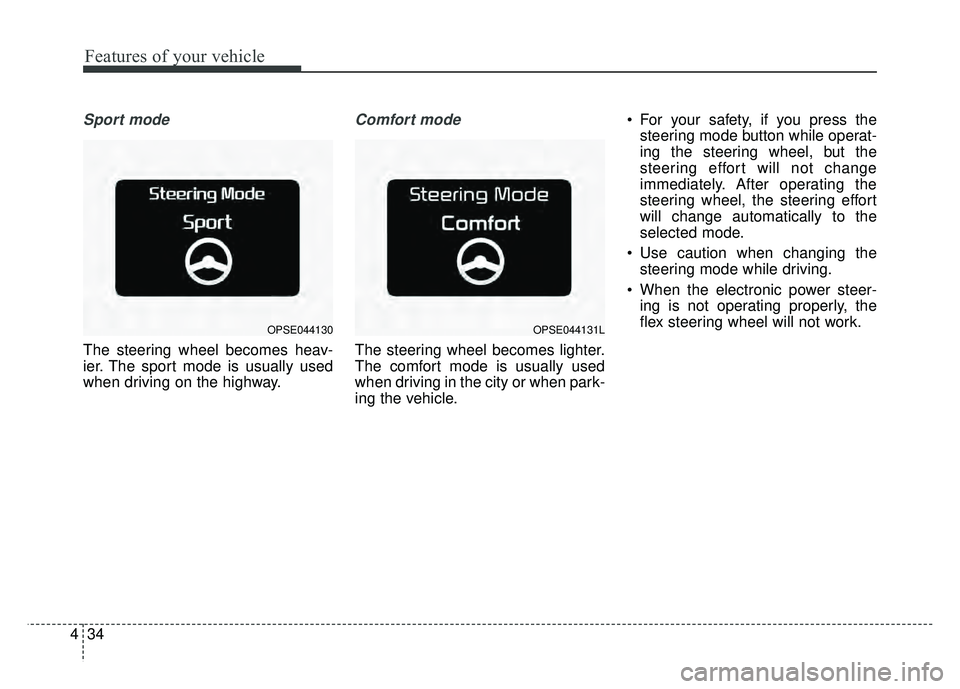
Sport mode
The steering wheel becomes heav-
ier. The sport mode is usually used
when driving on the highway.
Comfort mode
The steering wheel becomes lighter.
The comfort mode is usually used
when driving in the city or when park-
ing the vehicle. For your safety, if you press the
steering mode button while operat-
ing the steering wheel, but the
steering effort will not change
immediately. After operating the
steering wheel, the steering effort
will change automatically to the
selected mode.
Use caution when changing the steering mode while driving.
When the electronic power steer- ing is not operating properly, the
flex steering wheel will not work.
OPSE044130OPSE044131L
Page 172 of 496
441
Features of your vehicle
Instrument Cluster Control
Adjusting Instrument ClusterIllumination
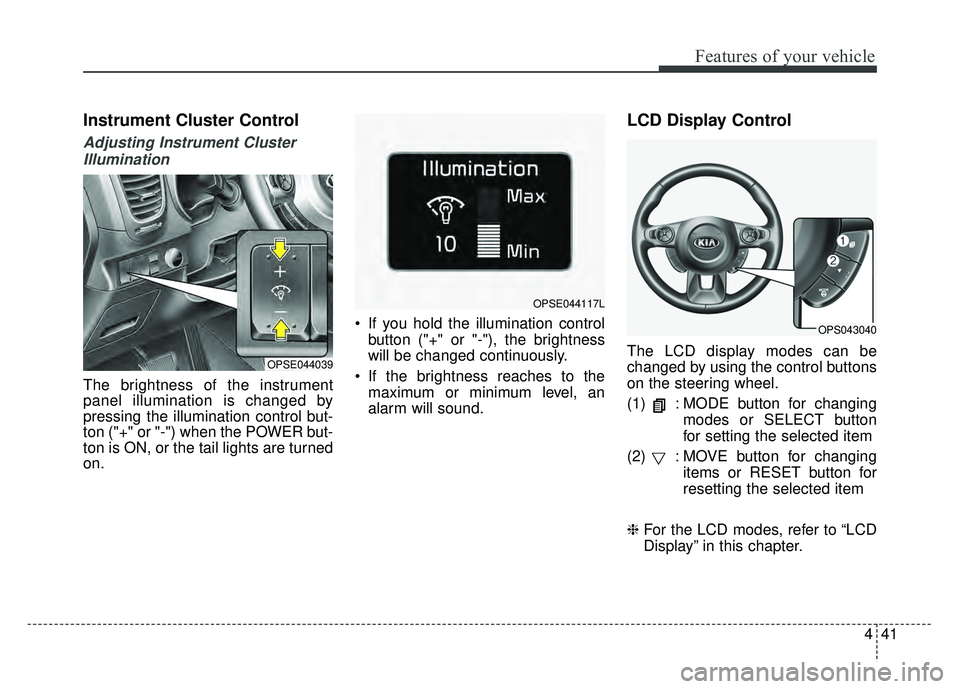
The brightness of the instrument
panel illumination is changed by
pressing the illumination control but-
ton ("+" or "-") when the POWER but-
ton is ON, or the tail lights are turned
on. If you hold the illumination control
button ("+" or "-"), the brightness
will be changed continuously.
If the brightness reaches to the maximum or minimum level, an
alarm will sound.
LCD Display Control
The LCD display modes can be
changed by using the control buttons
on the steering wheel.
(1) : MODE button for changing modes or SELECT button
for setting the selected item
(2) : MOVE button for changing items or RESET button for
resetting the selected item
❈ For the LCD modes, refer to “LCD
Display” in this chapter.OPSE044039
OPSE044117L
OPS043040
Page 193 of 496
Features of your vehicle
62
4
Manual reset
To clear the average energy con-
sumption manually, press the but-
ton (MOVE) on the steering wheel for
more than 1 second when the aver-
age energy consumption is displayed.
Automatic reset
To make the average energy con-
sumption be reset automatically
whenever recharging, select the
“Auto Reset” mode in User Settings
menu of the LCD display (Refer to
“LCD Display”).
Under “Auto Reset” mode, the aver-
age energy consumption will be
cleared to zero (---) when the driving
distance exceeds 0.19 mile (300m)
after recharging more than 10%.Instant energy consumption (2)
This mode displays the instant ener- gy consumption during the last few
seconds when the vehicle speed is
more than 10 km/h (6.2 MPH).
- Instant energy consumptionrange : 0.0 ~ 8miles/kwh
Trip A/B
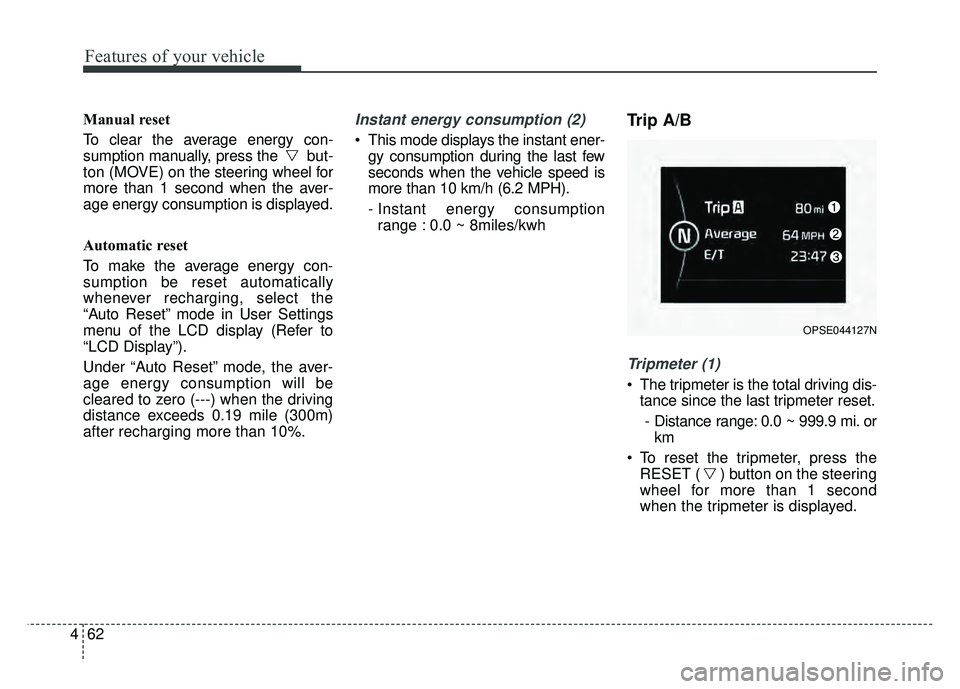
Tripmeter (1)
The tripmeter is the total driving dis- tance since the last tripmeter reset.
- Distance range: 0.0 ~ 999.9 mi. or km
To reset the tripmeter, press the RESET ( ) button on the steering
wheel for more than 1 second
when the tripmeter is displayed.
OPSE044127N
Page 194 of 496
463
Features of your vehicle
Average Vehicle Speed (2)
The average vehicle speed is cal-culated by the total driving dis-
tance and driving time since the
last average vehicle speed reset.
- Speed range: 160 MPH or 200km/h
To reset the average vehicle speed, press the RESET ( ) button on
the steering wheel for more than 1
second when the average vehicle
speed is displayed.
✽ ✽ NOTICE
• The average vehicle speed is not dis-
played if the driving distance is less
than 0.03 miles (50 meters) or the
driving time is less than 10 seconds
since the POWER button is turned
to ON.
• Even if the vehicle is not in motion, the average vehicle speed
keeps going while the vehicle is in
the ready ( ) mode.
Elapsed Time (3)
The elapsed time is the total driv-
ing time since the last elapsed time
reset.
- Time range (hh:mm): 00:00 ~ 99:59
To reset the elapsed time, press the RESET ( ) button on the
steering wheel for more than 1
second when the elapsed time is
displayed.
✽ ✽ NOTICE
Even if the vehicle is not in motion,
the elapsed time keeps going while
the vehicle is in the ready ( )
mode.
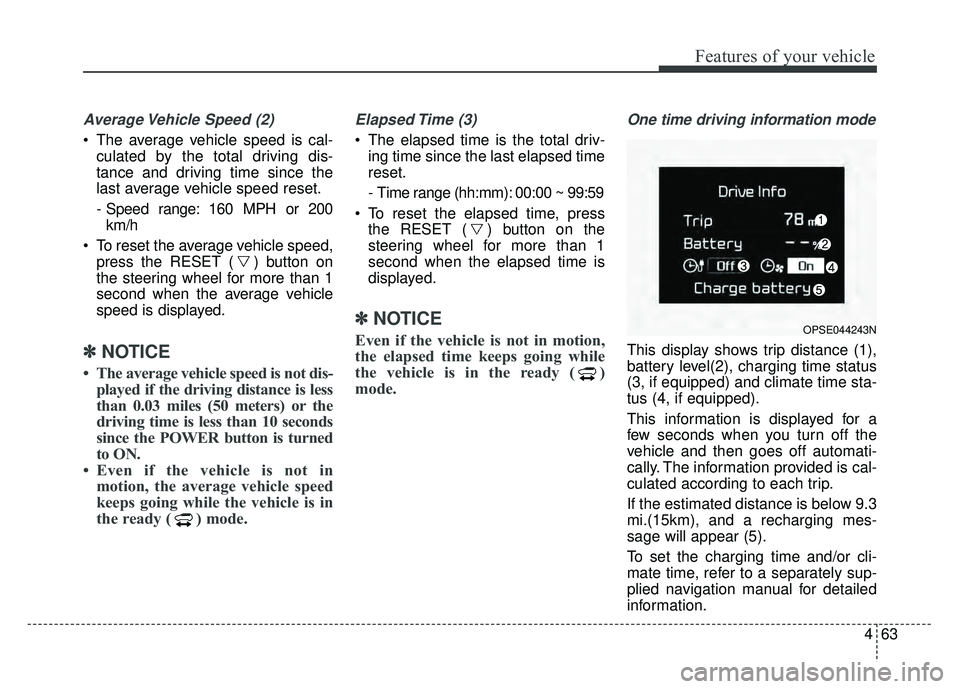
One time driving information mode
This display shows trip distance (1),
battery level(2), charging time status
(3, if equipped) and climate time sta-
tus (4, if equipped).
This information is displayed for a
few seconds when you turn off the
vehicle and then goes off automati-
cally. The information provided is cal-
culated according to each trip.
If the estimated distance is below 9.3
mi.(15km), and a recharging mes-
sage will appear (5).
To set the charging time and/or cli-
mate time, refer to a separately sup-
plied navigation manual for detailed
information.
OPSE044243N
Page 275 of 496
144
4
Features of your vehicle
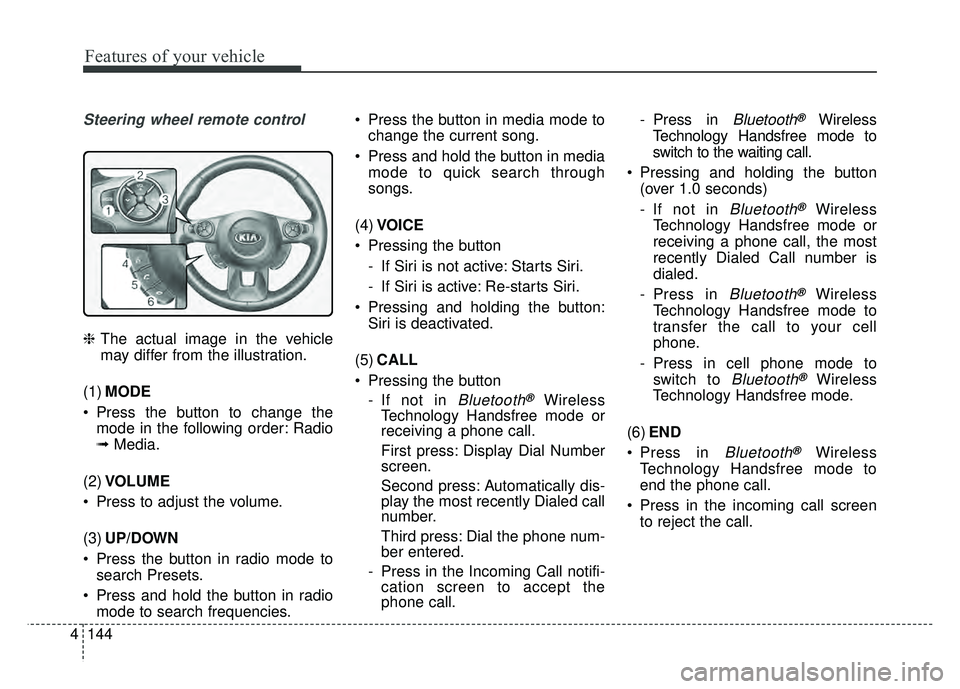
Steering wheel remote control
❈ The actual image in the vehicle
may differ from the illustration.
(1) MODE
Press the button to change the mode in the following order: Radio
➟ Media.
(2) VOLUME
Press to adjust the volume.
(3) UP/DOWN
Press the button in radio mode to search Presets.
Press and hold the button in radio mode to search frequencies. Press the button in media mode to
change the current song.
Press and hold the button in media mode to quick search through
songs.
(4) VOICE
Pressing the button - If Siri is not active: Starts Siri.
- If Siri is active: Re-starts Siri.
Pressing and holding the button: Siri is deactivated.
(5) CALL
Pressing the button - If not in
Bluetooth®Wireless
Technology Handsfree mode or
receiving a phone call.
First press: Display Dial Number
screen.
Second press: Automatically dis-
play the most recently Dialed call
number.
Third press: Dial the phone num-
ber entered.
- Press in the Incoming Call notifi- cation screen to accept the
phone call. - Press in
Bluetooth®Wireless
Technology Handsfree mode to
switch to the waiting call.
Pressing and holding the button (over 1.0 seconds)
- If not in
Bluetooth®Wireless
Technology Handsfree mode or
receiving a phone call, the most
recently Dialed Call number is
dialed.
- Press in
Bluetooth®Wireless
Technology Handsfree mode to
transfer the call to your cell
phone.
- Press in cell phone mode to switch to
Bluetooth®Wireless
Technology Handsfree mode.
(6) END
Press in
Bluetooth®Wireless
Technology Handsfree mode to
end the phone call.
Press in the incoming call screen to reject the call.
Page 301 of 496

170
4
Features of your vehicle
Pairing a Bluetooth®Wireless
Technology device
Information on pairing Bluetooth®
Wireless Technology devices
Pairing refers to the process of pair-
ing
Bluetooth®Wireless Technology
cell phones or devices with the
system prior to connection. This is
a necessary procedure for
Bluetooth®
Wireless Technology connection
and usage.
Up to five devices can be paired.
Pairing the first Bluetooth
®Wireless
Technology device
Select the [PHONE] button on the
audio system or the [CALL] button
on the steering wheel remote control
➟ Search for the vehicle from the
Bluetooth®Wireless Technology
device, and pair ➟ Enter the passkey
on the
Bluetooth®Wireless Technology
device or approve passkey ➟
Bluetooth®Wireless Technology pair-
ing completed. 1. When the [PHONE]
button on the
audio or the [CALL] button on the
steering wheel remote control is
pressed, the following screen is dis-
played. Devices can now be paired.
(1) Vehicle Name: Searched name in
Bluetooth®Wireless Technology
device
.
✽ ✽ NOTICE
The vehicle name in the image above
is an example. Refer to your device
for the actual name of your device.
2. Search for available Bluetooth®
Wireless Technology devices in
the
Bluetooth®Wireless Technology
menu of your
Bluetooth®Wireless
Technology device (cell phone,
etc.). 3. Confirm that the vehicle name in
your
Bluetooth®Wireless Technology
device matches the vehicle name
shown on the audio screen, then
select it.
4. For devices that require passkey confirmation, the following screen
is shown on the audio system. A
6-digit passkey input screen is
shown in the
Bluetooth®Wireless
Technology device.
- After confirming that the 6-digit passkey on the audio screen and
the
Bluetooth®Wireless Technology
device are identical, press [OK] in
your
Bluetooth®Wireless Technology
device.
Page 302 of 496
4171
Features of your vehicle
✽
✽NOTICE
• For device that require passkey
entry, enter the passkey '0000' in
your Bluetooth
®Wireless Technology
device.
• The 6-digit passkey in the image above is an example. Refer to your
vehicle for the actual passkey.
Pairing a second Bluetooth®Wireless
Technology device
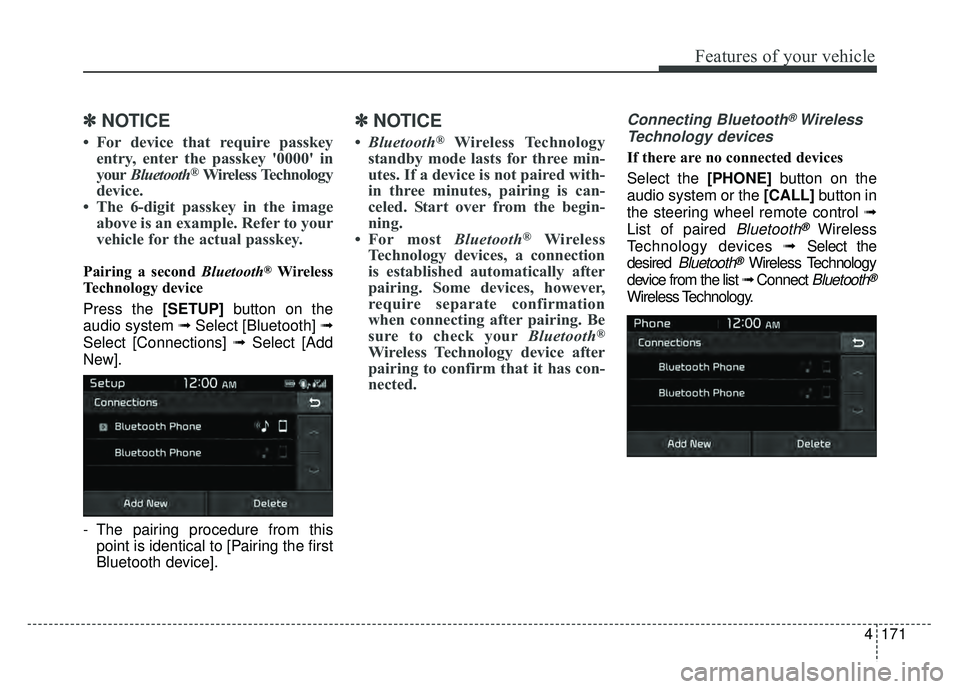
Press the [SETUP] button on the
audio system ➟ Select [Bluetooth] ➟
Select [Connections] ➟ Select [Add
New].
- The pairing procedure from this point is identical to [Pairing the first
Bluetooth device].
✽ ✽ NOTICE
•Bluetooth®Wireless Technology
standby mode lasts for three min-
utes. If a device is not paired with-
in three minutes, pairing is can-
celed. Start over from the begin-
ning.
• For most Bluetooth
®Wireless
Technology devices, a connection
is established automatically after
pairing. Some devices, however,
require separate confirmation
when connecting after pairing. Be
sure to check your Bluetooth
®
Wireless Technology device after
pairing to confirm that it has con-
nected.
Connecting Bluetooth®Wireless
Technology devices
If there are no connected devices
Select the [PHONE] button on the
audio system or the [CALL] button in
the steering wheel remote control ➟
List of paired
Bluetooth®Wireless
Technology devices ➟Select the
desired
Bluetooth®Wireless Technology
device from the list ➟ Connect
Bluetooth®
Wireless Technology.
Page 307 of 496
176
4
Features of your vehicle
Siri
✽
✽
NOTICE - Using Siri
• Android device is not supported to
use Siri.
• If you want to use Siri, you have to connect your iOS device to multi-
media system through Bluetooth
®
Wireless Technology. (Please
check whether your iOS device
supports Siri and turning Siri On)
• If the iOS version is changed, the functions and response may be dif-
ferent according to the iOS device
and the latest version.
• Siri automatically stops in the fol- lowing events.
1) Outgoing and incoming phone calls.
2) Media (USB, etc.) is connected. (Siri mode is maintained when
iPod
®s are connected)
3) Rear camera is activated (option).
4) Vehicle is started or engine is turned off. (Continued)(Continued)
5) Screen transition buttons, such as RADIO or MEDIA, are
selected.
6) When a pop-up message is dis- played on the screen due to
accidental execution of Siri.
• The microphone is located above the driver’s seat. To ensure proper
Siri, state your voice while main-
taining proper driving posture.
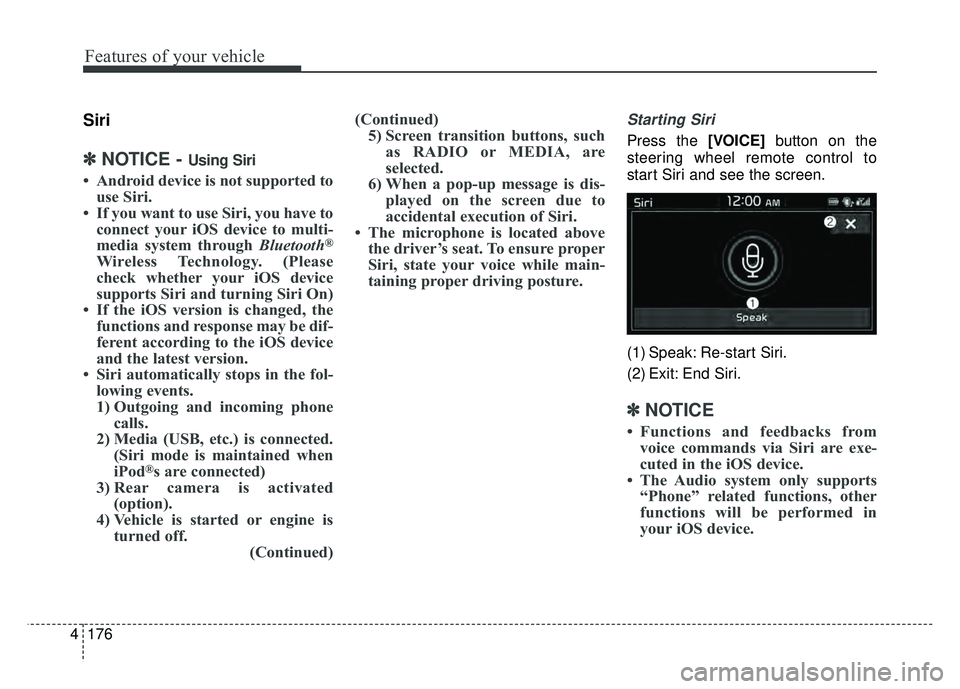
Starting Siri
Press the [VOICE] button on the
steering wheel remote control to
start Siri and see the screen.
(1) Speak: Re-start Siri.
(2) Exit: End Siri.
✽ ✽ NOTICE
• Functions and feedbacks from
voice commands via Siri are exe-
cuted in the iOS device.
• The Audio system only supports “Phone” related functions, other
functions will be performed in
your iOS device.