Page 56 of 84

53
About Pairing Mobile Phones
QI cannot pair my mobile phone. What is the cause?
A
Check to see that the mobile phone supports Bluetooth® function. Verify
if Bluetooth on the cell phone is set to OFF. If so, set it to ON. If the cell
phone still can’t be registered, try again after turning Bluetooth off and on,
or delete the device registration on the multimedia system and cell phone
and then register the cell phone again.
Q
What is the difference between pairing a mobile phone and connecting a mobile phone?
A
Pairing occurs through authenticating the head unit and mobile phone. Mobile phones paired to the head unit can be connected and disconnected \
until the paired mobile phone is deleted from the system. Bluetooth
®
Handsfree features, such as making/answering calls or managing contacts,
are supported only in mobile phones connected with the head unit.
Q
What is a Passkey?
A
A passkey is the password used to authenticate the connection between the head unit and mobile phone. The passkey only needs to be entered
once when pairing the mobile phone for the first time.
The initial passkey is 0000. You can change it with
00360028003700380033 0521
0025004F005800480057005200520057004B 0521
0025004F005800480057005200520057004B00030036005C00560057004800500003002C0051004900520003 0521
0033004400560056004E0048005C menu options.
00290024
,@+'�1)&7���@(���<64"@&6>"7/@23(�JOEE����� &7���@(���<64"@&6>"7/@23(�JOEE����� ������������� ß
1�������� �����������
Page 58 of 84

55
002500440056004C0046000300290048004400570058005500480056
Operating Navigation
Screen
Basic features on the map screen.
Name Description
Move to Places
Menu.
Go to the
Home screen.
Change the
map view mode.
Adjusts the
volume.
Zoom in the
map.
Set the zoom
level automati-
cally according
to the guid-
ance.
003100440059004C004A00440057004C00520051
Name Description
Zoom out the map.
Quick and easy
selection of a
destination and
options.
003100440059004C0030004800510058Enter the naviga-
tion menu screen.
Touch to scroll
the map.
0036004800570003004400560027004800560057004C005100440057004C00520051
Quick and easy
selection of a
destination from
the map screen.
002400470047003A0044005C00530052004C00510057Set a waypoint to
the current route.
0036004400590048Save frequently
used address to
address book.
00330032002C
Find a POI(Point
Of Interest) around
the current posi-
tion.
View the vehicle’s
current position on
the map screen.
,@+'�1)&7���@(���<64"@&6>"7/@23(�JOEE�����&7���@(���<64"@&6>"7/@23(�JOEE����� ������������� ß
1�������� �����������
Page 60 of 84
57
Name Description
Set the volume to mute.
Turn the volume down.
Turn the volume up.
Slide to set the volume.
Sets the volume of voice
guidance louder than that
of audio.
Zoom In /Zoom Out
Zoom the map view screen in and
out.
Press or to set the zoom
level.
Map Scale
Set the zoom level automatically
according to the type of road.
Name Description
Scale Fix Manually adjust
the map scale.
Auto Scale Change the map
scale automati-
cally depending
on the type of
road.
,@+'�1)&7���@(���<64"@&6>"7/@23(�JOEE�����
&7���@(���<64"@&6>"7/@23(�JOEE����� ������������� ß
1�������� �����������
Page 72 of 84
69
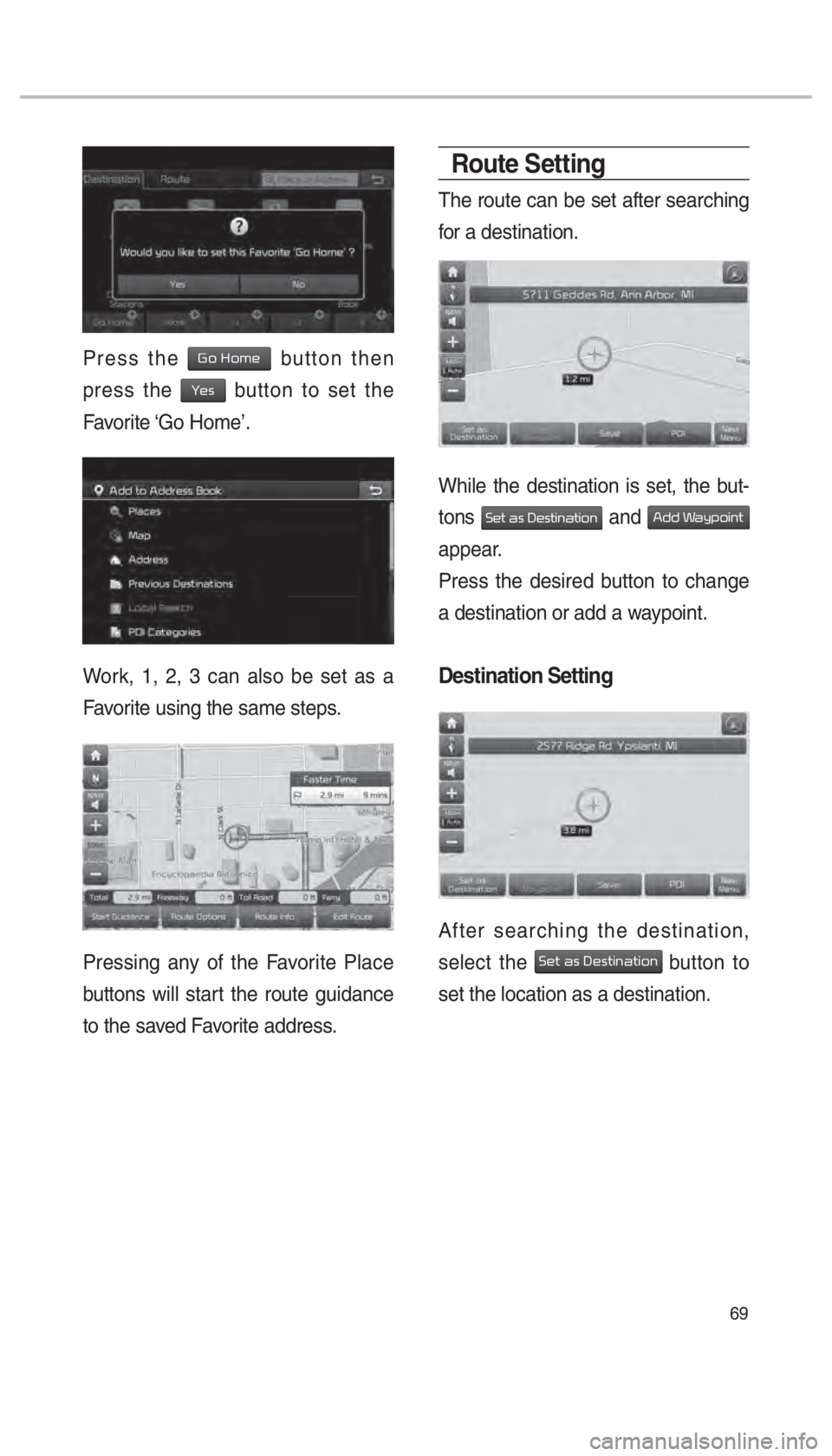
Press the 002A00520003002B005200500048 button then
press the
003C00480056 button to set the
Favorite ‘Go Home’.
Work, 1, 2, 3 can also be set as a
Favorite using the same steps.
Pressing any of the Favorite Place
buttons will start the route guidance
to the saved Favorite address.
Route Setting
The route can be set after searching
for a destination.
While the destination is set, the but-
tons
00360048005700030044005600030027004800560057004C005100440057004C00520051 and 0024004700470003003A005C00530052004C00510057
appear.
Press the desired button to change
a destination or add a waypoint.
Destination Setting
After searching the destination,
select the
00360048005700030044005600030027004800560057004C005100440057004C00520051 button to
set the location as a destination.
,@+'�1)&7���@(���<64"@&6>"7/@23(�JOEE����� &7���@(���<64"@&6>"7/@23(�JOEE����� ������������� ß
1�������� �����������
Page 73 of 84
70
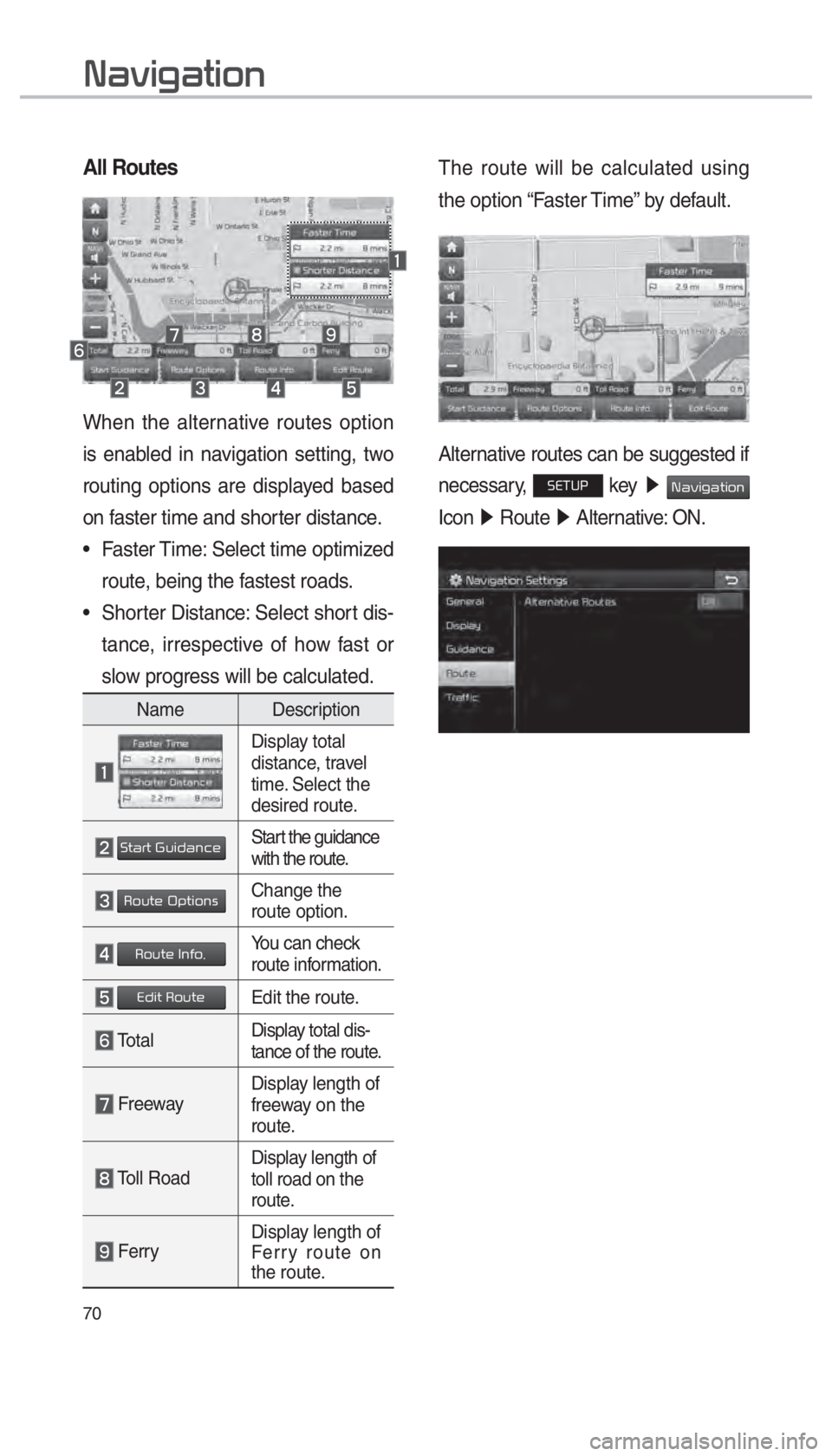
All Routes
When the alternative routes option
is enabled in navigation setting, two
routing options are displayed based
on faster time and shorter distance.
• Faster Time: Select time optimized route, being the fastest roads.
• Shorter Distance: Select short dis- tance, irrespective of how fast or
slow progress will be calculated.
Name Description
Display total
distance, travel
time. Select the
desired route.
003600570044005500570003002A0058004C00470044005100460048Start the guidance
with the route.
003500520058005700480003003200530057004C005200510056Change the
route option.
003500520058005700480003002C0051004900520011You can check
route information.
00280047004C0057000300350052005800570048Edit the route.
Total Display total dis-
tance of the route.
Freeway Display length of
freeway on the
route.
Toll Road Display length of
toll road on the
route.
Ferry
Display length of
Ferry route on
the route.
The route will be calculated using
the option “Faster Time” by default.
Alternative routes can be suggested if
necessary,
00360028003700380033 key
05210003003100440059004C004A00440057004C005200510003
Icon 0521
Route 05210003
Alternative: ON.
003100440059004C004A00440057004C00520051
,@+'�1)&7���@(���<64"@&6>"7/@23(�JOEE����� &7���@(���<64"@&6>"7/@23(�JOEE����� ������������� ß
1�������� �����������
Page 76 of 84

73
Route Overview
Check the information on route
including the distance, estimated
time, toll fees, etc.
Press the
003000240033
00390032002C00260028 head unit key. 0521
Select the 003100440059004C0030004800510058 in the bottom of
right of the screen. 0521
Press the
00350052005800570048 tab. 0521
Select 00350052005800570048000300320059004800550059004C0048005A.
Press the 00350052005800570048000300320059004800550059004C0048005A icon.
Name Description
003500520058005700480003003200530057004C005200510056Change the
search option.
003500520058005700480003002C0051004900520011You can check
route information.
00280047004C0057000300350052005800570048Edit the current
route.
Route Preview
Check the detailed turn-by-turn list.
Press the
003000240033
00390032002C00260028 head unit key. 0521
Select the 003100440059004C0030004800510058 in the bottom of
right of the screen. 0521
Press the
00350052005800570048 tab. 0521
Select 0035005200580057004800030033005500480059004C0048005A.
Press the 0035005200580057004800030033005500480059004C0048005A icon.
Name Description
Move to the departure
location.
Move to the previous
maneuver.
Move to the next maneuver.
Move to the destination
location.
Touch bar to move to the
specific position.
Close the route preview.
,@+'�1)&7���@(���<64"@&6>"7/@23(�JOEE����� &7���@(���<64"@&6>"7/@23(�JOEE����� ������������� ß
1�������� �����������
Page:
< prev 1-8 9-16 17-24