Page 25 of 84

22
Features Description
Sound
Hound Runs the SoundHound
feature.
For more details regard-
ing this feature, refer
to the SoundHound
information in the Info
section.
Back
Button Move to home/previous
mode screen
i
Information
• key, 0037003800310028
is not
supported.
NOTICE
• If only cable connected to the AUX
without an exter
nal device, the mode
changed to AUX, but noise may occur.
When an external device is not being
used, remove the connector jack.
• When the external device power is
connected to the po w
er jack, playing
the external device may output noise.
In such cases, disconnect the power
connection before use.
0424 The actual feature in the vehicle
may differ from the illustration.
00240038003B
Connecting an
External Device
If an external device connector is
connected with the AUX terminal,
then AUX mode will automatically
operate. Once the connector is dis-
connected, the previous mode will
be restored.
• AUX mode can be used only when an external audio player has been
connected.
• The AUX volume can also be controlled separately through the
connected device.
,@+'�1)&7���@(���<64"@&6>"7/@23(�JOEE����� &7���@(���<64"@&6>"7/@23(�JOEE����� ������������� ß
1�������� �����������
Page 26 of 84

23
0025004F005800480057005200520057004B00710003002400580047004C0052
FeaturesDescription
Mode
Displays the current operating mode
Phone Name Displays name of connected phone
Artist InfoName of current artist
TitleName of current song
Previous File• If play time is less than 3 seconds, moves to the previous file
• If play time is more than 3 seconds, plays the current file
from the beginning
This function may differ depending on the model of mobile
phone.
Play/Pause Plays/Pauses Bluetooth Audio
Next FileMoves to the next file
RepeatRepeats the current file This function may differ depending on the model of mobile
phone.
Shuffle Plays files in random order This function may differ depending on the model of mobile
phone.
SoundHound Runs the SoundHound feature.
For more details regarding this feature, refer to the
SoundHound information in the Info section.
Connections
Moves to the Bluetooth Settings screen. You can pair a new
device or change/delete paired device(s).
SEEK/TRACK Plays the previous/next file
TUNE
0037003800310028 is not supported.
i Information
•
Artist info and Title may not be supported by mobile phone.
,@+'�1)&7���@(���<64"@&6>"7/@23(�JOEE����� &7���@(���<64"@&6>"7/@23(�JOEE����� ������������� ß
1�������� �����������
Page 36 of 84

33
Skipping Prompt
Messages
When you hear the prompt, “Please
say a command”, from the system,
press the voice recognition icon on
the steering wheel control to skip the
message and go directly to listening
mode to say your command.
This results in faster operation when
you feel the message is too long or
you already know the command to
use.
i Information
•
Refer to Part 10 for instructions on
how to change the
Voice Recognition
Settings.
Combining Voice
Recognition with
On-Screen Commands
After pressing the key, say a
command after the beep. The voice
recognition system will execute the
desired operation after learning the
command. Alternatively, you may
touch any of the corresponding com-
mands on the screen while the Voice
Recognition system is in operation.
Combining voice recognition with
available on-screen commands is
useful when the system is taking lon-
ger than expected or the voice com-
mand did not execute as desired.
,@+'�1)&7���@(���<64"@&6>"7/@23(�JOEE����� &7���@(���<64"@&6>"7/@23(�JOEE����� ������������� ß
1�������� �����������
Page 39 of 84

36
CommandOperation
052CCallDisplays downloaded Contacts, after this you can make a
call by saying the name.
052CCall You can directly call a person by in the down-
loaded Contacts.
052CCall
on MobileYou can call a person directly to the number that
is saved as "Mobile" in the downloaded Contacts.
e.g.) Call “John Smith” on Mobile
052CCall
at WorkYou can call a person directly to the number that
is saved as “Work” in the downloaded Contacts.
e.g.) Call “John Smith” at Work
052CCall
at HomeYou can call a person directly to the number that
is saved as “Home” in the downloaded Contacts.
e.g.) Call “John Smith” at Home
052CCall
on OtherYou can call a person directly to the number
that is saved as other than “Mobile, Home, or Work” in the
downloaded Contacts.
e.g.) Call “John Smith” on Other
052CDial Number
Displays a screen where you can say a phone number to
dial.
052CDial
You can directly say the number to call.
e.g.) Dial 111 555 1234
052CRedial Directly calls at the number that you last dialed.
052CCall History
Displays your Call History, where you can say the list num-
ber to make a call.
052CChange
Bluetooth
DeviceYou can switch your Bluetooth connection to another paired
device.
0039
,@+'�1)&7���@(���<64"@&6>"7/@23(�JOEE�����
&7���@(���<64"@&6>"7/@23(�JOEE����� ������������� ß
1�������� �����������
Page 45 of 84
42
0036004C0055004C00030028005C0048005600030029005500480048
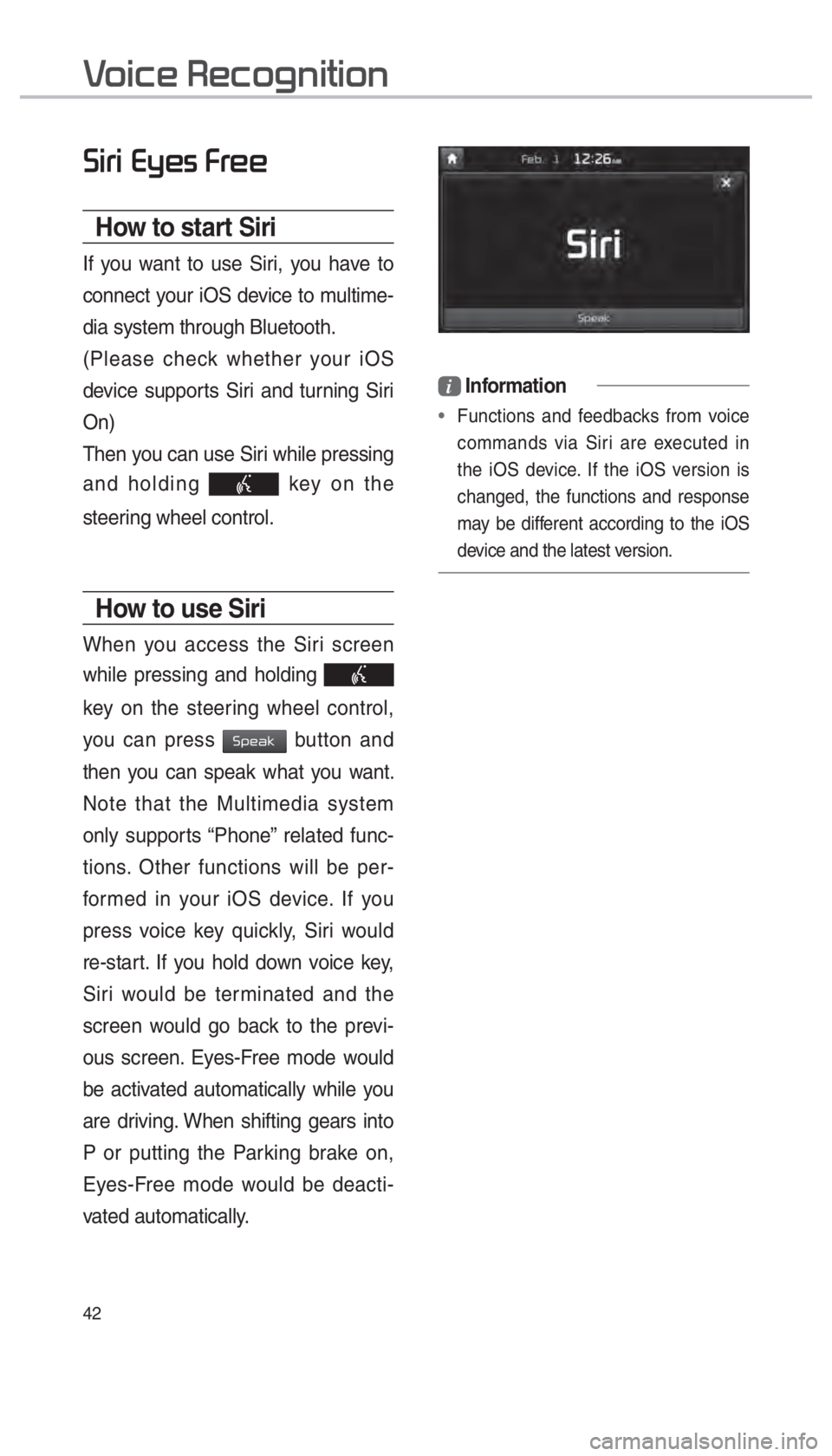
How to start Siri
If you want to use Siri, you have to
connect your iOS device to multime-
dia system through Bluetooth.
(Please check whether your iOS
device supports Siri and turning Siri
On)
Then you can use Siri while pressing
and holding
key on the
steering wheel control.
How to use Siri
When you access the Siri screen
while pressing and holding
key on the steering wheel control,
you can press
0036005300480044004E button and
then you can speak what you want.
Note that the Multimedia system
only supports “Phone” related func-
tions. Other functions will be per-
formed in your iOS device. If you
press voice key quickly, Siri would
re-start. If you hold down voice key,
Siri would be terminated and the
screen would go back to the previ-
ous screen. Eyes-Free mode would
be activated automatically while you
are driving. When shifting gears into
P or putting the Parking brake on,
Eyes-Free mode would be deacti-
vated automatically.
i Information
•
Functions and feedbacks from voice
commands via Siri are e
xecuted in
the iOS device. If the iOS version is
changed, the functions and response
may be different according to the iOS
device and the latest version.
0039
,@+'�1)&7���@(���<64"@&6>"7/@23(�JOEE����� &7���@(���<64"@&6>"7/@23(�JOEE����� ������������� ß
1�������� �����������
Page 48 of 84

45
With Download Center, you can
install paid/free applications or check
for related information. Only UVO
center verified applications can be
installed.
You can use Download Center after
agreeing to the User Agreement and
Privacy Policy. (Only 1 time for initial
launch)
Apps List
Select 0024004F004F000300300048005100580056 or 0030005C00030030004800510058 from Home
screen 0521
00380039003200030024005300530056 0521
followed by
00270052005A0051004F0052004400470003002600480051005700480055 and then 0521
00240053005300560003002F004C00560057.
00270052005A0051004F0052004400470003002600480051005700480055
Name Description
Application
Download
and Run
buttons Button state changes
according to the appli-
cation state.
00270052005A0051004F005200440047Downloads free appli-
cations.
0033005800550046004B004400560048Downloads paid appli-
cations.
00350048001000470052005A0051004F005200440047Downloads deleted
applications after pre-
viously installing them.
0035004800570055005C
Downloads the appli-
cations that failed to
download due to net-
work or system errors.
003500580051Runs installed applica-
tions.
00260044005100460048004FCancels any down-
loads and updates.
Menu
Updates and refreshes
the menu.
003800530047004400570048
After installation, it
shows applications
requiring updates.
The update screen
shows the
00380053004700440057004800030024004F004F
button to update all
applications that need
updates.
003500480049005500480056004BRefreshes the app list
status.
Detailed
Information When the application
list area is pressed, it
moves to the Detailed
Information screen.
0033005500480059004C0048005A
Displays application
images.
002C00510049005200550057004C00520051Displays application
information.
,@+'�1)&7���@(���<64"@&6>"7/@23(�JOEE�����
&7���@(���<64"@&6>"7/@23(�JOEE����� ������������� ß
1�������� �����������
Page 50 of 84

47
0036004C0055004C00580056003B0030043000030027004400570044
The SiriusXM™ Data Service is
a paid membership Satellite radio
service which provides users with
Weather, Traffic, Fuel Prices, Stocks,
Sports, and Movies infor mation.
However, weather information is not
supported for vehicles purchased in
Canada.
Accessing
SiriusXM™ Data
Press the “SiriusXM Data” icon after
selecting
0024004F004F000300300048005100580056 the SiriusXM™
Data mode.
SiriusXM™ Weather
Announcement
At the “SiriusXM Data” screen, select
the
003A004800440057004B00480055 icon to enter the
Weather Announcement mode.
Weather Forecast
This service provides current
weather information and weather
forecasts for the next five days in
your region. To change the region,
select the
00320057004B0048005500030026004C0057005C button and
select the desired region.
Warnings and Advisories
This service provides weather warn-
ings and advisories, such as tor-
nado, storm, flood, etc. as symbols
on the Navigation map.
,@+'�1)&7���@(���<64"@&6>"7/@23(�JOEE����� &7���@(���<64"@&6>"7/@23(�JOEE����� ������������� ß
1�������� �����������
Page 52 of 84

49
SiriusXM™ Stock
Information
In the “SiriusXM Data” screen, select
the
0036005700520046004E0056 icon to enter the Stocks
mode.
Stocks is a feature that shows the
current value and change of stocks.
For symbols which you are inter-
ested in, press the icon to save the
symbol as a part of the “Saved” sym-
bols which can be viewed from the
“My Favorites” button on the Stocks
Main screen.
My Favorites
My Favorites shows a list of stocks
added by the user. When entering
the Stocks menu for the first time,
a screen is displayed for you to
add your favorite stock information.
Select the
002400470047 button to move to
the stock search screen.
Stock Search
Use the Stock Search menu to
search for specific stocks.
Select the
052F button after search-
ing for your favorite stocks to save
them in “My Favorites”.
In the My Favorites screen, you can
find the selected stock information
that you registered.
,@+'�1)&7���@(���<64"@&6>"7/@23(�JOEE����� &7���@(���<64"@&6>"7/@23(�JOEE����� ������������� ß
1�������� �����������