Page 207 of 538
Language settings
From the Language screen, you can change the display language used by the system.
1. Push
Page 209 of 538
ADDITIONAL SYSTEM
INFORMATION
System Start-Up
Due to the large number of features and
capabilities that the INFINITI InTouch system
needs to load on start-up, it may take up to a
minute for all functions (such as Apps) to be
available. The system will display the mes-
sage indicating that the application is loading
during this time. During the start-up period,
hard button controls for audio will become
available before start-up is complete. Fea-
tures will become available in the following
order.
•Audio volume and music playback
•Audio Full Screen Access
•Full App Availability – System will display
the message indicating the completion of
the application loading process.
System Response Delay
INFINITI InTouch uses an operating system
like those found on many computers, tablets
and cell phones. Like these devices, process-
ing speed may vary, and system response
delays or resets may occur intermittently.
This does not indicate a malfunction, and
further information on system operation can
be found below. In most situations, simply waiting a few mo-
ments longer should be sufficient for the
pending operations to complete.
If the system temporarily does not respond to
commands, the system can be easily reset.
Simply push down the Audio Power knob for
at least 5 seconds. The system will turn off
and restart.
After restart, all functions should be avail-
able.
•Audio will resume, but if you were using
Bluetooth® Audio or an Audio App, the
connection may need to be re-established.
•If a navigation route was set, the route
should resume automatically (models with
navigation system).
•If a phone call was in progress, the call may
be temporarily transferred back to the
handset.
System Reset
As noted above, intermittent system resets
may occur during normal operation. You may
also wish to reset the system if you find that a
particular feature is not loading or respond-
ing. Often, a quick system reset will resolve
any issue you may be experiencing. After re-
start, all functions will be available as de-
scribed above. System Updates
Like many digital devices, the INFINITI
InTouch system is designed to allow for soft-
ware updates as enhancements are devel-
oped and additional features added. If you
have questions about system performance, it
is recommended you contact your INFINITI
retailer to ensure that your vehicle has had
the latest available software installed.
Operating Tips
INFINITI InTouch provides several methods
of operation to suit your preferences. The
following are suggested operating tips.
•Operating the INFINITI Controller, Steer-
ing Wheel Controls, or other controls too
quickly can cause a lag between the con-
trol and the display. Operate the controls
carefully and allow the system to respond
to your request.
•INFINITI recommends using Voice Recog-
nition whenever possible to select options
while driving. Some touch screen function-
ality is intentionally unavailable during
driving. Please view the available voice
commands by pushing <
>on the steer-
ing wheel and then selecting a category on
the display.
4-16Display screen, heater and air conditioner, and audio system
Page 250 of 538

– CDs that are not round
– CDs with a paper label
– CDs that are warped, scratched, orhave abnormal edges
•This audio system can only play prere-
corded CDs. It has no capabilities to record
or burn CDs.
•If a CD cannot be played, one of the fol-
lowing messages will be displayed.
[Disc Reading Error]
Indicates a CLV/Focus, TOC or Access
error. Check and re-insert the CD. Make
sure that it is inserted correctly.
[Please Eject Disc]
Indicates a mechanism error. If the CD can
be ejected, eject and re-insert the CD. If
the CD cannot be ejected, have the system
checked. It if recommended you contact
an INFINITI retailer for this service.
[File type is not supported]
Indicates that no readable files are found
on the inserted CD. Check the data on your
CD.
USB (Universal Serial Bus)
connection port/ iPod
The Media Hub is located in the center con-
sole and consists of the USB connectors. 1) USB/iPod connection port
Connect to play media from an iPod®,
iPhone® or a USB memory device. When
using INFINITI InTouch Apps with an
iPhone®, connect via a USB cable. Refer
to the device manufacturer’s owner infor-
mation regarding the proper use and care
of the device.
WARNING
Do not connect, disconnect or operate the
USB device while driving. Doing so can be a
distraction. If distracted you could lose
control of your vehicle and cause an acci-
dent or serious injury.
CAUTION
•Do not force the USB device into the
USB port. Inserting the USB device
tilted or upside down into the port may
damage the port. Make sure that the
USB device is connected correctly into
the USB port.
•Do not grab the USB port cover (if
equipped) when pulling the USB device
out of the port. This could damage the
port and the cover.
•Do not leave the USB cable in a place
where it can be pulled unintentionally.
Pulling the cable may damage the port.
The vehicle is not equipped with a USB de-
vice. USB devices should be purchased sepa-
rately as necessary.
This system cannot be used to format USB
devices. To format a USB device, use a per-
sonal computer.
In some areas, the USB device for the front
seats plays only sound without images for
regulatory reasons, even when the vehicle is
parked.
NAA1628
Display screen, heater and air conditioner, and audio system4-57
Page 281 of 538

PHONE
Connecting Bluetooth®
Hands-Free Phone
The cellular phone must be connected to the
Bluetooth® Hands-Free Phone System be-
fore commencing operation. Up to 5 cellular
phones can be connected to the system.
See "Connecting Bluetooth® device" later in
this section
Phone selection
Select one of the connected devices for op-
eration.
1. Push
Page 282 of 538
Receiving a call
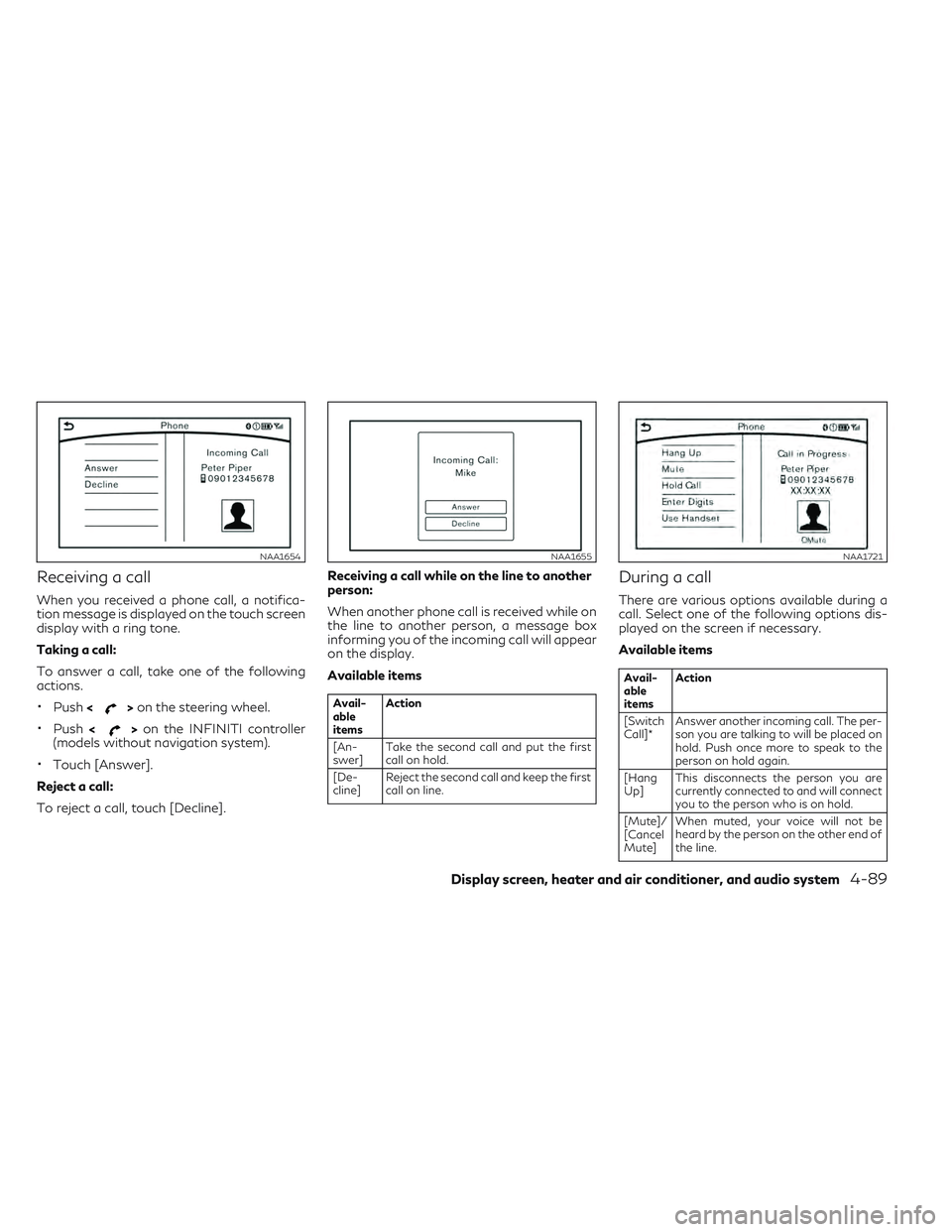
When you received a phone call, a notifica-
tion message is displayed on the touch screen
display with a ring tone.
Taking a call:
To answer a call, take one of the following
actions.
•Push<>on the steering wheel.
•Push <>on the INFINITI controller
(models without navigation system).
•Touch [Answer].
Reject a call:
To reject a call, touch [Decline]. Receiving a call while on the line to another
person:
When another phone call is received while on
the line to another person, a message box
informing you of the incoming call will appear
on the display.
Available items
Avail-
able
items
Action
[An-
swer] Take the second call and put the first
call on hold.
[De-
cline] Reject the second call and keep the first
call on line.
During a call
There are various options available during a
call. Select one of the following options dis-
played on the screen if necessary.
Available items
Avail-
able
itemsAction
[Switch
Call]* Answer another incoming call. The per-
son you are talking to will be placed on
hold. Push once more to speak to the
person on hold again.
[Hang
Up] This disconnects the person you are
currently connected to and will connect
you to the person who is on hold.
[Mute]/
[Cancel
Mute] When muted, your voice will not be
heard by the person on the other end of
the line.
NAA1654NAA1655NAA1721
Display screen, heater and air conditioner, and audio system4-89
Page 283 of 538
![INFINITI QX30 2018 Owners Manual Avail-
able
itemsAction
[Hold
Call]** Place the call on hold.
[Enter
Digits] Using the touch tone, send digits to the
connected party for using services such
as voicemail.
[Use
Hand-
set] Transfer the](/manual-img/42/41114/w960_41114-282.png "INFINITI QX30 2018 Owners Manual Avail-
able
itemsAction
[Hold
Call]** Place the call on hold.
[Enter
Digits] Using the touch tone, send digits to the
connected party for using services such
as voicemail.
[Use
Hand-
set] Transfer the")
Avail-
able
itemsAction
[Hold
Call]** Place the call on hold.
[Enter
Digits] Using the touch tone, send digits to the
connected party for using services such
as voicemail.
[Use
Hand-
set] Transfer the call to the cellular phone.
[End All
Calls]* Hang up all calls including the ones that
were on hold.
*: Available when multiple lines are con-
nected.
**: Available when a single line is connected.
•To adjust the volume of the person's voice
to be louder or quieter, push <->/<+>on
the steering wheel or turn
>
on the audio main button, while talking on
the phone.
•Touch [Mute] if you do not want your
voice to be heard by the person on the
other end of the line.
CONNECTING BLUETOOTH®
DEVICE
Your vehicle is equipped with a Bluetooth®
Hands-Free Phone System and Bluetooth®
streaming audio device. If you are an owner
of a compatible Bluetooth® enabled cellular
phone or Bluetooth® audio device, you can
set up the wireless connection between your
cellular phone and the in-vehicle phone mod-
ule, or Bluetooth® audio and in-vehicle audio
module. With Bluetooth® wireless technol-
ogy, you can make or receive a telephone call
with your cellular phone in your pocket and
listen to music on your Bluetooth® streaming
audio device via the in-vehicle system.
Connecting cellular phone/audio
device
1. Push
Page 284 of 538
![INFINITI QX30 2018 Owners Manual Bluetooth® settings
The Bluetooth® settings can be set in detail
according to the user's preference.
1. Push<MENU> and touch [Settings].
2. Touch [Bluetooth].
3. Touch the preferred item.
•[Bl](/manual-img/42/41114/w960_41114-283.png "INFINITI QX30 2018 Owners Manual Bluetooth® settings
The Bluetooth® settings can be set in detail
according to the user's preference.
1. Push<MENU> and touch [Settings].
2. Touch [Bluetooth].
3. Touch the preferred item.
•[Bl")
Bluetooth® settings
The Bluetooth® settings can be set in detail
according to the user's preference.
1. Push
Page 285 of 538
3) Turn “Show Notification” ON fromBluetooth® setting menu on your iPhone
®.
4) Connect iPhone® from vehicle setting menu.
Displaying received message list
1. To display the phone menu screen, takeone of the following actions:
•Push
![INFINITI QX30 2018 Owners Manual Language settings
From the Language screen, you can change the display language used by the system.
1. Push <MENU>.
2. Touch [Settings].
3. Touch [Other].
4. Touch [Language].
Setting itemAction
[Syst](/manual-img/42/41114/w960_41114-206.png "INFINITI QX30 2018 Owners Manual Language settings
From the Language screen, you can change the display language used by the system.
1. Push <MENU>.
2. Touch [Settings].
3. Touch [Other].
4. Touch [Language].
Setting itemAction
[Syst")
