Page 261 of 526

4-42
Multimedia System
Phone Mode (if equipped)
Making a call using the Steeringwheel controls
❈ The actual features in the vehicle may
differ from the illustration.
(1) VOICE RECOGNITION
Activates voice recognition*.
(2) MODE
Press the button to change audio
source.
FM1
➟ FM2 ➟ AM ➟ XM1*➟XM2*➟XM3*➟ CD ➟ USB(iPod®) ➟ AUX ➟My Music*➟ BT Audio*.
(3) VOLUME +
/-
Raises or lowers speaker volume.
*if equipped (4)
MUTE
Mutes audio volume.
(5) CALL
Places and transfers calls.
Check call history and making calls
- Shortly press the [CALL] button on the
steering wheel controls.
- The call history list will be displayed on the screen.
- Press the [CALL] button again to con-
nect a call to the selected number.
Redialing the most recently called number
- Press and hold the [CALL] button on
the steering wheel controls.
- The most recently called number is redialed.
(6) END
Ends calls or cancels functions.
❈ If call history does not exist, a screen
asking whether to download call histo-
ry is displayed. (The download feature
may not be supported in some mobile
phones)
Pairing using the Steering wheel controls
1. Press the [CALL] button on the steer-
ing wheel controls.
2. Select [OK] button to enter the Pair Phone screen.
Vehicle Name : Name of device as shown when searching from your
Bluetooth®Wireless Technology
device
Passkey : Passkey used to pair the device
Page 265 of 526

4-46
Multimedia System
Up to 1,000 contacts saved in yourBluetooth®Wireless Technology phone
can be downloaded into the car con-
tacts. Contacts that have been down-
loaded to the car cannot be edited or
deleted on the phone.
Mobile phone contacts are managed separately for each paired
Bluetooth®
Wireless Technology device (max 5
devices x 1,000 contacts each).
Previously downloaded data is main-
tained even if the
Bluetooth®Wireless
Technology de vice has been discon-
nected. (However, the contacts and call
history saved to the phone will be
deleted if a paired phone is deleted.)
It is possible to download contacts dur- ing Bluetooth
®streaming audio.
When downloading contacts, the icon will be displayed within the status bar. It is not possible to begin downloading
a contact list when the contact down-
load feature has been turned off within
the
Bluetooth® Wireless Technology
device. In addition, some devices may
require device authorization upon
attempting to download contacts. If
downloading does not normally occur,
check the
Bluetooth®Wireless
Technology device settings or for notifi-
cations on the screen.
The contacts download feature may not be supported in some mobile
phones. For more information of sup-
ported Bluetooth
®devices and func-
tion support, refer to your phone’s user
manual.
Voice Recognition Mode
(if equipped)
Using Voice Recognition
Short press the button on the steer-
ing wheel controls. Say a command
If prompt feedback is in [On], then the
system will say "Please say a command
after the beep (BEEP)"
If prompt feedback is in [On] mode, then the system will only say "(BEEP)"
To change Prompt Feedback [On]/[Off], go to [SETUP/CLOCK]
�
[System] �[Prompt Feedback]
For proper recognition, say the com- mand after the voice instruction and
beep tone.
Page 272 of 526
4-53
Multimedia System
4
Setup Mode
Use the TUNEknob to scroll through
Setup menus. When the desired item is
highlighted, press the knob to select it.
Display Menu
Press the [SETUP/CLOCK] button
�Select [Display]
Mode Pop up
[Mode Pop up] �Changes [On] selection
mode
During On state, press the [RADIO]
([FM/AM], [XM], [FM]) or [MENU] but-
ton to display the mode change pop up
screen.
Media Display
When playing an MP3 file, select the
desired display info from ‘Folder/File’ or
‘Album/Artist/Song’.
Sound Menu
Press the [SETUP/CLOCK] button
�Select [Sound]
Page 277 of 526
4-58
Multimedia System
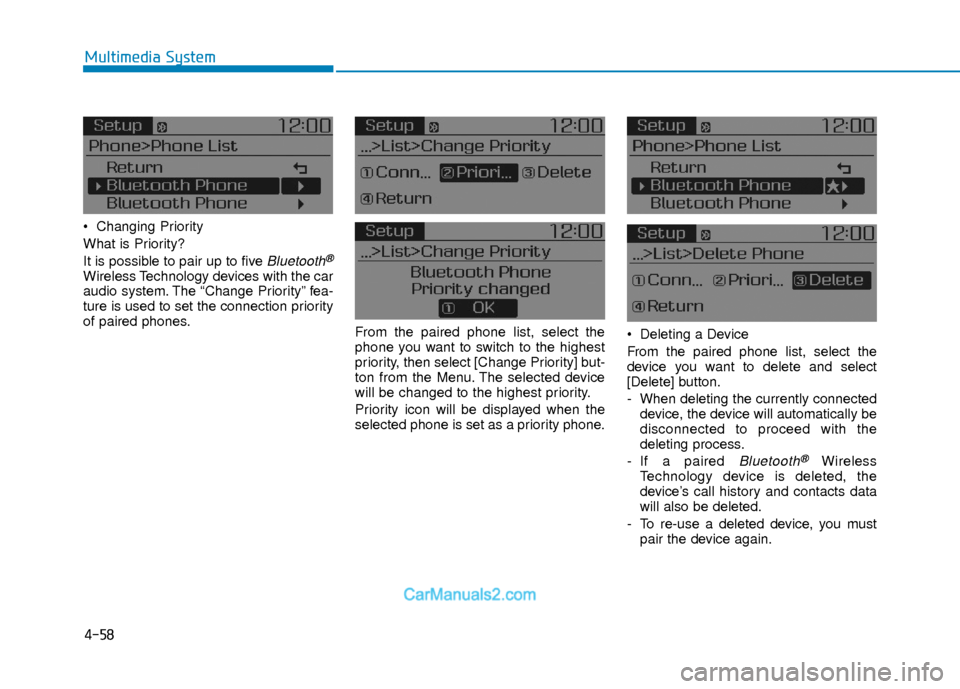
Changing Priority
What is Priority?
It is possible to pair up to five
Bluetooth®
Wireless Technology devices with the car
audio system. The “Change Priority” fea-
ture is used to set the connection priority
of paired phones.From the paired phone list, select the
phone you want to switch to the highest
priority, then select [Change Priority] but-
ton from the Menu. The selected device
will be changed to the highest priority.
Priority icon will be displayed when the
selected phone is set as a priority phone. Deleting a Device
From the paired phone list, select the
device you want to delete and select
[Delete] button.
- When deleting the currently connected
device, the device will automatically be
disconnected to proceed with the
deleting process.
- If a paired
Bluetooth®Wireless
Technology device is deleted, the
device’s call history and contacts data
will also be deleted.
- To re-use a deleted device, you must pair the device again.
Page 278 of 526
![Hyundai Elantra 2018 Owners Manual 4-59
Multimedia System
4
Pairing a New Device
Press the [SETUP/CLOCK] button
�
Select [Phone] �Select [Pair Phone]
Bluetooth®Wireless Technology devices
can be paired with the audio system.
For more](/manual-img/35/14540/w960_14540-277.png "Hyundai Elantra 2018 Owners Manual 4-59
Multimedia System
4
Pairing a New Device
Press the [SETUP/CLOCK] button
�
Select [Phone] �Select [Pair Phone]
Bluetooth®Wireless Technology devices
can be paired with the audio system.
For more")
4-59
Multimedia System
4
Pairing a New Device
Press the [SETUP/CLOCK] button
�
Select [Phone] �Select [Pair Phone]
Bluetooth®Wireless Technology devices
can be paired with the audio system.
For more information, refer to the “Pairing
through Phone Setup” section within
Bluetooth®Wireless Technology.Viewing Paired Phone List
Press the [SETUP/CLOCK] button
�
Select [Phone] �Select [Phone List]
This feature is used to view mobile
phones that have been paired with the
audio system. Upon selecting a paired
phone, the setup menu is displayed.
For more information, refer to the “Setting
Bluetooth®Wireless Technology
Connection” section within Bluetooth®
Wireless Technology. 1) Connect/Disconnect Phone :
Connect/Disconnects currently select-
ed phone
2) Change Priority : Sets currently selected phone to highest connection
priority
3) Delete : Deletes the currently selected phone
4) Return : Moves to the previous screen
To learn more about whether your mobile phone supports contact down-
loads, refer to your mobile phone
user’s manual.
The contacts for only the connected phone can be downloaded
Page 279 of 526
4-60
Multimedia System
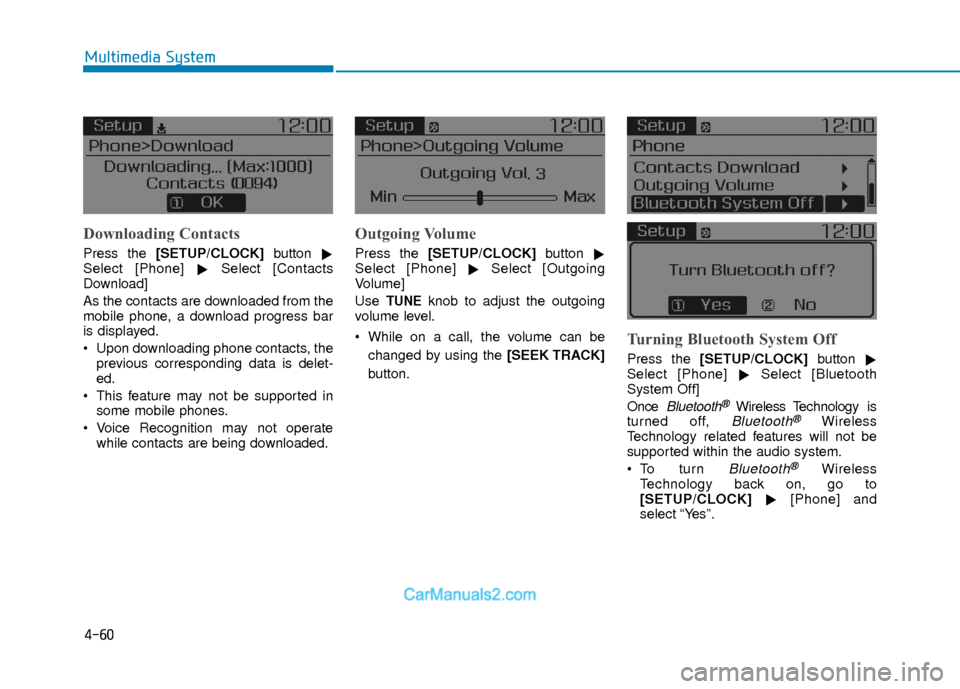
Downloading Contacts
Press the [SETUP/CLOCK] button
�
Select [Phone] �Select [Contacts
Download]
As the contacts are downloaded from the
mobile phone, a download progress bar
is displayed.
Upon downloading phone contacts, the previous corresponding data is delet-
ed.
This feature may not be supported in some mobile phones.
Voice Recognition may not operate while contacts are being downloaded.
Outgoing Volume
Press the [SETUP/CLOCK] button
�
Select [Phone] �Select [Outgoing
Volume]
Use
TUNEknob to adjust the outgoing
volume level.
While on a call, the volume can be
changed by using the [SEEK TRACK]
button.
Turning Bluetooth System Off
Press the [SETUP/CLOCK] button
�
Select [Phone] �Select [Bluetooth
System Off]
Once
Bluetooth®Wireless Technology is
turned off, Bluetooth®Wireless
Technology related features will not be
supported within the audio system.
Bluetooth®Wireless
Technology back on, go to
[SETUP/CLOCK] �[Phone] and
select “Yes”.
Page 280 of 526
4-61
Multimedia System
4
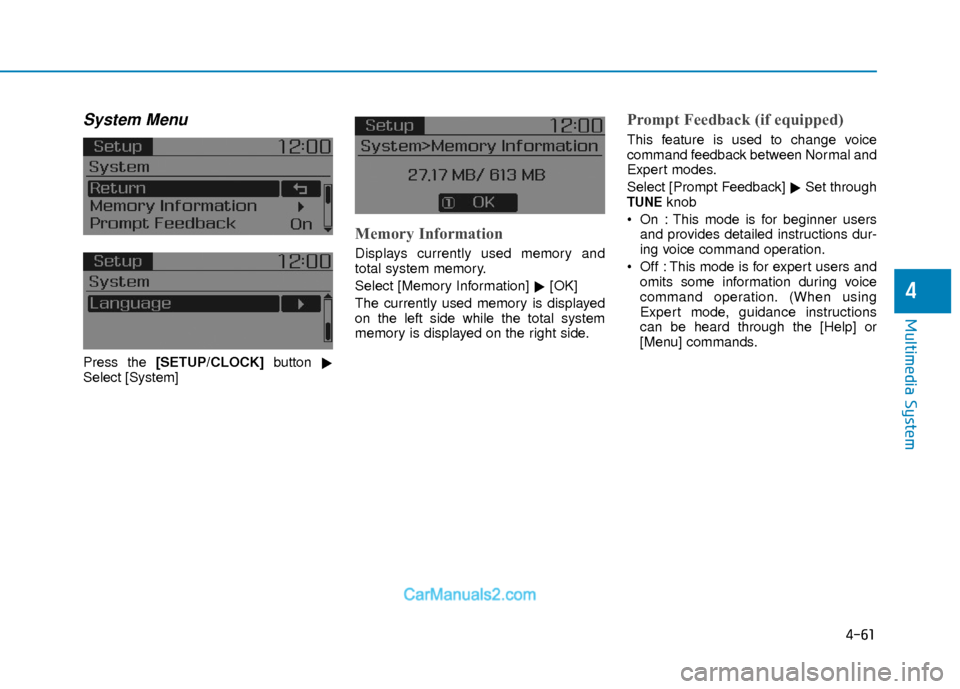
System Menu
Press the [SETUP/CLOCK] button
�
Select [System]
Memory Information
Displays currently used memory and
total system memory.
Select [Memory Information] �[OK]
The currently used memory is displayed
on the left side while the total system
memory is displayed on the right side.
Prompt Feedback (if equipped)
This feature is used to change voice
command feedback between Normal and
Expert modes.
Select [Prompt Feedback] �Set through
TUNEknob
On : This mode is for beginner users and provides detailed instructions dur-
ing voice command operation.
Off : This mode is for expert users and omits some information during voice
command operation. (When using
Expert mode, guidance instructions
can be heard through the [Help] or
[Menu] commands.
Page 281 of 526
![Hyundai Elantra 2018 Owners Manual 4-62
Multimedia System
Language
This menu is used to set the display and
voice recognition language.
Select [Language]
The system will reboot after the language
is changed.
Language support by region](/manual-img/35/14540/w960_14540-280.png "Hyundai Elantra 2018 Owners Manual 4-62
Multimedia System
Language
This menu is used to set the display and
voice recognition language.
Select [Language]
The system will reboot after the language
is changed.
Language support by region")
4-62
Multimedia System
Language
This menu is used to set the display and
voice recognition language.
Select [Language]
The system will reboot after the language
is changed.
Language support by regionEnglish, Français, Español iPod
®is a registered trademark of
Apple Inc. iPod®mobile digital device
sold separately. The Bluetooth®word
mark and logos are registered trade-
marks owned by Bluetooth
®SIG, Inc.
and any use of such marks by
Hyundai is under license. SiriusXM
services require a subscription sold
separately, or as a package, by Sirius
XM Radio Inc. If you decide to contin-
ue service after your trial, the sub-
scription plan you choose will auto-
matically renew thereafter and you
will be charged according to your cho-
sen payment method at then-current
rates. Fees and taxes apply. To cancel
you must call SiriusXM at 1-866-635-
2349. See SiriusXM Customer
Agreement for complete terms at
www.siriusxm.com. SiriusXM U.S.
satellite and data services are avail-
able only in the 48 contiguous states,
DC and Puerto Rico (with coverage
limitations). SiriusXM satellite service
is also available in Canada; see
www.siriusxm.ca. All fees and pro-
gramming subject to change. Sirius, XM and all related marks and
logos are trademarks of Sirius XM
Radio Inc. Android™ is a trademark of
Google, Inc. BlackBerry is a registered
trademark of Research In Motion
Limited (RIM). All other marks, chan-
nel names and logos are the property
of their respective owners. All rights
reserved.