2018 HONDA ODYSSEY USB
[x] Cancel search: USBPage 363 of 763

Continued361
uuAudio System Basic Operation uApple CarPlay
Features
■Maps
Display Apple Maps and use the navigation function just as you would on your
iPhone.
Only one navigation system (pre-installed navigation or Apple CarPlay) can give
directions at a time. When you are using one system, directions to any prior
destination set on the other system will be canceled, and the system you are
currently using will direct you to your destination.
After you have connected your iPhone to the system via the front USB port, use the
following procedure to set up Apple CarPlay. Use of Apple CarPlay will result in the
transmission of certain user and vehicle information (such as vehicle location, speed,
and status) to your iPhone to enhance the Apple CarPlay experience. You will need
to consent to the sharing of this info rmation on the audio/information screen.
■Enabling Apple CarPlay
Enable: Allows this consent.
Disable : Does not allow this consent.
You may change the consent settings under
the Connections settings menu.
■Setting Up Apple CarPlay
1Apple CarPlay
Apple CarPlay Operating Requirements &
Limitations
Apple CarPlay requi res a compatible iPhone with an
active cellular connecti on and data plan. Your
carrier’s rate plans will apply.
Changes in operating system s, hardware, software,
and other technology integral to providing Apple
CarPlay functionality, as well as new or revised
governmental regulations, may result in a decrease or
cessation of Apple CarPlay functionality and services.
Honda cannot and does not pr ovide any warranty or
guarantee of future Appl e CarPlay performance or
functionality.
It is possible to use 3r d party apps if they are
compatible with Apple CarPlay. Refer to the Apple
homepage for information on compatible apps.
Models with navigation system
1 Setting Up Apple CarPlay
You can also use the method below to set up Apple
CarPlay:
Select HOME Setti ngs Connections Apple
CarPlay
Use of user and vehicle information
The use and handling of user and vehicle information
transmitted to/from your iP hone by Apple CarPlay is
governed by the Apple iOS terms and conditions and
Apple’s Privacy Policy.
18 US ODYSSEY-31THR6010.book 361 ページ 2018年12月6日 木曜日 午後4時18分
Page 365 of 763

363
uuAudio System Basic Operation uAndroid Auto
Continued
Features
Android Auto
When you connect an Android phone to the audio system via the front USB port,
Android Auto is automatically initiated. When connected via Android Auto, you can
use the audio/information screen to access the Phone, Google Maps (Navigation),
Google Play Music, and Google Now functions. When you first use Android Auto, a
tutorial will appear on the screen.
We recommend that you comple te this tutorial while safely parked before using
Android Auto.
2 USB Ports P. 261
2 Auto Pairing Connection P. 365
1Android Auto
To use Android Auto, you need to download the
Android Auto app from Google Play to your
smartphone.
Only Android 5.0 (Lollipop) or later versions are
compatible with Android Auto.
Bluetooth A2DP cannot be used with Android Auto
phone.
Park in a safe place befo re connecting your Android
phone to Android Auto and when launching any
compatible apps.
To use Android Auto, connect the USB cable to the
USB port located in the console compartment. The
USB ports located on the back of the console
compartment will not enable Android Auto
operation.
2 USB Ports P. 261
To directly access the Android Auto phone function,
press Phone on the home screen.
2 Auto Pairing Connection P. 365
When your Android phone is connected to Android
Auto, it is not possible to use the Bluetooth® Audio.
However, other previously paired phones can stream
audio via Bluetooth ® while Android Auto is
connected.
2 Phone Setup P. 500
18 US ODYSSEY-31THR6010.book 363 ページ 2018年12月6日 木曜日 午後4時18分
Page 367 of 763

Continued365
uuAudio System Basic Operation uAndroid Auto
Features
d Music and audio
Play Google Play Music an d music apps that are compatible with Android Auto.
To switch between music apps, press this icon.
e Go back to the Home Screen.
f Voice
Operate Android Auto with your voice.
When you connect an Android phone to the unit via the front USB port, Android
Auto is automatically initiated.
■Enabling Android Auto
Enable: Allows this consent.
Disable : Does not allow this consent.
You may change the consent settings under
the Connections settings menu.
■Auto Pairing Connection
1Enabling Android Auto
Only initialize Android Auto when you safely parked.
When Android Auto first de tects your phone, you will
need to set up your phone so that auto pairing is
possible. Refer to the inst ruction manual that came
with your phone.
You can use the method below to change Android
Auto settings after you have completed the initial
setup:
Select HOME Settings Connections Android
Auto
Use of user and vehicle information
The use and handling of user and vehicle information
transmitted to/from your phone by Android Auto is
governed by the Google’s Privacy Policy.
18 US ODYSSEY-31THR6010.book 365 ページ 2018年12月6日 木曜日 午後4時18分
Page 371 of 763
369
uuAudio Error Messages uiPod/USB Flash Drive
Continued
Features
iPod/USB Flash Drive
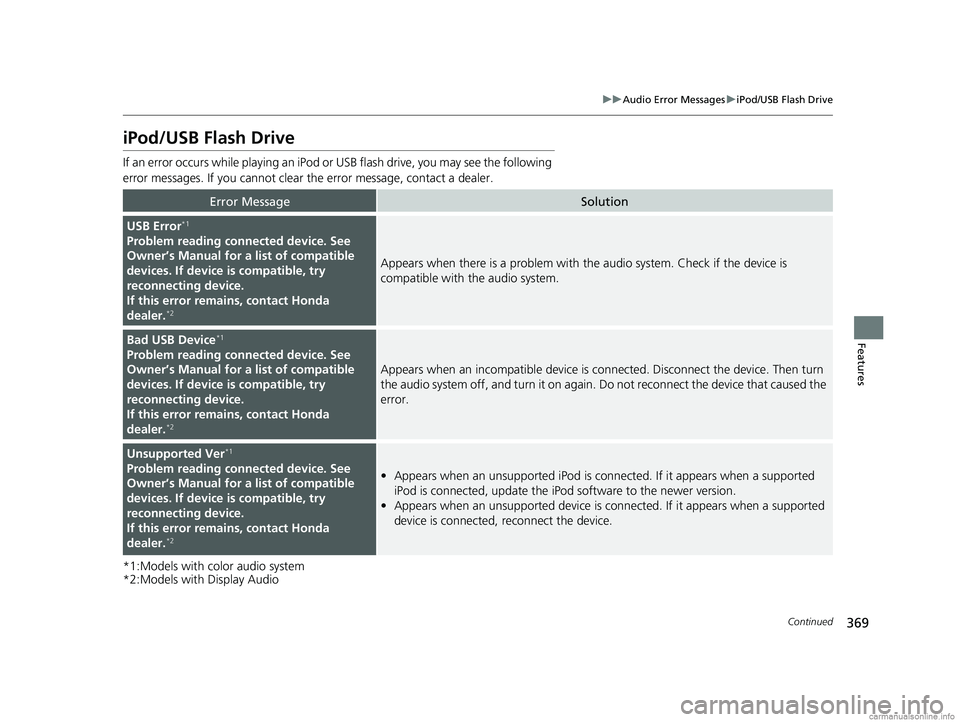
If an error occurs while playing an iPod or USB flash drive, you may see the following
error messages. If you cannot clear the error message, contact a dealer.
*1:Models with color audio system
*2:Models with Display Audio
Error MessageSolution
USB Error*1
Problem reading connected device. See
Owner’s Manual for a list of compatible
devices. If device is compatible, try
reconnecting device.
If this error remains, contact Honda
dealer.
*2
Appears when there is a problem with th e audio system. Check if the device is
compatible with the audio system.
Bad USB Device*1
Problem reading connected device. See
Owner’s Manual for a list of compatible
devices. If device is compatible, try
reconnecting device.
If this error remains, contact Honda
dealer.
*2
Appears when an incomp atible device is connected. Disconnect the device. Then turn
the audio system off, and turn it on again. Do not reconnect the device that caused the
error.
Unsupported Ver*1
Problem reading connected device. See
Owner’s Manual for a list of compatible
devices. If device is compatible, try
reconnecting device.
If this error remains, contact Honda
dealer.
*2
• Appears when an unsupported iPod is connected. If it appears when a supported
iPod is connected, update the iPod software to the newer version.
• Appears when an unsupported device is co nnected. If it appears when a supported
device is connected, reconnect the device.
18 US ODYSSEY-31THR6010.book 369 ページ 2018年12月6日 木曜日 午後4時18分
Page 372 of 763
370
uuAudio Error Messages uiPod/USB Flash Drive
Features
*1:Models with color audio system
*2:Models with Display Audio
Error MessageSolution
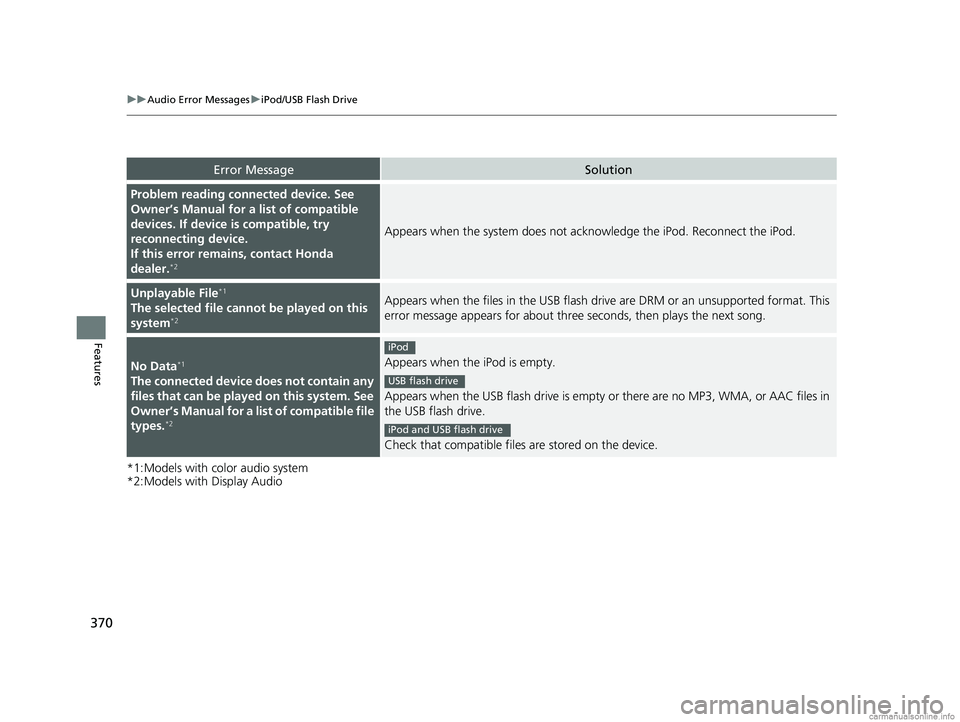
Problem reading connected device. See
Owner’s Manual for a list of compatible
devices. If device is compatible, try
reconnecting device.
If this error rema ins, contact Honda
dealer.
*2
Appears when the system does not ackn owledge the iPod. Reconnect the iPod.
Unplayable File*1
The selected file cannot be played on this
system*2
Appears when the files in the USB flash dr ive are DRM or an unsupported format. This
error message appears for about three seconds, then plays the next song.
No Data*1
The connected device does not contain any
files that can be played on this system. See
Owner’s Manual for a list of compatible file
types.
*2
Appears when the iPod is empty.
Appears when the USB flash drive is empty or there are no MP3, WMA, or AAC files in
the USB flash drive.
Check that compatible files are stored on the device.
iPod
USB flash drive
iPod and USB flash drive
18 US ODYSSEY-31THR6010.book 370 ページ 2018年12月6日 木曜日 午後4時18分
Page 377 of 763
375
uuGeneral Information on the Audio System uCompatible iPod, iPad, iPhone, and USB Flash Drives
Features
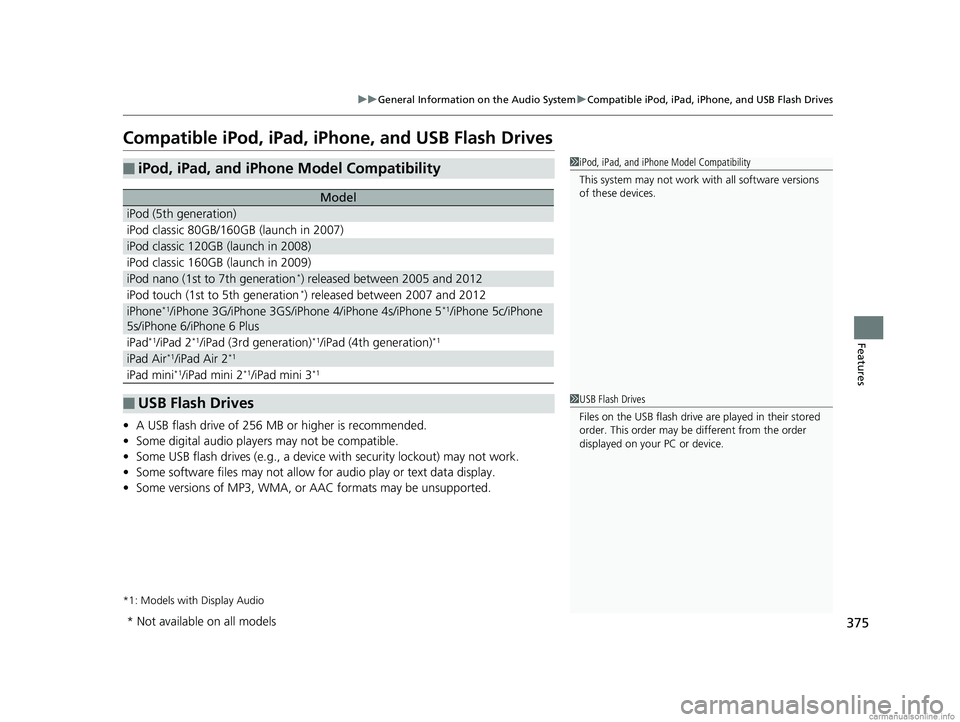
Compatible iPod, iPad, iP hone, and USB Flash Drives
•A USB flash drive of 256 MB or higher is recommended.
• Some digital audio players may not be compatible.
• Some USB flash drives (e.g., a device with security lockout) may not work.
• Some software files may not allow for audio play or text data display.
• Some versions of MP3, WMA, or AAC formats may be unsupported.
*1: Models with Display Audio
■iPod, iPad, and iPhone Model Compatibility
Model
iPod (5th generation)
iPod classic 80GB/160GB (launch in 2007)
iPod classic 120GB (launch in 2008)
iPod classic 160GB (launch in 2009)
iPod nano (1st to 7th generation*) released between 2005 and 2012
iPod touch (1st to 5th generation*) released between 2007 and 2012
iPhone*1/iPhone 3G/iPhone 3GS/iPhone 4/iPhone 4s/iPhone 5*1/iPhone 5c/iPhone
5s/iPhone 6/iPhone 6 Plus
iPad*1/iPad 2*1/iPad (3rd generation)*1/iPad (4th generation)*1
iPad Air*1/iPad Air 2*1
iPad mini*1/iPad mini 2*1/iPad mini 3*1
■USB Flash Drives
1 iPod, iPad, and iPhone Model Compatibility
This system may not work with all software versions
of these devices.
1 USB Flash Drives
Files on the USB flash drive are played in their stored
order. This order may be different from the order
displayed on your PC or device.
* Not available on all models
18 US ODYSSEY-31THR6010.book 375 ページ 2018年12月6日 木曜日 午後4時18分
Page 412 of 763
410
uuBlu-ray/DVD Rear Entertainment System*uPlaying Apps
Features
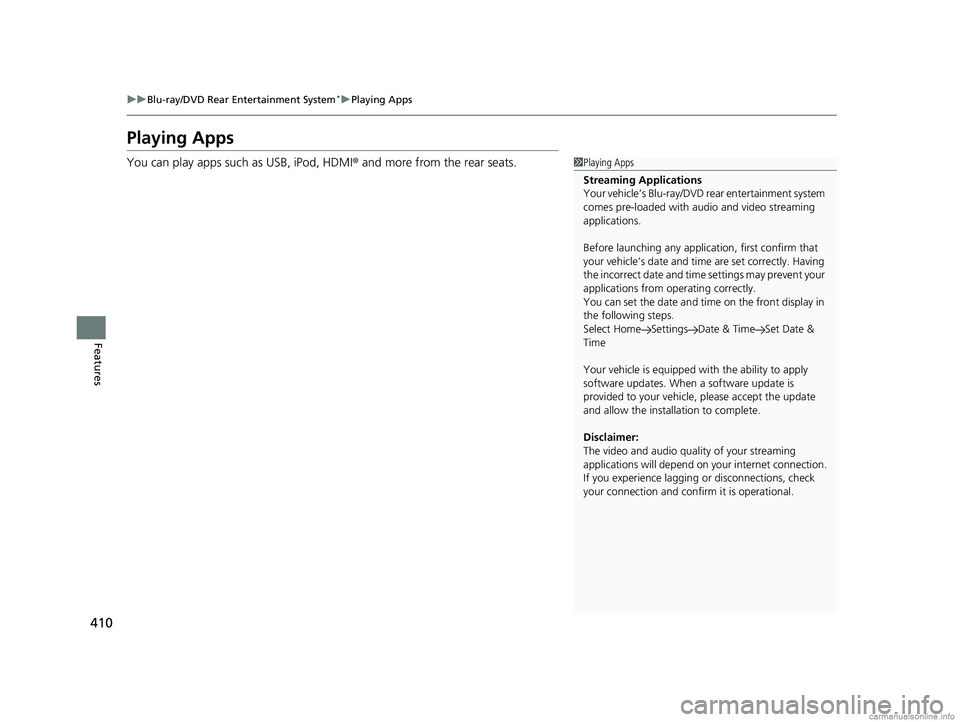
Playing Apps
You can play apps such as USB, iPod, HDMI ® and more from the rear seats.1Playing Apps
Streaming Applications
Your vehicle’s Blu-ray/DVD rear entertainment system
comes pre-loaded with audio and video streaming
applications.
Before launching any application, first confirm that
your vehicle’s date and time are set correctly. Having
the incorrect date and time settings may prevent your
applications from ope rating correctly.
You can set the date and ti me on the front display in
the following steps.
Select Home Settings Date & Time Set Date &
Time
Your vehicle is equipped wi th the ability to apply
software updates. When a software update is
provided to your vehicle, please accept the update
and allow the installation to complete.
Disclaimer:
The video and audio qual ity of your streaming
applications will depend on your internet connection.
If you experience lagging or disconnections, check
your connection and conf irm it is operational.
18 US ODYSSEY-31THR6010.book 410 ページ 2018年12月6日 木曜日 午後4時18分
Page 414 of 763
uuBlu-ray/DVD Rear Entertainment System*uPlaying Apps
412
Features
To play a disc, press the (home) button on the remote, and then select the Blu-
ray Disc icon on the overhead screen.
When you press the MENU button on the remote while the CD is playing, the audio
menu appears on the overhead screen.
The available options appear on the overhead screen are repeat, random,
brightness, and contrast.
To play an iPod and a USB flash drive, press the (home) button on the remote,
and then select the USB icon on the overhead screen.
When you press the MENU button on the remote while the iPod or USB flash drive
is playing, the audio menu ap pears on the overhead screen.
The available options appear on the overhead screen are repeat, random, aspect
ratio, brightness, and contrast.
■Playing a Disc in the Rear
■Playing an iPod and a USB Flash Drive in the Rear
1 System Controls
You can also operate the Blu-ray/DVD rear
entertainment system on the audio/information
screen.
18 US ODYSSEY-31THR6010.book 412 ページ 2018年12月6日 木曜日 午後4時18分