2018 HONDA CLARITY PLUG IN HYBRID USB port
[x] Cancel search: USB portPage 266 of 591
264 uu Audio System Basic Operation u Playing a USB Flash Drive
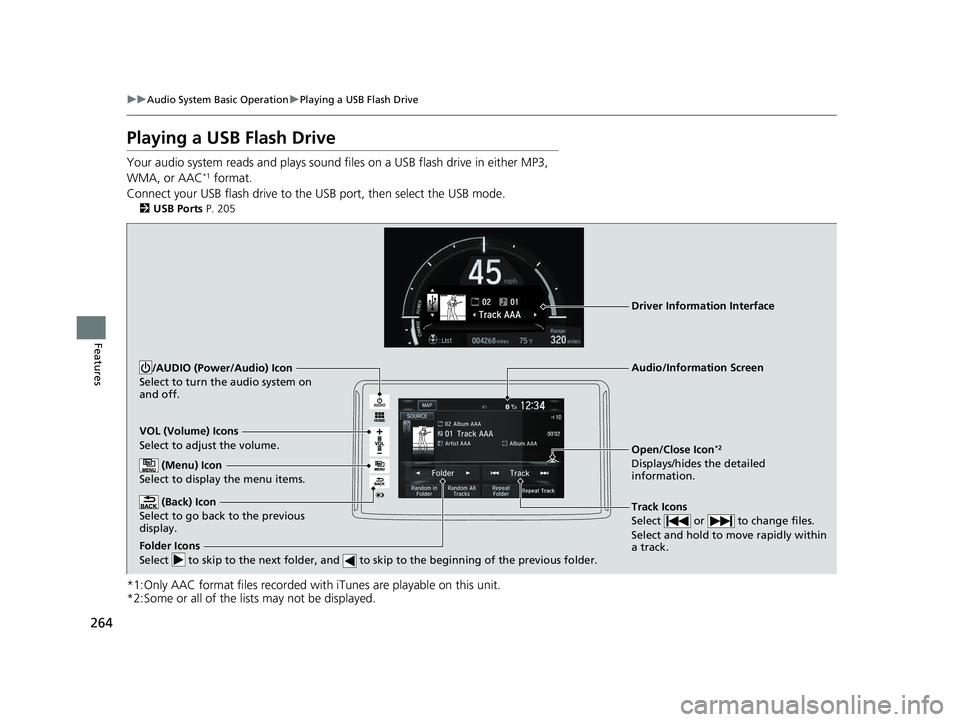
Features Playing a USB Flash Drive Your audio system reads and plays sound fi les on a USB flash drive in either MP3,
WMA, or AAC *1
format.
Connect your USB flash drive to the USB port, then select the USB mode.2 USB Ports P. 205
*1:Only AAC format files recorded with iTunes are playable on this unit.
*2:Some or all of the lists may not be displayed. VOL (Volume) Icons
Select to adjust the volume.
(Back) Icon
Select to go back to the previous
display. Track Icons
Select or to change files.
Select and hold to move rapidly within
a track./AUDIO (Power/Audio) Icon
Select to turn the audio system on
and off.
Open/Close Icon *2
Displays/hides the detailed
information. (Menu) Icon
Select to display the menu items.
Folder Icons
Select to skip to the next folder, and to skip to the beginning of the previous folder. Audio/Information ScreenDriver Information Interface18 CLARITY PHEV CSS-31TRW6000.book 264 ページ 2017年8月31日 木曜日 午後2時49分
Page 279 of 591
277uu Audio System Basic Operation u Apple CarPlay
Continued
Features
Apple CarPlay If you connect an Apple CarPlay-compatible iPhone to the system via the 1.5A USB
port, you can use the audio/information scr een, instead of the iPhone display, to
make a phone call, listen to music, view maps (navigation), and access messages.2 USB Ports P. 205
■ Phone
Access the contact list, make phone ca lls, or listen to voice mail.
■ Messages
Check and reply to text messages, or have messages read to you.
■ Music
Play music stored on your iPhone.■ Apple CarPlay Menu 1 Apple CarPlay
Only iPhone 5 or newer versi ons with iOS 8.4 or later
are compatible with Apple CarPlay.
Park in a safe place before connecting your iPhone to
Apple CarPlay and when launching any compatible
apps.
To use Apple CarPlay, connect the USB cable to the
USB port (1.5A). The USB port (1.0A) will not enable
Apple CarPla y operation.
2 USB Ports P. 205
To directly access the Appl e CarPlay phone function,
press Phone on the home screen. While connected
to Apple CarPlay, calls are only made through Apple
CarPlay. If you want to make a call with Bluetooth ®
HandsFreeLink ® , turn Apple CarPlay OFF or detach
the USB cable from your iPhone.
2 Setting Up Apple CarPlay P. 278
When your iPhone is connected to Apple CarPlay, it is
not possible to use the Bluetooth ® Audio or
Bluetooth ® HandsFreeLink ® . However, other
previously paired phones can stream audio via
Bluetooth ® while Apple CarPlay is connected.
2 Phone Setup P. 343
For details on c ountries and regions where Apple
CarPlay is available, as well as information pertaining
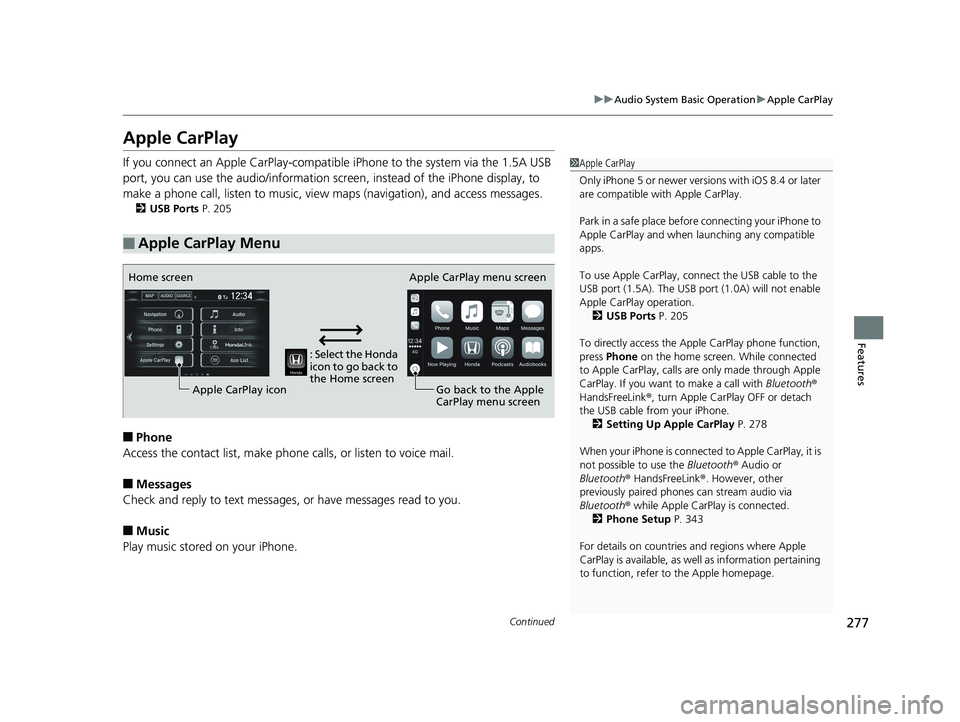
to function, refer to the Apple homepage.: Select the Honda
icon to go back to
the Home screenHome screen
Apple CarPlay icon Apple CarPlay menu screen
Go back to the Apple
CarPlay menu screen18 CLARITY PHEV CSS-31TRW6000.book 277 ページ 2017年8月31日 木曜日 午後2時49分
Page 280 of 591
uu Audio System Basic Operation u Apple CarPlay
278
Features ■ Maps
Display Apple Maps and use the navigation function just as you would on your
iPhone.
Only one navigation system (pre-installed navigation or Apple CarPlay) can give
directions at a time. When you are using one system, directions to any prior
destination set on the other system wi ll be canceled, and the system you are
currently using will direct you to your destination.
After you have connected your iPhone to the system via the 1.5A USB port, use the
following procedure to set up Apple CarPlay. Use of Apple CarPlay will result in the
transmission of certain user and vehicle information (such as vehicle location, speed,
and status) to your iPhone to enhance th e Apple CarPlay experience. You will need
to consent to the sharing of this information on the Display Audio Screen.
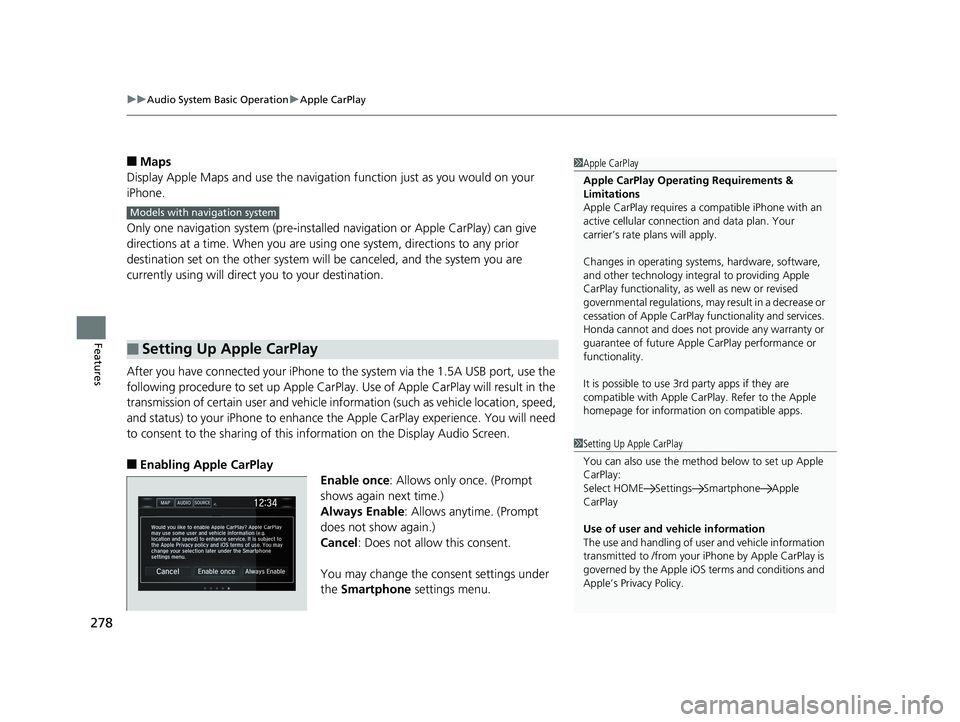
■ Enabling Apple CarPlay
Enable once : Allows only once. (Prompt
shows again next time.)
Always Enable : Allows anytime. (Prompt
does not show again.)
Cancel : Does not allow this consent.
You may change the consent settings under
the Smartphone settings menu.■ Setting Up Apple CarPlay 1 Apple CarPlay
Apple CarPlay Operating Requirements &
Limitations
Apple CarPlay requi res a compatible iPhone with an
active cellular connecti on and data plan. Your
carrier’s rate plans will apply.
Changes in operating system s, hardware, software,
and other technology integral to providing Apple
CarPlay functionality, as well as new or revised
governmental regulations, may result in a decrease or
cessation of Apple CarPlay functionality and services.
Honda cannot and does not pr ovide any warranty or
guarantee of future Appl e CarPlay perf ormance or
functionality.
It is possible to use 3r d party apps if they are
compatible with Apple CarPlay. Refer to the Apple
homepage for information on compatible apps.Models with navigation system
1 Setting Up Apple CarPlay
You can also use the method below to set up Apple
CarPlay:
Select HOME Settings Smartphone Apple
CarPlay
Use of user and vehicle information
The use and handling of user and vehicle information
transmitted to /from your iPhone by Appl e CarPlay is
governed by the Apple iOS terms and conditions and
Apple’s Privacy Policy.18 CLARITY PHEV CSS-31TRW6000.book 278 ページ 2017年8月31日 木曜日 午後2時49分
Page 282 of 591
280 uu Audio System Basic Operation u Android Auto
Features Android Auto When you connect an Android phone to the Display Audio system via the 1.5A USB
port, Android Auto is automatically initiated. When connected via Android Auto,
you can use the audio/information screen to access the Phone, Google Maps
(Navigation), Google Play Music, and Google Now functions. When you first use
Android Auto, a tutorial w ill appear on the screen.
We recommend that you complete this tuto rial while safely parked before using
Android Auto. 2 USB Ports P. 205
2 Auto Pairing Connection P. 282 1 Android Auto
To use Android Auto, you need to download the
Android Auto app from Google Play to your
smartphone.
Only Android 5.0 (Lollipop) or later versions are
compatible with Android Auto.
Bluetooth A2DP cannot be used with Android Auto
phone.
Park in a safe place befo re connecting your Android
phone to Android Auto and when launching any
compatible apps.
To use Android Auto, connect the USB cable to the
USB port (1.5A). The USB port (1.0A) will not enable
Android Auto operation.
2 USB Ports P. 205
When your Android phone is connected to Android
Auto, it is not possible to use the Bluetooth ® Audio.
However, other previously paired phones can stream
audio via Bluetooth ® while Android Auto is
connected.
2 Phone Setup P. 34318 CLARITY PHEV CSS-31TRW6000.book 280 ページ 2017年8月31日 木曜日 午後2時49分
Page 284 of 591
uu Audio System Basic Operation u Android Auto
282
Features d Music and audio
Play Google Play Music and music apps that are compat ible with Android Auto.
To switch between music apps, press this icon.
e Go back to the Home Screen.
f Voice
Operate Android Auto with your voice.
When you connect an Android phone to the unit via the 1.5A USB port, Android
Auto is automatically initiated.
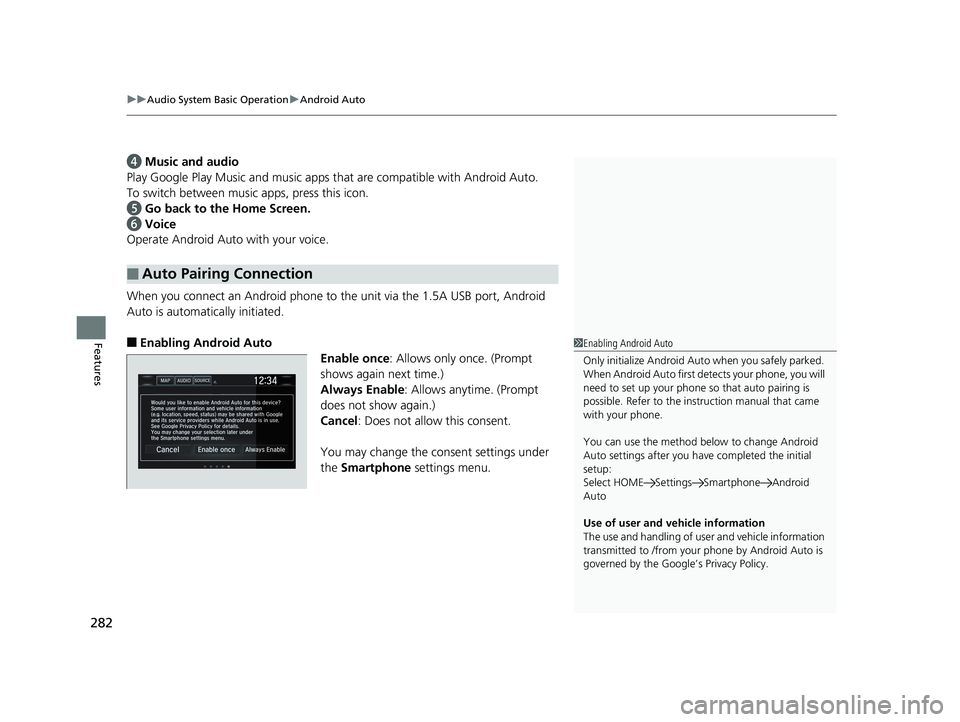
■ Enabling Android Auto
Enable once : Allows only once. (Prompt
shows again next time.)
Always Enable : Allows anytime. (Prompt
does not show again.)
Cancel : Does not allow this consent.
You may change the consent settings under
the Smartphone settings menu.■ Auto Pairing Connection 1 Enabling Android Auto
Only initialize Android Auto when you safely parked.
When Android Auto first detects your phone, you will
need to set up your phone so that auto pairing is
possible. Refer to the inst ruction manual that came
with your phone.
You can use the method below to change Android
Auto settings after you ha ve completed the initial
setup:
Select HOME Settings Smartphone Android
Auto
Use of user and vehicle information
The use and handling of user and vehicle information
transmitted to /from your phone by Android Auto is
governed by the Google’s Privacy Policy.18 CLARITY PHEV CSS-31TRW6000.book 282 ページ 2017年8月31日 木曜日 午後2時49分
Page 286 of 591
284
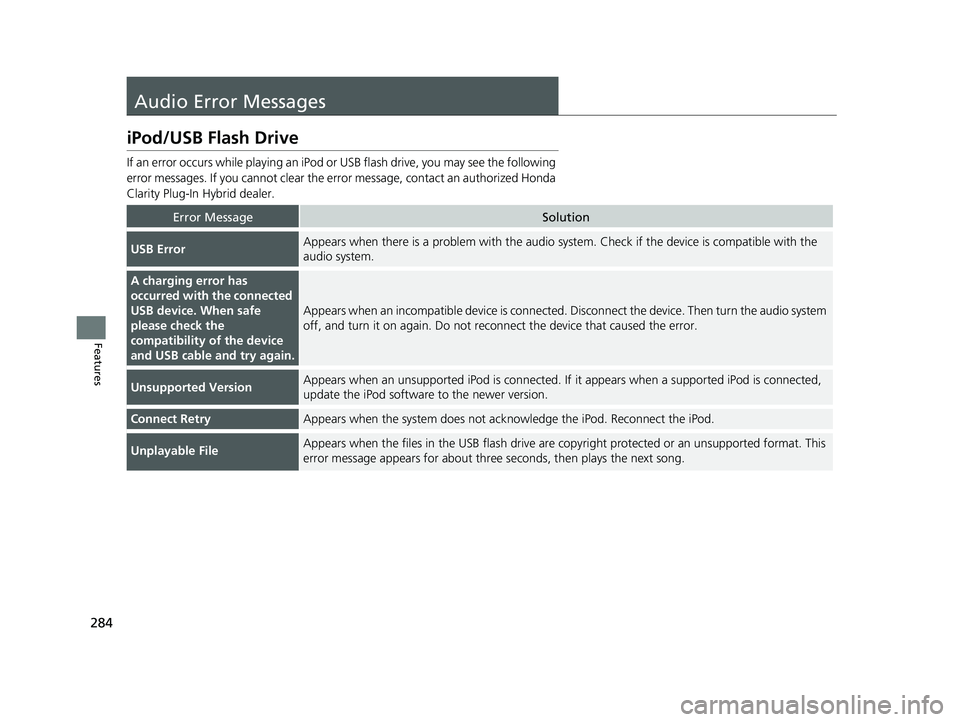
Features Audio Error Messages iPod/USB Flash Drive If an error occurs while play ing an iPod or USB flash driv e, you may see the following
error messages. If you cannot clear the erro r message, contact an authorized Honda
Clarity Plug-In Hybrid dealer.
Error Message Solution
USB Error Appears when there is a problem with the audio system. Check if the device is compatible with the
audio system.
A charging error has
occurred with the connected
USB device. When safe
please check the
compatibility of the device
and USB cable and try again. Appears when an incompatible device is connected. Disconnect the device. Then turn the audio system
off, and turn it on again. Do not reco nnect the device that caused the error.
Unsupported Version Appears when an unsupported iPod is connected. If it appears when a supported iPod is connected,
update the iPod software to the newer version.
Connect Retry Appears when the system does not ac knowledge the iPod. Reconnect the iPod.
Unplayable File Appears when the files in the USB flash drive are co pyright protected or an unsupported format. This
error message appears for about three seconds, then plays the next song.18 CLARITY PHEV CSS-31TRW6000.book 284 ページ 2017年8月31日 木曜日 午後2時49分
Page 287 of 591
285uu Audio Error Messages u iPod/USB Flash Drive
Features
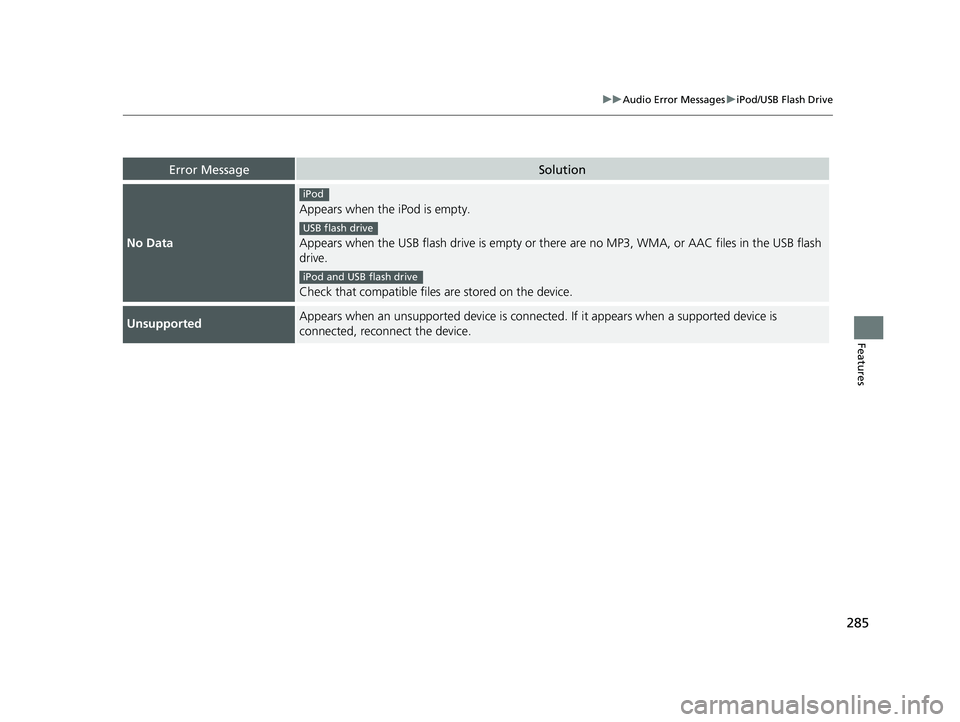
Error Message Solution
No Data Appears when the iPod is empty.
Appears when the USB flash drive is empty or there are no MP3, WMA, or AAC files in the USB flash
drive.
Check that compatible files are stored on the device.
Unsupported Appears when an unsupported device is connected . If it appears when a supported device is
connected, reconnect the device. iPod
USB flash drive
iPod and USB flash drive18 CLARITY PHEV CSS-31TRW6000.book 285 ページ 2017年8月31日 木曜日 午後2時49分
Page 292 of 591
290 uu General Information on the Audio System u Compatible iPod, iPhone, and USB Flash Drives
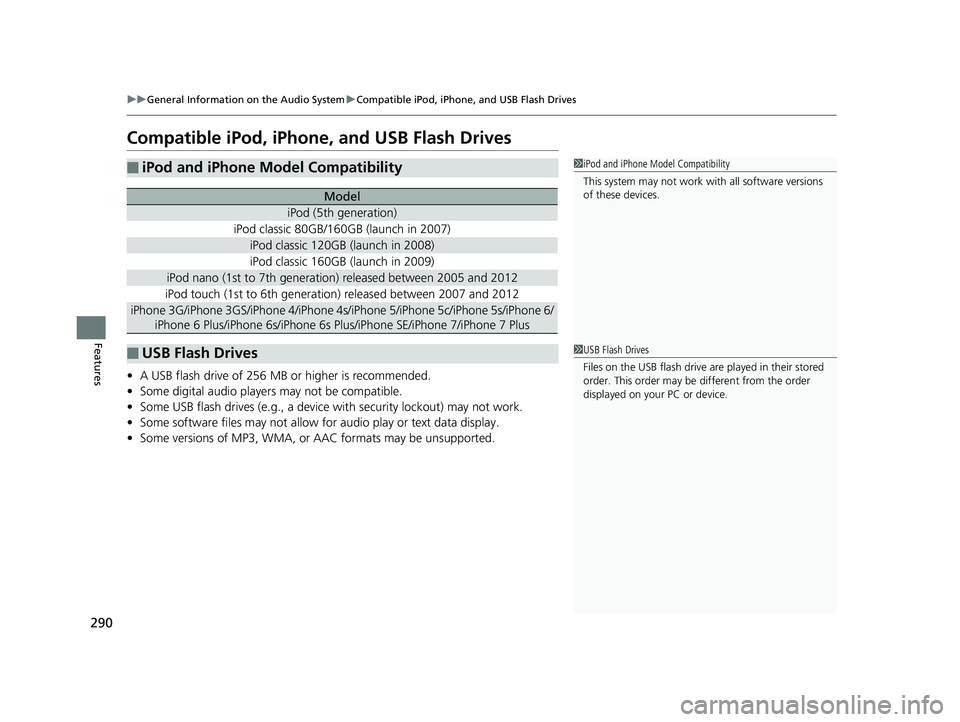
Features Compatible iPod, iPhone, and USB Flash Drives
• A USB flash drive of 256 MB or higher is recommended.
• Some digital audio players may not be compatible.
• Some USB flash drives (e.g., a device with security lockout) may not work.
• Some software files may not allow for audio play or text data display.
• Some versions of MP3, WMA, or AAC formats may be unsupported.■ iPod and iPhone Model Compatibility Model
iPod (5th generation)
iPod classic 80GB/160GB (launch in 2007)
iPod classic 120GB (launch in 2008)
iPod classic 160GB (launch in 2009)
iPod nano (1st to 7th generation) released between 2005 and 2012
iPod touch (1st to 6th generation) released between 2007 and 2012
iPhone 3G/iPhone 3GS/iPhone 4/iPhone 4s /iPhone 5/iPhone 5c /iPhone 5s/iPhone 6/
iPhone 6 Plus/iPhone 6s/iPhone 6s Plus/iPhone SE/iPhone 7/iPhone 7 Plus
■ USB Flash Drives 1 iPod and iPhone Model Compatibility
This system may not work with all software versions
of these devices.
1 USB Flash Drives
Files on the USB flash drive are played in their stored
order. This order may be different from the order
displayed on your PC or device.18 CLARITY PHEV CSS-31TRW6000.book 290 ページ 2017年8月31日 木曜日 午後2時49分