2018 FORD TRANSIT radio
[x] Cancel search: radioPage 337 of 521

Seek up: Press the button to go
to the next station up the radio
frequency band or the next track.
Seek down: Press the button to
go to the next station down the
radio frequency band or the
previous track. In Bluetooth
audio and USB modes, press the
buttons to go to the next or
previous track.
D
Dial and end call:
Press the
button to make or end a call.
D
Numeric keypad:
Press the
button to recall a previously
stored station. To store a
favorite station press and hold
until the sound returns. In Phone
mode, use these keys to dial the
number.
E
Clock:
Press the button to
select clock setup.
F
Information:
Press the button
to access the complete
information if it does not fit the
display.
G
On, Off and Volume:
Press the
button to switch the audio
system on or off. Turn the dial to
adjust the volume.
H
MENU:
: Press the button to
access different audio system
features, depending on which
mode has been selected.
I
Voice Pass-Through
and
Phone: Press the button to say
commands to your cell phone or
to access the Bluetooth phone
feature of the system by
pressing
PHONE then MENU.
When paired further presses of
this button will display phone
name, signal strength and the
battery level.
J MEDIA:
Press the button to
access Bluetooth audio
streaming, USB or Aux input
playback.
K
RADIO:
Press the button to
select different radio bands.
Press to cancel the menu or list
browsing.
L
Cursor up and down:
Press a
button to scroll through
on-screen choices. In radio mode
press to manual tune.
M
OK, Play and Pause:
Press the
button to confirm on-screen
selections. Press to play or pause
during playback with compatible
external devices.
N
Sound Button
This allows you to adjust the sound
settings (for example bass, treble, balance
and fade).
1. Press the
MINbutton.
2. Use the up and down arrow buttons to
select the required level.
Waveband Button
Press the
MINbutton to select from the
wavebands available (AM, FM1,FM2). You
can use the button to return to radio
reception when you have been listening to
another source.
Station Tuning Control
Seek Tuning
Select a waveband and briefly press one
of the seek buttons. The unit stops at the
first station it finds in the direction you
have chosen.
334
2018 Transit (TTH) Canada/United States of America, JK3J 19A321 AA enUSA, Edition date: 201705, Third-Printing- Audio System
Page 338 of 521

Manual Tuning
Use the up and down arrow buttons to
tune down or up the waveband in small
increments or press and hold to increment
quickly, until you find a station you want
to listen to.
Station Preset Buttons
This allows you to store your favorite
stations. They can be recalled by selecting
the appropriate waveband and pressing
one of the preset buttons.
1. Select a waveband.
2. Tune to the station required.
3. Press and hold one of the preset
buttons. A progress bar and message
will appear. When the progress bar
completes the station has been stored.
The audio unit will also mute
momentarily as confirmation.
You can repeat this on each waveband and
for each preset button.
Phone and Voice Pass-Through
Note: Using the system with the engine off
will drain the battery.
Note: As no common agreement exists, cell
phone manufacturers are able to implement
a variety of profiles in their Bluetooth
devices. Because of this, an incompatibility
can occur between the phone and hands
free system, which in some cases may
significantly degrade the system
performance. To avoid this situation, only
recommended phones should be used. To
check your cell phone's compatibility, refer
to your device's manual or visit the regional
Ford website.
This section describes the functions and
features of the Bluetooth cell phone hands
free system. The Bluetooth cell phone part of the
system provides interaction with the audio
system and your cell phone. It allows you
to use the audio system to make and
receive calls without having to hold your
cell phone.
The Voice Pass-Through allows access to
the voice recognition commands on your
cell phone.
Bluetooth Setup
Note:
Up to five Bluetooth devices can be
paired to the system.
Note: If there is an ongoing call when the
phone in use is selected as the new active
phone, the call is transferred to the vehicle
audio system.
Note: Even if connected to the system, your
phone can still be used in the usual way.
Note: A call will be disconnected if the
audio unit is switched off. If the ignition is
switched off the phone call will remain in
progress.
Before you can use your cell phone with
your vehicle it must be paired to the audio
system.
The following procedure is required before
an initial Bluetooth phone connection can
be made.
The information display may show your
cell phone's battery charge level and signal
strength.
Using the device
1. Press the PHONE button and then
keep pressing the MENU button to
scroll to the ADD DEVICE display.
Press the OK button.
2. Select the
VIA DEVICE and press OK.
3. Once
VIA DEVICE has been selected,
FIND FORD BT is displayed on the
radio display.
4. Note the six digit number displayed.
335
2018 Transit (TTH) Canada/United States of America, JK3J 19A321 AA enUSA, Edition date: 201705, Third-Printing- Audio System
Page 339 of 521

5.
Search for Bluetooth devices using the
cell phone. For information on phone
settings, refer to your phone user guide.
6. Select FORD BT from the list of
Bluetooth devices found by your phone.
7. Check if the number on the radio display matches the number displayed
on your phone and confirm pairing if
prompted.
8. Once pairing has been successful
SET
PRIMARY will be displayed on the
radio display.
9. Press the
OK button twice to confirm
your phone as the primary device for
all future connections.
10. LOAD PHONEBK
is then displayed
on the audio unit. Press the OK
button twice to confirm that the
contents of your phonebook are
downloaded to the system.
11. The Bluetooth device name is displayed on the audio unit.
When you press and hold the
Voice
Pass-Through button, the screen displays
the message
VR-APP ACTIV, a tone
sounds and you can give a command with
a clear and natural voice.
Note: Some devices may not accept this
pairing procedure. If these instructions do
not work for your device, follow the
instructions using the radio.
Using the radio
1. Enable Bluetooth in your cell phone. For information on phone settings, refer
to your phone user guide.
2. Press the
PHONE button and then
keep pressing the MENU button to
scroll to the ADD DEVICE display.
Press the OK button.
3. Select the
VIA RADIO and press
SEARCHING will be displayed on the
radio display. 4. Select
VIA RADIO and press
SEARCHING will be displayed on the
radio display.
5. Select the desired Bluetooth device from the list found by your audio unit
and press
OK.
6. Type any PIN number in the radio with 6 digits.
7. Check if the number on the radio display matches the number displayed
on your phone and confirm pairing if
prompted.
8. Once pairing has been successful
SET
PRIMARY will be displayed on the
radio display.
9. Press the
OK button twice to confirm
your phone as the primary device for
all future connections.
10. LOAD PHONEBK
will then be
displayed on the audio unit. Press the
OK
button twice to confirm that the
contents of your phonebook are
downloaded to the system.
11. The Bluetooth device name is displayed on the audio unit.
Phonebook Downloading
If your phonebook was not downloaded
during initial Bluetooth pairing follow this
process:
1. Press the
PHONE button and then
keep pressing the MENU button to
scroll to the LOAD PHONEBK display.
2. Press the
OK button.
336
2018 Transit (TTH) Canada/United States of America, JK3J 19A321 AA enUSA, Edition date: 201705, Third-Printing- Audio System
Page 340 of 521

Deleting a Paired Device or Phone
To remove a paired device follow this
process:
1. Press the PHONE button and then
keep pressing the MENU button to
scroll to the DEL DEVICE display.
2. Press the
OK button. The first paired
device name will be shown. Scroll to
the required device name using the up
and down arrow. Once choose the
device, press
OK, the message "DEL
DEVICE" will appear. Press OK, Scroll
to select
"YES" and press OK to
confirm. Select delete all to erase all
paired devices.
3. Press the
OK button multiple times to
unpair the device from the audio unit.
Privacy Mode
You can transfer a call from hands free to
private mode during an active call.
Press the
MENU button until PRIVACY
appears, then press the OK button to
transfer. To return to hands free mode,
press the dial button.
Phone Menu Options
Press the
PHONE button to select phone
mode. Press the PHONE button again to
display information such as phone name,
signal strength and battery level.
When in phone mode, press the
MENU
button to scroll through the various phone
options:
• Dial.
• Phonebook.
• Call History.
• Add Device.
• Select Device.
• Set Primary.
• Delete Device.
• Bluetooth on and off. •
Load Phonebook.
• Reject on or off.
Press the OK button to select the required
option, and use the up and down arrows
to change features.
Making and Receiving Calls
Outgoing calls can be made by:
• Entering a number using the keys on
the radio.
• Saying a command to call someone
after pressing the
Voice
Pass-Through button.
• Selecting a contact from the
downloaded phonebook.
• Selecting a number or contact from the
call history log.
• Using quick dial by pressing one of the
radio preset buttons.
• Using the redial function.
• Using the cell phone.
Incoming calls can be answered by:
• Pressing the call pickup button on the
audio unit.
• Using the cell phone.
Calls can be rejected using the end call
button on the audio unit or by using the cell
phone directly.
USB
Note: Only use USB Mass-Storage device
compliant devices.
Note: Always switch your audio unit to a
different source (for example the radio)
before unplugging the USB device.
Note: Do not install or connect USB hubs
or splitters.
337
2018 Transit (TTH) Canada/United States of America, JK3J 19A321 AA enUSA, Edition date: 201705, Third-Printing- Audio System
Page 343 of 521

Seek, Fast Forward and
Reverse: In radio mode, select
a frequency band and press
either button. The system stops
at the first station it finds in that
direction. In media mode, press
to select the previous or next
track. Press and hold either
button to move quickly forward
or backward through the current
track.
C
Numeric keypad:
In radio
mode, you can store your
favorite radio stations. To store
a radio station, tune to the
station, then press and hold a
preset button until sound
returns.
D
VOL and Power:
Press to
switch the system on and off.
Turn to adjust the volume.
E MENU: Press to access different
audio system features.
F
SOUND:
Press to access
settings for Treble, Midrange,
Bass, Fade or Balance.
G
AUX:
Press to access the
auxiliary features, it will also
cancel the menu or list browsing.
H
RADIO:
Press this multiple
times to select a radio band.
Press and hold to select the
autostore function. Press to
return to the main screen of the
active radio band.
I
Arrow left and right:
Press to
scroll through the menu choices.
J
Mute:
Press to mute the sound.
K
Clock Button
This allows you to adjust the clock settings.
Press the
Clock button until the following message is displayed. Action and Description
Message
Use the cursor up or down arrow buttons to set the correct
hour.
Set Hour
Press the
Clock button again until the following message is displayed.
Use the cursor up or down arrow buttons to set the correct
minutes.
Set Minutes
340
2018 Transit (TTH) Canada/United States of America, JK3J 19A321 AA enUSA, Edition date: 201705, Third-Printing- Audio System
Page 345 of 521
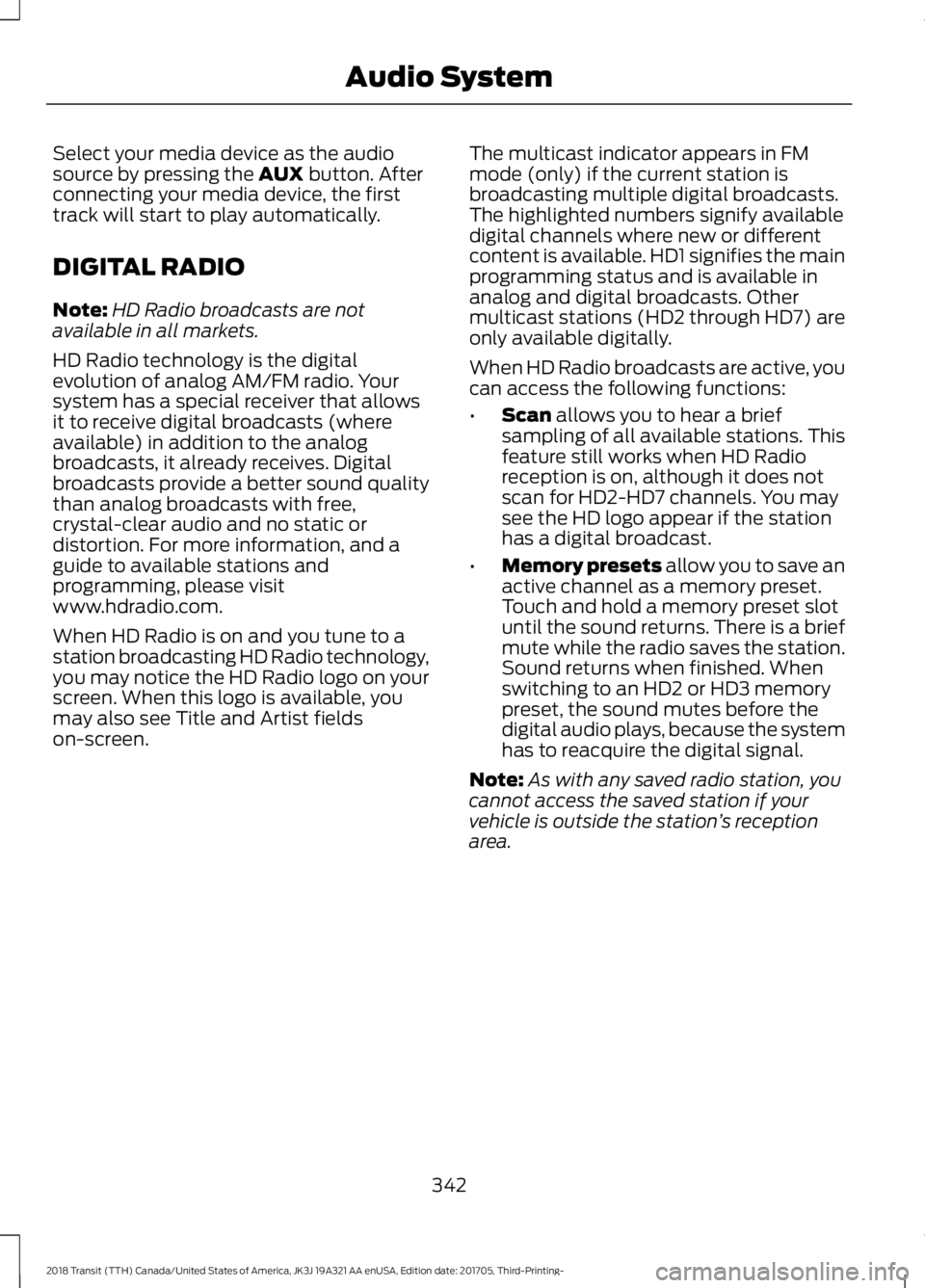
Select your media device as the audio
source by pressing the AUX button. After
connecting your media device, the first
track will start to play automatically.
DIGITAL RADIO
Note: HD Radio broadcasts are not
available in all markets.
HD Radio technology is the digital
evolution of analog AM/FM radio. Your
system has a special receiver that allows
it to receive digital broadcasts (where
available) in addition to the analog
broadcasts, it already receives. Digital
broadcasts provide a better sound quality
than analog broadcasts with free,
crystal-clear audio and no static or
distortion. For more information, and a
guide to available stations and
programming, please visit
www.hdradio.com.
When HD Radio is on and you tune to a
station broadcasting HD Radio technology,
you may notice the HD Radio logo on your
screen. When this logo is available, you
may also see Title and Artist fields
on-screen. The multicast indicator appears in FM
mode (only) if the current station is
broadcasting multiple digital broadcasts.
The highlighted numbers signify available
digital channels where new or different
content is available. HD1 signifies the main
programming status and is available in
analog and digital broadcasts. Other
multicast stations (HD2 through HD7) are
only available digitally.
When HD Radio broadcasts are active, you
can access the following functions:
•
Scan
allows you to hear a brief
sampling of all available stations. This
feature still works when HD Radio
reception is on, although it does not
scan for HD2-HD7 channels. You may
see the HD logo appear if the station
has a digital broadcast.
• Memory presets
allow you to save an
active channel as a memory preset.
Touch and hold a memory preset slot
until the sound returns. There is a brief
mute while the radio saves the station.
Sound returns when finished. When
switching to an HD2 or HD3 memory
preset, the sound mutes before the
digital audio plays, because the system
has to reacquire the digital signal.
Note: As with any saved radio station, you
cannot access the saved station if your
vehicle is outside the station ’s reception
area.
342
2018 Transit (TTH) Canada/United States of America, JK3J 19A321 AA enUSA, Edition date: 201705, Third-Printing- Audio System
Page 346 of 521
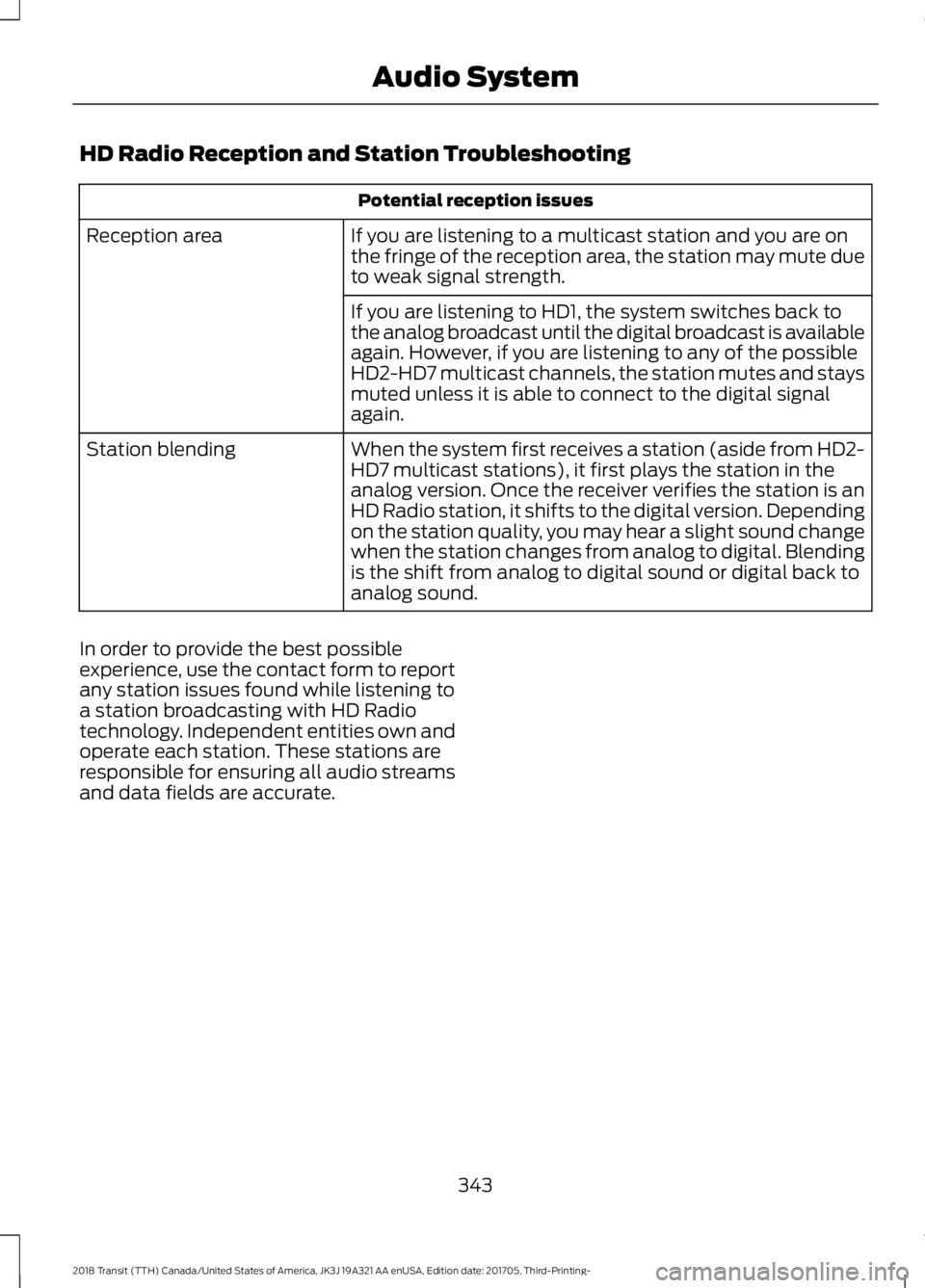
HD Radio Reception and Station Troubleshooting
Potential reception issues
If you are listening to a multicast station and you are on
the fringe of the reception area, the station may mute due
to weak signal strength.
Reception area
If you are listening to HD1, the system switches back to
the analog broadcast until the digital broadcast is available
again. However, if you are listening to any of the possible
HD2-HD7 multicast channels, the station mutes and stays
muted unless it is able to connect to the digital signal
again.
When the system first receives a station (aside from HD2-
HD7 multicast stations), it first plays the station in the
analog version. Once the receiver verifies the station is an
HD Radio station, it shifts to the digital version. Depending
on the station quality, you may hear a slight sound change
when the station changes from analog to digital. Blending
is the shift from analog to digital sound or digital back to
analog sound.
Station blending
In order to provide the best possible
experience, use the contact form to report
any station issues found while listening to
a station broadcasting with HD Radio
technology. Independent entities own and
operate each station. These stations are
responsible for ensuring all audio streams
and data fields are accurate.
343
2018 Transit (TTH) Canada/United States of America, JK3J 19A321 AA enUSA, Edition date: 201705, Third-Printing- Audio System
Page 347 of 521
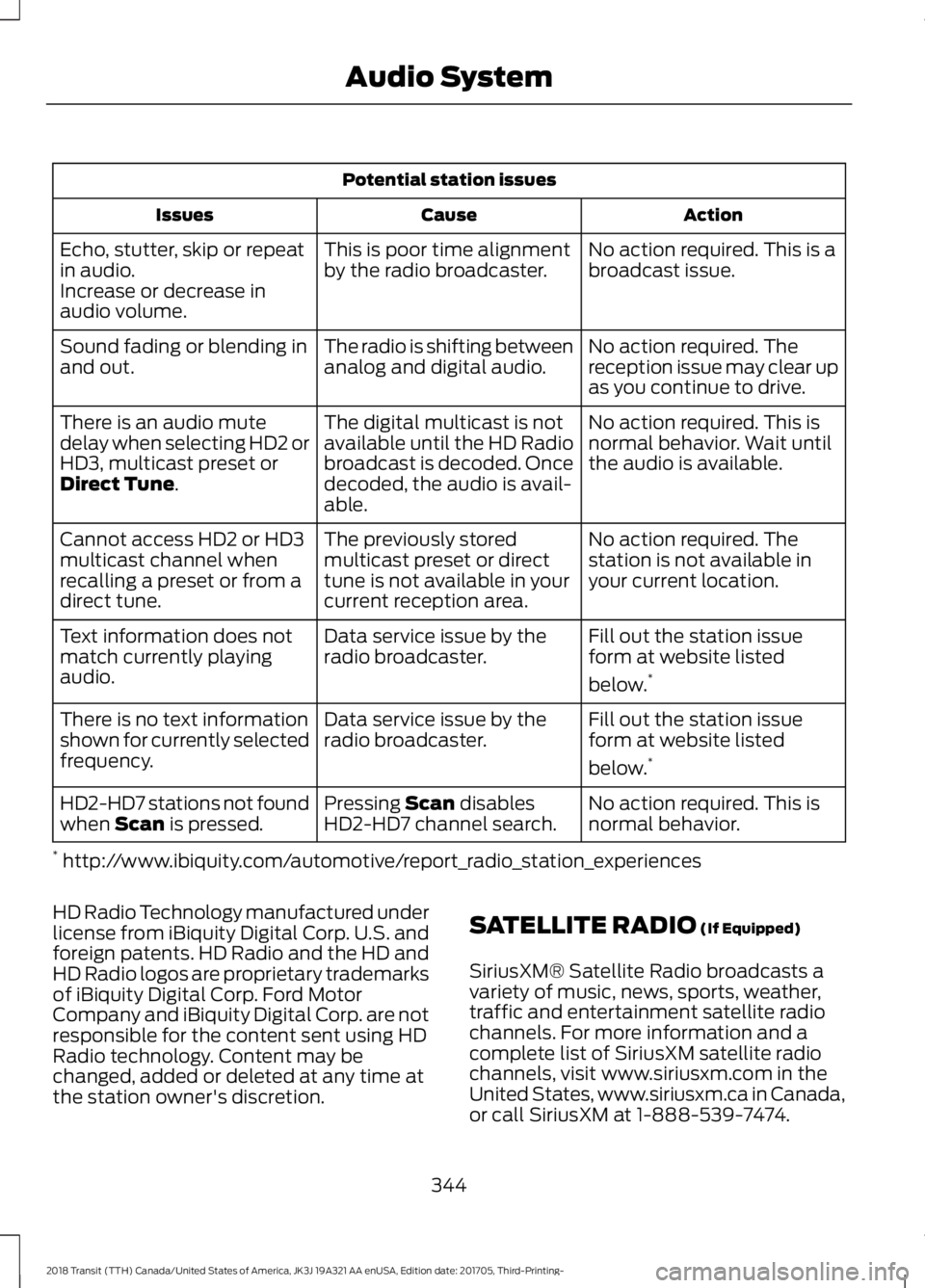
Potential station issues
Action
Cause
Issues
No action required. This is a
broadcast issue.
This is poor time alignment
by the radio broadcaster.
Echo, stutter, skip or repeat
in audio.
Increase or decrease in
audio volume.
No action required. The
reception issue may clear up
as you continue to drive.
The radio is shifting between
analog and digital audio.
Sound fading or blending in
and out.
No action required. This is
normal behavior. Wait until
the audio is available.
The digital multicast is not
available until the HD Radio
broadcast is decoded. Once
decoded, the audio is avail-
able.
There is an audio mute
delay when selecting HD2 or
HD3, multicast preset or
Direct Tune.
No action required. The
station is not available in
your current location.
The previously stored
multicast preset or direct
tune is not available in your
current reception area.
Cannot access HD2 or HD3
multicast channel when
recalling a preset or from a
direct tune.
Fill out the station issue
form at website listed
below.*
Data service issue by the
radio broadcaster.
Text information does not
match currently playing
audio.
Fill out the station issue
form at website listed
below.*
Data service issue by the
radio broadcaster.
There is no text information
shown for currently selected
frequency.
No action required. This is
normal behavior.
Pressing
Scan disables
HD2-HD7 channel search.
HD2-HD7 stations not found
when Scan is pressed.
* http://www.ibiquity.com/automotive/report_radio_station_experiences
HD Radio Technology manufactured under
license from iBiquity Digital Corp. U.S. and
foreign patents. HD Radio and the HD and
HD Radio logos are proprietary trademarks
of iBiquity Digital Corp. Ford Motor
Company and iBiquity Digital Corp. are not
responsible for the content sent using HD
Radio technology. Content may be
changed, added or deleted at any time at
the station owner's discretion. SATELLITE RADIO
(If Equipped)
SiriusXM® Satellite Radio broadcasts a
variety of music, news, sports, weather,
traffic and entertainment satellite radio
channels. For more information and a
complete list of SiriusXM satellite radio
channels, visit www.siriusxm.com in the
United States, www.siriusxm.ca in Canada,
or call SiriusXM at 1-888-539-7474.
344
2018 Transit (TTH) Canada/United States of America, JK3J 19A321 AA enUSA, Edition date: 201705, Third-Printing- Audio System