2018 FORD TRANSIT radio
[x] Cancel search: radioPage 267 of 521

Seatbelts
WARNING: Do not use cleaning
solvents, bleach or dye on the vehicle's
seatbelts, as these actions may weaken
the belt webbing. WARNING:
On vehicles equipped
with seat-mounted airbags, do not use
chemical solvents or strong detergents.
Such products could contaminate the side
airbag system and affect performance of
the side airbag in a crash.
Note: Do not use abrasives, or chemical
solvents to clean them.
Note: Do not allow moisture to penetrate
the seatbelt retractor mechanism.
Cleaning may safely be carried out using
mild soap and water. Let them dry
naturally, away from artificial heat.
Leather Interior
(If Equipped)
Follow the same procedure as cleaning
leather seats for cleaning leather
instrument panels and leather interior trim
surfaces.
Suede Micro Fiber Fabric
(If Equipped)
Note: Do not steam clean.
Note: To avoid spots or discoloration, clean
the entire surface.
Do not use the following products:
• Leather care products.
• Household cleaners.
• Alcoholic solutions.
• Spot removers.
• Shoe polish. To clean:
•
Remove dust and loose dirt with a
vacuum cleaner.
• Wipe the surface with a soft, damp
cloth and a mild soap and water
solution. Dry the area with a clean, soft
cloth.
• If a ring forms on the fabric after spot
cleaning, clean the entire area
immediately, but do not soak or the
ring will set.
Instrument Cluster Screens, LCD
Screens and Radio Screens
Note: Do not use abrasives, alcoholic
solvents or chemical solvents to clean the
instrument cluster screens, LCD screens or
radio screens. These cleaning products can
damage the screens.
Clean the instrument panel and cluster
lens with a clean, damp and soft cloth,
then use a clean, dry and soft cloth to dry
these areas.
Do not spray any liquid directly onto the
screens.
Do not use a microfiber cloth to clean the
bezel around the display screens as it could
damage the surface.
Rear Windows
Note: Do not use any abrasive materials to
clean the interior of the rear windows.
Note: Do not install stickers or labels to the
interior of the rear windows.
Storage Compartments, Cup
Holders and Ashtrays
To clean:
• Take out any removable inserts.
• Wipe the surface with a soft, damp
cloth and a mild soap and water
solution. Dry the area with a clean, soft
cloth.
264
2018 Transit (TTH) Canada/United States of America, JK3J 19A321 AA enUSA, Edition date: 201705, Third-Printing- Vehicle Care
Page 291 of 521

Each tire, including the spare (if
provided), should be checked
monthly when cold and inflated
to the inflation pressure recommended by
the vehicle manufacturer on the vehicle
placard or tire inflation pressure label. (If
your vehicle has tires of a different size
than the size indicated on the vehicle
placard or tire inflation pressure label, you
should determine the proper tire inflation
pressure for those tires).
As an added safety feature, your vehicle
has been equipped with a Tire Pressure
Monitoring System (TPMS) that
illuminates a low tire pressure telltale
when one or more of your tires is
significantly under-inflated. Accordingly,
when the low tire pressure telltale
illuminates, you should stop and check
your tires as soon as possible, and inflate
them to the proper pressure. Driving on a
significantly under-inflated tire causes the
tire to overheat and can lead to tire failure.
Under-inflation also reduces fuel efficiency
and tire tread life, and may affect the
vehicle ’s handling and stopping ability.
Please note that the TPMS is not a
substitute for proper tire maintenance, and
it is the driver ’s responsibility to maintain
correct tire pressure, even if under-inflation
has not reached the level to trigger
illumination of the TPMS low tire pressure
telltale.
Your vehicle has also been equipped with
a TPMS malfunction indicator to indicate
when the system is not operating properly.
The TPMS malfunction indicator is
combined with the low tire pressure
telltale. When the system detects a
malfunction, the telltale will flash for
approximately one minute and then remain
continuously illuminated. This sequence
will continue upon subsequent vehicle
start-ups as long as the malfunction exists. When the malfunction indicator is
illuminated, the system may not be able
to detect or signal low tire pressure as
intended. TPMS malfunctions may occur
for a variety of reasons, including the
installation of replacement or alternate
tires or wheels on the vehicle that prevent
the TPMS from functioning properly.
Always check the TPMS malfunction
telltale after replacing one or more tires or
wheels on your vehicle to ensure that the
replacement or alternate tires and wheels
allow the TPMS to continue to function
properly.
This device complies with Part 15 of the
FCC Rules and with Licence exempt RSS
Standards of Industry Canada. Operation
is subject to the following two conditions:
•
This device may not cause harmful
interference.
• This device must accept any
interference received, including
interference that may cause undesired
operation. WARNING: Changes or
modifications not expressively approved
by the party responsible for compliance
could void the user's authority to operate
the equipment. The term "IC:" before the
radio certification number only signifies
that Industry Canada technical
specifications were met.
288
2018 Transit (TTH) Canada/United States of America, JK3J 19A321 AA enUSA, Edition date: 201705, Third-Printing- Wheels and Tires
Page 329 of 521

GENERAL INFORMATION
Radio Frequencies and Reception
Factors
AM and FM frequencies are established by
the Federal Communications Commission
(FCC) and the Canadian Radio and
Telecommunications Commission (CRTC).
Those frequencies are:
•
AM: 530, 540-1700, 1710 kHz
• FM: 87.9-107.7, 107.9 MHz Radio Reception Factors
The further you travel from an AM or FM station, the
weaker the signal and the weaker the reception.
Distance and strength
Hills, mountains, tall buildings, bridges, tunnels, freeway
overpasses, parking garages, dense tree foliage and
thunderstorms can interfere with the reception.
Terrain
When you pass a ground-based broadcast repeating
tower, a stronger signal may overtake a weaker one and
result in the audio system muting.
Station overload
CD and CD Player Information
Note: CD units play commercially pressed
5 in (12 cm) audio compact discs only. Due
to technical incompatibility, certain
recordable and re-recordable compact discs
may not function correctly when used in
Ford CD players.
Note: Do not insert CDs with homemade
paper (adhesive) labels into the CD player
as the label may peel and cause the CD to
become jammed. You should use a
permanent felt tip marker rather than
adhesive labels on your homemade CDs.
Ballpoint pens may damage CDs. Please
contact an authorized dealer for further
information.
Note: Do not use any irregularly shaped
discs or discs with a scratch protection film
attached.
Always handle discs by their edges only.
Clean the disc with an approved CD
cleaner only. Wipe it from the center of
the disc toward the edge. Do not clean in
a circular motion. Do not expose discs to direct sunlight or
heat sources for extended periods.
MP3 and WMA Track and Folder
Structure
Audio systems capable of recognizing and
playing MP3 and WMA individual tracks
and folder structures work as follows:
•
There are two different modes for MP3
and WMA disc playback: MP3 and
WMA track mode (system default) and
MP3 and WMA folder mode.
• MP3 and WMA track mode ignores any
folder structure on the MP3 and WMA
disc. The player numbers each MP3
and WMA track on the disc (noted by
the MP3 or WMA file extension) from
T001 to a maximum of T255. The
maximum number of playable MP3 and
WMA files may be less depending on
the structure of the CD and exact
model of radio present.
326
2018 Transit (TTH) Canada/United States of America, JK3J 19A321 AA enUSA, Edition date: 201705, Third-Printing- Audio System
Page 330 of 521

•
MP3 and WMA folder mode represents
a folder structure consisting of one
level of folders. The CD player numbers
all MP3 and WMA tracks on the disc
(noted by the MP3 or WMA file
extension) and all folders containing
MP3 and WMA files, from F001 (folder)
T001 (track) to F253 T255.
• Creating discs with only one level of
folders helps with navigation through
the disc files.
If you are burning your own MP3 and WMA
discs, it is important to understand how
the system reads the structures you create.
While various files may be present (files
with extensions other than MP3 and
WMA), only files with the MP3 and WMA
extension are played; other files are
ignored by the system. This enables you to
use the same MP3 and WMA disc for a
variety of tasks on your work computer,
home computer and your in-vehicle
system.
In track mode, the system displays and
plays the structure as if it were only one
level deep (all MP3 and WMA files play,
regardless of being in a specific folder). In
folder mode, the system only plays the
MP3 and WMA files in the current folder. AUDIO UNIT - VEHICLES WITH:
AM/FM/CD/SYNC/SATELLITE
RADIO WARNING: Driving while distracted
can result in loss of vehicle control, crash
and injury. We strongly recommend that
you use extreme caution when using any
device that may take your focus off the
road. Your primary responsibility is the safe
operation of your vehicle. We recommend
against the use of any hand-held device
while driving and encourage the use of
voice-operated systems when possible.
Make sure you are aware of all applicable
local laws that may affect the use of
electronic devices while driving.
Note: You can operate your audio system
for up to one hour after you switch the
ignition off. Press the on and off control to
operate the system with the ignition turned
off. The system automatically turns off after
one hour.
Note: Some features, such as SIRIUS
satellite radio, may not be available in your
location. Check with an authorized dealer.
327
2018 Transit (TTH) Canada/United States of America, JK3J 19A321 AA enUSA, Edition date: 201705, Third-Printing- Audio System
Page 331 of 521

Eject: Press to eject a CD.
A
OK and Arrow buttons:
Press
OK to confirm menu selections.
Press to scroll through the menu
choices.
B
Information:
Press to access
any available radio or CD
information.
C
TUNE: Press to manually search
through the radio frequency
band.
D Number block:
In radio mode,
you can store your favorite radio
stations. To store a radio station,
tune to the station, then press
and hold a preset button until
sound returns. In CD mode,
select a track. In phone mode,
enter a phone number.
E
CLOCK:
If not in phone mode,
press to display the clock.
F
Function buttons:
Select
different functions of the audio
system depending on which
mode you are in (such as Radio
mode or CD mode).
G
328
2018 Transit (TTH) Canada/United States of America, JK3J 19A321 AA enUSA, Edition date: 201705, Third-Printing- Audio SystemE216052
Page 332 of 521
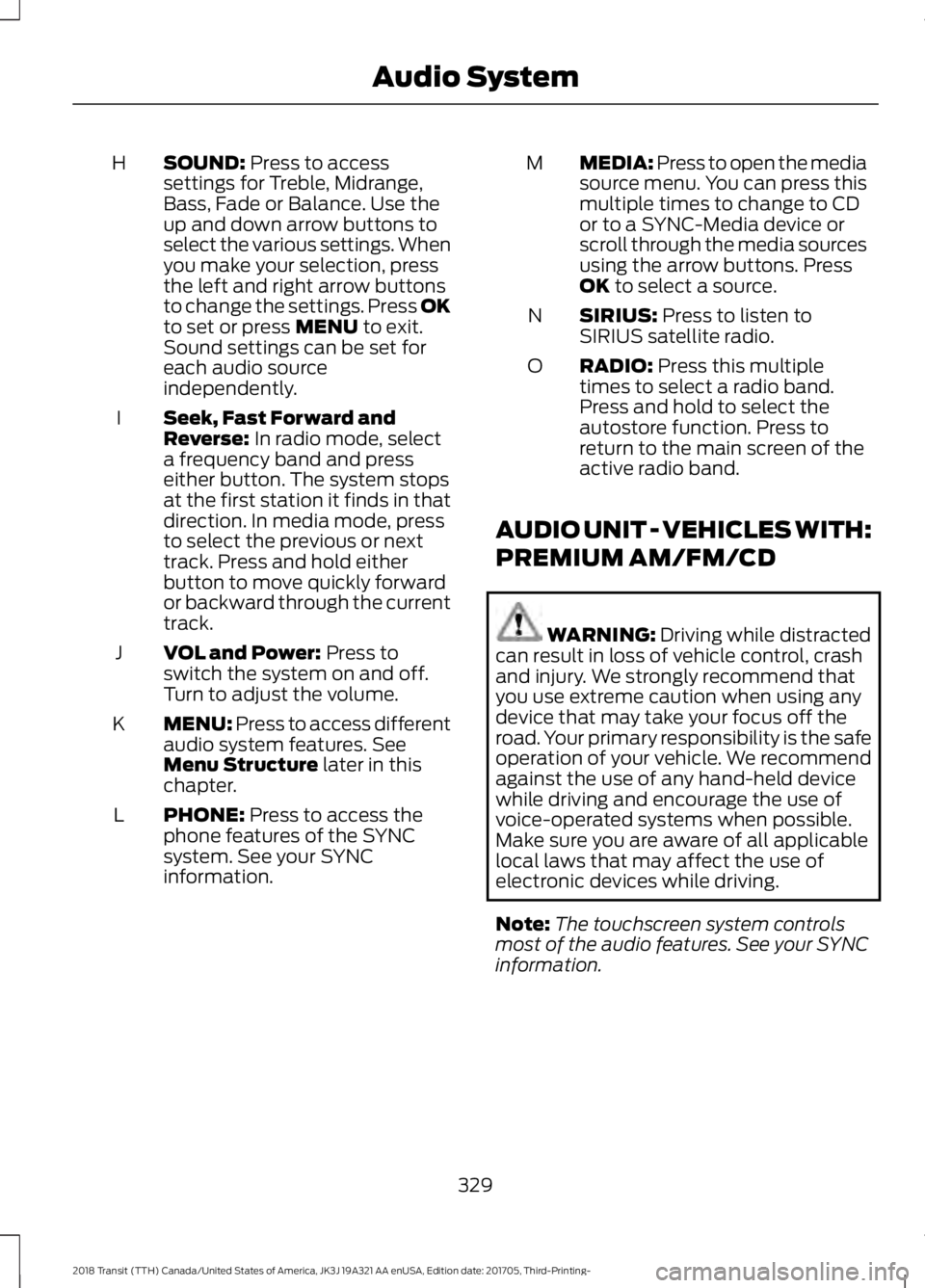
SOUND: Press to access
settings for Treble, Midrange,
Bass, Fade or Balance. Use the
up and down arrow buttons to
select the various settings. When
you make your selection, press
H
the left and right arrow buttons
to change the settings. Press OK
to set or press
MENU to exit.
Sound settings can be set for
each audio source
independently.
Seek, Fast Forward and
Reverse:
In radio mode, select
a frequency band and press
either button. The system stops
at the first station it finds in that
direction. In media mode, press
to select the previous or next
track. Press and hold either
button to move quickly forward
or backward through the current
track.
I
VOL and Power:
Press to
switch the system on and off.
Turn to adjust the volume.
J
MENU: Press to access different
audio system features. See
Menu Structure
later in this
chapter.
K
PHONE:
Press to access the
phone features of the SYNC
system. See your SYNC
information.
L MEDIA: Press to open the media
source menu. You can press this
multiple times to change to CD
or to a SYNC-Media device or
scroll through the media sources
using the arrow buttons. Press
OK
to select a source.
M
SIRIUS:
Press to listen to
SIRIUS satellite radio.
N
RADIO:
Press this multiple
times to select a radio band.
Press and hold to select the
autostore function. Press to
return to the main screen of the
active radio band.
O
AUDIO UNIT - VEHICLES WITH:
PREMIUM AM/FM/CD WARNING:
Driving while distracted
can result in loss of vehicle control, crash
and injury. We strongly recommend that
you use extreme caution when using any
device that may take your focus off the
road. Your primary responsibility is the safe
operation of your vehicle. We recommend
against the use of any hand-held device
while driving and encourage the use of
voice-operated systems when possible.
Make sure you are aware of all applicable
local laws that may affect the use of
electronic devices while driving.
Note: The touchscreen system controls
most of the audio features. See your SYNC
information.
329
2018 Transit (TTH) Canada/United States of America, JK3J 19A321 AA enUSA, Edition date: 201705, Third-Printing- Audio System
Page 333 of 521
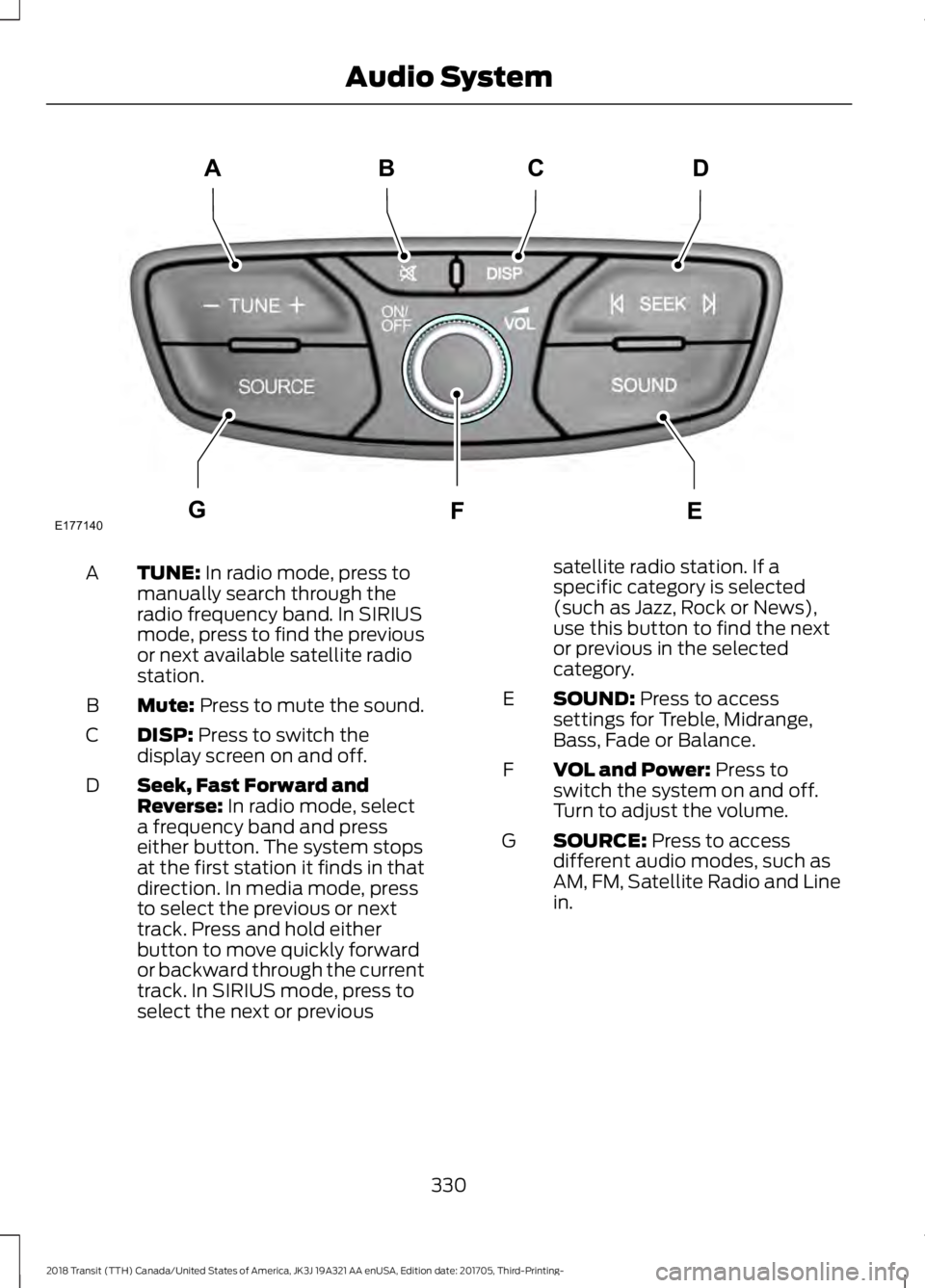
TUNE: In radio mode, press to
manually search through the
radio frequency band. In SIRIUS
mode, press to find the previous
or next available satellite radio
station.
A
Mute:
Press to mute the sound.
B
DISP:
Press to switch the
display screen on and off.
C
Seek, Fast Forward and
Reverse:
In radio mode, select
a frequency band and press
either button. The system stops
at the first station it finds in that
direction. In media mode, press
D
to select the previous or next
track. Press and hold either
button to move quickly forward
or backward through the current
track. In SIRIUS mode, press to
select the next or previous satellite radio station. If a
specific category is selected
(such as Jazz, Rock or News),
use this button to find the next
or previous in the selected
category.
SOUND:
Press to access
settings for Treble, Midrange,
Bass, Fade or Balance.
E
VOL and Power:
Press to
switch the system on and off.
Turn to adjust the volume.
F
SOURCE:
Press to access
different audio modes, such as
AM, FM, Satellite Radio and Line
in.
G
330
2018 Transit (TTH) Canada/United States of America, JK3J 19A321 AA enUSA, Edition date: 201705, Third-Printing- Audio SystemE177140
CD
GEF
B
A
Page 335 of 521

Eject: Press to eject a CD.
A
OK and Arrow buttons:
Press
OK to confirm menu selections.
Press to scroll through the menu
choices.
B
Information:
Press to access
any available radio or CD
information.
C
TUNE: Press to manually search
through the radio frequency
band.
D
Number block:
In radio mode,
you can store your favorite radio
stations. To store a radio station,
tune to the station, then press
and hold a preset button until
sound returns. In CD mode,
select a track. In phone mode,
enter a phone number.
E
CLOCK:
If not in phone mode,
press to display the clock.
F
Function buttons:
Select
different functions of the audio
system depending on which
mode you are in (such as Radio
mode or CD mode).
G
Seek, Fast Forward and
Reverse:
In radio mode, select
a frequency band and press
either button. The system stops
at the first station it finds in that
direction. In media mode, press
to select the previous or next
track. Press and hold either
button to move quickly forward
or backward through the current
track.
H
VOL and Power:
Press to
switch the system on and off.
Turn to adjust the volume.
I MENU: Press to access different
audio system features. See
Menu Structure
later in this
chapter.
J
SOUND:
Press to access
settings for Treble, Midrange,
Bass, Fade or Balance. Use the
up and down arrow buttons to
select the various settings. When
you make your selection, press
K
the left and right arrow buttons
to change the settings. Press OK
to set or press
MENU to exit.
Sound settings can be set for
each audio source
independently.
PHONE:
Press to access the
phone features of the SYNC
system. See your SYNC
information.
L
MEDIA: Press to open the media
source menu. You can press this
multiple times to change to CD
or to a SYNC-Media device or
scroll through the media sources
using the arrow buttons. Press
OK
to select a source.
M
RADIO:
Press this multiple
times to select a radio band.
Press and hold to select the
autostore function. Press to
return to the main screen of the
active radio band.
N
332
2018 Transit (TTH) Canada/United States of America, JK3J 19A321 AA enUSA, Edition date: 201705, Third-Printing- Audio System