2018 FORD GT light
[x] Cancel search: lightPage 204 of 325

Customer action required
Possible cause
Low tire pressure
warning light
Make sure tires are at the proper pres-
sure. See Inflating your tires in this
chapter. After inflating your tires to the
manufacturer’s recommended pressure
as shown on the Tire Label (located on
the edge of driver ’s door or the B-Pillar),
the vehicle must be driven for at least
two minutes over 20 mph (32 km/h)
before the light turns off.
Tire(s) under-inflated
Solid warning light
If the tires are properly inflated and the
light remains on, contact your authorized
dealer as soon as possible.
TPMS malfunction
If the tires are properly inflated and the
light remains on, contact your authorized
dealer as soon as possible.
TPMS malfunction
Flashing warning
light
When Inflating Your Tires
Note: Do not use the tire pressure display
screen as a tire pressure gauge, this can
result in over or under inflation of a tire.
When putting air into your tires (such as at
a gas station or in your garage), the tire
pressure monitoring system may not
respond immediately to the air added to
your tires.
It may take up to two minutes of driving
over 20 mph (32 km/h) for the light to turn
off after you have filled your tires to the
recommended inflation pressure.
How Temperature Affects Your Tire
Pressure
The tire pressure monitoring system
monitors tire pressure in each pneumatic
tire. When driving in a normal manner, a
typical passenger tire inflation pressure
may increase about
2 –4 psi (14– 28 kPa)
from a cold start situation. If the vehicle is
stationary overnight with the outside temperature significantly lower than the
daytime temperature, the tire pressure may
decrease about 3 psi (21 kPa) for a drop of
30°F (17°C) in ambient temperature. This
lower pressure value may be detected by
the tire pressure monitoring system as
being significantly lower than the
recommended inflation pressure and
activate the system warning light for low
tire pressure. If the low tire pressure
warning light is on, visually check each tire
to verify that no tire is flat. If one or more
tires are flat, repair as necessary. Check
the air pressure in the road tires. If any tire
is under-inflated, carefully drive the vehicle
to the nearest location where air can be
added to the tires. Inflate all the tires to
the recommended inflation pressure.
201
Ford GT (CGX), enUSA, Edition date: 201711, First Printing Wheels and Tires
Page 235 of 325

The following buttons are available for Bluetooth and USB:
Function
Button
Pressing the repeat button toggles the repeat setting through
three modes: repeat off (button not highlighted), repeat all
(button highlighted) and repeat track (button highlighted with
a small number one).
Repeat
Play the tracks in random order.
Shuffle
You can use the forward, reverse, pause or
play buttons to control the audio playback.
To get more information about the
currently playing track, press the cover art
or Info button. For some devices, SYNC 3 is able to
provide 30-second skip buttons when you
listen to audio books or podcasts. These
buttons allow you to skip forward or
backward within a track.
While playing audio from a USB device you
can look for certain music by selecting the
following: Function
Button
If available, displays the list of tracks in the
Now Playing playlist.
Browse
This option, which is available under
browse, allows you to play all tracks or to
filter the available media into one of the
below categories.
New Search
Play All
Playlists
Artist
Albums
Songs
Genres
Podcasts
Audiobooks
232
Ford GT (CGX), enUSA, Edition date: 201711, First Printing SYNC™ 3 (If Equipped)
Page 261 of 325

Action and Description
Menu Item
Enable this option to connect to Wi-Fi for SYNC 3 vehicle software
updates.
Wi-Fi
This provides you with a list of available Wi-Fi networks within range.
View Available
Networks
Clicking on a network from the list allows you to connect or disconnect
from that network. The system may require a security code to
connect.
When you click the information button next to a network, more
information about the network displays such as the signal strength,
connection status and security type.
The system alerts you when your vehicle is parked and a Wi-Fi
network is within range if SYNC is not already connected.
Wi-Fi Available
Notifications
Camera Settings
To make adjustments using the touchscreen, select: Action and Description
Message
Camera Settings
Then select from the following: You can enable or disable this option using the slider.
Rear Camera
Delay
You can find more information on the rear-view camera system in the parking aids chapter
of your owner manual.
Display
To make adjustments using the touchscreen, select: Action and Description
Menu Item
Make the screen display brighter or dimmer.
Brightness
You can select:
Mode
The screen automatically switches between day and
night modes based on the outside light level.
Auto
The screen displays with a light background to enhance
daytime viewing.
Day
258
Ford GT (CGX), enUSA, Edition date: 201711, First Printing SYNC™ 3 (If Equipped)
Page 262 of 325

Action and Description
Menu Item
The screen displays with a darker background to make
nighttime viewing easier.
Night
The screen goes black and does not display anything.
To switch the screen back on, simply tap the screen.
Off
Enable this option to automatically dim the display brightness based
on ambient lighting conditions.
Auto Dim
Voice Control
You can adjust the voice control settings
by selecting the following options. Menu Item
Enable this option to remove additional voice prompts
and confirmations.
Advanced Mode
Enable this option to have the system confirm a contacts
name with you before making a call.
Phone Confirmation
Enable this option to have the system display a list of
available voice commands when the voice button is
pressed.
Voice Command List
Valet Mode
Valet mode allows you to lock the system.
No information is accessible until the
system is unlocked with the correct PIN.
When you select valet mode a pop up
appears informing you that a four digit
code must be entered to enable and
disable valet mode. You can use any PIN
you chose but you must use the same PIN
to disable valet mode. The system asks
you to input the code.
Note: If the system is locked and you
cannot remember the PIN, please contact
the Customer Relationship Center.
United States: 1-800-392-3673
Canada: 1-800-565-3673 To enable valet mode, enter your chosen
PIN. The system then asks to confirm your
PIN by reentering it. The system then locks.
To unlock the system, enter the same pin
number. The system reconnects to your
phone and all of your options are available
again.
SYNC™ 3 TROUBLESHOOTING
Your SYNC 3 system is easy to use.
However, should questions arise, please
refer to the tables below.
To check your cell phone's compatibility,
refer to the regional Ford or Lincoln
website.
259
Ford GT (CGX), enUSA, Edition date: 201711, First Printing SYNC™ 3 (If Equipped)
Page 263 of 325

Cell phone issues
Possible solution
Possible cause
Issue
Refer to your device's manual about audio
adjustments.
The audio control
settings on your cell
phone may be affecting
SYNC 3 performance.
There is back-
ground noise
during a phone
call.
Try switching your cell phone off, resetting
it or removing the battery, then try again.
Possible cell phone
malfunction.
During a call, I
can hear the
other person
but they cannot
hear me.
Make sure that the microphone for SYNC
3 is not set to off. Look for the microphone
icon on the phone screen.
To restart your system, shut down the
engine, open and close the door, and then
lock the door and wait for 2-3 minutes.
Make sure that your SYNC 3 screen is black
and the lighted USB port is off.
The system may need to
be restarted.
During a call, I
cannot hear the
other person
and they cannot
hear me.
Check your cell phone's compatibility.
This is a cell phone-
dependent feature.
SYNC 3 is not
able to down-
load my phone-
book. Make sure you allow SYNC 3 to retrieve
contacts from your phone. Refer to your
cell manual.
Possible cell phone
malfunction. You must switch on your cell phone and
the automatic phonebook download
feature on SYNC 3.
Try switching your cell phone off, resetting
it or removing the battery, then try again.
Make sure you allow SYNC 3 to retrieve
contacts from your phone. Refer to your
cell manual.
Limitations on your cell
phone's capability.
The system
says "Phone-
book down-
loaded" but my
SYNC 3 phone-
book is empty or
is missing
contacts. If the missing contacts are stored on your
SIM card, move them to your cell phone's
memory.
You must switch on your cell phone and
the automatic phonebook download
feature on SYNC 3.
260
Ford GT (CGX), enUSA, Edition date: 201711, First Printing SYNC™ 3 (If Equipped)
Page 278 of 325

Oils and Fluids
In many cases, fluid discoloration is a
normal operating characteristic and, by
itself, does not necessarily indicate a
concern or that the fluid needs to be
changed. However, a qualified expert, such
as the factory-trained technicians at your
dealership, should inspect discolored fluids
that also show signs of overheating or
foreign material contamination
immediately.
Make sure to change your vehicle
’s oils and
fluids at the specified intervals or in
conjunction with a repair.
NORMAL SCHEDULED MAINTENANCE
Normal Maintenance Intervals Annually or Every 5,000 mi (8,000 km)
Change oil and filter.
Inspect tires and check tire pressures.
Inspect the brake pads, rotors, hoses, brake cooling duct hoses and check parking brake
function. Check brake fluid level.
Inspect the engine cooling system strength and hoses. Check coolant level.
Inspect the exhaust system and heat shields.
Inspect the accessory drive belts.
Inspect the steering linkage, ball joints, suspension and tie-rod ends.
Inspect the wiper blades. Check washer fluid level.
Inspect hinges and latches. Lubricate if needed.
Inspect vehicle battery and state of charge.
Check the hydraulic fluid level.
Check operation of all lights.
Check operation of warning indicators inside the instrument cluster.
Check for any fluid leaks.
275
Ford GT (CGX), enUSA, Edition date: 201711, First Printing Scheduled Maintenance
Page 316 of 325

5. Service Continuity and Reception of
the SUNA Traffic Channel
We will use reasonable endeavours to
provide the SUNA Traffic Channel 24 hours
a day, 365 days a year. The SUNA Traffic
Channel may occasionally be unavailable
for technical reasons or for planned
maintenance. We will try to perform
maintenance at times when congestion is
light. We reserve the right to withdraw
SUNA Products and/or Services at any
time.
Also, we cannot assure the uninterrupted
reception of the SUNA Traffic Channel
RDS-TMC signal at any particular location.
6. Limitation of Liability
Neither Intelematics (nor its suppliers or
the manufacturer of your device (the
“Suppliers”)) shall be liable to you or to
any third party for any damages either
direct, indirect, incidental, consequential
or otherwise arising out of the use of or
inability to use SUNA Products and/or
Services even if Intelematics or a Supplier
has been advised of the possibility of such
damages. You also acknowledge that the
neither Intelematics nor any Supplier
guarantees nor make any warranties that
relate to the availability, accuracy or
completeness of SUNA Products and/or
Services, and to the extent which it is
lawful to do so, both Intelematics and each
Supplier excludes any warranties which
might otherwise be implied by any State
or Federal legislation in relation to SUNA
Products and/or Services.
7. Please Note
Great care has been taken in preparing this
manual. Constant product development
may mean that some information is not
entirely up-to-date. The information in this
document is subject to change without
notice. WARNING
Driving while distracted can result in
loss of vehicle control, crash and
injury. We strongly recommend that
you use extreme caution when using any
device that may take your focus off the
road. Your primary responsibility is the safe
operation of your vehicle. We recommend
against the use of any hand-held device
while driving and encourage the use of
voice-operated systems when possible.
Make sure you are aware of all applicable
local laws that may affect the use of
electronic devices while driving. 313
Ford GT (CGX), enUSA, Edition date: 201711, First Printing Appendices
Page 321 of 325
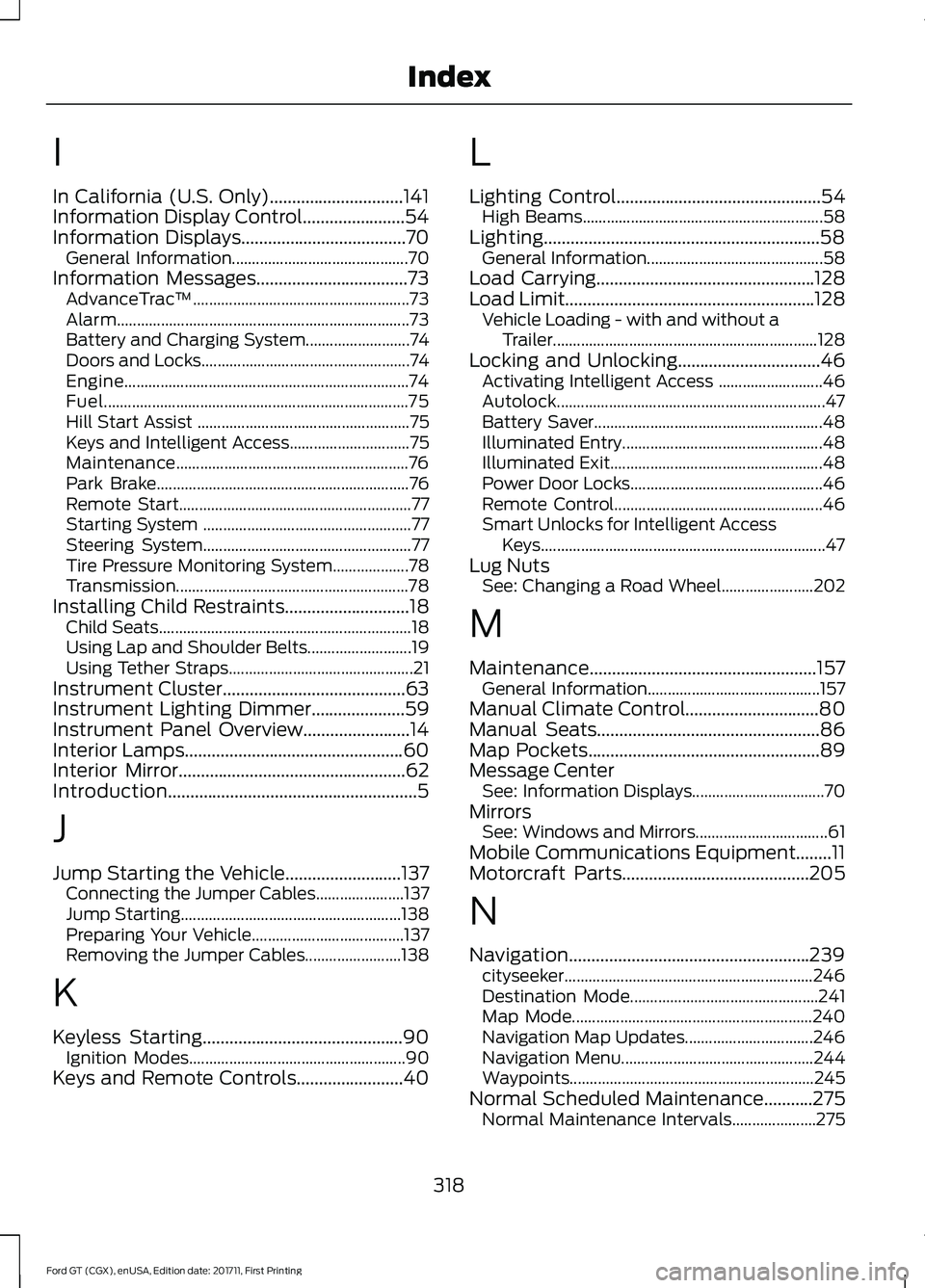
I
In California (U.S. Only)..............................141
Information Display Control.......................54
Information Displays.....................................70
General Information............................................ 70
Information Messages
..................................73
AdvanceTrac ™...................................................... 73
Alarm........................................................................\
. 73
Battery and Charging System.......................... 74
Doors and Locks.................................................... 74
Engine....................................................................... 74
Fuel........................................................................\
.... 75
Hill Start Assist ..................................................... 75
Keys and Intelligent Access.............................. 75
Maintenance.......................................................... 76
Park Brake............................................................... 76
Remote Start.......................................................... 77
Starting System .................................................... 77
Steering System.................................................... 77
Tire Pressure Monitoring System................... 78
Transmission.......................................................... 78
Installing Child Restraints
............................18
Child Seats............................................................... 18
Using Lap and Shoulder Belts.......................... 19
Using Tether Straps.............................................. 21
Instrument Cluster
.........................................63
Instrument Lighting Dimmer.....................59
Instrument Panel Overview........................14
Interior Lamps
.................................................60
Interior Mirror...................................................62
Introduction........................................................5
J
Jump Starting the Vehicle
..........................137
Connecting the Jumper Cables...................... 137
Jump Starting....................................................... 138
Preparing Your Vehicle...................................... 137
Removing the Jumper Cables........................ 138
K
Keyless Starting
.............................................90
Ignition Modes...................................................... 90
Keys and Remote Controls........................40 L
Lighting Control
..............................................54
High Beams............................................................ 58
Lighting..............................................................58 General Information............................................ 58
Load Carrying.................................................128
Load Limit........................................................128 Vehicle Loading - with and without a
Trailer.................................................................. 128
Locking and Unlocking
................................46
Activating Intelligent Access .......................... 46
Autolock................................................................... 47
Battery Saver......................................................... 48
Illuminated Entry.................................................. 48
Illuminated Exit..................................................... 48
Power Door Locks................................................ 46
Remote Control.................................................... 46
Smart Unlocks for Intelligent Access Keys....................................................................... 47
Lug Nuts See: Changing a Road Wheel....................... 202
M
Maintenance...................................................157 General Information........................................... 157
Manual Climate Control
..............................80
Manual Seats..................................................86
Map Pockets....................................................89
Message Center See: Information Displays................................. 70
Mirrors See: Windows and Mirrors................................. 61
Mobile Communications Equipment........11
Motorcraft Parts
..........................................205
N
Navigation......................................................239 cityseeker.............................................................. 246
Destination Mode............................................... 241
Map Mode............................................................ 240
Navigation Map Updates................................ 246
Navigation Menu................................................ 244
Waypoints............................................................. 245
Normal Scheduled Maintenance...........275 Normal Maintenance Intervals..................... 275
318
Ford GT (CGX), enUSA, Edition date: 201711, First Printing Index