2018 FORD FUSION/HYBRID USB ports
[x] Cancel search: USB portsPage 147 of 538

CENTER CONSOLE
Stow items in the cup holder carefully as
items may become loose during hard
braking, acceleration or crashes, including
hot drinks which may spill.
Available console features include:
Front storage compartment with
USB ports and auxiliary power
point.
A
Cup holder.
B
Storage compartment with USB
port.
C
AC power point.
D
Auxiliary power point.
E
Switch pack.
F OVERHEAD CONSOLE
Press near the rear edge of the door to
open it.
144
Fusion Energi / Fusion Hybrid (CC7) Hybrid Electric Vehicle (HEV)/Plug-In Hybrid Electric Vehicle (PHEV), Canada/United States of America, enUSA, Edition date: 201705, Second Printing Storage CompartmentsE222012 E224352
Page 335 of 538

GENERAL INFORMATION
SYNC is an in-vehicle communications
system that works with your
Bluetooth-enabled cellular phone and
portable media player. This allows you to:
•
Make and receive calls.
• Access and play music from your
portable music player.
• Use 911 Assist and applications, such
as Spotify and Glympse, via SYNC
AppLink. *
• Access phonebook contacts and music
using voice commands.
• Stream music from your connected
phone.
• Text message. •
Use the advanced voice recognition
system.
• Charge your USB device (if your device
supports this).
* These features are not available in all
markets and may require activation.
Available AppLink enabled apps vary by
market.
Make sure that you review your device's
manual before using it with SYNC.
Support
The SYNC support team is available to
help you with any questions you cannot
answer on your own.
Monday-Saturday, 8:30am-9:00pm EST.
332
Fusion Energi / Fusion Hybrid (CC7) Hybrid Electric Vehicle (HEV)/Plug-In Hybrid Electric Vehicle (PHEV), Canada/United States of America, enUSA, Edition date: 201705, Second Printing SYNC™E198355
Page 356 of 538

There are three possible statuses:
Action and Description
Menu Item
The system has detected a new apprequiring authorization or a general permissions update is required.
Update Needed
No update is required.
Up-To-Date
The system is trying to receive an update.
Updating...
Update settings Action and Description
Menu Item
Select this option from the settings menuto manually preform a needed update.
Request Update
Select this option from the settings menuto disable automatic updates.
Disable Updates
Doing so also disables the use of MobileApps on SYNC.
USING SYNC™ WITH YOUR
MEDIA PLAYER
You can access and play music from your
digital music player over your vehicle's
speaker system using the system's media
menu or voice commands. You can also
sort and play your music by specific
categories, such as artist and album.
Note: The system is capable of indexing up
to 15,000 songs.
SYNC is capable of hosting nearly any
digital media player including: iPod, Zune,
plays from device players, and most USB
drives. SYNC also supports audio formats,
such as MP3, WMA, WAV and ACC. Confirm that the USB device has been
formatted correctly and has the following
specifications:
•
USB 2.0.
• File format must be FAT16/32.
The format of the audio files on the USB
device must be:
• MP3.
• Non DRM protected WMA.
• WAV.
• AAC.
Connecting Your Digital Media
Player to the USB Port
Note: If your digital media player has a
power switch, make sure you switch it on
before plugging it in.
353
Fusion Energi / Fusion Hybrid (CC7) Hybrid Electric Vehicle (HEV)/Plug-In Hybrid Electric Vehicle (PHEV), Canada/United States of America, enUSA, Edition date: 201705, Second Printing SYNC™
Page 357 of 538

To Connect Using Voice Commands
Plug the device into one of the vehicle's
USB ports.
Press the voice button and when
prompted, say:
Action and Descrip-
tion
Voice Command
You can now play
music by saying any
of the appropriate
voice commands.
See the media
voice commands.
(USB [stick] | iPod
| MP3 [player])
Words in brackets [ ] are optional and do
not have to be spoken for the system to
understand the command. For example,
for where (USB [stick] | iPOD | MP3
[player]) appears, you can say USB or USB
stick. To Connect Using the System Menu
1.
Plug the device into one of the vehicle's
USB ports.
2. Press the MEDIA button and select
either USB 1 or USB 2 from the media
source list in the audio display.
To view USB content select: Description and Action
Message
Depending on how many media files are on your connected
device, an indexing message may appear in the display. When
indexing is complete, the selected source starts to playback
audio automatically.
Browse USB
You can browse the files on the USB
device in categories. Select
BROWSE
from the buttons at the bottom of the
audio display and choose from the
following: Message
Play all
Playlists
Songs
Artists Message
Albums
Genres
Browse USB
Reset USB
Media Voice Commands Press the voice button and when
prompted say:
354
Fusion Energi / Fusion Hybrid (CC7) Hybrid Electric Vehicle (HEV)/Plug-In Hybrid Electric Vehicle (PHEV), Canada/United States of America, enUSA, Edition date: 201705, Second Printing SYNC™E142599
Page 362 of 538

Description and Action
Display
2. Scroll to browse indexed media files on the device, and
then press the OK button.
Resets the USB index. After the new indexing is complete,
you can choose what to play from the USB song library.
Reset USB
* You can use the buttons at the bottom of the audio display to jump to a certain
alphabetical category quickly. You can also use the letters on the audio system's numeric
keypad to jump in the list.
Using Voice Commands
You can access and view your USB songs
using voice commands.
Plug the device into your vehicle's USB
port.
Press the voice button and when
prompted, say any of the following
commands: Accessing and Viewing USB Media
(browse | search | show) all (album |
albums)
(browse | search | show) all (artist |
artists)
(browse | search | show) all (genre |
genres)
(browse | search | show) all (playlist |
playlists)
(browse | search | show) all (song | songs
| title | titles | file | files | track | tracks)
(browse | search | show) album ___
(browse | search | show) artist ___
(browse | search | show) genre ___
(browse | search | show) playlist ___ USB 2
(If Equipped)
Your vehicle may come equipped with an
additional USB port. If so, USB 1 is located
at the front of the vehicle at the bottom of
the instrument panel. USB 2 is located
inside the storage compartment of the
vehicle's center console.
You can plug in an additional USB device
into the second USB port.
You can access both USB devices by using
voice commands.
To access a USB device press the voice
button and when prompted say: Voice command
USB 1
USB 2
Note: SYNC only supports one connected
iOS (Apple) devices at a time (whichever
one you plug in first). When you connect a
second iOS device, the systems charges it,
but does not support playback from it.
Bluetooth Devices and System
Settings
You can access these menus using the
audio display. See
Using SYNC™ With
Your Phone (page 336).
359
Fusion Energi / Fusion Hybrid (CC7) Hybrid Electric Vehicle (HEV)/Plug-In Hybrid Electric Vehicle (PHEV), Canada/United States of America, enUSA, Edition date: 201705, Second Printing SYNC™
Page 367 of 538

Phone issues
Possible solution(s)
Possible cause(s)
Issue
Turn off the Auto phone-book download setting.
Go to the website to review your phone's compatibility.
This is a phone-dependent
feature.
Text messaging is not working on SYNC. Try turning off the device,
resetting the device orremoving the device's
battery, then trying again.
This may be a possible
phone malfunction. USB and media issues
Possible solution(s)
Possible cause(s)
Issue
Try turning off the device,resetting the device,
removing the device's
battery, then trying again.
This may be a possible device malfunction.
I am having trouble
connecting my device. Make sure you are using the
manufacturer's cable.
Make sure you insert the
USB cable correctly into the device and the USB port.
Make sure that the device does not have an auto-
install program or active security settings.
Make sure you are not
leaving the device in your vehicle during very hot or cold temperatures.
This is a device limitation.
SYNC does not recognize
my device when I turn on the car.
Review the device compatib-ility chart on the SYNC
website to confirm your phone supports the
Bluetooth audio streaming function.
This is a phone-dependent
feature.
Bluetooth audio does not
stream.
364
Fusion Energi / Fusion Hybrid (CC7) Hybrid Electric Vehicle (HEV)/Plug-In Hybrid Electric Vehicle (PHEV), Canada/United States of America, enUSA, Edition date: 201705, Second Printing SYNC™
Page 372 of 538

AppLink issues
Possible solution(s)
Possible cause(s)
Issue
Unplug the USB cable fromthe phone, wait a moment, and plug the USB cable
back in to the phone. After a
few seconds, the app should appear in SYNC's Mobile
Apps Menu. If not, "Force
Close" the application and restart it.
The USB connection to
SYNC may need to be reset.
My iPhone phone is
connected, my app is
running, I restarted the app but I still cannot find it on SYNC.
Try increasing the Bluetoothvolume of the device by
using the device's volume control buttons which are most often found on the side of the device.
The bluetooth volume on
the phone may be low.
I have an Android phone. I
found and started my media
app on SYNC, but there is no sound or the sound is very low.
Force close or uninstall the
apps you do not want SYNC
to find. If the app has a "Ford SYNC" setting, disable that
setting in the app's settings menu on the phone.
Some Android devices have
a limited number of
bluetooth ports apps can
use to connect. If you have
more AppLink apps on your phone than the number ofavailable Bluetooth ports,
you will not see all of your
apps listed in SYNC's mobile apps menu.
I can only see some of the
AppLink apps running on my phone listed in SYNC'sMobile Apps Menu. SYNC System Reset
The SYNC system in your vehicle has System Reset feature that can be performed if
the function of a SYNC feature is lost. This reset is intended to restore functionality and will not erase any information previously stored in the system (Such as paired devices, phonebook, call history, text messages, or user settings). To perform a System Reset,press and hold the Seek Up (>>) button while pressing and holding the Radio Power button. Release both buttons after 2-3 seconds. Please allow a few minutes for thereset to complete. After a few minutes has passed you can resume using the SYNC system.
369
Fusion Energi / Fusion Hybrid (CC7) Hybrid Electric Vehicle (HEV)/Plug-In Hybrid Electric Vehicle (PHEV), Canada/United States of America, enUSA, Edition date: 201705, Second Printing SYNC™
Page 384 of 538
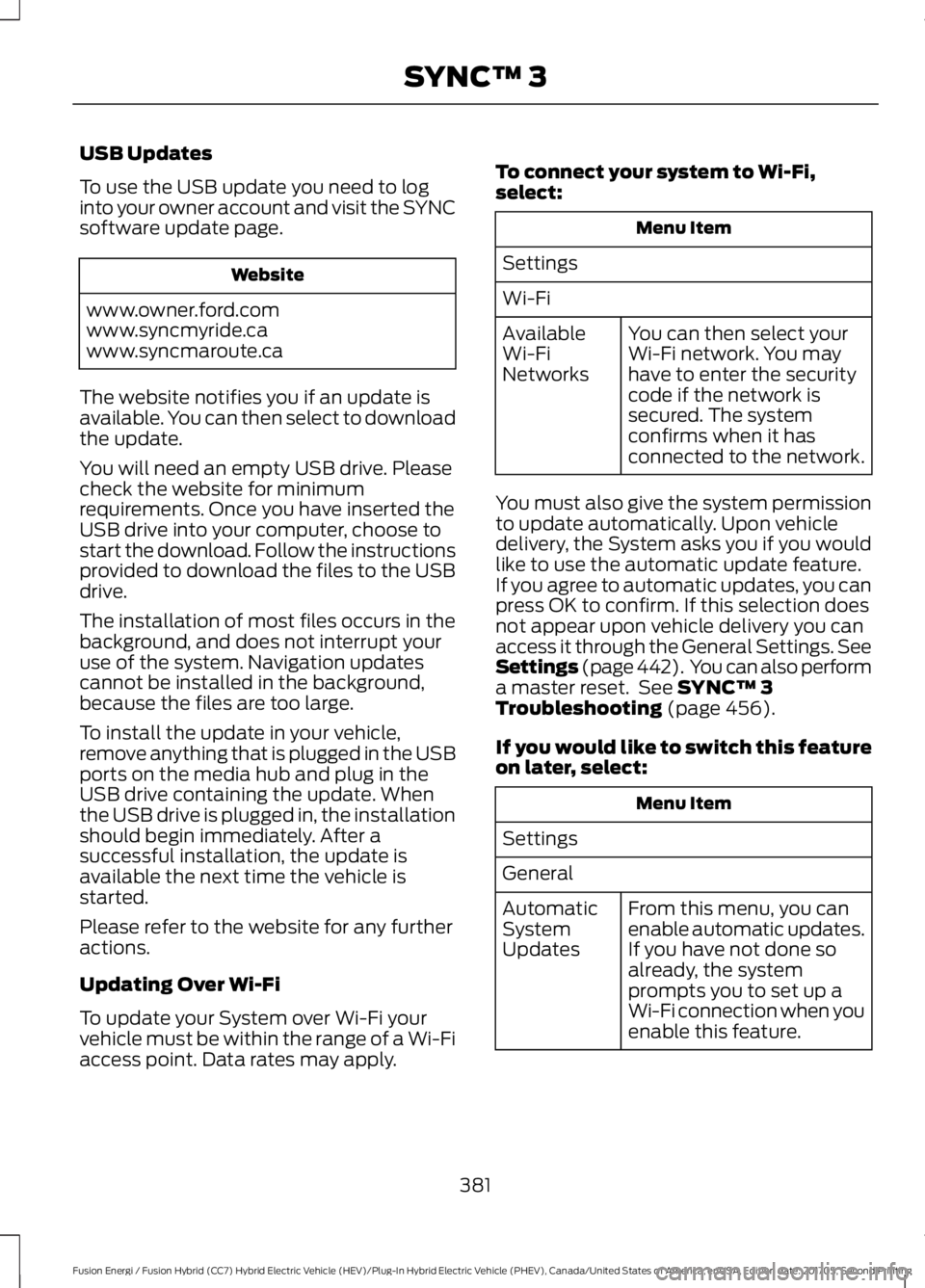
USB Updates
To use the USB update you need to log
into your owner account and visit the SYNC
software update page.
Website
www.owner.ford.com
www.syncmyride.ca
www.syncmaroute.ca
The website notifies you if an update is
available. You can then select to download
the update.
You will need an empty USB drive. Please
check the website for minimum
requirements. Once you have inserted the
USB drive into your computer, choose to
start the download. Follow the instructions
provided to download the files to the USB
drive.
The installation of most files occurs in the
background, and does not interrupt your
use of the system. Navigation updates
cannot be installed in the background,
because the files are too large.
To install the update in your vehicle,
remove anything that is plugged in the USB
ports on the media hub and plug in the
USB drive containing the update. When
the USB drive is plugged in, the installation
should begin immediately. After a
successful installation, the update is
available the next time the vehicle is
started.
Please refer to the website for any further
actions.
Updating Over Wi-Fi
To update your System over Wi-Fi your
vehicle must be within the range of a Wi-Fi
access point. Data rates may apply. To connect your system to Wi-Fi,
select: Menu Item
Settings
Wi-Fi You can then select your
Wi-Fi network. You may
have to enter the security
code if the network is
secured. The system
confirms when it has
connected to the network.
Available
Wi-Fi
Networks
You must also give the system permission
to update automatically. Upon vehicle
delivery, the System asks you if you would
like to use the automatic update feature.
If you agree to automatic updates, you can
press OK to confirm. If this selection does
not appear upon vehicle delivery you can
access it through the General Settings. See
Settings (page 442). You can also perform
a master reset. See SYNC™ 3
Troubleshooting (page 456).
If you would like to switch this feature
on later, select: Menu Item
Settings
General From this menu, you can
enable automatic updates.
If you have not done so
already, the system
prompts you to set up a
Wi-Fi connection when you
enable this feature.
Automatic
System
Updates
381
Fusion Energi / Fusion Hybrid (CC7) Hybrid Electric Vehicle (HEV)/Plug-In Hybrid Electric Vehicle (PHEV), Canada/United States of America, enUSA, Edition date: 201705, Second Printing SYNC™ 3