2018 FORD FOCUS ELECTRIC ad blue
[x] Cancel search: ad bluePage 260 of 375
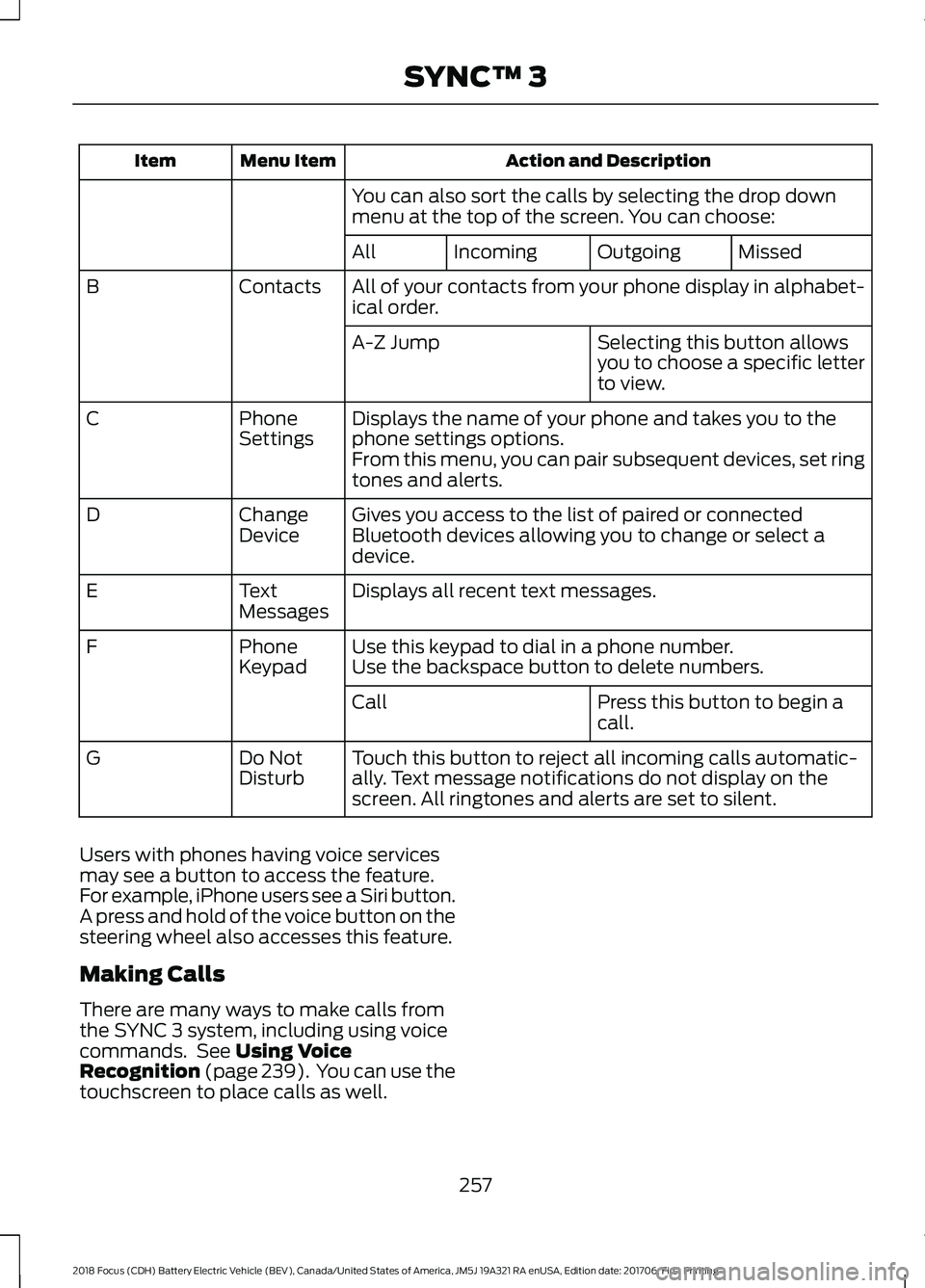
Action and Description
Menu Item
Item
You can also sort the calls by selecting the drop down
menu at the top of the screen. You can choose: Missed
Outgoing
Incoming
All
All of your contacts from your phone display in alphabet-
ical order.
Contacts
B
Selecting this button allows
you to choose a specific letter
to view.
A-Z Jump
Displays the name of your phone and takes you to the
phone settings options.
Phone
Settings
C
From this menu, you can pair subsequent devices, set ring
tones and alerts.
Gives you access to the list of paired or connected
Bluetooth devices allowing you to change or select a
device.
Change
Device
D
Displays all recent text messages.
Text
Messages
E
Use this keypad to dial in a phone number.
Phone
Keypad
F
Use the backspace button to delete numbers.
Press this button to begin a
call.
Call
Touch this button to reject all incoming calls automatic-
ally. Text message notifications do not display on the
screen. All ringtones and alerts are set to silent.
Do Not
Disturb
G
Users with phones having voice services
may see a button to access the feature.
For example, iPhone users see a Siri button.
A press and hold of the voice button on the
steering wheel also accesses this feature.
Making Calls
There are many ways to make calls from
the SYNC 3 system, including using voice
commands. See Using Voice
Recognition (page 239). You can use the
touchscreen to place calls as well.
257
2018 Focus (CDH) Battery Electric Vehicle (BEV), Canada/United States of America, JM5J 19A321 RA enUSA, Edition date: 201706, First Printing SYNC™ 3
Page 262 of 375
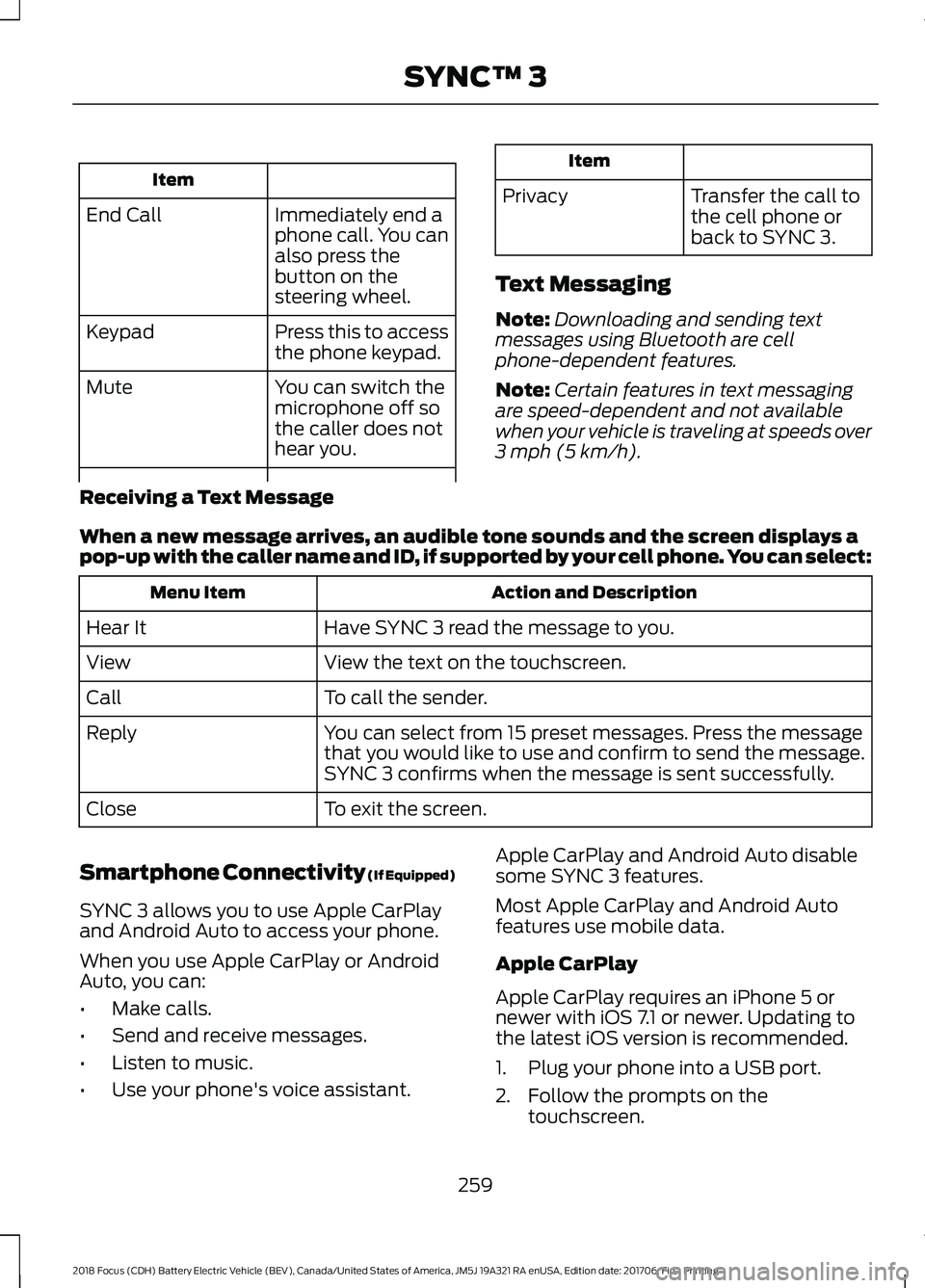
Item
Immediately end a
phone call. You can
also press the
button on the
steering wheel.
End Call
Press this to access
the phone keypad.
Keypad
You can switch the
microphone off so
the caller does not
hear you.
Mute Item
Privacy Transfer the call to
the cell phone or
back to SYNC 3.
Text Messaging
Note: Downloading and sending text
messages using Bluetooth are cell
phone-dependent features.
Note: Certain features in text messaging
are speed-dependent and not available
when your vehicle is traveling at speeds over
3 mph (5 km/h).
Receiving a Text Message
When a new message arrives, an audible tone sounds and the screen displays a
pop-up with the caller name and ID, if supported by your cell phone. You can select: Action and Description
Menu Item
Have SYNC 3 read the message to you.
Hear It
View the text on the touchscreen.
View
To call the sender.
Call
You can select from 15 preset messages. Press the message
that you would like to use and confirm to send the message.
SYNC 3 confirms when the message is sent successfully.
Reply
To exit the screen.
Close
Smartphone Connectivity (If Equipped)
SYNC 3 allows you to use Apple CarPlay
and Android Auto to access your phone.
When you use Apple CarPlay or Android
Auto, you can:
• Make calls.
• Send and receive messages.
• Listen to music.
• Use your phone's voice assistant. Apple CarPlay and Android Auto disable
some SYNC 3 features.
Most Apple CarPlay and Android Auto
features use mobile data.
Apple CarPlay
Apple CarPlay requires an iPhone 5 or
newer with iOS 7.1 or newer. Updating to
the latest iOS version is recommended.
1. Plug your phone into a USB port.
2. Follow the prompts on the
touchscreen.
259
2018 Focus (CDH) Battery Electric Vehicle (BEV), Canada/United States of America, JM5J 19A321 RA enUSA, Edition date: 201706, First Printing SYNC™ 3
Page 285 of 375
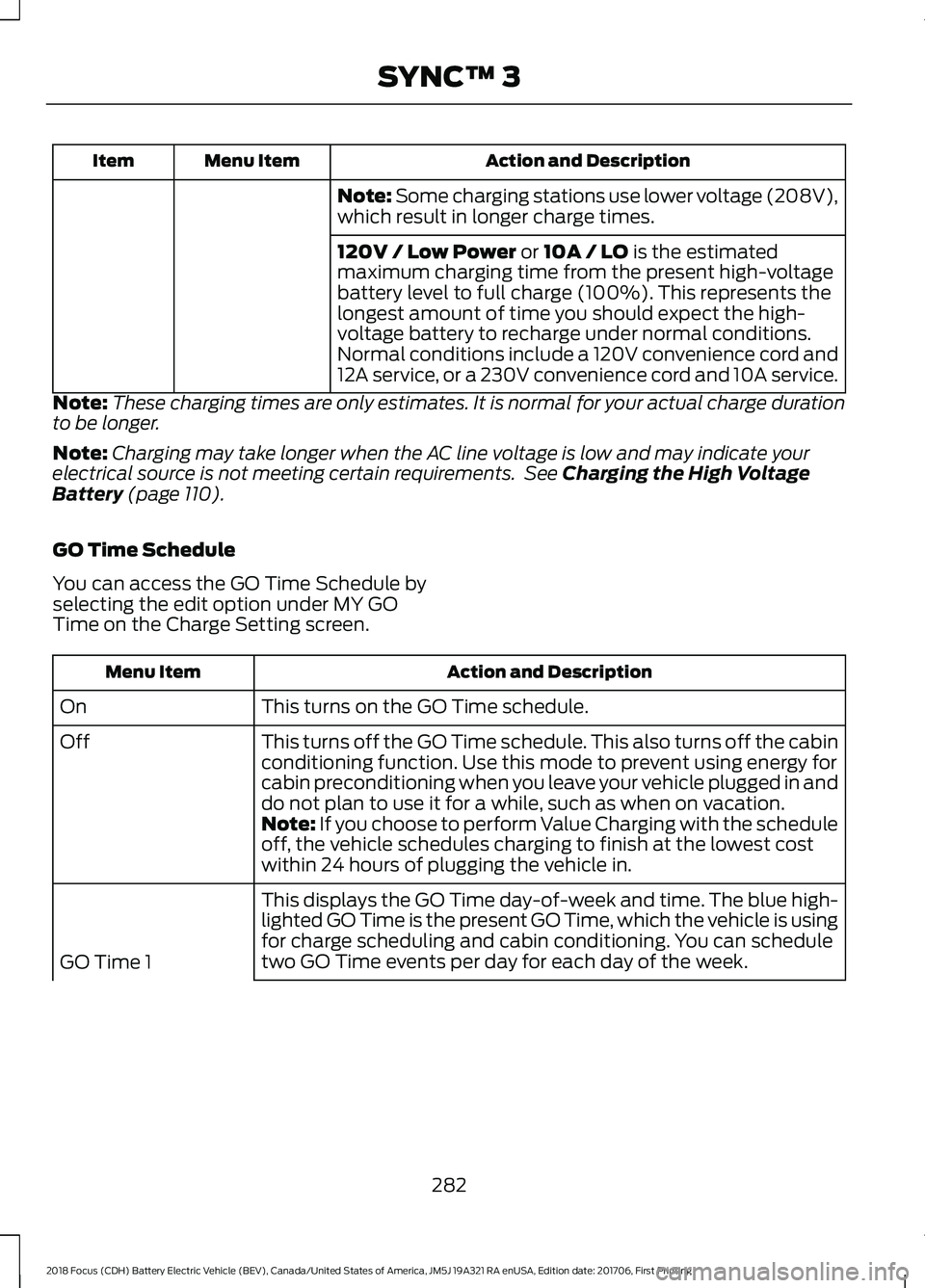
Action and Description
Menu Item
Item
Note: Some charging stations use lower voltage (208V),
which result in longer charge times.
120V / Low Power or 10A / LO is the estimated
maximum charging time from the present high-voltage
battery level to full charge (100%). This represents the
longest amount of time you should expect the high-
voltage battery to recharge under normal conditions.
Normal conditions include a 120V convenience cord and
12A service, or a 230V convenience cord and 10A service.
Note: These charging times are only estimates. It is normal for your actual charge duration
to be longer.
Note: Charging may take longer when the AC line voltage is low and may indicate your
electrical source is not meeting certain requirements. See
Charging the High Voltage
Battery (page 110).
GO Time Schedule
You can access the GO Time Schedule by
selecting the edit option under MY GO
Time on the Charge Setting screen. Action and Description
Menu Item
This turns on the GO Time schedule.
On
This turns off the GO Time schedule. This also turns off the cabin
conditioning function. Use this mode to prevent using energy for
cabin preconditioning when you leave your vehicle plugged in and
do not plan to use it for a while, such as when on vacation.
Off
Note:
If you choose to perform Value Charging with the schedule
off, the vehicle schedules charging to finish at the lowest cost
within 24 hours of plugging the vehicle in.
This displays the GO Time day-of-week and time. The blue high-
lighted GO Time is the present GO Time, which the vehicle is using
for charge scheduling and cabin conditioning. You can schedule
two GO Time events per day for each day of the week.
GO Time 1
282
2018 Focus (CDH) Battery Electric Vehicle (BEV), Canada/United States of America, JM5J 19A321 RA enUSA, Edition date: 201706, First Printing SYNC™ 3
Page 290 of 375
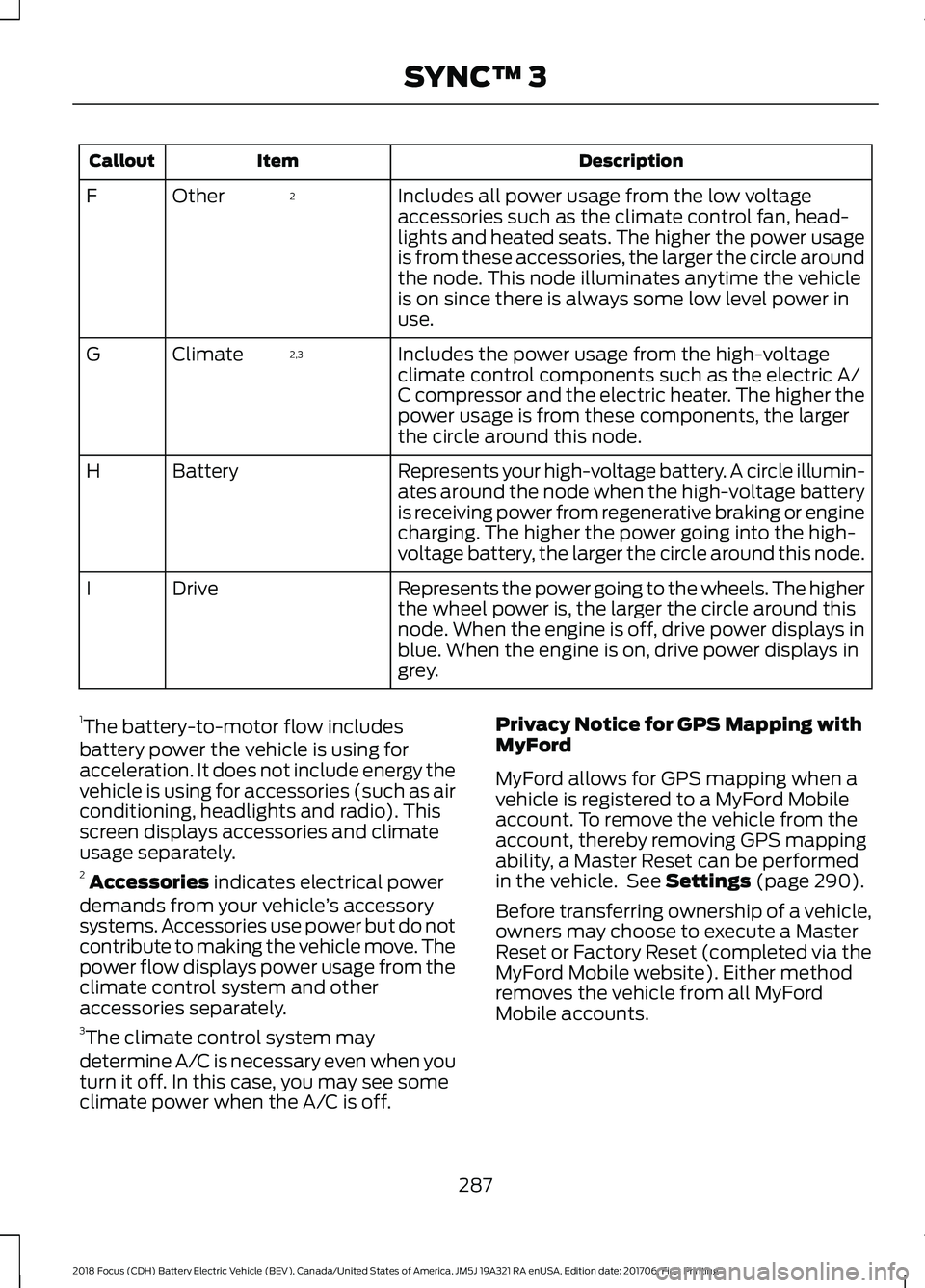
Description
Item
Callout
Includes all power usage from the low voltage
accessories such as the climate control fan, head-
lights and heated seats. The higher the power usage
is from these accessories, the larger the circle around
the node. This node illuminates anytime the vehicle
is on since there is always some low level power in
use.
2
Other
F
Includes the power usage from the high-voltage
climate control components such as the electric A/
C compressor and the electric heater. The higher the
power usage is from these components, the larger
the circle around this node.
2,3
Climate
G
Represents your high-voltage battery. A circle illumin-
ates around the node when the high-voltage battery
is receiving power from regenerative braking or engine
charging. The higher the power going into the high-
voltage battery, the larger the circle around this node.
Battery
H
Represents the power going to the wheels. The higher
the wheel power is, the larger the circle around this
node. When the engine is off, drive power displays in
blue. When the engine is on, drive power displays in
grey.
Drive
I
1 The battery-to-motor flow includes
battery power the vehicle is using for
acceleration. It does not include energy the
vehicle is using for accessories (such as air
conditioning, headlights and radio). This
screen displays accessories and climate
usage separately.
2 Accessories indicates electrical power
demands from your vehicle ’s accessory
systems. Accessories use power but do not
contribute to making the vehicle move. The
power flow displays power usage from the
climate control system and other
accessories separately.
3 The climate control system may
determine A/C is necessary even when you
turn it off. In this case, you may see some
climate power when the A/C is off. Privacy Notice for GPS Mapping with
MyFord
MyFord allows for GPS mapping when a
vehicle is registered to a MyFord Mobile
account. To remove the vehicle from the
account, thereby removing GPS mapping
ability, a Master Reset can be performed
in the vehicle. See Settings (page 290).
Before transferring ownership of a vehicle,
owners may choose to execute a Master
Reset or Factory Reset (completed via the
MyFord Mobile website). Either method
removes the vehicle from all MyFord
Mobile accounts.
287
2018 Focus (CDH) Battery Electric Vehicle (BEV), Canada/United States of America, JM5J 19A321 RA enUSA, Edition date: 201706, First Printing SYNC™ 3
Page 291 of 375
It is recommended that new owners
conduct a Master Reset upon taking
possession of the vehicle to remove it from
any existing MyFord Mobile accounts. The
new owner can activate a MyFord Mobile
account by completing registration process
on the website.
APPS
The system enables voice, steering wheel,
and touch screen control of SYNC 3
AppLink enabled smartphone apps.
Once an app is running through AppLink,
you can control main features of the app
through voice commands and steering
wheel controls.
Note:
Available AppLink enabled apps will
vary by market.
Note: You must pair and connect your
smartphone via Bluetooth to SYNC 3 to
access AppLink.
Note: iPhone users need to connect the
phone to the USB port.
Note: For information on available apps,
supported smartphone devices and
troubleshooting tips please visit: Websites
owner.ford.com
www.syncmyride.ca
www.syncmaroute.ca
Note: Make sure you have an active account
for the app that you have downloaded.
Some apps will work automatically with no
setup. Other apps will want you to configure
your personal settings and personalize your
experience by creating stations or
favorites.We recommend you do this at
home or outside of your vehicle. Note:
We encourage you to review the
smartphone app ’s terms of service and
privacy policies because Ford is not
responsible for your app or its use of data.
Note: AppLink is a native SYNC system
feature. Accessing mobile apps through
AppLink is only possible when Android Auto
or Apple CarPlay are disabled. Some apps
may only be accessible in the car through
AppLink and others only through Android
Auto or Apple CarPlay. Please refer to the
Smartphone Connectivity information to
disable Android Auto or Apple CarPlay.
Note: In order to use an app with SYNC 3,
the app needs to be running in the
background of your phone. If you shut down
the app on your phone, it shuts down the
app on SYNC 3 as well.
Note: If a SYNC 3 AppLink compatible app
is not shown in the Apps Domain, make sure
the required app is running on the mobile
device. Action and Descrip-
tion
Menu Item
SYNC 3 will search
and connect to
compatible app(s)
running on your
mobile device.
Find Mobile Apps
Enabling SYNC 3 Mobile Apps
In order to enable mobile apps, SYNC 3
requires user consent to send and receive
app authorization information and updates
using the data plan associated with the
connected device.
288
2018 Focus (CDH) Battery Electric Vehicle (BEV), Canada/United States of America, JM5J 19A321 RA enUSA, Edition date: 201706, First Printing SYNC™ 3
Page 294 of 375
Sound Settings
Adjusts the low frequency level.
Bass
Adjusts the sound ratio from side to side or front to back.
Balance / Fade
Adjusts the amount the audio system volume increases with speed,
or turns the feature off.
Speed
Compensated
Vol.
Optimizes the sound based on the location of the listeners.
Occupancy Mode
Stereo
Sound Settings
Surround
Your vehicle might not have all of these features.
Media Player
This button is available when a media
device such as a Bluetooth Stereo or USB
device is the active audio source. Pressing
the button allows you to access the
following options for active devices only. Action and Description
Menu Item
For some USB devices, SYNC 3 can adjust the playback speed of
podcasts. When a podcast is playing, you can choose:
Podcast Speed
Faster
Normal
Slower
For some USB devices, SYNC 3 can adjust the playback speed of
audiobooks. When an audiobook is playing, you can choose:
Audiobook Speed
Faster
Normal
Slower
Cover art displays from your device ’s music
files. If no cover art for the files exists on the
device, then the Gracenote Database provides
cover art.
Media Player
Cover Art Priority
The Gracenote Database supplied cover art is
used for your music files. This overrides any
cover art from your device.
Gracenote®
Switches on and off Gracenote® to provide metadata information
such as genre, artist, album.
Gracenote®
Management
291
2018 Focus (CDH) Battery Electric Vehicle (BEV), Canada/United States of America, JM5J 19A321 RA enUSA, Edition date: 201706, First Printing SYNC™ 3
Page 295 of 375
Action and Description
Menu Item
This allows you to view the version level of the Gracenote Database.
Gracenote® Data-
base Info
This allows you to view the manufacturer and model number of your
media device.
Device Informa-
tion
Erase the stored in media information in order to re-index.
Update Media
Index
Clock
To adjust the time, select the up and down
arrows on either side of the screen. The
arrows on the left adjust the hour and
arrows on the right adjust the minute. You
can then select AM or PM. You can adjust the following features:Action and Description
Menu Item
Select how time displays.
Clock Format
When active, the clock adjusts to time zone changes.
Auto Time Zone
Update This feature is only available in vehicles with navigation.
When selected, the vehicle clock resets to GPS satellite time.
Reset Clock to
GPS Time
The system automatically saves any
updates you make to the settings. Bluetooth
Pressing this button allows you to access
the following: Action
Menu Item
Turning Bluetooth off disconnects all devices and does not permit
new connections.
Bluetooth
You must activate Bluetooth to pair a
Bluetooth-enabled device.
The processes of pairing a Bluetooth
device is the same as pairing a phone. See
Pairing a Device in Phone settings for how
to pair a device and the available options. Phone
Pair your Bluetooth-enabled phone with
the system before using the functions in
hands-free mode.
Switch on Bluetooth on your device to
begin pairing. See your phone
’s manual if
necessary.
292
2018 Focus (CDH) Battery Electric Vehicle (BEV), Canada/United States of America, JM5J 19A321 RA enUSA, Edition date: 201706, First Printing SYNC™ 3
Page 296 of 375
To add a phone, select:
Menu Item
Add Phone
1. Follow the on-screen instructions.
2. A prompt alerts you to search for the system on your phone.
3. Select your vehicle's make and model as it displays on your phone.
4. Confirm that the six-digit number appearing on your phone matches the
six-digit number on the touchscreen.
5. The touchscreen indicates when the pairing is successful.
6. Your phone may prompt you to give the system permission to access
information. To check your phone ’s
compatibility, see your phone ’s manual
or visit the website.
Alternatively, to add a phone, select: Menu Item
Add Phone
Then select:
Discover Other Bluetooth Devices 1. Follow the on-screen instructions.
2. Select your phone's name when it
appears on the touchscreen.
3. Confirm that the six-digit number appearing on your phone matches the
six-digit number on the touchscreen.
4. The touchscreen indicates when the pairing is successful.
5. Your phone may prompt you to give the system permission to access
information. To check your phone ’s
compatibility, see your phone ’s manual
or visit the website.
Other features, such as text messaging
using Bluetooth and automatic phonebook
download, are phone-dependent features.
To check your phone ’s compatibility,
see your phone ’s manual or visit the
website: Website
owner.ford.com
www.syncmyride.ca
www.syncmaroute.ca
Once you have paired a device you can
adjust the following options. Action and Description
Menu Item
View Devices
You can then select: You can add a Bluetooth-enabled device by following the steps in
the previous table.
Add a Bluetooth
Device
You can select a phone by touching the name of the phone on the screen. You then
have the following options:
Depending on the status of the device, you can select either of these
options to interact with the selected device.
Connect
293
2018 Focus (CDH) Battery Electric Vehicle (BEV), Canada/United States of America, JM5J 19A321 RA enUSA, Edition date: 201706, First Printing SYNC™ 3