2018 FORD EXPEDITION display
[x] Cancel search: displayPage 438 of 571
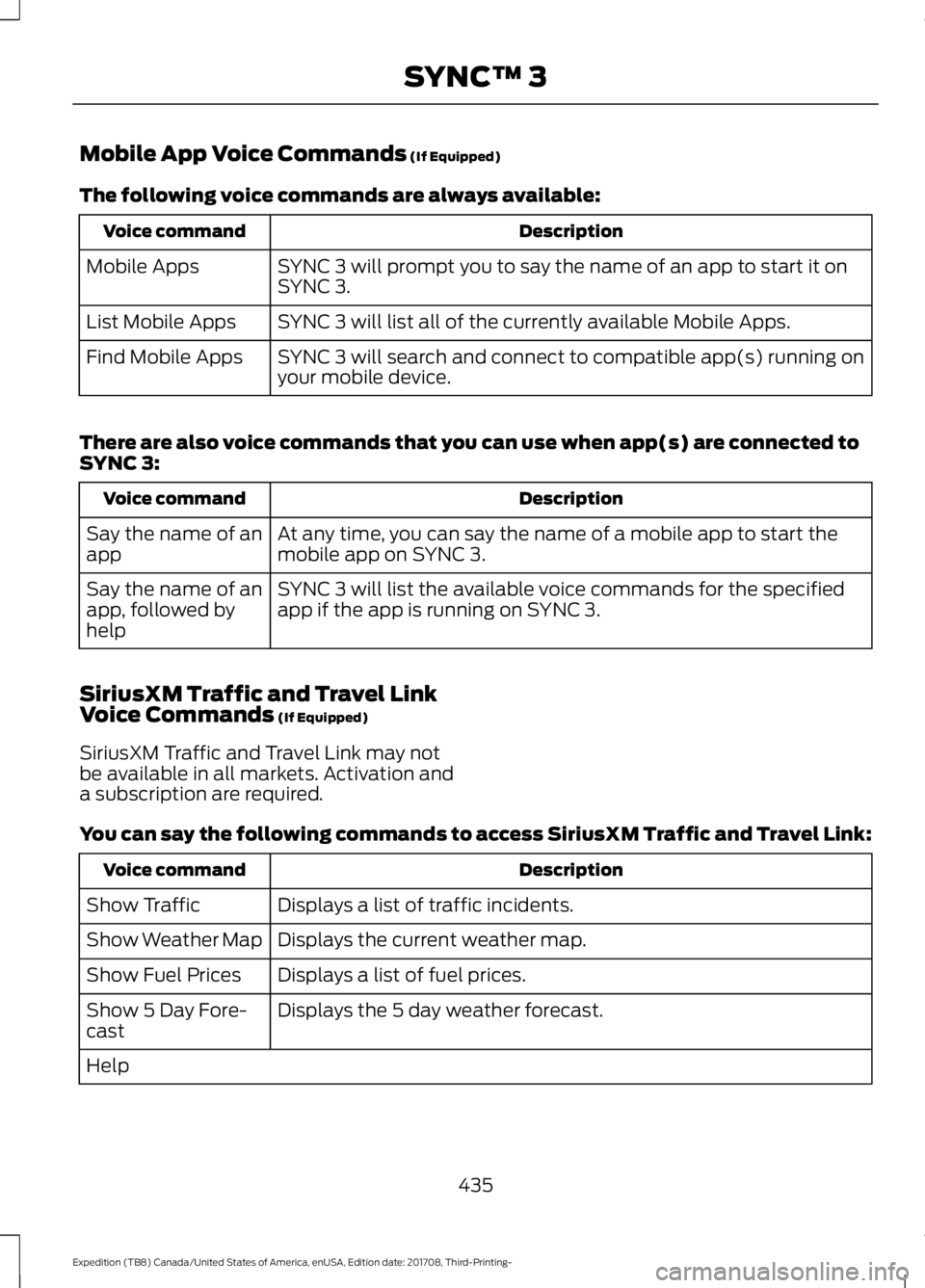
Mobile App Voice Commands (If Equipped)
The following voice commands are always available: Description
Voice command
SYNC 3 will prompt you to say the name of an app to start it on
SYNC 3.
Mobile Apps
SYNC 3 will list all of the currently available Mobile Apps.
List Mobile Apps
SYNC 3 will search and connect to compatible app(s) running on
your mobile device.
Find Mobile Apps
There are also voice commands that you can use when app(s) are connected to
SYNC 3: Description
Voice command
At any time, you can say the name of a mobile app to start the
mobile app on SYNC 3.
Say the name of an
app
SYNC 3 will list the available voice commands for the specified
app if the app is running on SYNC 3.
Say the name of an
app, followed by
help
SiriusXM Traffic and Travel Link
Voice Commands
(If Equipped)
SiriusXM Traffic and Travel Link may not
be available in all markets. Activation and
a subscription are required.
You can say the following commands to access SiriusXM Traffic and Travel Link: Description
Voice command
Displays a list of traffic incidents.
Show Traffic
Displays the current weather map.
Show Weather Map
Displays a list of fuel prices.
Show Fuel Prices
Displays the 5 day weather forecast.
Show 5 Day Fore-
cast
Help
435
Expedition (TB8) Canada/United States of America, enUSA, Edition date: 201708, Third-Printing- SYNC™ 3
Page 439 of 571
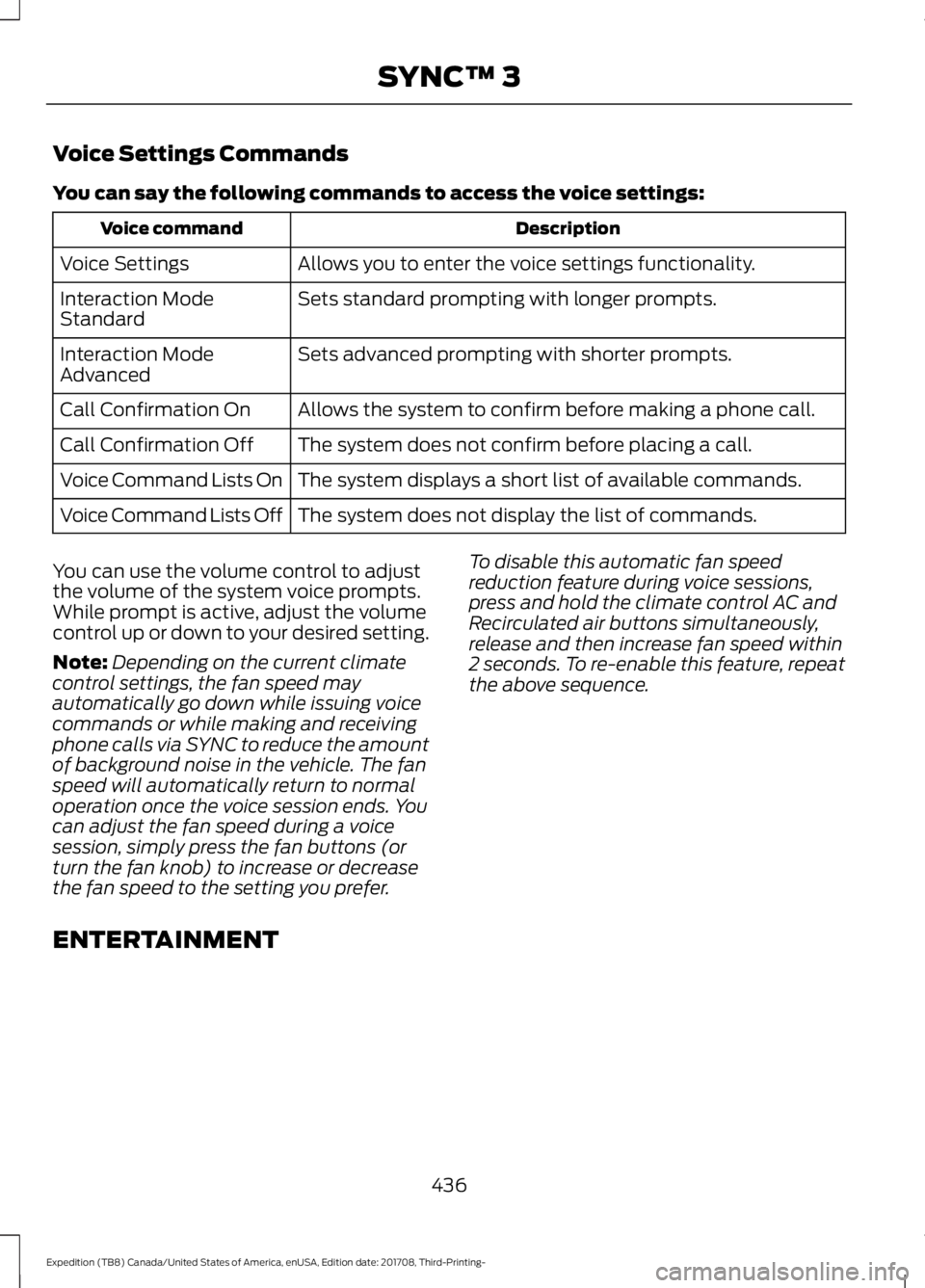
Voice Settings Commands
You can say the following commands to access the voice settings:
Description
Voice command
Allows you to enter the voice settings functionality.
Voice Settings
Sets standard prompting with longer prompts.
Interaction Mode
Standard
Sets advanced prompting with shorter prompts.
Interaction Mode
Advanced
Allows the system to confirm before making a phone call.
Call Confirmation On
The system does not confirm before placing a call.
Call Confirmation Off
The system displays a short list of available commands.
Voice Command Lists On
The system does not display the list of commands.
Voice Command Lists Off
You can use the volume control to adjust
the volume of the system voice prompts.
While prompt is active, adjust the volume
control up or down to your desired setting.
Note: Depending on the current climate
control settings, the fan speed may
automatically go down while issuing voice
commands or while making and receiving
phone calls via SYNC to reduce the amount
of background noise in the vehicle. The fan
speed will automatically return to normal
operation once the voice session ends. You
can adjust the fan speed during a voice
session, simply press the fan buttons (or
turn the fan knob) to increase or decrease
the fan speed to the setting you prefer. To disable this automatic fan speed
reduction feature during voice sessions,
press and hold the climate control AC and
Recirculated air buttons simultaneously,
release and then increase fan speed within
2 seconds. To re-enable this feature, repeat
the above sequence.
ENTERTAINMENT 436
Expedition (TB8) Canada/United States of America, enUSA, Edition date: 201708, Third-Printing- SYNC™ 3
Page 441 of 571
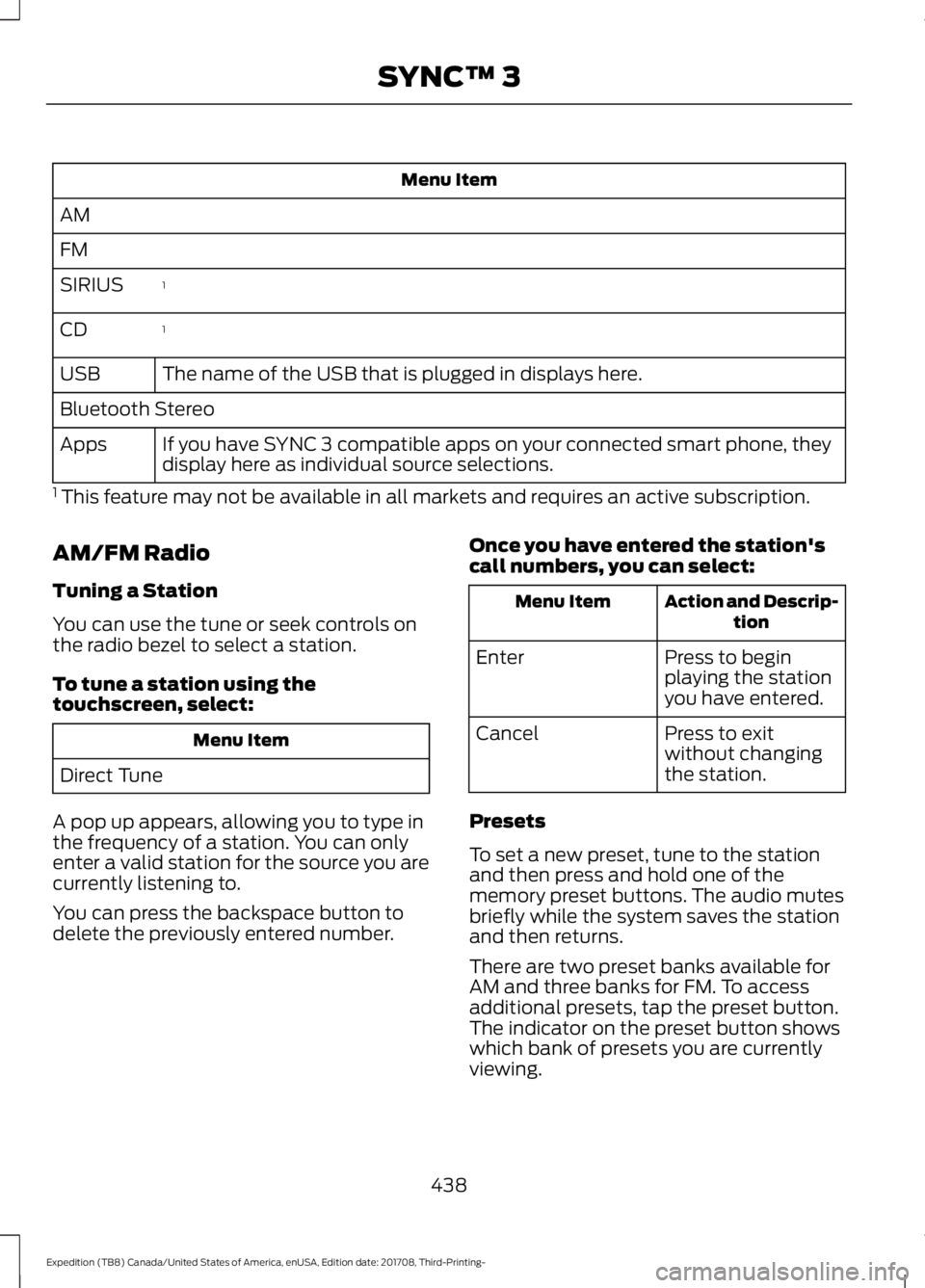
Menu Item
AM
FM 1
SIRIUS
1
CD
The name of the USB that is plugged in displays here.
USB
Bluetooth Stereo
If you have SYNC 3 compatible apps on your connected smart phone, they
display here as individual source selections.
Apps
1 This feature may not be available in all markets and requires an active subscription.
AM/FM Radio
Tuning a Station
You can use the tune or seek controls on
the radio bezel to select a station.
To tune a station using the
touchscreen, select: Menu Item
Direct Tune
A pop up appears, allowing you to type in
the frequency of a station. You can only
enter a valid station for the source you are
currently listening to.
You can press the backspace button to
delete the previously entered number. Once you have entered the station's
call numbers, you can select: Action and Descrip-
tion
Menu Item
Press to begin
playing the station
you have entered.
Enter
Press to exit
without changing
the station.
Cancel
Presets
To set a new preset, tune to the station
and then press and hold one of the
memory preset buttons. The audio mutes
briefly while the system saves the station
and then returns.
There are two preset banks available for
AM and three banks for FM. To access
additional presets, tap the preset button.
The indicator on the preset button shows
which bank of presets you are currently
viewing.
438
Expedition (TB8) Canada/United States of America, enUSA, Edition date: 201708, Third-Printing- SYNC™ 3
Page 443 of 571
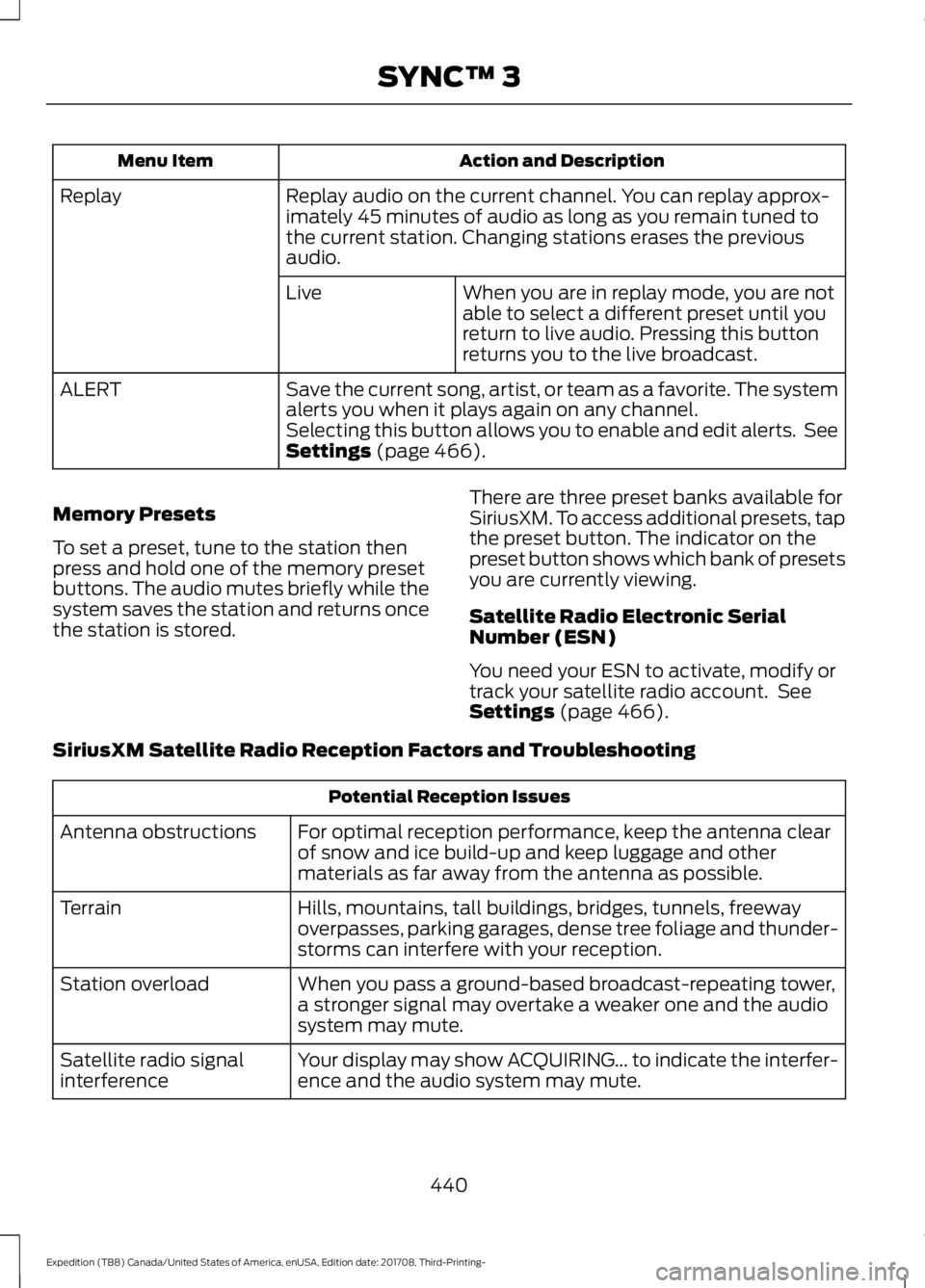
Action and Description
Menu Item
Replay audio on the current channel. You can replay approx-
imately 45 minutes of audio as long as you remain tuned to
the current station. Changing stations erases the previous
audio.
Replay
When you are in replay mode, you are not
able to select a different preset until you
return to live audio. Pressing this button
returns you to the live broadcast.
Live
Save the current song, artist, or team as a favorite. The system
alerts you when it plays again on any channel.
ALERT
Selecting this button allows you to enable and edit alerts. See
Settings (page 466).
Memory Presets
To set a preset, tune to the station then
press and hold one of the memory preset
buttons. The audio mutes briefly while the
system saves the station and returns once
the station is stored. There are three preset banks available for
SiriusXM. To access additional presets, tap
the preset button. The indicator on the
preset button shows which bank of presets
you are currently viewing.
Satellite Radio Electronic Serial
Number (ESN)
You need your ESN to activate, modify or
track your satellite radio account. See
Settings
(page 466).
SiriusXM Satellite Radio Reception Factors and Troubleshooting Potential Reception Issues
For optimal reception performance, keep the antenna clear
of snow and ice build-up and keep luggage and other
materials as far away from the antenna as possible.
Antenna obstructions
Hills, mountains, tall buildings, bridges, tunnels, freeway
overpasses, parking garages, dense tree foliage and thunder-
storms can interfere with your reception.
Terrain
When you pass a ground-based broadcast-repeating tower,
a stronger signal may overtake a weaker one and the audio
system may mute.
Station overload
Your display may show ACQUIRING... to indicate the interfer-
ence and the audio system may mute.
Satellite radio signal
interference
440
Expedition (TB8) Canada/United States of America, enUSA, Edition date: 201708, Third-Printing- SYNC™ 3
Page 447 of 571
Potential Station Issues
Action
Cause
Issues
No action required. The station
is not available in your current
location.
The previously stored multicast
preset or direct tune is not
available in your current recep-
tion area.
Cannot access HD2 or
HD3 multicast channel
when recalling a preset
or from a direct tune.
Fill out the station issue form.1
Data service issue by the radio
broadcaster.
Text information does
not match currently
playing audio.
Fill out the station issue form.
1
Data service issue by the radio
broadcaster.
There is no text
information shown for
currently selected
frequency.
1 You can find the form here: Website
http://hdradio.com/stations/feedback
HD Radio Technology manufactured under
license from iBiquity Digital Corporation
and foreign patents. HD Radio and the HD
and HD Radio logos are proprietary
trademarks of DTS. The vehicle
manufacturer and DTS are not responsible
for the content sent using HD Radio
technology. Content may be changed,
added or deleted at any time at the station
owner's discretion. CD (If equipped)
Once you select this option, the system
returns you to the main audio screen.
The current audio information appears on
the screen.
The following buttons are also available: Function
Button
You can use the browse button to select a track.
Browse
Select this button and a small number one displays to indicate
the track is set to repeat.
Repeat
444
Expedition (TB8) Canada/United States of America, enUSA, Edition date: 201708, Third-Printing- SYNC™ 3
Page 448 of 571
Function
Button
For MP3 CDs, this button allows you to toggle through repeat
off, repeat one track (a small number one displays), and repeat
current folder (a small folder displays).
Select the shuffle symbol to have the audio on the disk play
in random order.
Shuffle
You can use the forward, reverse, pause or
play buttons to control the audio playback. Bluetooth Stereo or USB
Bluetooth Stereo and USB allow you to
access media that you store on your
Bluetooth device or USB device such as
music, audio books or podcasts.
The following buttons are available for Bluetooth and USB: Function
Button
Pressing the repeat button toggles the repeat setting through
three modes: repeat off (button not highlighted), repeat all
(button highlighted) and repeat track (button highlighted with
a small number one).
Repeat
Play the tracks in random order.
Shuffle
You can use the forward, reverse, pause or
play buttons to control the audio playback.
To get more information about the
currently playing track, press the cover art
or Info button. For some devices, SYNC 3 is able to
provide 30-second skip buttons when you
listen to audio books or podcasts. These
buttons allow you to skip forward or
backward within a track.
While playing audio from a USB device you
can look for certain music by selecting the
following: Function
Button
If available, displays the list of tracks in the
Now Playing playlist.
Browse
This option, which is available under
browse, allows you to play all tracks or to
filter the available media into one of the
below categories.
New Search
Play All
445
Expedition (TB8) Canada/United States of America, enUSA, Edition date: 201708, Third-Printing- SYNC™ 3
Page 451 of 571
Driver temperature: Touch up
or down to adjust the
temperature.
A
Heated steering wheel:
B
Note:
This feature only
functions when you switch the
engine on.
Touch this icon to switch the
heated steering wheel on and
off. It takes about 5 minutes to
warm the steering wheel to 74°F
in temperatures as low as -4°F.
The wheel maintains an
approximate temperature of
90°F and operates
independently from the heated
seats and other climate-control
functions. The heating element
is in between the leather
covering and foam core to help
provide maximum heat without
adversely affecting the feel of
the steering wheel.
Note: The heated steering wheel
may remain on after remote
starting the vehicle, based on
your remote start settings. The
heated steering wheel may also
turn on when you start your
vehicle, if it was on when you
switched your vehicle off.
Note:
For steering wheels with
wood trim, the heating feature
will not heat the wheel between
the 10 and 2 o'clock positions.
Defrost:
A pop up appears on
the screen to display the defrost
options.
C
MAX Defrost: Touch the button
to maximize defrosting. Air flows
through the windshield vents,
the fan automatically adjusts to
the highest speed and the driver
and passenger temperatures are set to HI. You can use this setting
to defog or clear a thin covering
of ice from the windshield. The
heated rear window also
automatically turns on when you
select MAX Defrost.
Defrost:
Distributes air through
the windshield defroster vents
and demister vents.
Heated rear window: Turns the
heated rear window on and off.
See
Heated Windows and
Mirrors (page 147).
AUTO:
Touch the button to
switch on automatic operation.
Select the desired temperature
using the temperature control.
The system adjusts fan speed,
air distribution, air conditioning
operation, and selects outside
air or recirculated air to heat or
cool the vehicle in order to
maintain the desired
temperature.
D
Power:
Touch the button to
switch the system on and off.
Switching off the climate control
system prevents outside air from
entering the vehicle.
E
DUAL:
This button lights up
when the passenger controls are
active. To switch the off and link
the passenger temperature to
the driver temperature, touch the
DUAL button.
F
Note:
the passenger side
temperature and the DUAL
indication automatically turn on
when you or your passenger
adjust the passenger
temperature.
Passenger temperature:
Touch up or down to adjust the
temperature.
G
448
Expedition (TB8) Canada/United States of America, enUSA, Edition date: 201708, Third-Printing- SYNC™ 3
Page 452 of 571
Fan speed: Touch up or down
to increase or decrease the
volume of air that circulates in
your vehicle.
H
Note:
You cannot adjust the fan
speed when the system is set to
AUTO or MAX A/C.
Rear:
A pop up appears on the
screen to display the rear control
options.
I
Touch the power icon to switch
the rear climate control
functions off and on.
Touch
Rear Climate to allow
the rear seat passengers to
adjust the rear climate settings.
Touch it again to prevent the rear
seat passengers from adjusting
the settings. Rear Control
automatically turns off when you
use the touchscreen to adjust
the rear climate settings.
Touch + or – to adjust the
temperature.
To adjust fan speed, touch + or
– next to the fan icon.
Touch
Rear again to close the
rear controls. Closing the rear
climate control functions does
not affect their current settings.
Manual airflow distribution
controls:
J
Footwell and Defrost:
Distributes air through the
windshield defroster vents,
demister vents, floor vents and
rear seat floor vents, and
provides outside air to reduce
window fogging.
Panel:
Distributes air through
the instrument panel vents. Floor: Distributes air through the
demister vents, floor vents and
rear seat floor vents.
Panel and Floor:
Distributes air
through the instrument panel
vents, demister vents, floor vents
and rear seat floor vents.
A/C:
A pop-up appears on the
screen to display the air
conditioning options.
K
MAX A/C:
Touch the button to
activate and maximize cooling.
The driver and passenger
temperatures are set to LO,
recirculated air flows through the
instrument panel vents, air
conditioning automatically turns
on and the fan automatically
adjusts to the highest speed.
A/C:
Touch to switch the air
conditioning on or off. Use A/C
with recirculated air to improve
cooling performance and
efficiency.
Note:
In certain conditions (for
example, Max Defrost), the air
conditioning compressor may
continue to operate even when
you switch the air conditioning
A/C button off.
449
Expedition (TB8) Canada/United States of America, enUSA, Edition date: 201708, Third-Printing- SYNC™ 3