2018 FORD E SERIES reset
[x] Cancel search: resetPage 214 of 323
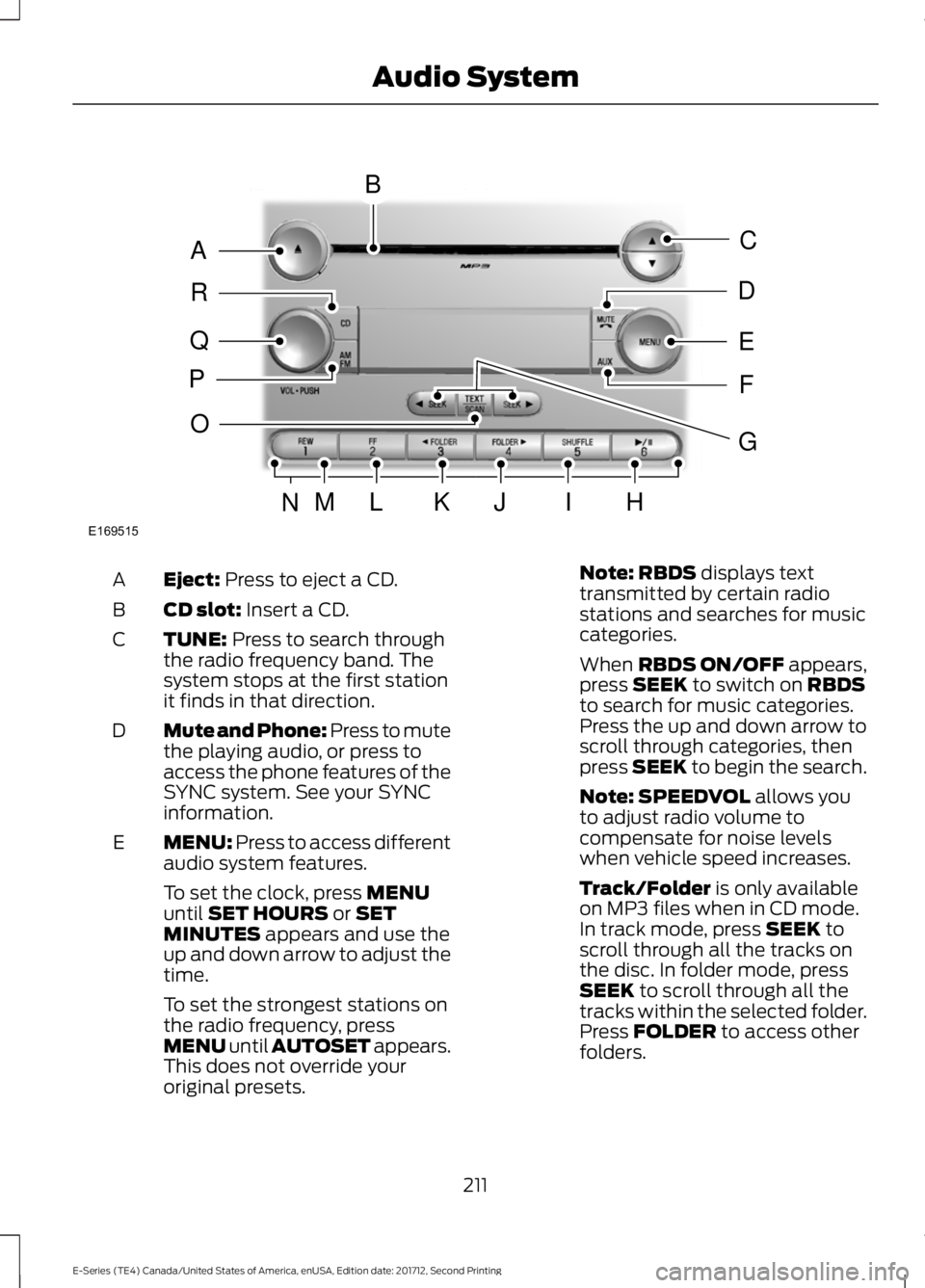
Eject: Press to eject a CD.A
CD slot: Insert a CD.B
TUNE: Press to search throughthe radio frequency band. Thesystem stops at the first stationit finds in that direction.
C
Mute and Phone: Press to mutethe playing audio, or press toaccess the phone features of theSYNC system. See your SYNCinformation.
D
MENU: Press to access differentaudio system features.E
To set the clock, press MENUuntil SET HOURS or SETMINUTES appears and use theup and down arrow to adjust thetime.
To set the strongest stations onthe radio frequency, pressMENU until AUTOSET appears.This does not override youroriginal presets.
Note: RBDS displays texttransmitted by certain radiostations and searches for musiccategories.
When RBDS ON/OFF appears,press SEEK to switch on RBDSto search for music categories.Press the up and down arrow toscroll through categories, thenpress SEEK to begin the search.
Note: SPEEDVOL allows youto adjust radio volume tocompensate for noise levelswhen vehicle speed increases.
Track/Folder is only availableon MP3 files when in CD mode.In track mode, press SEEK toscroll through all the tracks onthe disc. In folder mode, pressSEEK to scroll through all thetracks within the selected folder.Press FOLDER to access otherfolders.
211
E-Series (TE4) Canada/United States of America, enUSA, Edition date: 201712, Second Printing
Audio SystemE169515
B
A
Q
R
P
C
E
D
F
O
MLKJIHN
G
Page 215 of 323

Note: COMPRESS is onlyavailable in CD and MP3 modes.Switching on compression bringsthe soft and loud passagestogether for a more consistentlistening level.
To switch compression on andoff, press SEEK and the up anddown arrow.
AUX: Press to access the mediafeatures of the SYNC system.See your SYNC information.
F
Seek, Fast Forward andReverse: In radio mode, pressand release to go to the next orprevious preset radio station ordisc track. In CD and MP3 modes,press to move forward orbackward through the tracks.Press and hold to move quicklyforward or backward through thecurrent track.
G
Play, Pause: Allows you to playor pause a track when listeningto a CD.
H
SHUFFLE: Play music on theselected CD or MP3 folder inrandom order.
I
FOLDER >: Press to access thenext folder on an MP3 disc.J
< FOLDER: Press to access theprevious folder on an MP3 disc.K
FF: Press to fast forward a CDtrack or MP3 file.L
REW: Press to rewind a CD trackor MP3 file.M
Memory presets: Store yourfavorite radio stations. To storea radio station, tune to thestation, then press and hold apreset button until soundreturns.
N
TEXT/SCAN: In radio, CD andMP3 modes, press and hold tohear a brief sampling of radiostations, CD tracks or MP3 files.In CD and MP3 modes, press andrelease to display track title,
O
artist name and disc title. In textmode, the display may requireadditional text to show. Whenthe < / > indicator is on, pressTEXT and then press SEEK toview the additional display text.
AM/FM: Press to select afrequency band.P
VOL-PUSH: Turn to adjust thevolume. Press to switch thesystem on and off.
Q
CD: Press to enter CD or MP3mode.R
AUDIO UNIT - VEHICLES WITH:
AM/FM
WARNING
Driving while distracted can result inloss of vehicle control, crash andinjury. We strongly recommend thatyou use extreme caution when using anydevice that may take your focus off theroad. Your primary responsibility is the safeoperation of your vehicle. We recommendagainst the use of any hand-held devicewhile driving and encourage the use ofvoice-operated systems when possible.Make sure you are aware of all applicablelocal laws that may affect the use ofelectronic devices while driving.
212
E-Series (TE4) Canada/United States of America, enUSA, Edition date: 201712, Second Printing
Audio System
Page 216 of 323

CLOCK: Press to display theclock. To set the time, press andhold until the hours start to flash.Press the arrow buttons toadjust the hours, then repeat toset the minutes. Press again toexit clock mode.
A
TUNE: Press to search throughthe radio frequency band.B
AUDIO: Press to access settingsfor Treble, Midrange, Bass, Fadeor Balance.
C
Seek: Press to select afrequency band. The systemstops at the first station it findsin that direction.
D
Memory presets: Store yourfavorite radio stations. To storea radio station, tune to thestation, then press and hold apreset button until soundreturns.
E
AM/FM: Press to accessdifferent audio modes, forexample AM, FM and auxiliaryinput jack.
F
Vol and Power: Turn to adjustthe volume. Press to switch thesystem on and off.
G
DIGITAL RADIO (If Equipped)
Note:HD Radio broadcasts are notavailable in all markets.
HD Radio technology is the digitalevolution of analog AM/FM radio. Yoursystem has a special receiver that allowsit to receive digital broadcasts (whereavailable) in addition to the analogbroadcasts, it already receives. Digitalbroadcasts provide a better sound qualitythan analog broadcasts with free,crystal-clear audio and no static ordistortion. For more information, and aguide to available stations andprogramming, please visitwww.hdradio.com.
213
E-Series (TE4) Canada/United States of America, enUSA, Edition date: 201712, Second Printing
Audio SystemE163157
Page 217 of 323

When HD Radio is on and you tune to astation broadcasting HD Radio technology,you may notice the HD Radio logo on yourscreen. When this logo is available, youmay also see Title and Artist fieldson-screen.
The multicast indicator appears in FMmode (only) if the current station isbroadcasting multiple digital broadcasts.The highlighted numbers signify availabledigital channels where new or differentcontent is available. HD1 signifies the mainprogramming status and is available inanalog and digital broadcasts. Othermulticast stations (HD2 through HD7) areonly available digitally.
When HD Radio broadcasts are active, youcan access the following functions:
•Scan allows you to hear a briefsampling of all available stations. Thisfeature still works when HD Radioreception is on, although it does notscan for HD2-HD7 channels. You maysee the HD logo appear if the stationhas a digital broadcast.
•Memory presets allow you to save anactive channel as a memory preset.Touch and hold a memory preset slotuntil the sound returns. There is a briefmute while the radio saves the station.Sound returns when finished. Whenswitching to an HD2 or HD3 memorypreset, the sound mutes before thedigital audio plays, because the systemhas to reacquire the digital signal.
Note:As with any saved radio station, youcannot access a station you save if yourvehicle is outside the station’s receptionarea.
HD Radio Reception and Station Troubleshooting
Potential Reception Issues
If you are listening to a multicast station and you are onthe fringe of the reception area, the station may mute dueto weak signal strength.
Reception area
If you are listening to HD1, the system switches back tothe analog broadcast until the digital broadcast is availableagain. However, if you are listening to any of the possibleHD2-HD7 multicast channels, the station mutes and staysmuted unless it is able to connect to the digital signalagain.
When the system first receives a station (aside from HD2-HD7 multicast stations), it first plays the station in theanalog version. Once the receiver verifies the station is anHD Radio station, it shifts to the digital version. Dependingon the station quality, you may hear a slight sound changewhen the station changes from analog to digital. Blendingis the shift from analog to digital sound or digital back toanalog sound.
Station blending
214
E-Series (TE4) Canada/United States of America, enUSA, Edition date: 201712, Second Printing
Audio System
Page 218 of 323

In order to provide the best possibleexperience, use the contact form to reportany station issues found while listening toa station broadcasting with HD Radio
technology. Independent entities own andoperate each station. These stations areresponsible for ensuring all audio streamsand data fields are accurate.
Potential Station Issues
ActionCauseIssues
No action required. This is abroadcast issue.This is poor time alignmentby the radio broadcaster.Echo, stutter, skip or repeatin audio.Increase or decrease inaudio volume.
No action required. Thereception issue may clear upas you continue to drive.
The radio is shifting betweenanalog and digital audio.Sound fading or blending inand out.
No action required. This isnormal behavior. Wait untilthe audio is available.
The digital multicast is notavailable until the HD Radiobroadcast is decoded. Oncedecoded, the audio is avail-able.
There is an audio mutedelay when selecting HD2 orHD3, multicast preset orDirect Tune.
No action required. Thestation is not available inyour current location.
The previously storedmulticast preset or directtune is not available in yourcurrent reception area.
Cannot access HD2 or HD3multicast channel whenrecalling a preset or from adirect tune.
Fill out the station issueform at website listed
below.*
Data service issue by theradio broadcaster.Text information does notmatch currently playingaudio.
Fill out the station issueform at website listed
below.*
Data service issue by theradio broadcaster.There is no text informationshown for currently selectedfrequency.
No action required. This isnormal behavior.Pressing Scan disablesHD2-HD7 channel search.HD2-HD7 stations not foundwhen Scan is pressed.
*http://hdradio.com/stations/feedback
215
E-Series (TE4) Canada/United States of America, enUSA, Edition date: 201712, Second Printing
Audio System
Page 220 of 323

SiriusXM satellite radio is asubscription-based satellite radio servicethat broadcasts a variety of music, sports,news, weather, traffic and entertainmentprogramming. Your factory-installedSiriusXM satellite radio system includeshardware and a limited subscription term,which begins on the date of sale or leaseof your vehicle. See an authorized dealerfor availability.
For more information on extendedsubscription terms (a service fee isrequired), the online media player and acomplete list of SiriusXM satellite radiochannels, and other features, please visitwww.siriusxm.com in the United States,www.siriusxm.ca in Canada, or callSiriusXM at 1-888-539-7474.
Satellite Radio Electronic SerialNumber (ESN)
You need your ESN to activate, modify ortrack your satellite radio account. When insatellite radio mode, tune to channel 0.
Troubleshooting
ActionConditionMessage
No action required. Thismessage should disappearshortly.
Radio requires more thantwo seconds to produceaudio for the selectedchannel.
Acquiring…
If this message does notclear shortly, or with an igni-tion key cycle, your receivermay have a fault. See anauthorized dealer for service.
There is an internal moduleor system failure present.Satellite antenna fault
SIRIUS system failure
Tune to another channel orchoose another preset.The channel is no longeravailable.Invalid Channel
Contact SiriusXM at 1-888-539-7474 to subscribe tothe channel, or tune toanother channel.
Your subscription does notinclude this channel.Unsubscribed Channel
The signal is blocked. Whenyou move into an open area,the signal should return.
The signal is lost from theSiriusXM satellite or Siri-usXM tower to your vehicleantenna.
No Signal
No action required. Theprocess may take up tothree minutes.
Update of channelprogramming in progress.Updating…
217
E-Series (TE4) Canada/United States of America, enUSA, Edition date: 201712, Second Printing
Audio System
Page 223 of 323

Monday-Saturday, 8:30am-9:00pm EST.
Sunday, 10:30am-7:30pm EST.
In the United States, call 1-800-392-3673.
In Canada, call 1-800-565-3673.
Times are subject to change due toholidays.
SYNC Owner Account
Why do I need a SYNC owner account?
•Required to activate Vehicle HealthReport and to view the reports online.
•Required to activate thesubscription-based SYNC Services andto personalize your Saved Points andFavorites.
•Essential for keeping up with the latestsoftware downloads available forSYNC.
•Access to customer support for anyquestions you may have.
Driving Restrictions
For your safety, certain features arespeed-dependent and restricted when yourvehicle is traveling over 3 mph (5 km/h).
Safety Information
WARNING
Driving while distracted can result inloss of vehicle control, crash andinjury. We strongly recommend thatyou use extreme caution when using anydevice that may take your focus off theroad. Your primary responsibility is the safeoperation of your vehicle. We recommendagainst the use of any hand-held devicewhile driving and encourage the use ofvoice-operated systems when possible.Make sure you are aware of all applicablelocal laws that may affect the use ofelectronic devices while driving.
When using SYNC:
•Do not operate playing devices if thepower cords or cables are broken, splitor damaged. Place cords and cablesout of the way, so they do not interferewith the operation of pedals, seats,compartments or safe driving abilities.
•Do not leave playing devices in yourvehicle during extreme conditions as itcould cause them damage. See yourdevice's manual for further information.
•Do not attempt to service or repair thesystem. See an authorized dealer.
Privacy Information
When a cellular phone is connected toSYNC, the system creates a profile withinyour vehicle that is linked to that cellularphone. This profile is created in order tooffer you more cellular features and tooperate more efficiently. Among otherthings, this profile may contain data aboutyour cellular phone book, text messages(read and unread), and call history,including history of calls when your cellularphone was not connected to the system.In addition, if you connect a media device,the system creates and retains an index ofsupported media content. The system alsorecords a short development log ofapproximately 10 minutes of all recentsystem activity. The log profile and othersystem data may be used to improve thesystem and help diagnose any problemsthat may occur.
The cellular profile, media device index,and development log will remain in thevehicle unless you delete them and aregenerally accessible only in the vehiclewhen the cellular phone or media playeris connected. If you no longer plan to usethe system or the vehicle, we recommendyou perform a Master Reset to erase allstored information.
220
E-Series (TE4) Canada/United States of America, enUSA, Edition date: 201712, Second Printing
SYNC™ (If Equipped)
Page 238 of 323

Action and DescriptionMessage
Press OK to select and scroll to select the desired phone.Press OK to confirm.
Turn the Bluetooth feature on and off.4BT ON/OFF
Press OK and scroll to toggle between On and Off. When thedesired selection is chosen, press OK.Setting Bluetooth to off disconnects all Bluetooth devicesand turns off all Bluetooth features.
Delete a paired cell phone.DEL DEVICEPress the OK button and scroll to select the device. Press OKto confirm.
Delete all previously paired phones (and all informationoriginally saved with those phones).DELETE ALL
Press OK to select.
Exit the current menu.RETURN
1 This is a speed-dependent feature. It is only available when your vehicle is traveling at3 mph (5 km/h) or less.2 You can only connect one device at a time. When another cell phone is connected, theprevious one is disconnected.3 SYNC attempts to connect with the primary phone at every ignition cycle. When a phoneis selected as primary, it appears first in the list and is marked with an asterisk (*).4Turning Bluetooth off disconnects all Bluetooth devices and deactivates all Bluetoothfeatures.
Advanced
The Advanced menu allows you to accessand set prompts, languages, defaults,perform a master reset, install anapplication and view system information.
To access the advanced menu, press the phone button to enter the Phone Menu,the scroll to:
Action and DescriptionMessage
Press OK.SYS SETTINGS
Press OK.ADVANCED
Select one of the following:
235
E-Series (TE4) Canada/United States of America, enUSA, Edition date: 201712, Second Printing
SYNC™ (If Equipped)