Page 418 of 490

Setting NameSelectable Options
Restore Settings to Default OkCancel X
NOTE:
When this feature is selected, it will reset all of the radio features to their default settings. To restore the settings to
their default setting, press the “Restore Settings” button on the touchscreen. A pop-up will appear asking �Are you
sure you want to reset your settings to default?”
Clear Personal Data OKCancel X
NOTE:
When this feature is selected, it will remove all personal data including Bluetooth devices and presets. To remove per-
sonal information, press the “Clear Personal Data” button and a pop-up will appear asking �Are you sure you want
to clear all personal data?”
Modem Reset OK Cancel
System Information
After pressing the “System Information” button on the
touchscreen, the following settings will be available:
Setting Name Selectable Options
Software License System Software Information Screen
NOTE:
When the “Software License” feature is selected, a “System Software Information” screen will appear, displaying the system
software version. You can also update your maps with a USB device. Please see your authorized dealer for further information.
416 MULTIMEDIA
Page 420 of 490
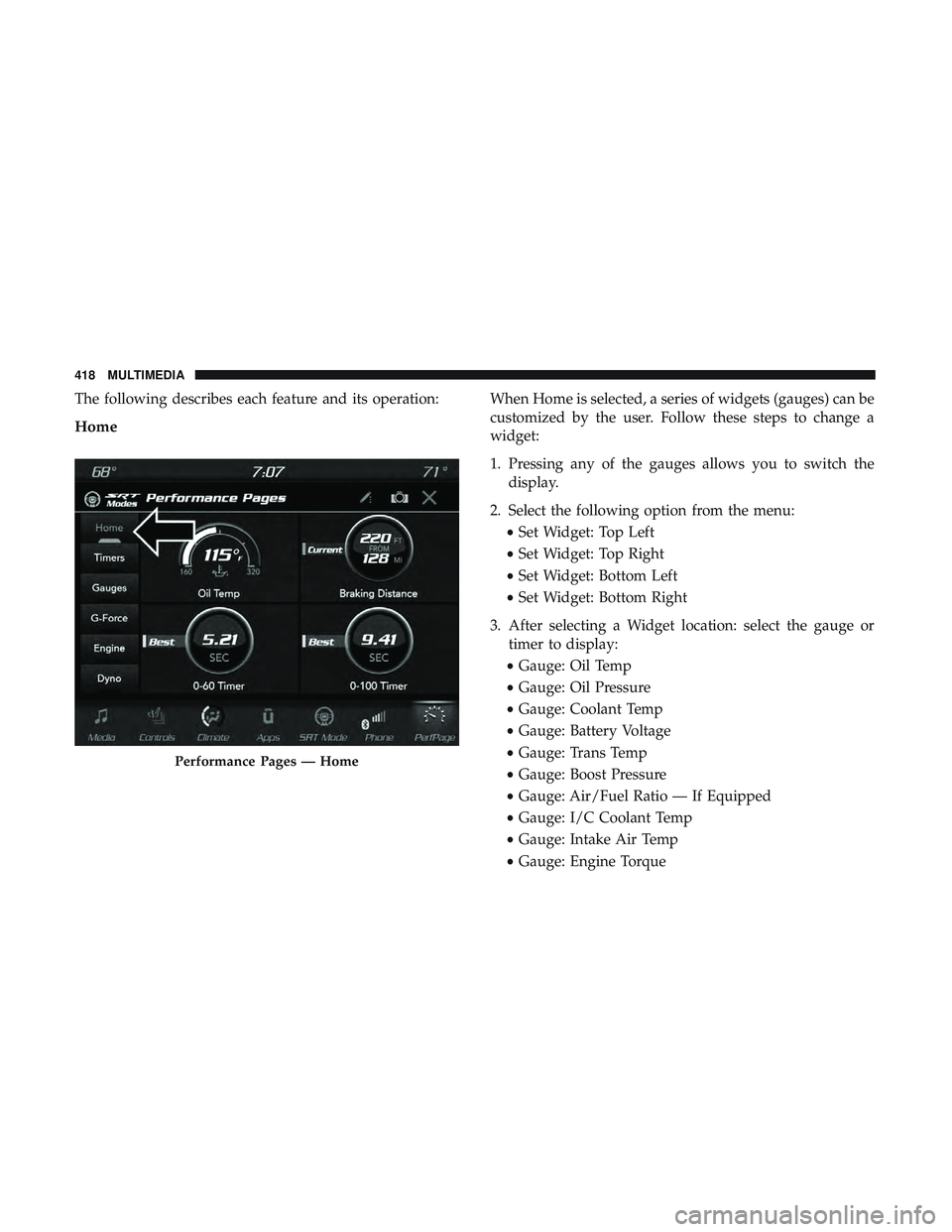
The following describes each feature and its operation:
Home
When Home is selected, a series of widgets (gauges) can be
customized by the user. Follow these steps to change a
widget:
1. Pressing any of the gauges allows you to switch thedisplay.
2. Select the following option from the menu: •Set Widget: Top Left
• Set Widget: Top Right
• Set Widget: Bottom Left
• Set Widget: Bottom Right
3. After selecting a Widget location: select the gauge or timer to display:
• Gauge: Oil Temp
• Gauge: Oil Pressure
• Gauge: Coolant Temp
• Gauge: Battery Voltage
• Gauge: Trans Temp
• Gauge: Boost Pressure
• Gauge: Air/Fuel Ratio — If Equipped
• Gauge: I/C Coolant Temp
• Gauge: Intake Air Temp
• Gauge: Engine Torque
Performance Pages — Home
418 MULTIMEDIA
Page 421 of 490
•Gauge: Engine Power
• Gauge: G-Force
• Gauge: Steering Angle
• Gauge: Current Gear
• Gauge: Current Speed
• Timer: 0–60 MPH
• Timer: 0–100 MPH
• Timer: 1/8 Mile
• Timer: 1/4 Mile
• Timer: Brake Distance
• Timer: Reaction Time
NOTE: Pressing the “Camera” icon in the upper right
corner of the Performance Pages screen will take a screen-
shot of the current screen and save it to a USB that is
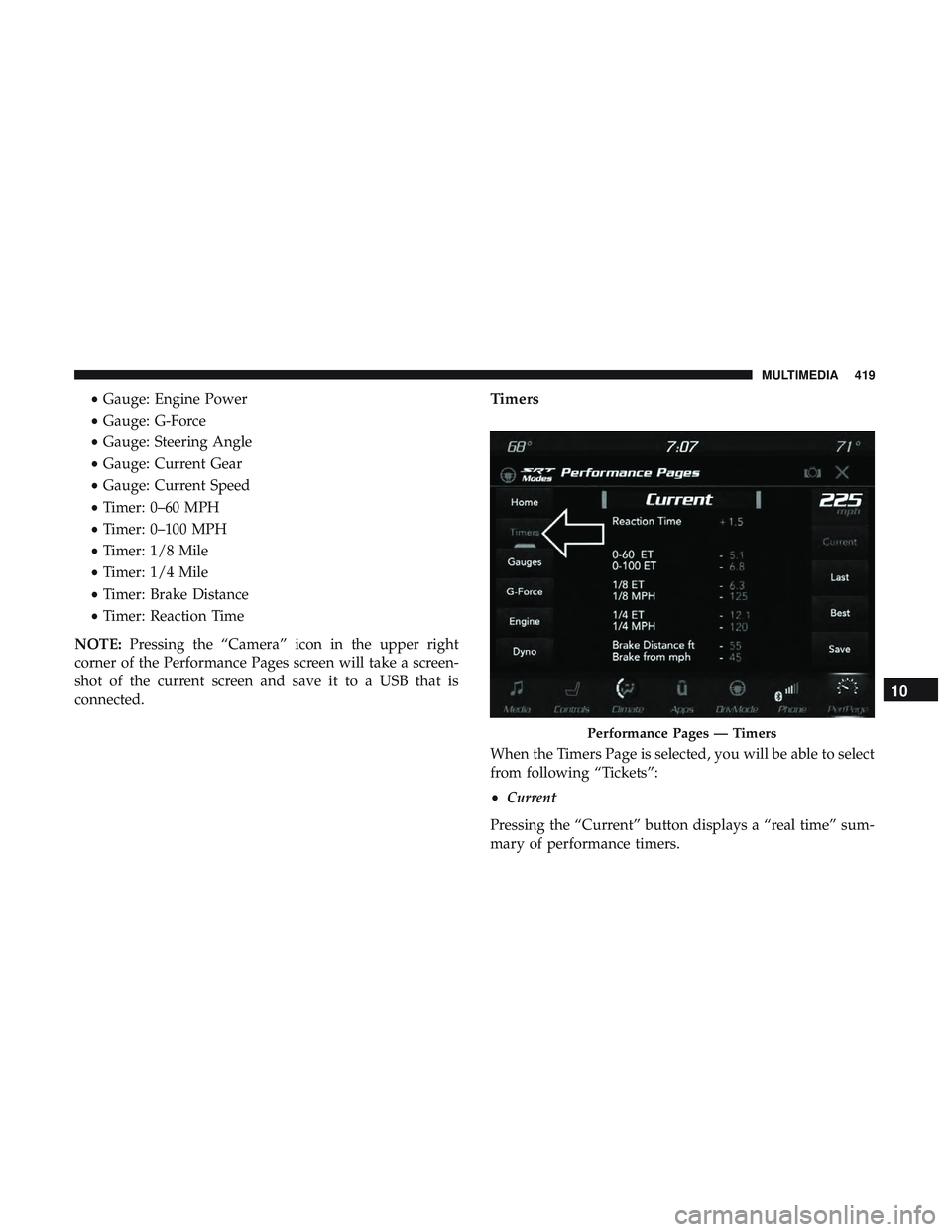
connected.Timers
When the Timers Page is selected, you will be able to select
from following “Tickets”:
• Current
Pressing the “Current” button displays a “real time” sum-
mary of performance timers.
Performance Pages — Timers
10
MULTIMEDIA 419
Page 422 of 490
•Last
Pressing the “Last” button displays the last recorded run of
performance timers.
• Best
Pressing the “Best” button displays the best recorded run
of performance timers, except for braking data.
• Save
Pressing the “Save” button will let you save from the
visible page, current/last/best. Any saved run over ten
will overwrite the last saved run for Uconnect System
storage. The operation of the Save feature is listed below:
•With a USB jump drive installed, press the “USB” button
to save to the jump drive.
• Press the “Uconnect” button to save the runs to the
Owner web page.
• Press the “Cancel” button to view the last timer “Ticket”.
Performance Pages — Save
420 MULTIMEDIA
Page 423 of 490

The “Tickets” contain the timers listed below:
•Reaction Time
Measures the driver’s reaction time for launching the
vehicle against a simulated drag strip timing light (behav-
ior modeled after 500 Sportsman Tree) displayed in the
instrument cluster display.
NOTE: The Reaction Time, MPH, ⅛and ¼ Mile timers will
be “ready” when the vehicle is at 0 MPH (0 km/h).
• 0-60 MPH (0-100 km/h)
Displays the time it takes for the vehicle to go from 0 to
60 mph (0 to 100 km/h).
• 0-100 MPH (0-160 km/h)
Displays the time it takes for the vehicle to go from 0 to
100 mph (0 to 160 km/h).
• ⅛ Mile (200 meter) ET
Displays the time it takes for the vehicle to go an ⅛mile
(200 meters).
• ⅛ Mile (200 meter) MPH
Displays the vehicle speed at the time ⅛mile (200 meters)
was reached. •
¼ Mile (400 meter) ET
Displays the time it takes for the vehicle to go ¼ mile
(400 meters).
• ¼ Mile (400 meter) MPH
Displays the speed the vehicle was at when ¼ mile
(400 meters) was reached.
• Brake Distance ft
Displays the distance it takes the vehicle to make a full
stop.
NOTE: The distance measurement will be aborted if the
brake pedal is released or the parking brake is engaged,
before the vehicle comes to a complete stop.
• Brake from MPH
Displays the speed the vehicle is traveling when the brake
pedal is pressed.
NOTE: Brake Distance and Speed timers only displays
�ready� when vehicle is traveling at greater than 30 MPH
(48 km/h).
10
MULTIMEDIA 421
Page 424 of 490
Gauges
When selected, this screen displays the following values:
•Oil Temperature
Shows the actual oil temperature.
• Oil Pressure
Shows the actual oil pressure. •
Coolant Temperature
Shows the actual coolant temperature.
• Battery Voltage
Shows the actual battery voltage.
• Trans Temp — If Equipped with an Automatic Trans-
mission
Shows the current transmission oil temperature.
• Intake Air Temperature
Shows the actual air intake temperature.
• Boost Pressure — If Equipped
Shows the current boost pressure.
• Air Fuel Ratio — If Equipped
Shows the current air fuel ratio.
• I/C Coolant Temp — If Equipped
Shows the current I/C Coolant temperature.
If a gauge is selected, the Gauge Detail View page will
appear on the screen. This page shows further information
on the selected gauge.
Performance Pages — Gauges
422 MULTIMEDIA
Page 425 of 490
Pressing the left or right arrows will cycle through the
details for each gauge. Pressing the lower X button in the
top right corner will return to the gauge main menu.G-Force
When selected, this screen displays all four G-Force values,
as well as steering angle.Gauge Detail View Page
G-Force
10
MULTIMEDIA 423
Page 426 of 490

When G-Force is selected, the following features will be
available:
•Vehicle Speed:
Measures the current speed of the vehicle in either mph
or km/h, starting at zero with no maximum value.
• Front G-Force:
Measures the braking force.
• Right G-Force:
Measures the left turn force.
• Left G-Forces:
Measures the right turn force.
• Rear G-Forces:
Measures the acceleration force.
NOTE: Front, Right, Left, and Rear G-Forces are all peak
values. These readings can be reset by clearing peak
G-Force on the instrument cluster. •
Steering Wheel Angle
Steering Wheel Angle utilizes the steering angle sensor to
measure the degree of the steering wheel relative to zero.
The zero degree measurement indicates a steering wheel
straight ahead position. When the steering angle value is
negative, a turn to the left is indicated, and when the
steering angle value is positive, a turn to the right is
indicated.
The friction circle display shows instantaneous G-Force as
a highlight and previous G-Force as dots within the circle.
The system records previous G-Force for three minutes. If
there are multiple samples at a given point, the color of the
dot will darken from blue to red. Vectors more frequent
will show in red; infrequent vectors will show in blue.
424 MULTIMEDIA