Page 631 of 696
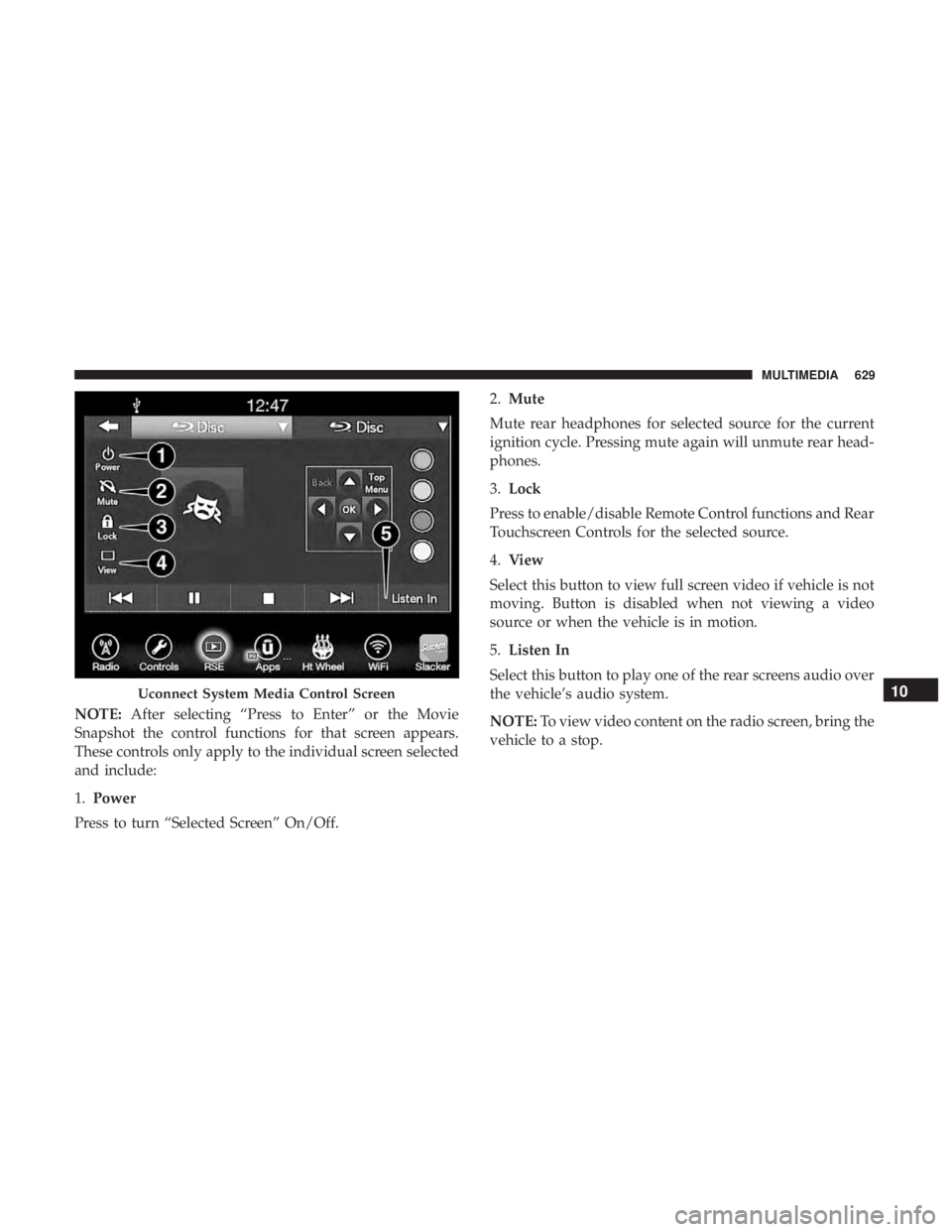
NOTE:After selecting “Press to Enter” or the Movie
Snapshot the control functions for that screen appears.
These controls only apply to the individual screen selected
and include:
1. Power
Press to turn “Selected Screen” On/Off. 2.
Mute
Mute rear headphones for selected source for the current
ignition cycle. Pressing mute again will unmute rear head-
phones.
3. Lock
Press to enable/disable Remote Control functions and Rear
Touchscreen Controls for the selected source.
4. View
Select this button to view full screen video if vehicle is not
moving. Button is disabled when not viewing a video
source or when the vehicle is in motion.
5. Listen In
Select this button to play one of the rear screens audio over
the vehicle’s audio system.
NOTE: To view video content on the radio screen, bring the
vehicle to a stop.
Uconnect System Media Control Screen10
MULTIMEDIA 629
Page 632 of 696
Disc Menu
When listening to a CD Audio disc, CD Data disc, DVD or
Blu-ray, pushing the remote control’s arrow buttons will
navigate the cursor on the rear touchscreen in the desired
direction, on whichever touchscreen is selected. The UP,
DOWN, LEFT, and RIGHT arrow buttons, and the OK and
MENU buttons on the remote, along with the correspond-
ing buttons overlaid on the radio touchscreen, can be used
to navigate the disc menu when it appears. This can be
used to select specific chapters in a movie, navigate special
features, or to play the movie from the menu.
NOTE:Inserting a disc into the player will “auto play” the
disc if already in the �Disc�source menu on the rear
screens, and the disc supports “auto play.”
Blu-ray Controls – Disc Specific Functions
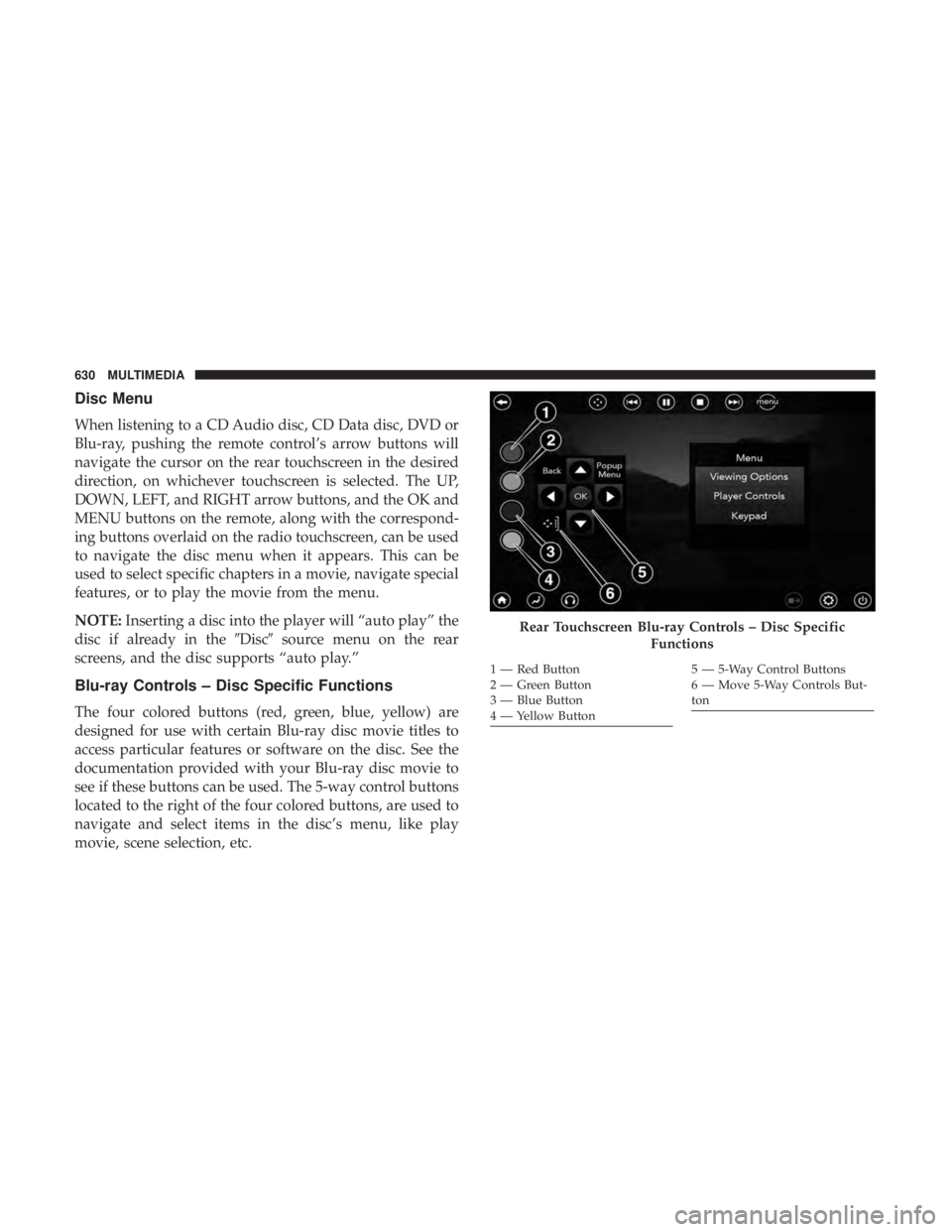
The four colored buttons (red, green, blue, yellow) are
designed for use with certain Blu-ray disc movie titles to
access particular features or software on the disc. See the
documentation provided with your Blu-ray disc movie to
see if these buttons can be used. The 5-way control buttons
located to the right of the four colored buttons, are used to
navigate and select items in the disc’s menu, like play
movie, scene selection, etc.
Rear Touchscreen Blu-ray Controls – Disc Specific
Functions
1 — Red Button
2 — Green Button
3 — Blue Button
4 — Yellow Button5 — 5-Way Control Buttons
6 — Move 5-Way Controls But-
ton
630 MULTIMEDIA
Page 636 of 696
NOTE:Certain high-end video games will exceed the
power limit of the vehicle’s Power Inverter. Refer to
“Power Inverter” in “Getting To Know Your Vehicle” in
this guide for further information.
Headphones Operation
The headphones receive two separate channels of audio
using an infrared transmitter from the video screens.
If no audio is heard after increasing the volume control
there are a number of things that can be done to trouble-
shoot the issue:
• Verify that the screen is turned on.
• Check to see that the channel is not muted.
• Make sure that the headphones are on.
• Verify that the headphone channel selector button is on
the desired channel. This button switches between the
audio of screen 1 and screen 2.
• Install two new AAA type batteries in the headphones.
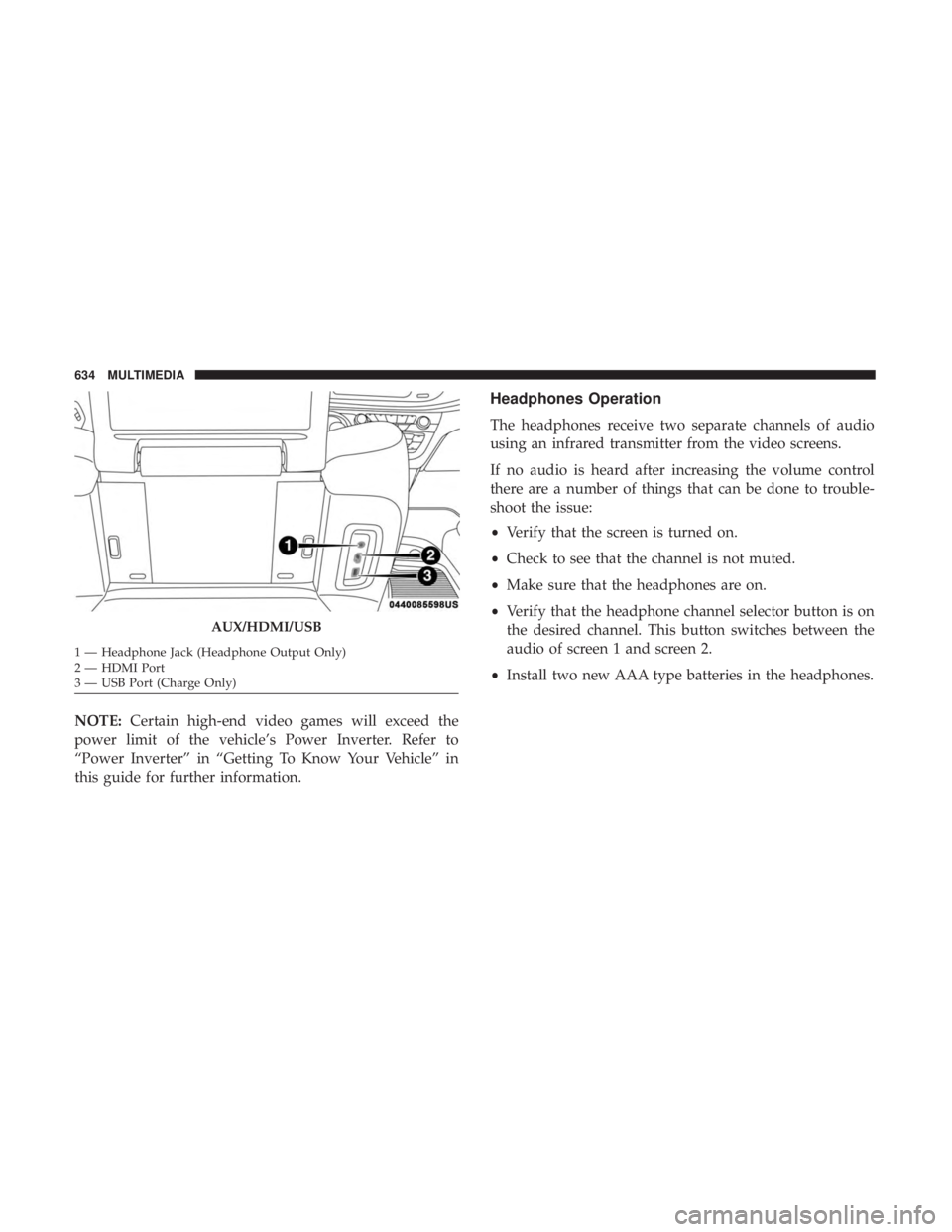
AUX/HDMI/USB
1 — Headphone Jack (Headphone Output Only)
2 — HDMI Port
3 — USB Port (Charge Only) 634 MULTIMEDIA
Page 637 of 696
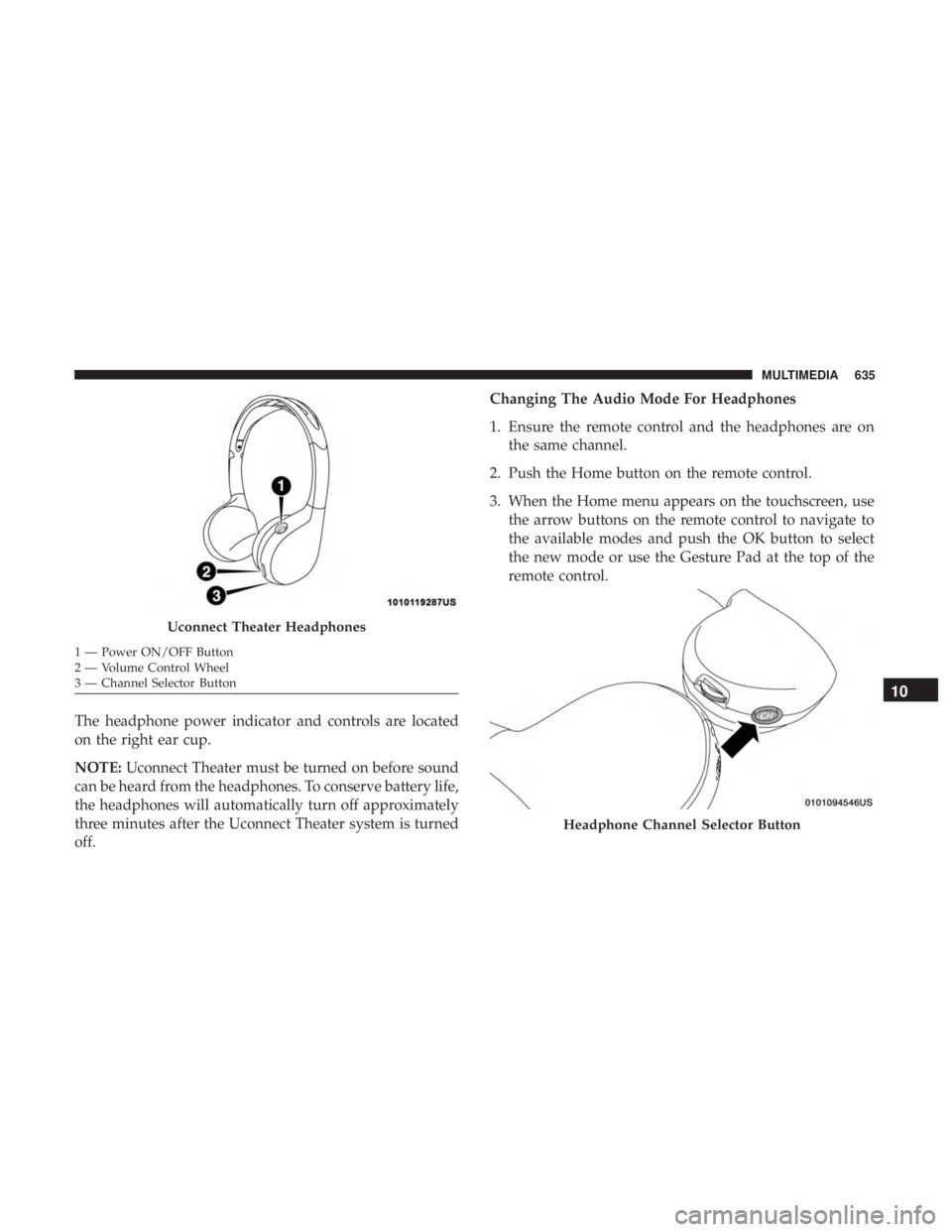
The headphone power indicator and controls are located
on the right ear cup.
NOTE:Uconnect Theater must be turned on before sound
can be heard from the headphones. To conserve battery life,
the headphones will automatically turn off approximately
three minutes after the Uconnect Theater system is turned
off. Changing The Audio Mode For Headphones
1. Ensure the remote control and the headphones are on
the same channel.
2. Push the Home button on the remote control.
3. When the Home menu appears on the touchscreen, use the arrow buttons on the remote control to navigate to
the available modes and push the OK button to select
the new mode or use the Gesture Pad at the top of the
remote control.
Uconnect Theater Headphones
1 — Power ON/OFF Button
2 — Volume Control Wheel
3 — Channel Selector Button
Headphone Channel Selector Button
10
MULTIMEDIA 635
Page 640 of 696
Listening To Audio With The Screen Closed
To listen to only audio portion of the channel with the
screen closed:
•Set the audio to the desired source and channel.
• Close the video screen.
• When the screen is reopened, the video screen will
automatically turn back on and show the appropriate
display menu or media.
If the screen is closed and there is no audio heard, verify
that the headphones are turned on (the ON indicator is
illuminated) and the headphone selector switch is on the
desired channel. If the headphones are turned on, push the
remote control’s power button to turn audio on. If audio is
still not heard, check that fully charged batteries are
installed in the headphones.
Rear Climate Controls
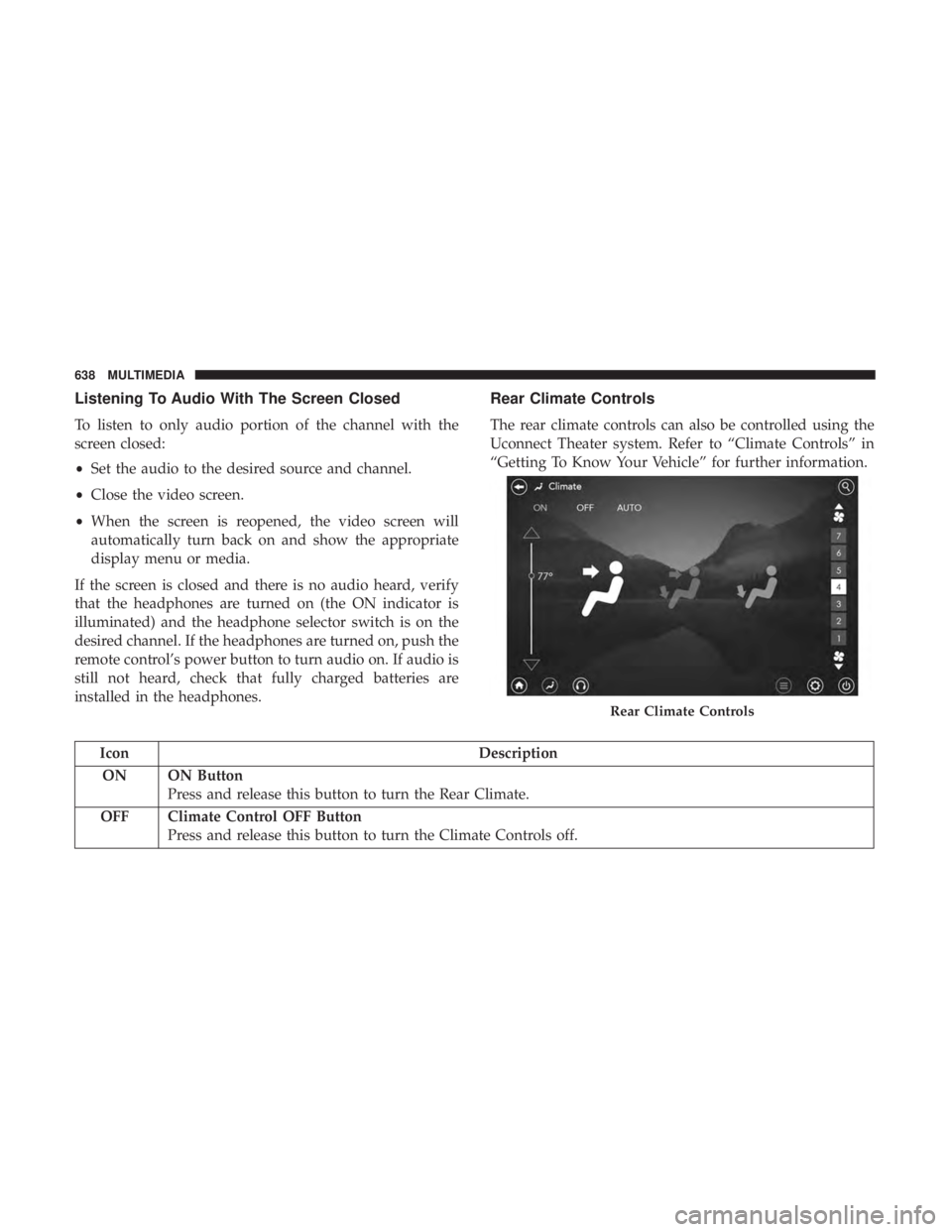
The rear climate controls can also be controlled using the
Uconnect Theater system. Refer to “Climate Controls” in
“Getting To Know Your Vehicle” for further information.
Icon Description
ON ON Button Press and release this button to turn the Rear Climate.
OFF Climate Control OFF Button Press and release this button to turn the Climate Controls off.
Rear Climate Controls
638 MULTIMEDIA
Page 645 of 696
Settings
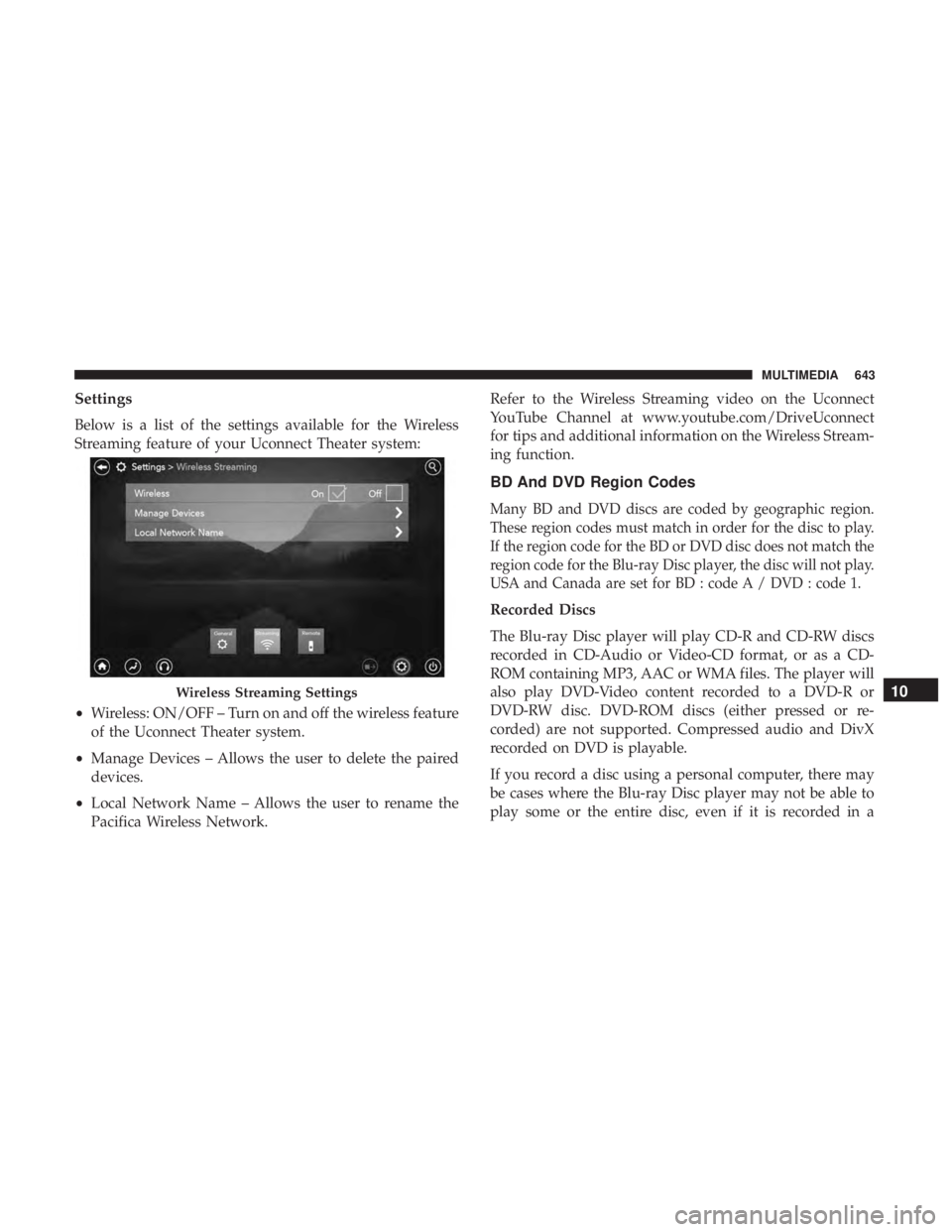
Below is a list of the settings available for the Wireless
Streaming feature of your Uconnect Theater system:
•Wireless: ON/OFF – Turn on and off the wireless feature
of the Uconnect Theater system.
• Manage Devices – Allows the user to delete the paired
devices.
• Local Network Name – Allows the user to rename the
Pacifica Wireless Network. Refer to the Wireless Streaming video on the Uconnect
YouTube Channel at www.youtube.com/DriveUconnect
for tips and additional information on the Wireless Stream-
ing function.
BD And DVD Region Codes
Many BD and DVD discs are coded by geographic region.
These region codes must match in order for the disc to play.
If the region code for the BD or DVD disc does not match the
region code for the Blu-ray Disc player, the disc will not play.
USA and Canada are set for BD : code A / DVD : code 1.
Recorded Discs
The Blu-ray Disc player will play CD-R and CD-RW discs
recorded in CD-Audio or Video-CD format, or as a CD-
ROM containing MP3, AAC or WMA files. The player will
also play DVD-Video content recorded to a DVD-R or
DVD-RW disc. DVD-ROM discs (either pressed or re-
corded) are not supported. Compressed audio and DivX
recorded on DVD is playable.
If you record a disc using a personal computer, there may
be cases where the Blu-ray Disc player may not be able to
play some or the entire disc, even if it is recorded in a
Wireless Streaming Settings10
MULTIMEDIA 643
Page 646 of 696
compatible format and is playable on other players. To help
avoid playback problems, use the following guidelines
when recording discs.
•Open sessions are ignored. Only sessions that are closed
are playable.
• For multi-session CDs that contain only multiple CD-
Audio sessions, the player will renumber the tracks so
each track number is unique.
• For CD Data (or CD-ROM) discs, always use the ISO-
9660 (Level 1 or Level 2), Joliet, or Romeo format. Other
formats (such as HFS, or others) are not supported.
• The player recognizes a maximum of 2000 files and 255
folders (includes the ROOT folder) per CD-R and
CD-RW disc.
• Mixed media recordable DVD formats will only play the
Video_TS portion of the disc.
If you are still having trouble writing a disc that is playable
in the Blu-ray Disc player, check with the disc recording
software publisher for more information about burning
playable discs.
The recommended method for labeling recordable discs
(CD-R, CD-RW, and DVD-R) is with a permanent marker. Do not use adhesive labels as they may separate from the
disc, become stuck, and cause permanent damage to the
DVD player.
Compressed Audio Files (MP3, WMA and AAC)
The Blu-ray Disc player is capable of playing MP3
(MPEG-1 Audio Layer 3), WMA (Windows Media Audio)
files and AAC (Advanced Audio Coding) from a CD Data
disc (usually a CD-R or CD-RW) or DVD Data disc (usually
a DVD-R or DVD-RW).
•
The Blu-ray Disc player always uses the file extension to
determine the audio format, so MP3 files must always
end with the extension “.mp3” or “.MP3” and WMA
files must always end with the extension “.wma” or
“.WMA” and AAC files must always end with the
extension and “.aac” or “.AAC” or “m4a”. To prevent
incorrect playback, do not use these extensions for any
other types of files.
• For MP3 files, ID3v1, ID3v2 tag data (such as artist
name, track title, album, etc.) are supported.
• Any file that is copy protected (such as those down-
loaded from many online music stores) will not play. The
Blu-ray player will automatically skip the file and begin
playing the next available file.
644 MULTIMEDIA
Page 680 of 696
About Your Brakes........................ .548
Adaptive Cruise Control (ACC) (Cruise Control) . . . .332
Adding Engine Coolant (Antifreeze) .............512
Additives, Fuel ............................551
Adjust Down .................................52
Forward ................................52
Rearward ...............................52
Up....................................52
AirBag ................................ .258
Air Bag Operation ........................260
Air Bag Warning Light .................257, 261
Driver Knee Air Bag ..................... .268
Enhanced Accident Response .............273, 485
Event Data Recorder (EDR) .................486
FrontAirBag .......................... .261
If Deployment Occurs .....................272
Knee Impact Bolsters ..................... .267
Maintaining Your Air Bag System .............274
Maintenance ............................274
Redundant Air Bag Warning Light ............258
Side Air Bags .......................... .268
Transporting Pets ........................300
Air Bag Light .......................198, 257, 301
Air Cleaner, Engine (Engine Air Cleaner Filter) ......498Air Conditioner Maintenance
..................500
Air Conditioner Refrigerant ...................500
Air Conditioner System ..................... .500
Air Conditioning Filter ...................132, 501
Air Conditioning, Operating Tips ...............130
Air Filter ............................... .498
Air Pressure Tires................................. .528
Alarm Arm The System ..........................33
Disarm The System ........................34
Security Alarm ..........................201
Alterations/Modifications, Vehicle ................5
Android Auto ............................ .665
Antifreeze (Engine Coolant) ................511,555
Disposal ...............................513
Anti-Lock Brake
System (ABS).................214
Anti-Lock Warning Light .....................202
Apple CarPlay ............................667
Ashtray .................................172
Assist, Hill Start .......................... .221
Audio Jack ...............................616
Audio Systems (Radio) .......................562
Automatic Dimming Mirror ....................89
Automatic Headlights ........................96
678 INDEX