Page 632 of 696
Disc Menu
When listening to a CD Audio disc, CD Data disc, DVD or
Blu-ray, pushing the remote control’s arrow buttons will
navigate the cursor on the rear touchscreen in the desired
direction, on whichever touchscreen is selected. The UP,
DOWN, LEFT, and RIGHT arrow buttons, and the OK and
MENU buttons on the remote, along with the correspond-
ing buttons overlaid on the radio touchscreen, can be used
to navigate the disc menu when it appears. This can be
used to select specific chapters in a movie, navigate special
features, or to play the movie from the menu.
NOTE:Inserting a disc into the player will “auto play” the
disc if already in the �Disc�source menu on the rear
screens, and the disc supports “auto play.”
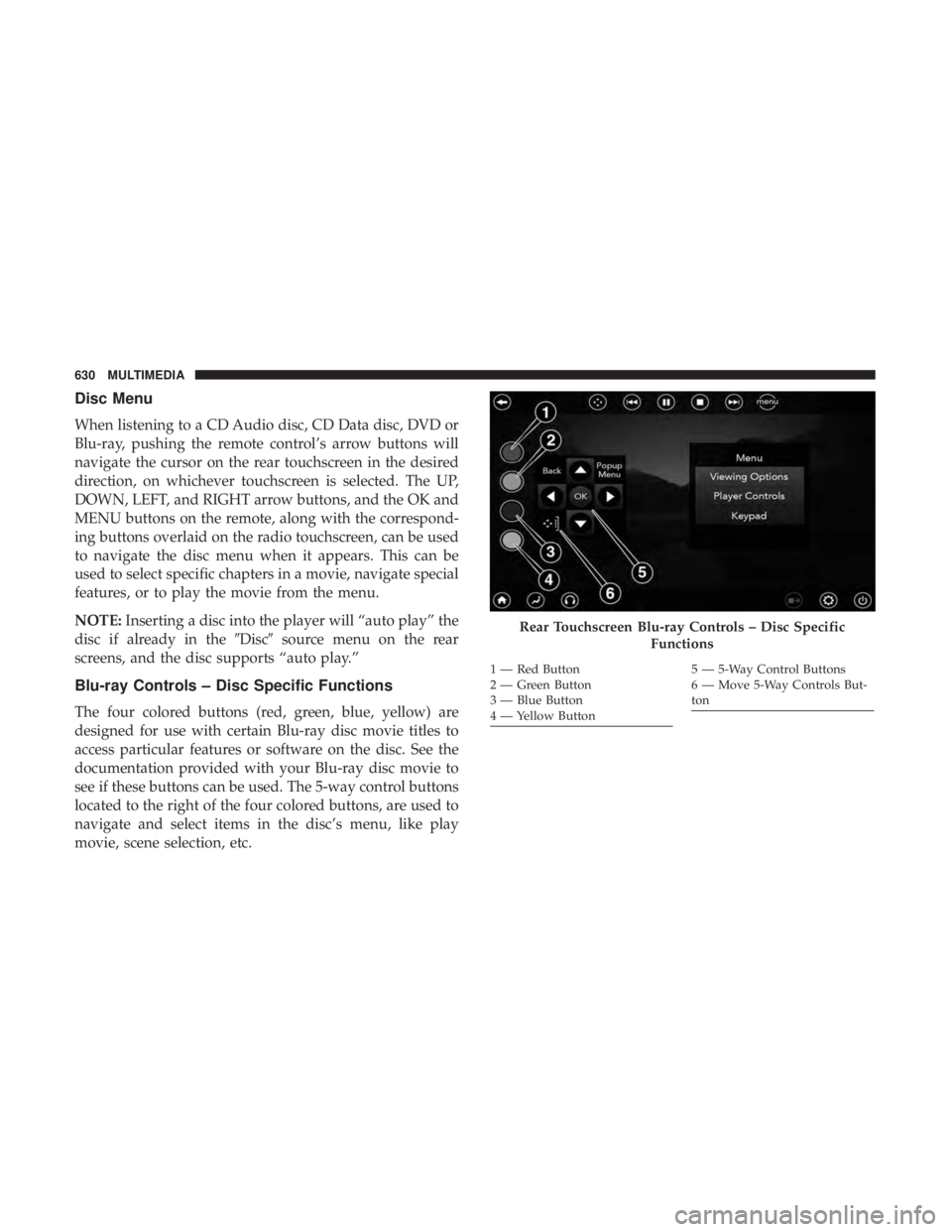
Blu-ray Controls – Disc Specific Functions
The four colored buttons (red, green, blue, yellow) are
designed for use with certain Blu-ray disc movie titles to
access particular features or software on the disc. See the
documentation provided with your Blu-ray disc movie to
see if these buttons can be used. The 5-way control buttons
located to the right of the four colored buttons, are used to
navigate and select items in the disc’s menu, like play
movie, scene selection, etc.
Rear Touchscreen Blu-ray Controls – Disc Specific
Functions
1 — Red Button
2 — Green Button
3 — Blue Button
4 — Yellow Button5 — 5-Way Control Buttons
6 — Move 5-Way Controls But-
ton
630 MULTIMEDIA
Page 635 of 696
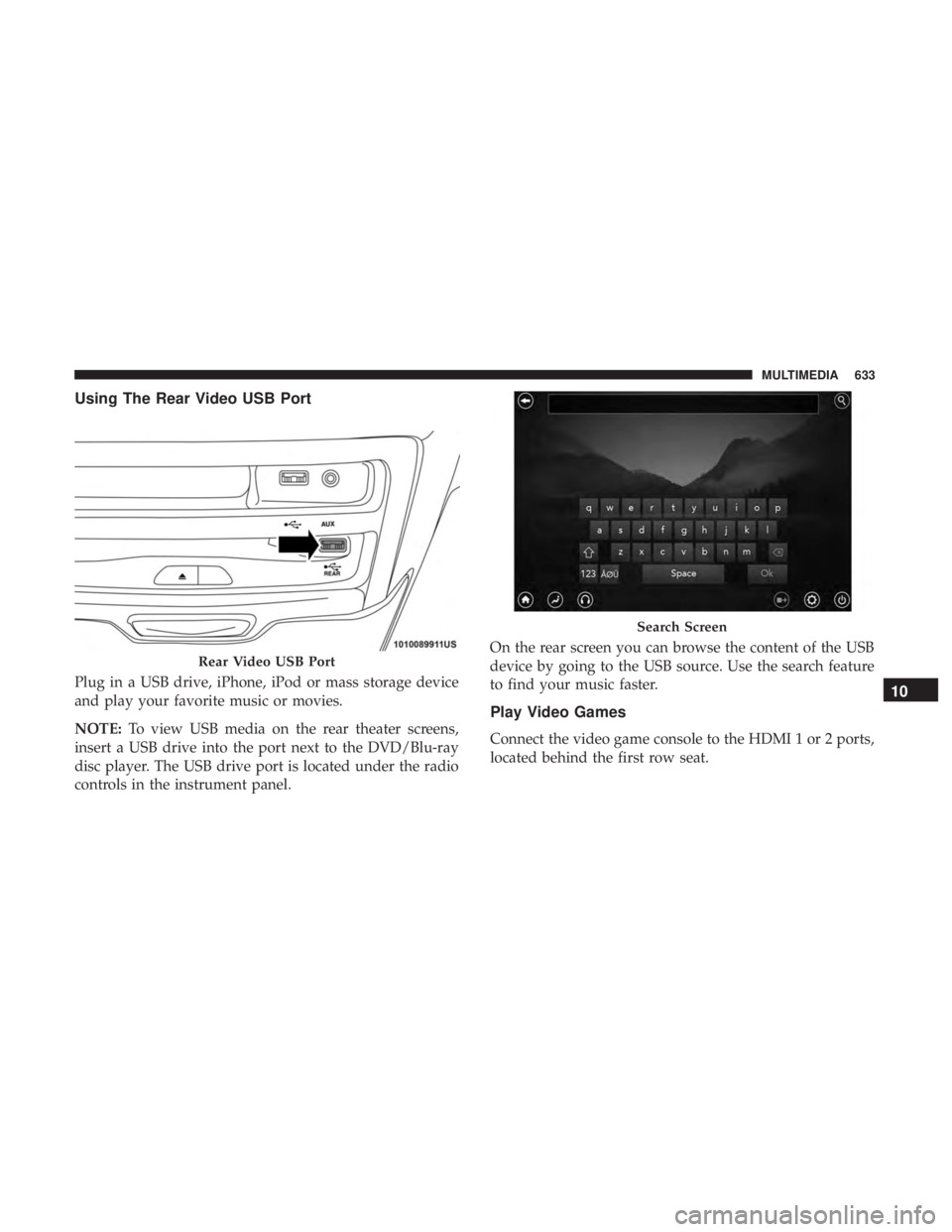
Using The Rear Video USB Port
Plug in a USB drive, iPhone, iPod or mass storage device
and play your favorite music or movies.
NOTE:To view USB media on the rear theater screens,
insert a USB drive into the port next to the DVD/Blu-ray
disc player. The USB drive port is located under the radio
controls in the instrument panel. On the rear screen you can browse the content of the USB
device by going to the USB source. Use the search feature
to find your music faster.
Play Video Games
Connect the video game console to the HDMI 1 or 2 ports,
located behind the first row seat.
Rear Video USB Port
Search Screen
10
MULTIMEDIA 633
Page 650 of 696
device setup menu. DivX, DivX Certified and associated
logos are trademarks of DivX, LLC and are used under
license.
Cinavia
�Cinavia Notice This product uses Cinavia technology to
limit the use of unauthorized copies of some commercially-
produced film and videos and their soundtracks. When a
prohibited use of an unauthorized copy is detected, a
message will be displayed and playback or copying will be
interrupted. More information about Cinavia technology is
provided at the Cinavia Online Consumer Information
Center at http://www.cinavia.com. To request additional
information about Cinavia by mail, send a postcard with
your mailing address to: Cinavia Consumer Information
Center, P.O. Box 86851, San Diego, CA, 92138, USA.” “This
product incorporates proprietary technology under license
from Verance Corporation and is protected by U.S. Patent
7,369,677 and other U.S. and worldwide patents issued and
pending as well as copyright and trade secret protection for
certain aspects of such technology. Cinavia is a trademark
of Verance Corporation. Copyright 2004-2012 Verance
Corporation. All rights reserved by Verance. Reverse engi-
neering or disassembly is prohibited.
CAUTION!
Use of controls or adjustments or performance of
procedures other than those specified herein may re-
sult in hazardous radiation exposure.
General Information
The following regulatory statement applies to all Radio
Frequency (RF) devices equipped in this vehicle:
This device complies with Part 15 of the FCC Rules and
with Industry Canada license-exempt RSS standard(s).
Operation is subject to the following two conditions:
1. This device may not cause harmful interference, and
2. This device must accept any interference received, in-cluding interference that may cause undesired opera-
tion.
NOTE: Changes or modifications not expressly approved
by the party responsible for compliance could void the
user ’s authority to operate the equipment.
648 MULTIMEDIA