Page 123 of 696

IconDescription
SYNC Button
Press the Sync button on the touchscreen to toggle the Sync feature On/Off. The Sync indicator
is illuminated when this feature is enabled. SYNC is used to synchronize the front and rear pas-
senger temperature settings. Changing the front or rear passenger temperature setting while in
SYNC will automatically exit this feature.
NOTE:The SYNC setting is only available on the touchscreen.
Faceplate Knob
Touchscreen Buttons
Blower Control
Blower Control is used to regulate the amount of air forced through the climate system. There
are seven blower speeds available. The speeds can be selected using either the blower control
knob on the faceplate or the buttons on the touchscreen.
• Faceplate: The blower speed increases as you turn the blower control knob clockwise from
the lowest blower setting. The blower speed decreases as you turn the blower control knob
counterclockwise.
• Touchscreen: Use the small blower icon to reduce the blower setting and the large blower
icon to increase the blower setting. Blower speed can also be selected by pressing the blower
bar area between the icons.
Modes Control
The airflow distribution mode can be adjusted so air comes from the instrument panel outlets,
floor outlets, defrost outlets and demist outlets. The Mode settings are as follows:
Faceplate: Push the button in the center of the knob to change the airflow distribution mode.
Touchscreen: Select Mode by pressing one of the Mode Buttons on the touchscreen.
3
GETTING TO KNOW YOUR VEHICLE 121
Page 125 of 696
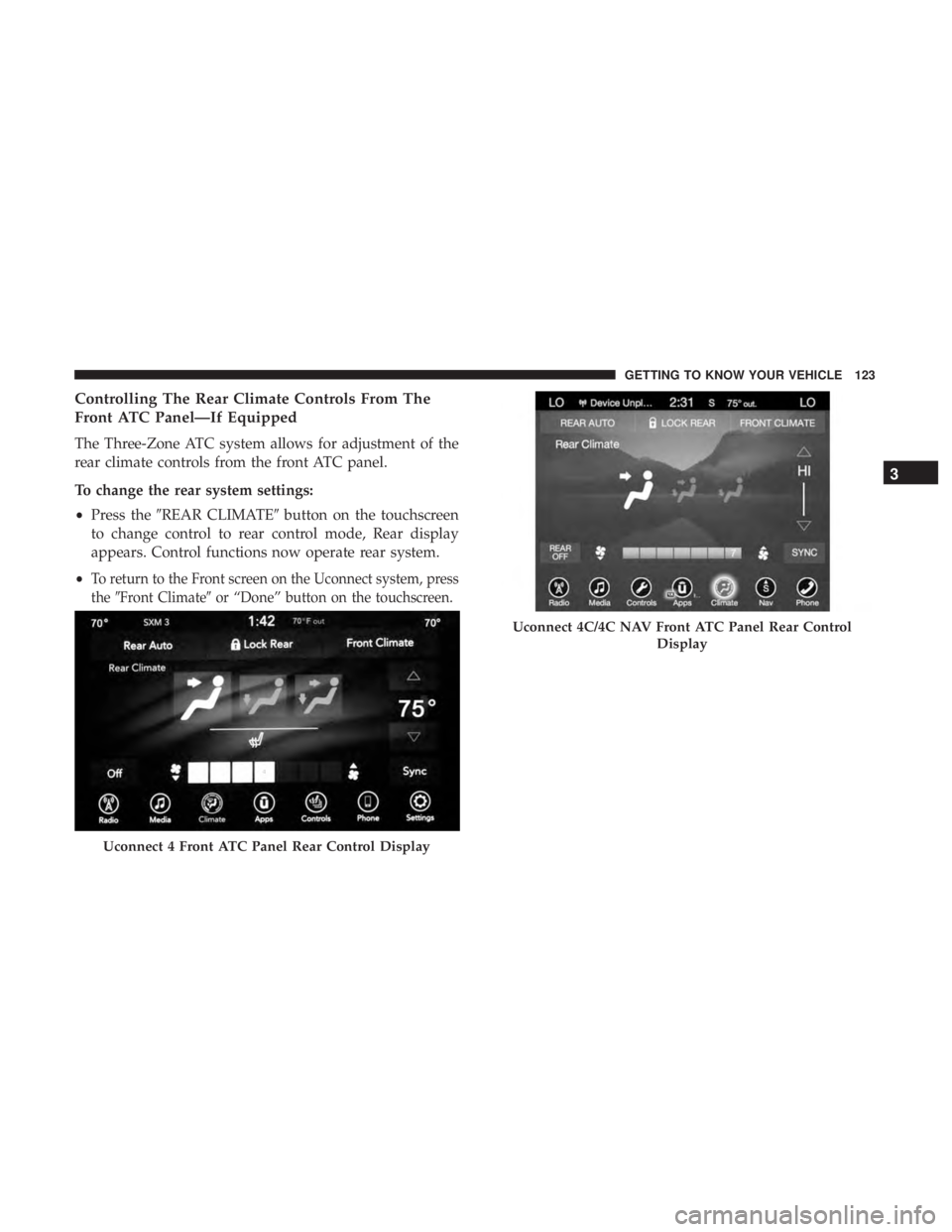
Controlling The Rear Climate Controls From The
Front ATC Panel—If Equipped
The Three-Zone ATC system allows for adjustment of the
rear climate controls from the front ATC panel.
To change the rear system settings:
•Press the �REAR CLIMATE� button on the touchscreen
to change control to rear control mode, Rear display
appears. Control functions now operate rear system.
•
To return to the Front screen on the Uconnect system, press
the �Front Climate� or “Done” button on the touchscreen.
Uconnect 4 Front ATC Panel Rear Control Display
Uconnect 4C/4C NAV Front ATC Panel Rear Control
Display
3
GETTING TO KNOW YOUR VEHICLE 123
Page 126 of 696
IconDescription
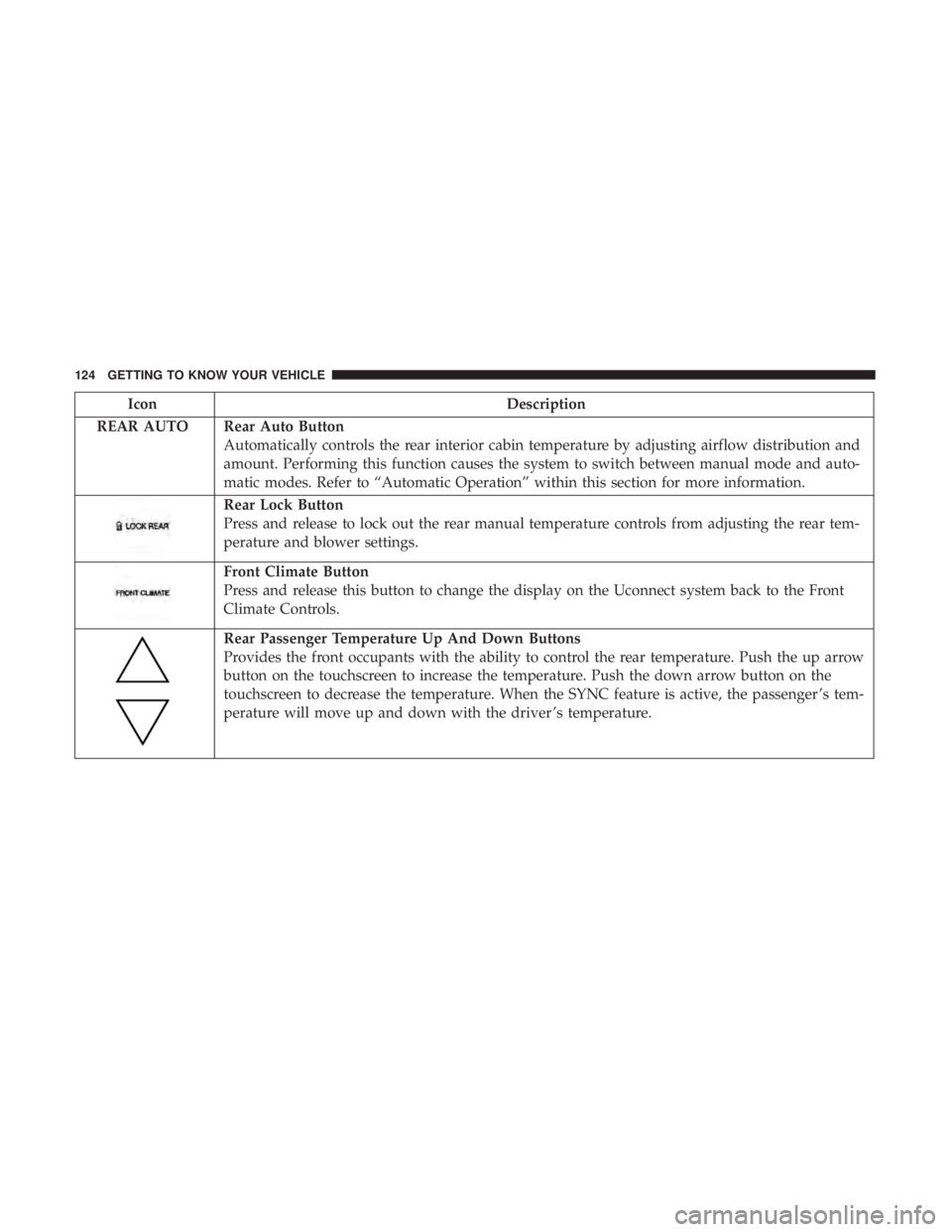
REAR AUTO Rear Auto Button Automatically controls the rear interior cabin temperature by adjusting airflow distribution and
amount. Performing this function causes the system to switch between manual mode and auto-
matic modes. Refer to “Automatic Operation” within this section for more information.
Rear Lock Button
Press and release to lock out the rear manual temperature controls from adjusting the rear tem-
perature and blower settings.
Front Climate Button
Press and release this button to change the display on the Uconnect system back to the Front
Climate Controls.
Rear Passenger Temperature Up And Down Buttons
Provides the front occupants with the ability to control the rear temperature. Push the up arrow
button on the touchscreen to increase the temperature. Push the down arrow button on the
touchscreen to decrease the temperature. When the SYNC feature is active, the passenger ’s tem-
perature will move up and down with the driver ’s temperature.
124 GETTING TO KNOW YOUR VEHICLE
Page 127 of 696
IconDescription
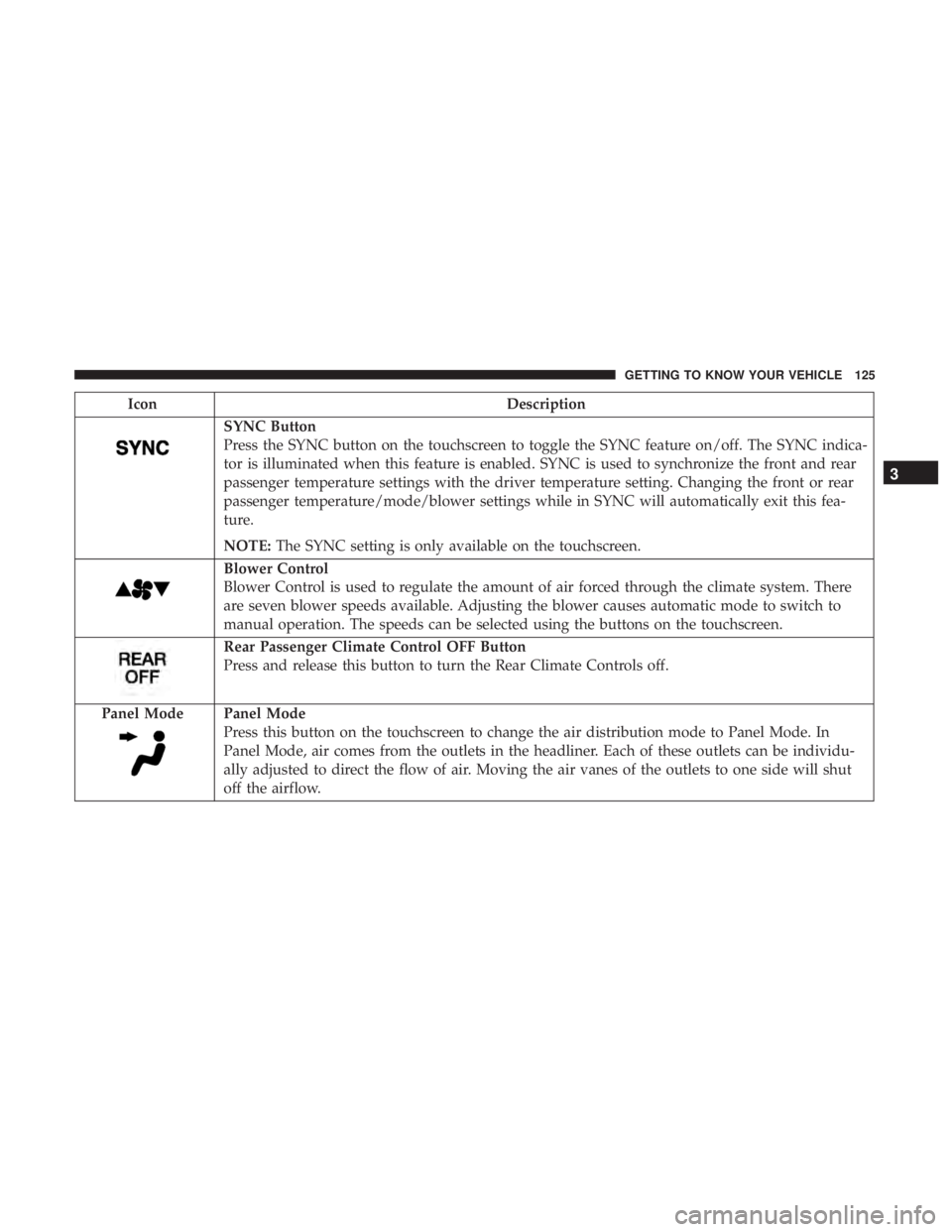
SYNC Button
Press the SYNC button on the touchscreen to toggle the SYNC feature on/off. The SYNC indica-
tor is illuminated when this feature is enabled. SYNC is used to synchronize the front and rear
passenger temperature settings with the driver temperature setting. Changing the front or rear
passenger temperature/mode/blower settings while in SYNC will automatically exit this fea-
ture.
NOTE:The SYNC setting is only available on the touchscreen.
Blower Control
Blower Control is used to regulate the amount of air forced through the climate system. There
are seven blower speeds available. Adjusting the blower causes automatic mode to switch to
manual operation. The speeds can be selected using the buttons on the touchscreen.
Rear Passenger Climate Control OFF Button
Press and release this button to turn the Rear Climate Controls off.
Panel Mode
Panel Mode
Press this button on the touchscreen to change the air distribution mode to Panel Mode. In
Panel Mode, air comes from the outlets in the headliner. Each of these outlets can be individu-
ally adjusted to direct the flow of air. Moving the air vanes of the outlets to one side will shut
off the airflow.
3
GETTING TO KNOW YOUR VEHICLE 125
Page 129 of 696
1. Adjust the rear blower, rear temperature and the rearmodes to suit your comfort needs.
2. ATC is selected by pushing the AUTO button.
Once the desired temperature is displayed, the ATC System
will automatically achieve and maintain that comfort level.
When the system is set up for your comfort level, it is not
necessary to change the settings. You will experience the
greatest efficiency by simply allowing the system to func-
tion automatically. NOTE:
•
It is not necessary to move the temperature settings. The
system automatically adjusts the temperature, mode and
fan speed to provide comfort as quickly as possible.
Icon Description
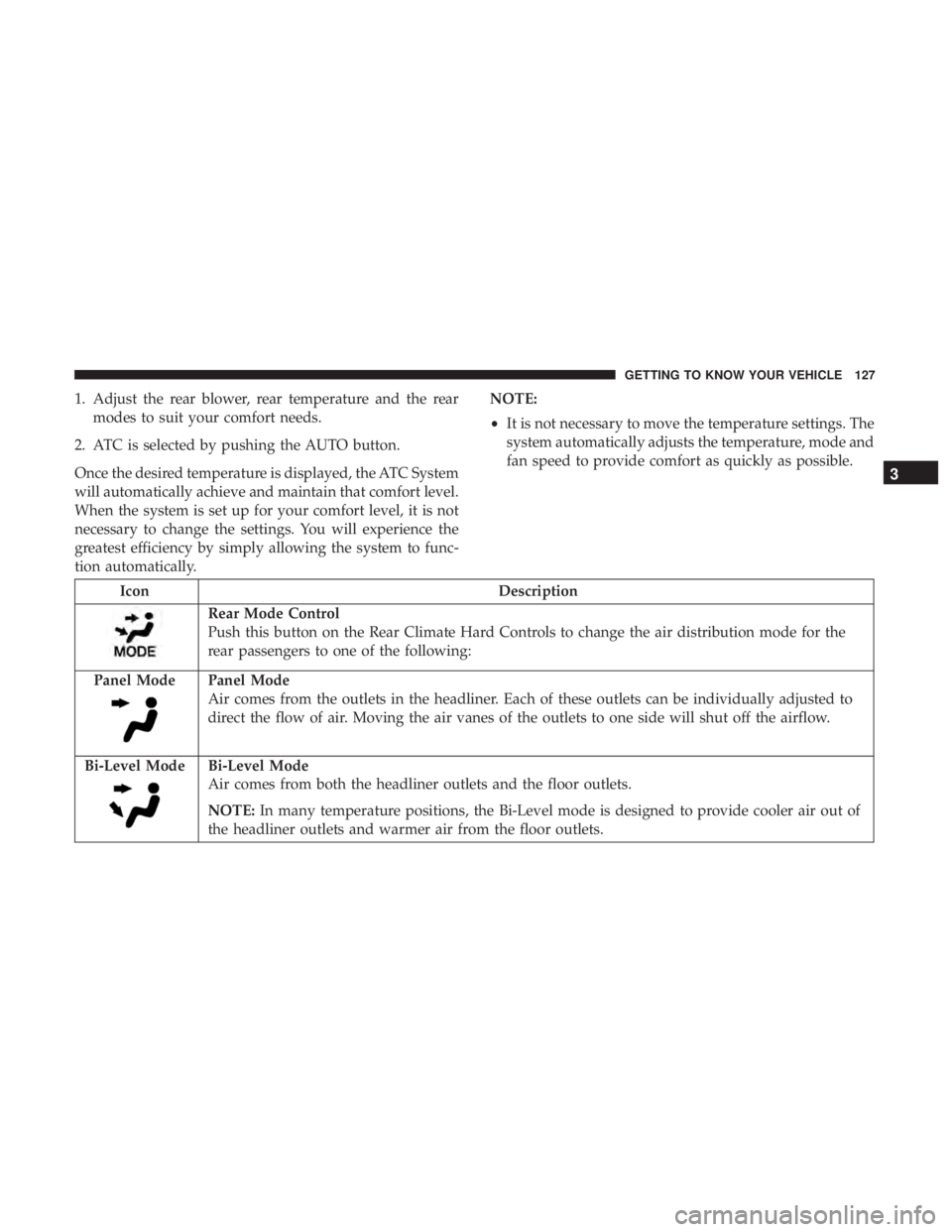
Rear Mode Control
Push this button on the Rear Climate Hard Controls to change the air distribution mode for the
rear passengers to one of the following:
Panel Mode
Panel Mode
Air comes from the outlets in the headliner. Each of these outlets can be individually adjusted to
direct the flow of air. Moving the air vanes of the outlets to one side will shut off the airflow.
Bi-Level Mode
Bi-Level Mode
Air comes from both the headliner outlets and the floor outlets.
NOTE: In many temperature positions, the Bi-Level mode is designed to provide cooler air out of
the headliner outlets and warmer air from the floor outlets.
3
GETTING TO KNOW YOUR VEHICLE 127
Page 144 of 696
Settings, the liftgate will only unlock with handle activa-
tion. Refer to “Uconnect Settings” in “Multimedia” for
further information.
Closing
To Close The Liftgate
Grasp the liftgate closing handle and initiate lowering the
liftgate. Release the handle when the liftgate takes over the
closing effort.
To Lock The Vehicle
With a valid Passive Entry key fob within 5 ft (1.5 m) of the
liftgate, pushing the passive entry lock button located to
the right of the outside handle will lock the vehicle.
WARNING!
•Driving with the liftgate open can allow poisonous
exhaust gases into your vehicle. You and your pas-
sengers could be injured by these fumes. Keep the
liftgate closed when you are operating the vehicle.
• If you are required to drive with the liftgate open,
make sure that all windows are closed, and the
climate control blower switch is set at high speed. Do
not use the recirculation mode.
Power Liftgate — If Equipped
The power liftgate may be opened or closed in several
ways:
• Overhead console liftgate button
• Key fob
• Outside handle (opens liftgate only)
• Button just inside the liftgate on the upper left trim
(when liftgate is open)
• Hands-Free Liftgate (opens liftgate only) — If Equipped
Using the above ways:
• When the liftgate is fully closed, the liftgate will open
• When the liftgate is fully open, the liftgate will close
• When the liftgate is moving, the liftgate will reverse
Push the Power Liftgate button on the Overhead Console
to open or close the liftgate.
Push the liftgate button on the key fob twice within five
seconds to open or close the liftgate.
142 GETTING TO KNOW YOUR VEHICLE
Page 562 of 696

▫Uconnect Theater Apps ...................631
▫ Using The Rear Video USB Port .............633
▫ Play Video Games ..................... .633
▫ Headphones Operation ...................634
▫ Display Settings ........................637
▫ Listening To Audio With The Screen Closed . . . .638
▫ Rear Climate Controls....................638
▫ Accessibility — If Equipped ...............640
▫ Wireless Streaming — If Equipped ...........640
▫ BD And DVD Region Codes ...............643
▫ Product Agreement .....................645
▫ General Information .....................648
▫ FCC/IC Regulatory Notices ...............649
� RADIO OPERATION AND MOBILE PHONES . . .650
▫ Regulatory And Safety Information ..........650
� UCONNECT VOICE RECOGNITION
QUICK TIPS .......................... .651▫
Introducing Uconnect ....................651
▫ Get Started .......................... .652
▫ Basic Voice Commands ...................653
▫ Radio ...............................653
▫ Media ...............................654
▫ Phone ...............................656
▫ Voice Text Reply .......................657
▫ Climate ............................. .658
▫ Navigation (4C NAV) ....................660
▫ SiriusXM Guardian (4C/4C NAV)—
If Equipped .......................... .661
▫ Register (4C/4C
NAV) ...................661
▫ Vehicle Health Report/Alert (4C/4C NAV) .....662
▫ Mobile App (4C/4C NAV) ................662
▫ SiriusXM Travel Link (4C NAV) .............663
▫ Siri Eyes Free — If Equipped ..............663
▫ Using Do Not Disturb ...................665
560 MULTIMEDIA
Page 627 of 696
Replacing The Remote Control Batteries
Each remote control requires two AAA batteries for opera-
tion.
To replace the batteries:
1. Locate the battery compartment on the back of theremote, then slide the battery cover downward.
2. Remove the old batteries and follow battery recycling procedures for your area.
3. Install new batteries, making sure to orient them accord- ing to the polarity diagram shown inside the battery
compartment.
4. Replace the battery compartment cover.
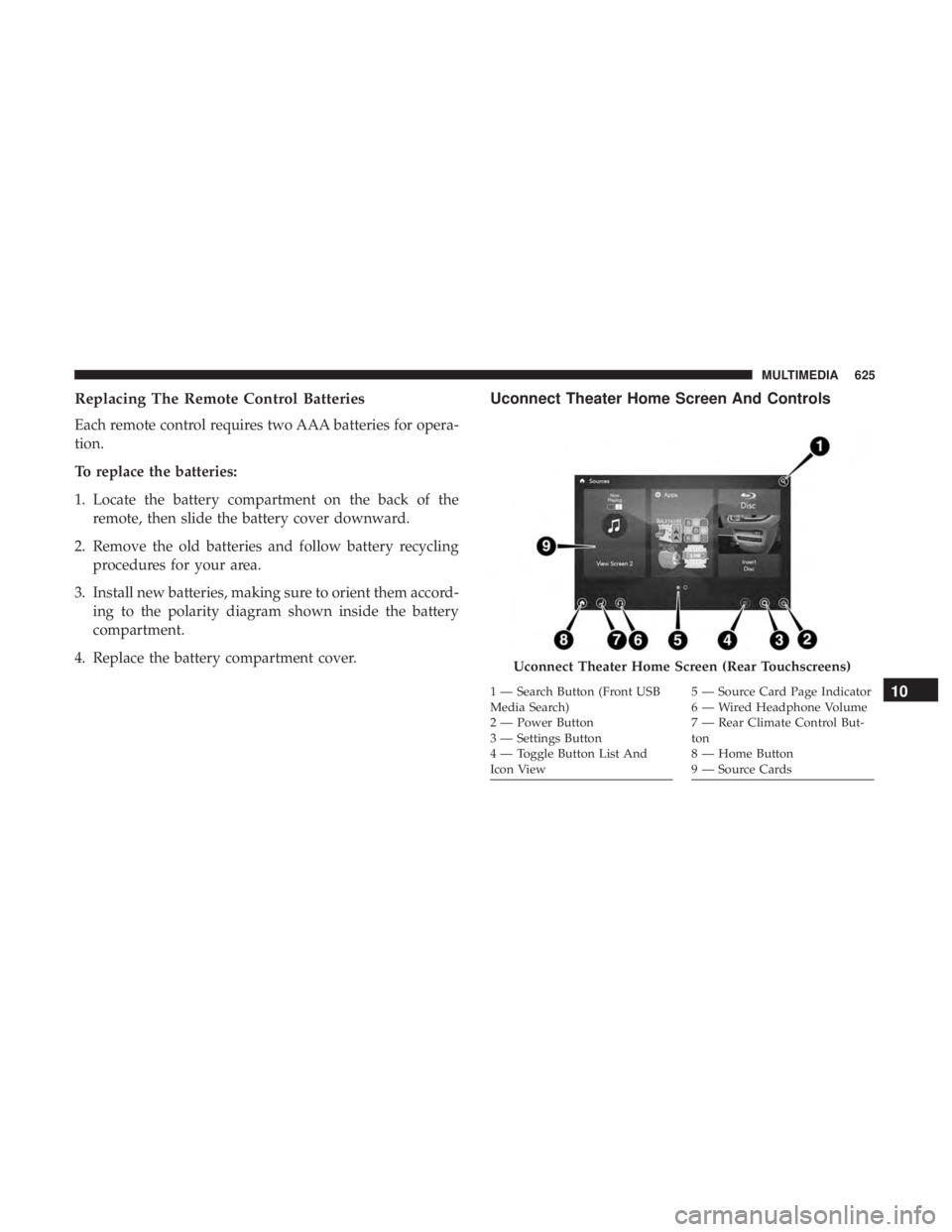
Uconnect Theater Home Screen And Controls
Uconnect Theater Home Screen (Rear Touchscreens)
1 — Search Button (Front USB
Media Search)
2 — Power Button
3 — Settings Button
4 — Toggle Button List And
Icon View5 — Source Card Page Indicator
6 — Wired Headphone Volume
7 — Rear Climate Control But-
ton
8 — Home Button
9 — Source Cards10
MULTIMEDIA 625