Page 652 of 696

RADIO OPERATION AND MOBILE PHONES
Under certain conditions, the mobile phone being on in
your vehicle can cause erratic or noisy performance from
your radio. This condition may be lessened or eliminated
by relocating the mobile phone antenna. This condition is
not harmful to the radio. If your radio performance does
not satisfactorily “clear” by the repositioning of the an-
tenna, it is recommended that the radio volume be turned
down or off during mobile phone operation when not
using Uconnect (if equipped).
Regulatory And Safety Information
USA/CANADA
Exposure to Radio Frequency Radiation
The radiated output power of the internal wireless radio is
far below the FCC and IC radio frequency exposure limits.
Nevertheless, the wireless radio will be used in such a
manner that the radio is 20 cm or further from the human
body.
The internal wireless radio operates within guidelines
found in radio frequency safety standards and recommen-
dations, which reflect the consensus of the scientific com-
munity.The radio manufacturer believes the internal wireless radio
is safe for use by consumers. The level of energy emitted is
far less than the electromagnetic energy emitted by wire-
less devices such as mobile phones. However, the use of
wireless radios may be restricted in some situations or
environments, such as aboard airplanes. If you are unsure
of restrictions, you are encouraged to ask for authorization
before turning on the wireless radio.
The following regulatory statement applies to all Radio
Frequency (RF) devices equipped in this vehicle:
This device complies with Part 15 of the FCC Rules and
with Industry Canada license-exempt RSS standard(s).
Operation is subject to the following two conditions:
1. This device may not cause harmful interference, and
2. This device must accept any interference received, in-
cluding interference that may cause undesired opera-
tion.
NOTE: Changes or modifications not expressly approved
by the party responsible for compliance could void the
user ’s authority to operate the equipment.
650 MULTIMEDIA
Page 654 of 696
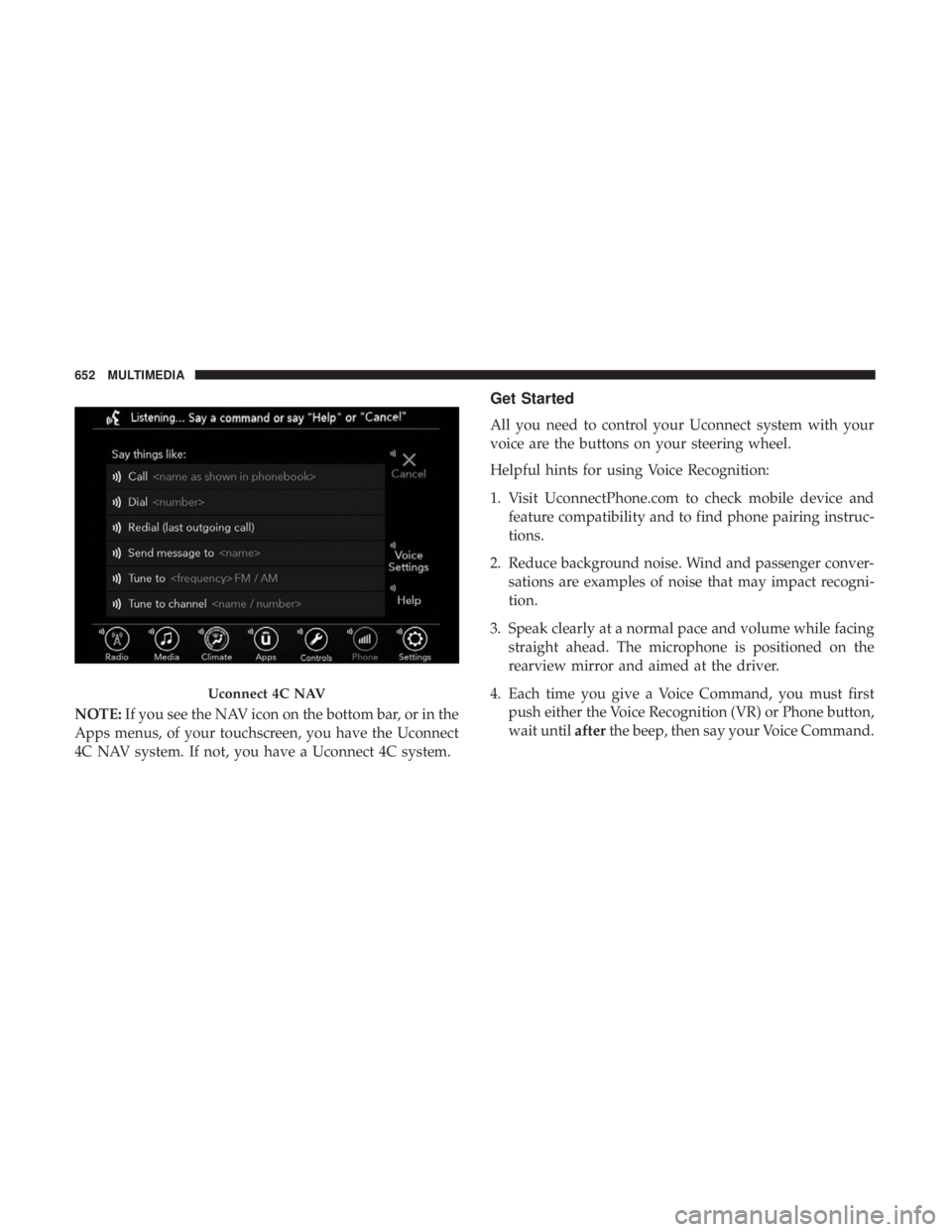
NOTE:If you see the NAV icon on the bottom bar, or in the
Apps menus, of your touchscreen, you have the Uconnect
4C NAV system. If not, you have a Uconnect 4C system.
Get Started
All you need to control your Uconnect system with your
voice are the buttons on your steering wheel.
Helpful hints for using Voice Recognition:
1. Visit UconnectPhone.com to check mobile device and feature compatibility and to find phone pairing instruc-
tions.
2. Reduce background noise. Wind and passenger conver- sations are examples of noise that may impact recogni-
tion.
3. Speak clearly at a normal pace and volume while facing straight ahead. The microphone is positioned on the
rearview mirror and aimed at the driver.
4. Each time you give a Voice Command, you must first push either the Voice Recognition (VR) or Phone button,
wait until afterthe beep, then say your Voice Command.
Uconnect 4C NAV
652 MULTIMEDIA
Page 658 of 696
Phone
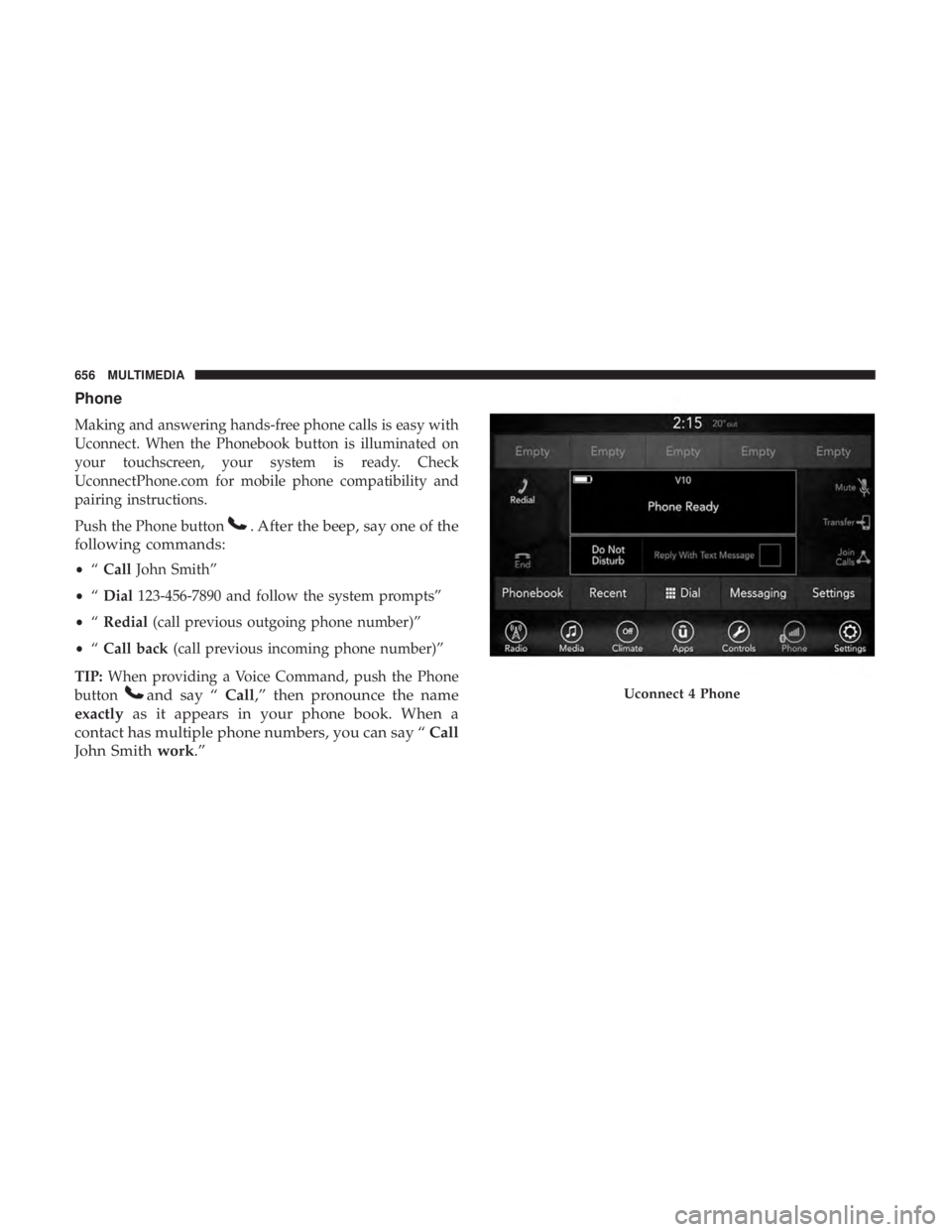
Making and answering hands-free phone calls is easy with
Uconnect. When the Phonebook button is illuminated on
your touchscreen, your system is ready. Check
UconnectPhone.com for mobile phone compatibility and
pairing instructions.
Push the Phone button
. After the beep, say one of the
following commands:
• “Call John Smith”
• “Dial 123-456-7890 and follow the system prompts”
• “Redial (call previous outgoing phone number)”
• “Call back (call previous incoming phone number)”
TIP: When providing a Voice Command, push the Phone
button
and say “ Call,” then pronounce the name
exactly as it appears in your phone book. When a
contact has multiple phone numbers, you can say “ Call
John Smith work.”Uconnect 4 Phone
656 MULTIMEDIA
Page 659 of 696
Voice Text Reply
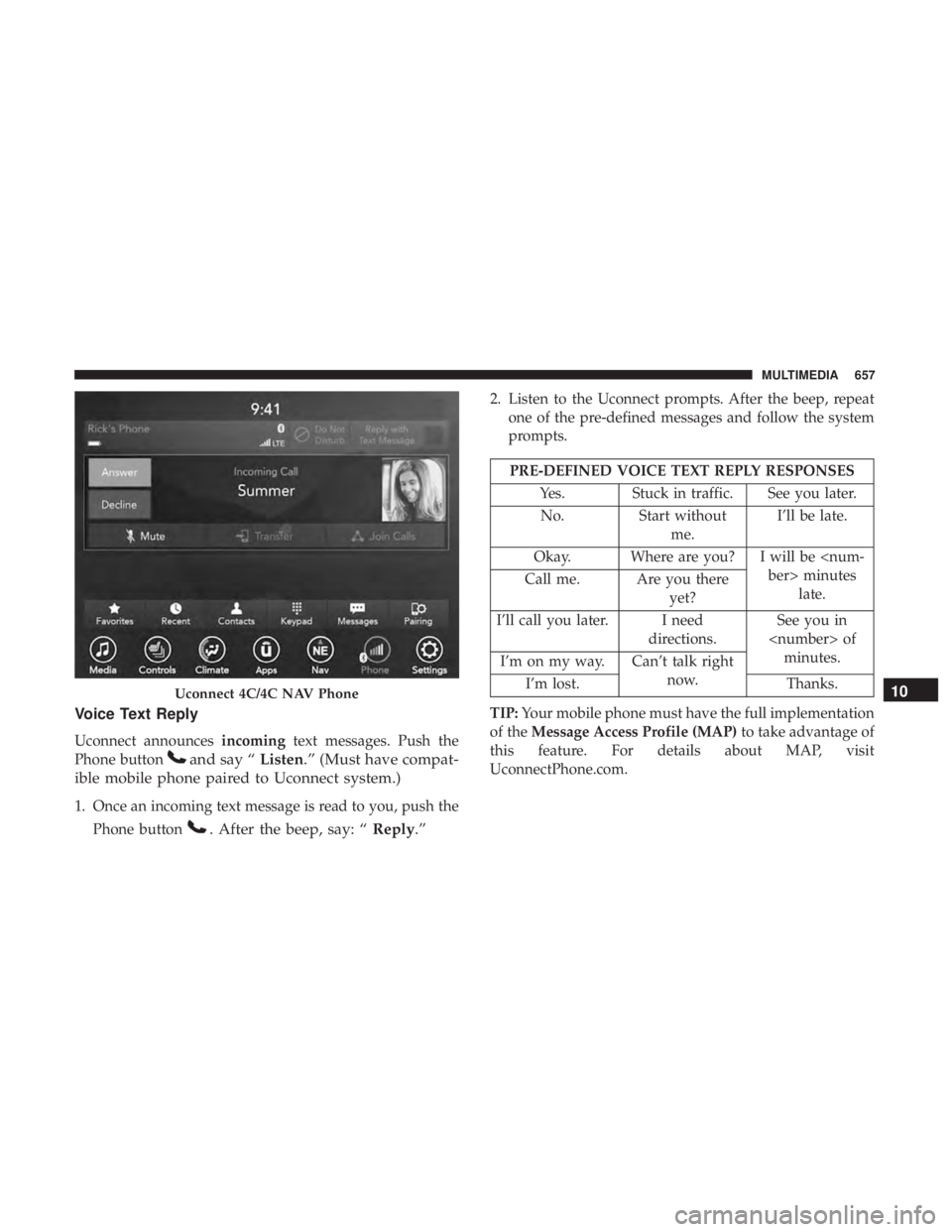
Uconnect announcesincomingtext messages. Push the
Phone button
and say “ Listen.” (Must have compat-
ible mobile phone paired to Uconnect system.)
1. Once an incoming text message is read to you, push the
Phone button
. After the beep, say: “ Reply.”
2. Listen to the Uconnect prompts. After the beep, repeat
one of the pre-defined messages and follow the system
prompts.
PRE-DEFINED VOICE TEXT REPLY RESPONSES
Yes. Stuck in traffic. See you later.No. Start without
me. I’ll be late.
Okay. Where are you? I will be minuteslate.
Call me. Are you there
yet?
I’ll call you later. I need directions.See you in
of minutes.
I’m on my way. Can’t talk right
now.
I’m lost. Thanks.
TIP: Your mobile phone must have the full implementation
of the Message Access Profile (MAP) to take advantage of
this feature. For details about MAP, visit
UconnectPhone.com.
Uconnect 4C/4C NAV Phone10
MULTIMEDIA 657
Page 660 of 696
Apple iPhone iOS 6 or later supports readingincoming
text messages only. To enable this feature on your Apple
iPhone, follow these four simple steps:
TIP: Voice Text Reply is not compatible with iPhone, but if
your vehicle is equipped with Siri Eyes Free, you can use
your voice to send a text message.Climate
Too hot? Too cold? Adjust vehicle temperatures hands-free
and keep everyone comfortable while you keep moving
ahead. (If vehicle is equipped with climate control.)
Push the VR button
. After the beep, say one of the
following commands:
• “Set driver temperature to 70degrees”
• “Set passenger temperature to 70degrees”
TIP: Voice Command for Climate may only be used to
adjust the interior temperature of your vehicle. Voice
Command will not work to adjust the heated seats or
steering wheel if equipped.
iPhone Notification Settings
1 — Select “Settings”
2 — Select “Bluetooth”
3 — Select The (i) For The Paired Vehicle
4 — Turn On “Show Notifications” 658 MULTIMEDIA
Page 671 of 696
Uconnect System Support:
•U.S. residents visit DriveUconnect.com or call: 1-877-
855-8400(24 hours a day 7 days a week)
• Canadian residents visit DriveUconnect.ca or call: 1-800-
465-2001(English) or 1-800-387-9983(French)
SiriusXM Guardian services support:
• U.S. residents visit www.siriusxm.com/guardian or call:
1-844-796-4827
• Canadian residents visit www.siriusxm.ca/guardian or
call: 1-877-324-9091
CD/DVD DISC MAINTENANCE
To keep a CD/DVD in good condition, take the following
precautions:
1. Handle the disc by its edge; avoid touching the surface.
2. If the disc is stained, clean the surface with a soft cloth,
wiping from center to edge.
3. Do not apply paper or tape to the disc; avoid scratching the disc.
4. Do not use solvents such as benzene, thinner, cleaners, or anti-static sprays. 5. Store the disc in its case after playing.
6. Do not expose the disc to direct sunlight.
7. Do not store the disc where temperatures may become
too high.
NOTE: If you experience difficulty in playing a particular
disc, it may be damaged (e.g., scratched, reflective coating
removed, a hair, moisture or dew on the disc), oversized, or
have protection encoding. Try a known good disc before
considering disc player service.
10
MULTIMEDIA 669
Page 673 of 696
CUSTOMER ASSISTANCE
CONTENTS
�SUGGESTIONS FOR OBTAINING SERVICE FOR
YOUR VEHICLE ........................672
▫ Prepare For The Appointment ..............672
▫ Prepare A List ........................ .672
▫ Be Reasonable With Requests ..............672
� IF YOU NEED ASSISTANCE ................672
▫ FCA US LLC Customer Center .............673
▫ FCA Canada Inc. Customer Center ...........673
▫ In Mexico Contact ..................... .673
▫ Puerto Rico And U.S. Virgin Islands ..........673▫
Customer Assistance For The Hearing Or Speech
Impaired (TDD/TTY) ....................674
▫ Service Contract .......................674
� WARRANTY INFORMATION ...............675
� MOPARPARTS .........................675
� REPORTING SAFETY DEFECTS .............675
▫ In The 50 United States And Washington, D.C. . .675
▫ In Canada ............................676
� PUBLICATION ORDER FORMS .............676
11
Page 676 of 696
Customer Assistance For The Hearing Or Speech
Impaired (TDD/TTY)
To assist customers who have hearing difficulties, the
manufacturer has installed special TDD (Telecommunica-
tion Devices for the Deaf) equipment at its customer center.
Any hearing or speech impaired customer, who has access
to a TDD or a conventional teletypewriter (TTY) in the
United States, can communicate with the manufacturer by
dialing 1-800-380-CHRY.
Canadian residents with hearing difficulties that require
assistance can use the special needs relay service offered by
Bell Canada. For TTY teletypewriter users, dial 711 and for
Voice callers, dial 1-800-855-0511 to connect with a Bell
Relay Service operator.
Service Contract
You may have purchased a service contract for a vehicle to
help protect you from the high cost of unexpected repairs
after the manufacturer’s New Vehicle Limited Warranty
expires. The manufacturer stands behind only the manu-
facturer’s service contracts. If you purchased a manufac-
turer’s service contract, you will receive Plan Provisions
and an Owner Identification Card in the mail within three
weeks of the vehicle delivery date. If you have anyquestions about the service contract, call the manufactur-
er’s Service Contract National Customer Hotline at 1-800-
521-9922 (Canadian residents, call (800) 465-2001 English /
(800) 387-9983 French).
The manufacturer will not stand behind any service con-
tract that is not the manufacturer’s service contract. It is not
responsible for any service contract other than the manu-
facturer’s service contract. If you purchased a service
contract that is not a manufacturer’s service contract, and
you require service after the manufacturer’s New Vehicle
Limited Warranty expires, please refer to the contract
documents, and contact the person listed in those docu-
ments.
We appreciate that you have made a major investment
when you purchased the vehicle. An authorized dealer has
also made a major investment in facilities, tools, and
training to assure that you are absolutely delighted with
the ownership experience. You will be pleased with their
sincere efforts to resolve any warranty issues or related
concerns.
674 CUSTOMER ASSISTANCE