Page 623 of 696
2. If “YES” is selected to Pair a Remote, press any buttonon the remote and pairing will immediately start.
3. If “NO” is selected, the Uconnect Theater home screen will pop up.
NOTE:
• There will be a touchscreen notification message when
pairing is successful.
• Test to make sure the remote is successfully paired by
dragging your finger across the gesture pad. If you do
not see the on screen arrow, try using the “Screen”
button on the remote to switch between rear screen one
and rear screen two to make sure the remote is control-
ling the intended screen. It may take several seconds for
the remote to react when initially paired.
• If remote does not pair, refer to “Pairing The Remote”
section for an alternative pairing process.Pairing The Remote
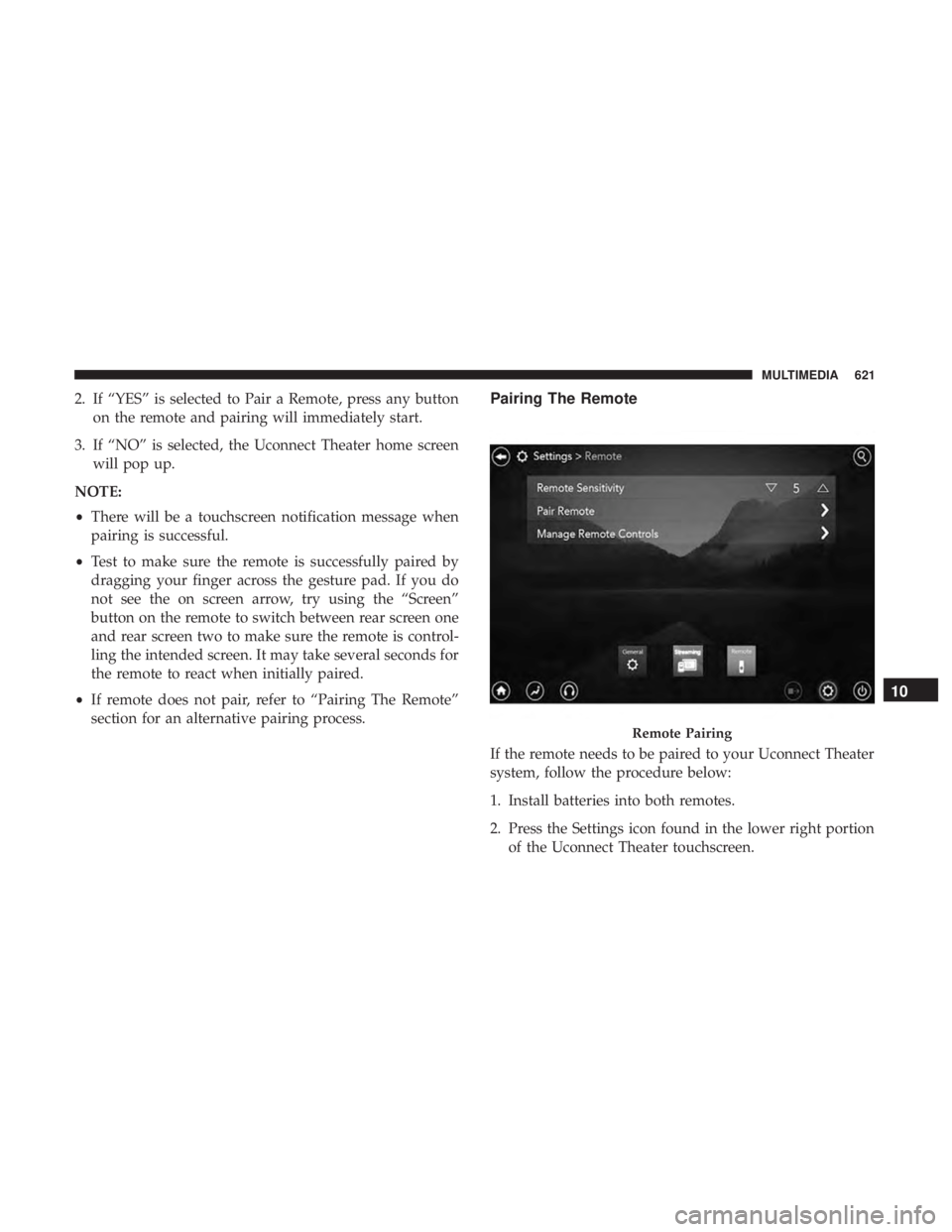
If the remote needs to be paired to your Uconnect Theater
system, follow the procedure below:
1. Install batteries into both remotes.
2. Press the Settings icon found in the lower right portion
of the Uconnect Theater touchscreen.
Remote Pairing
10
MULTIMEDIA 621
Page 624 of 696
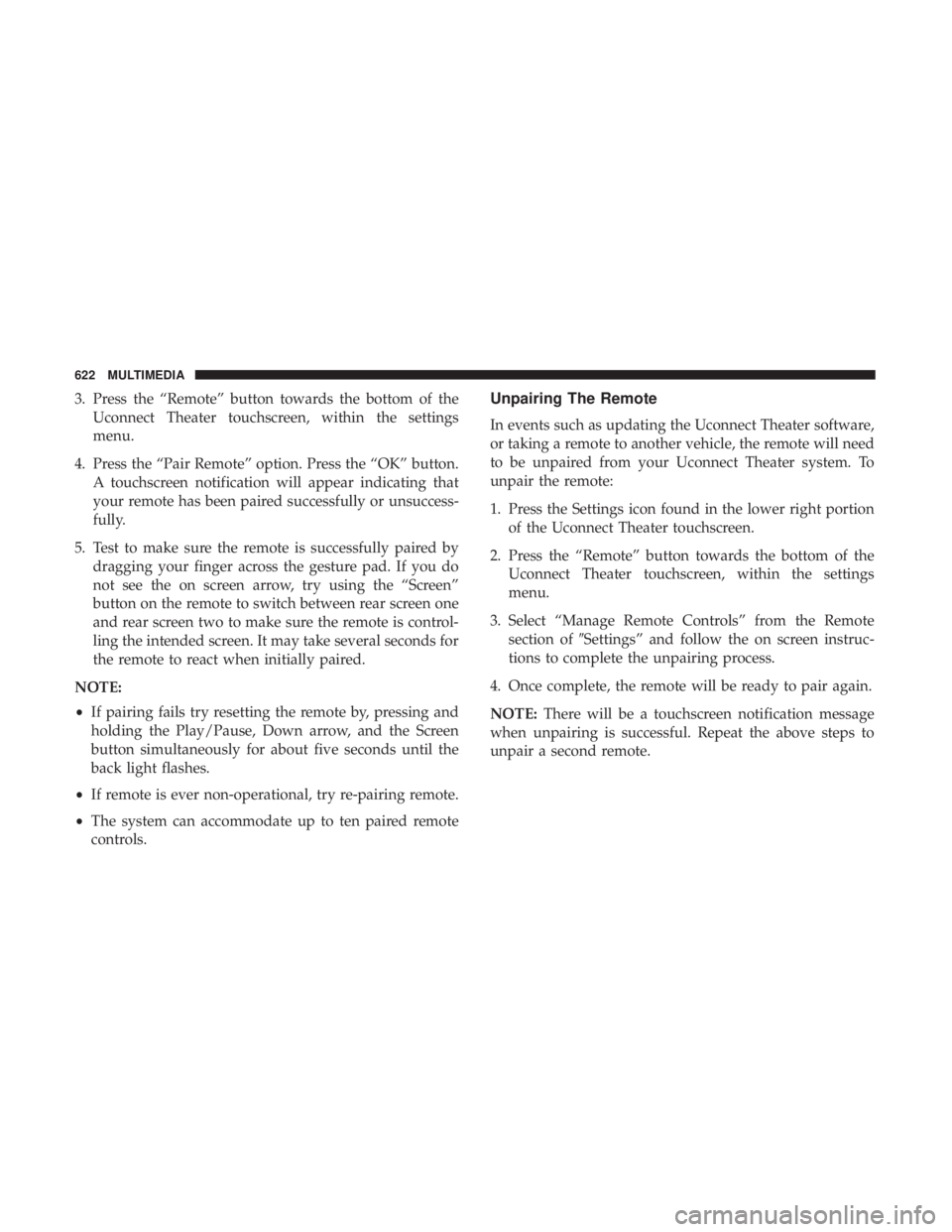
3. Press the “Remote” button towards the bottom of theUconnect Theater touchscreen, within the settings
menu.
4. Press the “Pair Remote” option. Press the “OK” button. A touchscreen notification will appear indicating that
your remote has been paired successfully or unsuccess-
fully.
5. Test to make sure the remote is successfully paired by dragging your finger across the gesture pad. If you do
not see the on screen arrow, try using the “Screen”
button on the remote to switch between rear screen one
and rear screen two to make sure the remote is control-
ling the intended screen. It may take several seconds for
the remote to react when initially paired.
NOTE:
• If pairing fails try resetting the remote by, pressing and
holding the Play/Pause, Down arrow, and the Screen
button simultaneously for about five seconds until the
back light flashes.
• If remote is ever non-operational, try re-pairing remote.
• The system can accommodate up to ten paired remote
controls.Unpairing The Remote
In events such as updating the Uconnect Theater software,
or taking a remote to another vehicle, the remote will need
to be unpaired from your Uconnect Theater system. To
unpair the remote:
1. Press the Settings icon found in the lower right portion
of the Uconnect Theater touchscreen.
2. Press the “Remote” button towards the bottom of the Uconnect Theater touchscreen, within the settings
menu.
3. Select “Manage Remote Controls” from the Remote section of �Settings” and follow the on screen instruc-
tions to complete the unpairing process.
4. Once complete, the remote will be ready to pair again.
NOTE: There will be a touchscreen notification message
when unpairing is successful. Repeat the above steps to
unpair a second remote.
622 MULTIMEDIA
Page 628 of 696

You can choose sources such as HDMI, USB, Apps, or
Blu-ray. You may also view content of the opposite screen
in one step by choosing the “View Screen” source card.
NOTE:
•Source card order can be changed by pressing the
Settings button on the touchscreen and scrolling down
to �Source Card Order�.
• Use the “View Screen” function to pull content from one
screen to the other in a single press of a button. Doing
this however will disable and gray out certain player
controls on the screen viewing the other screen’s content. General Settings
To change source card order, select “Source Card Reorder”,
then press and hold source card on the touchscreen, and
drag and drop in desired order.
You can also adjust settings such as:
•
Brightness
• Media port lighting on and off
• Clock on and off
NOTE: System information can also be displayed under
General Settings.
Remote Settings
Under this setting, you can access the following:
• Manage Remotes (this allows you to unpair remotes)
• Pair Remote
• Remote sensitivity (This adjusts the speed and sensi-
tivity of cursor on screen when using gesture pad)
Source Card Selection
626 MULTIMEDIA
Page 633 of 696
Uconnect Theater Apps
Select the Apps source card to play pre-loaded games.
Pressing the “Help” button teaches users how to play each
game. Pick from games:
•Back Seat Bingo
• Checkers
• Hanging Fruit
• License Plate Game
• Math Flash Cards
• Solitaire
• Sudoku
• Tic Tac Toe
Apps Home Screen
Sudoku App Home Screen
10
MULTIMEDIA 631
Page 639 of 696
What Does This Warranty Not Cover?This warranty does
not cover any damage or defect that results from misuse,
abuse or modification of the Product other than by Aptiv.
Foam earpieces, which will wear over time through normal
use, are specifically not covered (replacement foam is
available for a nominal charge). APTIV IS NOT LIABLE
FOR ANY INJURIES OR DAMAGES TO PERSONS OR
PROPERTY RESULTING FROM THE USE OF, OR ANY
FAILURE OR DEFECT IN, THE PRODUCT, NOR IS AP-
TIV LIABLE FOR ANY GENERAL, SPECIAL, DIRECT,
INDIRECT, INCIDENTAL, CONSEQUENTIAL, EXEM-
PLARY, PUNITIVE OR OTHER DAMAGES OF ANY
KIND OR NATURE WHATSOEVER. Some states and
jurisdictions may not allow the exclusion or limitation of
incidental or consequential damages, so the above limita-
tion may not apply to you. This warranty gives you specific
legal rights. You may also have other rights, which vary
from jurisdiction to jurisdiction.
What Will Aptiv Do? Aptiv, at its option, will repair or
replace any defective Product. Aptiv reserves the right to
replace any discontinued Product with a comparable
model. THIS WARRANTY IS THE SOLE WARRANTY
FOR THIS PRODUCT, SETS FORTH YOUR EXCLUSIVE
REMEDY REGARDING DEFECTIVE PRODUCTS, AND IS
IN LIEU OF ALL OTHER WARRANTIES (EXPRESS OR IMPLIED), INCLUDING ANY WARRANTY FOR MER-
CHANTABILITY OR FITNESS FOR A PARTICULAR PUR-
POSE.
If you have any questions or comments regarding your
Aptiv wireless headphones, or to register your wireless
headphones, please phone:
1-248-724-5900
Display Settings
When watching a video source, pushing “Settings”icon
on the touchscreen activates the Settings menu. These
settings control the appearance of the video on the
screen. The factory default settings are already set for
optimum viewing, so there is no need to change these
settings under normal circumstances.
To change the settings, use one of the touchscreens or
remote. To reset all values back to the original settings,
select the “Reset to Defaults” then select “YES.”10
MULTIMEDIA 637
Page 641 of 696
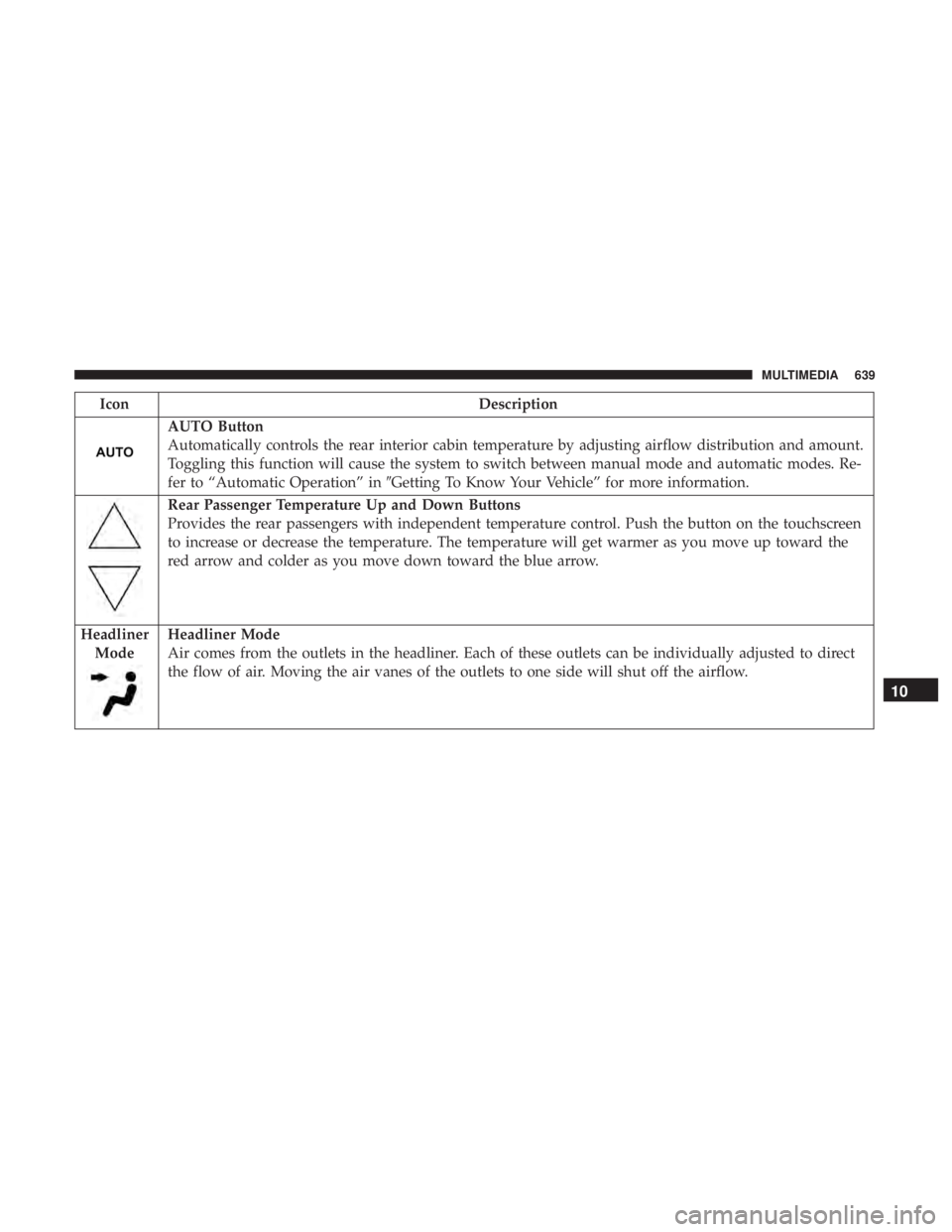
IconDescription
AUTO Button
Automatically controls the rear interior cabin temperature by adjusting airflow distribution and amount.
Toggling this function will cause the system to switch between manual mode and automatic modes. Re-
fer to “Automatic Operation” in�Getting To Know Your Vehicle” for more information.
Rear Passenger Temperature Up and Down Buttons
Provides the rear passengers with independent temperature control. Push the button on the touchscreen
to increase or decrease the temperature. The temperature will get warmer as you move up toward the
red arrow and colder as you move down toward the blue arrow.
Headliner Mode
Headliner Mode
Air comes from the outlets in the headliner. Each of these outlets can be individually adjusted to direct
the flow of air. Moving the air vanes of the outlets to one side will shut off the airflow.
10
MULTIMEDIA 639
Page 642 of 696
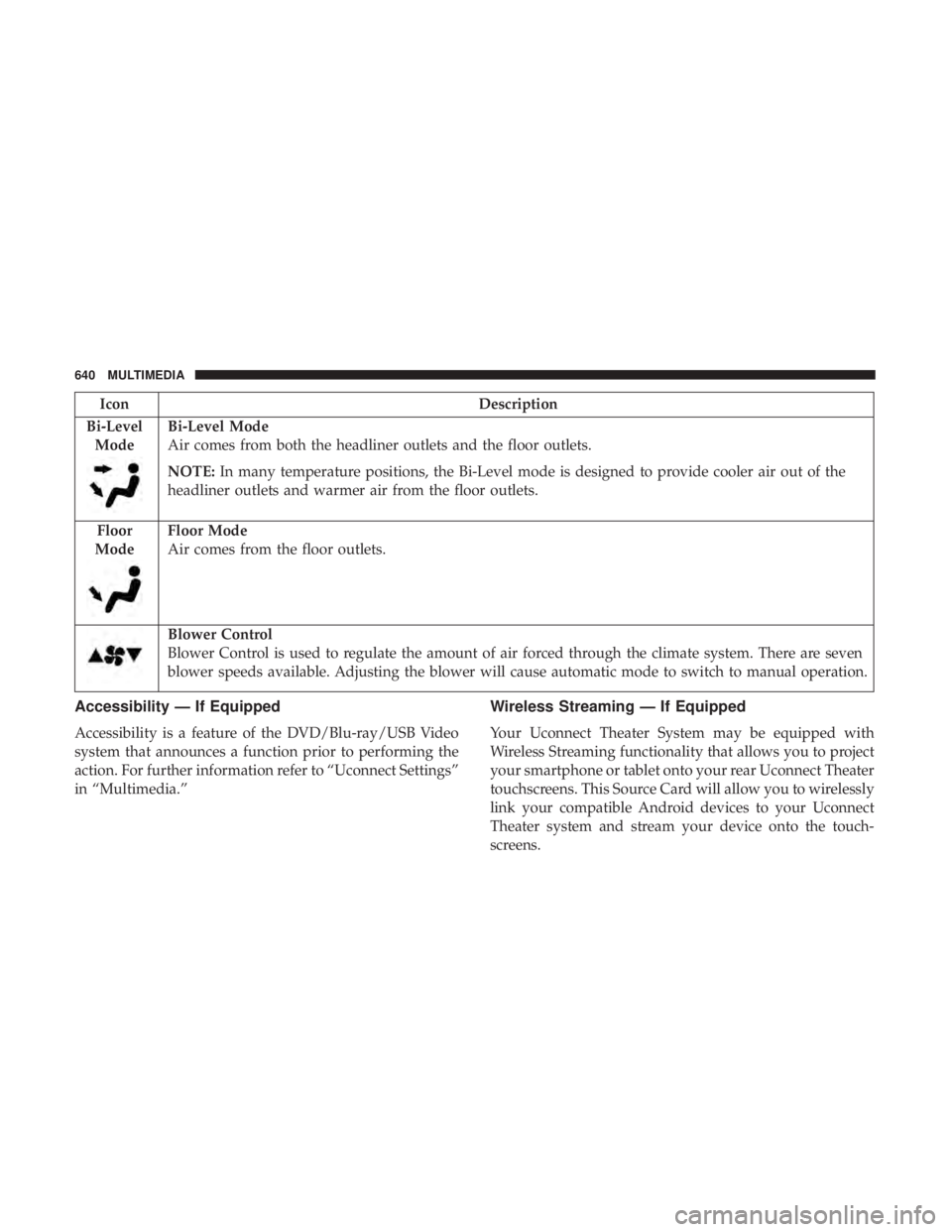
IconDescription
Bi-Level Mode
Bi-Level Mode
Air comes from both the headliner outlets and the floor outlets.
NOTE: In many temperature positions, the Bi-Level mode is designed to provide cooler air out of the
headliner outlets and warmer air from the floor outlets.
Floor
Mode
Floor Mode
Air comes from the floor outlets.
Blower Control
Blower Control is used to regulate the amount of air forced through the climate system. There are seven
blower speeds available. Adjusting the blower will cause automatic mode to switch to manual operation.
Accessibility — If Equipped
Accessibility is a feature of the DVD/Blu-ray/USB Video
system that announces a function prior to performing the
action. For further information refer to “Uconnect Settings”
in “Multimedia.”
Wireless Streaming — If Equipped
Your Uconnect Theater System may be equipped with
Wireless Streaming functionality that allows you to project
your smartphone or tablet onto your rear Uconnect Theater
touchscreens. This Source Card will allow you to wirelessly
link your compatible Android devices to your Uconnect
Theater system and stream your device onto the touch-
screens.
640 MULTIMEDIA
Page 645 of 696
Settings
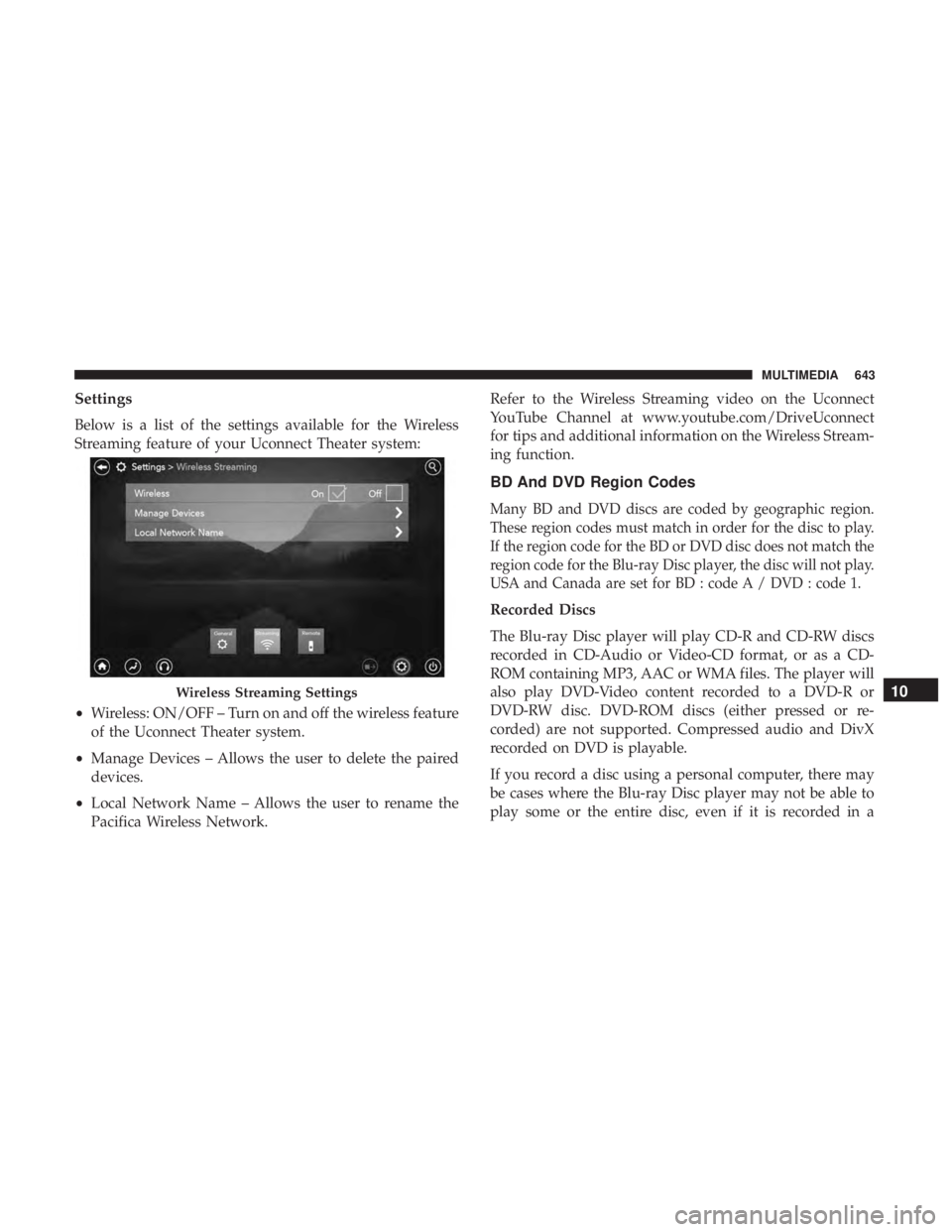
Below is a list of the settings available for the Wireless
Streaming feature of your Uconnect Theater system:
•Wireless: ON/OFF – Turn on and off the wireless feature
of the Uconnect Theater system.
• Manage Devices – Allows the user to delete the paired
devices.
• Local Network Name – Allows the user to rename the
Pacifica Wireless Network. Refer to the Wireless Streaming video on the Uconnect
YouTube Channel at www.youtube.com/DriveUconnect
for tips and additional information on the Wireless Stream-
ing function.
BD And DVD Region Codes
Many BD and DVD discs are coded by geographic region.
These region codes must match in order for the disc to play.
If the region code for the BD or DVD disc does not match the
region code for the Blu-ray Disc player, the disc will not play.
USA and Canada are set for BD : code A / DVD : code 1.
Recorded Discs
The Blu-ray Disc player will play CD-R and CD-RW discs
recorded in CD-Audio or Video-CD format, or as a CD-
ROM containing MP3, AAC or WMA files. The player will
also play DVD-Video content recorded to a DVD-R or
DVD-RW disc. DVD-ROM discs (either pressed or re-
corded) are not supported. Compressed audio and DivX
recorded on DVD is playable.
If you record a disc using a personal computer, there may
be cases where the Blu-ray Disc player may not be able to
play some or the entire disc, even if it is recorded in a
Wireless Streaming Settings10
MULTIMEDIA 643