Page 644 of 696
NOTE:Refer to your device’s user manual or www.ucon-
nectphone.com for further information.
3. Select the Pacifica Wireless Network from the list of available networks on your device.
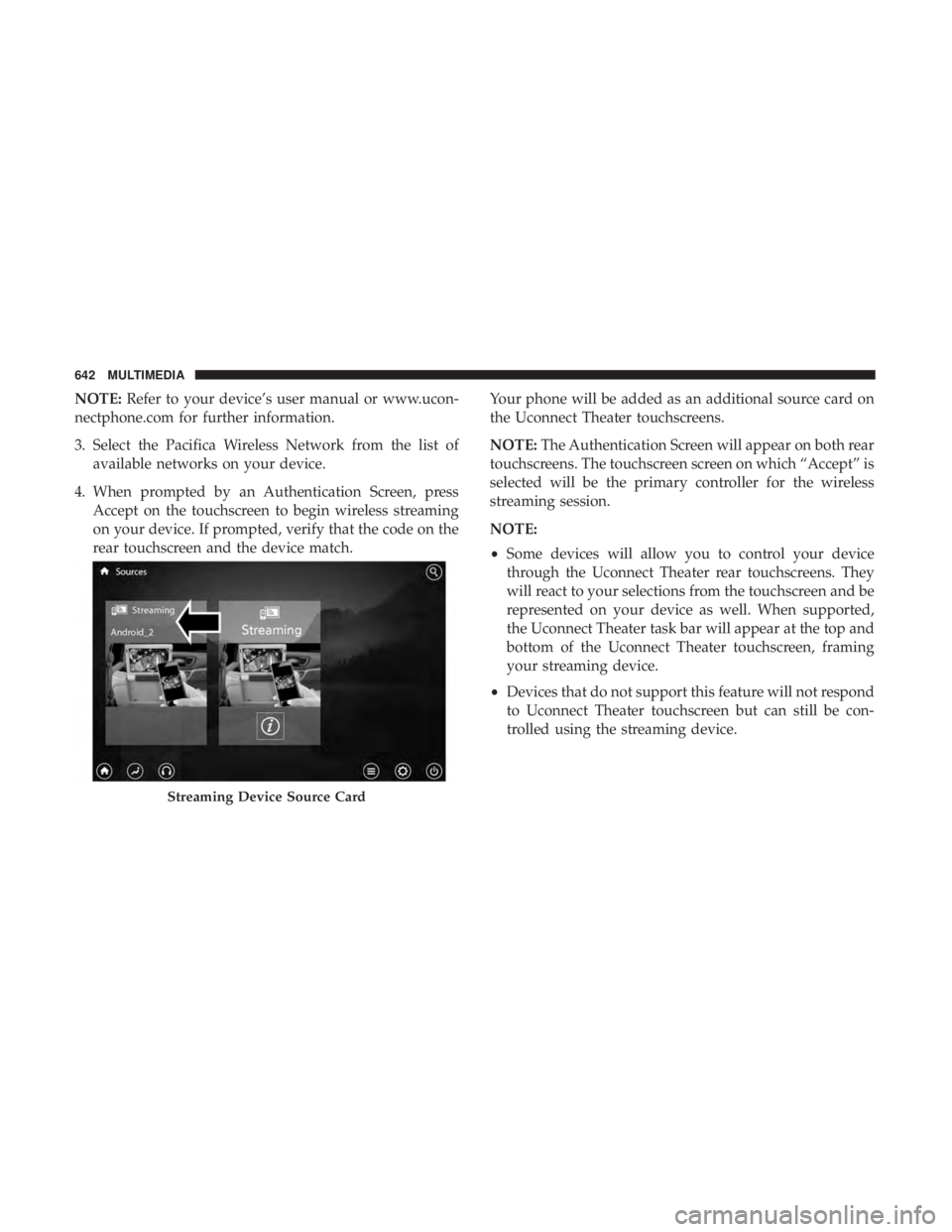
4. When prompted by an Authentication Screen, press Accept on the touchscreen to begin wireless streaming
on your device. If prompted, verify that the code on the
rear touchscreen and the device match. Your phone will be added as an additional source card on
the Uconnect Theater touchscreens.
NOTE:
The Authentication Screen will appear on both rear
touchscreens. The touchscreen screen on which “Accept” is
selected will be the primary controller for the wireless
streaming session.
NOTE:
• Some devices will allow you to control your device
through the Uconnect Theater rear touchscreens. They
will react to your selections from the touchscreen and be
represented on your device as well. When supported,
the Uconnect Theater task bar will appear at the top and
bottom of the Uconnect Theater touchscreen, framing
your streaming device.
• Devices that do not support this feature will not respond
to Uconnect Theater touchscreen but can still be con-
trolled using the streaming device.
Streaming Device Source Card
642 MULTIMEDIA
Page 645 of 696
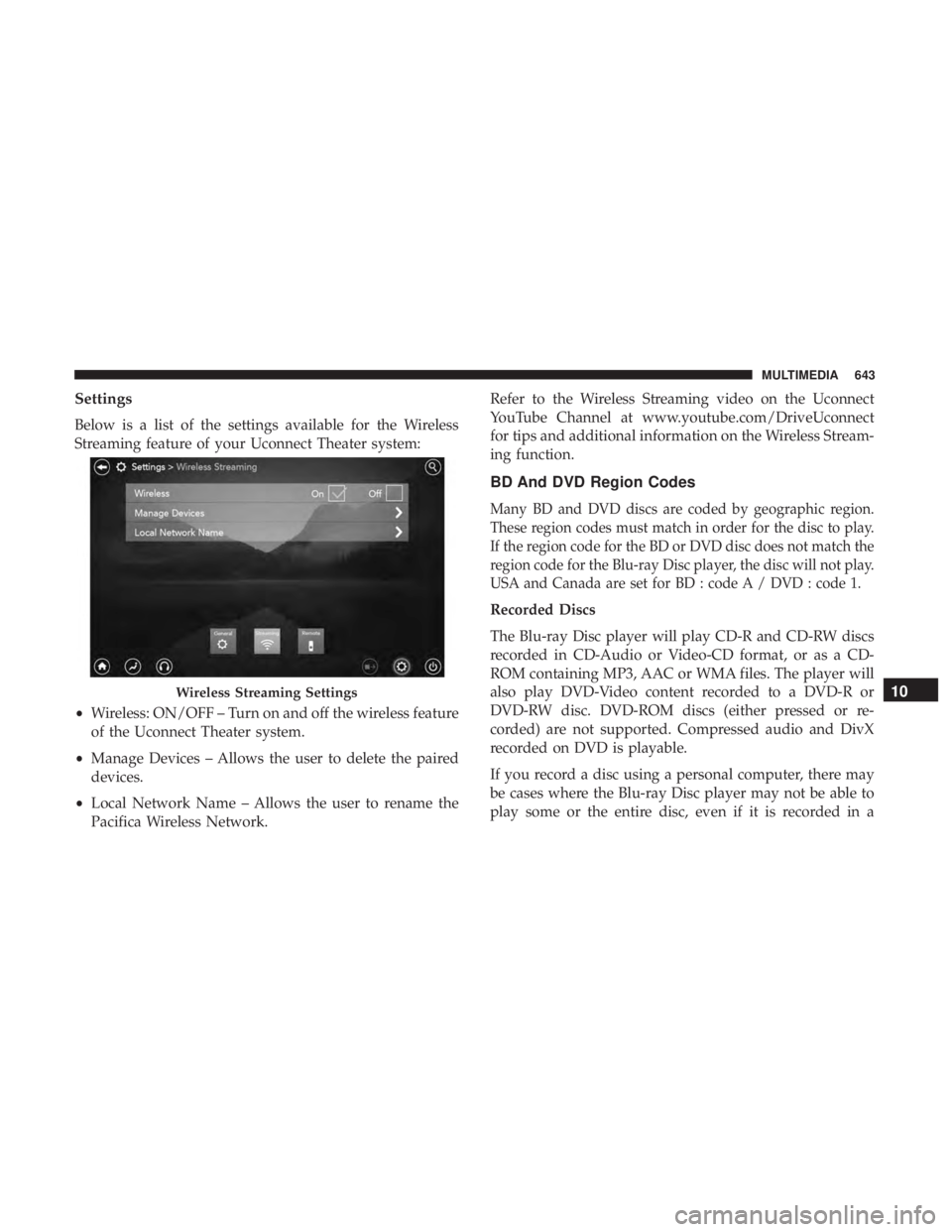
Settings
Below is a list of the settings available for the Wireless
Streaming feature of your Uconnect Theater system:
•Wireless: ON/OFF – Turn on and off the wireless feature
of the Uconnect Theater system.
• Manage Devices – Allows the user to delete the paired
devices.
• Local Network Name – Allows the user to rename the
Pacifica Wireless Network. Refer to the Wireless Streaming video on the Uconnect
YouTube Channel at www.youtube.com/DriveUconnect
for tips and additional information on the Wireless Stream-
ing function.
BD And DVD Region Codes
Many BD and DVD discs are coded by geographic region.
These region codes must match in order for the disc to play.
If the region code for the BD or DVD disc does not match the
region code for the Blu-ray Disc player, the disc will not play.
USA and Canada are set for BD : code A / DVD : code 1.
Recorded Discs
The Blu-ray Disc player will play CD-R and CD-RW discs
recorded in CD-Audio or Video-CD format, or as a CD-
ROM containing MP3, AAC or WMA files. The player will
also play DVD-Video content recorded to a DVD-R or
DVD-RW disc. DVD-ROM discs (either pressed or re-
corded) are not supported. Compressed audio and DivX
recorded on DVD is playable.
If you record a disc using a personal computer, there may
be cases where the Blu-ray Disc player may not be able to
play some or the entire disc, even if it is recorded in a
Wireless Streaming Settings10
MULTIMEDIA 643
Page 652 of 696

RADIO OPERATION AND MOBILE PHONES
Under certain conditions, the mobile phone being on in
your vehicle can cause erratic or noisy performance from
your radio. This condition may be lessened or eliminated
by relocating the mobile phone antenna. This condition is
not harmful to the radio. If your radio performance does
not satisfactorily “clear” by the repositioning of the an-
tenna, it is recommended that the radio volume be turned
down or off during mobile phone operation when not
using Uconnect (if equipped).
Regulatory And Safety Information
USA/CANADA
Exposure to Radio Frequency Radiation
The radiated output power of the internal wireless radio is
far below the FCC and IC radio frequency exposure limits.
Nevertheless, the wireless radio will be used in such a
manner that the radio is 20 cm or further from the human
body.
The internal wireless radio operates within guidelines
found in radio frequency safety standards and recommen-
dations, which reflect the consensus of the scientific com-
munity.The radio manufacturer believes the internal wireless radio
is safe for use by consumers. The level of energy emitted is
far less than the electromagnetic energy emitted by wire-
less devices such as mobile phones. However, the use of
wireless radios may be restricted in some situations or
environments, such as aboard airplanes. If you are unsure
of restrictions, you are encouraged to ask for authorization
before turning on the wireless radio.
The following regulatory statement applies to all Radio
Frequency (RF) devices equipped in this vehicle:
This device complies with Part 15 of the FCC Rules and
with Industry Canada license-exempt RSS standard(s).
Operation is subject to the following two conditions:
1. This device may not cause harmful interference, and
2. This device must accept any interference received, in-
cluding interference that may cause undesired opera-
tion.
NOTE: Changes or modifications not expressly approved
by the party responsible for compliance could void the
user ’s authority to operate the equipment.
650 MULTIMEDIA
Page 653 of 696

NOTE:
•This equipment has been tested and found to comply
with the limits for a Class B digital device, pursuant to
Part 15 of the FCC Rules. These limits are designed to
provide reasonable protection against harmful interfer-
ence in a residential installation. This equipment gener-
ates, uses and can radiate radio frequency energy and, if
not installed and used in accordance with the instruc-
tions, may cause harmful interference to radio commu-
nications. However, there is no guarantee that interfer-
ence will not occur in a particular installation.
• If this equipment does cause harmful interference to
radio or television reception, which can be determined
by turning the equipment off and on, the user is encour-
aged to try to correct the interference by one or more of
the following measures:
1. Increase the separation between the equipment and receiver.
2. Consult an authorized dealer or an experienced radio technician for help.UCONNECT VOICE RECOGNITION QUICK TIPS
Introducing Uconnect
Start using Uconnect Voice Recognition with these helpful
quick tips. It provides the key Voice Commands and tips
you need to know to control your Uconnect system.
Uconnect 4
10
MULTIMEDIA 651
Page 654 of 696
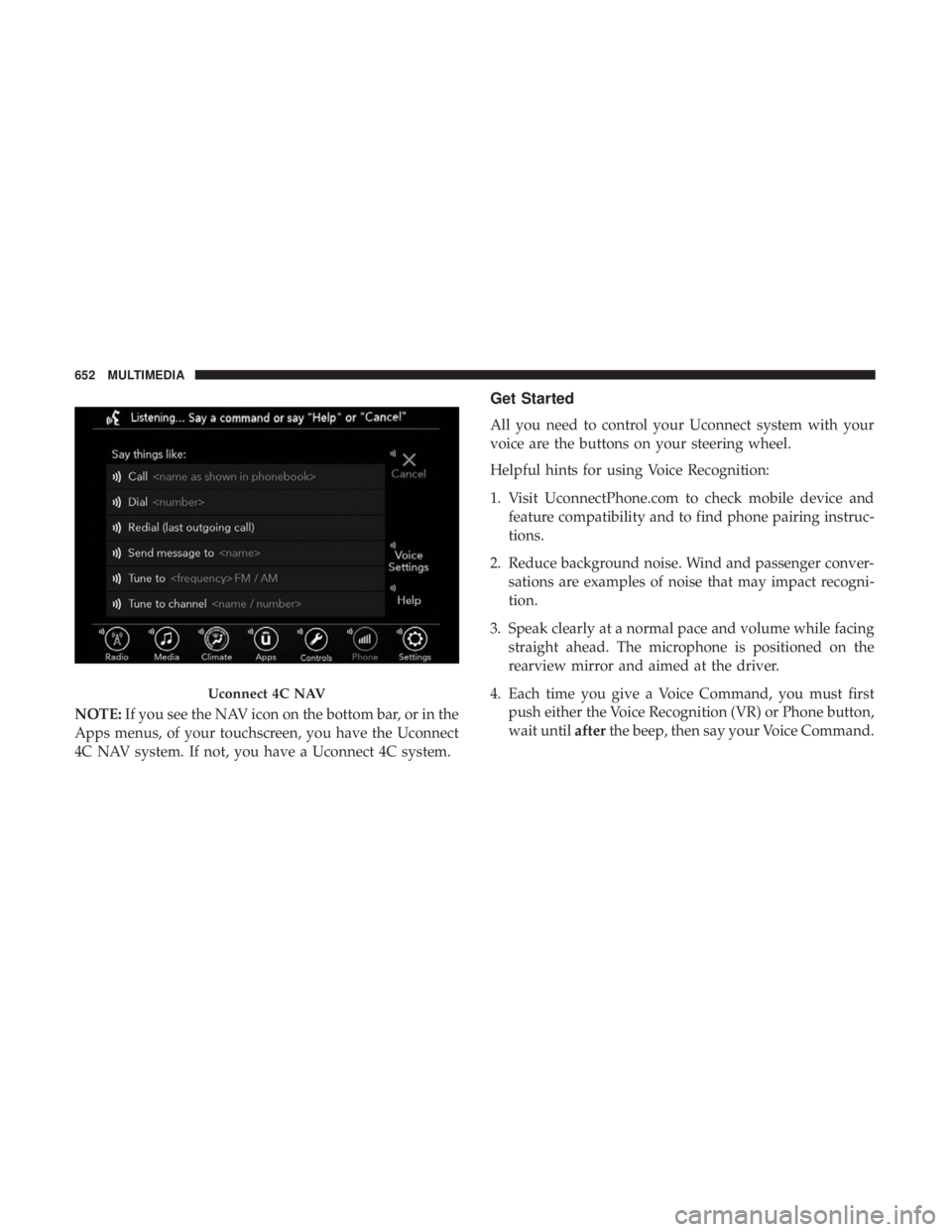
NOTE:If you see the NAV icon on the bottom bar, or in the
Apps menus, of your touchscreen, you have the Uconnect
4C NAV system. If not, you have a Uconnect 4C system.
Get Started
All you need to control your Uconnect system with your
voice are the buttons on your steering wheel.
Helpful hints for using Voice Recognition:
1. Visit UconnectPhone.com to check mobile device and feature compatibility and to find phone pairing instruc-
tions.
2. Reduce background noise. Wind and passenger conver- sations are examples of noise that may impact recogni-
tion.
3. Speak clearly at a normal pace and volume while facing straight ahead. The microphone is positioned on the
rearview mirror and aimed at the driver.
4. Each time you give a Voice Command, you must first push either the Voice Recognition (VR) or Phone button,
wait until afterthe beep, then say your Voice Command.
Uconnect 4C NAV
652 MULTIMEDIA
Page 655 of 696
5. You can interrupt the help message or system promptsby pushing the VR or Phone button and saying a Voice
Command from current category.Basic Voice Commands
The basic Voice Commands below can be given at any
point while using your Uconnect system.
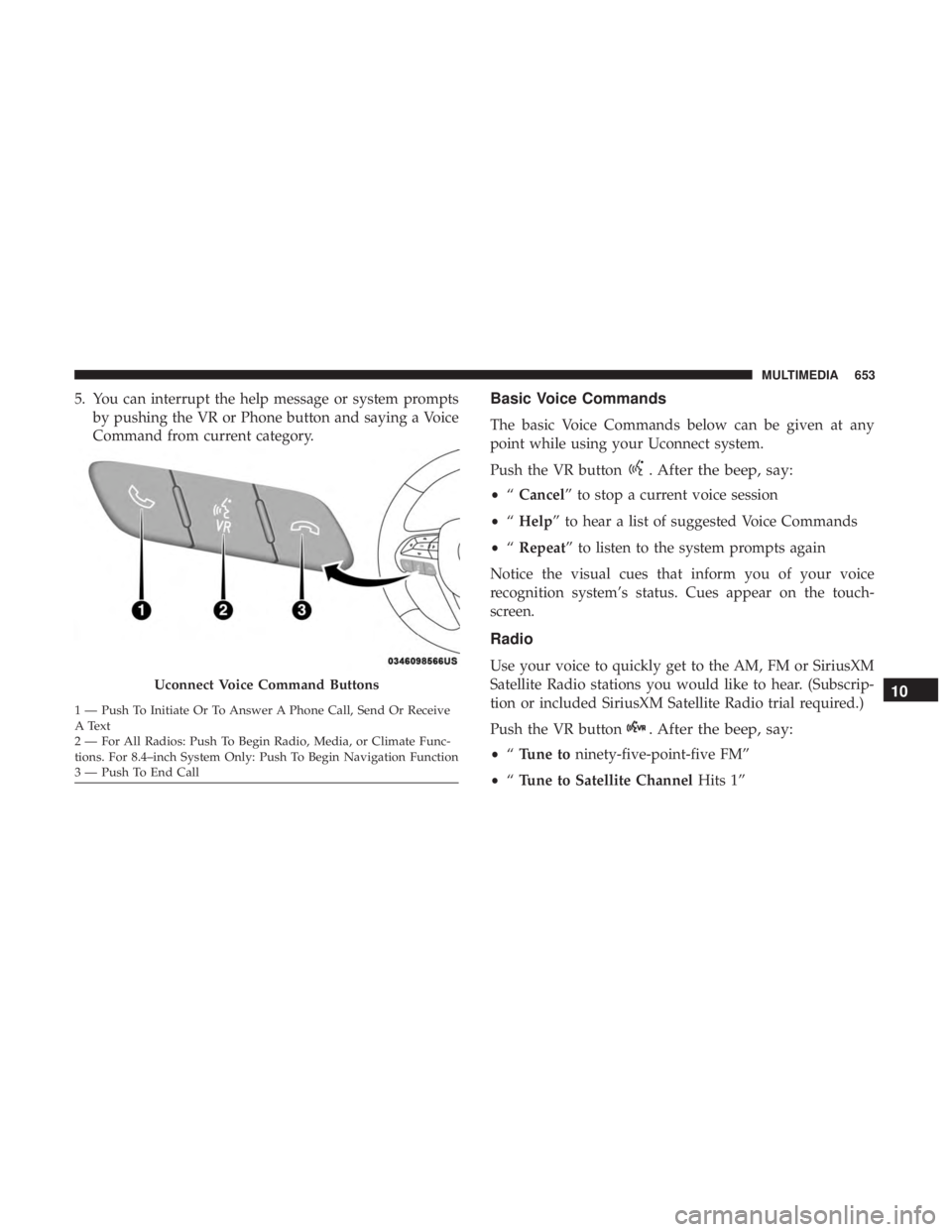
Push the VR button
. After the beep, say:
•“Cancel” to stop a current voice session
• “Help” to hear a list of suggested Voice Commands
• “Repeat” to listen to the system prompts again
Notice the visual cues that inform you of your voice
recognition system’s status. Cues appear on the touch-
screen.
Radio
Use your voice to quickly get to the AM, FM or SiriusXM
Satellite Radio stations you would like to hear. (Subscrip-
tion or included SiriusXM Satellite Radio trial required.)
Push the VR button
. After the beep, say:
• “Tune to ninety-five-point-five FM”
• “Tune to Satellite Channel Hits 1”
Uconnect Voice Command Buttons
1 — Push To Initiate Or To Answer A Phone Call, Send Or Receive
A Text
2 — For All Radios: Push To Begin Radio, Media, or Climate Func-
tions. For 8.4–inch System Only: Push To Begin Navigation Function
3 — Push To End Call
10
MULTIMEDIA 653
Page 656 of 696
TIP:At any time, if you are not sure of what to say or want
to learn a Voice Command, push the VR button
and say,
“ Help.” The system provides you with a list of com-
mands.
Media
Uconnect offers connections via USB, Bluetooth and auxil-
iary ports (If Equipped). Voice operation is only available
for connected USB and AUX devices.
Push the VR button
. After the beep, say one of the
following commands and follow the prompts to switch
your media source or choose an artist.
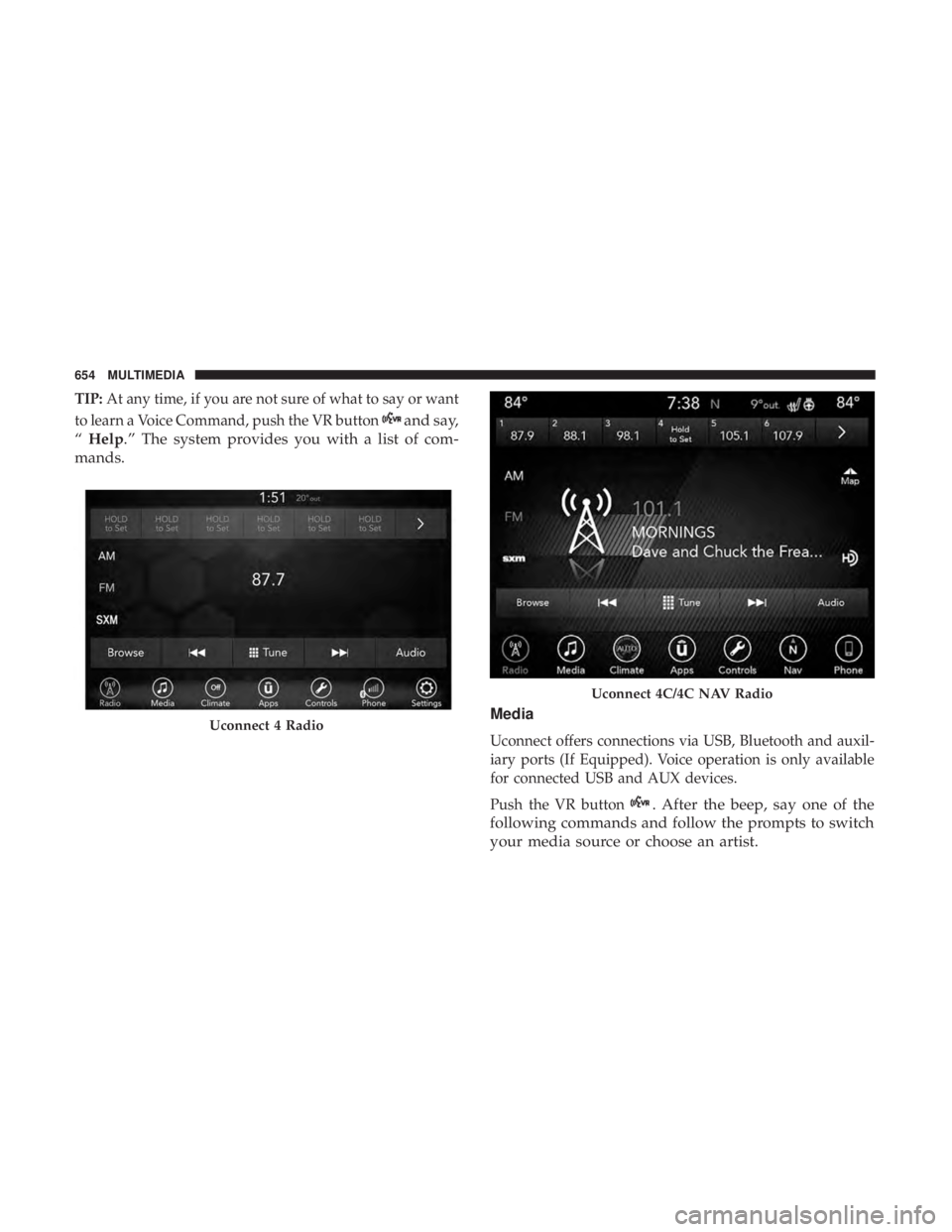
Uconnect 4 Radio
Uconnect 4C/4C NAV Radio
654 MULTIMEDIA
Page 657 of 696
•“Change source to Bluetooth”
• “Change source to AUX”
• “Change source to USB”
• “Play artist Beethoven”; “ Play albumGreatest Hits”; “
Play song Moonlight Sonata”; “ Play genreClassical”
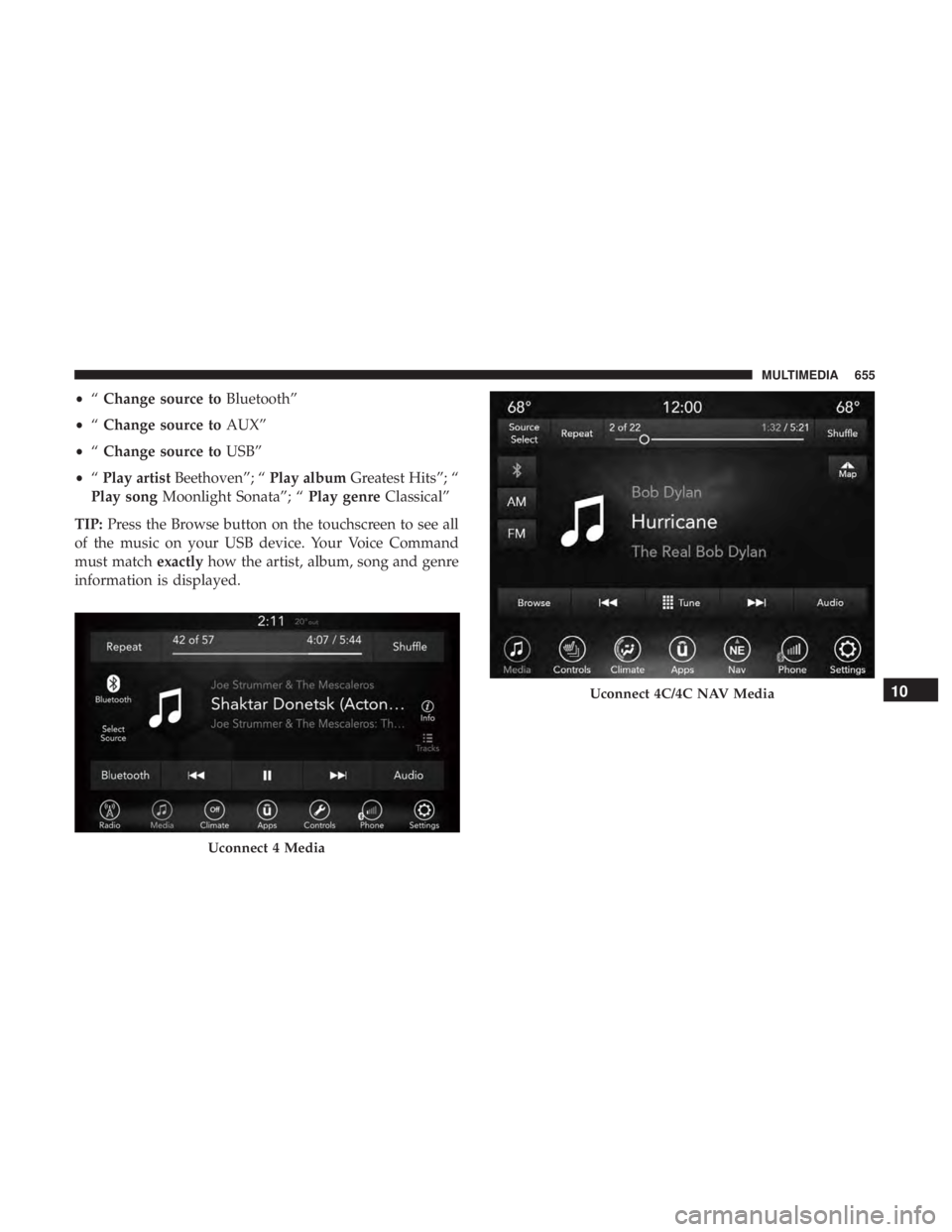
TIP: Press the Browse button on the touchscreen to see all
of the music on your USB device. Your Voice Command
must match exactlyhow the artist, album, song and genre
information is displayed.
Uconnect 4 Media
Uconnect 4C/4C NAV Media10
MULTIMEDIA 655