Page 545 of 614
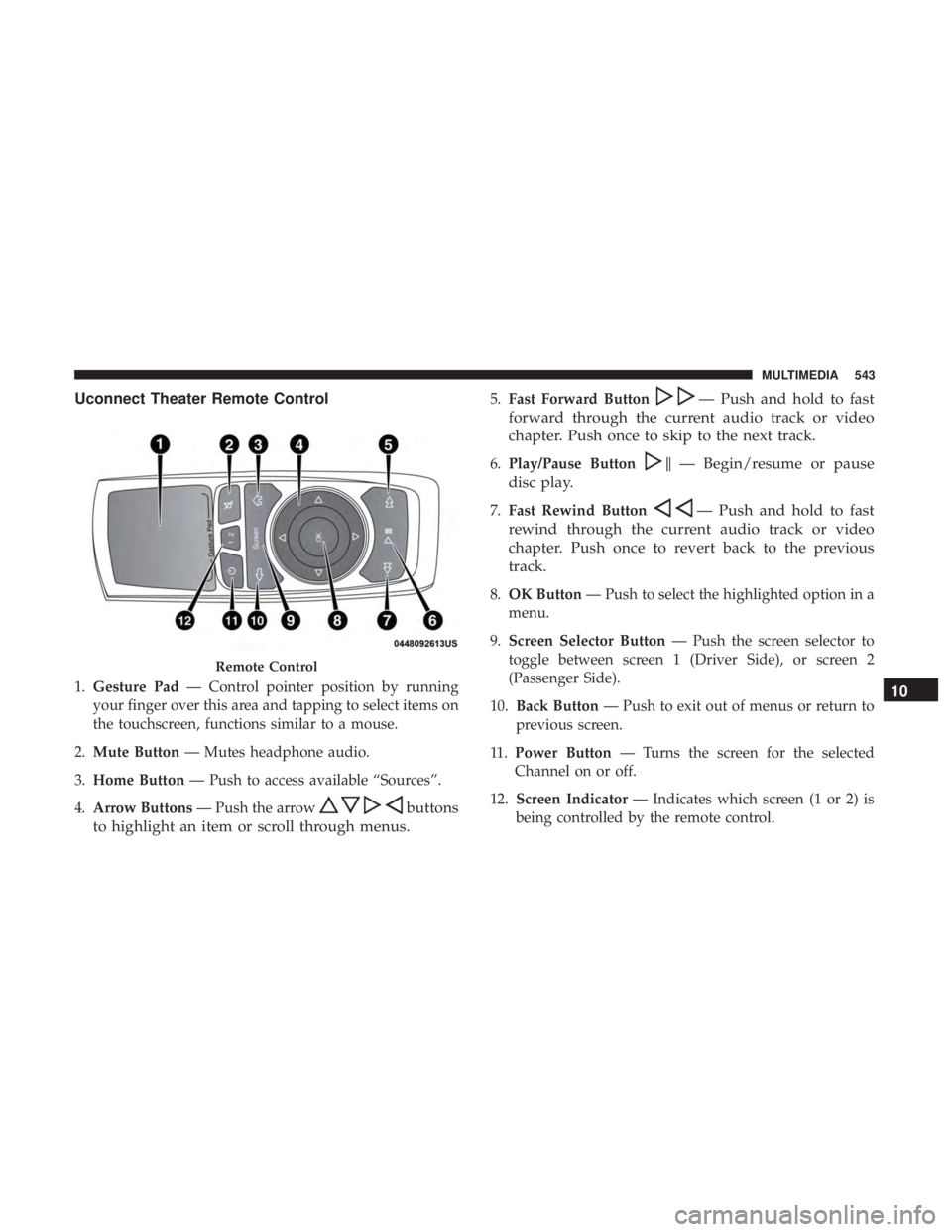
Uconnect Theater Remote Control
1.Gesture Pad — Control pointer position by running
your finger over this area and tapping to select items on
the touchscreen, functions similar to a mouse.
2. Mute Button — Mutes headphone audio.
3. Home Button — Push to access available “Sources”.
4. Arrow Buttons — Push the arrow
buttons
to highlight an item or scroll through menus.
5. Fast Forward Button— Push and hold to fast
forward through the current audio track or video
chapter. Push once to skip to the next track.
6. Play/Pause Button�— Begin/resume or pause
disc play.
7. Fast Rewind Button— Push and hold to fast
rewind through the current audio track or video
chapter. Push once to revert back to the previous
track.
8. OK Button — Push to select the highlighted option in a
menu.
9. Screen Selector Button — Push the screen selector to
toggle between screen 1 (Driver Side), or screen 2
(Passenger Side).
10. Back Button — Push to exit out of menus or return to
previous screen.
11 . Power Button — Turns the screen for the selected
Channel on or off.
12. Screen Indicator — Indicates which screen (1 or 2) is
being controlled by the remote control.
Remote Control
10
MULTIMEDIA 543
Page 546 of 614
Replacing The Remote Control Batteries
Each remote control requires two AAA batteries for opera-
tion.
To replace the batteries:
1. Locate the battery compartment on the back of theremote, then slide the battery cover downward.
2. Remove the old batteries and follow battery recycling procedures for your area.
3. Install new batteries, making sure to orient them accord- ing to the polarity diagram shown inside the battery
compartment.
4. Replace the battery compartment cover.
Uconnect Theater Home Screen And Controls
Uconnect Theater Home Screen (Rear Touchscreens)
1 — Search Button (Front USB
Media Search)
2 — Power Button
3 — Settings Button
4 — Toggle Button List And
Icon View5 — Source Card Page Indicator
6 — Wired Headphone Volume
7 — Rear Climate Control But-
ton
8 — Home Button
9 — Source Cards
544 MULTIMEDIA
Page 548 of 614

General Information
The following regulatory statement applies to all Radio
Frequency (RF) devices equipped in this vehicle:
This device complies with Part 15 of the FCC Rules and
with Industry Canada license-exempt RSS standard(s).
Operation is subject to the following two conditions:
1. This device may not cause harmful interference, and
2. This device must accept any interference received, in-cluding interference that may cause undesired opera-
tion.
NOTE: Changes or modifications not expressly approved
by the party responsible for compliance could void the
user ’s authority to operate the equipment.
Play A DVD/Blu-ray Or USB Media File From
Uconnect System
1. Insert a Blu-ray disc or DVD disc into the disc player with the label facing up. Or insert a USB drive into rear
Video USB port.
NOTE: The DVD/Blu-ray Disc player and Video USB port
are both located under the radio controls in the instrument
panel. 2. Press the “Uconnect Theater” button on the radio touch-
screen.
Refer to “Accessing The System From The Uconnect sys-
tem” in this section for further information.
3. Select Disc or USB from the source controls (i.e. select the desired source from the “Select Input 1” or “Select
Input 2” menu for the respective screen).
4. For DVD/Blu-ray disc – press the “Press to Enter” feature in the Movie Snapshot on radio touchscreen,
then press “OK” on following screen. The steps to start
a DVD are dependent on the steps required by that
specific DVD. For USB Media Files - Press Music, Movie,
or Folders, then select media title from list(s).
5. To play a DVD/Blu-ray disc on both screens simultane- ously, select disc from both screen drop downs, or
choose disc source on one screen and push “View
Screen” button on the other.
546 MULTIMEDIA
Page 549 of 614
DVD Blu-ray Disc Player
1 — Disc Player (Rear)
2 — Rear Video USB Port
Source Controls From The Uconnect System — UconnectTheater10
MULTIMEDIA 547
Page 552 of 614
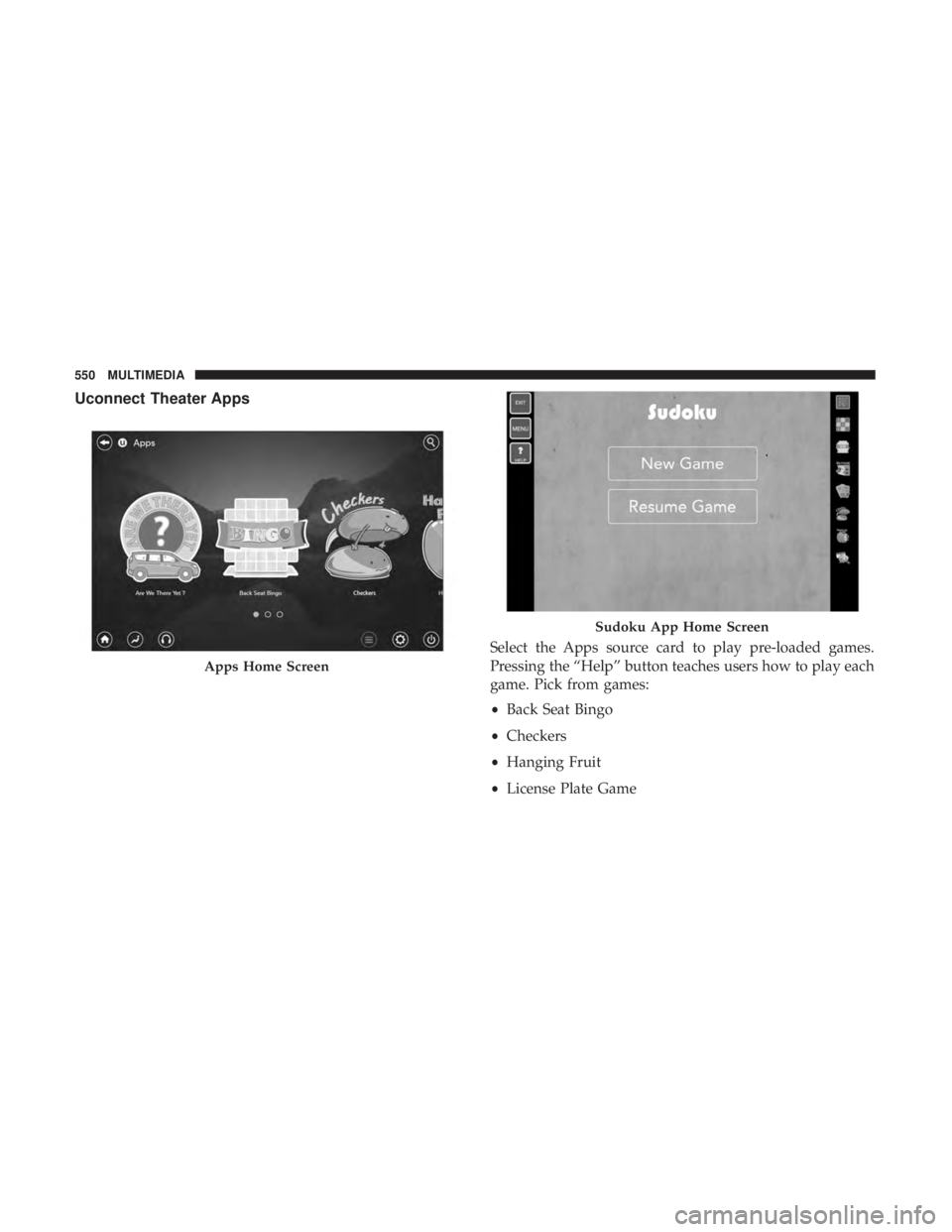
Uconnect Theater Apps
Select the Apps source card to play pre-loaded games.
Pressing the “Help” button teaches users how to play each
game. Pick from games:
•Back Seat Bingo
• Checkers
• Hanging Fruit
• License Plate Game
Apps Home Screen
Sudoku App Home Screen
550 MULTIMEDIA
Page 554 of 614
their frequency can be set up for route information by
using the arrow buttons, and can be turned on and off
using the “Notifications” button on the “Are We There
Yet?” App. Estimated time of arrival notifications pop-up
at the bottom center of the screen.
Using The Rear Video USB Port
Plug in a USB drive, iPhone, iPod or mass storage device
and play your favorite music or movies.NOTE:
To view USB media on the rear theater screens,
insert a USB drive into the port next to the DVD/Blu-ray
disc player. The USB drive port is located under the radio
controls in the instrument panel.
On the rear screen you can browse the content of the USB
device by going to the USB source. Use the search feature
to find your music faster.
Rear Video USB Port
Search Screen
552 MULTIMEDIA
Page 556 of 614
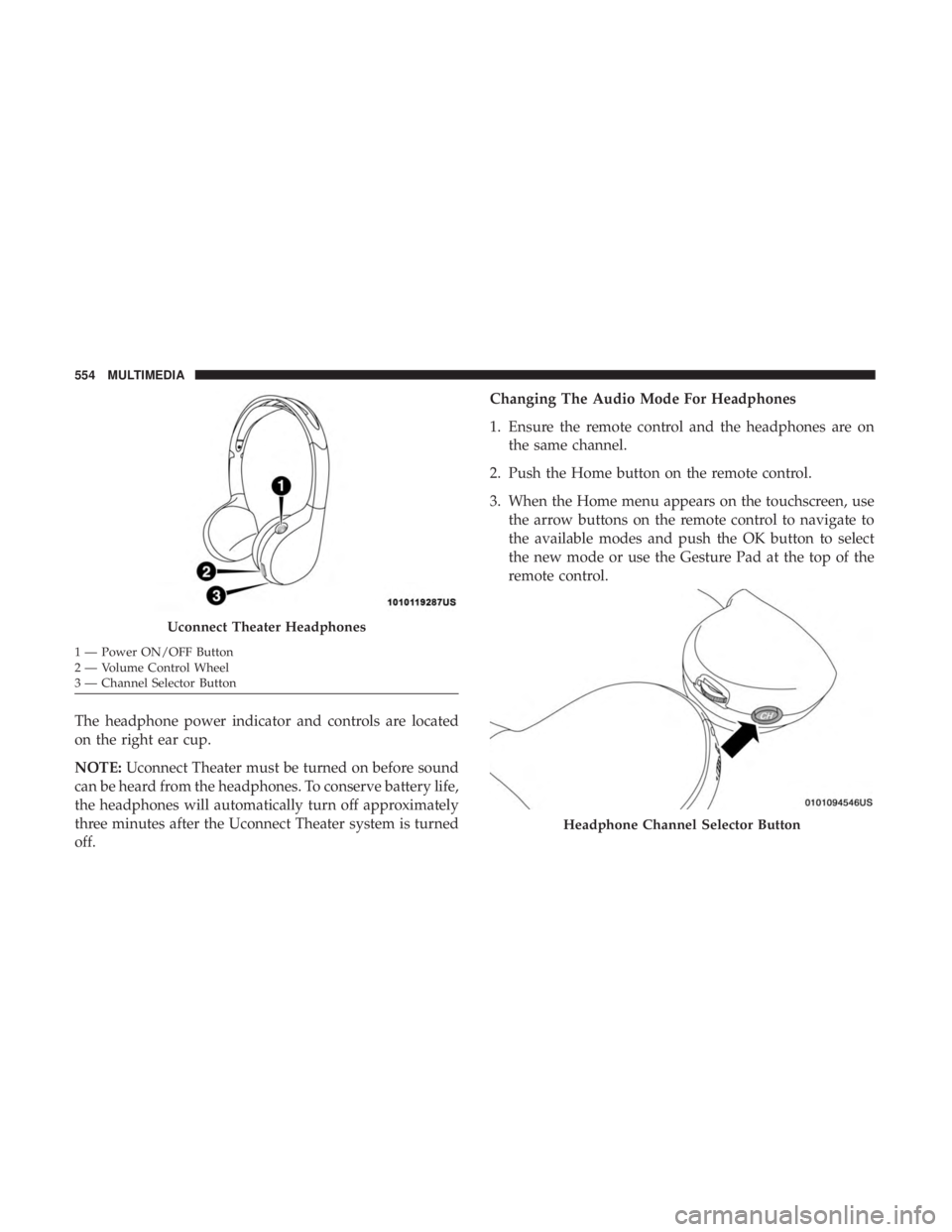
The headphone power indicator and controls are located
on the right ear cup.
NOTE:Uconnect Theater must be turned on before sound
can be heard from the headphones. To conserve battery life,
the headphones will automatically turn off approximately
three minutes after the Uconnect Theater system is turned
off. Changing The Audio Mode For Headphones
1. Ensure the remote control and the headphones are on
the same channel.
2. Push the Home button on the remote control.
3. When the Home menu appears on the touchscreen, use the arrow buttons on the remote control to navigate to
the available modes and push the OK button to select
the new mode or use the Gesture Pad at the top of the
remote control.
Uconnect Theater Headphones
1 — Power ON/OFF Button
2 — Volume Control Wheel
3 — Channel Selector Button
Headphone Channel Selector Button
554 MULTIMEDIA
Page 559 of 614
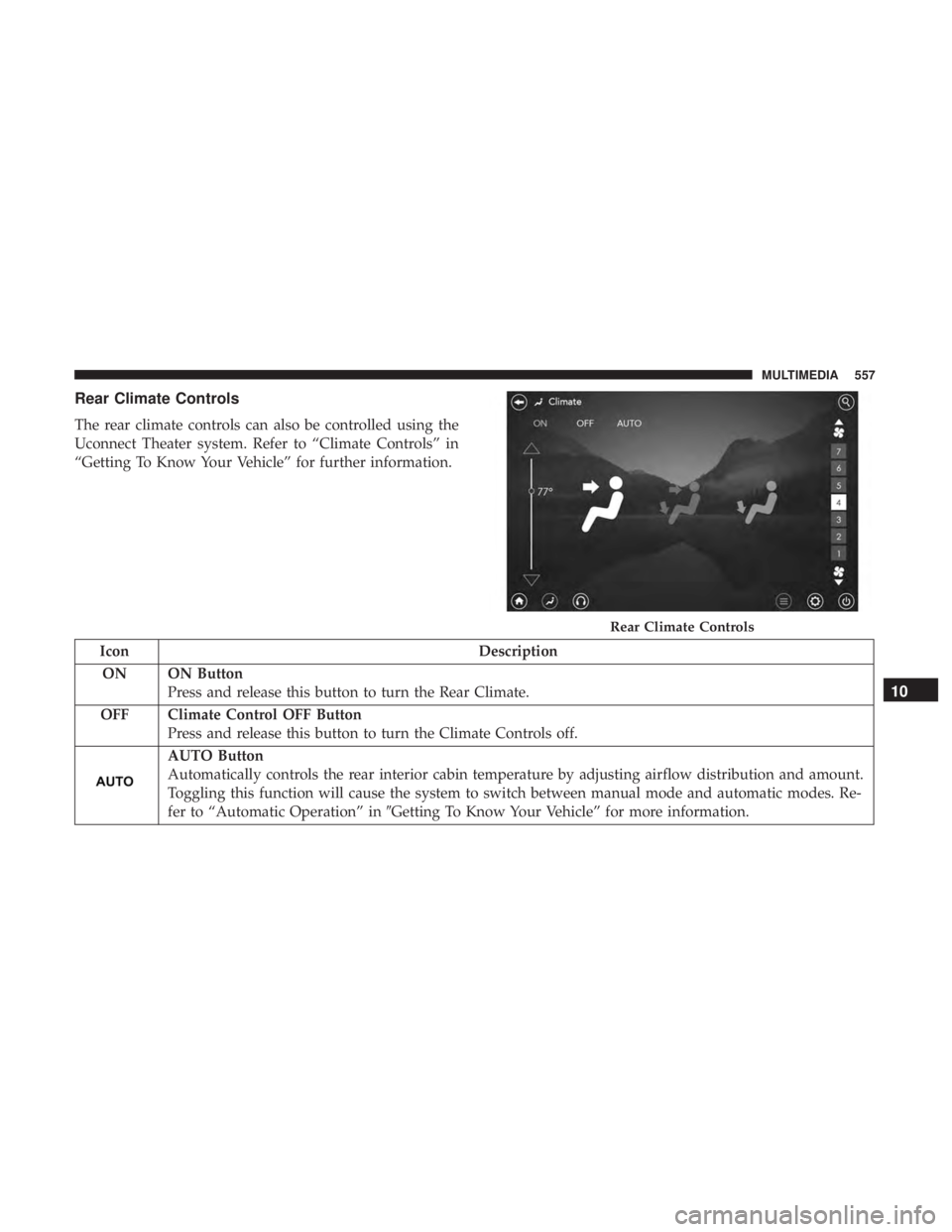
Rear Climate Controls
The rear climate controls can also be controlled using the
Uconnect Theater system. Refer to “Climate Controls” in
“Getting To Know Your Vehicle” for further information.
IconDescription
ON ON Button Press and release this button to turn the Rear Climate.
OFF Climate Control OFF Button Press and release this button to turn the Climate Controls off.
AUTO Button
Automatically controls the rear interior cabin temperature by adjusting airflow distribution and amount.
Toggling this function will cause the system to switch between manual mode and automatic modes. Re-
fer to “Automatic Operation” in �Getting To Know Your Vehicle” for more information.
Rear Climate Controls
10
MULTIMEDIA 557