2018 CHEVROLET MALIBU manual radio set
[x] Cancel search: manual radio setPage 143 of 413
Chevrolet Malibu Owner Manual (GMNA-Localizing-U.S./Canada/Mexico-
11348460) - 2018 - crc - 5/3/17
142 Instruments and Controls
Remote Door Unlock
Select to set which doors will unlock
when pressing
Kon the RKE
transmitter. See Remote Keyless
Entry (RKE) System Operation 032.
Select Driver Door or All Doors.
Remote Start Auto Cool Seats
If equipped and turned on, this
feature will turn the ventilated seats
on when using remote start on
warm days.
Select Off, On-Driver and
Passenger, or On-Driver.
Remote Start Auto Heat Seats
Select to enable or disable which
seat will come on when remote start
is used. See Heated and Ventilated
Front Seats 061.
Select Off, On-Driver and
Passenger, or On-Driver.
Passive Door Unlock
Select to set which doors will unlock
when the RKE transmitter is within
range and the button on the outside
driver door handle is being used to unlock the vehicle. See
Remote
Keyless Entry (RKE) System
Operation 032.
Select Driver Door Only or All
Doors.
Passive Door Lock
This allows passive locking to be
turned on or off and selects
feedback. See Remote Keyless
Entry (RKE) System Operation 032.
Select Off, On, or On With Horn
Chirp.
Remote Left in Vehicle Reminder
This feature sounds an alert when
the RKE transmitter is left in the
vehicle. This menu also enables the
Remote No Longer Left in Vehicle
alert.
Select Off or On.
Return to Factory Settings
Select to return all vehicle
personalizations to the default
settings.
Select Yes or No.
Software Information
Select to view the radio software
information.
Valet Mode (If Equipped)
This will lock the infotainment
system and steering wheel controls.
It may also limit access to vehicle
storage locations, if equipped.
To enable valet mode: 1. Enter a four-digit code on the keypad.
2. Select Enter to go to the confirmation screen.
3. Re-enter the four-digit code.
Select Lock or Unlock to lock or
unlock the system. Select BACK to
go back to the previous menu.
Personalization Menu (Radio
with Touchscreen)
Settings can be made with the
ignition on and the vehicle not
moving.
Page 144 of 413
Chevrolet Malibu Owner Manual (GMNA-Localizing-U.S./Canada/Mexico-
11348460) - 2018 - crc - 5/3/17
Instruments and Controls 143
The following are all possible
personalization features. Depending
on the vehicle, some may not be
available.
{:Press to access the Home
Page Menu.
QorR: Touch to scroll through the
menus or setup items.
0: Touch to exit or return to the
previous screen or menu.
To access the menu:
1. Press
{.
2. Touch Settings.
Touch the menu item to select it.
Each of the menus is detailed in the
following information.
Settings menus and functions may
vary depending on vehicle options.
The following list of menu items may
be available:
. Time and Date
. Rear Seat Reminder
. Language
. Valet Mode .
Teen Driver
. Radio
. Vehicle
. Bluetooth
. Apple CarPlay
. Android Auto
. USB Auto Launch
. Voice
. Display
. Rear Camera
. Return to Factory Settings
. Software Information
. Wi-Fi
Time and Date
Select Time and Date to adjust the
clock. See Clock0107.
Rear Seat Reminder
This allows for a chime and a
message when the rear door has
been opened before or during
operation of the vehicle.
Select Off or On.
Language
Select, then select from the
available language(s).
Valet Mode
This will lock the infotainment
system and steering wheel controls.
It may also limit access to vehicle
storage locations, if equipped.
To enable valet mode:
1. Enter a four-digit code on the keypad.
2. Touch Enter to go to the confirmation screen.
3. Re-enter the four-digit code.
Touch Lock or Unlock to lock or
unlock the system. Touch Back to
go back to the previous menu.
Teen Driver
See “Teen Driver” under“Settings”
in the infotainment manual.
Radio
Select and the following may
display:
. Manage Favorites
Page 145 of 413
Chevrolet Malibu Owner Manual (GMNA-Localizing-U.S./Canada/Mexico-
11348460) - 2018 - crc - 5/3/17
144 Instruments and Controls
.Number of Favorites Shown
. Audible Touch Feedback
. Text Scroll
. Tone Settings
. Auto Volume
. Maximum Startup Volume
. Audio Cue
Manage Favorites
This allows favorites to be edited.
See “Manage Favorites” in“Radio
Setup” underHome Page (Radio
with Touchscreen) 0166 or
“Manage Favorites” in“Settings”
under “Radio” in the infotainment
manual.
Number of Favorites Shown
Select to set the number of favorites
to display.
Select the desired number or select
Auto and the infotainment system
will automatically adjust the number
of favorites shown.
Audible Touch Feedback
This allows Audible Touch
Feedback to be turned on or off. Select Off or On.
Text Scroll
Select to see text scroll on the
screen.
Select Off or On.
Tone Settings
Select to adjust the radio tone. See
Operation
0167.
Auto Volume
This feature adjusts the volume
based on vehicle speed and
ambient noise.
Select Off, Low, Medium-Low,
Medium, Medium-High, or High.
Maximum Startup Volume
This feature sets the maximum
startup volume. If the vehicle is
started and the volume is greater
than this level, the volume is
adjusted to this level. To set the
maximum startup volume, touch +
or −to increase or decrease. Audio Cue
If equipped, this feature adjusts the
startup and shutdown sounds. To
adjust the volume, touch + or
−to
increase or decrease.
Vehicle
Select and the following may
display:
. Climate and Air Quality
. Collision/Detection Systems
. Comfort and Convenience
. Lighting
. Power Door Locks
. Remote Lock, Unlock, Start
Climate and Air Quality
Select and the following may
display:
.Auto Fan Speed
. Auto Defog
. Auto Rear Defog
Auto Fan Speed
This feature will set the auto fan
speed.
Page 151 of 413
Chevrolet Malibu Owner Manual (GMNA-Localizing-U.S./Canada/Mexico-
11348460) - 2018 - crc - 5/3/17
150 Instruments and Controls
Rear Park Assist Symbols
Select to turn Off or On. See
Assistance Systems for Parking or
Backing0243.
Return to Factory Settings
Select and the following may
display:
.
Restore Vehicle Settings
. Clear All Private Data
. Restore Radio Settings
Restore Vehicle Settings
This allows vehicle settings to be
restored.
Select Restore or Cancel.
Clear All Private Data
This allows all private information to
be deleted from the vehicle.
Select Delete or Cancel.
Restore Radio Settings
This allows radio settings to be
restored.
Select Restore or Cancel.
Software Information
Select to view the infotainment
system current software information.
Wi-Fi
Select and the following may
display:
. Wi-Fi
. Manage Wi-Fi Networks
Wi-Fi
This feature allows Wi-Fi networks
to be turned off or on.
Select Off or On.
Manage Wi-Fi Networks
Select to manage Wi-Fi networks.
Wi-Fi must be on for this feature to
be accessed.
Universal Remote
System
See Radio Frequency Statement
0 385.
Universal Remote System
Programming
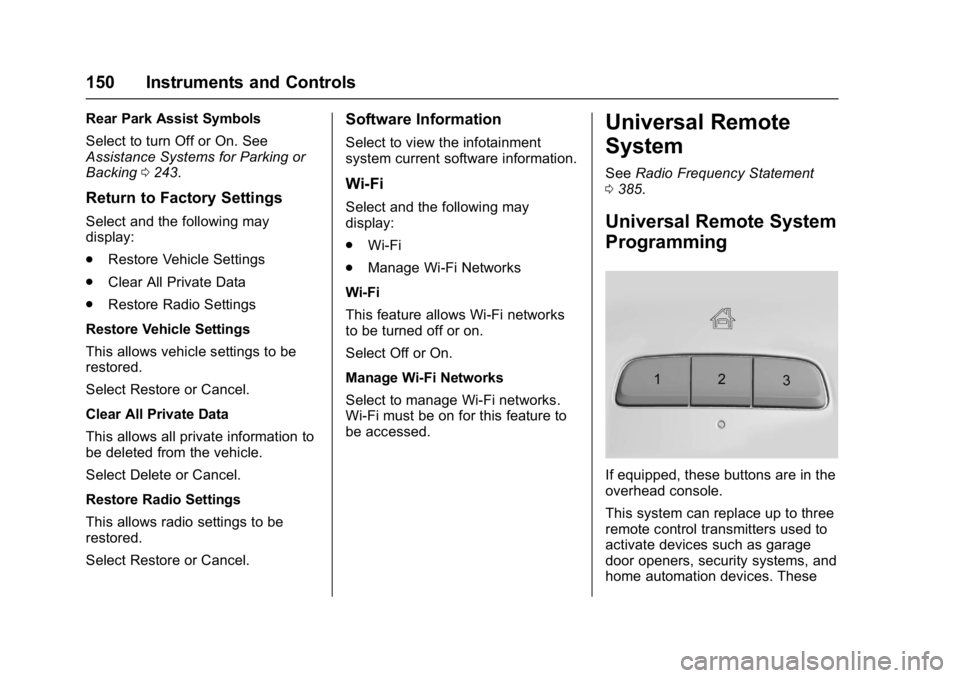
If equipped, these buttons are in the
overhead console.
This system can replace up to three
remote control transmitters used to
activate devices such as garage
door openers, security systems, and
home automation devices. These
Page 166 of 413
Chevrolet Malibu Owner Manual (GMNA-Localizing-U.S./Canada/Mexico-
11348460) - 2018 - crc - 5/3/17
Infotainment System 165
.Turn to highlight menu
items or to set values while
in a menu.
. Turn to manually select
radio stations.
9. Preset Buttons 1−4 .Press and hold to store a
station.
. Press to go to a preset
favorite station.
10. FAV .Press to go to a
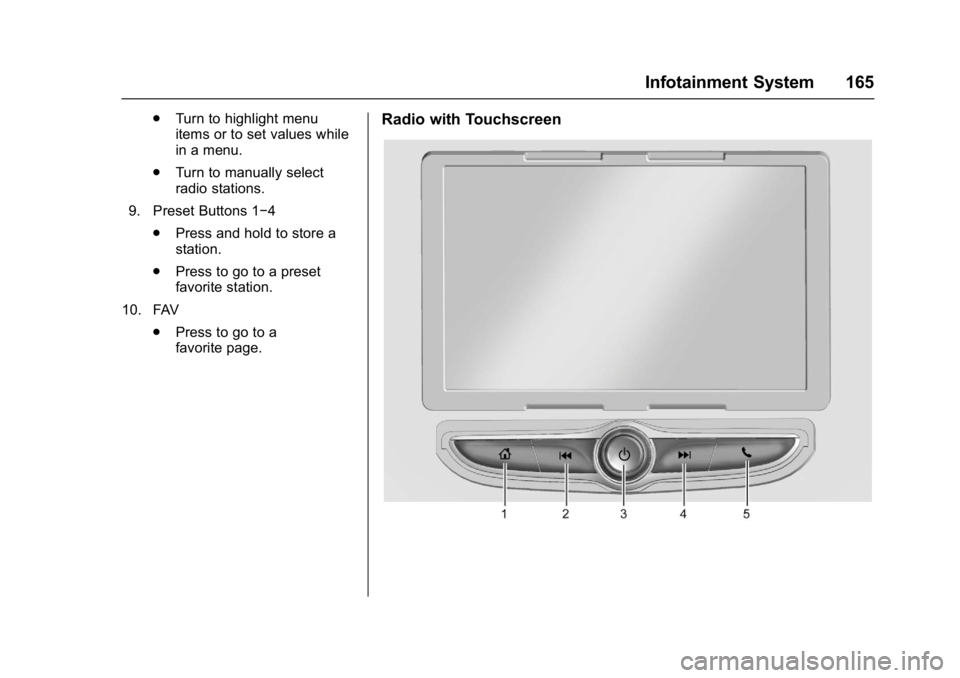
favorite page.Radio with Touchscreen
Page 168 of 413
Chevrolet Malibu Owner Manual (GMNA-Localizing-U.S./Canada/Mexico-
11348460) - 2018 - crc - 5/3/17
Infotainment System 167
Settings :Touch to access the
Personalization menu. See Vehicle
Personalization 0138.
Climate : If equipped, touch to
access the Climate menu.
See Climate Control Systems 0196
or Dual Automatic Climate Control
System 0199.
OnStar : If equipped, touch to
access the OnStar menu. See
OnStar Overview 0389.
Energy : If equipped, touch to
access the Energy menu.
Drive Mode : If equipped, touch to
access the Drive Mode menu.
Operation
Radio Controls without
Touchscreen
The infotainment system is operated
by using the pushbuttons,
multifunction knobs, and menus
shown on the display.
Turning the System On or Off
O: Press and hold to turn the
system on and off.
Automatic Switch-Off
If the infotainment system has been
turned on after the ignition is turned
off, the system will turn off
automatically after 10 minutes.
Volume Control
O: Turn to adjust the volume or to
cancel mute when the audio system
is muted.
PHONE : Press to activate OnStar.
See OnStar Overview 0389.
Press to mute the audio system.
Press again to cancel mute.
Menu System
Controls
The MENU knob and BACK button
are used to navigate the menu
system.
MENU Knob:
Turn to:
. Highlight a menu option.
. Select a value.
. Manually select radio stations. Press to:
.
Enter the menu system.
. Select or activate the highlighted
menu option.
. Confirm a set value.
. Turn a system setting on or off.
BACK:
Press to:
. Exit a menu.
. Go back to the previous menu
screen.
. Delete the last character in a
sequence.
Press and hold to delete the entire
character sequence.
Submenus
A bar on the right-hand edge of the
menu indicates that it has a
submenu with other options.
Tone Settings
The tone settings can be set for
each radio band and each audio
player source.
Page 169 of 413
Chevrolet Malibu Owner Manual (GMNA-Localizing-U.S./Canada/Mexico-
11348460) - 2018 - crc - 5/3/17
168 Infotainment System
Adjusting the Bass, Midrange,
Treble, Fader, and Balance1. Press MENU.
2. Turn MENU to Settings.
3. Press MENU.
4. Turn MENU to Tone Settings.
5. Press MENU.
6. Turn MENU to the desired tone.
7. Press MENU to select the desired tone.
8. Turn MENU to adjust the desired tone.
9. Press MENU to save the setting.
10. Press BACK to go back to the Tone Settings menu.
Adjusting the EQ (Equalizer) 1. Press MENU.
2. Turn MENU to Settings.
3. Press MENU.
4. Turn MENU to Tone Settings.
5. Press MENU. 6. Turn MENU to EQ.
7. Press MENU.
8. Turn MENU to the desired
setting, then press MENU to
select it.
9. Continue pressing BACK to go back to the Tone
Settings menu.
System Settings
Configuring the Number of
Favorite Pages
Up to six favorite pages can be
saved, and each page can store up
to four radio stations.
To configure the number of available
favorite pages:
1. Press MENU.
2. Turn MENU to Set Number of Favorites Pages.
3. Press MENU.
4. Turn MENU to the desired number of pages.
5. Press MENU to select the desired number of pages.
6. Press BACK to exit. Auto Volume Control
This feature automatically adjusts
the radio volume to compensate for
road and wind noise.
The level of volume compensation
can be selected, or the feature can
be turned off.
1. Press MENU.
2. Turn MENU to Settings.
3. Press MENU.
4. Turn MENU to Auto Volume Control.
5. Press MENU.
6. Select the desired setting.
7. Press BACK to exit.
Radio Controls with
Touchscreen
The infotainment system is operated
by using the pushbuttons, menus
shown on the display, and steering
wheel controls.
Turning the System On or Off
O: Press to turn the radio on.
Press and hold to turn the radio off.
Page 170 of 413
Chevrolet Malibu Owner Manual (GMNA-Localizing-U.S./Canada/Mexico-
11348460) - 2018 - crc - 5/3/17
Infotainment System 169
Automatic Switch-Off
If the infotainment system has been
turned on after the ignition is turned
off, the system will turn off
automatically after 10 minutes.
Volume Control
O:Turn to increase or decrease.
O:Press when the system is on to
mute and unmute the system.
System Settings
Auto Volume
This feature automatically adjusts
the radio volume to compensate for
road and wind noise.
The level of volume compensation
can be selected, or the feature can
be turned off.
1. Touch MENU from a source screen.
2. Select Auto Volume.
3. Select the desired setting.
4. Touch
3to go back to the
source screen. Tone Settings
The tone settings can be set for
each radio band and each audio
player source.
Preset Tone Settings
1. Touch MENU.
2. Touch Tone Settings.
3. Select a preset tone setting.
Custom Tone Settings 1. Touch MENU.
2. Touch Tone Settings.
3. Touch Custom. .Bass, Midrange, or Treble:
Touch −or +.
. Fader or Balance: Adjust
the front/rear or left/right
speakers by dragging the
dot in the vehicle image on
the screen.
4. Touch
3to go back to the
source screen.
Software Updates
Over-the-Air Software Updates
If equipped, the infotainment system
can download and install select
software updates over a wireless
connection. The system will prompt
for certain updates to be
downloaded and installed. There is
also an option to check for updates
manually.
To manually check for updates,
touch SETTINGS on the Home
Page, followed by Software
Information, and then System
Update. Follow the on-screen
prompts. Steps for downloading and
installing updates may vary by
vehicle.
Downloading Over-the-Air vehicle
software updates requires Internet
connectivity, which can be accessed
through the vehicle’ s built-in OnStar
4G LTE connection, if equipped and
active. If required, data plans are
provided by a third party. Optionally,
a secure Wi-Fi hotspot such as a
compatible mobile device hotspot,