2018 CHEVROLET CRUZE USB
[x] Cancel search: USBPage 164 of 404
Chevrolet Cruze Owner Manual (GMNA-Localizing-U.S./Canada/Mexico-
11348462) - 2018 - crc - 5/15/17
Infotainment System 163
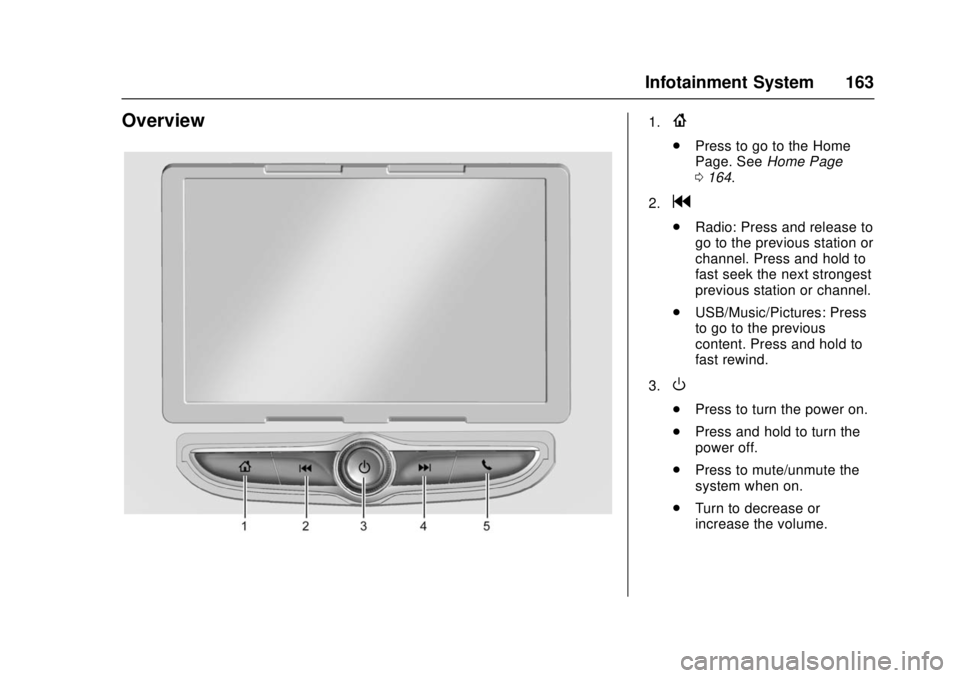
Overview1.{
.Press to go to the Home
Page. See Home Page
0 164.
2.
g
. Radio: Press and release to
go to the previous station or
channel. Press and hold to
fast seek the next strongest
previous station or channel.
. USB/Music/Pictures: Press
to go to the previous
content. Press and hold to
fast rewind.
3.
O
. Press to turn the power on.
. Press and hold to turn the
power off.
. Press to mute/unmute the
system when on.
. Turn to decrease or
increase the volume.
Page 165 of 404

Chevrolet Cruze Owner Manual (GMNA-Localizing-U.S./Canada/Mexico-
11348462) - 2018 - crc - 5/15/17
164 Infotainment System
4.d
.Radio: Press and release to
go to the next station or
channel. Press and hold to
fast seek the next track or
strongest station or
channel.
. USB/Music/Pictures: Press
to go to the next content.
Press and hold to fast
forward.
5.
5
. Press and release to
access the phone screen,
answer an incoming call,
or access the device home
screen.
Home Page
Infotainment Display Buttons
Infotainment display controls on the
screen when available. When a
function is unavailable, the function
may gray out. When a function is
selected, the function may highlight.
Home Page Features
Press{to go to the Home Page.
Audio : Touch to select AM, FM,
SiriusXM (if equipped), USB/iPod/
Bluetooth Audio, or AUX.
Gallery : Touch to view a picture or
movie.
Phone : Touch to activate the
phone features, if equipped.
See Bluetooth (Infotainment
Controls) 0177 orBluetooth
(Overview) 0176.
Projection : Touch to access
supported devices when connected.
See USB Port 0169.
Settings : Touch to access the
Personalization menu. See Vehicle
Personalization 0145. Climate :
If equipped, touch to
access the Climate menu.
See Climate Control Systems (With
Heater Only) 0188 orClimate
Control Systems (With Air
Conditioning) 0186.
OnStar : If equipped, touch to
access the OnStar menu. See
OnStar Overview 0381.Operation
Radio Controls
The infotainment system is operated
by using the center stack controls,
menus shown on the display, and
steering wheel controls.
Turning the System On or Off
O:Press to turn the radio on.
Press and hold to turn the radio off.
Automatic Switch-Off
If the infotainment system has been
turned on after the ignition is off, the
system will turn off automatically
after 10 minutes.
Page 170 of 404
Chevrolet Cruze Owner Manual (GMNA-Localizing-U.S./Canada/Mexico-
11348462) - 2018 - crc - 5/15/17
Infotainment System 169
things like storms and power lines
interfere with radio reception. When
this happens, try reducing the treble
on the radio.
SiriusXM Satellite Radio
Service
SiriusXM Satellite Radio Service
gives digital radio reception from
coast to coast in the 48 contiguous
United States, and in Canada. Just
as with FM, tall buildings or hills can
interfere with satellite radio signals,
causing the sound to fade in and
out. In addition, traveling or standing
under heavy foliage, bridges,
garages, or tunnels may cause loss
of the SiriusXM signal for a period
of time.
Cell Phone Usage
Cell phone usage, such as making
or receiving phone calls, charging,
or just having the phone on may
cause static interference in the
radio. Unplug the phone or turn it off
if this happens.
Multi-Band Antenna
The multi-band antenna is on the
roof of the vehicle. The antenna is
used for OnStar, the SiriusXM
Satellite Radio Service System, and
GPS (Global Positioning System),
if the vehicle has these features.
Keep the antenna clear of
obstructions for clear reception.
If the vehicle has a sunroof, and it is
open, reception can also be
affected.
Audio Players
Avoiding Untrusted Media
Devices
When using media devices such as
CDs, DVDs, Blu-ray Discs, SD
cards, USB devices, and mobile
devices, consider the source.
Untrusted media devices could
contain files that affect system
operation or performance. Avoid use
if the content or origin cannot be
trusted.
USB Port
Using the USB Port
The infotainment system can play
music by connecting an auxiliary
device to the USB port.
USB Support
This vehicle has a USB port on the
center stack for data and charging
and may have a USB charge port
on the rear of the center console.
External devices such as iPhones/
iPods and USB storage devices
may be connected.
Page 171 of 404
Chevrolet Cruze Owner Manual (GMNA-Localizing-U.S./Canada/Mexico-
11348462) - 2018 - crc - 5/15/17
170 Infotainment System
USB Supported Devices
.USB Flash Drives
. Portable USB Hard Drives
Not all iPods and USB drives are
compatible with the USB port.
Make sure the iPod has the latest
firmware from Apple for proper
operation. iPod firmware can be
updated using the latest iTunes
application. See www.apple.com/
itunes.
For help with identifying your iPod,
go to www.apple.com/support.
The USB port can play both lower
and upper case .mp3, .wma, .ogg,
and .wav files stored on a USB
storage device.
Supported Apple Devices
To view supported devices in the
U.S., see www.my.chevrolet.com
\learned.
To view supported devices in
Canada, see
www.chevroletowner.ca.
To view supported devices in
Mexico, see your dealer. USB Supported File and Folder
Structure
The infotainment system supports:
.
FAT16/32
. NTFS
. HFS+
Connecting a USB Storage
Device or iPod/iPhone
To connect a USB storage device,
connect the device to the USB port.
To connect an iPod/iPhone, connect
one end of the device’ s cable to the
iPod/iPhone and the other end to
the USB port.
The iPod/iPhone charges while it is
connected to the vehicle if the
vehicle is on or in ACC/
ACCESSORY.
See Ignition Positions (Key Access)
0 206 orIgnition Positions (Keyless
Access) 0208. When the vehicle is
turned off, the iPod/iPhone
automatically powers off and will not
charge or draw power from the
vehicle's battery. For more information on USB
usage, see
“Audio System
Information” following.
Audio System Information
The infotainment system can play
the music files contained in the USB
storage device or iPod/iPhone
products.
Using MP3/WMA/OGG/WAV Files
.
Music files with .mp3, .wma,
.ogg, and .wav file name
extensions can be played.
. MP3 files that can be played: Bit
rate: 8 kbps to 320 kbps.
Sampling frequency: 48 kHz,
44.1 kHz, 32 kHz, 24 kHz, 22.05
kHz, and 16 kHz.
. Files with a bit rate above
128 kbps will result in higher
quality sound.
. ID3 Tag information for MP3
files, such as the album name
and the artist, can be played.
. To display album title, track title,
and artist information, the file
should be compatible with the
ID3 Tag V1 and V2 formats.
Page 172 of 404

Chevrolet Cruze Owner Manual (GMNA-Localizing-U.S./Canada/Mexico-
11348462) - 2018 - crc - 5/15/17
Infotainment System 171
Using USB Storage Devices and
an iPod/iPhone
.Use a USB or flash memory type
storage device. Do not connect
using a USB adaptor.
. Do not connect and reconnect
the USB device repeatedly in a
short time, as this may cause
static electricity and problems
using the device.
. Use a USB device with a metal
connecting terminal.
. Connection with i-Stick Type
USB storage devices may be
faulty due to vehicle vibration.
. Do not touch the USB
connecting terminal.
. The USB storage device can
only be recognized when it is
formatted in FAT16/32, NTFS,
HFS+. exFAT and other file
systems cannot be recognized.
. The time it takes to process files
will depend on the USB storage
device type and capacity, and
the type of files stored. .
Some USB storage device files
may not be compatible.
. Up to two USB devices and one
iPod can be played through a
USB hub. All devices may not be
supported, depending on the
performance of the USB hub.
If there is not enough power
supply, it may not operate
normally.
. Do not disconnect the USB
storage device while it is playing.
This may cause damage to the
product or affect the
performance of the USB device.
. Disconnect the USB storage
device when the ignition is
turned off. If the ignition is turned
on while the USB device is
connected, the USB device may
be damaged or may not operate
normally.
. USB storage devices can only
be connected for playing music
files, viewing picture files,
or upgrading. .
Do not use the USB terminal to
charge USB accessory
equipment. The heat generated
may cause performance issues
or damage.
. Music files to which Digital Right
Management (DRM) is applied
cannot be played.
. USB storage device with a
capacity with a limit of 5,000
files, such as music and
pictures, and no more than
15 stages of folder structure can
be played. Normal usage cannot
be guaranteed for a storage
device that exceeds this limit.
The iPod/iPhone can play all
music files that are supported.
The music file lists will only
display up to 5,000 files on the
screen. These files are sorted in
alphabetical order.
. Some iPod/iPhone product
models may not support the
connectivity or functionality of
this product.
Page 173 of 404
Chevrolet Cruze Owner Manual (GMNA-Localizing-U.S./Canada/Mexico-
11348462) - 2018 - crc - 5/15/17
172 Infotainment System
.Only connect the iPod/iPhone
with connection cables
supported by iPod/iPhone
products. Other connection
cables cannot be used.
. The iPod/iPhone may be
damaged if it is connected to the
vehicle with the ignition on.
When not in use, disconnect the
iPod/iPhone.
. When the iPod/iPhone is
connected to the USB port by
using the iPod/iPhone cable, the
Bluetooth music is not
supported.
. The iPod/iPhone playback
functions and the information
displayed may be different when
played on the infotainment
system.
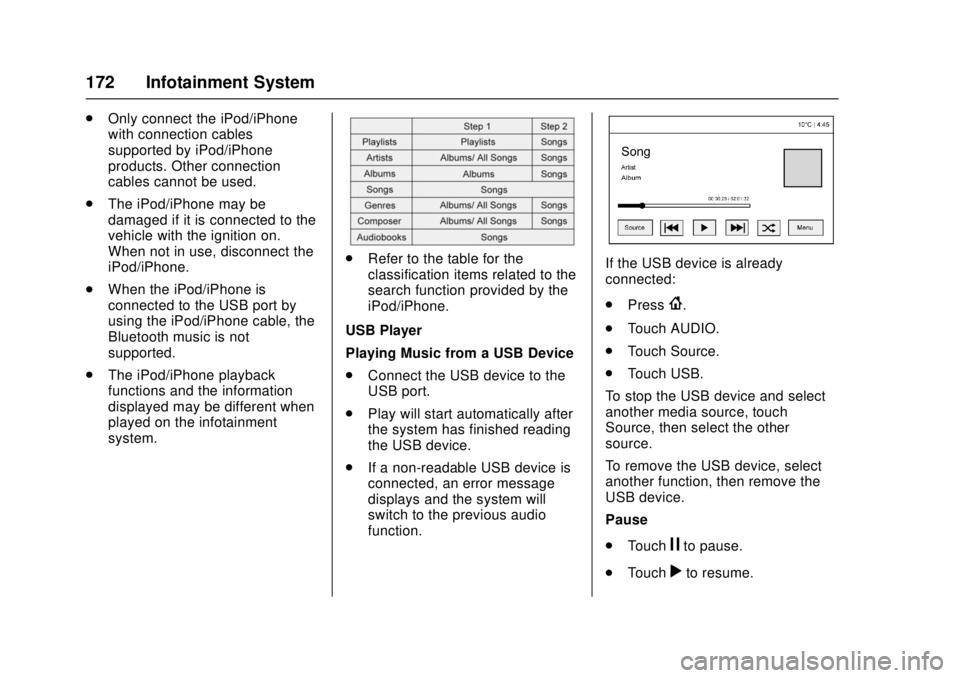
.Refer to the table for the
classification items related to the
search function provided by the
iPod/iPhone.
USB Player
Playing Music from a USB Device
. Connect the USB device to the
USB port.
. Play will start automatically after
the system has finished reading
the USB device.
. If a non-readable USB device is
connected, an error message
displays and the system will
switch to the previous audio
function.If the USB device is already
connected:
.Press
{.
. Touch AUDIO.
. Touch Source.
. Touch USB.
To stop the USB device and select
another media source, touch
Source, then select the other
source.
To remove the USB device, select
another function, then remove the
USB device.
Pause
. Touch
jto pause.
. Touch
rto resume.
Page 174 of 404
Chevrolet Cruze Owner Manual (GMNA-Localizing-U.S./Canada/Mexico-
11348462) - 2018 - crc - 5/15/17
Infotainment System 173
Changing to the Next/Previous
Music File
.Touch
lto change to the next
music file.
. Touch
gwithin five seconds of
the playback time to play the
previous music file.
Returning to the Beginning of the
Current Music File
Touch
gafter five seconds of the
playback time.
Scanning Forward or Backward
Touch and hold
gorlduring
playback to rewind or fast forward.
Release the button to resume
playback at normal speed.
Playing a Music File Randomly
Touch
Zduring playback.
. ON: Plays all music files
randomly.
. OFF: Returns to normal
playback.
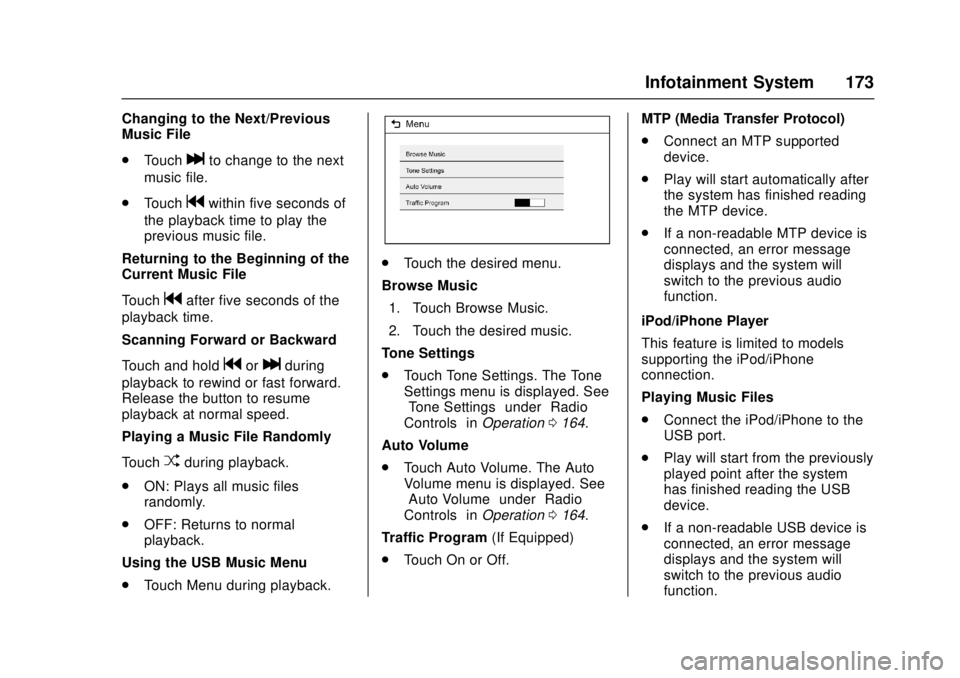
Using the USB Music Menu
. Touch Menu during playback.
.Touch the desired menu.
Browse Music 1. Touch Browse Music.
2. Touch the desired music.
Tone Settings
. Touch Tone Settings. The Tone
Settings menu is displayed. See
“Tone Settings” under“Radio
Controls” inOperation 0164.
Auto Volume
. Touch Auto Volume. The Auto
Volume menu is displayed. See
“Auto Volume” under“Radio
Controls” inOperation 0164.
Traffic Program (If Equipped)
. Touch On or Off. MTP (Media Transfer Protocol)
.
Connect an MTP supported
device.
. Play will start automatically after
the system has finished reading
the MTP device.
. If a non-readable MTP device is
connected, an error message
displays and the system will
switch to the previous audio
function.
iPod/iPhone Player
This feature is limited to models
supporting the iPod/iPhone
connection.
Playing Music Files
. Connect the iPod/iPhone to the
USB port.
. Play will start from the previously
played point after the system
has finished reading the USB
device.
. If a non-readable USB device is
connected, an error message
displays and the system will
switch to the previous audio
function.
Page 175 of 404
Chevrolet Cruze Owner Manual (GMNA-Localizing-U.S./Canada/Mexico-
11348462) - 2018 - crc - 5/15/17
174 Infotainment System
If the iPod/iPhone is already
connected:1. Press
{.
2. Touch AUDIO.
3. Touch Source.
4. Touch iPod.
To stop the device and select
another media source, touch
Source, then select the other
source.
To remove the device, select
another function, then remove the
device.
Pause
. Touch
jto pause.
. Touch
rto resume.
Changing to the Next/Previous
Music File
. Touch
lto change to the next
music file.
. Touch
gwithin two seconds of
the playback time to play the
previous music file. Returning to the Beginning of the
Current Music File
Touch
gafter two seconds of the
playback time.
Scanning Forward or Backward
Touch and hold
gorlduring
playback to rewind or fast forward.
Release the button to resume
playback at normal speed.
Playing a Music File Randomly
Touch
Zduring playback.
. ON: Plays all music files
randomly.
. OFF: Returns to normal
playback.
Using the iPod Menu
. Touch Menu during playback.
. Touch the appropriate
play mode.
Browse Music 1. Touch Browse Music.
2. Touch the desired music. Tone Settings
.
Touch Tone Settings. The Tone
Settings menu is displayed. See
“Tone Settings” under“Radio
Controls” inOperation 0164.
Auto Volume
. Touch Auto Volume. The Auto
Volume menu is displayed. See
“Auto Volume” under“Radio
Controls” inOperation 0164.
Picture System Information
The infotainment system can view
picture files stored on a USB
storage device and devices that
support Media Transfer
Protocol (MTP).
.
Supported file extensions: .jpg,
.bmp, .png, .gif.
. Animated GIF files are not
supported.
. Some picture files may not
operate due to a different
recording format or the condition
of the picture file.