2018 CHEVROLET BOLT EV charging
[x] Cancel search: chargingPage 137 of 370
Chevrolet BOLT EV Owner Manual (GMNA-Localizing-U.S./Canada/Mexico-
11434431) - 2018 - crc - 2/14/18
136 Instruments and Controls
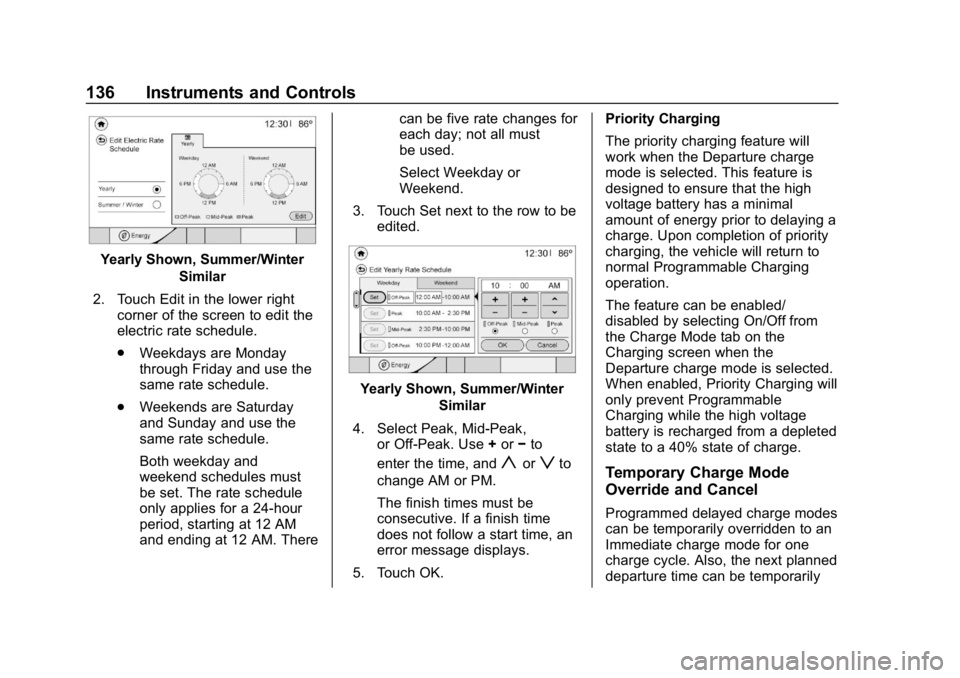
Yearly Shown, Summer/WinterSimilar
2. Touch Edit in the lower right corner of the screen to edit the
electric rate schedule.
.Weekdays are Monday
through Friday and use the
same rate schedule.
. Weekends are Saturday
and Sunday and use the
same rate schedule.
Both weekday and
weekend schedules must
be set. The rate schedule
only applies for a 24-hour
period, starting at 12 AM
and ending at 12 AM. There can be five rate changes for
each day; not all must
be used.
Select Weekday or
Weekend.
3. Touch Set next to the row to be edited.
Yearly Shown, Summer/Winter
Similar
4. Select Peak, Mid-Peak, or Off-Peak. Use +or −to
enter the time, and
yorzto
change AM or PM.
The finish times must be
consecutive. If a finish time
does not follow a start time, an
error message displays.
5. Touch OK. Priority Charging
The priority charging feature will
work when the Departure charge
mode is selected. This feature is
designed to ensure that the high
voltage battery has a minimal
amount of energy prior to delaying a
charge. Upon completion of priority
charging, the vehicle will return to
normal Programmable Charging
operation.
The feature can be enabled/
disabled by selecting On/Off from
the Charge Mode tab on the
Charging screen when the
Departure charge mode is selected.
When enabled, Priority Charging will
only prevent Programmable
Charging while the high voltage
battery is recharged from a depleted
state to a 40% state of charge.Temporary Charge Mode
Override and Cancel
Programmed delayed charge modes
can be temporarily overridden to an
Immediate charge mode for one
charge cycle. Also, the next planned
departure time can be temporarily
Page 138 of 370
Chevrolet BOLT EV Owner Manual (GMNA-Localizing-U.S./Canada/Mexico-
11434431) - 2018 - crc - 2/14/18
Instruments and Controls 137
overridden for one charge cycle. In
addition to the in-vehicle overrides
through the programmable charging
screens, there are other ways to
temporarily override a delayed
charge mode. SeePlug-In Charging
0 235.
Temporary Override of a Delayed
Charge Mode
The Temporary Override provides
the ability to set temporary charge
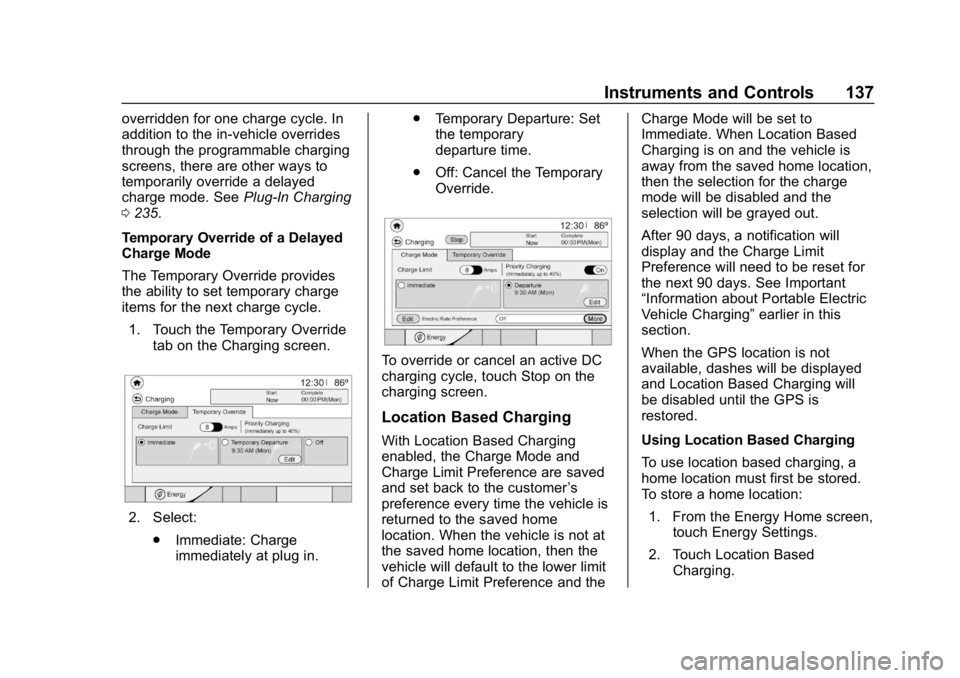
items for the next charge cycle. 1. Touch the Temporary Override tab on the Charging screen.
2. Select:
.Immediate: Charge
immediately at plug in. .
Temporary Departure: Set
the temporary
departure time.
. Off: Cancel the Temporary
Override.
To override or cancel an active DC
charging cycle, touch Stop on the
charging screen.
Location Based Charging
With Location Based Charging
enabled, the Charge Mode and
Charge Limit Preference are saved
and set back to the customer ’s
preference every time the vehicle is
returned to the saved home
location. When the vehicle is not at
the saved home location, then the
vehicle will default to the lower limit
of Charge Limit Preference and the Charge Mode will be set to
Immediate. When Location Based
Charging is on and the vehicle is
away from the saved home location,
then the selection for the charge
mode will be disabled and the
selection will be grayed out.
After 90 days, a notification will
display and the Charge Limit
Preference will need to be reset for
the next 90 days. See Important
“Information about Portable Electric
Vehicle Charging”
earlier in this
section.
When the GPS location is not
available, dashes will be displayed
and Location Based Charging will
be disabled until the GPS is
restored.
Using Location Based Charging
To use location based charging, a
home location must first be stored.
To store a home location:
1. From the Energy Home screen, touch Energy Settings.
2. Touch Location Based Charging.
Page 139 of 370
Chevrolet BOLT EV Owner Manual (GMNA-Localizing-U.S./Canada/Mexico-
11434431) - 2018 - crc - 2/14/18
138 Instruments and Controls
3. Touch Set Home Location[.
4. Touch OK.
5. Touch On to enable Location Based Charging.
To change the stored home location:
1. Touch Update Home Location
[on the Location Based
Charging screen.
2. Touch Update, then OK to set the new home location.
.Touch Cancel to make no
changes.
. Touch Remove to clear the
location and turn Location
Based Charging off.
Charging Interrupted or
Overridden Pop-Up
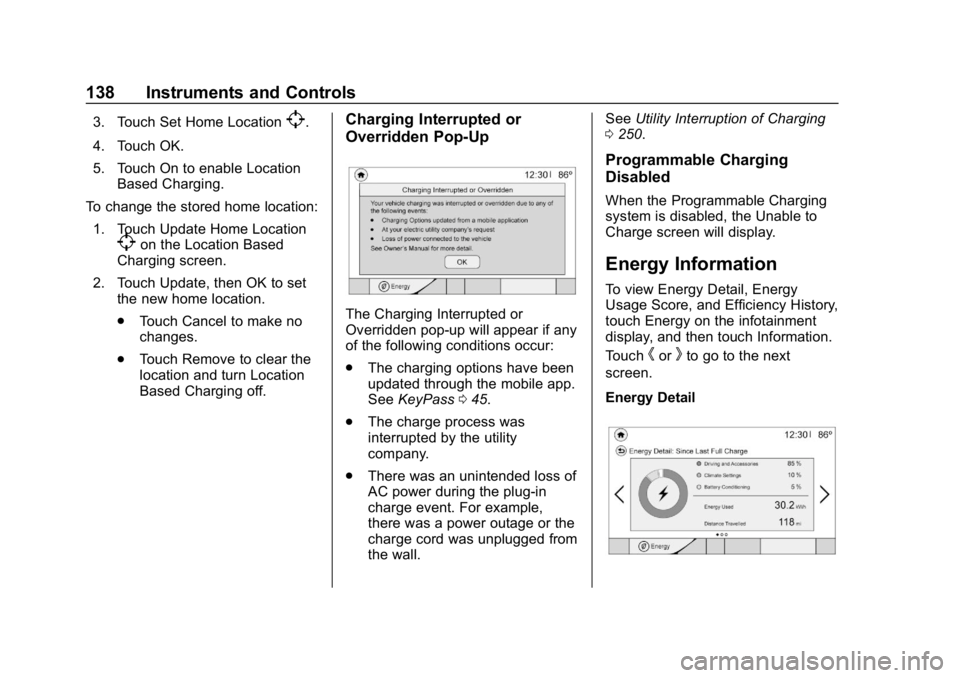
The Charging Interrupted or
Overridden pop-up will appear if any
of the following conditions occur:
.The charging options have been
updated through the mobile app.
See KeyPass 045.
. The charge process was
interrupted by the utility
company.
. There was an unintended loss of
AC power during the plug-in
charge event. For example,
there was a power outage or the
charge cord was unplugged from
the wall. See
Utility Interruption of Charging
0 250.
Programmable Charging
Disabled
When the Programmable Charging
system is disabled, the Unable to
Charge screen will display.
Energy Information
To view Energy Detail, Energy
Usage Score, and Efficiency History,
touch Energy on the infotainment
display, and then touch Information.
Touch
horkto go to the next
screen.
Energy Detail
Page 141 of 370
Chevrolet BOLT EV Owner Manual (GMNA-Localizing-U.S./Canada/Mexico-
11434431) - 2018 - crc - 2/14/18
140 Instruments and Controls
Energy Settings
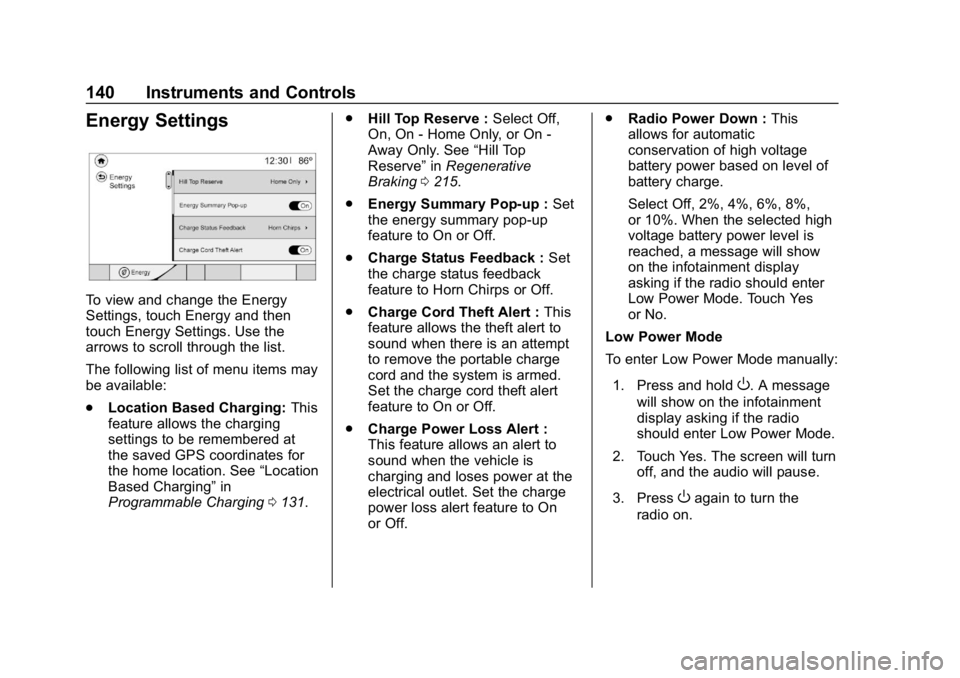
To view and change the Energy
Settings, touch Energy and then
touch Energy Settings. Use the
arrows to scroll through the list.
The following list of menu items may
be available:
.Location Based Charging: This
feature allows the charging
settings to be remembered at
the saved GPS coordinates for
the home location. See “Location
Based Charging” in
Programmable Charging 0131. .
Hill Top Reserve : Select Off,
On, On - Home Only, or On -
Away Only. See “Hill Top
Reserve” inRegenerative
Braking 0215.
. Energy Summary Pop-up : Set
the energy summary pop-up
feature to On or Off.
. Charge Status Feedback : Set
the charge status feedback
feature to Horn Chirps or Off.
. Charge Cord Theft Alert : This
feature allows the theft alert to
sound when there is an attempt
to remove the portable charge
cord and the system is armed.
Set the charge cord theft alert
feature to On or Off.
. Charge Power Loss Alert :
This feature allows an alert to
sound when the vehicle is
charging and loses power at the
electrical outlet. Set the charge
power loss alert feature to On
or Off. .
Radio Power Down : This
allows for automatic
conservation of high voltage
battery power based on level of
battery charge.
Select Off, 2%, 4%, 6%, 8%,
or 10%. When the selected high
voltage battery power level is
reached, a message will show
on the infotainment display
asking if the radio should enter
Low Power Mode. Touch Yes
or No.
Low Power Mode
To enter Low Power Mode manually:
1. Press and hold
O. A message
will show on the infotainment
display asking if the radio
should enter Low Power Mode.
2. Touch Yes. The screen will turn off, and the audio will pause.
3. Press
Oagain to turn the
radio on.
Page 167 of 370
Chevrolet BOLT EV Owner Manual (GMNA-Localizing-U.S./Canada/Mexico-
11434431) - 2018 - crc - 2/14/18
166 Infotainment System
Audio Players
USB Port
The USB ports are in the center
console and are for data and
charging. If equipped, there are two
USB charge ports in the rear of the
center console. The infotainment
system can play the music files
contained in the USB storage
device or a device that supports
MTP or iPod/iPhone devices.
Before Using the Audio
System
Supported Audio File Formats
.MP3 (MPEG-1 Layer 3,
MPEG-2 Layer 3)
Constant Bit Rate (CBR)
between 8 and 320 kbps
Variable Bit Rate (VBR)
Sampling frequencies of 8,
11.025, 12, 16, 22.05, 24, 32,
44.1, and 48 kHz
. Windows Media Audio
Windows Media Audio 10 CBR between 32 and 768 kbps
VBR (Standard), Professional,
Lossless, or higher according to
Microsoft specifications
Sampling frequencies of 8, 12,
16, 22, 32, 44.1, and 48 kHz
. AAC (MPEG-4 AAC, Low
Complexity Profile) and AAC+
CBR between 8 and 320 kbps
. OGG Vorbis
. Waveform (WAV –PCM
Windows format)
. Audio Interchange File
Format (AIFF)
. 3GPP (Generally used for
mobile devices)
. Audio Books (MP3, WMA,
AAC, AA)
Guidelines for Using a USB
Storage Device and iPod/iPhone
. Operation cannot be guaranteed
if the HDD built-in USB mass
storage device or CF or SD
memory card is connected by using a USB adaptor. Use a
USB or flash memory type
storage device.
. Avoid static electricity discharge
when connecting or
disconnecting the USB.
If connection and disconnection
are repeated many times in a
short time, this may cause a
problem in using the device.
. Operation is not guaranteed if
the connecting terminal of the
USB device is not metal.
. Connection with i-Stick Type
USB storage devices may be
faulty due to vehicle vibration.
. Do not touch the USB
connecting terminal with an
object or any part of your body.
. The USB storage device can
only be recognized when it is
formatted in FAT16/32, NTFS,
HFS+. exFAT and other file
systems cannot be recognized.
Page 182 of 370
Chevrolet BOLT EV Owner Manual (GMNA-Localizing-U.S./Canada/Mexico-
11434431) - 2018 - crc - 2/14/18
Infotainment System 181
Android Auto
1. TouchT.
2. Touch Settings and find Android Auto.
3. Select On or Off.
Even if Projection is set to Off,
connecting the device and touching
Projection on the Home Page will
display a pop-up message:
. For Apple CarPlay function:
“While active, Apple CarPlay will
be displayed on this screen.”
. For Android Auto function:
“While active, Android Auto will
be displayed on this screen.”
When the device is first connected,
the device projection privacy
consent pop-up message will be
displayed.
. Touch Continue to activate the
projection feature.
. Touch Disable and the device is
charging only. If Android Auto is not activated,
make sure the mobile phone’s USB
connection mode is set to MTP.
If the device has not previously
been paired, the consent pop-up will
display when touching continue.
Teen Driver
If equipped, this allows multiple
keys to be registered for beginner
drivers, to encourage safe driving
habits. When the vehicle is started
with a Teen Driver key, it will
automatically activate certain safety
systems, allow setting of some
features, and limit the use of others.
The Report Card will record vehicle
data about driving behavior that can
be viewed later. When the vehicle is
started with a registered key, the
Driver Information Center (DIC)
displays a message that Teen Driver
is active.
To access:
1. Touch Settings on the Home Page, then touch Teen Driver. 2. Create a Personal Identification
Number (PIN) by choosing a
four-digit PIN. Re-enter the PIN
to confirm. To change the PIN,
select Change PIN.
The PIN is required to:
. Register or unregister keys.
. Change Teen Driver settings.
. Change or clear the Teen
Driver PIN.
. Access or delete Report
Card data.
Register keys to activate:
Any vehicle key can be registered,
up to a maximum of eight keys.
Label the key to tell it apart from the
other keys. 1. Start the vehicle.
2. The vehicle must be in P (Park).
3. From the Settings menu, select Teen Driver.
4. Enter the PIN.
Page 194 of 370
Chevrolet BOLT EV Owner Manual (GMNA-Localizing-U.S./Canada/Mexico-
11434431) - 2018 - crc - 2/14/18
Driving and Operating 193
Driving and
Operating
Driving Information
Distracted Driving . . . . . . . . . . . . 194
Defensive Driving . . . . . . . . . . . . . 194
Drunk Driving . . . . . . . . . . . . . . . . . 195
Control of a Vehicle . . . . . . . . . . . 195
Braking . . . . . . . . . . . . . . . . . . . . . . . 195
Steering . . . . . . . . . . . . . . . . . . . . . . 195
Off-Road Recovery . . . . . . . . . . . 196
Loss of Control . . . . . . . . . . . . . . . 196
Driving on Wet Roads . . . . . . . . 197
Hill and Mountain Roads . . . . . 198
Winter Driving . . . . . . . . . . . . . . . . 198
If the Vehicle Is Stuck . . . . . . . . 199
Vehicle Load Limits . . . . . . . . . . . 200
Starting and Operating
New Vehicle Break-In . . . . . . . . . 203
Power Button . . . . . . . . . . . . . . . . . 204
Starting and Stopping theVehicle . . . . . . . . . . . . . . . . . . . . . . 205
Retained Accessory Power (RAP) . . . . . . . . . . . . . . . . 206
Shifting Into Park . . . . . . . . . . . . . 206
Shifting out of Park . . . . . . . . . . . 207
Extended Parking . . . . . . . . . . . . 207
Electric Vehicle Operating
Modes
Driver Selected Operating Modes . . . . . . . . . . . . . . . . . . . . . . 208
Electric Drive Unit
Electric Drive Unit . . . . . . . . . . . . 208
Brakes
Antilock BrakeSystem (ABS) . . . . . . . . . . . . . . . 213
Electric Parking Brake . . . . . . . . 213
Brake Assist . . . . . . . . . . . . . . . . . . 215
Hill Start Assist (HSA) . . . . . . . . 215
Regenerative Braking . . . . . . . . 215
Ride Control Systems
Traction Control/Electronic Stability Control . . . . . . . . . . . . . 217
Cruise Control
Cruise Control . . . . . . . . . . . . . . . . 219
Driver Assistance Systems
Driver Assistance Systems . . . 221
Assistance Systems forParking or Backing . . . . . . . . . . 222
Assistance Systems for Driving . . . . . . . . . . . . . . . . . . . . . . 225
Forward Collision Alert (FCA) System . . . . . . . . . . . . . . . . . . . . . . 225 Forward Automatic
Braking (FAB) . . . . . . . . . . . . . . . 227
Front Pedestrian Braking (FPB) System . . . . . . . . . . . . . . . 229
Side Blind Zone
Alert (SBZA) . . . . . . . . . . . . . . . . 231
Lane Change Alert (LCA) . . . . . 231
Lane Departure Warning (LDW) . . . . . . . . . . . . . 233
Lane Keep Assist (LKA) . . . . . . 233
Charging
When to Charge . . . . . . . . . . . . . . 235
Plug-In Charging . . . . . . . . . . . . . 235
Delayed Charging Override . . . 239
Charging Status Feedback . . . 240
Charge Cord . . . . . . . . . . . . . . . . . 243
Utility Interruption of Charging . . . . . . . . . . . . . . . . . . . . 250
Electrical Requirements for Battery Charging . . . . . . . . . . . . 251
Trailer Towing
General TowingInformation . . . . . . . . . . . . . . . . . . 252
Conversions and Add-Ons
Add-On ElectricalEquipment . . . . . . . . . . . . . . . . . . 252
Page 208 of 370
Chevrolet BOLT EV Owner Manual (GMNA-Localizing-U.S./Canada/Mexico-
11434431) - 2018 - crc - 2/14/18
Driving and Operating 207
see the P (Park) indicator in
instrument cluster, it means that the
vehicle has not shifted to P (Park).
Shifting out of Park
To shift out of P (Park), the vehicle
must be on, the brake pedal must
be applied, and the charge cord
must be unplugged.
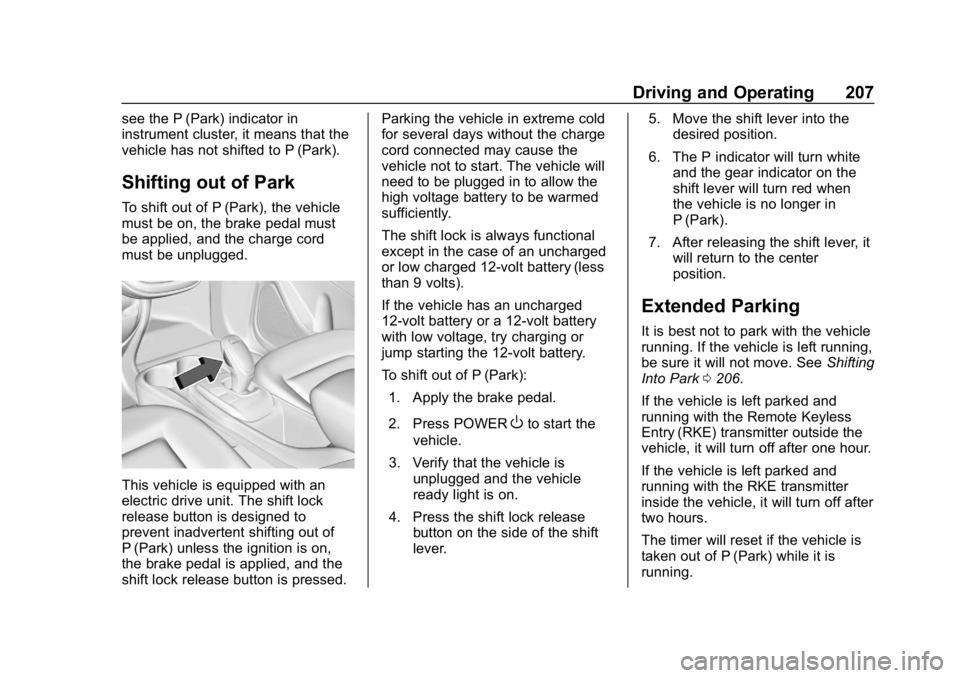
This vehicle is equipped with an
electric drive unit. The shift lock
release button is designed to
prevent inadvertent shifting out of
P (Park) unless the ignition is on,
the brake pedal is applied, and the
shift lock release button is pressed.Parking the vehicle in extreme cold
for several days without the charge
cord connected may cause the
vehicle not to start. The vehicle will
need to be plugged in to allow the
high voltage battery to be warmed
sufficiently.
The shift lock is always functional
except in the case of an uncharged
or low charged 12-volt battery (less
than 9 volts).
If the vehicle has an uncharged
12-volt battery or a 12-volt battery
with low voltage, try charging or
jump starting the 12-volt battery.
To shift out of P (Park):
1. Apply the brake pedal.
2. Press POWER
Oto start the
vehicle.
3. Verify that the vehicle is unplugged and the vehicle
ready light is on.
4. Press the shift lock release button on the side of the shift
lever. 5. Move the shift lever into the
desired position.
6. The P indicator will turn white and the gear indicator on the
shift lever will turn red when
the vehicle is no longer in
P (Park).
7. After releasing the shift lever, it will return to the center
position.
Extended Parking
It is best not to park with the vehicle
running. If the vehicle is left running,
be sure it will not move. See Shifting
Into Park 0206.
If the vehicle is left parked and
running with the Remote Keyless
Entry (RKE) transmitter outside the
vehicle, it will turn off after one hour.
If the vehicle is left parked and
running with the RKE transmitter
inside the vehicle, it will turn off after
two hours.
The timer will reset if the vehicle is
taken out of P (Park) while it is
running.