2018 AUDI TT ROADSTER audio
[x] Cancel search: audioPage 107 of 310

Cl 00 .-< N r-N .-< 0 r-Vl 00
Voice recognition system Operating
Applies to: vehicles with voice recognitio n system
You con operate many Infotainment functions
conveniently by speaking.
Requirement: the ignition and the MM I must be
switched on, there m ust be no phone call in p rog
ress and the park ing system must not be active.
~ Switching on : briefly p ress t h e ~ but ton @
¢page 19, fig . 9 on the multif unction steering
whee l and say th e desi red command after the
Beep .
~ Switching off : press and hold the ~ button .
Or: say the command Cancel.
~ Pausing : say the command Pause . To resume,
press
the~ b utt on .
~ Corr ecting : press t h e ~ button one t ime ®
¢ page 18, fig. 7. Or: say the co mmand Correc
tion .
Input assistance
The system g uides you throug h the input with
v isua l and aud io feedback .
-Visual input assistance : after switching on
vo ice recogn it io n, a display with a se lection of
poss ible commands appears . The command
display can be sw itched on/off under
I M EN U I >
Setting s> left contro l butto n > MMI setting s>
Speech dialog system .
- Audio input assistance:
to have the poss ible
c omma nds read, press t he
10, I bu tton o n the
mul tifunc tion steering w heel b riefly and say
Help.
For the system to understand you:
Speak clearly and dis tinct ly a t a normal vo lume .
Speak lo uder when d riving faste r.
Emphasi ze the words in the commands even ly
a n d do not leave long pauses .
Do not spea k a command when the voice recogni
tion system is m aking an a nno uncement.
C lose the doors, the windows and the sunroof* to
r e duce background noise. Make s ure that passe n-
Voice recognition system
gers are not speaking w hen you are g iv ing a voice
comman d.
D o no t direct the vents towa rd the handsfree mi
c rophone, wh ic h is near the fro nt inter ior lights
on the roof headline r or on the dr iver's safety
belt*. Fo r additional informat io n on th e safety
belt m ic rophone, see
¢ pag e 122 .
Only use the system from the dr ive r's sea t be
ca use the hands -free microphone is di rected to
ward that s eat .
Additional settings
See ¢ page 178, Voice recognition system.
_&. WARNING
- D ir e ct y ou r full a tte ntio n to dr iv in g. A s t he
dr iver, you have com ple te re spon sibility fo r
safety in t raff ic . O nly use the functions in
such a way t hat you a lways maintai n com
p lete contro l over your vehicle in all traffic
situations.
- Do not use t he voice recognition system in
emergencies beca use your voice may change
in st ressfu l s ituations. It may ta ke longe r to
d ia l the number o r th e system may not be
ab le to d ia l it at all. Dia l the emergency
number manually .
(D Tips
-The d ialog pauses w hen the re is a n incom
ing phone call a nd will con tinue if yo u ig
nore the ca ll. The dia log ends if yo u answer
t he ca ll.
- There are no vo ice gu idance* prompts when
a dialog is ac tive .
- Yo u ca n select a n item in the list us ing ei
t her the vo ice recogn ition sys tem o r the
cont ro l knob .
Command overview
information
Applies to: vehicles with voice recognition system
T he following overv iews des crib e the co m man ds
t h at can be used to oper ate the MMI using the
vo ice recognit ion system.
..,.
105
Page 130 of 310

Audi conn ect
The Audi MMI con nect app must be installed and
open on your mobile device.
You must be logged into yo ur myAud i acco unt in
t he
Audi MMI connect app and you must have se
lected you r vehicle .
The Wi-Fi funct ion on you r mobile device and on
the MMI must be sw itched on.
The MMI must be connected to the network .
~ Select : I MENU I button > Aud i conn ect> left
cont ro l button
> In formation category> Tra v
el.
After opening th e travel guide , travel tips in your
area will be d isplayed including current rat ings as
well as the corresponding ca tegory.
~ Press the left control button to change the cat
egory (such as bars nearby) .
A WARNING
-It is only safe to use tab lets, laptops, mo
bile devices and othe r similar devices w hen
the vehicle is st ationa ry be cause, like all
loose objects, they could be thrown aro und
the inside of the vehicle in a crash and cause serious injuries . Store t hese types of devices
securely whi le driving.
- Do not use any wireless devices on the front
seats w ith in range of the a irbags while driv
ing. Also read the warnings in the chapter
Q page 198, Front airbags.
@ Note
Always follow the information found in Q i© in
Wi-Fi hotspot on page 130.
@ Tips
Units of meas urement, language settings and
time are shown in the Infotainment system
disp lay based on how they were set in the
MMI system settings
<=) page 173 .
-
ll AUDI AG pr ovide s access to services fro m third party pro
v ider s. Pe rma ne nt ava ilabil ity c anno t be guara nteed , be
c a use that depen ds on th e th ird party provid er.
128 Audi connect services in navigation
App
lies to : vehicles wit h naviga tion sys te m and A udi connect
The following Aud i connect services a re current ly
available :
- Navigation with
satellite map1> Q page 145 .
-Point of Interest (POI ) on line sear ch wi th
v oi ce recognit ion
(such as restaurants) : plan
route guidance using the MMI control panel
and the vo ice recognit ion system
<=) page 105 .
- Set up destinations in your MMI using your
m yA udi account or the sat ellite map view l )
r=;, page 145 .
-Online traffic information : receive up-to-the
m inute traffic informat ion about acc idents,
road const ruct ion and other inc idents
r=;, page 146 .
-Map updates *: import navigat ion map updates
in yo ur MMI using an S D card.
(D Tips
-For the map update Audi connect serv ice
using an SD card, check t he current soft
w ar e version in yo ur vehicle and compare it
w ith www.aud iusa.com/myaudi to see if a
new ve rsion is avai lab le . You can a lso have
the new navigation data installed by an Audi dea ler, which can be done for an addit iona l
charge.
- You can find additional information about
the
map update at www.a udiusa.com/
myaudi.
Audi connect services in the Media menu
App lies to: vehicles wit h Audi conne ct
- Online media and Internet radio : offers access
to d ifferent online med ia services as well as In
ternet radio and ope ration through the
MMI us
ing the
A udi MMI connect app Q page 159.
App lies to: vehicles wi th Wi-Fi au dio player
- Wi-Fi audio playe r: you can access the media
center through W i-F i connected med ia p layers
(such as smartphones)
Q page 158. Ill-
Page 131 of 310

Cl 00 .-< N r-N .-< 0 r-Vl 00
@ Note
Always follow the information found in c::>((j) in
Wi-Fi hotspot on page 130.
(D Tips
For more information on the Wi-Fi audio play
er and supported devices, contact an author
ized Audi dealer or authorized Audi Service
Facility.
Additional options
App lies to: vehicles with Audi co nnect
"'Select : IMENUI button> Audi connect> right
control button.
The following options are available in the Audi
connect services overview:
About Audi connect
Here you will find legal information for Audi con
nect usage.
Login*
See c::> page 125, Logging into myAudi in the vehi
cle.
Connection manager
See c::>page 174 .
License subscription
The validity and expiration date of your licenses
are displayed. When the function is switched on
~. the message Warning before subscription
expires
will display to warn you that your license
is about to expire .
Refresh
The content of the selected Audi connect service
or the entire Audi connect list is updated.
Data privacy
Requirement: the ignition must be switched on.
Location and personal data are transmitted when
using Audi connect services. If you do not want
Audi connect
this information to be transmitted, activate data
privacy.
-Activate privacy : the data connection is switch
ed off . The Audi connect services will not be
available.
-Deactivate data privacy: if the data connection
is switched off, you can switch on the data con
nection for the use of all Audi connect services.
Select and confirm
Activate data connection.
Wi-Fi hotspot
Applies to: vehicles with Wi -Fi hotspot
You can use the MMI as a Wi-Fi hotspot to con
nect up to eight Wi-Fi devices to the Internet.
Requirement: the ignition must be switched on.
"'Select: !MENUI button> Telephone> right con-
trol button >
Wi-Fi settings .
The following settings can be selected:
Wi-Fi
The MMI Wi-Fi hotspot is deactivated at the fac
tory. Switch the Wi-Fi hotspot to
On before es
tablishing an Internet connection between your
vehicle and your Wi-Fi device.
-On: the MMI Wi-Fi hotspot is active and visible
to other devices. You can connect your Wi-Fi
device to the MMI and use the Internet connec
tion if necessary .
-Off: the MMI Wi-Fi hotspot is deactivated. An
Internet connection for Wi-Fi devices is not
possible .
A WARNING
--
-As the driver, do not allow usage of the Wi
Fi hotspot to distract you from driving, as
this could increase the risk of an accident.
-It is only safe to use tablets, laptops, mo
bile devices and other similar devices when
the vehicle is stationary because, like all
loose objects, they could be thrown around
the inside of the vehicle in a crash and cause
serious injuries. Store these types of devices
securely while driving.
...,
129
Page 132 of 310

Audi conn ect
- Do not use any Wi-Fi devices within range of
the a irbags while driving. Also read the
warnings in the chapter
<=>page 194.
(LlJ Note
- Under some conditions, certain mobi le devi
ces and operating systems may automati
cally switch from your vehicle's Wi-Fi hot
spot to the device's mobile data connection. In that event, standard text and data usage
rates would apply while the dev ice's mob ile
data connection is in use . P lease refer to
documentat ion p rovided by yo ur mobi le de
v ice's man ufact ure and yo ur data ca rr ie r for
d etai ls, re lated terms and privacy state
ment.
- You are responsible fo r all p re caut io ns tak
en fo r data p rotection, an ti- v irus pro tect ion
and protection against loss of data on mo
bile devices that are used to access the In
ternet through the W i-F i hotspot.
- In certain situations, Internet -based apps
and se rvices t hat use t he MMI W i-Fi hotspot
may use the SIM card in your W i-F i dev ice
for the data connect ion, depending on the
configuration of the Wi-Fi device that you
are us ing (see the user gu ide for you r W i-F i
device fo r more information) . T h is cou ld re
su lt in addit ional costs, depending on yo ur
ce ll phone serv ice prov ider and especially
when using in other co un tries. A flat ra te
data p lan is strongly recommended . You can
obtain more information from your cell phone service provider. A few examples are:
- if a SIM card that does not support a data
connect io n is in t he S IM ca rd reader *
- if there is an invalid/faulty SIM card in the
SIM card reade r*
- if the ne twork changes automatically
when there is low signal strength/a data
rate for the Wi-Fi hotspot o r fo r the SI M
c ard in the S IM card reader*
- if the connection to the W i-F i h otspot
ends
130
(D Tips
- In ve hicles without A udi connect*, the use
o f the W i-Fi hotspot is on ly poss ible fo r th e
Wi -Fi audio player*. A data connect ion to
the Internet can not be established.
- For add itiona l information, v is it
www.aud iusa.com.
Configuring the data
connection
App lies to: vehicles with A udi connect
To use Audi connect services, a data connection
must be configured.
~ Select: ! ME NUI button> right control button>
Connection manag er.
~ Sele ct: r ight con trol b utton> Online settings >
Data conne ction setting s.
Using the Data connection settings menu, you
can set whe n an I nternet co nnect io n should be
made. Once the data packets a re no longe r nec
essary, yo u will be au tomatically disconnected
from the Internet.
The following se tt ings ca n be selected:
Connection setup
- With request :
a data connection is only estab
lished when conf irmed .
-No request : a data connect ion is automat ica lly
established to use Audi connect serv ices.
- Never : a data connection is not established.
Audi connect services cannot be accessed.
If a data connection is established, the type of
connection and the s ignal strength is d isp layed in
the status line of the Infotainment system dis
play @/@ <=> page 102, fig. 110.
An active data connection can be ended manually
by setting the
Connection setup to Never .
Data roaming
Data roaming is swi tc h ed off at the factory. To
u se a data connection outs ide of the cou ntry,
Da
ta roaming
must be switched on( ~). The setting
is stored for the current SI M card or the cell
phone that is current ly connected.
Page 156 of 310

Media
Media
Introduction
There are various media d rives and connections
ava ilab le in the MMI. You can play, for example,
au dio/video files f rom the Jukebox * or connect
your mob ile dev ice to the Audi m usic interface *
and operate it through the MMI.
Notes
General
Media and format restrictions :
the MMI (in cl ud
i n g the S D card reade r and the USB storage de
vice co nnect ion *) was tested w ith a var iety of
products and media on the market. However,
there may be cases where ind iv idual devices or
media and audio/video files" may not be recog
n ized, may play o nly w ith restr ictions, o r may no t
p lay a t all.
Digital Rights Management : please note that
the audio/v ideo files are sub ject to copyright pro
tect ion .
The media drives do not p lay f iles that a re pro
tected by OR M and that are ident ified with the
symbo l~ -
Data security : never store im portant data on SD
cards, the Ju kebox*, CDs/DVDs o r mobile devices.
Aud i AG is not responsib le for damaged or lost
fi les and media .
Loading times : th e mo re files/fo lde rs/p lay lists
that a re on a sto rage medium, the longer it will
take to loa d the audio/video* fi les . Audi recom
mends using storage med ia that on ly conta in a u
d io/video files* . T o decrease the t ime it takes to
load audio/v ideo f iles*, crea te subfo lde rs (fo r ex
a m ple, fo r th e a rtist o r album). The loading time
w ill als o incre as e whe n importing fi les.
Additional information : when playing, audio
f il es are automatically displayed with any add i
tional infor mat io n that is s to red (such as the ar
tis t, tra ck and al bum cover).
If this info rm ation is
no t a vai lable on the storage mediu m, t he M MI
w ill check the Gr ace no te metadata d atabase .
154
Howeve r, in some cases, the addi tional informa
tion may not be dis played .
Restri cted functionality : reset the Media set
tings
t o the fac to ry defa ult se ttings i f func tional
i ty is res tric ted
c::> page 1 74.
If func tionali ty is restr icte d, reset the Jukebo x*
to t he fa ctory defa ult se tt in gs
<=:> page 17 4.
Fo r informa tion abo ut the propert ies of s upport
ed med ia and fi le formats, see
<=:>page 168 .
@ Note
Always fo llow the informa tion fo und in c::> @ in
Wi- Fi hotspot on pag e 130.
CD/DVD operation
CD /DVD and format restrictions :
th e f unct iona li
ty o f indivi dual sto rage med ia m ay be limi ted due
to t he v ariety of b lank C Ds/DV Ds av a ila b le and
t h e va rious cap acities. Audio CDs or video DV Ds
with copy p rotection, CDs/DVDs that do not con
fo rm to the standard and mult isess ion CDs may
hav e limit ed playback or may not play at all. A udi
recommends finaliz ing the recording process
whe n creat ing mult isess ion CDs . Mult isess ion is
not supported for DVDs .
Using CDs/DVDs, the CD dr ive or the DVD drive :
to ensure correct, hig h-q ua lity playback and to
prevent damage to the dr ive or disc read ing e r
r ors, always store CDs/DVDs in a protec tive
s leeve and do no t expose them to direct s unligh t.
Do
not u se :
- Damaged, dirty or sc ratched CDs/DVDs
- Single CDs/DVDs with 3 in (8 cm) d iameter
- CD/DVDs that a re not roun d
- CDs/DV Ds w ith labe ls
- Protec tive rings
- Clean ing CDs
Thermal protection switch : CD/DVD playback
may be tempora rily unavailab le if o utside tem
peratures a re ex tremely hot or co ld. A t hermal
pro tect io n sw itch is inst alled t o protec t th e C D/
DVD a nd the laser.
Laser devi ces : lase r devices a re divided i nto safe -
ty classes 1 to 4 in accordance with DI N IE C 76
.,.
Page 157 of 310

Cl co .... N ,....
N .... 0 ,....
Vl co
(CO) 6/VDE 0837 . The various types of audio
equipment installed conform to safety class
1.
T he laser uses so little power or is s hielded so
there is no dange r when it is used correctly .
Media drives
SD card reader
Fig . 136 G love co mpa rtmen t: inse rt in g th e SD card
-Inserting the SD card : the angled cor ner of the
S D card m ust face toward the r ight front. Sl ide
t h e SD ca rd into the card reader slot
CD
¢fig . 136 until the SD ca rd cli cks into place .
-Automatic playback : playback will start auto
matically if the inserte d SD ca rd conta ins sup
p or ted audio/v ideo f iles
c;, page 168 .
-Removing the SD card : press briefly on t he SD
c a rd.
The SD card reader is accessed and ope rated
through the
M MI@ c;,page 162, fig . 141.
CD Note
On ly use one-piece SD cards. If adapte r ca rds
(SD cards with more than one piece) a re used,
the card cou ld fall out of the adap ter when
driving bec ause of v ibrations. Ind ividual
p ieces could then become s tuck in the dr ive
an d impair the func tio nali ty .
(0 Tips
Always keep the S D car d in a suit able case to
protec t it fro m dirt, dust p art icl es an d ot her
da mage.
Media
DVD drive
Applies to: vehicles with a DVD drive
Fig. 1 37 Glove comp art m en t: DVD d rive
-Lo ading a CD /DVD : the CD/DVD is pu lled in au
tomatically. Slide the CD/DVD straight into the
DVD s lot @ with the label fac ing up
c;, fig . 137 .
-Automatic playback : playback wi ll sta rt auto
mat ically if the inse rted CD/DVD conta ins sup
ported aud io/video* fi les
c;, page 168 .
-Ejecting a CD/DVD : press the button CD
c;, fig .137 .
The CD/DVD is pulled in again automatica lly if it
is not removed from the DVD slot w ith in approx i
mately te n seconds after ejecting it .
The DVD drive is accessed and ope rated through
the
MMI @c;, page 162, fig . 141.
CD Note
-N ever force a CD/DVD into the drive. The
CD/DVD is pulled in a utomatically .
-Do not insert CDs/DV Ds with labels into t he
dr ive . Labe ls can come loose from the CD/
DVD and damage the drive.
(D Tips
The CD/DVD playback is not ensure d with au
d io fi les t hat have a h igh data rate .
155
Page 158 of 310
Media
CD drive
App lies to: ve hicles w ith a CD drive
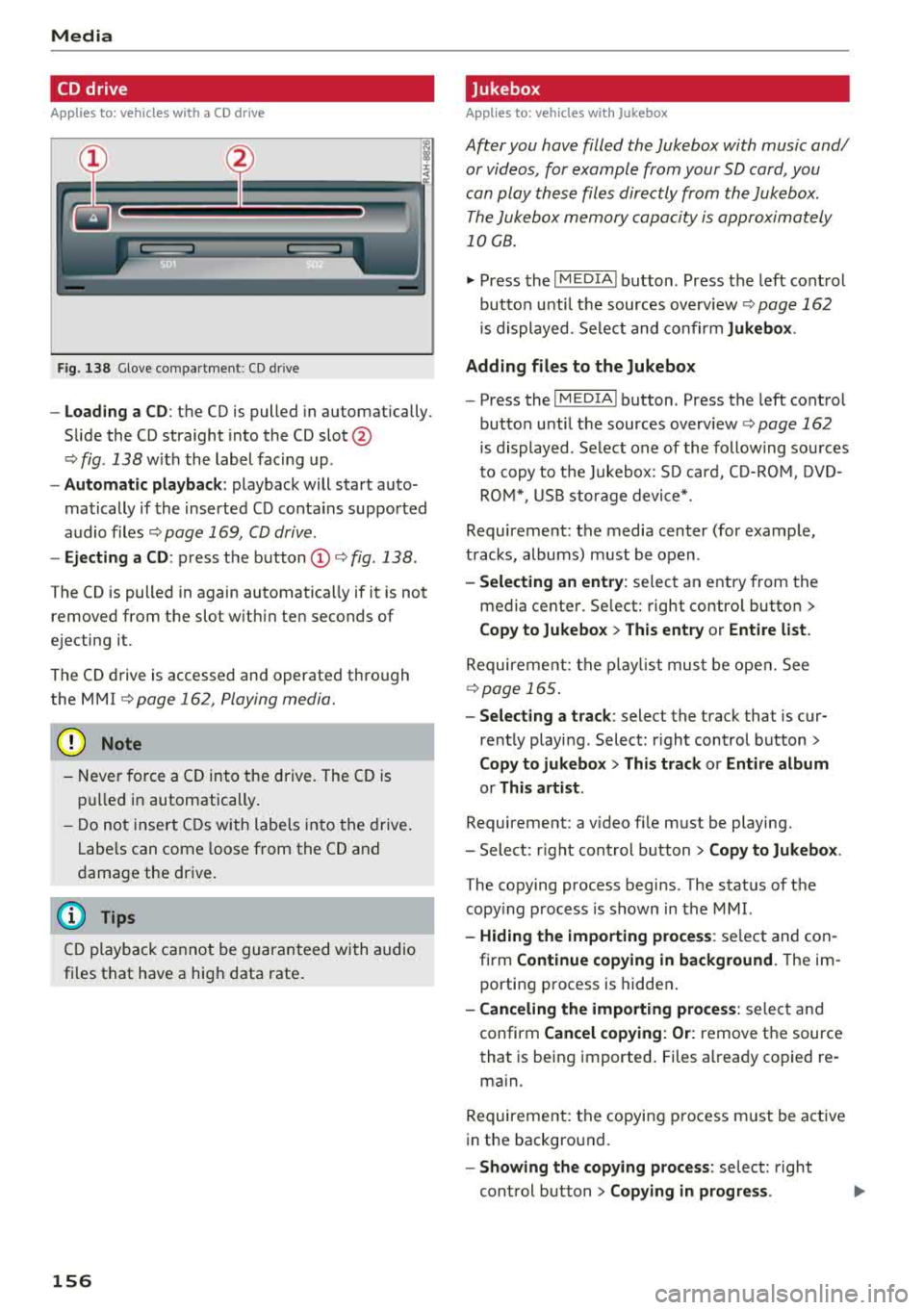
F ig . 138 G love co mpa rt m en t: CD drive
-Loading a CD : th e CD is pulled in a utomatically.
Slide the CD straight into the CD
slot @
c> fig. 138 w it h t he label fac ing up .
- Automatic playback : playback will start auto
matically if the insert ed CD conta ins sup por ted
audio files
c> page 169, CD driv e.
- Ejecting a CD : press the button (D c> fig . 138 .
The CD is pulled in again automatically if it is not
removed from t he slot w ith in ten seconds of
ejecting it.
The CD drive is accessed and operate d thro ugh
the MMI
c> page 162, Playing media.
@ Note
-Neve r force a CD into the d rive . The CD is
pull ed in automatically .
- Do n ot in se rt CDs w ith la bel s i nto the drive .
L a bels can come loo se from t he CD and
d ama ge t he dr ive .
(D Tips
CD playb ack c annot be gu ara nt ee d wi th au dio
fi les t hat have a hig h data rate .
156
Jukebox
Applies to : vehicles wit h Jukebox
After you have filled the Jukebo x with music and/
or videos, for example from your SD card, you
can play th ese fil es dir ectly from the Jukebox .
T he Jukebox memory capa city is approximately
10 GB .
~ Press th e I MEDIA ! button . Press the left cont rol
bu tton u nti l th e sources overv iew
c> pag e 162
is displayed. Se lect and co nfir m Jukebox .
Adding files to the Jukebox
- Press the I MEDIA ! button. Press the left cont ro l
button u nti l th e sources overv iew
c> page 162
is displayed. Select one of the follow ing so urces
t o copy to t he Ju kebox: S D car d, C D-RO M, DVD
R OM *, USB storage devi ce*.
Requireme nt: the media cen ter (for examp le ,
t rac ks , albums) must be o pen .
-Selecting an entry : selec t an e ntry from the
media cente r. Se lect: right contro l butto n >
Copy to Jukebox > This entry or Entire list.
Require ment: the playli st mus t be ope n. See
c>page 165 .
-Selecting a track : select the track that is cur
rent ly playi ng . Select : right control button>
Copy to jukebox > This track or Entire album
or This artist.
Requirement: a v ideo file m ust be playing.
- Sele ct: r ig ht con trol button>
Copy to Jukebox .
The copying process begins. The stat us of t he
copy ing process is shown in the MMI.
- Hiding the importing proce ss : se lect and co n
fi rm
Continue copying in background . The im
porti ng p rocess is hidde n.
-Canceling the importing process : select and
confirm
Cancel copying: Or: remove t he source
that is be in g i mported . Files a lready co pied re
ma in.
Requireme nt: the copyi ng p rocess m ust be act ive
i n the backgro und.
- Showing the copying process : select: right
con trol b utton >
Copying in progress .
Page 159 of 310

Cl 00 .-< N r--N .-< 0 r--Vl 00
When importing, the audio files are automatical
l y sorted into the media center categories based
on the stored addit ional information
¢ page 163. The copied video files are stored in
the media center under the
Videos category.
Playing the Ju kebo x
Requirement: the Jukebox must contain audio/
video fi les
¢ page 156, Adding files to the Juke
box.
The Jukebox is accessed and operated t hrough
the M MI
(D ¢ page 162, fig . 141.
Di splaying Jukebox memory capacity
Select : right control button > Juk ebox m emor y
ca pa city .
Info rmation about the Ju kebox memory
capacity and the numbe r of sto red t racks is dis
p layed .
Deleting tracks from the Jukebox1
)
Requirement: the Jukebox must contain audio/
v ideo fi les.
- Dele ting an en tr y: selec t an entry from the
Jukebox media center . Select: right control but
ton
> D elete from ju kebo x> This entr y or En
tire list .
-The status of the deleting process is shown in
the MMI. Jukebox playback stops during the de let ing p rocess a nd starts again automatically
once the deletion is comp lete .
0 Note
Do not import aud io/video files when the en
g in e is t urned off because this will d rain the
ve hicl e battery.
0) Tips
-Tracks from aud io CDs cannot be impo rted
to the Jukebox for legal reasons.
- Files that have al ready been imported are
automat ica lly recogn ized and cannot be
cop ied to the J ukebox again.
- It is not possib le to play audio/v ideo* files
i n the CD/DVD* dr ive while import ing them.
ll Not in the Playback view .
Media
- T he Jukebox does not provide an expo rt
function due to legal reasons .
- Files or tracks w ithout additional stored in
formation are listed as
Unknown . Audi rec
ommends adding additional information
(such as 103 tags) to audio f iles.
- Reset the Jukebox to the factory default set
tings when selling your
vehicle ¢ page 174 .
Bluetooth audio player
Applies to: vehicles with Bluetooth audio player
With the Bluetooth audio player, you can play
music wirelessly from your Bluetooth-capable
device (such as a cell phone) through the
MMI.
Requirement: the vehicle must be stationary and
the ignit ion must be switched on. The B luetooth
settings w ill open on your mobile device during
the connection setup . The Bluetooth function
and visibility of the MMI
¢ page 175 and mob ile
device must be sw itched on . Th e
Bluetooth audio
playe r¢ page 175 must be sw itched on in the
MM I.
-Conn ect ing a Bluetooth de vice : press the
!M EDIAi button. Press the left control button
until t he sources overv iew is d isp layed. Select
and confirm
Blu etooth audio pla yer®
¢ page 162, fig . 142 .
- If ne cessa ry, select and co nfirm , Not c onn ected
> Conn ect Blu etooth audio pla yer. Th e Blue
tooth device search starts. Fo llow the inst ruc
tions in the MMI.
- Select and confirm the desired Bluetooth de
vice from the list . The MMI generates a PIN for
the connection .
- Select and confirm
Yes.
- Enter the PIN for connect ing on your Bl uetooth
device .
Or: if the PIN is already displayed on
your Bluetooth device, confirm it in the Blue
tooth device and in the MMI. The time a llowed
for entering the PIN is limited to approximately 30 seconds .
The media is started and operated through the mobile device or t he MMI, depending on the de -
vice being used .
.,.
157