2018 AUDI A5 COUPE transmission
[x] Cancel search: transmissionPage 118 of 409

Assistance systems
Indicator lights and messages in the instrument
cluster display inform you about the current sit
uation and setting.
An add itiona l ind icator appears in the head-up
disp lay*.
Switching adaptive cruise control on
.,. Pull the lever toward you into position@
<::;,fig. 115.
Storing the speed and activating regulation
.,. To store the current speed, press the !SET ! but
ton
¢ fig . 115 . The stored speed is shown in the
speedometer in the LED line @and appears
briefly in the status
line @c:;, fig. 116 .
.,. Applies to: vehicles with automatic transmis
sion: To activate the control when stationary,
also press the brake pedal.
Switching adaptive cruise control off
.,. Push the lever away from you into position @
until it clicks into place. The message
ACC: off
appears.
@ Indicator lights
Ill-Adaptive cruise control is switched on . No
veh icles are detected ahead . The stored speed is
maintained.
• -A vehicle driving ahead was detected. The
adapt ive cruise control system regulates the
speed and distance to the vehicle dr iv ing ahead
and accelerates/brakes automatically.
• -Automatic transmission : adaptive cruise
control must be switched on . A vehicle was de
tected ahead . Your vehicle is stat ionary and will
not start driving automatically .
fai-Automatic transmission : adaptive cruise
control must be switched on . No vehicles were
detected ahead. Your vehicle is stationary and
will not start dr iving automatically .
•-The automatic braking is not enough to
maintain a sufficient distance to a vehicle driving
ahead . You must intervene
c:;, page 119, Driver
intervention request.
116
© Instrument cluster display
If the Driver assistance display is not shown in
the instrument cluster display, you can open it
using the multif unction steering wheel buttons
c:;, page 13.
Based on the graphic display, you can determine
if the system is maintaining a distance to the ve
hicle driving ahead and what that distance is .
No vehicle -no veh icle was detected driv ing
ahead .
Silver vehicle -a vehicle was detected driving
ahead.
Red vehicle -request for driver intervention
¢ page 119 .
The five distance bars on the gauge© represent
the set distance (refer to
c:;, page 118 for infor
mation on how to change the distance). If you
fall below the selected d istance, the distance
bars become red from the bottom upwa rd .
A WARNING
Applies to: vehicles with automatic transmis
sion: If you press the
ISET ! button when driv
ing at speeds below 20 mph (30 km/h), the
vehicle accelerates automatically up to 20
mph (30 km/h), which is the minimum speed
that can be set.
(D Tips
- If you switch the ignitio n or the adaptive
cruise control system off, the set speed is
erased for safety reasons .
- T he electronic stabilization control (ESC)
and the anti-slip-regulation (ASR) are auto
matically switched on when the adaptive
cruise control is switched on.
Page 119 of 409
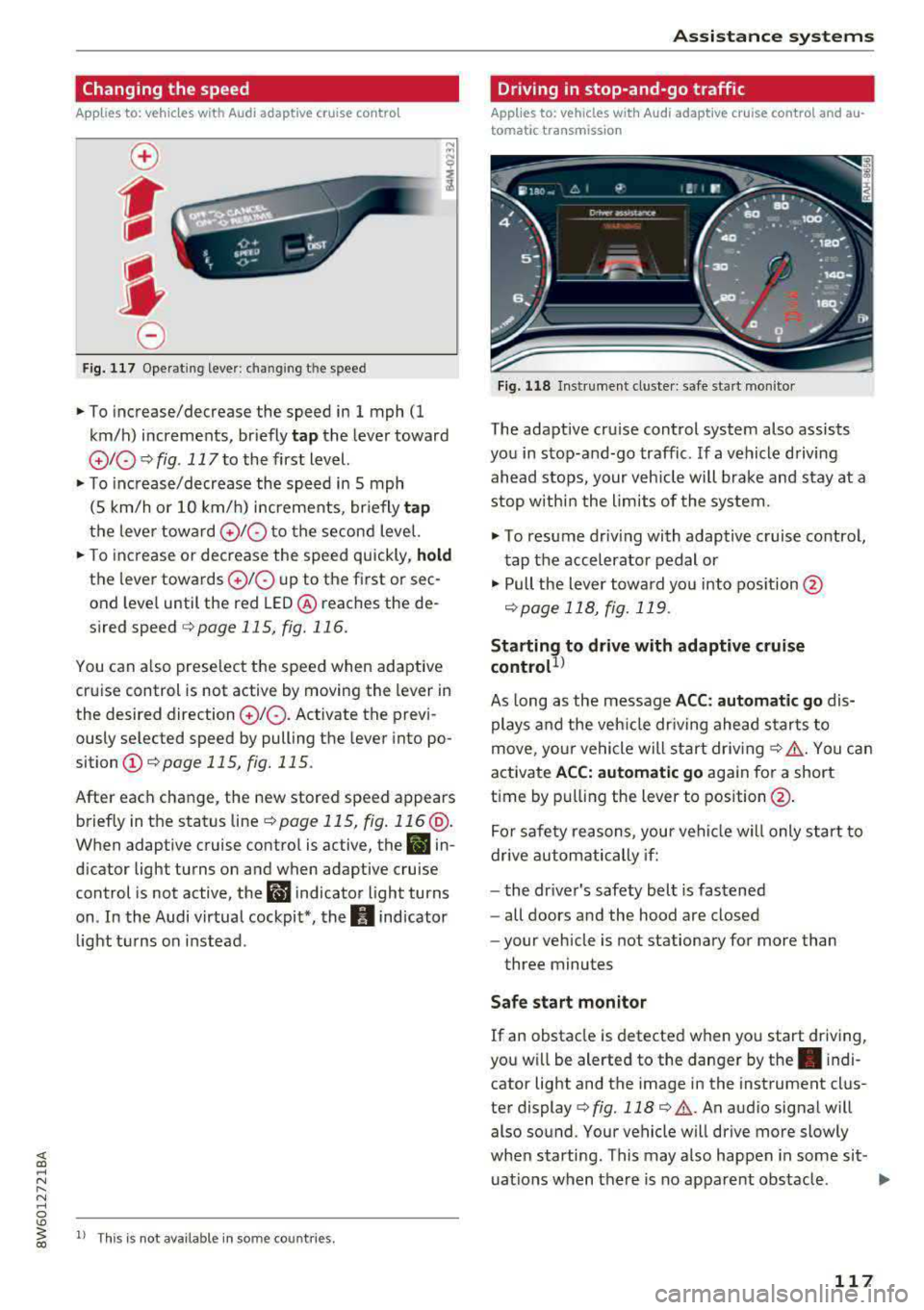
Changing the speed
Applies to: vehicles with Audi adaptive cruise contro l
0
f
' 0
Fig. 117 Operating lever: chang ing the speed
.,. To increase/decrease the speed in 1 mph (1
km/h) increments, br iefly
tap the lever toward
010 ¢ fig. 117 to the first level.
.,. To increase/decrease the speed in 5 mph
(5 km/h or 10 km/h) increments, br iefly
tap
the lever toward 0 10 to the second level.
.,. To increase or decrease the speed quickly, hold
the lever towards 0 10 up to the first or sec
ond level until the red LED@ reaches the de
s ired speed
¢page 115, fig. 116.
You can a lso preselect the speed when adaptive
cruise control is not active by moving the lever in
the desired direction
0 10 . Activate the previ
ously selected speed by pulling the lever into po
sition
(I) ¢ page 115, fig. 115.
After each change, the new stored speed appears
briefly in the status
line¢ page 115, fig. 116 @.
When adaptive cruise control is active, the II in
d icator light turns on and when adaptive cruise
control is not active, the
I.I indicator light turns
on . In the Audi virtual cockpit*, the
II indicator
light t urns on instead .
ll This is not available in some countries.
Assistance systems
Driving in stop-and-go traffic
Applies to: vehicles with Audi adaptive cruise control and au
tomatic transmission
Fig. 118 Instrume nt cluste r: safe start monitor
The adaptive cru ise control system also assists
you in stop-and-go traffic. If a vehicle driving
ahead stops, your vehicle will brake and stay at a
stop within the limits of the system.
"' To resume driv ing with adaptive cruise control,
tap the accelerator pedal or
"' Pull the lever toward you into pos ition @
<:!)page 118, fig. 119 .
Starting to drive with adaptive cruise
controt1>
As long as the message ACC: automatic go dis
plays and the vehicle dr iving ahead starts to
move, your vehicle will start driv ing
r:!) .&. -You can
activate
ACC: automatic go again for a short
time by pulling the lever to position@.
For safe ty reasons, your vehicle w ill only start to
drive automatically if:
- the driver's safety belt is fastened
- all doors and the hood are closed
- your veh icle is not stationary for more than
three minutes
Safe start monitor
If an obstacle is detected when you start driving,
you w ill be alerted to the danger by
the. indi
cator light and the image in the instrument clus
ter
display¢ fig. 118 ¢ .&,. .An audio signal will
also sound. Your vehicle will drive more slowly
when starti ng. This may also happen in some sit-
uations when there is no apparent obstacle.
.,.
117
Page 120 of 409

Assistance systems
-Press the brake pedal to slow your vehicle
down.
A WARNING
If the message ACC : automatic go1> appears,
your vehicle will start driving even if there is an obstacle between your vehicle and the ve
hicle drivi ng ahead. This increases the risk of
an acc ident.
(D Tips
If adaptive cruise contro l is active and your
veh icle does not start driving even though the
message
ACC: automatic go1l appears, you
can start driving by tapping the accelerator
pedal.
Interrupting cruise control
App lies to: veh icles with Audi adaptive cruise control
Fig. 119 Selecto r lever
Requirement: adaptive cruise control must be
sw itched on.
Overriding cruise control
.,. To accelerate manually, p ull the lever toward
you into position @and hold it there or press
the accelerator pedal. The message
ACC: over
ride
appears.
.,. To resume cruise cont rol, release the lever or
take your foot off the acce lerat or pedal.
Canceling cruise control while driving
.,. Move the lever into posit ion @. The message
ACC: standby appears . Or
.,. Press the brake pedal.
l ) Thi s is not ava ilab le in some countr ies .
118
.,. To resume the stored speed, move the lever in-
to position @.
Automatic transmission: canceling cruise
control when stopped
.,. Push the lever away from you into posit ion@.
The message
ACC: standby appears.
.,. To resume cruise control, press the brake pedal
and pull the lever toward you into position @.
A WARNING
It is dangerous to activate cruise control and
resume the stored speed when the current
road, traffic o r weather conditions do not per
mit this . This increases the risk of an accident .
Setting the distance
Applies to: vehicles with Audi adaptive cruise control
,
0
Fig. 120 Operating lever: setting the distance
.,. Tap the sw itch to display the current set dis
tance
c:> fig. 120.
.,. To increase or reduce the distance in incre
ments, tap the switch upward/dow nward
again. The distance between the two vehicles
w ill change in the instr ument cluster display.
When approaching a vehicle driving ahead, the
adaptive cruise control system brakes to match
that vehicle's speed and then adjusts to the set
distance. If the vehi cle driving ahead accelerates,
then the adaptive cruise control will also acceler
ate up to the speed that you have set .
The higher the speed, the greater the distance
c:> &. The Distance 3 setti ng is recommended .
Page 141 of 409

<( a, .... N ,....
N .... 0 \0
3 a,
Description
Applies to: vehicles with Audi drive select
The following systems, among other things, are
influenced by drive select:
Engine and automatic transmission*
Depending on the mode, the engine and auto
mat ic transmission* respond more quickly or in a
more balanced manner to accelerator pedal
movements. In the sporty
Dynamic mode, the
transmission shifts at highe r speed ranges.
Suspension control*
The suspension control* uses sensors to record
information regarding steering movements,
braking and acceleration operations by the driv
e r, road sur face, dr iv ing speed, and load. This
makes it possible to adapt damping to the driv
ing situation nearly in rea l time. With drive se
lect, you can adjust the suspension control to be
sporty
( Dynamic ), comfortab le ( Comfort ) or bal
anced
( Auto ).
Steering
The power steering adapts. Indirect steer ing that
moves easi ly as in
Comfort mode is especia lly
suited to long drives on highways. The
Dynamic
mode provides sporty, direct steering.
The following applies to vehicles with dynamic
steering*: the steering ratio changes based on
vehicle speed in order to maintain optimum
steering effort for the driver at all times. This
sets the steer ing to be less sensitive at higher
speeds in order to provide improved vehicle con
trol. At reduced speeds, steering is more direct in
order to keep the steering effort as min imal as
possible w hen the driver is maneuvering the vehi
cle . At low and average speeds, dynam ic steer
in g* add itionally provides more responsive steer
ing performance.
Sport differential*
As a component of the all wheel drive system
(quattro)
~ page 154, the sport differential dis
tr ibu tes the dr iv in g power to the rear ax le de
pending on the situation. The distribution of
power varies depending on the selected mode
Assistance systems
from moderate (Comfort ) to sporty (Dynamic ).
The goal is a high level of agility and ability to ac
ce lerate on curves . T he vehicle is very responsive
to steering.
Adaptive cruise control (ACC)*
The behavior when accelerating can be adjusted
from comfortable to sporty, depending on the
drive select mode. Adaptive cruise control also
responds to the driving behavior of the vehicle
ahead in a more conservative or sporty manner.
Engine sound*
The engine sound adapts to the current mode
and can be subtle to sporty.
(D Tips
The S selecto r lever position automatically en
gages when the
Dynamic mode is selected .
Selecting the driving mode
Applies to: vehicles with Aud i drive select
Fig . 139 Cen ter co nsole: con trols for d rive se lect
.. Press the left or right a rrow key ~fig. 139 until
t he desired mode appears in the instrumen t
cluster/ Infotainment system display. Or
.. Select in the Infotainment system: I MENU ! but-
ton
> Vehicle > Audi drive select.
.. Select and confirm the desired setting .
You can change the driving mode when the vehi-
cle is stationary or while driving. If traffic per-
mits, after changing modes, briefly take your
foot
off the accelerator pedal so that the recently
selected mode is also activated for the engine.
Comfort -provides a comfort-oriented vehicle
setup and is suit ed for long drives on highways.
..,.
139
Page 145 of 409

sound was muted, no tone will sound. Pay atten
tion to the vehicle's surroundings when you start
to drive.
Switching on /off
A pp lies to: ve hi cles w ith parkin g system plus
Fig. 141 Center conso le: parki ng aid button
Fig . 142 Infotainment system: visual d istance display
Switching on
~ Shift into reverse, or
~ Press the Pw A button in the center console
¢ fig . 141. A short confirmation tone sounds
and the LED in the button turns on.
Switching off
~ Drive faster than 6 mph (10 km/h), or
~ Press the P,11A button, or
~ Switch the ign ition off .
Activating automatically
The parking aid is activated a utomat ica lly at
speeds less than 6 mph (10 km/h) and when ap
proaching an obstacle from approximately
3.1 feet (95 cm) away. There are audible signals
when approximately 1.6 feet (SO cm) away from the obstacle . If you press the
p,,;A button to switch
the park ing aid off, it can on ly be reactivated au
tomatically when one of the following conditions
is met :
Parking systems
-The vehicle speed exceeds 6 mph (10 km/h).
- The ignition is switched off and back on again.
- The parking brake is set and then released .
- The selecto r lever must be in the P posit ion (au-
tomatic transmission) .
Segments in the visual display
The segments in front of and behind the veh icle
¢fig. 142 help you to determine the distance be
tween your vehicle and an obstacle . Th e red
lines* mark the expected direction of travel ac
cording to the steering angle. A wh ite segment
i ndica tes an identified obstacle tha t is outsid e of
the vehicle's path. Red segments show identified
obstacles that are in your veh icle's path. As your
vehicle comes closer to the obstacle, the seg
ments move closer to the veh icle. The collision
area has been reached when the next to last seg
ment is displayed . Obstacles in the collision area,
including those outs ide of the vehicle's path, are
shown in red. Do not continue driving forward or
in
reverse ¢ A in General information on
page 141,
Q© in General information on
page 141!
Rearview camera
Introduction
App lies to : vehicles wi th rearv iew camera
Fig. 143 D iagram: li nes to a id in parking
a, N :g
:l,. (I) (X)
The rearview camera he lps you to park or maneu
ver using the orientation lines.
143
Page 160 of 409

Multi Media Interface
Multi Media Interface
Traffic safety information
Audi recommends performing certain Infotain
ment system functions, such as entering a desti
nation, only when the vehicle is stationary . Al
ways be prepared to stop operat ing the Infotain
ment system in the interest of your safety and
the safety of other road users.
_& WARNING
Only use the Infotainment system when traf
fic cond itions permit and always in a way that
allows you to maintain complete control over
your vehicle.
@ Tips
Certain funct ions are not available wh ile driv
ing .
Introduction
The Multi Media Interface, or MMI for short,
combines various
systems for communication,
navigation* and entertainment in your Audi . You
can operate the MMI using the MMI control pan
el, the multifunction steering wheel or the voice
recognition system* .
Applies to: vehicles with automatic transmission:
F ig. 160 MMI contro l panel· integ rated shortc ut keys
158
Applies to: ve hicles with manual transmission:
Fig. 161 MMI control pane l
-separate shortcut keys on
the ce nter conso le
MM I control panel overview
(D Control knob , if needed with joy-
stick function* . . . . . . . . . . . . . . . . 160, 163
@ MMI touch contro l pad* ....... .
@ Left control button ........... .
@ Right control button .......... .
® Buttons for opening menus
directly ..................... .
® IMENUI button ..... .... ...... .
0
®
IBACK I button
Shortcut keys
(0 Tips
The shortcut keys @¢ fig. 161 for the MMI
control panel (manua l transmission) are on
the center conso le .
MMI On/Off knob with
joystick function
Operating
•
Fig. 162 MMI On/Off knob w ith joystick function
161
160
160
160
160
160
165
Page 207 of 409

Emergency call
Introduction
The following functions may be available depend
ing on the vehicle and the market.
- Emergency
ca ll ¢ page 205.
- Online roads ide ass istance ¢ page 206 .
@ Tips
- The serv ices are provided through a SIM
card installed in the vehicle . The cost of the
call and data connections is included in the
price for the services . Services a re provided
assuming that the cell phone network re
quired for the installed S IM card is function
ing and ready to operate. The available serv
i ces set by Audi AG are only available within
the cell phone network coverage area for
the cell phone service provider selected by
Audi AG.
- You can find what data will be transferred
at www.aud iusa.com.
- These services cannot be deactivated using
the settings in the Infotainment system.
Emergency call
Description
Appl ies to: vehicles with emergency call function
You can request help when in an eme rgency or
dangerous situation using the emergency call
function
l) _ An emergency call is a combination
of data transmission and a phone call. The data
transmission from your vehicle forwards impor
tant information, such as the vehicle and position
data, to the emergency call center.
1l The av ailabilit y of the serv ices o ffere d d ep end s on t he
c o untry a nd may chang e over t ime.
Emergen cy call
Making an emergency call
App lies to: vehicles with emergency call function
The emergency coll con be mode two different
ways .
Fig. 191 Front head liner: cover for the e mergency call b ut
ton
Requirement: the L ED @ must be green when
the service is available . The service is not availa
ble when the LED is red .
Manual emergency call
Requirement: the ignition must be switched on .
.. Tap the cover (D ¢ fig. 191 to open it .
.. Press the emergency call button. The LED@
blinks green and the emergency call is started.
.. If you press the emergency call button by m is
take, then press it again immed iately. The
emergency call is canceled .
Automatic emergency call
The vehicle electrical system initiates an auto
matic emergency call under certa in circumstan
ces, for example if an airbag deploys. The LED in
the emergency call button@blinks green . The
emergency call is made . This cannot be cance led.
(D Tips
If the emergency call is canceled due to a
poor connection, then the system automati
cally tries to connect again.
205
Page 208 of 409

Emergency call
Messages
Applies to: vehicles with emergency call function
1!/1 Emergency call function: malfunction! Re
stricted functionality . Please conta ct Service
If the indicator lig ht t urns on and the message
appears, yo u can only make an emergency ca ll
wit h rest ric ted f un ct io n. For e xamp le, you ca nnot
call the emergen cy c all ce nte r, bu t da ta m ay st ill
be tra nsmi tted under certa in circ umst ances/
D rive to an a uthorized Audi dea le r or a uth orized
Aud i Service Facility immediately to have the
malfunct ion corrected.
II Emergency call function : malfunction! Fun c
tion unavailable. Please contact Service
I f t he indi cator lig ht tur ns on and the message
ap pears, yo u can not m ake an eme rge ncy call.
D rive to an a uth o rize d Aud i de aler or auth orized
Aud i Serv ice Facility immedia tely to have t he
malfunct io n corrected .
Online roadside
assistance
Description
Applies to: veh icles with online roadside ass istance
You can request help if you are in an accident or
b reakdow n situation using on line roadside ass is
tance
1> . A roads ide assistance call is a comb ina
tion of data transmission and a phone call. The
data transmission from your vehicle forwards im portant information to the A udi service cente r,
such as the veh icle and pos it io n data.
l ) Th e availab ili ty of th e services offered depe nds o n th e
country and may ch an ge over time.
206
· Calling online roadside ass istance
Applies to: vehicles with on line roadside assistance
The roadside assistance call can be made two
differ ent ways.
Fig. 192 Front headliner: roadside assista nce button
Calling roadside assistance manually
0 ....
-0
I
.,. Press the bu tton @ ~fig. 192. The LED in t he
but ton turns red. Ro adside ass istance is c alled.
.,. If you press the button @ by mista ke, then
press it again. Or
.,. Select and confirm Cancel or End call in the In-
fotainment system.
Automat ic roadside assistance (Audi incident
assistance)
A minor accident is detected by the veh icle elec
trical system. You have the option of select ing
betwee n
Call online roadside assistance or Make
emergency call .
.,. Select one of the options and confi rm it by
press ing the control knob.
@ Tips
If t he roadside assistance call is canceled due
to a poor connection, then the call m ust be
made again .