2018 AUDI A5 COUPE park assist
[x] Cancel search: park assistPage 140 of 409

Assistance systems
CJ) Note
Also read the informat ion in c:> (D in General
information on page 135 .
@ Tips
-You can can cel the automa tic brake activa
tion w ith increasing braking fo rce if you ap
pl y the bra kes yourself or accelerate cons id
e rab ly.
-In some s ituations, rea r cross -traffic assist
may warn you even if there is no cross t raffic
i n a critical a rea, for example w hen back ing
in to a parking space or ma neuver ing.
-The rea r cross-traffic assist also switches off
whe n yo u switc h off the ESC.
-The rea r cross traffic assist switches on and
off thro ugh the pa rking aid
<=:>page 141.
-T he system is not available whe n towin g a
trailer.
Messages
A ppl ies to : ve hicles w ith Audi side assis t
A message appears in the inst rument cl uster dis
p lay if the s ide assist swi tches off automatically .
iii Audi side assist: malfunction! Please contact
Service
@i Audi side assist and exit warning: malfunc
tion! Please contact Service
T he sys tem c an not guar antee th at it w ill detec t
ve hicl es co rrectly and it h as swit ched off. The
sensors h ave bee n moved o r are faul ty . H ave t he
system checked by an a uthorized Audi dea ler or
author ized Audi Se rvice Facility soon.
@i Audi side assist: currently unavailable. Sen
sor vision restricted due to surroundings. See
owner 's manual
@i Audi side a ssist and exit warning : currently
unavailable. Sensor vision restricted due to sur roundings
T he radar senso r vis io n is i mp air ed . Th e ar ea in
fr on t of t he senso rs m ust n ot be covered by bik e
ra ck s, st ickers, leaves, snow or any othe r o bj ects.
Clea n the area in front of the sensors, if necessa
ry
c:> page 134, fig . 134 .
138
@i Audi side assist: currently unavailable. See
owne r's manual
@i Audi side assist and exit warning: currently
unavailable . See owner's manual
S ide assis t ca nnot be switched on at this ti me be
ca use there is a ma lfu nction (fo r exa mple, the
b att ery ch arge level m ay be to o l ow).
@i Audi side assist: unavailable in tow ing mode
iii Audi side assist and exit warning: currently
unavailable. Towing mode
Si de assist switches off automatically when the
e lectrica l connecto r in the factory-installed trail
er hitch is connected. There is no guarantee the
system will sw itch off when using a retrofitted
trailer hitch . Do not use side assist and the ex it
warning w hen tow ing a tra ile r.
Iii Rear parking aid : obstacle detection restrict
ed
The rear c ross-traffic ass ist is not available . E i
ther t he ESC is sw itche d off, or the rada r senso rs
may be cove red by a bike rack, stic ke rs, leaves,
snow or other objects. Switch the ESC on, or clean the area in fron t of the se nso rs if necessa ry
c:> page 134, fig . 134 . If th is message con tinues
to be displayed, dr ive immedia tely to a n author
iz ed Audi dealer or author ized A udi Se rvi ce Facili
ty to h ave the m alfunc tion re paire d.
Audi drive select
Introduction
App lies to : vehicles wi th Audi drive se lect
D rive select makes it possib le to exper ience dif
ferent types of veh icle sett ings in one veh icle.
The dr iver can select
Comfort , Auto and Dynamic
modes in t he In fo tainment system to sw itch b e
t ween, for exa mple , a s porty an d a comfor table
d riv ing mode . In the
Individual mode, t he set
ti ngs c an be adjus ted to yo ur persona l prefe ren
ces . Thi s makes it possib le to comb ine settings
s uc h as a sporty e ngine setting wit h lig ht steer
i ng .
Page 143 of 409

<( a, ..... N ,....
N ..... 0 \0
3 a,
Parking systems
General information
Applies to: ve hicles with a rea r parking sys te m /pa rking sys
tem plus/rearv iew camera/peripheral cameras
Depending on your vehicle's equipment, various
parking aids will help you when parking and ma
neuvering.
The
rear parking system is an audible parking aid
that warns you of obstacles
behind the vehicle
¢page 142.
T he
parking system plus assists you when park
ing by audibly and visually indicating objects de
tected
in front of and behind the vehicle
¢ page 142.
T he
rearview camera shows the area behind the
vehicle in the Infotainment system display . The
lines in the rearview camera image help you to
park or maneuver ¢
page 143. The parking sys
tem plus functions are also available
¢ page 142.
The
peripheral cameras give various views to
help you when parking or maneuvering
¢
page 145 . The parking system plus functions
are also available
¢ page 142.
A WARNING
-Always look for traffic and check the area
around your vehicle by looking at it directly
as well. The parking system cannot replace
the driver's attention. The driver is always
responsible when entering or leaving a park
ing space and during similar maneuvers .
-
-Please note that some surfaces, such as
clothing, are not detected by the system .
-Sensors and cameras have blind spots in
which people and objects cannot be detect
ed . Be especially cautious of small children
and animals.
-Always keep your eyes on the vehicle's sur
roundings, using the rearview mirror as
well.
-The sensors can be displaced by impacts or
damage to the radiator grille, bumper,
wheel housing and the underbody . The park
ing system may be impaired as a result.
Parking systems
Have an authorized Audi dealer or author
ized Audi Service Facility check their func
tion.
(D Note
-Some objects are not detected or displayed
by the system under certain circumstances:
-objects such as barrier chains, trailer draw bars, vertical poles or fences
-objects above the sensors such as wall ex
tensions
-objects with certain surfaces or structures
such as chain link fences or powder snow
-If you continue driving closer to a low ob
ject, it may disappear from the sensor
range . Note that you will no longer be
warned about this obstacle.
-Keep enough distance from the curb to re
duce the risk of damage to the rims.
(!) Tips
-The system may provide a warning even
though there are no obstacles in the cover
age area in some situations, such as:
-certain road surfaces or when there is tall
grass
-external ultrasonic sources such as from
cleaning vehicles
-in heavy rain, snow, or thick vehicle ex
haust
-We recommend that you practice parking in
a traffic-free location or parking lot to be
come familiar with the system. When doing
this, there should be good light and weath
er conditions .
-You can change the volume of the signals
and the display ¢
page 148.
-Please refer to the instructions for towing a
trailer located in
¢page 149.
-What appears in the infotainment display is
somewhat time-delayed.
-The sensors must be kept clean and free of
snow and ice for the parking aid to operate.
141
Page 144 of 409

Parking system s
Rear parking system
Description
Applies to: ve hicles w ith rear park ing aid
The rear parking system is an audible parking
aid.
Descri ption
There is a sensor in the rear bumper cover . If
these detect an obstacle, audible signals warn
you .
Make sure the sensors are not covered by stick
ers, deposits or any other obstructions as it may
impair the function of the system . For informa
tion on cleaning, see
r=.> page 362 .
The range at which the sensors begin to measure
is approximately:
side 3 ft (0 .90 m)
rear
center 5.2
ft (1.60 m)
The closer you get to the obstacle, the shorter
the interval between the audible signals . A con
tinuous tone sounds when the obstacle is less
than approximately 1 foot (0.30 meters) away.
Do not continue backing up
r=.> .&. in General infor
mation on page 141,
r=.> 0 in General information
on page
141!
If the distance to an obstacle remains constant,
the volume of the distance warning gradually lowers after a few seconds until it is muted (this
is not apply in the continuous tone range). If the
obstacle becomes closer than it was before the
sound was muted, the tone will sound again. If
the obstacle is father away than it was before the
sound was muted, no tone wil l sound . Pay atten
tion to the vehicle's surroundings when you start
to drive.
Acti vating
The rear parking assist activates automat ically
when the reverse gear is engaged. A brief confir
mat ion tone will sound.
142
Parking aid plus
Description
App lies to: vehicles with parking system plus
Parking system plus provides audio and visual
signals when parking .
Fig. 140 Illus trat io n:
Sensors are located in the front and rear bump
ers. If these detect an obstacle, audib le and visu
al signa ls warn you .
Make sure the sensors are not covered by stick
ers, deposits or any other obstruct ions as it may
impair the function of the system. For informa
tion on cleaning, see
r:::>page 362.
The display field begins approximately at:
® 4 ft (1.20 m)
® 3 ft (0 .90 m)
© 5.2 ft (1.60 m)
® 3 ft (0.90 m)
The closer you get to the obstacle , the shorter
the interval between the audible signals. A con
tinuous tone sounds when the obstacle is less
than approximately 1 foot (0.30 meters) away.
Do not continue driving forward or in reverse
r:::> .&. in General information on page 141, ¢@) in
General information on page 141
!
If the distance to an obstacle remains constant,
the volume of the distance warning gradually
lowers after a few seconds until it is muted (this
is not apply in the continuous tone range). If the
obstacle becomes closer than it was before the
sound was muted, the tone will sound aga in. If
the obstacle is father away than it was before the
..,.
Page 146 of 409

Parking system s
General information
Applies to: ve hicles w ith rearview camera
Fig. 144 Area cove red © and area not cove red @ by the
r earv iew c amera.
Fig . 145 Luggage co mpartment lid : loca tion of the rear
v iew came ra
l8
i
The rearview camera is located above the rear li
cense plate bracket. Make sure that the lens for
the rea rview camera
c:::> fig. 145 is no t covered by
deposits or any other obstructions because this
can impair the function of the rearview camera .
F or information on clean ing , se e
c:::> page 362.
The rea rview camera coverage area in cl udes @
c:::> fig. 144 . Only this area is shown in the Info
tainment display . Objects that are in
area @,
which is not cover ed , are not disp layed.
A WARNING
-Always read and follow the applicable warn
ings
c:::> .&. in General information on
page 141 .
-If the posit ion and the installation angle of
the rearv iew camera was changed, for e x
amp le after a collision, do not continue to
use the system for safety reasons . Have it
checked by an author ized Audi dealer or au
thorized Aud i Serv ice Facility .
144
-On ly use the rearview camera to assist you if
it shows a good, clear picture . Fo r example,
the image may be affected by the sun shin
ing into the lens, dirt on the lens, or if there
is a malfunction .
- Use the rearv iew camera only if the luggage
compartment lid is completely closed . Make
sure any objects you may have mounted on
the luggage compa rtment lid do not b lock
the rea rview camera.
- The camera lens enlarges and distorts the
fie ld of vision . The object appears both a l
tered and inac cu ra te on the s creen.
- I n ce rtain s ituations, people or objects in
the display appea r closer or farther away:
- For objects that do not touch the ground,
s uch as the bumper of a parked vehicle, a
trailer hitch or the rear of a truck. Do not use the orientation lines in this case .
- If driven from a level surface onto an in cline, or a downward slope .
- If driven toward protruding objects.
- If the vehicle is carrying too much load in
the rear.
(D Note
- Always read and fo llow the applicable wa rn
ings
c:::> (!j) in General information on
page 141 .
- The orange-co lored orientation lines in the
I n fotainment display show the vehicle path
based on the steering whee l ang le . The
front of the vehicle swings out more than
the rear of the vehicle. Maintain plenty of distance so that an exterior m irror or a cor
ner of the vehicle does not coll ide with any
obstacles.
Switching on/off
Applies to: vehicles wit h rearv iew camera
Switching on
.,. Shift into reverse, o r
.,. Press the p,qA button in the center console
c:::> page 143, fig. 141 . A short confirmation
tone sounds and the
LE D in the b utton turns
on .
Page 147 of 409
Switching off
• Drive faster than 6 mph (10 km/h), or
• Press the p,,,A button, or
• Switch the ignition off.
(D Tips
-The visual display in the r ight part of the
display should help you detect the critica l
vehicle area.
- You can change the volume of the signals
and the display
c:!) page 148.
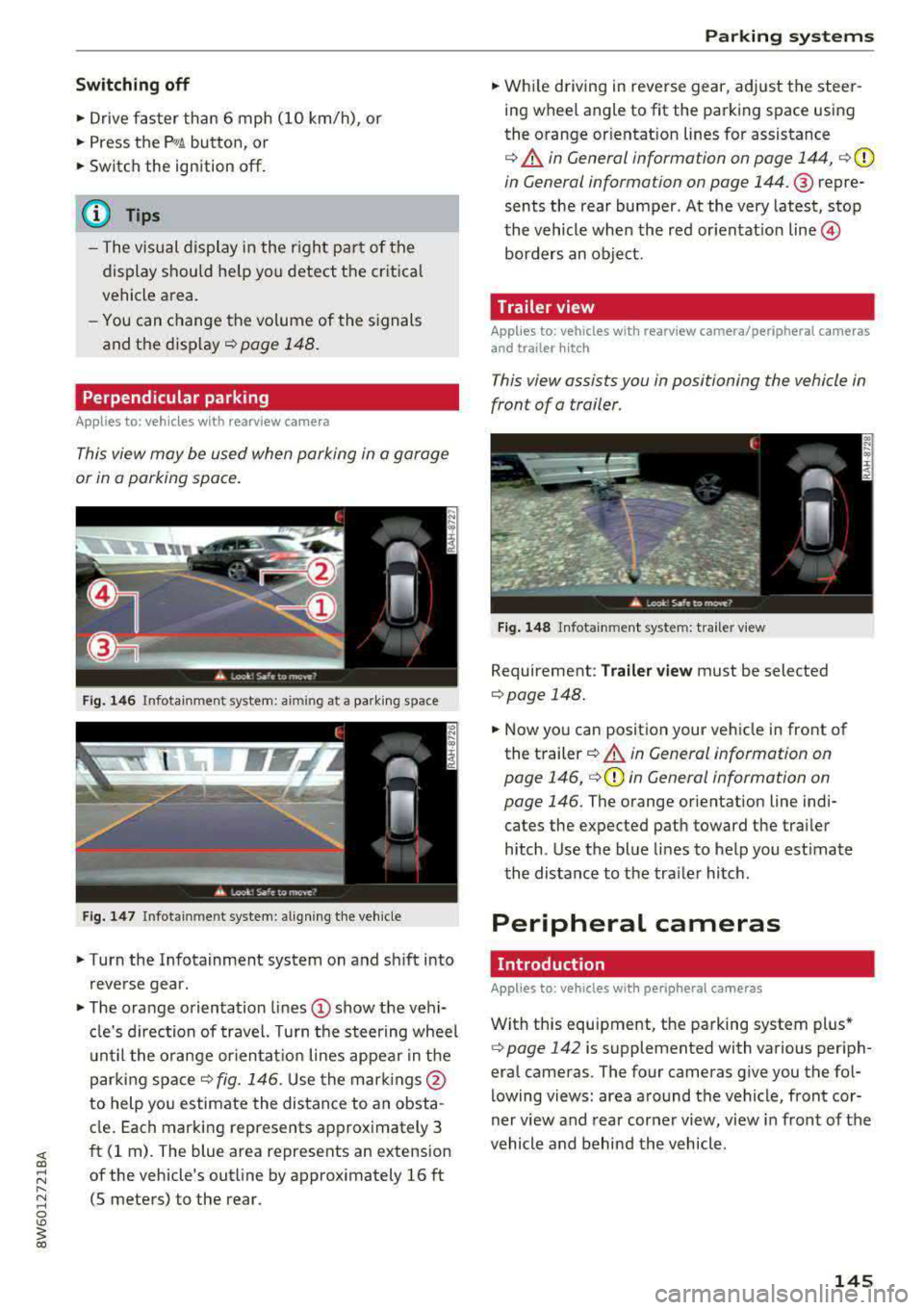
Perpendicular parking
Applies to: vehicles with rearview came ra
This view may be used when parking in a garage
or in a parking space.
Fig. 146 Infotainment system: aiming at a parking space
Fig . 147 Infotainment sys tem: aligning th e vehicle
• Turn the Infotainment system on and sh ift into
reverse gear.
• The orange orientation lines (D show the vehi
cl e's direction of travel. Turn the steering wheel
until the orange orientat ion lines appear in the
parking
space ¢ fig. 146. Use the marking s@
to help you estimate the distance to an obsta
cle. Each marking represents approximately 3
ft (1 rn). The blue area represents an extension
of the vehicle's outline by approx imately 16 ft
(5 meters) to the rear.
Parking systems
• While driving in reverse gear, adjust the steer
ing wheel angle to fit the parking space using
the orange or ientation lines for assistance
¢ &. in General information on page 144, ¢(D
in General information on page 144. ® repre
sents the rear bumper. At the very latest, stop
the vehicle when the red or ientat io n
line ©
borders an object.
Trailer view
Applies to: vehicles with rearview camera/peripheral cameras
and trailer hitch
This view assists you in positioning the vehicle in
front of a trailer.
Fig. 148 Infota inment system: trailer view
Requirement: Trailer view must be selected
¢page 148.
• Now you can position your vehicle in front of
the trailer
c:!) &. in General information on
page 146,
¢ (D in General information on
page 146.
The orange orientation line indi
cates the expected path toward the trai ler
h itch. Use the blue lines to help you estimate
the distance to the tra iler hitch.
Peripheral cameras
Introduction
Applies to: vehicles wit h periph eral cameras
With this equipment, the parking system plus*
c:> page 142 is supplemented with various periph
eral cameras. The four cameras give you the fo l
lowing views: area around the vehicle, front cor
ner view and rear corner view, view in front of the
vehicle and behind the vehicle.
145
Page 149 of 409

Switching on
• Shift into reverse , or
• Press the P,,1~ button in the center console
c::> fig. 150 . A short confirmation tone sounds
and the LED in the button turns on.
Selecting the mode
"T urn the cont rol knob to the symbol fo r the de
sired
mode @through @c::> fig. 151 and press
the control knob.
Switching off
.. Drive faster than 6 mph (10 km/h), or
" Press the P,,1~ button, or
• Switch the ign ition off.
You may select from the following modes:
@ -Corner view (front) c:;> page 147
@ -Front c:;> page 147
©-Top view c:;>page 147
@ -Rear c::> page 148
® -Corner view (rear) c:;> page 147
You can also switch to trailer view c::> page 145.
Corner view (front)/corner view (rear)
Applies to: vehicles with peripheral cameras
F ig . 152 Infotainment system: Corner view (front)
Fig. 153 Infotainment system: Corner view (rear)
Parking systems
This view can assist you for example, when you
are exiting from an area with poor visibility. The
area at the front and rear sides of the veh icles is
displayed.
" To show the side view toward the front, select
the
symbol @c::> fig. 152 with the control knob
and press the control knob.
.. To show the side v iew toward the rear, se lect
the symbol ®
c:;> fig. 153 with the control knob
and press the control knob .
Front
Applies to: vehicles with peripheral cameras
Fig. 154 Infotainment system: fro nt mode
This view assists you for example, in using the
full maneuvering range in front of the vehicle.
T he area in front of the vehicle is disp layed . The
vehicle surround ings are shown in the right area
of the display. You can switch between the opti
cal display and camera image
c:;> page 148.
" Select the symbol@ with the control knob. The
orange orientation lines mark the expected
path of the vehicle. Stop the vehicle when the
r ed orientation line * borders an object
c:;> A in
General information on page 146.
Surroundings
Applies to: vehicles with peripheral cameras
Fig . 155 In fotainment system: Su rroundings mode
147
Page 150 of 409

Parking system s
This view is ideal for man euve ring. The veh icle
surroundings are shown us ing the camera im
ages . T he ve hicle image is shown by the system .
.. Se lect the sy mbo l© with the con trol knob and
press the control knob .
Rear
Appl ie s to: ve hicles w ith periph eral came ras
F ig. 156 In fo tain me nt system : re ar mo de
This view ass ists you for example, in using the
full maneuvering range beh ind the veh icle. The
area behind the vehicle is d isplayed . The vehicle
surroundings are shown in the right area of the
d isp lay. You ca n sw itch between the optical d is
p lay and came ra image ¢
page 148.
.. Select the symbol @with the control knob .
Perpendicular parking
App lies to: ve hicles w ith periph eral came ras
This view may be used when parking in a garage
or in a parking space .
Fig. 157 In fo tai nme nt system: aim ing at a p ark ing sp ace
148
Fig . 158 Infota in m ent sys tem: al ign in g the vehicle
.. Turn the Infotainment system on and shift into
reverse gear .
.. The orange orientation lines (D show the vehi
cle 's direction of travel. Turn the steering wheel
until the orange orientation lines appear in the
parking
space ~ fig. 157 . Use the ma rkings @
to he lp you estimate the distance to an obsta
cle. Each m arki ng rep resents approxim ately 3
ft (1 m). The b lue area represents an extension
o f the vehicle's outline by approximate ly 16 ft
(5 meters) to the rear.
.. Wh ile driving in reve rse gear, adjust the steer
ing wheel angle to fit the park ing space using
the orange or ientation lines for assistance
¢ A in General information on page 146, ¢ (D
in General information on page 146 .@ repre
sents the rear bumper . Yo u should stop revers
ing at the latest when the red o rientation line
@ bo rders an object 9 A in General informa
tion on page 144 .
Adjusting the parking aid
Applies to: vehicles wit h a rear par kin g system/pa rking sys
te m plus/ re ar view came ra/pe riph eral cameras
The functions are adjusted in the Infotainment
sys tem .
.. Select in the Infotainment system : IMENU! but
ton
> Vehicle > l eft control button > Driver as
s istance
> Parking aid . Or
.. When the park ing aid is active, select in the In-
fo tainmen t system: r ight con trol b utton* .
End system * -stop the par king a id
A ctivate automat ically* -switch automatic act i
vat ion on/off
Front volume* -vo lume for the front area
Rear vo lume -vol ume for the rear area
Page 151 of 409

<( a, .... N ,....
N .... 0 \0
3 a,
Entertainment fader -the volume of the audio/
video source is lowered when the parking system
is turned on
The newly selected leve l is demonstrated briefly
by the sound generator.
View* -switch between a n optical display
(Graphic ) and camera image (Camera) in the
right section of the display.
Trailer view* -show trailer view
*Auto. front/rear camera change * -the view be
h in d the veh icle
( Rear mode) is displayed auto
mat ically when you shift into reverse gear . The
view in front of the vehicle
(Front mode) is dis
p layed automatically when you shif t into the fo r
ward gea rs. When first a ctivating in a forward
gear with the
P,,1~ button, the front side view is
displayed
( Corner view (front) mode).
If you do not set the../, the view behind the vehi
cle
( Rear mode) is always displayed and it does
not switch to the
Front mode when a forward
gear is selec ted.
(D Tips
- Several menus can be accessed w ith the
right control button only when the parking
aid is active.
- The settings for volume and automatic acti
vat ion* are automatically stored and as
s ig ned to the remote control key being
used.
Error messages
Applies to: veh icles with a rea r parking system/parking sys
tem plus/ rearv iew camera/peripheral cameras
[II Rear park assist: malfunction! Obstacles
cannot be detected
[II Front park assist: malfunction! Obstacles
cannot be detected
Ill Park assist: malfunction! Obstacles cannot
be detected
When one of these messages appears, there is a
system ma lfunction. The LED in the
p,qA button al
so blinks when switching it on. The relevant mes-
Parking systems
sage on ly appears again when you manually acti
vate the parking aid with the button.
Ill Rear parking aid: obstacle detection restrict
ed
T he rear cross-traffic assist* ¢ page 137, Rear
cross -traffic assist
is not available. Either the ESC
is switched off, or the radar sensors may be cov
ered by a bike rack, stickers, leaves, snow or o th
er objects. Switch the ESC on, or clean the area in
front of the sensors if necessary
¢ page 134,
fig . 134.
If this message cont inues to be dis
played, drive immed iately to an author iz ed Audi
dealer or authorized Audi Service Fac ility to have
the malfunction repaired.
Parking system plus*
If a sensor or speaker is faulty, the 94 symbo l
will appear in front of/behind the vehicle in the
Infotainment system d isplay. If a rear sensor is
faulty, only obstacles that are in areas @and @
are shown
¢ page 142, fig. 140 . If a front sensor
i s fa ulty, only obstacles that are in areas© and
@ are shown.
Peripheral cameras*
There is a system malfunction if the% symbol
appears and the corresponding area of the dis
play is shown in black . The camera is not working
i n th is area .
Drive to an authori zed Audi dealer or authori zed
Audi Service Facility immed iately to have the
malfunction corrected .
Trailer hitch
Applies to: vehicles with a rear parking system/park ing sys
tem plus/ rea rview came ra/pe ripheral cameras and traile r
hi tch
When the trailer socket is in use, the parking sys
tem rear se nsors are not activated when you shift
into reverse gear or when yo u press the
p,q~ but
ton . Thi s resu lts in the following restrict ions .
Rear parking system*
There is no distance warning.
149