2018 AUDI A5 COUPE change wheel
[x] Cancel search: change wheelPage 132 of 409

Ass is tan ce sys tems
Ill Audi pre sen se : cu rrent ly rest ricted . See
owner 's manu al
This message appea rs when there is a tempora ry
fa ilure in a subsystem, such as the ESC. If this
message appears repeated ly, drive to an author
ized Audi dealer or authorized Audi Service Facili
ty to have the malfunction corrected.
(II Aud i pre sen se: emergency br aking sy ste m
off
This message appea rs if the pre sense functions
are switched off thro ugh the Info tainmen t sys
tem or if the system is not ready .
Audi active Lane assist
Description
Applies to : vehicles wi th A udi act ive la n e ass ist
Active lane ass ist (lane departure warning) de
tects lane marker lines within the l imits of the
system using a camera in the windshield . If you
are approach ing a detected lane marker l ine and
it appears likely that you will leave the lane, the
system w ill warn you with corrective steering.
You can override this steering at any time. If you pass over a line, the steering whee l will vibrate
lightly . In order for this warn ing v ibration to oc
cur, it must first be sw itched on in the Infotain
ment system. Act ive lane assis t is ready for oper
ation when the lane marker line is detected on at
least one side of the veh icle .
The system is designed for driving on express ways and h ighways and therefore only activates
at speeds above approx imately 40 mph (65 km/
h).
Applies to: vehicles with side assist: if you acti
vate a turn s ignal when active lane assist is ready
and it classifies a lane change as critical because
of vehicles traveling alongside you or approach i n g you, the re w ill be noticeable corrective steer
i n g shortly before you leave the lane. This will at
tempt to keep your veh icle in the lane.
Applies to: vehicles without side assist: the ready
system does not wa rn you if you activate a turn
signal befo re cross ing the lane marker line. In
130
this case, it assumes that you are chang ing lanes
intentionally .
Applies to: vehicles with adaptive cruise control:
there is no corrective steer ing or warnings if the
system recognizes a dist inct passing maneuver .
If the conditions are met, traffic jam assist
switches on at speeds under approximately
40 mph (65
km/h) ¢ page 121.
A WARNING
,-
- The system warns the driver that the vehicle
is leaving the lane using correct ive steering .
The driver is always responsible for keeping
the vehicle within the lane.
- The system can help you keep the vehicle in the lane, but it does not drive by itse lf . Al
ways keep your hands on the steering
wheel.
- Cor rective steering may not occur in certain
situations, such as du ring heavy braking.
- There may be cases where the camera does
not recognize all lane marker lines. Correc
tive stee ring can only take place on the s ide
of the vehicle where lane marker lines are
detected.
- Othe r road structures or objects could poss i
bly be identified un intent ionally as lane
marker lines . As a result, corrective steering
may be unexpected or may not occur.
- The camera view can be restricted, for ex
ample by vehicles driving ahead or by rain,
snow, heavy spray or light shining into the
camera. This can result in active lane ass ist
not detecting the lane marker lines or de
tect ing them incorrectly .
- In certain s ituations where visibility is low,
the vehicle may switch from an "early" to
"late" steering correction .
- Under certain cond it ions such as ruts in the
road, an inclined roadway or crosswinds, the
corrective steer ing alone may not be enough
to keep the vehicle in the m iddle of the lane .
- For safety reasons, act ive la ne assist must
not be used when there are poor road and/
or weather conditions such as slippery roads, fog, gravel, heavy rain, snow and the
Page 135 of 409
There is a temporary malfunction that may pre
vent the active lane assist from switching on. Try
switch ing the active lane assist on again later.
111 Audi active lane assist: Please take over
steering!
This message appears if you are not steering by
yourself. Ac tive lane assist is activated, but is not
ready to give warning
A WARNING
Note that messages may be delayed or not
displayed on vehicles with accessor ies mount
ed on the steering whee l, such as a steering
wheel spinner knob. Always keep your hands
on the steer ing whee l.
Adjusting the steering time and vibration
warning
A pplies to: ve hicles with Audi active lane assist
You can adjust individual active lane assist set
tings in the Infotainment system .
-
.. Select in the Infotainment system: IMENUI but
ton
> Vehicle > left contro l button > Driver as
sistance
> Audi active lane assist.
Steering time
Early :
in this setting, the corrective steering hap
pens continuously to help keep the vehicle in the
center of the lane.
Late: in this setting, the system provides correc
tive steering just before a wheel goes over a de
tected lane marker line.
Vibration warning
You can switch the additional vibration warning
in the steering wheel on or off.
WARNING
With the vibration warning switched off,
there will also be no visual warning in the in
strument clus .ter display when crossing a lane
marker line.
Assistance systems
(D Tips
In certain markets : your sett ings are stored
automat ically and assigned to the remote
control key in use.
Audi side assist
Description
Applies to: vehicles wi th Aud i s ide ass ist
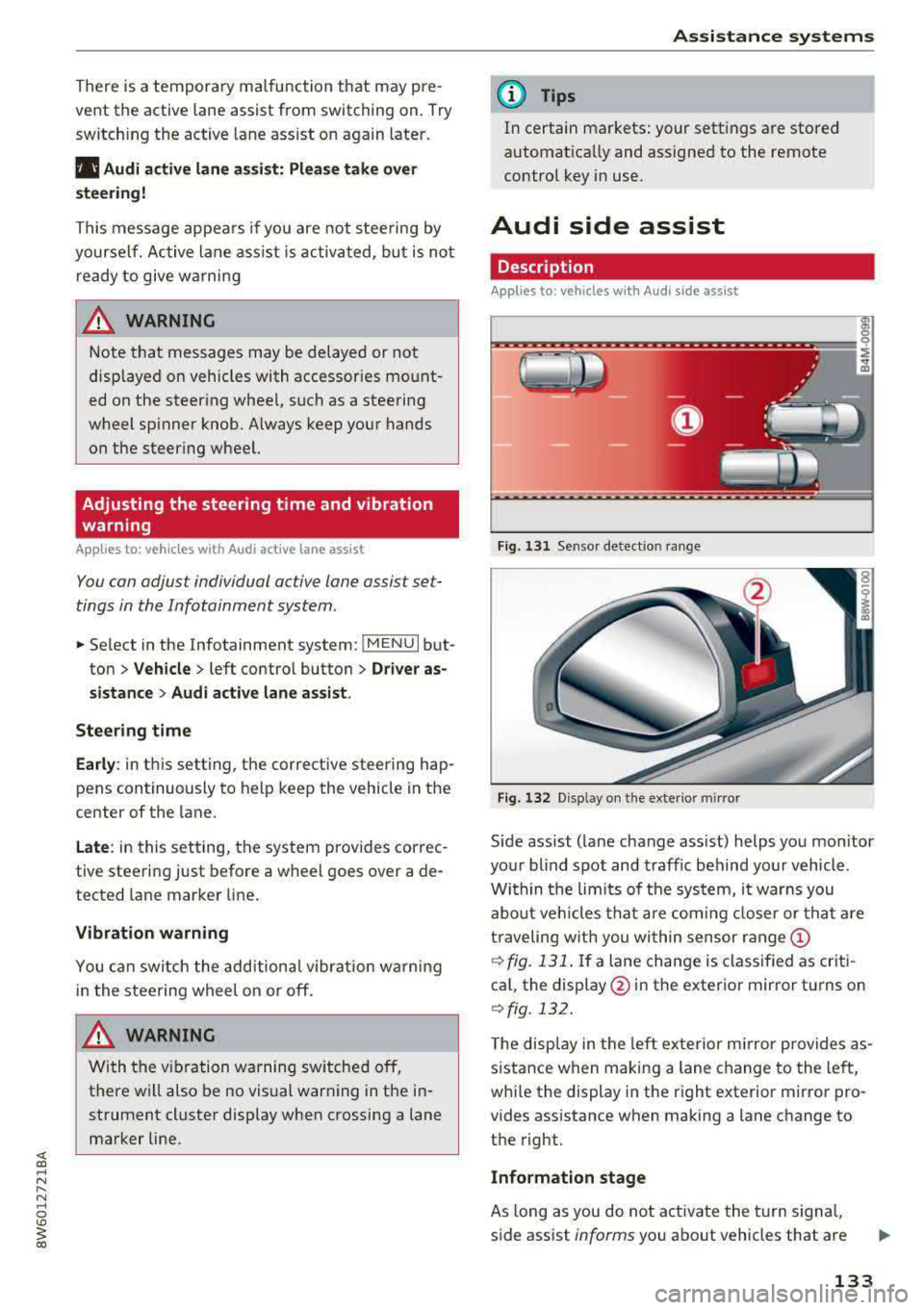
Fig . 131 Sensor detection range
Fig. 132 D isp lay on the exterio r m irror
S ide assist (lane change ass ist) helps you mon itor
your blind spot and traffic behind your vehicle .
Within the limi ts of the system, it warns you
about veh icles that are coming closer or that are
traveling with you wi thin sensor
range ©
¢ fig. 131. If a lane change is classified as criti
cal, the display @in the exterior mirror turns on
¢fig . 132.
The display in the left exterior mirror p rovides as
sistance when making a lane change to the left,
whi le the display in the right exterior mirror pro
vides assistance when making a lane change to
the right.
Information stage
As long as you do not activate the turn signal,
side assist
informs you about vehicles that are
133
Page 137 of 409

<( a, .... N ,....
N .... 0 \0
3 a,
-If the lanes are narrow or if your are driving on
the edge of your lane. If this is the case , the
system may have detected a veh icle in another
lane that is
not adjacent to your current lane.
-If you are driving through a curve . Side assist
may react to a vehicle that is in the same lane
or one lane over from the adjacent lane.
-If side assist reacts to other objects (such as
roadside structures like guard rails).
-In poor weather conditions . The side assist
functions are limited.
Do not cover the radar
sensors ¢ fig. 134 with
stickers, deposits, bicycle whee ls or other ob
jects, because this wi ll impa ir the function. Do
not use side assist when towing a trailer. For in
formation on cleaning, see
¢page 362 .
A WARNING
-Always pay attention to traffic and to the
area around your vehicle. Side assist cannot replace a dr iver's attention. The dr iver alone
is a lways responsib le for lane changes and
similar d riving maneuvers.
-In some situat ions, the system may not
function or its funct ion may be limited. For
example:
-If vehicles are approach ing or being left
behind very quickly. The display may not
turn on in t ime.
-In poor weather conditions such as heavy
rain, snow or heavy mist.
-On very wide lanes, in tight curves, or if
there is a rise in the road surface. Vehicles
in the adjacent lane may not be detected
because they are outs ide of the sensor
range.
(D Note
The sensors can be displaced by impacts or damage to the bumper, wheel housing and
underbody. Th is can impa ir the system . Have
an authorized Audi dealer or authorized Audi
Serv ice Facility check their function.
-If the window glass in the driver's door or
front passenger 's doo r has been t inted, the
-
A ss ista nce sys te m s
display in the exterior mirror may be incor
rect.
-For an exp lanat ion on con formity w ith the
FCC regulat ions in the United States and the
Industry Canada regulations, see
¢ page 392.
Switching on/off
Applies to : vehicles wit h Aud i s ide ass ist
The system con be switched on/off in the Info
tainment system .
If the system is activated , the disp lays in the ex
terior mirrors will turn on briefly when the igni
tion is switched on .
.,. Select in the Infotainment system: I MENU! but
ton
> V ehicle > left control b utton > D riv er as
s istance
> Audi side a ssist. Off switches the
system off.
(D Tips
When yo u switch side assist on or off, the ex it
warning system activates or deactivates
¢ page 136 .
Setting the display brightness
Applies to : vehicles wit h Aud i s ide ass ist
The display brightness con be adjusted in the In
fotainment system.
.,. Sele ct in the Infotainment system: I MENU ! but
t on
> Veh icle > left control b utton > D riv er as
s istance
> Audi side a ssist.
The disp lay brightness adjusts automatically to
the brightness o f the surroundings, bo th in the
information and in the warning stage . In very
dark or very bright surround ings, the automatic
adjustment will set the display to the minim um
or max imum level. In such cases, you may notice
no change when adjusting the br ightness, or the
change may only be noticeable once the sur
roundings cha nge .
Adjust the br ightness to a leve l where the display
in the information stage will not disrupt your
view ahead . If you change the brightness, the d is-
play in the exterior mirror will br iefly show the
.,..
135
Page 141 of 409

<( a, .... N ,....
N .... 0 \0
3 a,
Description
Applies to: vehicles with Audi drive select
The following systems, among other things, are
influenced by drive select:
Engine and automatic transmission*
Depending on the mode, the engine and auto
mat ic transmission* respond more quickly or in a
more balanced manner to accelerator pedal
movements. In the sporty
Dynamic mode, the
transmission shifts at highe r speed ranges.
Suspension control*
The suspension control* uses sensors to record
information regarding steering movements,
braking and acceleration operations by the driv
e r, road sur face, dr iv ing speed, and load. This
makes it possible to adapt damping to the driv
ing situation nearly in rea l time. With drive se
lect, you can adjust the suspension control to be
sporty
( Dynamic ), comfortab le ( Comfort ) or bal
anced
( Auto ).
Steering
The power steering adapts. Indirect steer ing that
moves easi ly as in
Comfort mode is especia lly
suited to long drives on highways. The
Dynamic
mode provides sporty, direct steering.
The following applies to vehicles with dynamic
steering*: the steering ratio changes based on
vehicle speed in order to maintain optimum
steering effort for the driver at all times. This
sets the steer ing to be less sensitive at higher
speeds in order to provide improved vehicle con
trol. At reduced speeds, steering is more direct in
order to keep the steering effort as min imal as
possible w hen the driver is maneuvering the vehi
cle . At low and average speeds, dynam ic steer
in g* add itionally provides more responsive steer
ing performance.
Sport differential*
As a component of the all wheel drive system
(quattro)
~ page 154, the sport differential dis
tr ibu tes the dr iv in g power to the rear ax le de
pending on the situation. The distribution of
power varies depending on the selected mode
Assistance systems
from moderate (Comfort ) to sporty (Dynamic ).
The goal is a high level of agility and ability to ac
ce lerate on curves . T he vehicle is very responsive
to steering.
Adaptive cruise control (ACC)*
The behavior when accelerating can be adjusted
from comfortable to sporty, depending on the
drive select mode. Adaptive cruise control also
responds to the driving behavior of the vehicle
ahead in a more conservative or sporty manner.
Engine sound*
The engine sound adapts to the current mode
and can be subtle to sporty.
(D Tips
The S selecto r lever position automatically en
gages when the
Dynamic mode is selected .
Selecting the driving mode
Applies to: vehicles with Aud i drive select
Fig . 139 Cen ter co nsole: con trols for d rive se lect
.. Press the left or right a rrow key ~fig. 139 until
t he desired mode appears in the instrumen t
cluster/ Infotainment system display. Or
.. Select in the Infotainment system: I MENU ! but-
ton
> Vehicle > Audi drive select.
.. Select and confirm the desired setting .
You can change the driving mode when the vehi-
cle is stationary or while driving. If traffic per-
mits, after changing modes, briefly take your
foot
off the accelerator pedal so that the recently
selected mode is also activated for the engine.
Comfort -provides a comfort-oriented vehicle
setup and is suit ed for long drives on highways.
..,.
139
Page 143 of 409

<( a, ..... N ,....
N ..... 0 \0
3 a,
Parking systems
General information
Applies to: ve hicles with a rea r parking sys te m /pa rking sys
tem plus/rearv iew camera/peripheral cameras
Depending on your vehicle's equipment, various
parking aids will help you when parking and ma
neuvering.
The
rear parking system is an audible parking aid
that warns you of obstacles
behind the vehicle
¢page 142.
T he
parking system plus assists you when park
ing by audibly and visually indicating objects de
tected
in front of and behind the vehicle
¢ page 142.
T he
rearview camera shows the area behind the
vehicle in the Infotainment system display . The
lines in the rearview camera image help you to
park or maneuver ¢
page 143. The parking sys
tem plus functions are also available
¢ page 142.
The
peripheral cameras give various views to
help you when parking or maneuvering
¢
page 145 . The parking system plus functions
are also available
¢ page 142.
A WARNING
-Always look for traffic and check the area
around your vehicle by looking at it directly
as well. The parking system cannot replace
the driver's attention. The driver is always
responsible when entering or leaving a park
ing space and during similar maneuvers .
-
-Please note that some surfaces, such as
clothing, are not detected by the system .
-Sensors and cameras have blind spots in
which people and objects cannot be detect
ed . Be especially cautious of small children
and animals.
-Always keep your eyes on the vehicle's sur
roundings, using the rearview mirror as
well.
-The sensors can be displaced by impacts or
damage to the radiator grille, bumper,
wheel housing and the underbody . The park
ing system may be impaired as a result.
Parking systems
Have an authorized Audi dealer or author
ized Audi Service Facility check their func
tion.
(D Note
-Some objects are not detected or displayed
by the system under certain circumstances:
-objects such as barrier chains, trailer draw bars, vertical poles or fences
-objects above the sensors such as wall ex
tensions
-objects with certain surfaces or structures
such as chain link fences or powder snow
-If you continue driving closer to a low ob
ject, it may disappear from the sensor
range . Note that you will no longer be
warned about this obstacle.
-Keep enough distance from the curb to re
duce the risk of damage to the rims.
(!) Tips
-The system may provide a warning even
though there are no obstacles in the cover
age area in some situations, such as:
-certain road surfaces or when there is tall
grass
-external ultrasonic sources such as from
cleaning vehicles
-in heavy rain, snow, or thick vehicle ex
haust
-We recommend that you practice parking in
a traffic-free location or parking lot to be
come familiar with the system. When doing
this, there should be good light and weath
er conditions .
-You can change the volume of the signals
and the display ¢
page 148.
-Please refer to the instructions for towing a
trailer located in
¢page 149.
-What appears in the infotainment display is
somewhat time-delayed.
-The sensors must be kept clean and free of
snow and ice for the parking aid to operate.
141
Page 147 of 409
Switching off
• Drive faster than 6 mph (10 km/h), or
• Press the p,,,A button, or
• Switch the ignition off.
(D Tips
-The visual display in the r ight part of the
display should help you detect the critica l
vehicle area.
- You can change the volume of the signals
and the display
c:!) page 148.
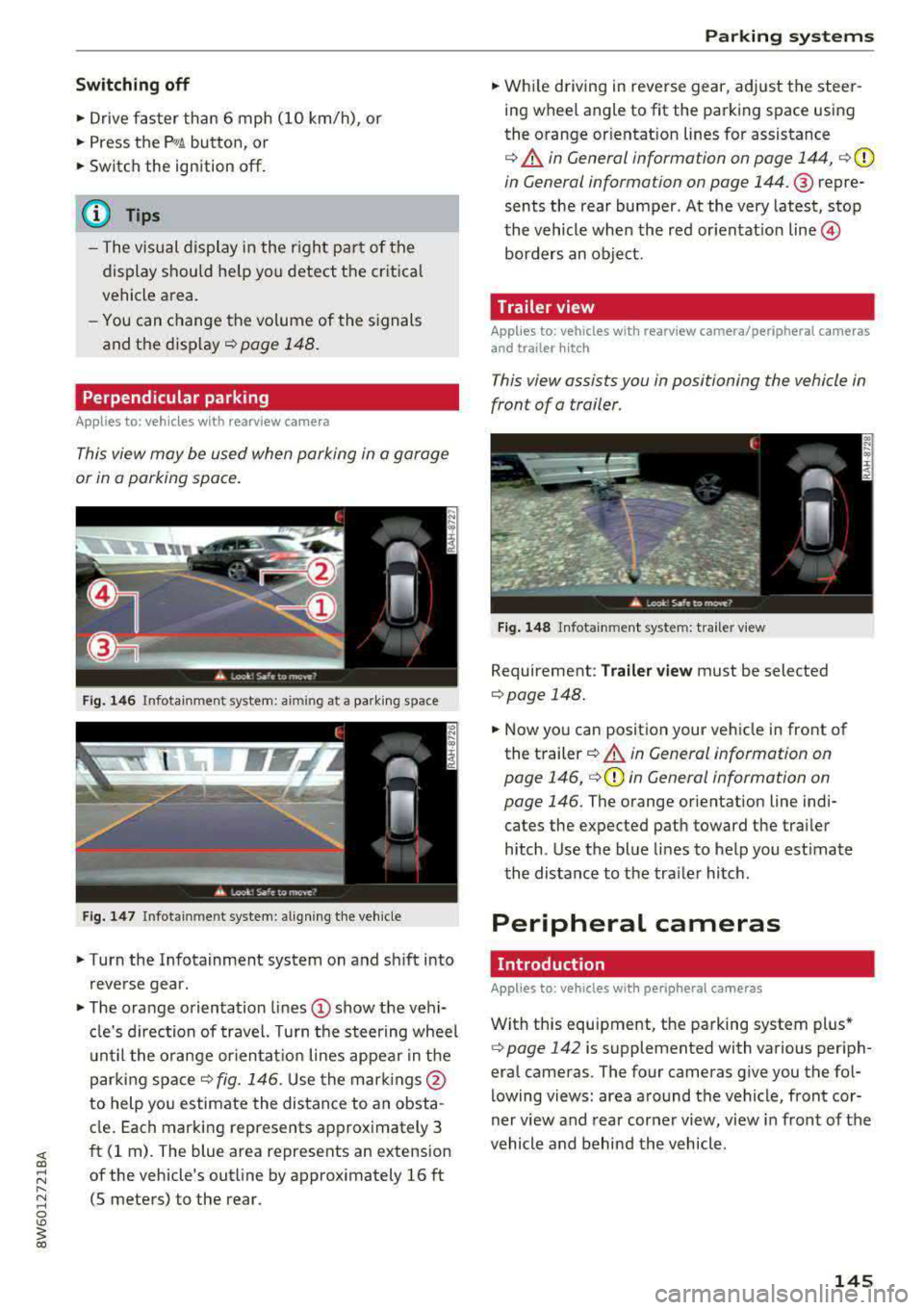
Perpendicular parking
Applies to: vehicles with rearview came ra
This view may be used when parking in a garage
or in a parking space.
Fig. 146 Infotainment system: aiming at a parking space
Fig . 147 Infotainment sys tem: aligning th e vehicle
• Turn the Infotainment system on and sh ift into
reverse gear.
• The orange orientation lines (D show the vehi
cl e's direction of travel. Turn the steering wheel
until the orange orientat ion lines appear in the
parking
space ¢ fig. 146. Use the marking s@
to help you estimate the distance to an obsta
cle. Each marking represents approximately 3
ft (1 rn). The blue area represents an extension
of the vehicle's outline by approx imately 16 ft
(5 meters) to the rear.
Parking systems
• While driving in reverse gear, adjust the steer
ing wheel angle to fit the parking space using
the orange or ientation lines for assistance
¢ &. in General information on page 144, ¢(D
in General information on page 144. ® repre
sents the rear bumper. At the very latest, stop
the vehicle when the red or ientat io n
line ©
borders an object.
Trailer view
Applies to: vehicles with rearview camera/peripheral cameras
and trailer hitch
This view assists you in positioning the vehicle in
front of a trailer.
Fig. 148 Infota inment system: trailer view
Requirement: Trailer view must be selected
¢page 148.
• Now you can position your vehicle in front of
the trailer
c:!) &. in General information on
page 146,
¢ (D in General information on
page 146.
The orange orientation line indi
cates the expected path toward the trai ler
h itch. Use the blue lines to help you estimate
the distance to the tra iler hitch.
Peripheral cameras
Introduction
Applies to: vehicles wit h periph eral cameras
With this equipment, the parking system plus*
c:> page 142 is supplemented with various periph
eral cameras. The four cameras give you the fo l
lowing views: area around the vehicle, front cor
ner view and rear corner view, view in front of the
vehicle and behind the vehicle.
145
Page 148 of 409

Parking systems
General information
Applies to: ve hicles w ith per ip heral cameras
Fig . 149 Location of peripheral cam eras
The four periphe ral cameras are located in the ra
diator grille , in the luggage compartment lid and
on both exterior mirrors
Q fig . 149 . Make sure
that the lenses are not covered by deposits or any
other obstructions as this may impair the system.
For information on cleaning, see
Q page 362.
Black corners are shown in the vehicle silhouette
when in
Surroundings mode. Objects in these
areas are outside of the camera's field of view
and are not detected.
& WARNING
- Always read and follow the applicable warn
ings
Q .&. in General information on
page 141.
- If the position or the installation angle of a camera was changed, for example after a
collision, do not continue to use the system
for safety reasons. Have it checked by an au
thorized Audi dealer or authorized Audi
Service Facility.
- Keep in mind that the image in the display is
incorrect if the exterior mirror housing has
been moved out of place .
- Use the
Rear mode and the Corner view
(rear)
mode only when the luggage com
partment lid is completely closed . Other
wise the image in the display will be incor
rect.
- The vehicle surroundings are shown using
the camera images . The vehicle image is
shown by the system. Objects and obstacles above the camera are not displayed.
146
- Camera lenses enlarge and distort the field
of vision. The objects appear both altered
and inaccurate on the screen.
(D Note
-Always read and follow the applicable warn
ings
Q (i) in General information on
page 141.
- The Infotainment disp lay shows the direc
tion in which the rear of the vehicle is travel ing based on the steering wheel angle. The
front of the vehicle swings out more than
the rear of the vehicle. Maintain plenty of
distance so that an exterior mirror or a cor
ner of the vehicle does not collide with any
obstacles.
@ Tips
If the 8/~/c:s symbol appears in the dis
play and the respective display area is grayed
out, then the power exterior mirrors
were
folded in or the driver's door/front passeng
er's door/luggage compartment lid was
opened.
Switching on/off
Applies to: vehicles wit h peripheral ca meras
Fig. 150 Ce nte r console: butto n ~i
Fig. 151 Infot ainment system : select the mode
Page 173 of 409

Voice recognition system Operating
Appl ies to: veh icles wit h vo ice recog nitio n system
You con operate many Infotainment functions
conveniently by speaking .
Requirements: the ignition and the MM I must be
switched on
~page 158, the re must not be any
phone call in progress and the park ing system
must not be active.
~ Switching on : press the 51 button@
~ page 15, fig. 11 or~ page 16, fig. 13 briefly
on the mu ltifunction steering wheel and say
the des ired command after the
Beep .
~ Switching off : press and hold the 51 button.
Or: press the [2] butto n.
~ Pau sing : say the command Pau se . To resume,
press the
l2;J button .
~ Correcting : say the command Corre ction . Or :
simply say a new command during an an
nouncement
<=> page 251.
Input assistance
The system gu ides you throug h the input with
v isua l and audio feedbac k.
- Vi sua l input as sistan ce: after switching on
vo ice recogn it io n, a display w ith a selection of
poss ible commands appears. This command
display can be sw itched on o r off. Se lect:
IMENU I button> Setting s> left cont rol button
> MMI setting s > Speech dialog system .
- Audio input a ssis tance :
to have the poss ible
commands read, tu rn the voice recognition sys
tem on and say
Help.
For the s yst em to understand you:
Speak clearly and dist inctly at a normal vo lume .
Speak louder when d riving faste r.
Emphasize the words in the commands evenly
and do not leave long pauses .
C lose the doors, the windows and the sunroof* to
reduce background noise . Make sure that passen-
;;!; gers are not speaking when you are giving a voice
;::; command. ,....
N .... 0 \0
3
Do not direct the air vents toward the hands-free
microphone, which is on the roof headliner near
t h e front inte rior lights .
Only use the system from the dr iver's seat be
ca use the hands -free microphone is directed to
ward that seat.
Additional settings
Seer=;, page 251, Spee ch dialog system .
A WARNING
-Direct your full attention to dr iv ing. As the
driver, you have complete responsibility for
safety in traffic . Only use the functions in
such a way that you a lways maintain com
p lete contro l over your vehicle in all traffic
situations.
-Do not use the voice recognition system in
emergencies beca use your voice may change
in stressful situations. It may take longer to
d ial the number or the system may not be
able to dial it at all. Dial the emergency
number manually.
@ Tips
- The d ialog pauses when there is an incom
ing phone call and will continue if you ig
nore the call. The d ialog ends if you answer
the ca ll.
- You can select an item in the list using ei
ther the vo ice recognit ion system or the
cont rol knob .
Command overview
information
Appl ies to: ve hicles w ith vo ice recognit ion system
T he following overv iews describe the comma nds
t h at can be used to operate the MMI using the
voice recognition system.
Alte rnative commands a re separate d using
a"/",
for example say: Telephone / (or) Navigation /
(or) Radio.
Sequences of commands used to perfo rm an ac
t ion are iden tified w it h
a"> ", fo r ex ample say:
Ente r addre ss > (t hen) Enter country /state . ..,.
171