2018 AUDI A4 lock
[x] Cancel search: lockPage 150 of 403
Intelligent Technology
Applies to: allroad
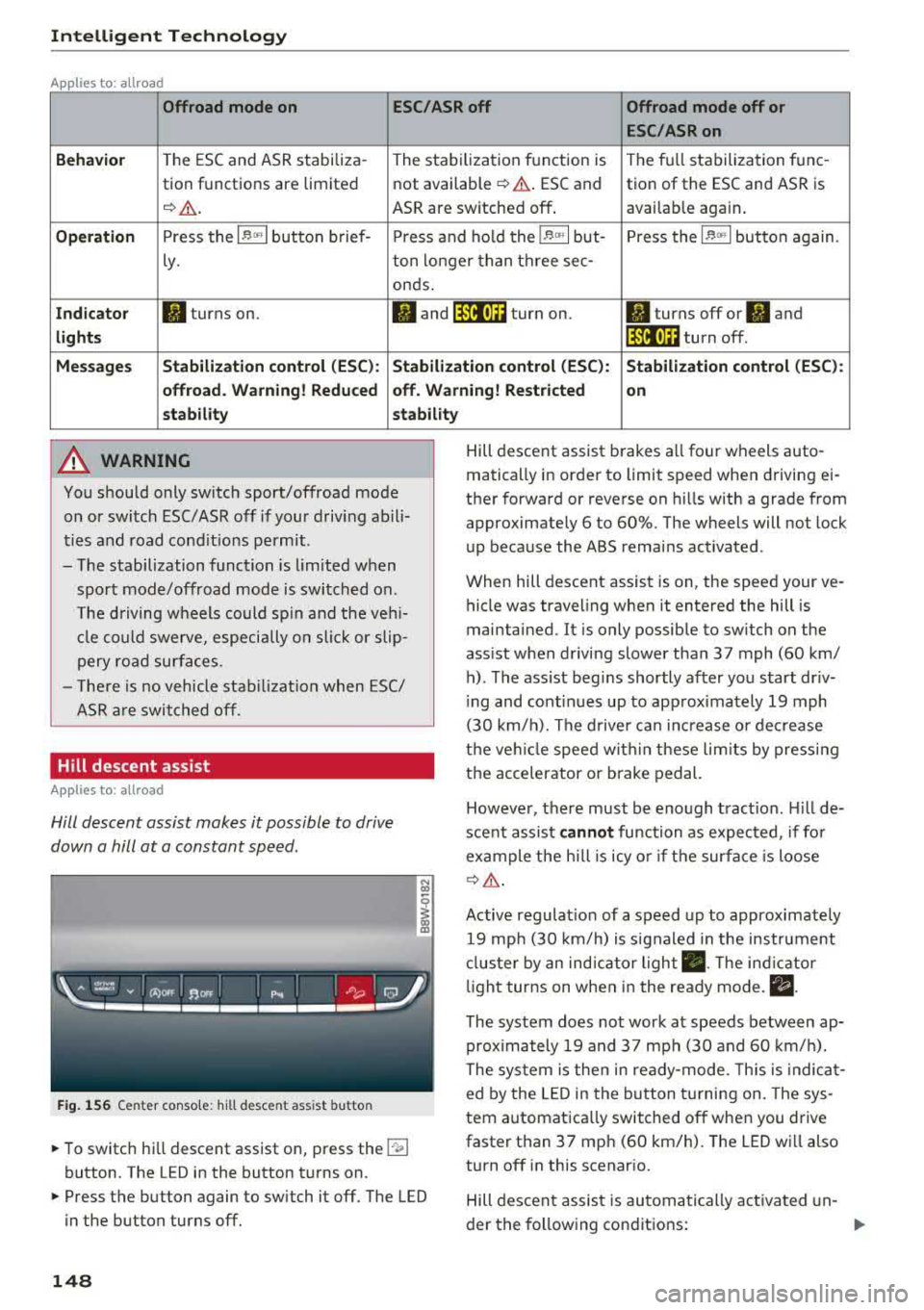
Offroad mode on
ESC/ASR off Offroad mode off or
ESC /ASR on
Beha vior
T he ESC and ASR stabiliza -The stabi lization f unction is The f ull stabilization tune -
tion functions are limited not available
¢ .&. . ESC and tion of the ESC and ASR is
¢ & . ASR are sw itched off . available aga in .
Operation Press the l~ m l button b rief- Press an d ho ld the l~ "'' I but- Press the l~ "" I button again .
ly. ton longer than three sec-
onds.
Indicator II turns on. Iii and lf'tii•)H turn on. II turns off or II and
light s li'tii•)H turn off .
Message s Stabilization cont
rol (ESC ): Stabiliza tion control (ESC ): Stabilization cont rol (ESC ):
offroad . Warning! Redu ced off . Warning! Restricted
on
s tability stability
A WARNING
You should only switch sport/offroad mode
on or switch ESC/ASR off if you r drivi ng abili
ties and road cond it ions permit .
- The stabilization function is lim ited w hen
sport mode/offroad mode is swi tched on.
T he driving w heels could sp in and the veh i
cl e could swerve, especi ally o n slick or slip
pery road sur faces.
- T here is no vehicle sta biliz at ion when ESC/
ASR a re swi tched off.
Hill descent assist
Applies to: allroad
Hill descent assist makes it possible to drive
down a hill at a constant speed.
F ig. 1 56 Center co nso le: hil l desce nt ass ist button
~ To switc h hill descent assist on, press the !"~I
button. The LED in the button t urns on.
~ Press the button again to switch it off. The LED
in the button turns off.
148
Hill descent assist brakes a ll four wheels auto
matically in order to limit speed when d riving ei
ther forward or reverse on hills with a grade from
approximately 6 to 60%. The wheels will not lock
u p because the ABS remains activated.
When hill descent assist is on, the speed your ve
hicle was traveling when it entered the hill is
maintained. It is only possib le to sw itch on the
ass ist when driving slower tha n 37 mph (60 km/
h) . The ass ist beg ins shortly af ter you start dr iv
i ng and cont inues up to app roxima tely 19 mph
(30 km/h). The d rive r ca n in crease o r de crease
t h e ve hicle spee d wit hin these lim its by press ing
t h e accelerator or brake pedal.
However, there must be enough t ract ion . Hill de
sce nt assist
cannot function as e xpec ted, if fo r
ex ample the h ill is icy o r if t he surface is loose
¢ &.
Active regulat io n of a speed up to approximate ly
19 mp h (30 km/h) is s ignaled in the instr ument
cl us ter by an ind ic a tor light
• . The in dica tor
li gh t tur ns on when i n the ready mode.
II.
The system does not work at speeds between ap
prox imately 19 and 37 mph (30 and 60 km/ h).
The system is the n in ready-mode. This is indica t
ed by the L ED in the b utton t urnin g on. The sys
tem a utomatica lly switched o ff when you drive
faster than 37 mph (60 km/h). The LED w ill also
turn off in this scenar io.
Hill descen t assis t is au tomatically ac tiva ted un-
der the fo llowing cond itions:
.,.
Page 169 of 403

0
"' .-< N r-N .-< 0
~ CX)
Voice recognition system
• Telephone
• Audi connect •
Favorites
• Call (XY)
• Navigation
• Directory
• Radio
• Media
• Sound •
Enter number
• Redial
• Read new tex t message
• N avigate to (XV)
• Enter address/destination
• Help • Onhne destinations
• Help Speech dia log system
• Help Telephone •
Cancel route guidance
• M ap
• Help Audi connect •
Line (XY)
• Help Naviga tion
• Help Map
• Help Radio
• Help Media •
Next page/ previous page
• Cancel
• N o, l meant
()(Y)
• Correction
TELEPHONE
• Enter number • Call list
• Delete number/ correc tion
• Redial
•
Oltectory
• Call (XY) •
Call mailbox
• Telephone favorites
· business/ private/ land line/ mobile
NAVIG:ATI0N
• N avigate to CXV)
• Start/ cancel route guidance
• Directory
• Last destinations •
Bloc k route for
(XYJ miles/ Block
the next section
• Route list
• Calculate alternative routes
• Navigation favorites
• Drive home
• Enter address •
Online destinations
• Special destination
• Enter country/ town/ street/ state
• Exclude route / Exclude route for (XY)
km / m
M~P
• M ap
• Day map/ Night map
• 20 driving position map/ 20 north posi tion map/ 30 map/ Destination map/ Overview map
AllJDI G QNNECT
• Audi connect
• Travel Information/ Parking Information
• Fuel prices
• Weather
RADIO
• Radio presets
• FM
• FM/ AM/ SIRIUS XM
• Station (XY) / Frequency
(XYJ
• T raffic announcement on/ off
Fig . 17 S Co mmand overv ie w
• Flight Information
• City events
• Online news
• Twitter
MEDIA
• Jukebo x
• CO/ DVD .))
• SD card 1 / SD card 2
• Audi music Interface/
IPod I use / Bluetooth /
WI-Fl/ Medium ( XV)
• Media favorites/ Artists/ Albums/ Genres/
Trac ks/ Ptaylls ts / Videos
· Folder up
• Random playback on / off
167
Page 174 of 403
Voice recognition system Function Say:
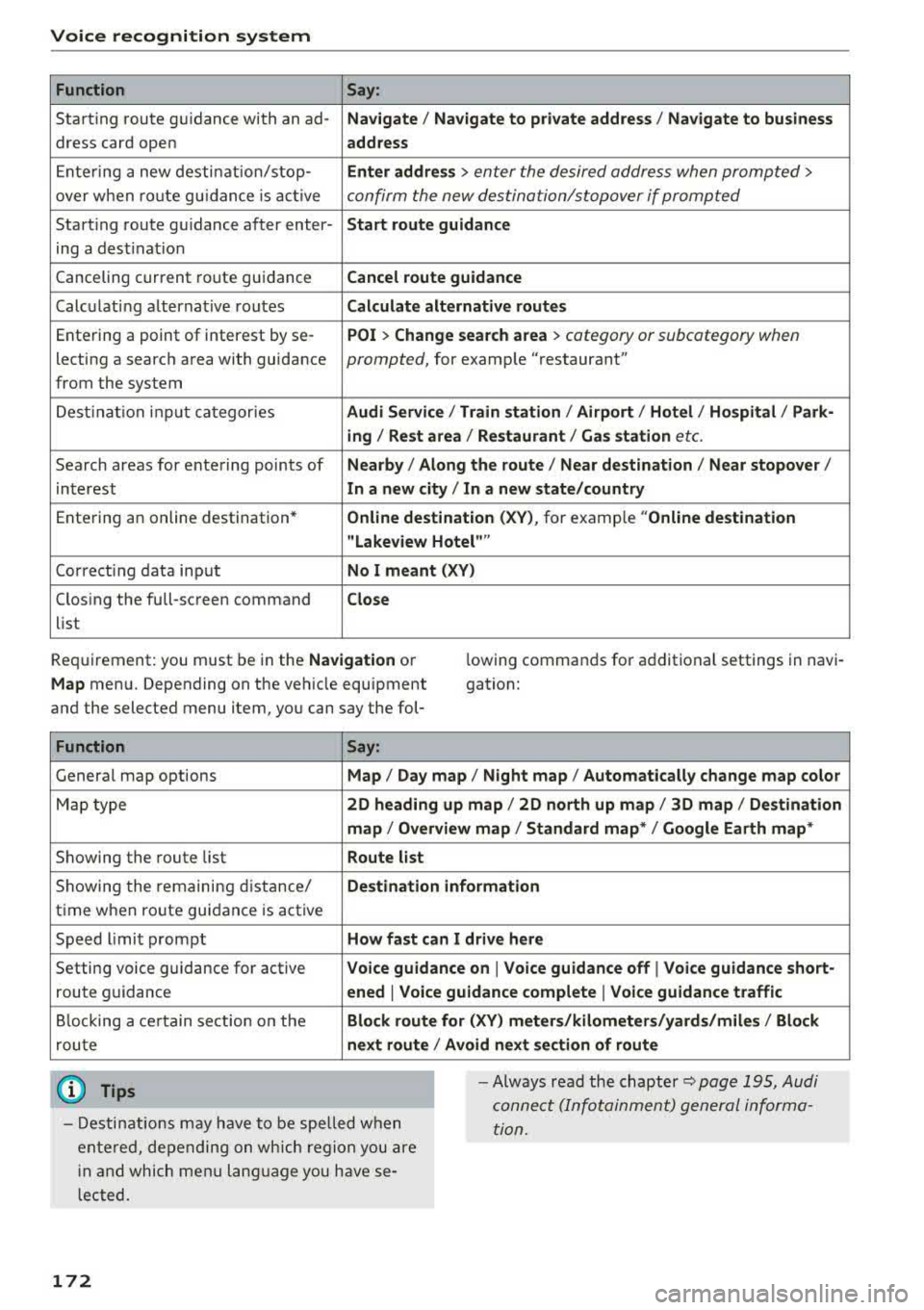
Starting route g uidance with an ad-Na vigate / Navigate to p riv ate addre ss / Na vig ate to bu sin ess
dress card open address
Ente ring a new desti nation/stop-Enter addr ess > enter the desired address when prompted>
over when ro ute gu idance is ac tive confirm the new destination/stopover if prompted
Start ing route gu idance after enter-Start route guidance
ing a dest inat ion
Canceling current route gu idance
Cancel route guidance
Calc ulating alternative routes C alculate alternati ve route s
Entering a point of interest by se-POI > Change search a rea > category or subcategory when
lecting a searc h area with guidance prompted, for examp le "restaurant"
from the system
Dest ina tion input categor ies
Audi Service / Train station I Airport / Hot el / Ho spital / Park -
ing / Re st area /Restaurant / G as sta tion
etc.
Search areas for entering points of Nearb y/ Along the route I Near destination / Near stopove r/
interest In a new city / In a new state /country
Ente ring an online destination * Online destination ( XV), for example "Online de stin ation
" Lake view Hotel ""
Correct ing data input No I meant (XV)
Clos ing the full-screen command C lo se
list
Requirement: you must be in the
Navigation or
M ap menu. Depending on the vehicle equipment
and the selected menu item, you can say the fol-lowing
commands for additional settings in navi
gation:
Function Say:
General map options Map/ Da y map / N ight map / Automatically change map colo r
Map type 2D heading up map I 2D north up map / 3D map / Destination
map
I Ov erview ma p/ Standard map */ Googl e Earth map *
Showing the route list Route l ist
Showing the remaining d istance/ De stin ation information
time when route guidance is active
Speed l imit prompt
How fa st can I dri ve here
Setting voice g uidance for active Voice guidance on I Vo ice guidan ce off I Vo ice guidance short-
route guidance en ed I Voi ce guidance complete I V oi ce guidance traffic
B locking a ce rtain sect ion on the Block route for (XV ) m eter s/kilometers /yard s/miles / Block
rou te next rou te I A void n ext se ction of r oute
(D Tips
- Destinations may have to be spe lled when
entered, depending on which region you are
i n and which men u language you have se
l ected. -
Always read the
chapter~ pag e 195, Audi
connect (Infotainment) general informa
tion.
172
Page 199 of 403

Audi connect vehicle control
Audi connect vehicle
control
Introduction
Applies to veh icles with Audi co nnect vehicle control
With the Audi connect vehicle control services 1>,
you can access various information or use individ
ual functions in the
Audi MMI connect app or in
myAudi .
Audi connect vehicle control includes the follow
ing services:
- Remote locking and unlocking ¢
page 199.
-Vehicle status report <:!>page 199 .
-Parking location o page 199.
-Geofencing Alert r::!> page 200.
-Speed Alert o page 200 .
-Valet Alert o page 200 .
- Stolen Vehicle Locator o page 200.
-Online Audi service request o page 200.
(D Tips
-Accessing specific data or controlling func
tions remote ly depends on the charge level
of the vehicle battery. Therefore, these
funct ions only have limited availability after
switching off the ignit ion.
- The services are provided through a SIM
card installed in the vehicle. The cost of the
call and data connections is included in the
price for the services . Services are provided
assuming that the cell phone network re
quired for the installed S IM card is funct ion
in g and ready to operate. The available serv
ic es set by Aud i AG are only available within
the cell phone network coverage area for
the cell phone service provider selected by
Audi AG .
- You can also find more information on Audi
connect on line at www .audiusa .com .
ll In pr ep aratio n at t he tim e of p rinting. The ava ilab ilit y o f
the serv ice s offe re d depends on th e co untry and may
c han ge ove r tim e.
198
Setup
Applies to vehicles w it h Aud i connect vehicle control
To use Audi connect vehicle control services l),
please note the fo llowing :
Creating and verifying a user account
""Create an account at www.audiusa.com/myaudi
and verify it.
Setting a key user in the vehicle
Requirements : the ignit ion must be switched on .
Anothe r key user must not be set in the veh icle .
If necessary, reset the key user ¢
page 199.
""Select in the Infotainment system: IMENU ! but-
ton >
Audi connect > if necessary, Display
available functions >
right control button>
Audi connect user management > Key user >
Set key user .
"" Enter the user name for your ve rified account
and enter the IO-digit vehicle code. You can rub
the key tag for your remote control key to re
veal the vehicle code
r::!> page 38.
"" Select and confirm Log in .
You can now use the veh icle control services
through the
Audi MMI connect app or through
www.audiusa.com/myaudi .
Using vehicle control services in the Audi
MMI connect app
Requirement: your mobile devices must be com
patible.
"" Insta ll and start the
Audi MMI connect app on
your mobi le device .
"" Log in to the
Audi MMI connect app using your
user name and Audi online password and select
your vehicle .
(D Tips
-Store the vehicle code in a secure place. It
may be necessary to re-enter the vehicle
code.
Page 200 of 403

a co .... N ,....
N .... 0 0
3 co
-Pay attention to upper-an d lowe r-case let
ters when enter ing the ve hicl e code.
-If yo u do no t have the 10- digit ve hicle code,
contact a n author ized A udi dealer or author
i zed Audi Se rvice Facility .
Additional options
Applies to vehicles with Audi connect vehicle control
License subscription
Th e validi ty and expirat io n date o f yo ur sub scr ip
tions a re displaye d. When
Warning before sub
scr iption expires
is activated, a message w ill be
d isp layed warning yo u that you r license is about
to expire.
Select:
IME NU! button> Audi connect > Display
available function s>
right control button> Li
cense subscription .
Resetting the primary user
F or example, y ou ca n rese t the key use r whe n
se lling your vehicle in o rder to dea ctivate these
services .
R eq uirement: the ign it ion mu st be swi tched on.
Select:
IMENU ! button> Audi connect > right
control b utton >
Audi connect user management
> Key user > Reset key user .
Warning levels
Req uirement: the primary use r must have set one
or more warning levels. Secondary users can only
see if a warning level is active or not .
Select:
IMENU ! button> Audi connect > right
control b utton >
Alerts .
Remote locking and
unlocking
Applies to vehicles with Audi connect vehicle control
You can lock a nd u nlock your vehicle using this
service .
Requirement
- This requires the 4-dig it PIN that you specified
dur ing the verification on www.audiusa.com/
myaud i .
- The veh icle must be stationary.
Audi connect veh icle control
- The ignition must be sw itched off.
Vehicle status report
Applies to vehicles with Audi connect vehicle control
T he Dr iver Info rmat ion System collec ts da ta u n
der certai n conditions and sends it to a serve r.
When data is sto red, you ca n access va lues such
as the se u sing the se rvice:
- Remaining range
- Fue l tank leve l
- O il level
- Veh icle doors a re open/closed or locked/un -
loc ke d
- Mileage
- Next o il ch ange
- N ext inspec tion
- Wa rning messages
- Side marker lights/parking lights on/off
For additional information on the D river Informa
t ion System, refe r to
c:> page 17, Driver informa
tion system .
A WARNING
Do not ignore messag es and wa rni ng or indi
cator lights that t urn on i n the vehicle be
cau se o f th e i nfo rmation in the status report .
Thi s could lea d to brea k downs in on the roa d,
a cci dents a nd ser iou s injuries.
Parking location
Applies to vehicles with Audi connect vehicle control
The vehicle collec ts data unde r ce rtain co ndit ions
and sends it to a serve r.
When data is sto red, you ca n access va lues such
as these using the se rvice:
- Veh icle location display,
- Display of one's own location,
- Rou te to you r vehicle .
If your mob ile dev ice also has a navigation func
t io n, you c an navigate to y our la st k nown par kin g
l oc ation .
199
Page 234 of 403

-Do not use any wireless devices on the front
seats within range of the airbags while driv
ing. Also read and follow the warnings in
c::> page 275, Front airbags.
CJ) Note
- Always follow the information found in c::>0
in Wi-Fi hotspot on page 194.
- Please note that there genera lly are addi
tional costs when using an online media
service account, especially when it is used internationally .
@ Tips
-Depending on the Internet connection and
network traffic, a connection loss can occur
during playback of on line media services.
-Online media and Internet radio usage de
pends on the service availability of the third
party provider.
- Audi AG simply makes the access to on line
media services possible through the MMI
and does not take any responsibility for the
contents of the on line media services.
- Always read the chapter
c::> page 195, Audi
connect (Infotainment) general informa
tion.
- Depending on the mobile device used, there
may be interruptions during media playback
and when using the
Audi MMI connect app.
To avoid interruptions when using a mobile
device, do not lock the screen on your mo
bile device and keep the
Audi MMI connect
app in the foreground .
- Contact an authorized Audi dealer or au
thorized Audi Service Facility for additional
information about online media.
Media
Multimedia connections
USB adapter for Audi music interface
You can connect your mobile devices (such as a
smartphone or
MP3 player) to the Audi music in
terface and charge them using a special
USB
adapter .
Fig. 213 Audi USB adap ters
You can purchase the USB adapter c::> fig. 213
from an author ized Audi dealer or at specialty
stores:
(D USB adapter for devices with a micro USB con
nection
@ USB adapter for devices with an Apple Light
ning connect ion
@ USB adapter for devices with an Apple Dock
connector
You can connect your mobile dev ices through the
Audi music interface to the MMI using the USB
adapter and charge the battery at the same time.
Applies to : veh icles w it h Aud i music interface
- Audi music interface: see c::> page 234.
(D Note
Handle the USB adapter carefully. Do not al
low it to be pinched.
233
Page 242 of 403

a co .... N ,....
N .... 0 0
3 co
Show DVD menu
The DVD main menu opens in t he Infotainment
system display.
- Sele cting a m enu it em : select and confirm a
menu item.
O r: move your finger on the M MI
touch contro l pad* and press the control knob.
Aud io track1
)
You can manually set the audio track (language
and audio format). The language and aud io for
mat options depend on the video DVD.
Subtitle sl)
You can set subtit les for playback manually. The
l anguages available depend on the DVD.
A sp ect
Aud i recommends the Automat ic setting for the
picture format. You can set the picture format
depending on the active file or source (for exam
p le video file*, DVD*).
Picture for- Description
mat
Automatic
The MMI detects the picture for-
mat of the source and d isplays the
image in the optimum ratio . B lack
ba rs may appea r on the sides of
the display, depending on the
source format and the Info tain-
ment system d isp lay that is instal-
l ed .
Zoom The image is enlarged to fill the
ent ire Infota inment system d is-
p lay. Switch the function off if t he
image is distorted.
l ) Depe ndi ng o n the DVD, t his may not be poss ib le dur ing
playback .
Media
Picture for- Description
mat
Cinem a-
Use this setting for fil ms in cinema
scope format 21:9. Black bars are shown
in the upper and lower edges of the
Infotainment system display .
Original The image is disp layed in the ratio
of the source format . Select this
opt ion if the image is distorted or a
section of the image is cut off
when
Auto is selected .
4:3 T he image is f ixed i n the 4:3 pie -
ture format . Black bars are shown
on the sides of the Infotainment
system display.
16 :9 The image is fixed i n the 16:9 p ie-
t ur e format. Blac k ba rs are shown
in the upper and lower edges of the
Infotainment system display.
(D Tips
- Not all video DVDs have parenta l cont ro l.
- The p rotection levels for the
Parental con-
trol
are based on the US s tandards from the
Motion Picture Association of America
(MPAA) . Note that the age levels for video
DVDs in European countr ies may di ffer.
- Password ent ry for
Parental control will be
locked for approx imately one m inute if you
enter the incorrect password th ree t imes in
a row. The password can on ly be reset by an
authorized Audi dealer.
241
Page 249 of 403

System settings
System settings
Setting the date and
time
You con set the cloc k time manually or using the
CPS*.
"' Se lect : I MENU I button> Settings > left contro l
button >
MMI settings > Date & time .
"'Or: select : I MENU I but ton> Vehicle > lef t con-
t ro l button >
Vehicle settings > Date & time .
Automatic setting
W hen th is function is sw itched on~. the time
a nd date are a utomatically set.
Time
R equi rement: the Automatic setting must be
sw itche d off .
Pr ess the cont ro l knob . Yo u can set t he
Time
manu ally by tur ning and press ing the co ntr ol
knob.
Date
R equir em en t: the Automatic setting mus t be
s w itche d off .
P ress th e cont rol knob . Yo u ca n set the
Date
manually by tur ning and pr ess ing the cont rol
knob .
Time zone
When se lecting the approp riate t ime zone, a
sampling of countr ies in this zo ne will be lis ted .
Automatic time zone*
Wh en th is function is sw itche d on~, the t ime
w ill automatically a djust to the correspon ding
time zone .
Automatic daylight saving time*
When th is function is sw itche d on~, the tim e
wi ll automatically sw itch to day light saving time .
Time format
If yo u se lec t 24h , th e cl ock w ill disp lay, for ex
am ple,
13:00 . If you s elec t AM/PM , the clock
w ill di sp la y, for examp le,
1:00 PM .
248
Date format
If you se le ct DD.MM.YYYY , the d ate di spl ay will
show, fo r exam ple ,
31.08.2018. If you select
MM/DD/YYYY , th e date displ ay wi ll show, for ex
amp le,
08/31/2018. If you s elect YYYY -MM
DD ,
the date display will show, fo r example,
2018-08 -31 .
MMI settings
"'Select: !ME NUI button> Settings > left cont rol
button >
MMI settings .
Language
Y o u c an chan ge the display langua ge as well as
t h e lan guage fo r th e voice guidance * and vo ice
r ecognition system *.
The num ber o f langu ages av a ila ble depe nds on
t h e mar ket.
Measurement units
The following meas uremen t uni ts can be set d e
pend ing on av a ilab ility:
Speed , Distance , Tem
perature , Fuel consumption , Volume , Pressure.
Tool tips
Whe n this f unction is switched on ~' you r MMI
shows you tips fo r inpu t. The fre quency of how
oft en it displays decr ease s w it h tim e.
Speech dialog system
App lies to : vehicles with voice recog nitio n syste m
Depend ing on veh icle equipment, the following
funct io ns may be ava ilable:
Command display : when this function is switch
ed
on ~. the MMI will show yo u the p ossible
commands for voice input in the respective
menu.
Short dialog : when this function is sw itche d on
~' a shorter form of the promp ts is used .
Command during voice output* : thi s f un ction is
swi tc h ed on at t he factory . When this func tion is
switc hed
on ~' you can say new command s dur-
i ng announcements . You do no t need to wait for
the signal tone (beep) dur ing an anno unceme nt.
When the funct io n is swi tched off
0, you need to .,,.