2018 AUDI A3 SEDAN smartphone
[x] Cancel search: smartphonePage 232 of 404

Media
Audi music interface
Connect your mobile devices to the Audi music
interface in order to operate them through the
MMI and charge the battery.
Fig. 207 Storage co mpa rtm ent u nder the cente r armrest
and at the front of t he ce nter con so le: A udi music interface
USB Input
- Connecting a mobile device using a USB
adapter :
connect the applicable USB adapter @
¢
fig. 207 to the port on the Audi music inter
face®¢ fig. 207 and then connect the adapt
er to the mobile device @(such as an iPhone) .
-Charging a mobile device using a USB adapter :
when you connect a mobile device to the Audi
music
interface @¢ fig. 207 using the applica
ble USB
adapter @¢ fig. 207, the battery will
automat ically charge.
- Disconnecting a mobile device from the Audi
music interface:
remove the USB adapter @
¢ fig. 207 from the Audi music interface .
-Disconnecting mobile devices with an Apple
Dock connector:
remove the Apple Dock con
nector from the Apple device with the release
tabs pressed
in © ¢ page 229, fig. 206 .
The media are started and operated through the
mobile device or the MMI, depending on the de
vice being used
¢ page 232 .
Connecting multiple mobile devices: if a mobile
device (such as a smartphone) is connected at the
respective USB port on the Audi music interface,
then all devices can be used as a playback source .
AUX Input
- Connecting a mobile device to the AUX input :
connect the cable ® ¢ fig. 207 to the AUX in
put© on the Audi music interface and then to
230
the mobile device@ (such as an MP3 player or
sma rtphone).
-Disconnecting a mobile device from the AUX
input:
remove the cable ®¢ fig. 207 from the
AUX
input @¢fig. 207.
- Operation: select and confi rm the External au
dio player
source ®¢ page 232, fig. 208. Me
dia is started and operated through the mobile
dev ice @ ¢ fig. 207.
A WARNING
Driving requires your complete and undivided
attention . As the driver , you have comp lete
responsibility for safety in traffic . Never oper
ate mobi le devices wh ile driving, because this
inc reases the risk of an acc ident.
(D Note
- Use a USB extens ion cable to connect devi
ces that have an integrated USB connector
(such as a USB stick) to prevent damage to
your USB device and the Audi music inter
face.
- Extremely high or low temperatures that
can occur inside veh icles can damage mobile
devices and/or impair their performance.
Never leave mobile devices in the vehicle in
extremely high or low temperat ures.
(D Tips
- Always follow the information found in
¢page 62.
-When you switch the ignition off, the USB
ports are still suppli ed with power until the
energy management intervenes.
- Do not use an additional adapter or USB ex
tension cable to connect mobile devices to
the Audi music interface that already have a
cable or that must be connected with a USB
adapter(¢ page 229). They may impair the
functionality.
- You can purchase the AUX connector cable
from an authorized Audi dealer or at spe
cialty stores.
-Audi recommends setting the volume of a mobile device connected to the AUX input to
..,
Page 233 of 404

u. co ... N l' N
approximately 70% of the maximum vol
ume.
- Functionality is not guaranteed for mobile
devices that do not conform to the USB
2.0
specification.
- USB hubs are not supported.
- Some versions of the iPod such as the iPod
shuffle cannot be connected to the USB
adapter for devices with Apple Dock connec
tor. Connect these devices using a AUX con
nector cable.
- Changed content on a mobile device
l) that
is connected to the Audi music interface
may not be displayed in the media center.
In this case, reset the
Media settings back
to
Factory settings c> page 244.
- Video playback through the Audi music in
terface is only supported if the connected
device is recognized as a USB storage device
(for example a USB stick). Apple devices and
MTP devices (such as smartphones) are not
recognized as USB storage devices .
- iPod/iPhone malfunctions also affect the
operation of the MMI. Reset your iPod/
iPhone if this happens.
- For important information on operating
your iPod/iPhone, refer to the user guide for
the device. Audi recommends updating the
iPod/iPhone software to the latest version.
- For more information about the Audi music
interface and supported devices, check the
Audi database for mobile devices at
www.audiusa.com/mp3 or contact an au
thorized Audi dealer or authorized Audi
Service Facility.
8 l ) A pp lies o nly to MTP device s. Does not apply to App le dev i
"' &j ces and USB mass storage d ev ices.
Media
USB charging ports in the rear
App lies to : vehicles wit h USB charging ports in the rear
You can charge the battery on your mobile device
through a USB charging port.
Two USB charging ports* are located at the back
of the center console.
- USB adapter: refer to c> page 229, USB adopter
for Audi music interface.
- Charging a mobile device using the USB
adapter: connect your mobile device to a USB
charging port using a suitable USB adapter.
- Disconnecting a mobile device from the charg
ing port:
remove the USB adapter from the USB
charging port .
-Disconnecting mobile devices with an Apple
Dock connector :
remove the Apple Dock con
nector from the Apple device with the release
tabs pressed in.
A WARNING
-
Driving requires your complete and undivided
attention . As the driver, you have complete
responsibility for safety in traffic. Never oper
ate your mobile devices while driving, because
this increases the risk of an accident.
((D) Note
Extremely high or low temperatures that can
occur inside vehicles can damage mobile devi
ces and/or impair their performance . Never
leave mobile devices in the vehicle in ex
tremely high or low temperatures.
(D Tips
- Always follow the information found in
c>page 62 .
-When you switch the ignition off, the USB
ports are still supplied with power until the
energy management intervenes.
- Do not use any additional USB extension ca
bles or adapters to connect mobile devices
to the USB charging port that have already
liJo-
231
Page 242 of 404

Media
Problem Solution
Wi-Fi audio playe r*:
multiple de- Close the Audi MMI connect app on the connected devices (for ex -
vices are connected to the Wi-Fi ample, smartphones) that are not being used as the Wi-Fi audio
hotspot. A media player (such as a player*. Likewise, close the UPnP server apps or the media permis-
smartphone) appears as the sions on the integrated UPnP/DLNA server. Connect the desired
source and cannot be changed. dev ice as a Wi-F i aud io player*
~page 227.
Online media*: connection failed
To establish a connection to the MMI, the MMI connection switch
between the MMI and the
Audi must be switched on in the Audi MMI connect app status screen .
MMI connect app.
Bluetooth audio player *: inte rfer -Playback interfere nce can occur when us ing the Bluetooth audio
ence wi th t rack d isp lay and audio player if a music player app from a third party provider is open.
playback. Audi recommends using the integrated media p layer on your Bl ue-
tooth device (such as a smartphone).
Wi-Fi hotspot *: your Wi-Fi device Make sure the network optim izat ion functions are sw itched off in
is disconnected from the W i- Fi the Wi-Fi setti ngs or in the network settings for your W i- Fi dev ice.
ho tspot. For additional information refer to the user guide for your Wi-Fi
device.
Audi music interface: aud io play- Make sure the USB mode MTP is selected in the sett ings on your
back through the connected mo- mob ile device.
bile device is not possible .
a) Applies only to MTP devices. Does not app ly to Apple dev ices and USB m ass storage dev ices.
240
Page 243 of 404

u. 00 ... N l' N ... 0 N > 00
Audi smartphone interface
Setup
A ppl ies to : ve hicles w ith Audi smartpho ne inte rfa ce
You con conn ect your smortphone to the MM I us
ing the Audi smortphon e int erfac e. Certain con
t e n t on you r sm ortphone is ado pted to th e Info
tainme nt system d is p lay while driving and con
be operated through the
MMI control panel .
Requirement
The vehicle must be stat ionary and the ignition
must be switched on .
iPhone generation 5 or h igher w ith Lightning
connector and iOS 7 .1.2 operating system or h igher.
O r:
Smartphone with Android Auto app and Android
5 .0 Loll ipop operating system or higher.
.,. Connec t your sma rtphone to the Audi music in
terface ¢ page 230 using a USB adapte r
¢ page 229, fig. 206.
.. Select and confirm A ctivate Apple CarPlay or
Acti vate And roid Auto now .
.. Follow the system instruct ions.
.. Pay attention to any additiona l system prompts
on your smartphone if applicable .
If yo u chose not to use Apple CarP lay or Android
Auto when connecting your smartphone for the
first time, you can start the Audi smartphone in
terface later on using the
Connection manager.
.,. Se lect : I MENU I button > Audi smartphone in-
terfa ce
> Change to connection manager .
.. Connect your sma rtphone to the A udi music in
terface using a USB
ad apter ¢ page 229,
fig. 206.
.. Select and confirm Audi smartphone in t he
Connection manager ¢ page 244. You can se
l ect your smartphone in the list of devices that
are already
paired¢ page 245.
.,. Follow the system instruct ions .
@ Note
Always follow the i nformat ion found in¢ @) in
Wi-Fi hotspot on page 195 .
Audi smartph one interfac e
(D Tips
-The functions that can be used depen d on
the fo llow ing factors, among others:
- the brand of your smartphone
- the vers io n of the ope rating system in
your smartphone
- the software ve rsion of the app used
- the USB adapter cab le and correct connec-
tion
- your cell phone se rvice provide r
- the customized settings on yo ur sma rt -
phone
- One of the factors above o r a com bina tion
of any of them could cause your sma rtphone
to be incompatib le wit h the Audi smart
phone inter face. Compatibility cannot be
guaranteed for all types of smartp hones.
For more informat io n and assistance, refer
t o the user guide and the man ufactu rer of
yo ur sma rtphone .
- If the connected smartphone has voice con
tr ol, you can ope rate yo ur smartp hon e usi ng
the ex ter nal voic e recognition system
¢page 175.
- Th e menu language show n in t he MMI is
based on t he sett ings in you r smartp ho ne .
- Th e time d is p layed in the M MI is based o n
the settings in yo ur sma rtphone .
- Severa l M MI functions a re not avai lab le
when Apple Car Play o r Andro id A uto is ac
t ive.
- Yo u ca nnot co nnect any mob ile dev ices via
B lu etooth whe n an App le CarPlay connec
tion is a ctive .
- Whe n the App le CarPlay connection is ac
t ive,
Tag this song for iTunes* is not av aila
ble
¢p age 219 .
Operating
A pp lies to: vehicles wit h Audi sm artph one interface
Opening a menu
Apple CarPlay :
you can go back to the Apple Ca r
Play main me nu regardless of the se lected me nu
i tem by p ressing and holdi ng the
I BACKI button .
Android Auto : to go back to the Andro id Auto
menu bar , push the control knob down .
241
Page 244 of 404
Audi smartphone interface
Opening a menu item
Select and confirm a menu item using the MMI
control panel.
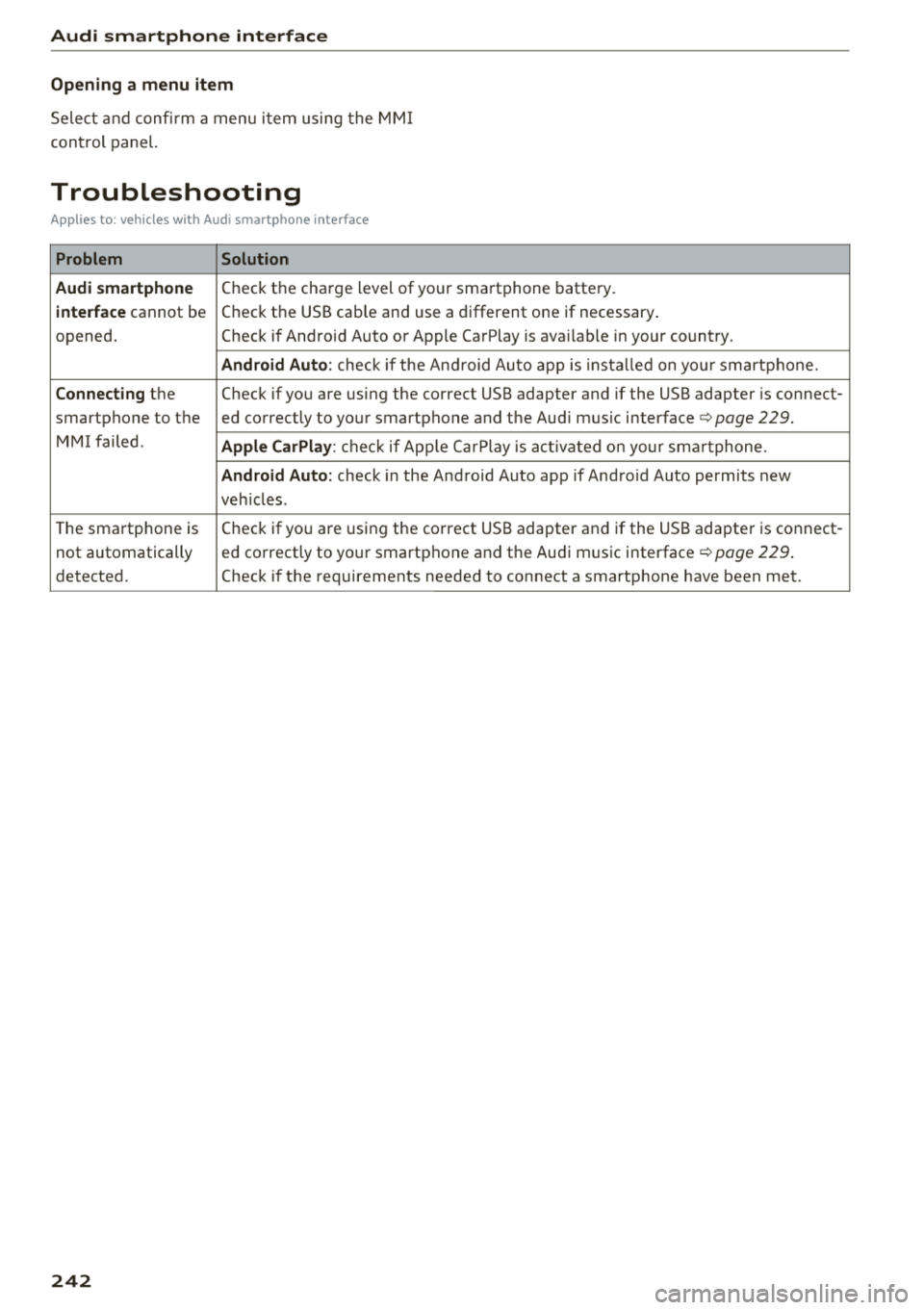
Troubleshooting
Applies to: vehicles with Audi smartphone interface
Problem Solution
Audi smartphone
Check the charge level of your smartphone battery.
interface cannot be Check the USB cable and use a different one if necessary
.
opened. Check if Android Auto or Apple CarPlay is available in your country.
Android Auto : check if the Android Auto app is installed on you r smartphone .
Connecting the Check if you are using the correct USB adapter and if the USB adapter is connect-
smartphone to the ed correctly to your smartphone and the Aud i mus ic
interface ¢ page 229.
MMI failed . Apple CarPlay: check if App le CarPlay is activated on your sma rtphone .
Android Auto: check in the And raid Auto app if Android Auto permits new
veh icles .
T he smartphone is Check if you are using the correct USB adapter and
if the USB adapter is connect -
not automatically ed correctly to your smartphone and the Audi music
interface
¢ page 229.
detected. Check if the requirements needed to connect a smartphone have been met.
242
Page 246 of 404

System settings
wait for the sig nal t one (bee p) to say a new
command.
Volume : you can a djust th e vol ume of th e
p romp ts by turning the con tro l k no b.
Individual speech training (on ly when the v ehi
cle is s ta ti onary): yo u ca n ad apt the vo ice recog
ni tion sy ste m to your voic e or pro nunciati on in
or der to im prove the sys tem's a bili ty to re co gni ze
your speec h. Indivi dua l speech train ing is com
p rised of 20 s peech ent ries t hat consist o f com
mands and sequences of numbers . You can de
lete the p rogrammed voice t rain ing with the
Re
set individual speech training
function.
Display brightness
You can a djust the brigh tness o f the Info tain
ment system disp lay by t urning the cont ro l knob.
Factory settings
D epe ndi ng on t he ve hicle eq uipme nt, th e fo llow
i ng fu nctio ns ca n b e rese t to factory se ttings :
-Sound settings
- Radio
- Media settings
- Jukebox *
- Directory
-Telephone
- Bluetooth and Wi-Fi*
- Navigation settings*
- Navigation and online memory *
- Speech dialog system*
- Message settings *
-Apps*
- Tool tips
- Audi connect*
- Audi smartphone interface *
You can select the des ired functions individually
or all at once with the option
Select all entries .
Select and confirm Restore factory settings .
(D Tips
-Make s ure that n ot on ly t he settings we re
d eleted but also the stored data, if ap plica
b le.
- Pleas e note t hat the vo ice reco gnit io n sys
te m* is not availab le in Cabr io lets .
244
Connection manager
Introduction
The connection manager gives you an overview
of your conn ected devic es and th eir network sta
tus .
Settings Conne -ction manager I
-====- ,.· • Prima hone: MyPhone .,.
c M yPhone
• Second ary phone :
• Data conn ection :
• MM I connect App :
• Audi smartphone:
Fig. 214 Co nnec tion man ag er
Ii'!
Not connected
Not
conn.,ct.,d
Not connected
Not
conn..cted
"' Select : !ME NUI bu tton> Settings > left con trol
bu tton >
MMI settings > Connection manager .
"'Sele ct a nd confirm a menu item.
If a mobile device was already connected and you
select and co nfirm the co rresponding menu item,
t h e dev ice name and co nnect ion mode a re dis
p layed under the menu i tem
r:!;> fig. 214 .
You can indiv id ually Connect (~ ) or Disconnect
(0) a pa ired device .
Requirement:
- The ve hicl e m ust be statio na ry and the ignit io n
m ust be switc hed on .
- Th e Bluetooth sett ings will open on yo ur mo
bi le device dur ing the connection setup .
- T he Blue tooth func tion and v is ibili ty of the MMI
c:!;> page 24 6 and mobile device must be switc h
ed on.
- T he mo bile device to be con nected m ust not be
connected to any othe r Bluetoot h dev ice .
Primary phone
App lies to: vehicles wit h telepho ne
- Connect new device: search for and connect a
cell p hone.
- List of devices already paired : select yo ur cell
phone from the list of all the dev ices that a re
already paired.
Page 247 of 404

u. 00 ... N l' N ... 0 N > 00
Secondary phone
Applies to: vehicles with telephone
-Connect new device : search for and connec t a
c e ll phone.
- List of devices already paired : selec t your cell
p hone fro m the lis t of all the devices t hat are
al re ad y p aired.
Data connection
Applies to vehicles with Audi connect (Infotainment)
- T he data conne ct ion is made using the em bed
ded SIM car d
ll i=>page 190. You do not need to
adjust a ny a ddit io n al sett ings.
{Ll) Note
Always follow t he inf ormat ion foun d in i=> @ in
Wi-Fi hotspot on page 195 .
MMI connect app
Applies to vehicles with Audi connect (Infotainment)
Requirement: the Audi MMI connect app m ust
be installed and open on your mobile device.
- Connect new device : search for and connect a
mobile device (s uch as a smartp hone) .
-List of devices already paired : selec t your mo
bile device from the list of a ll the devices that
are already paire d.
Audio player
Applies to vehicles with Bluetooth or Wi-Fi audio player
Bluetooth player*
Requirement: the Bluetooth funct ion and v is ibili
ty must be sw itched on in the MMI
i=> page 246
and on the B luetoot h aud io player.
- Connect new device : press the control knob.
Se lect
Bluetooth audio player . Search fo r and
connect a mobile device .
-List of devices already paired : select a Bl ue
tooth device from the list of a ll the devices that
are already paire d.
ll SIM card inst alle d in t he v eh icle at the fa ctory.
System settings
Wi-Fi audio player*
R eq uiremen t: th e W i-Fi h otspo t* on the M MI
i=> page 195 an d on yo ur Wi -Fi audio playe r must
be switched o n.
-Connect new device: press the co ntrol knob.
Se arch for and conne ct a W i-Fi ca pabl e dev ice.
- Disconnect Wi-Fi audio player: de activate t he
W i-Fi on you r W i-Fi capa ble dev ice. The devi ce
w ill be au tom atic a lly removed from the lis t.
@ Note
Alway s follo w the inf ormat ion foun d in i=> @ in
W i-F i h ots pot on p age 195.
Directory
Applies to: vehicles with telephone
Display contacts from a cell phone (or an addi
tiona l cell phone).
Requirement: no ce ll phones can be connec ted to
the MMI using the
Handsfree pro file.
- Connect new device: search for and connect a
new ce ll phone .
-List of devices already paired : select yo ur cell
phone from t he list of all the cell phones that
are a lready paired .
Audi smartphone
Applies to: vehicles with Audi smartphone interface
-Connect yo ur cell phone to the A udi music in
t erface
i=> page 230 using a USB adap ter
i=> page 22 9, fig. 2 06.
- Sel ect your cell p ho ne from t he list of cell
p ho nes th at h ave already bee n con nec ted.
Additional options
D epen ding on the sele cted fun ct ion, yo u ca n use
t h e righ t contro l bu tton to access the ava ila bl e
additional options in t he connection mana ger .
.,.
245
Page 248 of 404

System settings
Delete Bluetooth device*
The se lecte d cell p ho ne/mo bile dev ice is dis con
nected from t he M MI and is removed from the
list of all devices that are alrea dy paire d.
Show Bluetooth profiles*
You can Connect or Disconnect the Handsfree ,
Me ssages *, Dire ctory /contacts
an d Bluetooth
audio player
pro files sep arately.
Bluetooth settings*
- Bluetooth :
select and confirm a set ting for the
B luetoot h connec tion v is ibility . Select
Visible
fo r th e MM I to be vis ib le to o ther dev ices. Se
l ec t
Invisible fo r th e M MI to not be v is ible t o
othe r devi ce s. H oweve r, it is still possib le to es
tab lish a Bl uetoo th con nection with pai red de
vices when the v is ibi lity is switched off. Se lect
Off to t urn visibi lity off . Then a B luetooth con
nect ion is not possible .
-Bluetooth audio player : when this function is
switc hed
on ~' the Bluetooth audio player is
available as a so urce in t he
Media menu .
-Bluetooth name : the MMI B luetooth name (for
example "AUDI MMI") is d isp layed and ca n be
c h anged.
Online settings*
- Data usage counter :
the amount of data pack
ets that a re sent a nd received throug h the MMI
is d isp layed. You can reset the data usage infor
mation to zero using the
Reset data counter
option.
- Network status : the mobile netwo rk p rovider
fo r data se rvice as well as the netwo rk status
are disp layed .
Wi-Fi settings*
See ¢ page 195, Wi -Fi hotspot.
Storing as a default telephone
Applies to: vehicles with telephone
Requir emen t: a cell phone must be connected to
t he MM I
¢page 17 7.
As soon as t he cell phone is i n range and the
B lue tooth func tion on the ce ll phone and in the
MM I is swi tched o n, this ce ll phone is g iven pr io r
ity ove r th e ot her Blue tooth devices and is c on-
246
necte d dir ectly to the M MI. The connec ted ce ll
p hone is d is pl ayed first in t he dev ice li st .
Network settings*
- Login :
you can chose an automatic log in to
your cell p ho ne servi ce pro vider 's ne twor k, or
you can ch oose a
manual log in from t he list of
avai la bl e netwo rks .
-Network selection : availabl e netwo rks in t he
presen t loca tion can be sele cte d unde r network
select io n. This f unction is on ly avai la bl e for the
Manual log in setting.
Apple CarPlay sound settings/ Android Auto
sound settings
Applies to: vehicles with Audi smartphone interface
See q page 24 7.
About Apple CarPlay/ About Android Auto
Applies to: vehicles with Audi smartphone interface
Here you w ill find l ega l informa tion regarding
t h e use o f A pple Car Play o r And ro id Aut o and in
fo rmat ion a bout device -s p eci fic d ata exch ange.
Delete Apple CarPlay device/Delete Android
Auto device
Applies to: vehicles with Audi smartphone interface
Require ment: yo ur cell phone must not be con
n ect ed to the Au di music interf ace wi th a USB
adap ter.
Se lec t:
Audi smartphone > a dev ice from t he lis t
> r igh t con trol b utto n.
To remove your cell p ho ne from the list, se lect
and co nfirm
Delete Apple CarPlay device or De
lete Android Auto device .
System update
"'Select : !ME NUI bu tton> Settings > left control
bu tton >
System maintenance.
- System update :
slide the storage device with
t he update da ta into the a pprop ria te drive
¢ page 224 . Selec t and conf irm the dr ive>
Start update . The length of the p rocess de
pe nds on the s ize of the upd ate.
- Reset driver installation: the selected media
dr iver p ackage is rese t to t he se ttings a t the
t im e of delivery .