Page 245 of 697
244
uuAudio System Basic Operation uInformation Screen
Features
Information Screen
Displays the navigation*, HFL information, clock/wa llpaper, trip computer, Apple
CarPlay and Android Auto. From this screen, you can go to various setup options.
Press the NAV
*, PHONE , INFO and SMARTPHONE buttons to go to the
corresponding display.
■Switching the Display
SMARTPHONE Button
PHONE Button INFO Button
Phone Info Smartphone
SMARTPHONE Button
PHONE Button
NAV Button INFO Button
Models with navigation system
Models without navigation system
Navigation*
* Not available on all models
18 ACURA MDX-31TZ56400.book 244 ページ 2017年8月23日 水曜日 午後4時1分
Page 246 of 697
245
uuAudio System Basic Operation uInformation Screen
Continued
Features
■Navigation*
Shows the navigation screen.
2 Refer to the Navigation System Manual
■Phone
Shows the HFL information.
2 Bluetooth ® HandsFreeLink ® P. 393
■Info
Shows the AcuraLink Messages*, Trip Computer , Clock/Wallpaper , Traffic
Incidents* or Voice Recognition Guide*. Press or INFO button to display the
Information Menu screen.
AcuraLink Messages
*:
Shows a AcuraLink ® message menu list.
2 AcuraLink Message P. 439
Trip computer:
Current Drive
Shows the range and instant and average fu el economy of the current trip, as well
as the average fuel economy from your last trip.
History of Trip A
Shows the range, average fuel economy and distances traveled for the current trip,
as well as the average fuel economy and distances traveled during the last three
driving cycles.
Each time you reset the trip meter A, th e information on the display updates. The
history of the previous three driving cycles is kept.
* Not available on all models
18 ACURA MDX-31TZ56400.book 245 ページ 2017年8月23日 水曜日 午後4時1分
Page 247 of 697
246
uuAudio System Basic Operation uInformation Screen
Features
Deleting the history manually
1. Press on the History of Trip A screen to select Delete History.
2. A confirmation message appears on the screen. Rotate to select Yes, then
press .
Clock /Wallpaper :
Shows a clock screen or an image you import.
Traffic Incidents
*:
Shows a traffic incidents list.
2 Refer to the Navigation System Manual
Voice Recognition Guide*:
Shows a voice recognition guide screen.
■Smartphone
Displays the Apple CarPlay or Android Auto.
2 Apple CarPlay P. 299
2 Android Auto P. 303
* Not available on all models
18 ACURA MDX-31TZ56400.book 246 ページ 2017年8月23日 水曜日 午後4時1分
Page 252 of 697

251
uuAudio System Basic Operation uVoice Control Operation
Continued
Features
Voice Control Operation
Your vehicle has a voice control syst em that allows hands-free operation.
The voice control system uses the (Tal k) and (hang-up/back) buttons on the
steering wheel and a microphone near the map lights in the ceiling.
To achieve optimum voice recognition when using the voice control system:
• Make sure the correct screen is displa yed for the voice command that you are
using.
The system recognizes only certain commands.
Available voice command P. 252
• Close the windows and moonroof.
• Adjust the dashboard and side vents so air does not blow onto the microphone in
the ceiling.
• Speak clearly in a natural speaking vo ice without pausing between words.
• Reduce any background noise if possible. The system may misinterpret your
command if more than one person is speaking at the same time.
■Voice Recognition
Models with navigation system
1Voice Control Operation
When you press the button, a helpful prompt asks
what you would like to do. Press and release the
button again to bypass th is prompt and give a
command.
1 Voice Recognition
The voice control system can only be used from the
driver’s seat because the microphone unit removes
noises from the front passenger’s side.
18 ACURA MDX-31TZ56400.book 251 ページ 2017年8月23日 水曜日 午後4時1分
Page 254 of 697
253
uuAudio System Basic Operation uVoice Control Operation
Features
This can be only used when the phone is
connected. When the system recognizes the
Phone command, the screen will change
the dedicated screen for the voice
recognition of the phone.
• Dial by Number
• Redial
• Back
• Cancel
• Call
• Dial
• Call
• Dial
• Call
• Dial
Phone commands are not available if using
Apple CarPlay.
You can see a list of the available
commands on the screen.
• Phone Commands
• Audio Commands
• Navigation Commands
• Voice Settings
• Voice Recognition Guide
■Phone
■Voice Help
18 ACURA MDX-31TZ56400.book 253 ページ 2017年8月23日 水曜日 午後4時1分
Page 289 of 697
uuAudio System Basic Operation uSong By VoiceTM (SBV)
288
Features
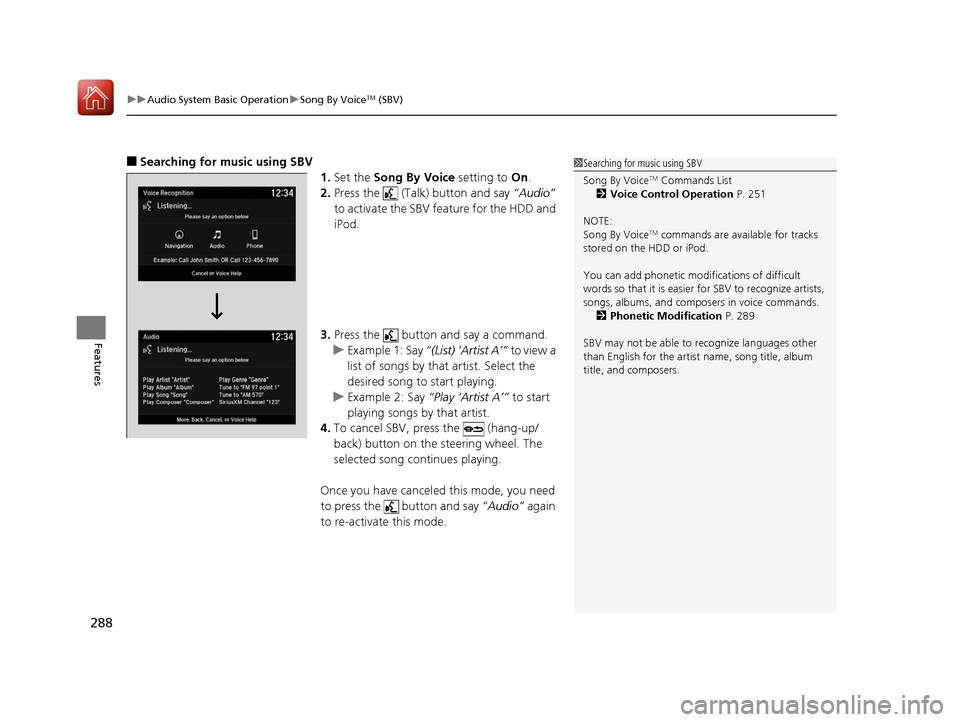
■Searching for music using SBV
1.Set the Song By Voice setting to On.
2. Press the (Talk) button and say “Audio”
to activate the SBV feature for the HDD and
iPod.
3. Press the button and say a command.
u Example 1: Say “(List) ‘Artist A’” to view a
list of songs by that artist. Select the
desired song to start playing.
u Example 2: Say “Play ‘Artist A’” to start
playing songs by that artist.
4. To cancel SBV, pr ess the (hang-up/
back) button on the steering wheel. The
selected song continues playing.
Once you have canceled this mode, you need
to press the button and say “Audio” again
to re-activate this mode.1 Searching for music using SBV
Song By Voice
TM Commands List
2 Voice Control Operation P. 251
NOTE:
Song By Voice
TM commands are available for tracks
stored on the HDD or iPod.
You can add phonetic modi fications of difficult
words so that it is easier for SBV to recognize artists,
songs, albums, and composers in voice commands. 2 Phonetic Modification P. 289
SBV may not be able to recognize languages other
than English for the artist name, song title, album
title, and composers.
18 ACURA MDX-31TZ56400.book 288 ページ 2017年8月23日 水曜日 午後4時1分
Page 290 of 697
Continued289
uuAudio System Basic Operation uSong By VoiceTM (SBV)
Features
Add phonetic modifications of difficult or fo reign words so that it is easier for SBV
to recognize artists, songs, albums, and composers in voice commands when
searching for music on the HDD or iPod. 1.Press the SETTINGS button.
2. Rotate to select System Settings,
then press .
3. Move or to select the Voice Reco.
tab.
4. Rotate to select Song By Voice
Phonetic Modification , then press .
5. Rotate to select New Modification,
then press .
6. Rotate to select HDD or iPod , then
press .
■Phonetic Modification1 Phonetic Modification
Song By Voice Phonetic Modification is grayed
out when Song By Voice is set to Off .
You can store up to 2, 000 phonetic modification
items.
18 ACURA MDX-31TZ56400.book 289 ページ 2017年8月23日 水曜日 午後4時1分
Page 291 of 697
290
uuAudio System Basic Operation uSong By VoiceTM (SBV)
Features
7. Rotate to select the item to modify
(e.g., Artist ), then press .
u The list of the selected item appears on
the screen.
8. Rotate to select an entry (e.g., No
Name ), then press .
u The pop-up menu appears on the
screen.
9. Rotate to select Modify, then press
.
u To listen to the current phonetic
modification, rotate to select Play,
then press .
u To delete the current phonetic
modification, rotate to select
Delete , then press .
10. Enter the phonetic spelling you wish to
use (e.g., “Artist A”) when prompted.
11. Select OK to exit.
u The artist “No Name” is phonetically
modified to “Artist A.” When in the SBV
mode, you can press the (Talk)
button and use the voice command
“Play ‘Artist A’” to play songs by the
artist “No Name.”
On Demand Multi-Use DisplayTM
18 ACURA MDX-31TZ56400.book 290 ページ 2017年8月23日 水曜日 午後4時1分


